- NLPs
 Retrieve Value in Text Element
- Capture Dropdown Elements
- Unable to Select Radiobutton
- Unable to Click Checkbox
- Clearing the Session or Cookies
- UI Identifier NLP
- Drag & Drop NLP
- Uploading Files NLP
- Use MySQL Addon in NLPs
- setup
- Server Docker Deployment Errors
- Secured Business Application Support
- Troubleshooting Restricted Access to Testsigma
- Why mobile device not displayed in Testsigma Mobile Test Recorder?
- Unable to Create New Test Session
- Agent Startup Failure Due to Used Ports
- Tests Permanently Queued in Local Executions
- Fix Testsigma Agent Registration Failures
- Testsigma Agent Cleanup
- Need of Apache Tomcat for Testsigma Agent
- web apps
- URL not accessible
- Test Queued for a Long Time
- Issues with UI Identifiers
- Missing Elements in Recorder
- Collecting HAR File
- Errors with Browser Session
- Page Loading Issues
- mobile apps
- Failed to Start Mobile Test Recorder
- Troubleshooting “Failed to perform action Mobile Test Recorder” error
- Why Test Execution State is Queued for a Long Time?
- Why Mobile App Keeps Stopping After Successful Launch?
- More pre-requisite settings
- Why am I not able to start WDA Process on iPhone?
- What are the Most Common causes for Click/Tap NLP Failure?
- How to Find App Package & Activity in Android?
- Cross-environment Compatible ID Locators (Android)
- Why Accessibility IDs Over other Locators?
- What are Common Android Issues & Proposed Solutions?
- How to Find the App Bundle ID for iOS?
- Developer Mode (iOS 16 & Above)
- How to Handle iOS App Compatibility Issues?
- How to Disable Play Protect for SMS Forwarder Installation?
- How to Capture Network Logs in an Android Application?
Troubleshooting Common Issues in Salesforce Testing
While testing applications built on Salesforce, you might face challenges that do not occur in traditional web applications. This is because security controls, session policies, and authentication rules are tightly enforced on the platform. As a result, executions may fail unexpectedly unless configurations are aligned correctly. This document discusses the most common issues faced while executing tests on Salesforce applications and provides actionable steps to resolve them quickly.
Authorization Failure
Symptoms:
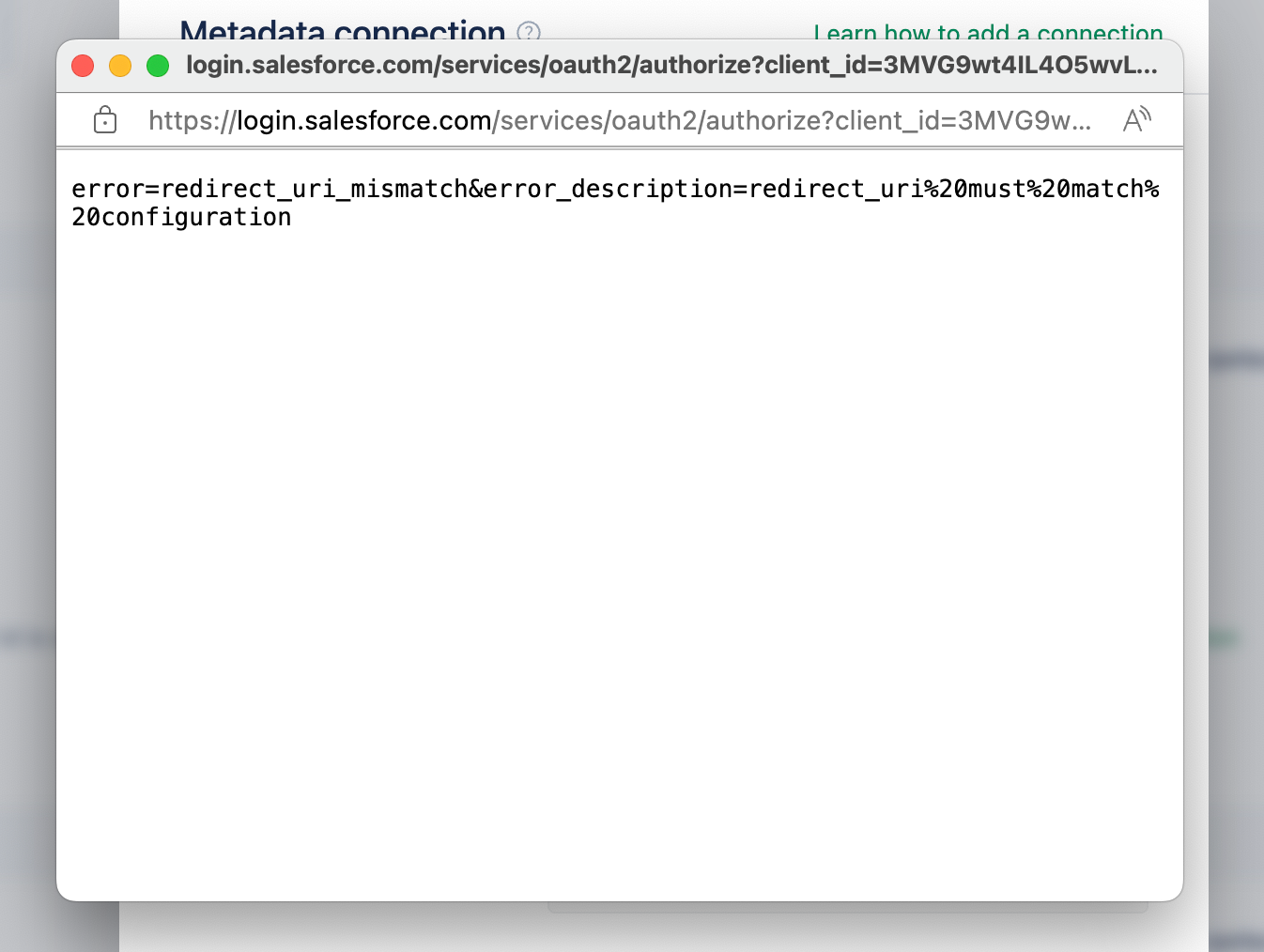
Possible Causes:
- ClientId and Secret are incorrect.
- Environment might be wrong (e.g., production vs. development).
- Callback URL is incorrect.
Steps to Resolve
1. Verify ClientId and Secret:
- Double check the ClientId and Secret provided by the service and ensure there are no typos.
- Regenerate the ClientId and Secret if necessary.
2. Check Environment Settings:
- Ensure the correct Environment is selected (development, staging, production).
- Confirm your application's configuration.
3. Check Callback URL:
- Ensure the Callback URL matches the service provider's settings and check if there are typos.
- Ensure your server is configured to handle the callback request.
4. Additional Notes:
- Ensure the application's permissions and scopes are set correctly while creating a connected app.
- Check network & firewall settings for blocks on the authorization endpoint.
For more information, refer to the documentation on creating a connected application.
Login NLP is Not Working
Symptoms:
Users can sync metadata but the login step fails.
Possible Causes:
- Salesforce Access Token and Refresh Token might have expired.
- The same connected app is being used by multiple users simultaneously.
- Users might have changed the connected app configuration in the Salesforce org.
Steps to Resolve
1. Re-authenticate Salesforce Connection:
- Try to authenticate the Salesforce connection again and obtain a new Access Token and Refresh Token.
2. Verify Connected App Settings:
- Check the connected app configuration in Salesforce and ensure all settings are correct.
3. Best Practices:
- Use different connections for different testing environments to avoid conflicts.
MFA Challenge
Symptoms:
Users can sync metadata but encounter an MFA challenge during the process.
Possible Causes:
- Salesforce org configuration needs verification.
Steps to Resolve
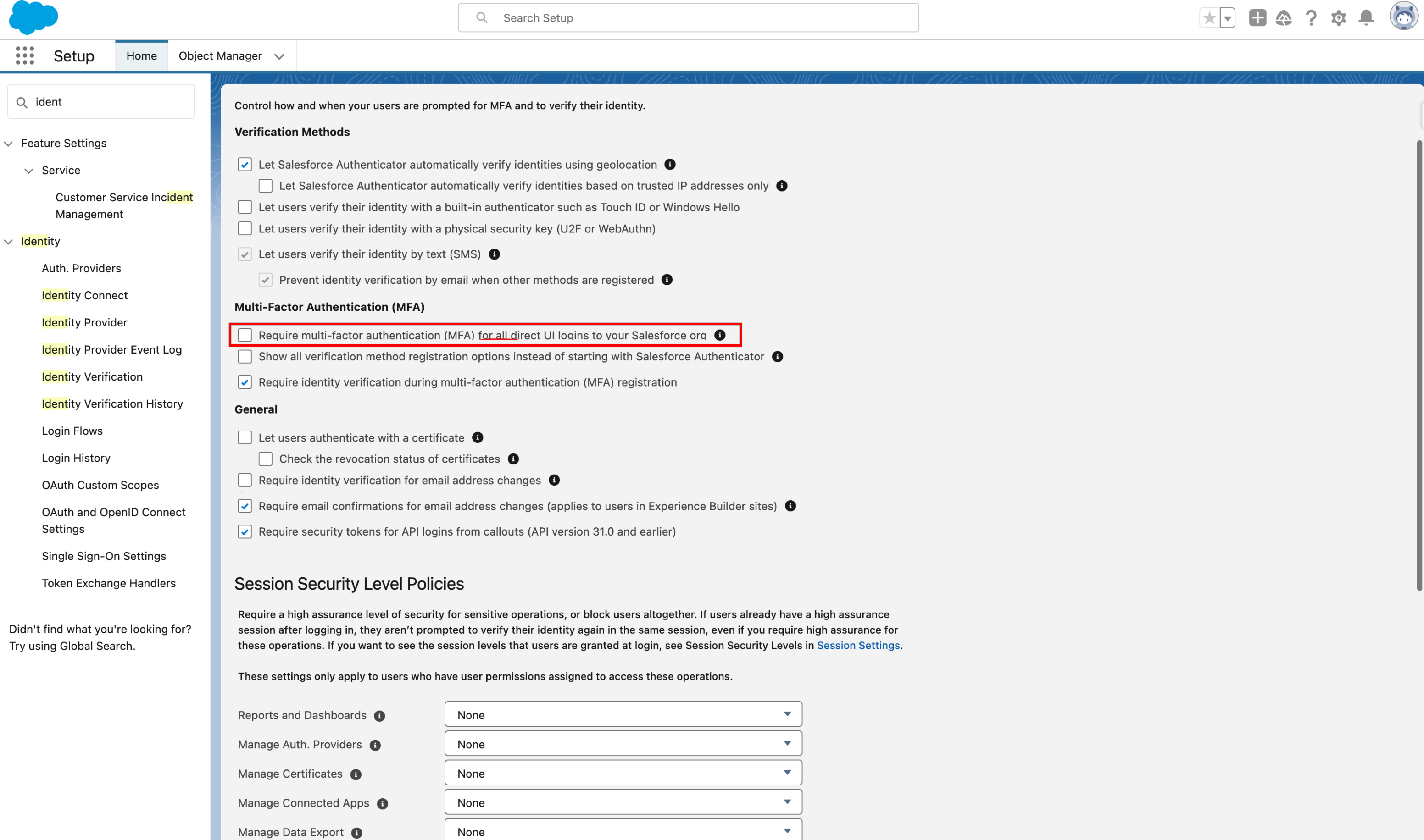
1. Disable Org Level MFA Configurations:
- Disable the Require multi-factor authentication (MFA) for all direct UI logins to your Salesforce org setting.
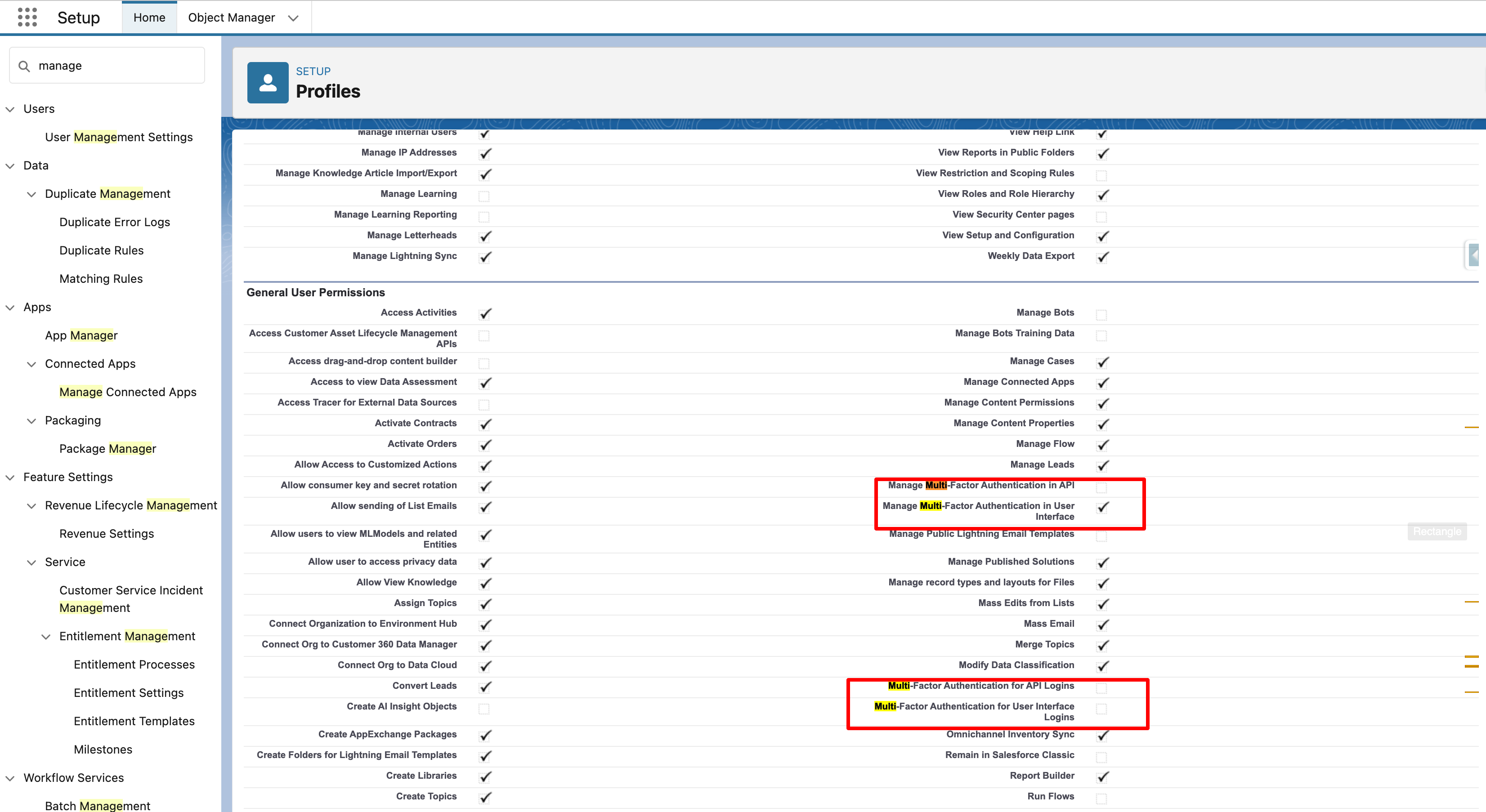
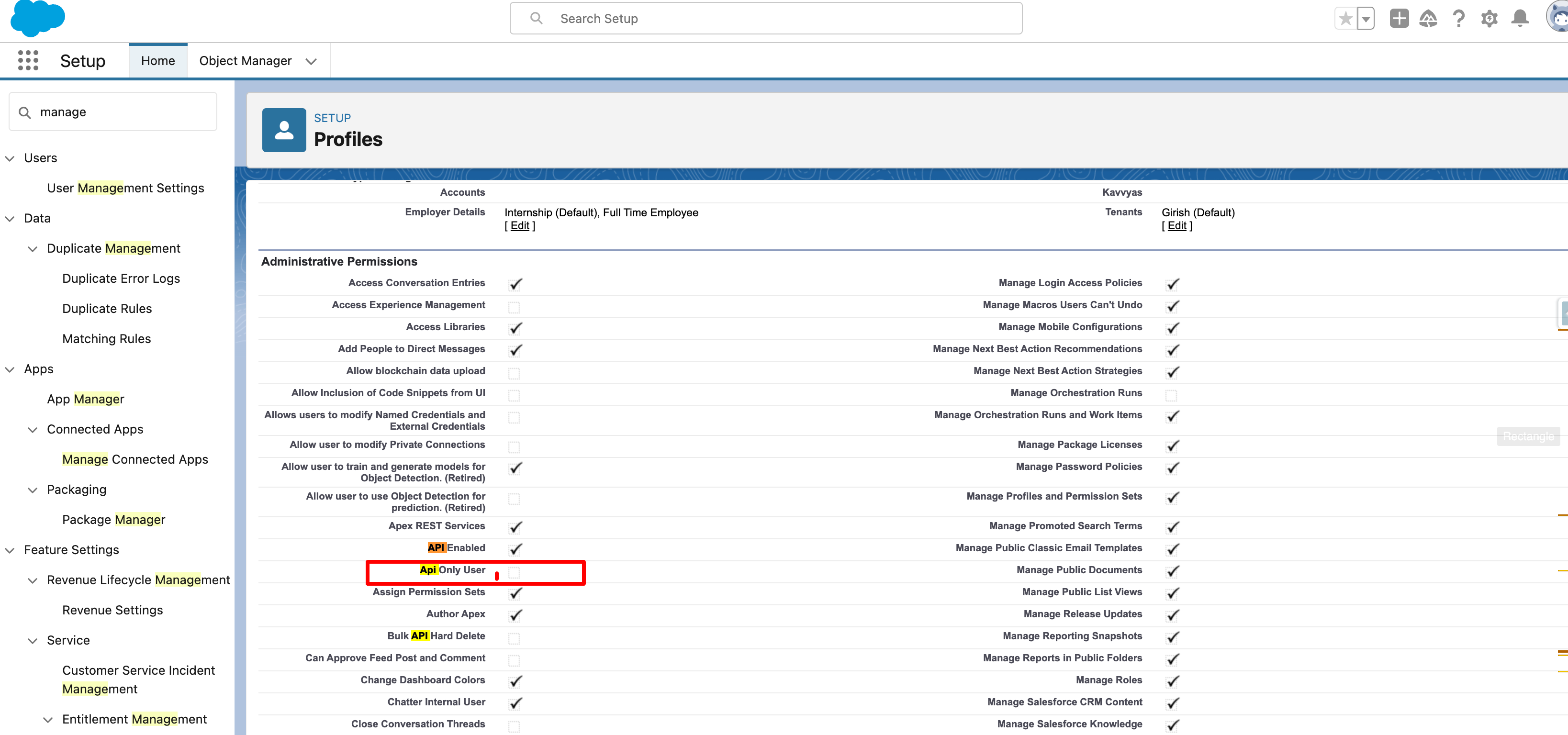
2. Disable User Level MFA Configurations:
-
Ensure that user-level MFA settings follow the required configuration. If not, adjust them accordingly by navigating to Account > Settings > Advanced User Settings > User Details > Profile
3. Best Practices:
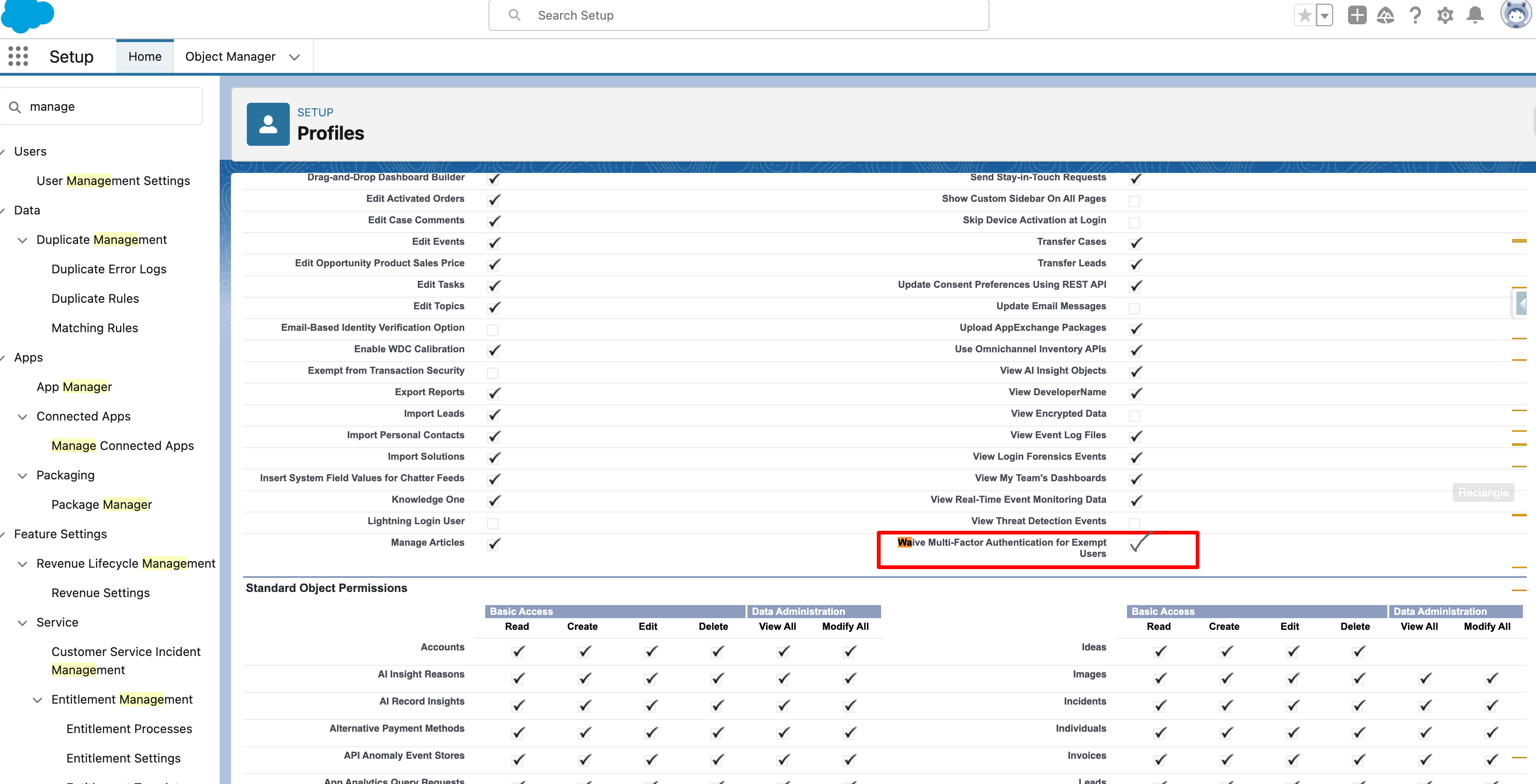
Waive MFA for Exempt Users:
- Ask customers to enable Waive Multi-Factor Authentication for Exempt Users in Salesforce.
Create a Permission Set for Automation Users:
- Create a new permission set specifically for automation users.
- Assign this permission set to users who are performing Salesforce authentication.
Execution Fails on Labs
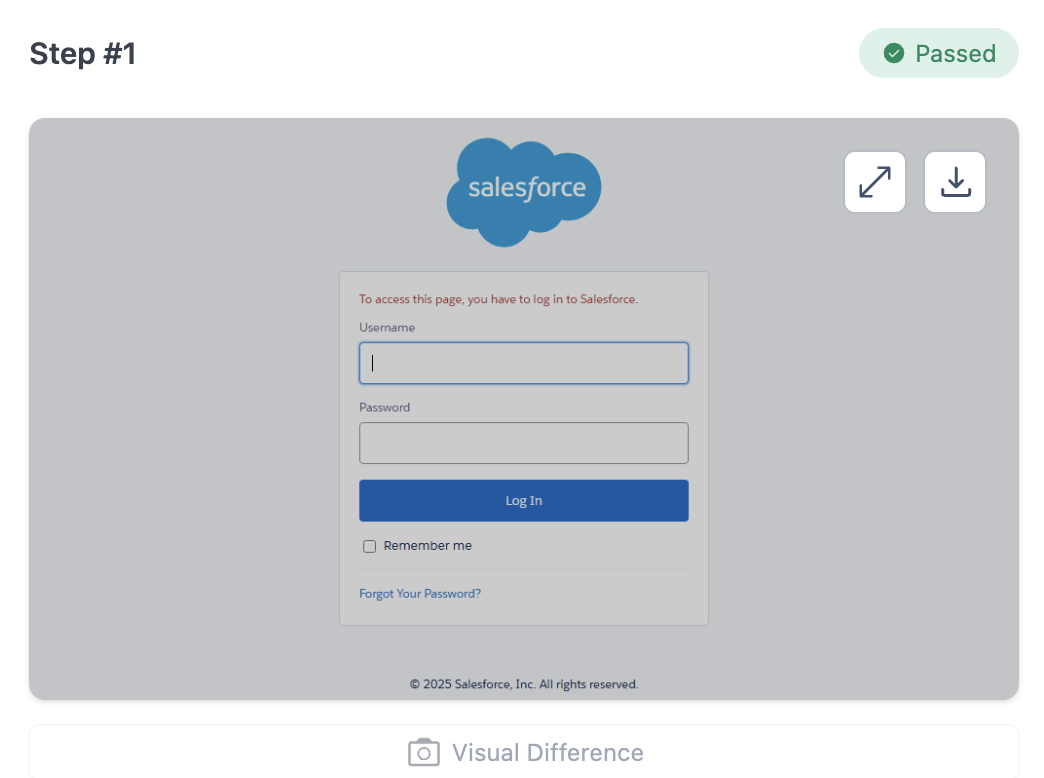
Cause:
The execution fails when the session is generated from a different machine but the execution is done on a different browser or environment, such as when a lab is selected. This mismatch results in Salesforce treating the session as invalid, leading to execution failure.
Steps to Resolve
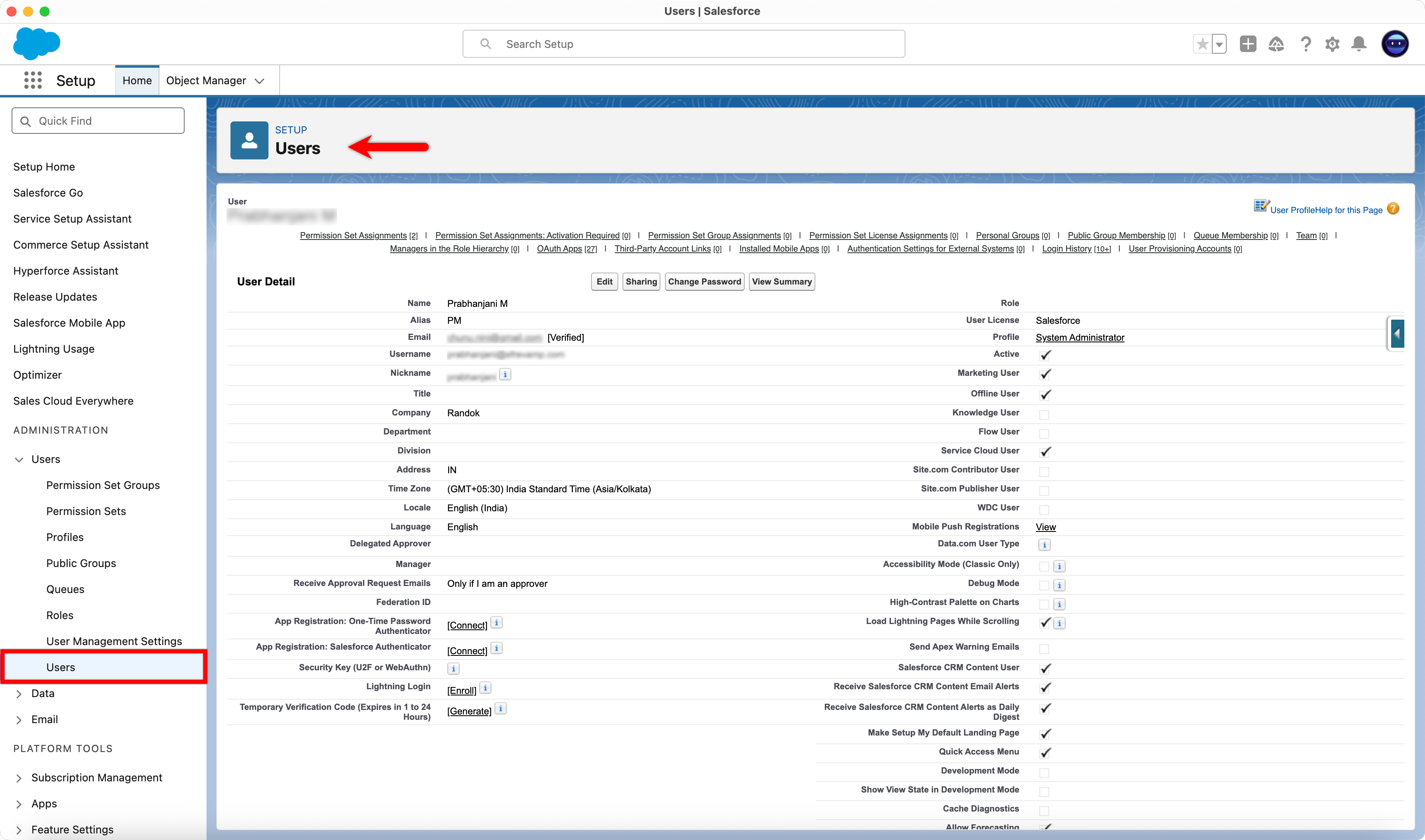
1. Verify User Privileges
Ensure the user executing the test has the same privileges as the System Administrator:
- Navigate to Setup > Quick Finder > Users.
- Click on the relevant user.
- In the User Detail section, check the Profile and compare it with the System Admin profile.
2. Execute via Local Agent
- Run the test case on a local agent.
- If the test executes successfully, the issue is related to Labs session handling.
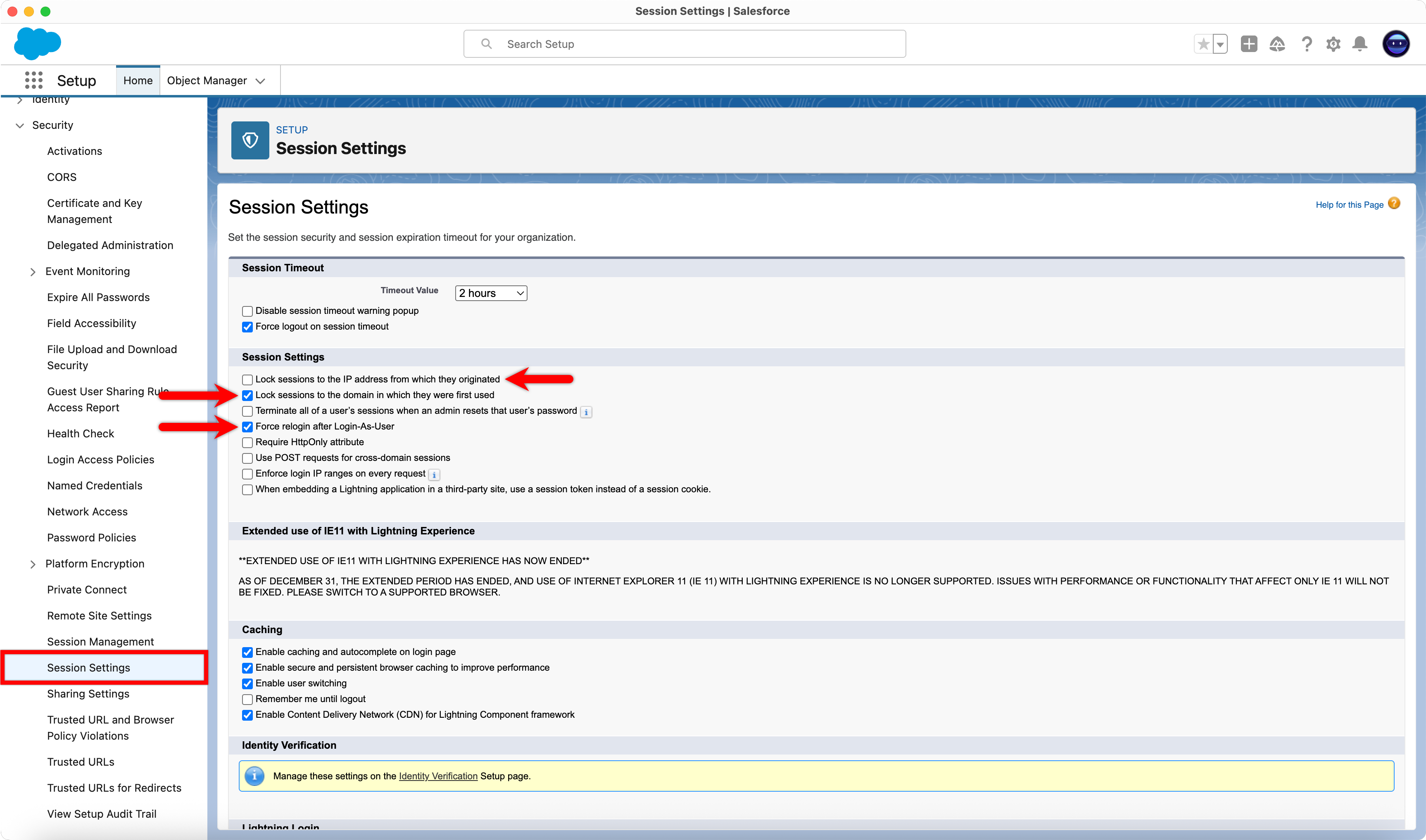
3. Update Session Settings (if issue is Labs-specific)
Navigate to Setup > Quick Finder > Session Settings and configure as follows:
- Disable: Lock sessions to the IP address from which they originated
- Enable: Lock sessions to the domain in which they were first used
- Enable: Force relogin after Login-As-User
MFA Dialog Appears During Execution
Cause:
Salesforce enforces Multi-Factor Authentication for users logging in from untrusted devices or sessions. When tests are executed via Labs or agents, the sessions are considered untrusted, triggering the MFA Dialog.
Steps to Resolve
Navigate to Setup > Quick Finder > Session Settings > Session Security Levels.
Update the following options:
- Remove: Multi-Factor Authentication (MFA) requirement
- Ensure: Passwordless Login is enabled
- Ensure: Username & Password login is enabled
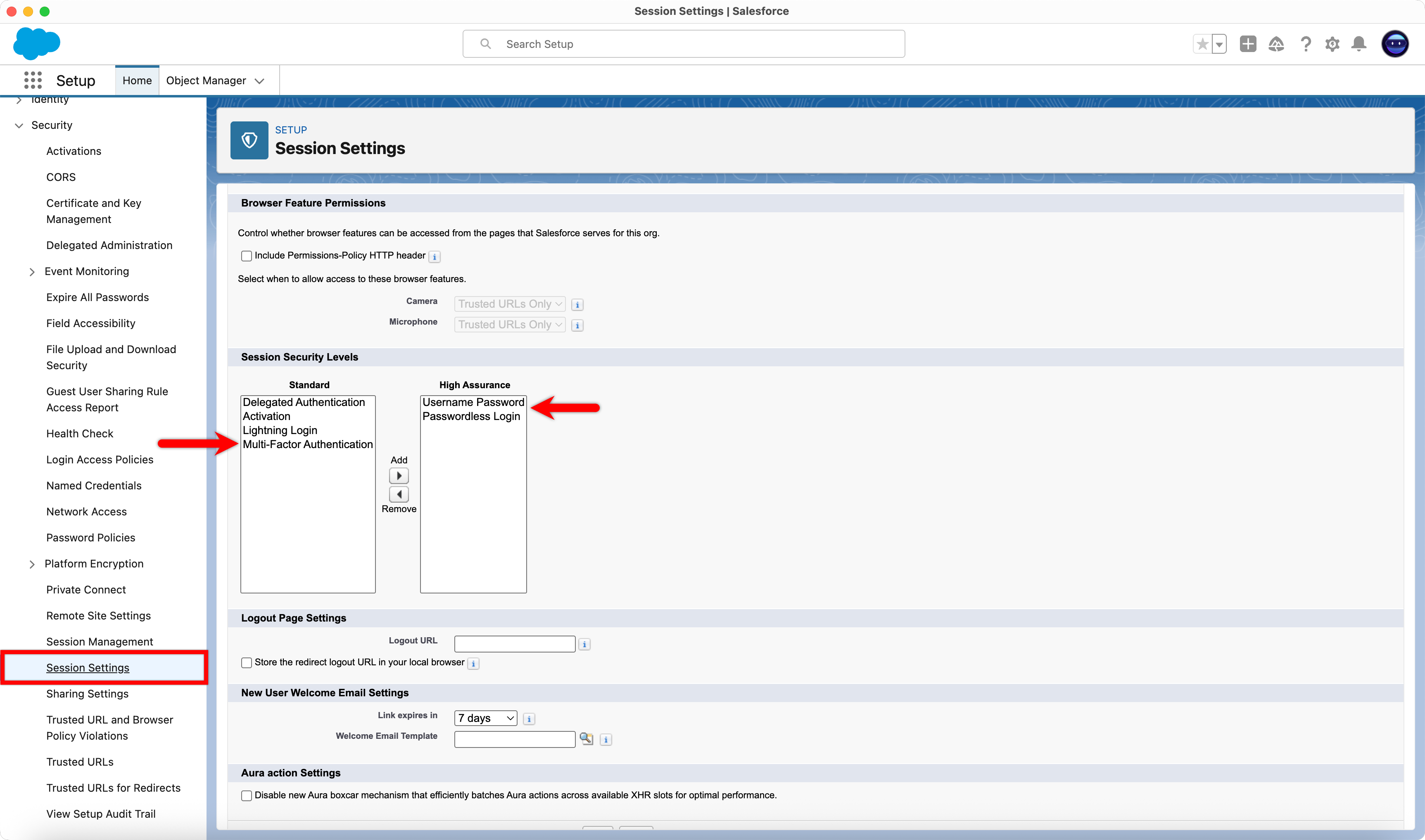
Configurations should match the screenshot in this reference guide.

Want to contribute or report missing content?