- Elements (Objects)
- Web Applications
 Record Single Element
- Record Multiple Elements
- Create Elements
- Supported Locator Types
- Formulating Elements
- Shadow DOM Elements
- Verifying elements in Chrome DevTools
- Handling iframe Elements?
- Create Image Based Elements
- Dynamic Locators using Parameter
- Dynamic Locators using Runtime
- Using Environment Test Data for Dynamic Locators
- Locating Dynamic Elements in Date Widget
- Freeze & Inspect Dynamic Elements (WebPage)
- Locating Dynamic Elements in Tables
- Import/Export Elements
- Locator Precedence (Web Apps)
- Verify Elements from Test Recorder
Supported Element Locator Types
Webpages offer many location mechanisms to search and locate elements on the page to interact with. The most prominent ones are XPath and CSS Selectors. This article discusses locators supported by Testsigma to create elements.
Supported Locators in Testsigma
- XPath
- CSS Selector
- Link Text and Partial Link Text
- ID
- Name
- Class Name
- Tag Name
1. XPath
XPath is a query language used to navigate through elements and attributes in an XML document. XPath locators are very powerful and flexible.
Any element on the page can be located using multiple XPath definitions and most other locators can be expressed as an XPath.
Example:
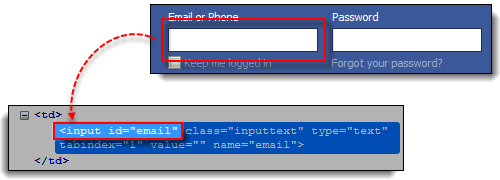
XPath for the Email field in the above image is //input[@id="email"]
For more information on dynamic element locators, refer to the documentation on dynamic element locators using Xpath and CSS Locators.
2. CSS Selector
CSS Selector is a string pattern used to identify an element based on a combination of HTML tag, id, class, and/or attributes.
Example:
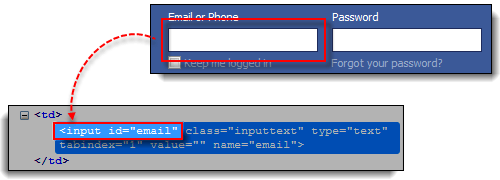
CSS Selector for the Email field using the ID is input#email
CSS Selector for the Email field using the Class name is input.inputtext
Also only a CSS selector can access elements present inside shadow DOM. For more information on shadow dom,refer to locating shadow DOM.
3. Link Text & Partial Link Text
Finding an element with Link Text/Partial Link Text is very simple. But make sure that the link text is unique on the web page. If there are multiple links with the same link text (such as repeated header and footer menu links), in such cases action will be performed on the first matching element with the link.
Example:
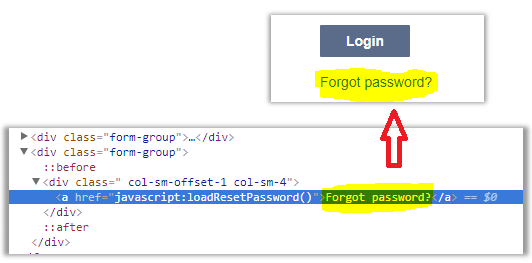
Link text of the element is “Forgot password?”
Partial link text of the element can be Forgot, password, or For
4. ID
ID is the most common way of locating elements since IDs are supposed to be unique for each element as per the W3C standard. If ID tags are available for an Element and they are unique, it is the most preferred option.
Example:
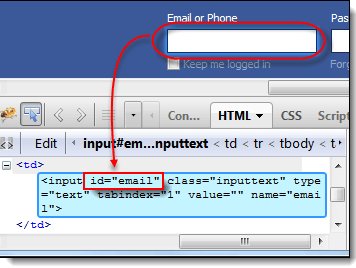
The ID of the element is “email”
5. Name
Locating elements by Name is very similar to locating by ID, except that we use the value of the name attribute instead of the ID. And moreover, name attributes are not strictly unique.
Example:
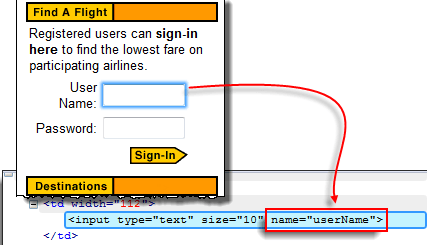
The name of the element is “userName”
6. Class Name
Class name locator selects the element which matches the values specified in the attribute name “class”.
Example:
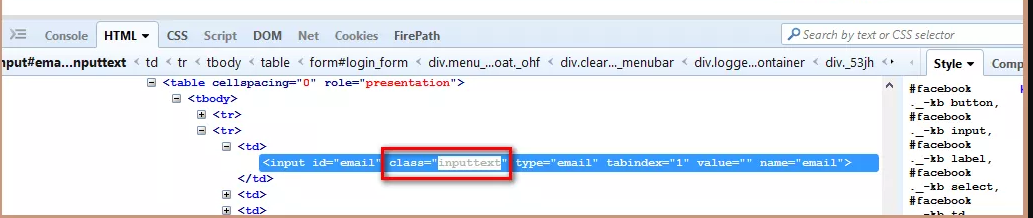
The class name of the element is “inputtext”
7. Tag Name
Tag Name locator is used to find the elements matching the specified Tag/Type Name. It is very helpful when we want to extract the content within a Tag.
Example:

The tag name of the element is “input”

Want to contribute or report missing content?