
Generate Test Cases for Android & iOS
You can generate test cases for android and iOS applications using Testsigma’s GenAI capabilities. This helps you accelerate testing efforts by reducing manual effort and enabling faster test coverage. You can provide multiple input sources such as Jira stories, Figma designs, Xray requirements, video recordings, and other file formats like images and PDFs. This article discusses generating test cases for android and iOS apps using Gen AI capabilities in Testsigma.
Prerequisites
Before you begin, ensure that,
- Your Figma account is integrated with Testsigma.
- You have referred to the documentation on creating test cases.
- You have referred to the documentation on creating projects.
Steps to Generate Test Cases
- From the left navigation bar, go to Atto’s Home.
- Click Generate with AI.
- In the Generate Test Cases section, select Figma Designs.
-
In the Figma Designs dialog,
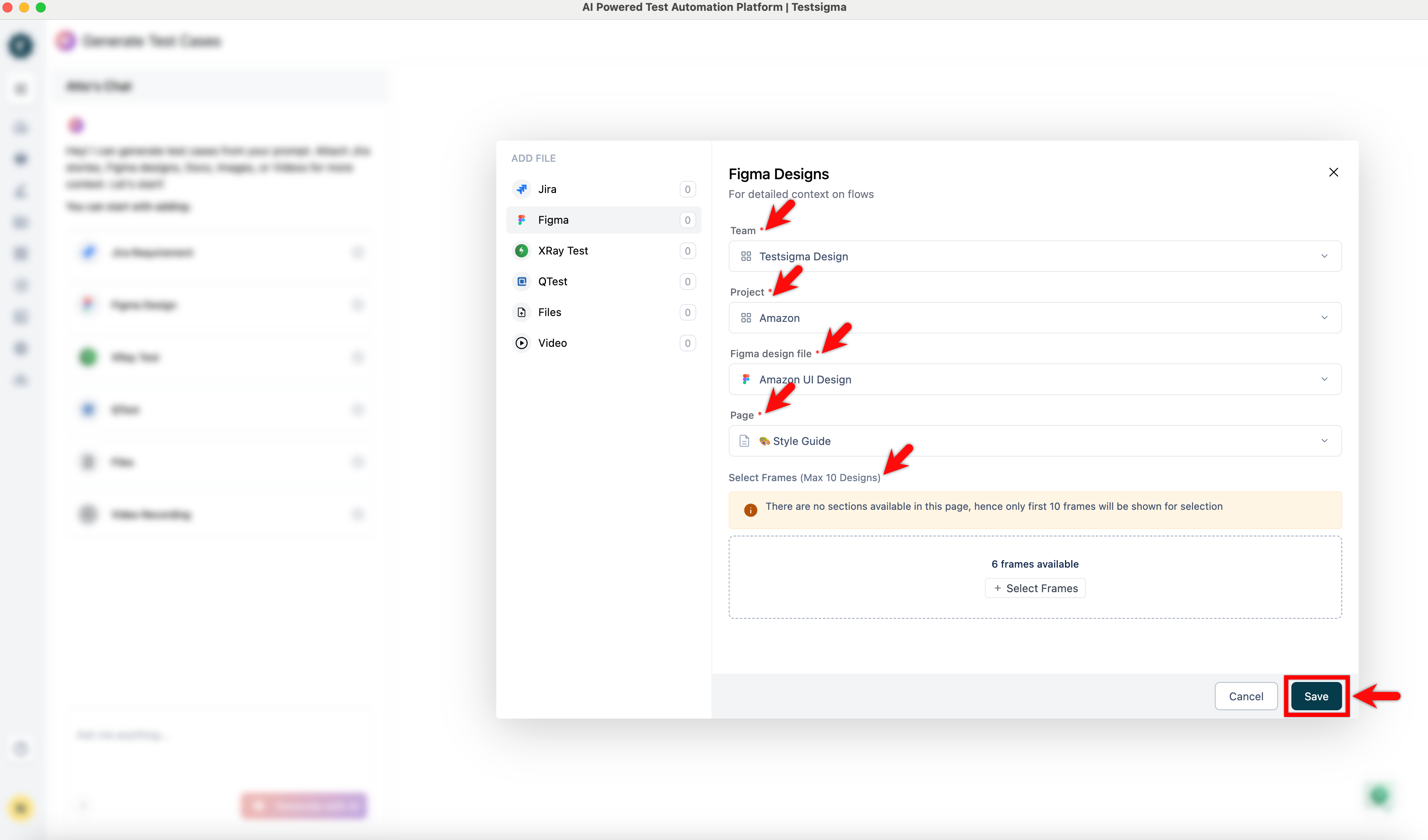
- Select a Team, Project, Figma File, Section and Page from the respective dropdown menus.
- Click + Select Frames, select the required frames in the Select Frames screen, and click Add Frames.
- If you want to remove all the selections that you have made, click Clear Selection.
NOTE:
- If the selected page has no Sections, you can directly select the frames.
- The maximum limit for selecting frames is 10.
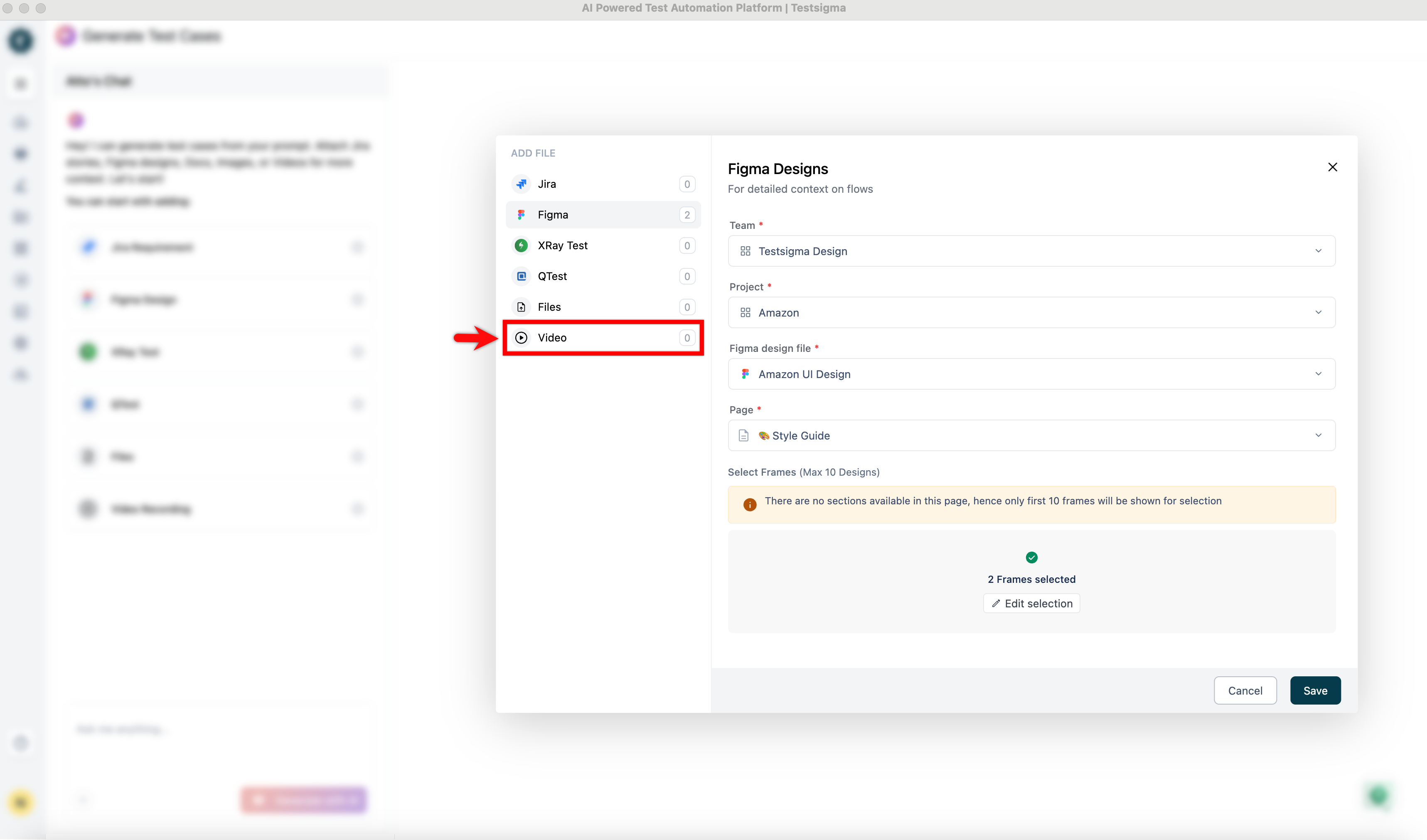
- In the Figma Designs dialog, click Video from the ADD FILES menu.
- In the Video Recording dialog, click Add Files.
- Select a video file and wait for the upload to complete.
- Once the video is loaded, click Save.
- Click Save again.
- In the Prompt box, enter a detailed prompt that describes test cases want to generate.
- The Read existing test case library checkbox is selected by default. Clear this checkbox if you do not want the system to consider existing test cases while generating new ones.
NOTE:
- Once the Read existing test case library option is enabled, it cannot be unselected during the same session. The selection remains applicable throughout the session. However, you can enable this option at any time during a session if it was not selected earlier.
- Click Generate with AI.
- Wait for Generator Agent to generate multiple test cases based on the selected inputs.
Next Steps
- After the test cases are generated, expand a category and select a test case.
- In the Test Case Details dialog, go to the Manual Steps tab and review the generated steps.
- Click Edit to manually add a step or block, or to modify existing steps.
- If you want to refine the steps using Atto, enter a prompt and click Refine manual steps.
- Click Generate Automated Steps to convert the manual steps into NLP-based automated steps.
- To execute the test before saving, hover over Run with Copilot and select the environment where you want to run the test steps. Copilot executes the steps automatically. Review the results to ensure everything works as expected, then click Save to Library to save the test case to your project.
- To save the test directly, click Save to Library. In the Select Location dialog box, expand the required Feature and select the Scenario where you want to save the automated test case.
NOTE:
- To learn about Agentic Learning, please refer to the documentation on Generator Agent.
- To understand the difference between Run with Copilot and Agentic Learning, please refer to the documentation on Run with Copilot vs Agentic Learning.
NOTE:
- To learn about Agentic Learning, please refer to the documentation on Generator Agent in Testsigma.

Want to contribute or report missing content?