- Testsigma Agent
 Pre-requisites
- Setup: Windows, Mac, Linux
- Setup: Kubernetes (Helm)
- Setup: Android Local Devices
- Setting Up iOS Local Devices
- Arguments Usage Details
- Agent Upgrade Guide
- Update Agent Manually
- Update Drivers Manually
- Delete Corrupted Agent
- Delete Agents: Soft & Permanent
- Triggering Tests on Local Devices
- FAQs
- troubleshooting
- How to Fix Agent Startup & Registration Errors?
- How to Configure Agent Logs?
- How to Upgrade Testsigma Agent Automatically?
- How to Add Max Sessions for Agents?
- How to Resolve Access Blocked Errors When Downloading the Agent?
- Why is Testsigma Agent Not Detecting My Installed Browser?
- How do I Configure Proxy Settings for the Testsigma Agent?
Update browser drivers for Testsigma agent manually
During a local execution, Testsigma agent communicates with the Web Browser installed on your machine using the driver files specific to the respective browser. Driver files for all the popular browser versions are included in Testsigma Agent automatic updates.
Why is updating the browser driver files necessary?
Sometimes, the update fails, due to bad network conditions or Firewall restrictions. You might need to manually download the driver files specific to your Web Browser and Operating System and place them in the correct directory within the Testsigma Agent directory.
Location of driver files
Driver files are located under the following directories for the different Web Browsers:
- Google Chrome: < TestsigmaAgentDirectory >/drivers/googlechrome
- Edge: < TestsigmaAgentDirectory >/drivers/edge
- Mozilla Firefox: < TestsigmaAgentDirectory >/drivers/mozilla
- InternetExplorer: < TestsigmaAgentDirectory >/drivers/internetexplorer
The InternetExplorer folder is present only for Windows version of the Agent
Downloading the driver files
When new browser versions are released, a newer driver version will be released on SeleniumHQ Downloads page.
And here are the direct links to WebDrivers of the most popular Browsers:
- Firefox - GeckoDriver (Hosted on Github)
- Chrome - ChromeDriver (Hosted on Google Sites)
- Microsoft Internet Explorer - InternetExplorerDriver
- Microsoft Edge - Edge Driver
Adding drivers manually
We just need to download the corresponding file from the above link and place it in the correct directory.
For example, let us assume that the installed version of the Google Chrome browser is v93 and a new version v94 is released today. When a new Browser version is released, a new browser driver version will also be released shortly.
In case the recent Agent update didn’t include driver v94, we need to do the following steps to add the browser driver manually:
- Download the driver file for v94 from the above link.
- Check if a folder named ‘94.0’ is present in the corresponding browser folder i.e googlechrome in this case within the drivers folder. If not present, create a directory named 94.0 there.
In the case of the Firefox Browser driver, the folder names follow a certain pattern where 0.x.x is renamed as 0.xx
For example, if the browser driver version is 0.29.1, the driver folder name within Testsigma Agent should be ‘0.291’.
Similarly, for browser driver version 0.29.0, the driver folder name should be 0.290
- Place the downloaded driver file in the newly created folder. The driver file will have a .exe extension for Windows and no extension for Linux/Mac.
You can skip the next section to the end if you are on Windows Machine.
Additional steps for Mac or Linux
Apart from the above steps, there are some additional steps to be performed to avoid permission issues in Mac or Linux. This is due to the presence of executable bit permission for Unix-based Operating Systems.
After placing the downloaded driver in the newly created folder, we need to perform the following steps:
- Open Terminal and navigate to the drivers folder. cd /Users/renju/TestsigmaAgent/drivers
- Run the below command to add executable permission to all the driver files including the newly added driver file chmod -R u+x ./*
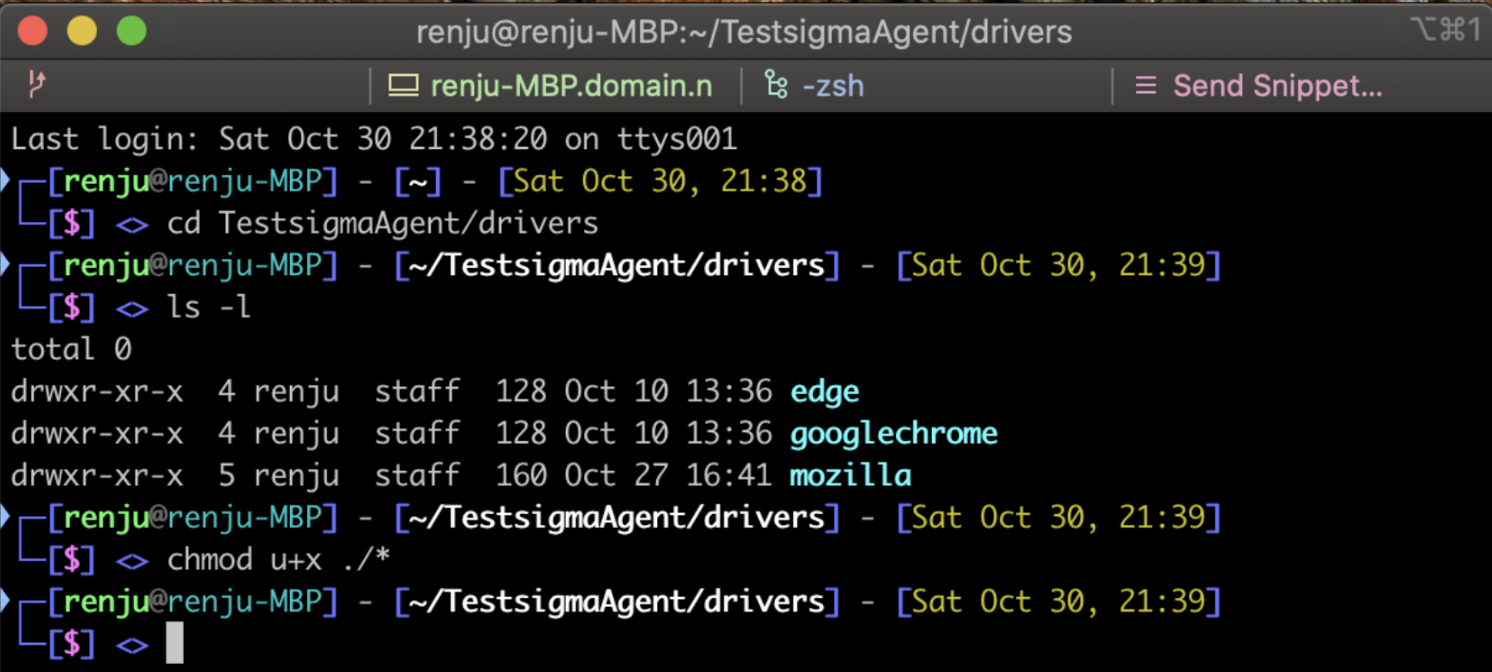
Once that is done, you can start executing tests on the newest version of the corresponding Browser. You can follow the same directions for other browsers as well.

Want to contribute or report missing content?