- desktop automation
 Introduction: Desktop Automation
- Create Projects and Applications
- Selective Element Recorder
- Batch Element Recorder
- Creating Test Cases for Desktop Automation
Selective Element Recorder for Desktop Automation
Capture UI elements one at a time in a desktop application using the Selective tab of the Element Recorder. Recorded elements appear in a hierarchical tree along with their properties and can be used while creating test steps.
Prerequisites
Before you begin, ensure that:
- A Desktop project and an application exist in Testsigma. See creating projects and creating applications.
- Testsigma Terminal is installed on your Windows system.
- The WinTest Automation folder exists in the Testsigma Agent directory.
- The Windows application you want to record is open on your device.
Steps to Record Elements Using the Selective Tab
- From the left navigation bar, go to Create Tests > Elements.
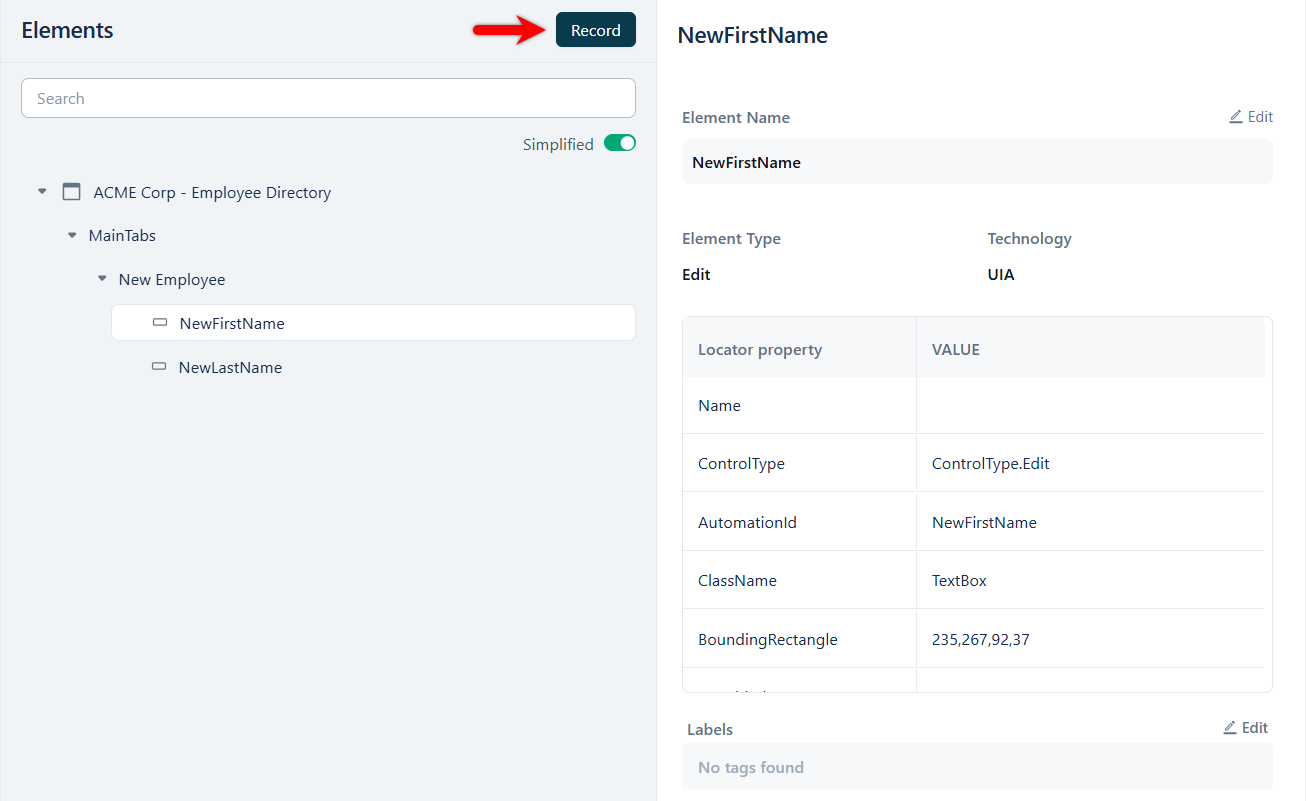
- On the Elements list page, click Record.
- In the Select application window, select the desktop application you want to record against.
NOTE:
Only applications running on your device are listed. Use the search field to filter the list, or click the refresh icon to reload it after opening a new application.
- Click Start recording. The Element Recorder opens on the Selective tab, with the application name displayed in the recorder header.
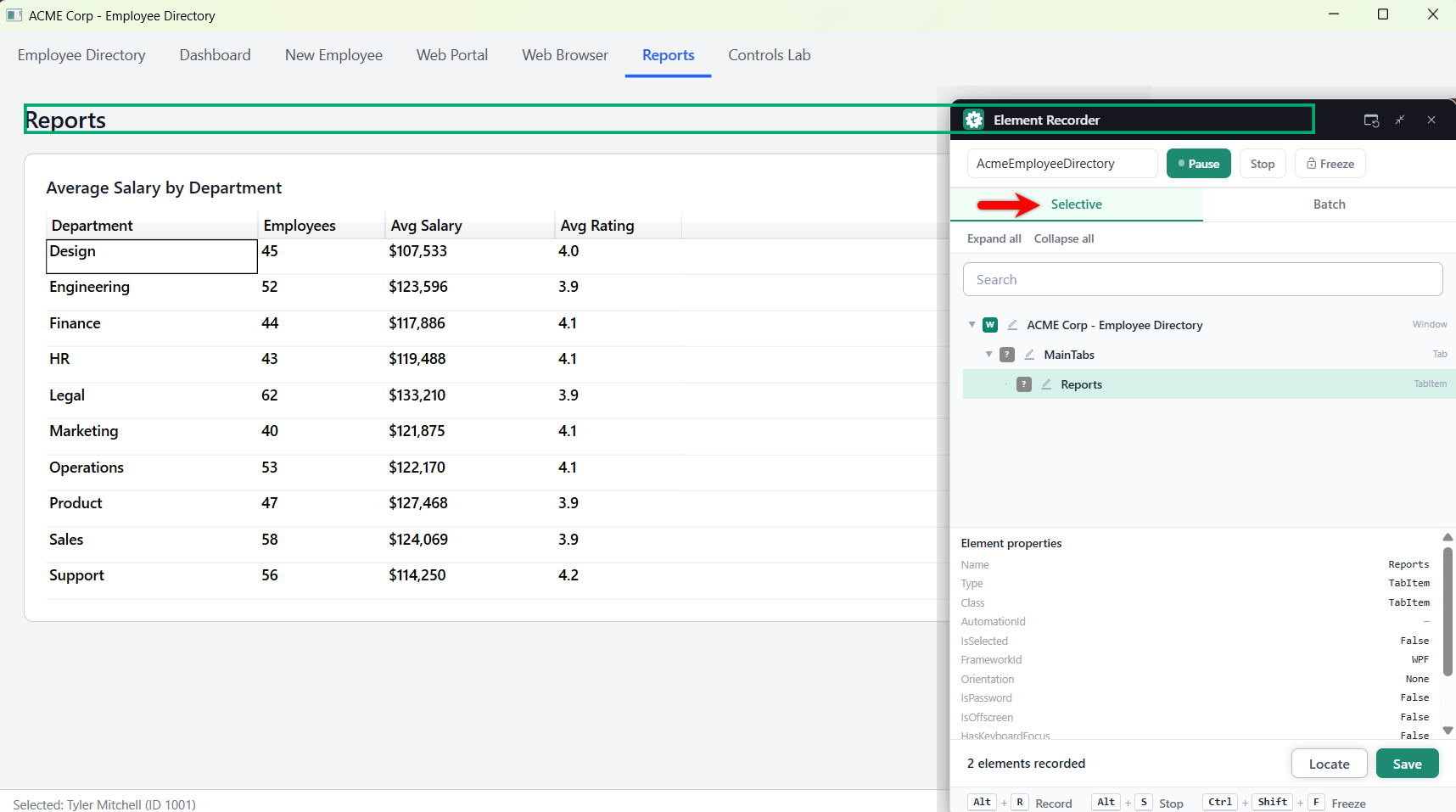
- Hover over an element in the application until it is highlighted in green, then click it to capture it.
NOTE:
To capture elements that disappear on hover, such as menus and dropdowns, click Freeze or press Ctrl+Shift+F to hold the current UI state, then click the element.
- Select a captured element in the tree to view its details in the Element properties panel.
- Click Locate to highlight the selected element in the application window.
- Click Save. The recorded elements are listed under Create Tests > Elements.
Element Recorder Controls
| Control | Description |
|---|---|
| Selective / Batch | Switches the capture mode. Switch to Batch to capture every element in the current window without relaunching the recorder. |
| Pause | Pauses capture. The application stays open and recorded elements are retained. |
| Stop | Ends the recording session. |
| Freeze | Holds the current UI state so transient elements such as menus and dropdowns can be captured. |
| Expand all / Collapse all | Expands or collapses the full hierarchy of recorded elements. |
| Search | Filters the recorded element tree by name. |
| Element properties | Displays the properties of the selected element, such as Name, Type, Class, AutomationId, and FrameworkId. |
| Locate | Highlights the selected element in the application window. |
| Save | Saves the recorded elements to the Elements list. |
The recorder footer displays a running count of captured elements, such as 2 elements recorded.
Keyboard Shortcuts
| Shortcut | Action |
|---|---|
| Alt+R | Record |
| Alt+S | Stop |
| Ctrl+Shift+F | Freeze |

Want to contribute or report missing content?