- Testsigma Agent
 Pre-requisites
- Setup: Windows, Mac, Linux
- Setup: Kubernetes (Helm)
- Setup: Android Local Devices
- Setting Up iOS Local Devices
- Arguments Usage Details
- Agent Upgrade Guide
- Update Agent Manually
- Update Drivers Manually
- Delete Corrupted Agent
- Delete Agents: Soft & Permanent
- Triggering Tests on Local Devices
- FAQs
- troubleshooting
- How to Fix Agent Startup & Registration Errors?
- How to Configure Agent Logs?
- How to Upgrade Testsigma Agent Automatically?
- How to Add Max Sessions for Agents?
- How to Resolve Access Blocked Errors When Downloading the Agent?
- Why is Testsigma Agent Not Detecting My Installed Browser?
- How do I Configure Proxy Settings for the Testsigma Agent?
Setting Up iOS Local Devices
Testsigma allows you to run tests on your local iOS devices in addition to Testsigma Cloud machines/devices. Step by step guid for running the tests on iOS Local Devices.
Prerequisites
Before you begin, ensure that you have referred to:
Setup Instructions:
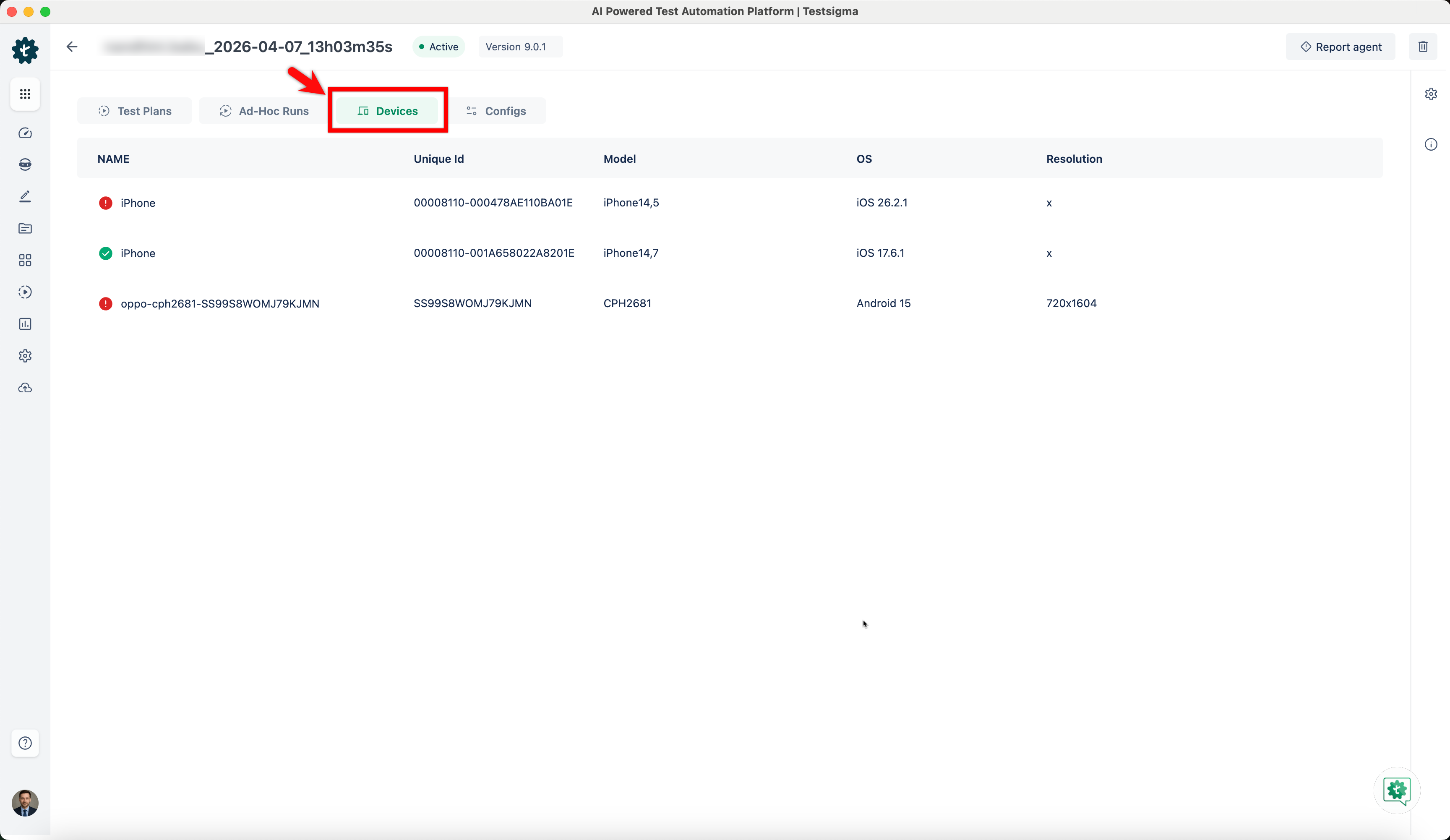
- From the left navigation bar, go to Agents and select an agent.
- Under Devices, you can see the device name that is connected to the registered agent.
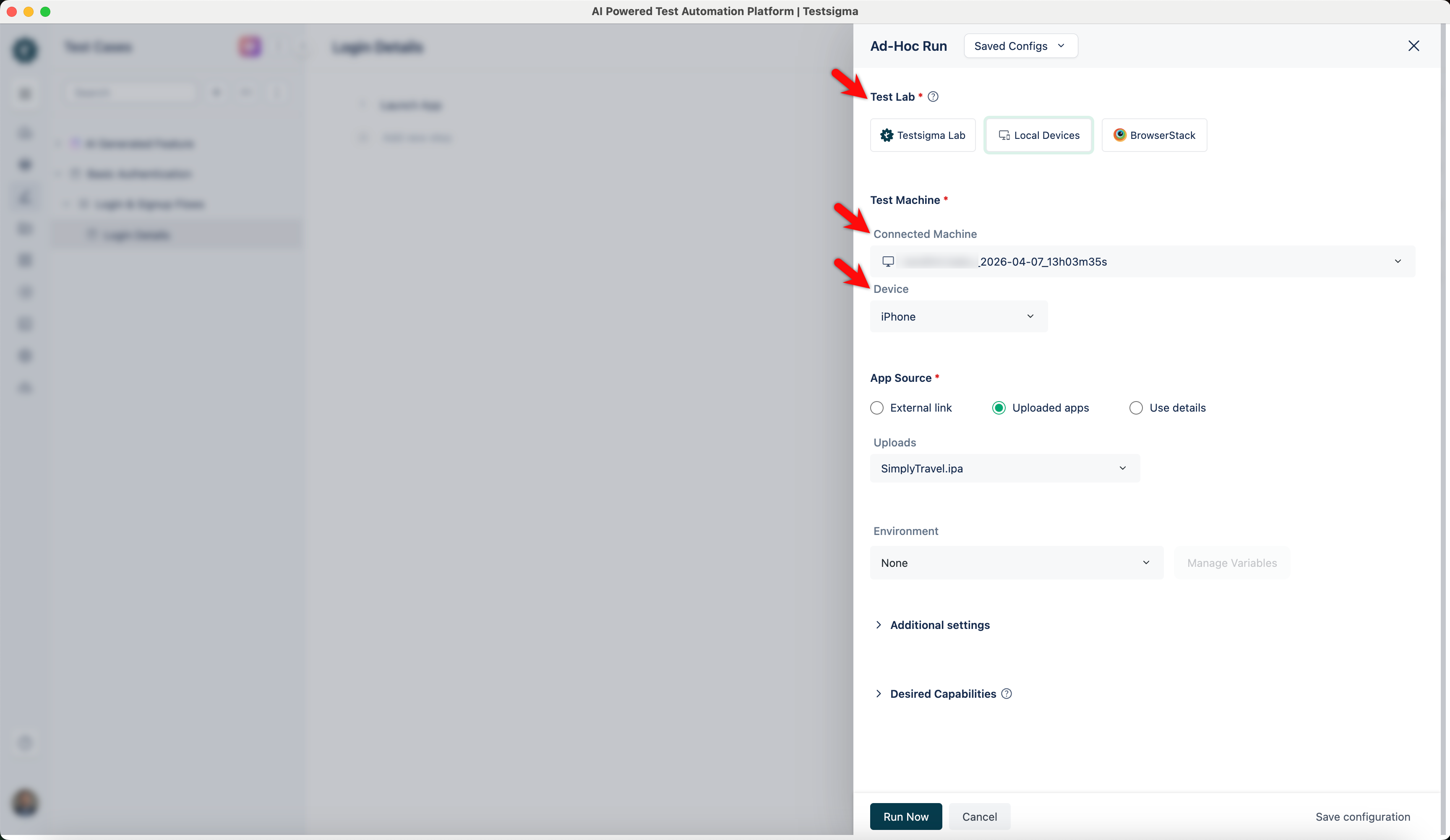
- To execute iOS tests on this device, you can select Local Devices as Test Lab and select the required machine and device under Test Machine.
NOTE:
For more info on executing Tests on local devices, refer to:

Want to contribute or report missing content?