
Copilot in Web Recorder
Testsigma Copilot redefines test automation with the power of generative AI 🤖.
- You can effortlessly create diverse test scenarios with a single click.
- Generate detailed test steps that accurately mimic real-world user behavior with the right UI elements and complex user interactions.
- Create a comprehensive test case using simple prompts.
Prerequisites
Before you begin, ensure that:
- You have enabled AI features from Settings > Preferences > Generative AI features.
- You have referred to the documentation on creating test cases.
Steps to Generate Test Cases
- From the left navigation bar, go to Create Tests > Test Cases.
- In the Test Case Explorer section, expand the required feature and click the ‘+’ icon next to the target scenario. This will open a dialog box.
- On the dialog box, validate the target feature and scenario, enter the name in the test case name input box, and click Create.
-
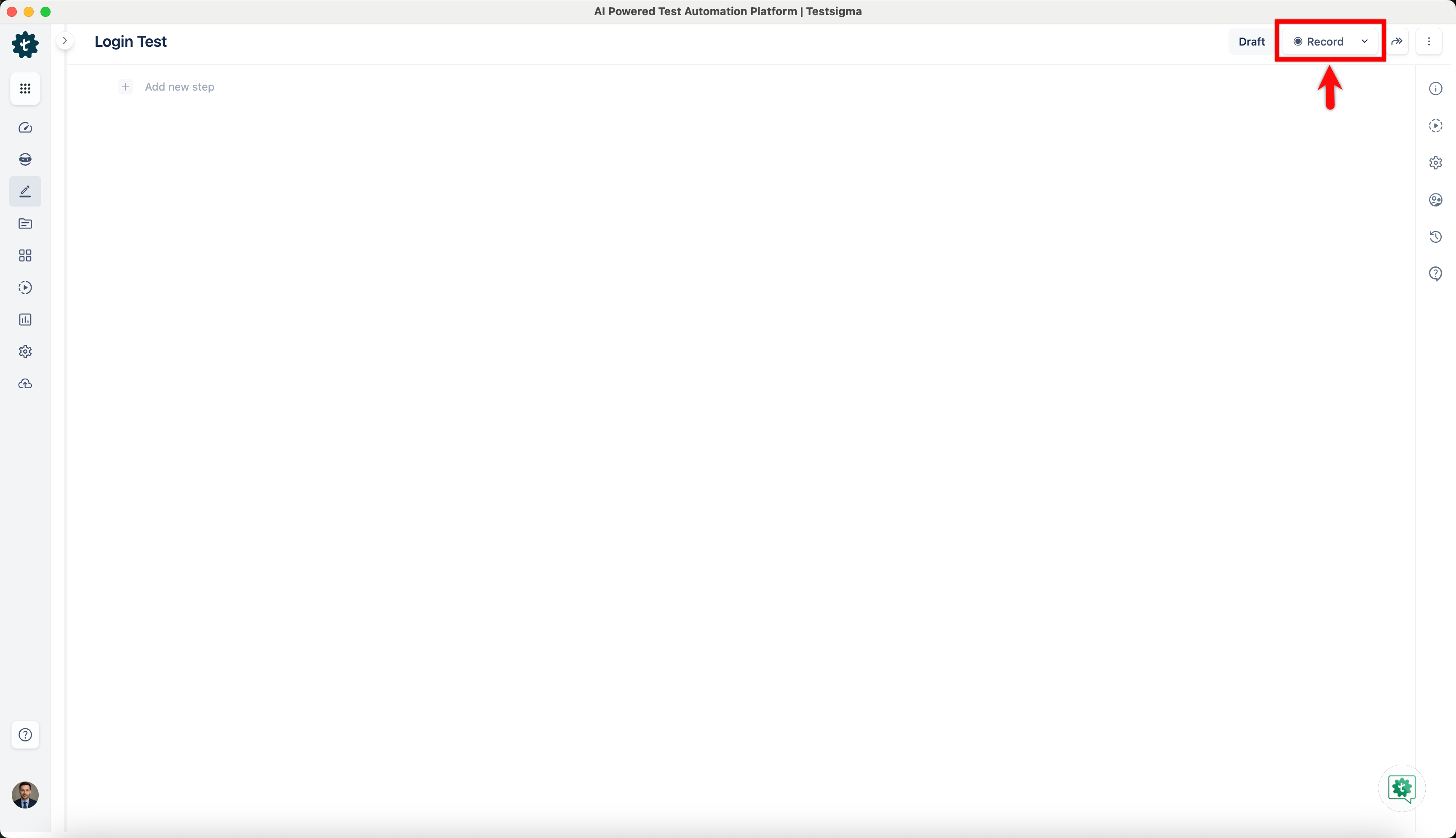
On the Test Case Details page, enter a name for the test case and click Record in the top-right corner. A new window will open.
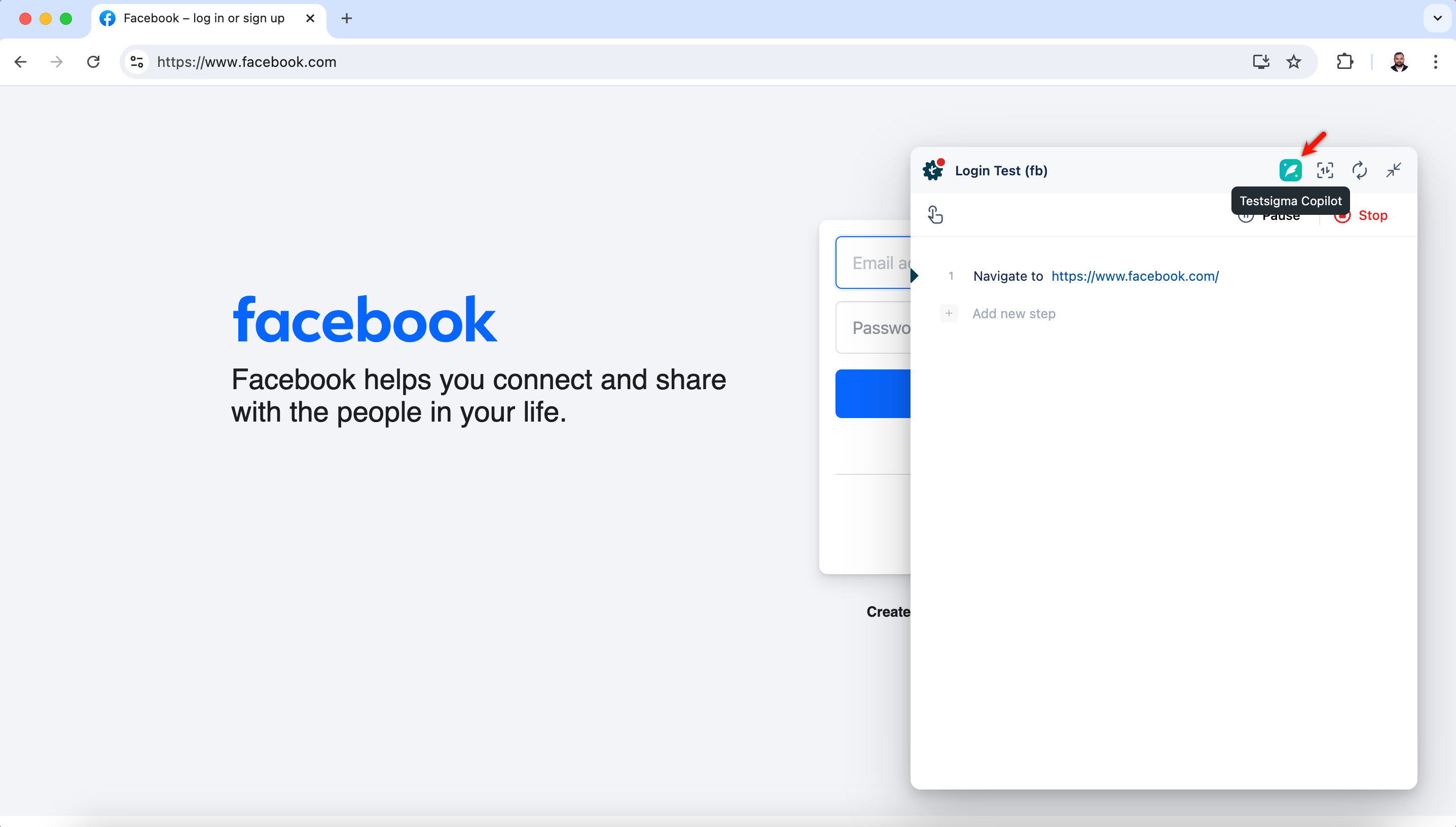
- In the opened window, input the URL of the web page from which you want to generate test scenarios. The Testsigma Recorder will activate and prepare for recording.
- Click Testsigma Copilot.
-
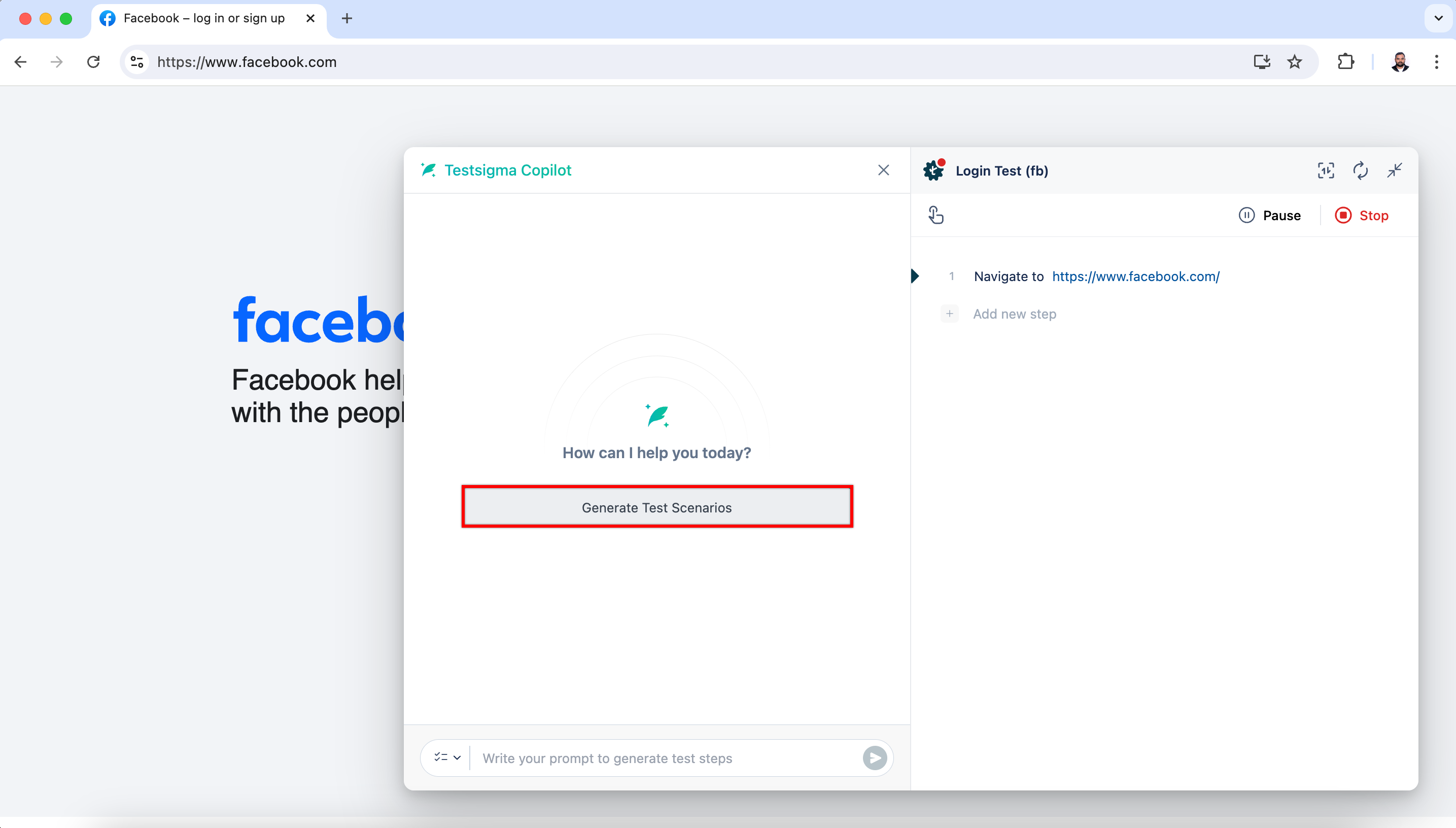
Click Generate Test Cases in the Testsigma Copilot overlay. The Testsigma Copilot will start generating test scenarios based on the current page content.
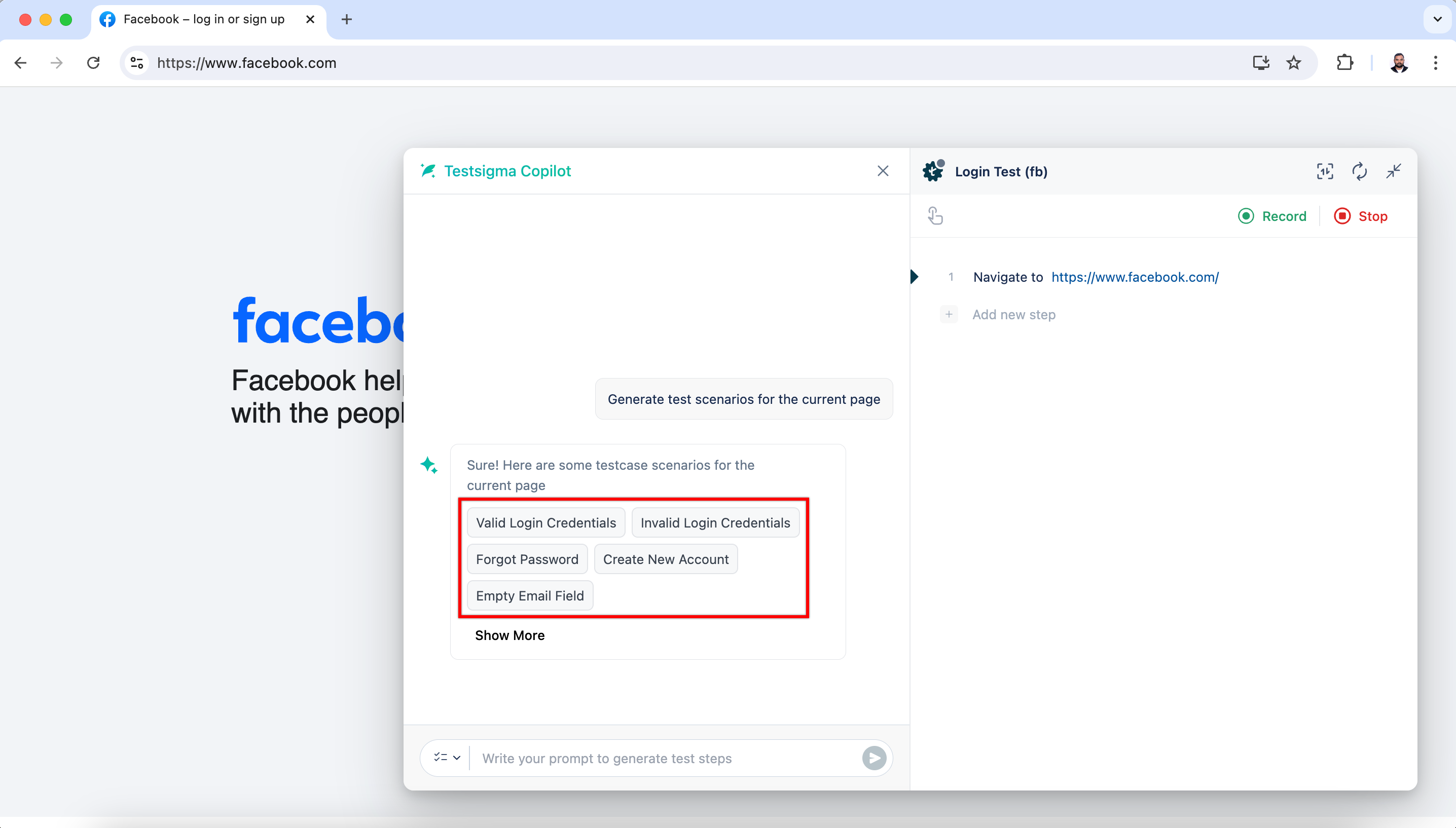
- Wait until the test scenarios are generated.
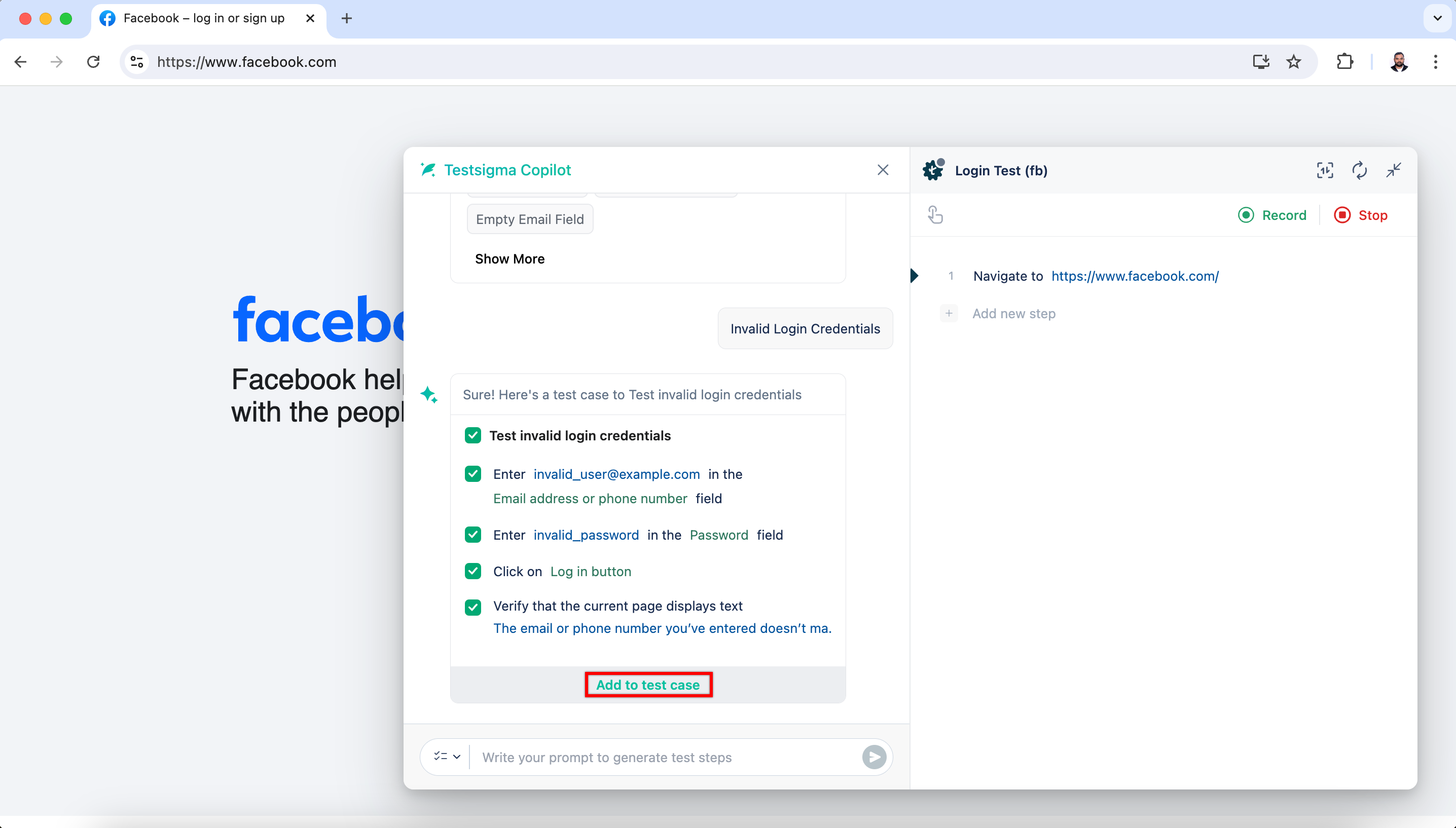
- Click on any generated test case scenario to view its corresponding test steps.
- Click Add to test case to import the displayed test steps into the recorder.
-
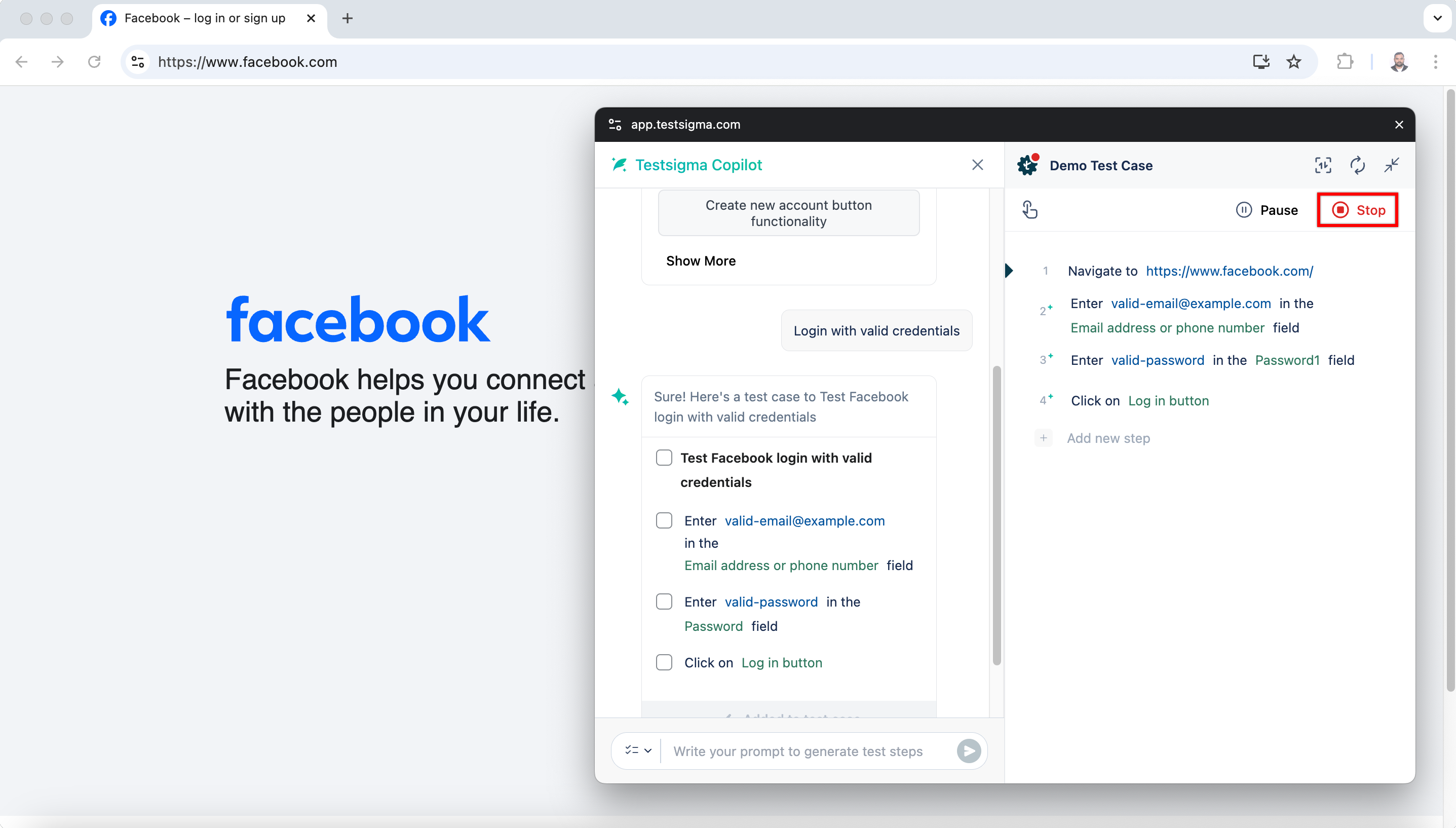
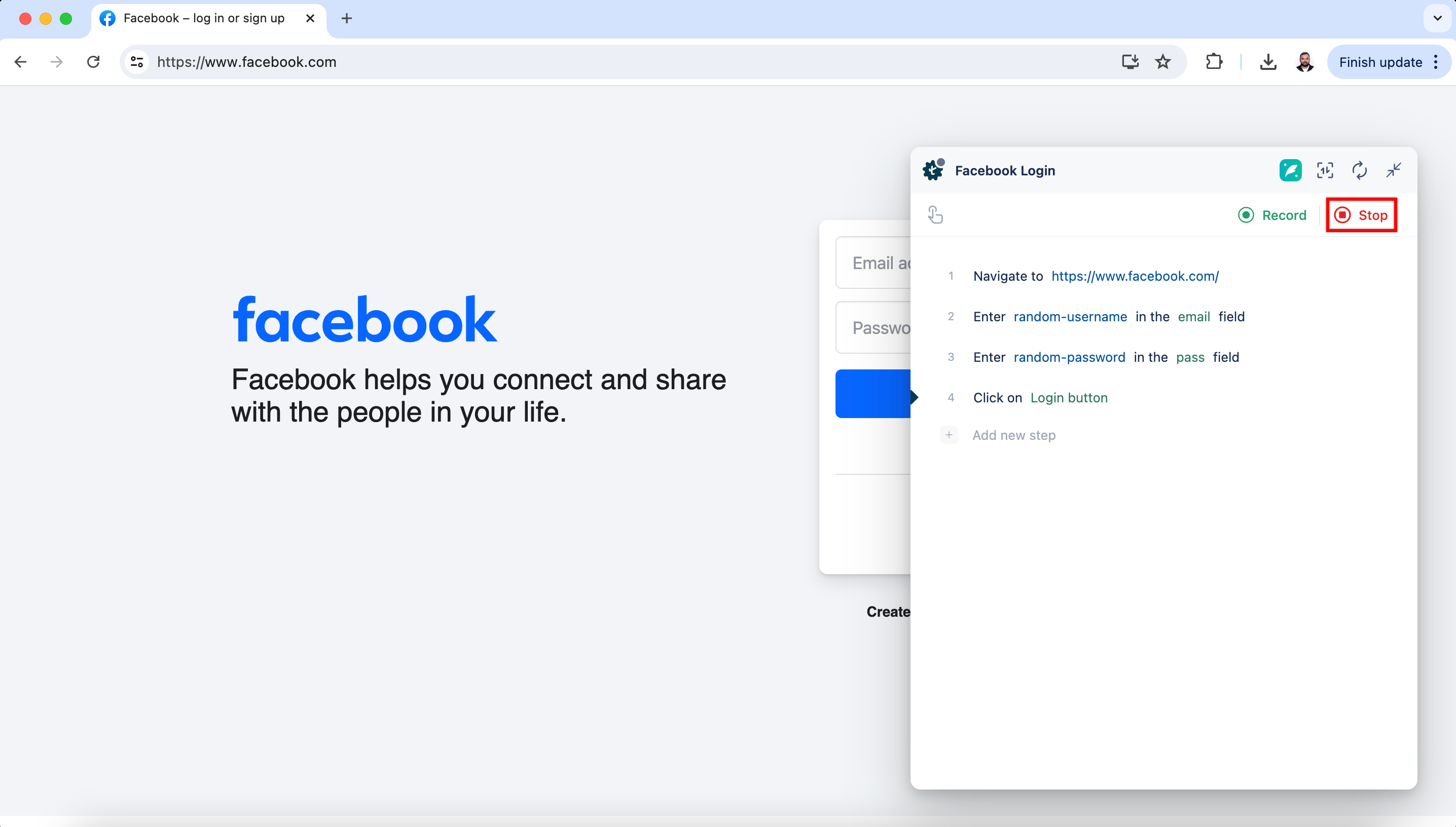
Modify the test steps as per the desired test case behavior. Once the necessary modifications are done, click Stop to return to the test case details page.
Generate Test Cases with Prompts
Follow the same steps from 1-3 from the above section.
- On prompt input, enter the prompt for which you want to fetch test steps.
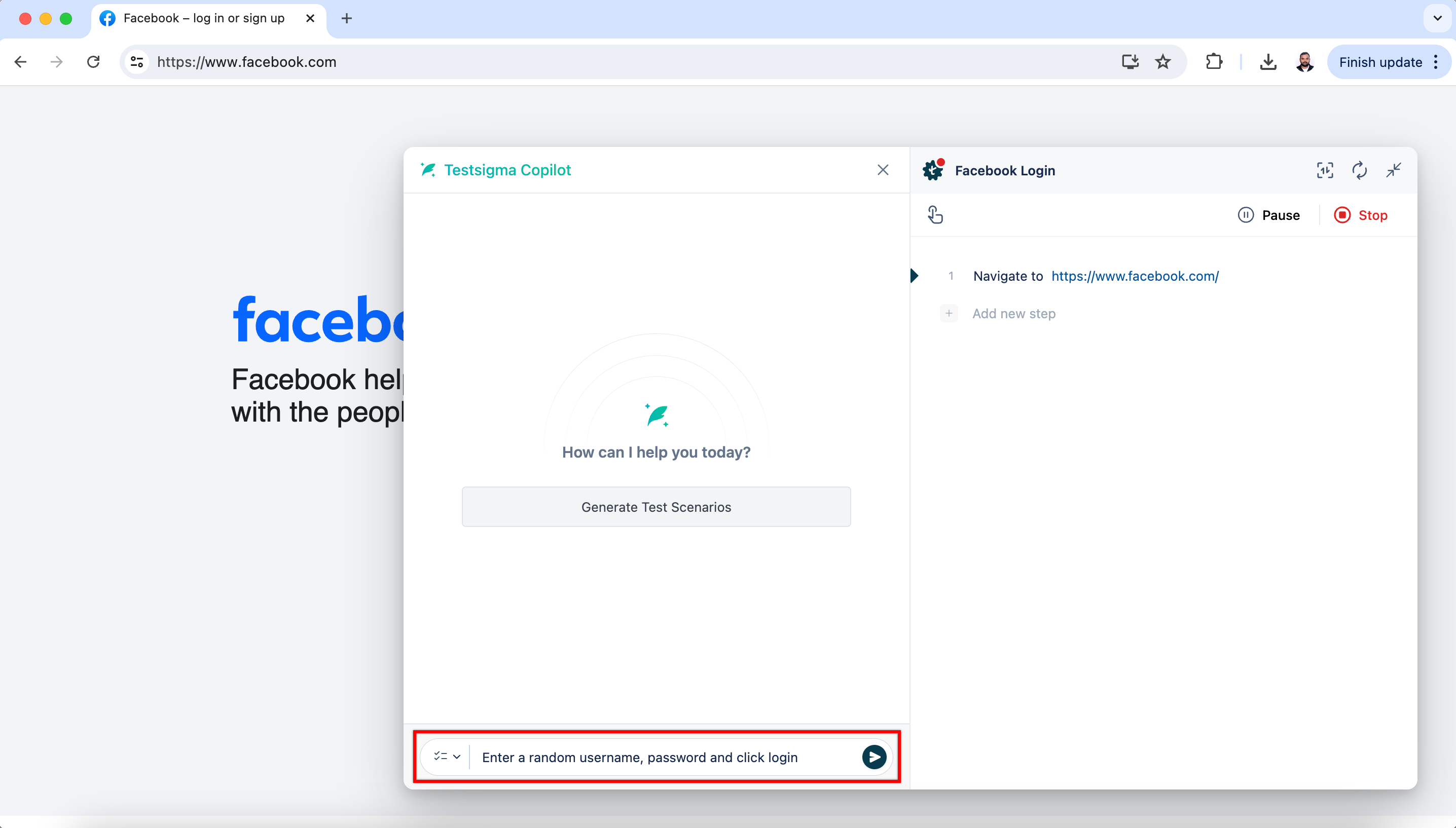
- Press Enter.
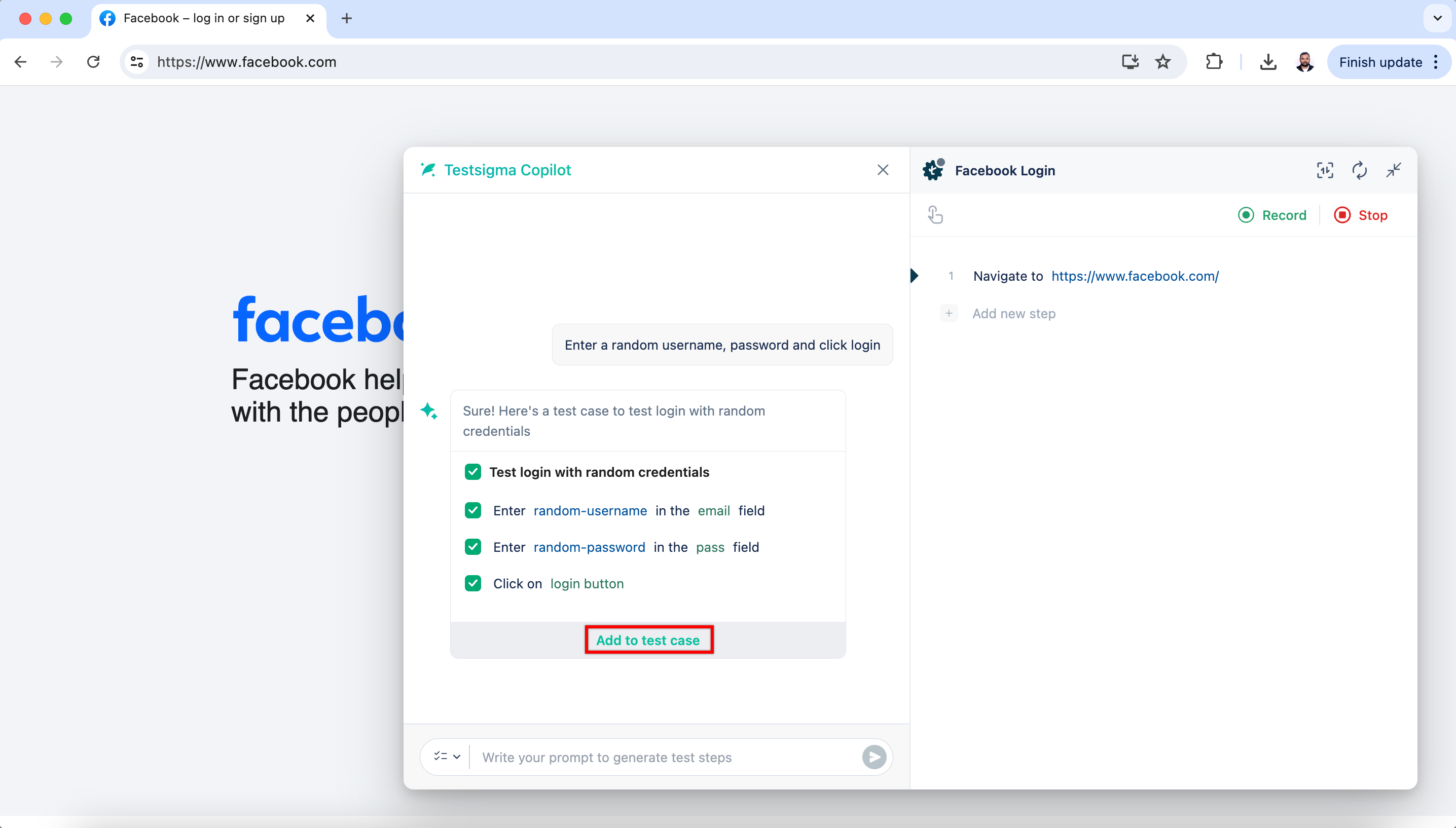
- Wait until the test steps are generated.
-
Click Add to test case to import the displayed test steps into the recorder.
-
Modify the test steps as per the desired test case behavior. Once the necessary modifications are done, click Stop to return to the test case details page.
Interactive Demo
Try this interactive demo to learn how to generate test cases for web apps using Testsigma Copilot!

Want to contribute or report missing content?