- Test Data Types
 Raw
Raw- Parameter
- Runtime
- Random
- Data Generator
- Phone Number
- Mail Box
- Environment
- Concat Test Data
- Folder Structure for Test Data Profiles
- Create Test Data Profile
- Update Test Data Profile
- Update Value in Test Data Profile
- Import Test Data Profile
- Bulk Deletion of a Test Data Profile
- Create Test Data [Environment]
- data generators
- Default Test Data Generators
- Address Function Type
- ChangeDataType Function Type
- Company Function Type
- DateFunctions Function Type
- DomainFunctions Function Type
- EmailFunctions Function Type
- File Function Type
- Friends Function Type
- IdNumber Function Type
- Internet Function Type
- MailboxAliasFunctions Function Type
- MailboxFunctions Function Type
- Name Function Type
- NameFunctions Function Type
- Number Function Type
- NumberFunctions Function Type
- Phone Number Function Type
- PhoneNumberFunctions Function Type
- Random String Function Type
- RandomText Function Type
- StringFunctions Function Type
- TestDataFromProfile Function Type
Test Data Types
Testsigma enhances your test automation by supporting different test data types. You can input various values and scenarios into your test cases using test data. You require a lot of test data to validate different scenarios in many test cases. A bug-free feature that passes these test data inputs is ready for production.
In simpler terms, test data is the information or values needed to set up and run a test. For instance, the test data for a login feature includes the username and password. The test data for a ticket booking feature includes the source and destination, and for a fund transfer feature, the source account and beneficiary account numbers serve as test data.
This documentation will explain the different test data types supported in Testsigma, their uses, and guide how to use them.
Prerequisites
Before you begin, ensure that you have referred to:
Add Test Data in Test Steps
- Add a new step to the Test Case using NLP and include a placeholder for the test data.
- Replace the test data placeholder by clicking on it, and the Test Data Types drop-down menu will appear, as shown below.
Here are the Test Data Types that will appear when you click on test data:
- Plain Text
- Parameter
- Runtime
- Environment
- Random
- Data Generator
- Phone Number
- Mailbox
- Upload
Plain Text
You can use Plain Text as a test data type in Testsigma. It is perfect for entering static and fixed values in your test cases. This type is suitable for providing constant information like usernames, passwords, or text that doesn't change during testing. Raw Data, where the data is directly specified, frequently uses Plain Text test data for test steps. For more information on plain text - raw data, refer to the documentation on plain text - raw data.
For example, at the start of the test case, we specify the URL to navigate as shown below:
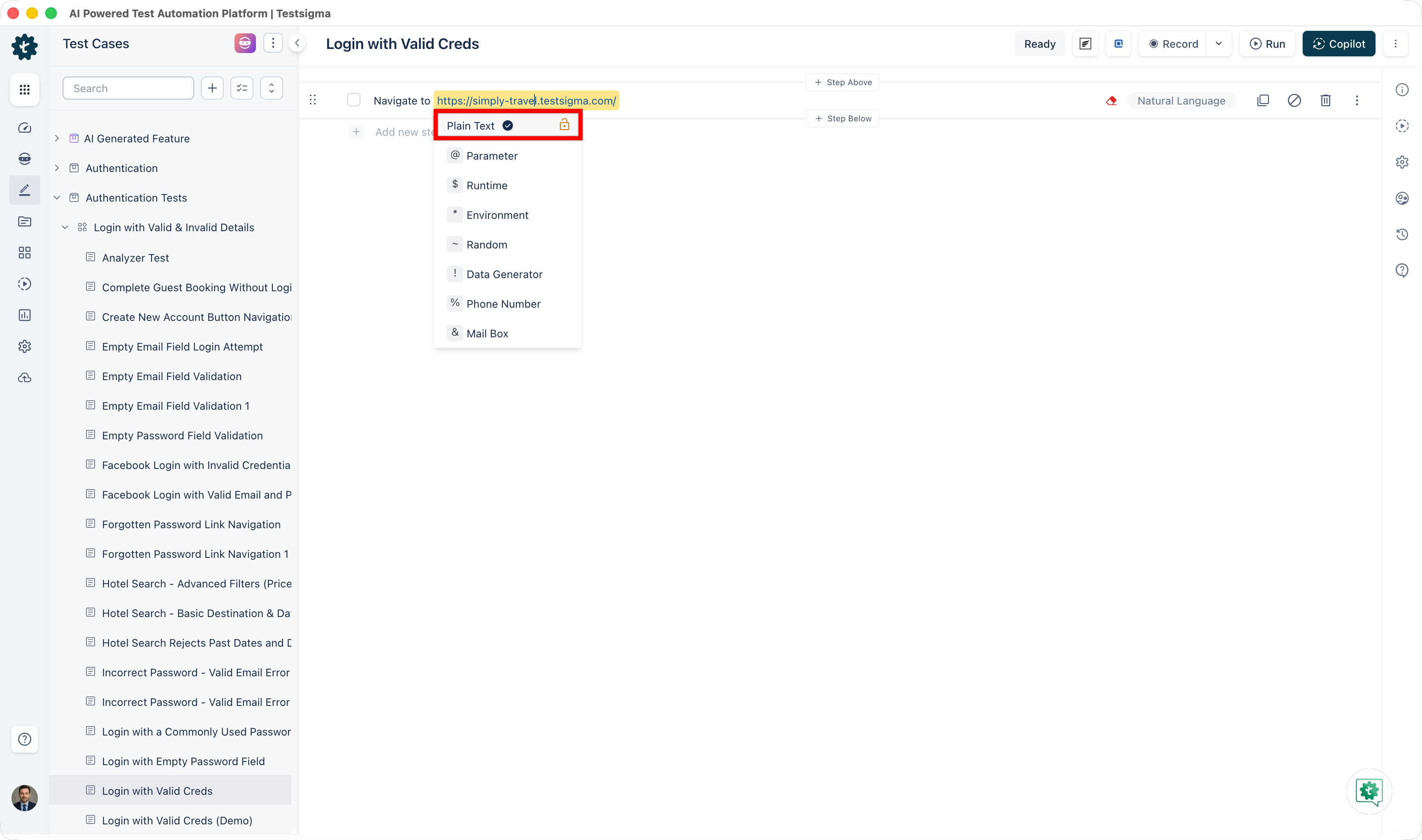
In this instance, we use Plain Text test data by directly providing the test data, which is the URL, within the test step.
You can also provide a blank value as test data, an additional option with Plain Text test data. To use this functionality, we must replace the test data part with the string key_blank. This will enter a blank value in the field where test data is passed.
Parameter
- Parameter Test Data enables you to create a list of values for input during test execution and generate parameterised test cases to evaluate your application under different scenarios. This type of testing allows you to use parameters from your test data profile directly.
- When selecting the parameter data type, you can choose the specific parameter required for your test case from a right-side panel with various available parameters. To perform data-driven testing, you can use Parameter Test Data. For more information on parameter test data type, refer to the documentation on parameter test data type, documentation on creating test data profiles, and documentation on data-driven testing.
- To use Parameter Test Data, use the @ Parameter type and replace the word "Parameter" with the specified parameter name. For example, replace test data with @ Email, where Email corresponds to the parameter name in the Test Data Profile.
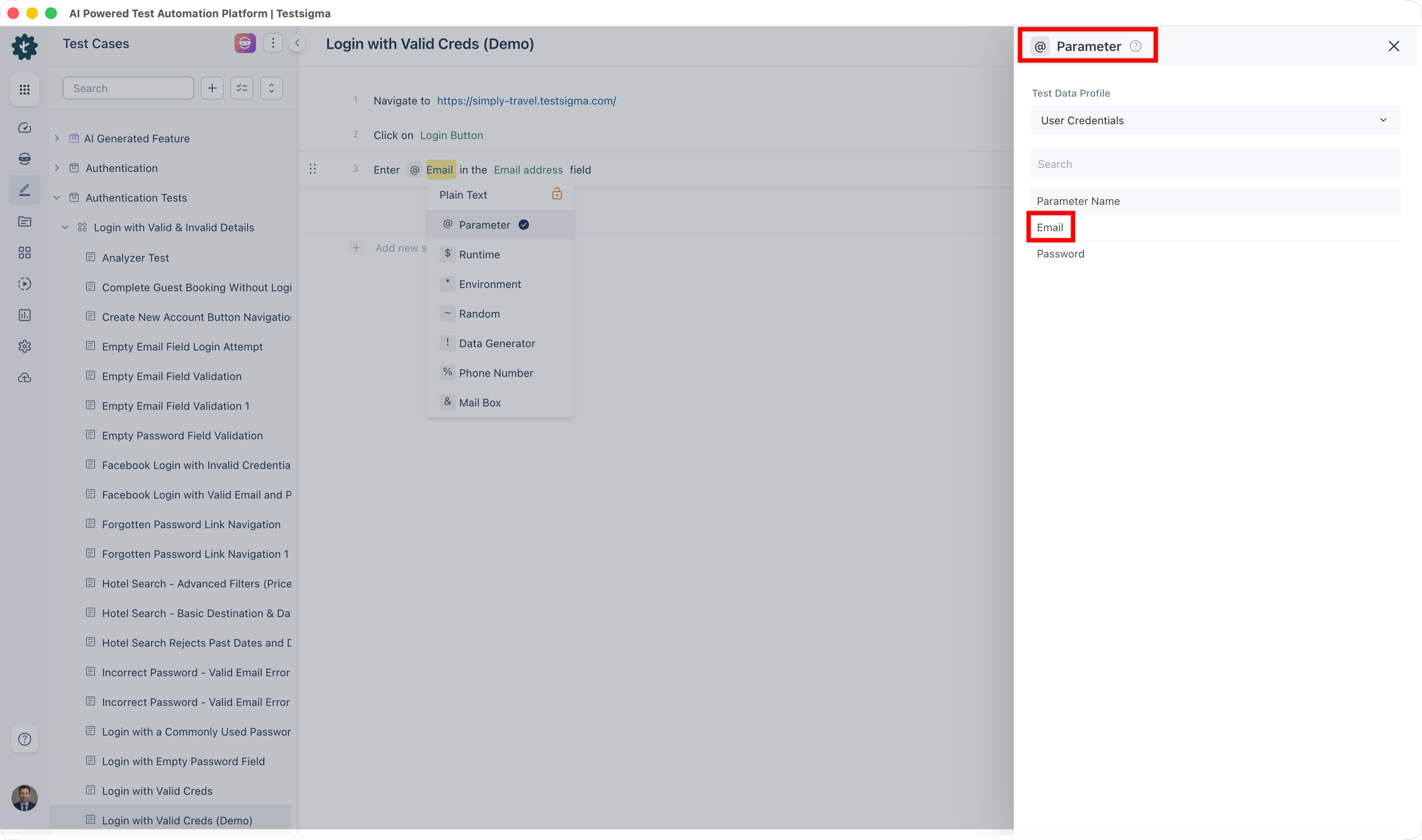
To use Parameter Test Data in your test case, link your test case to the relevant test data profile. Then, the Test Step will repeat for each row of username parameters in the Test Data Profile.
Runtime
- Use the Store keyword to store dynamic values, called Runtime Variables, that can change during a test. This keyword helps capture and reuse data within the same test Project, especially when dealing with values generated during the test.
- You can use user-defined variables to define and manage Runtime data, and you don't need a separate interface for management. The execution of the test case is specific to the Runtime Test Data. For more information on runtime test data, refer to the documentation on runtime test data.
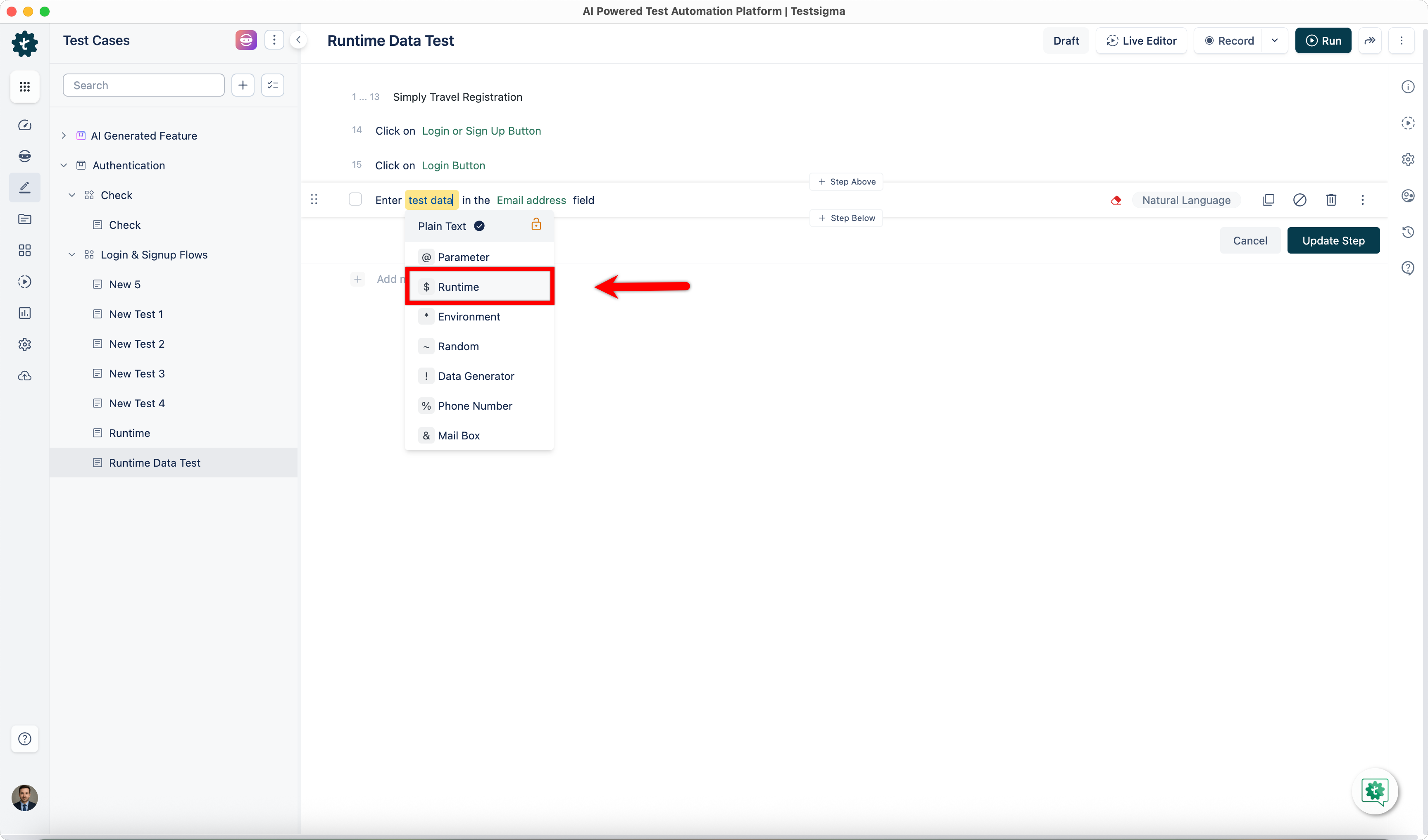
- Use a runtime data parameter to check a web page's title before and after a page reload. First, use a command to store the title in a runtime data parameter called "Travel". Then, verify the page title after reloading the page using the stored parameter with the statement You should see the page title as $ Travel.
Environment
- Manage Environment Test Data Type on the Environments page with a limited scope to a project. The Environment Test Data Type contains environment-related information like URLs, API endpoints, and database connection details. You must configure test cases to work in various environments (e.g., development, staging, production).
- You can use the * Environment type and substitute the parameter's name for "Environment" to use Testsigma's most versatile Test Data Type, the Environment Parameter. For more information on environment, refer to the documentation on environment.
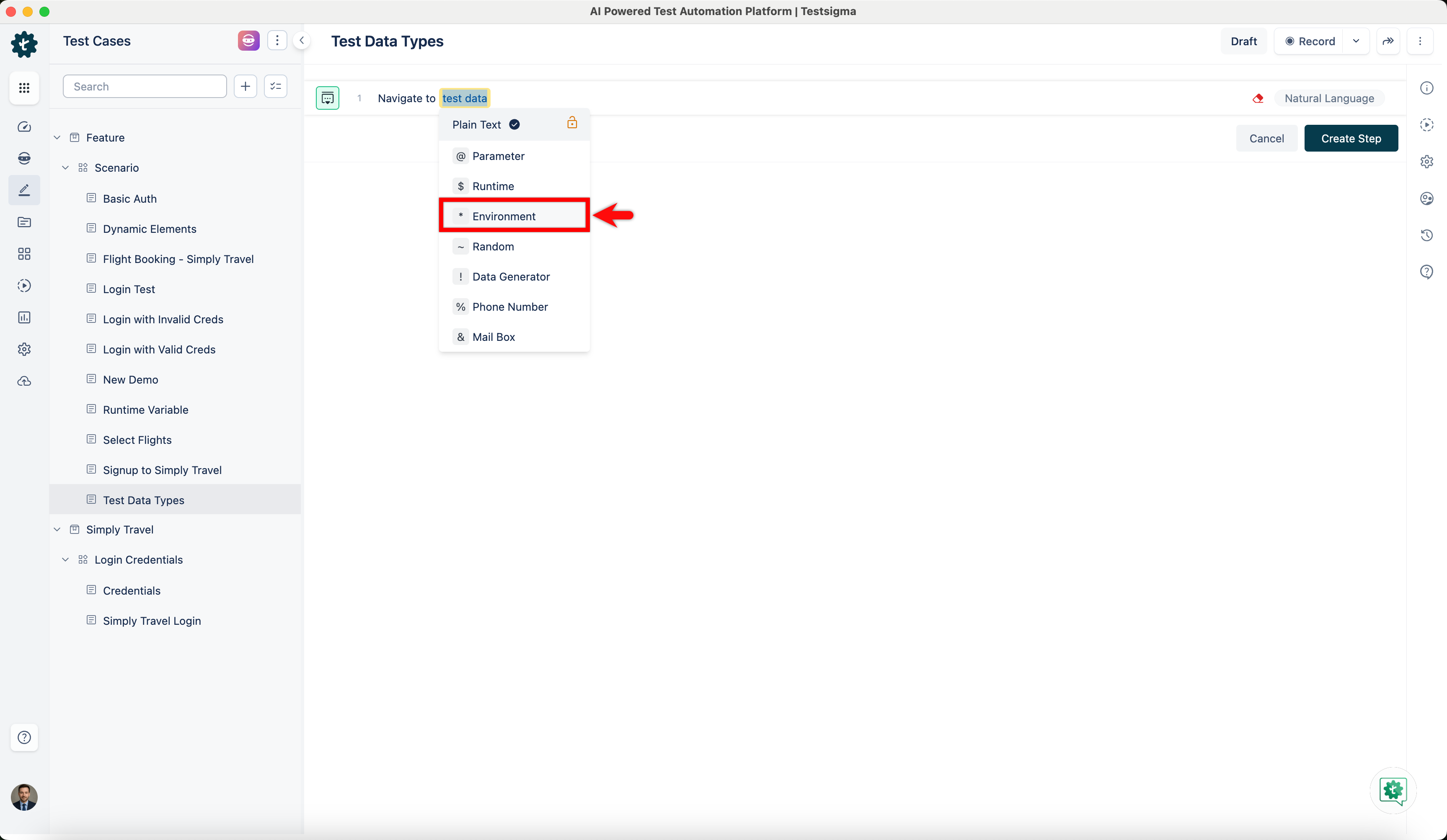
During executions, you can access separate Environment sets to store URLs and login details for environments like Production, Testing, Development, UAT, or Staging servers.
Random
Random Test Data Type generates random data such as numbers, email addresses, and passwords to add variety to your tests and create diverse test scenarios with unpredictable data. You can use the format ~ Random and replace ~ Random with an integer value from 1 to 256 to generate random values for Test Case execution. During Test Case Execution, you can specify the length of the alphanumeric character you want to receive by providing an integer value. For more information on random test data, refer to the documentation on random test data. 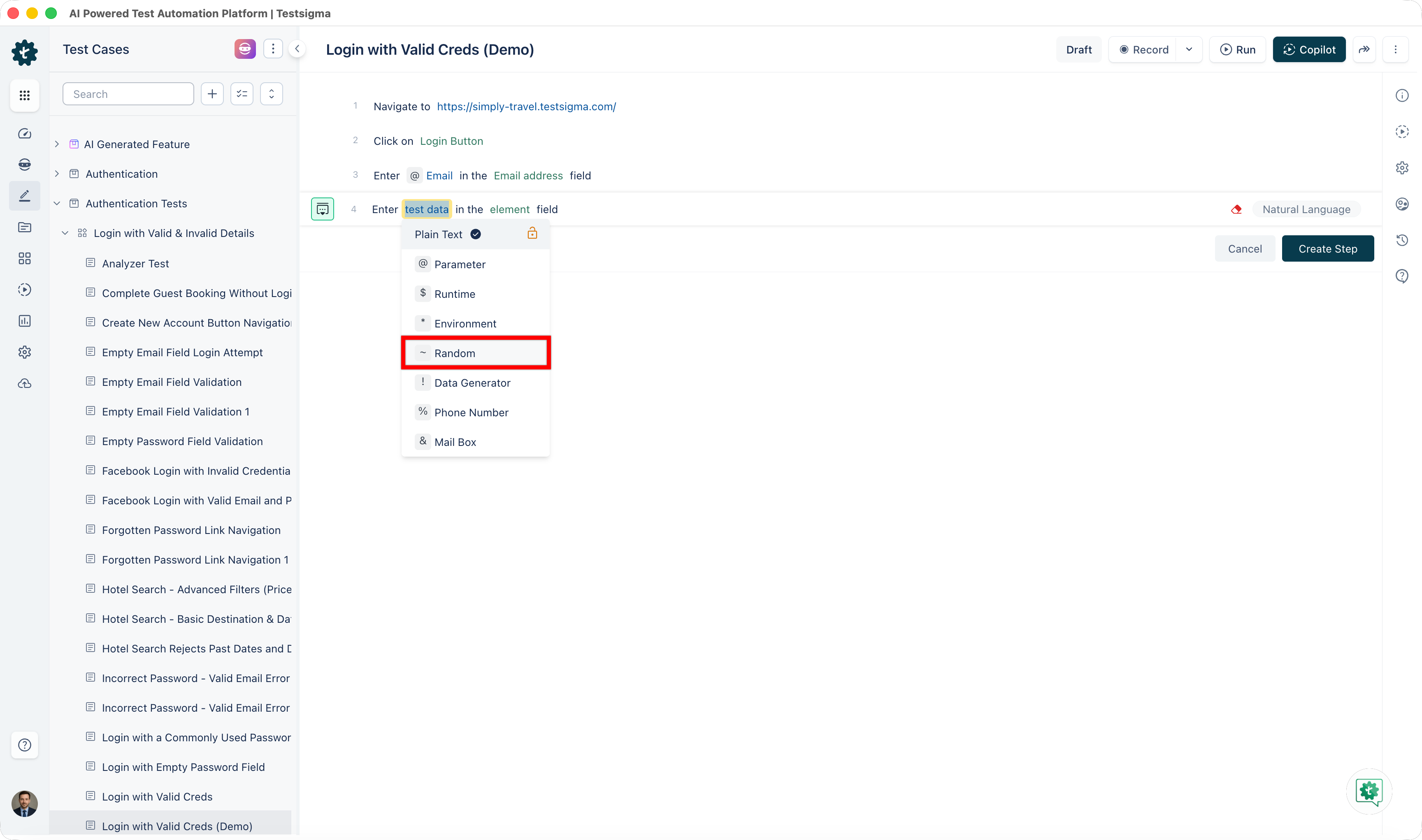
When you use ~|25| in your test data, you will replace it with a 25-character-long alphanumeric string during execution. Testsigma provides a random alphanumeric string of N characters when you include ~|N| in a Test Step.
Data Generator
Data Generator test data type generates realistic and structured data for testing purposes, such as names, addresses, and emails. You can obtain dynamic data by using the Default Test Data Generator Functions. To use them, you must substitute "Data Generator" with the specific name required in the ! Data Generator format. For more information on data generator, refer to the documentation on data generator. 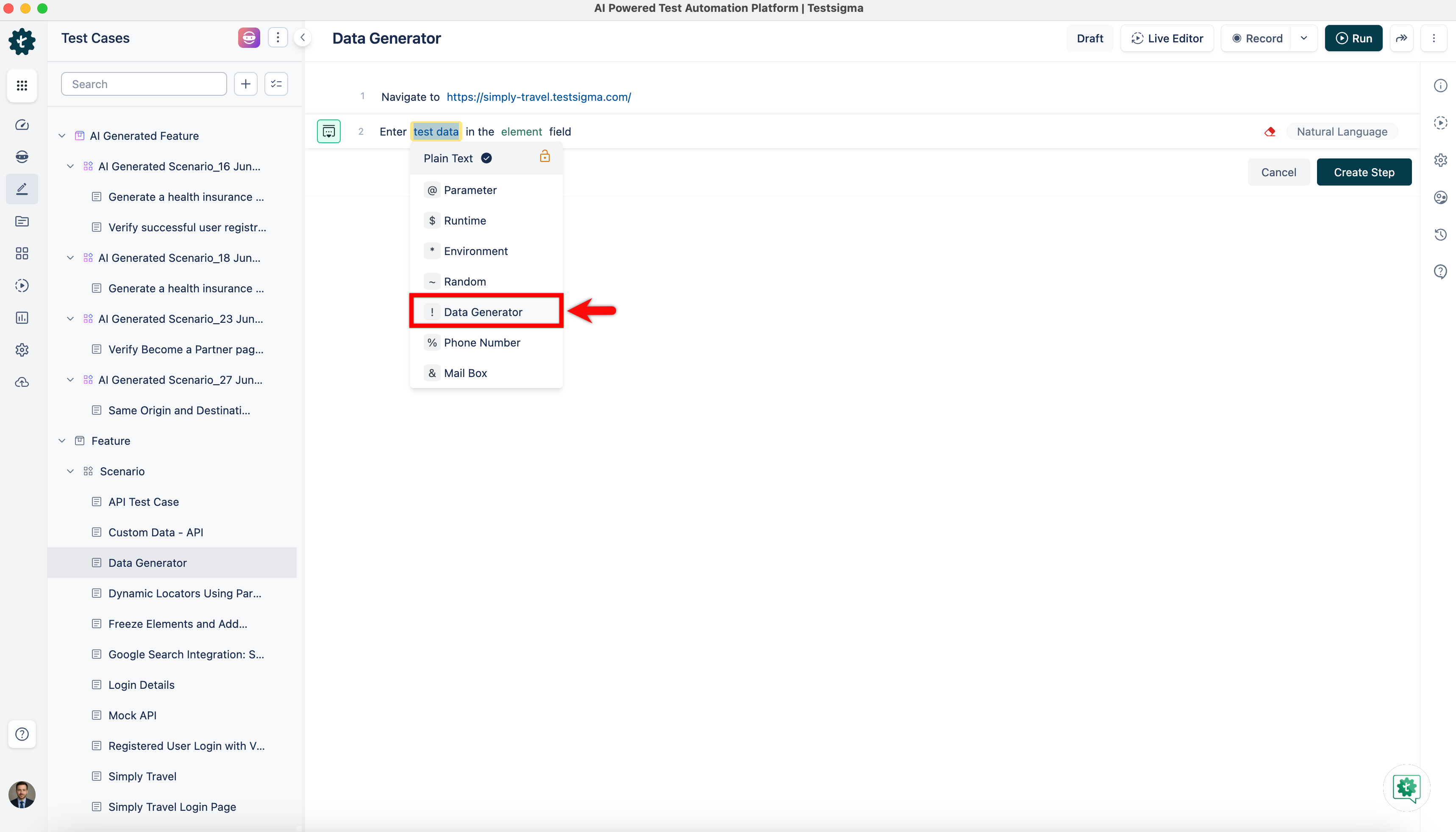
Phone Number
Phone Number test data type allows you to create random or predefined phone numbers for testing SMS or phone number validation features. If you need a valid phone number to receive SMS codes for scenarios like two-factor authentication testing, Testsigma provides a test phone number that you can use as test data in your test steps. For more information on phone number and 2-step authentication, refer to the documentation on phone number and documentation on 2-step authentication. 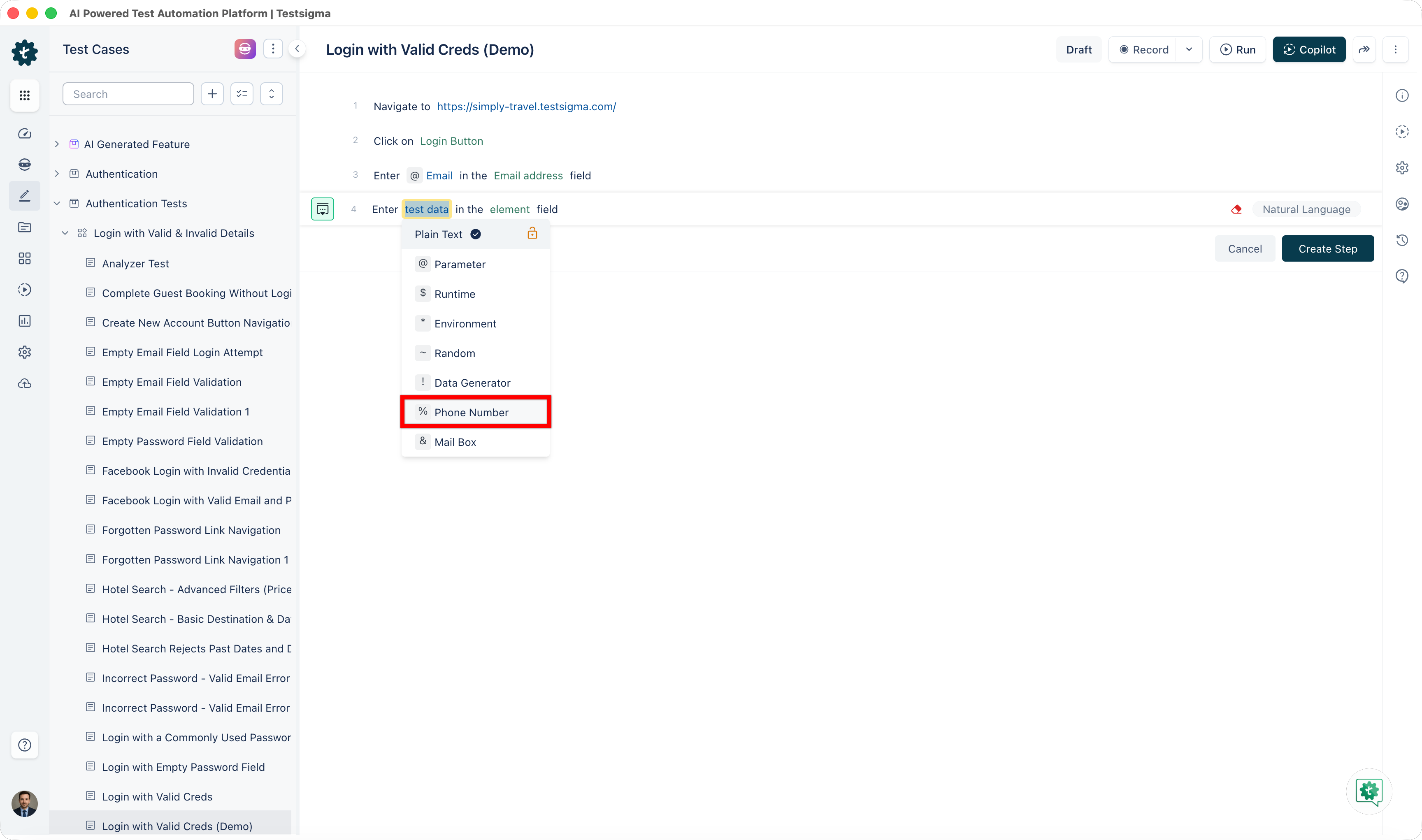
Mail Box
Mailbox test data type generates email addresses and mailbox data for testing email-related functions, particularly for workflows involving OTPs or activation links. Testsigma enables you to use provisioned mailbox email addresses to input test data. For more information on mail box, refer to the documentation on mail box. 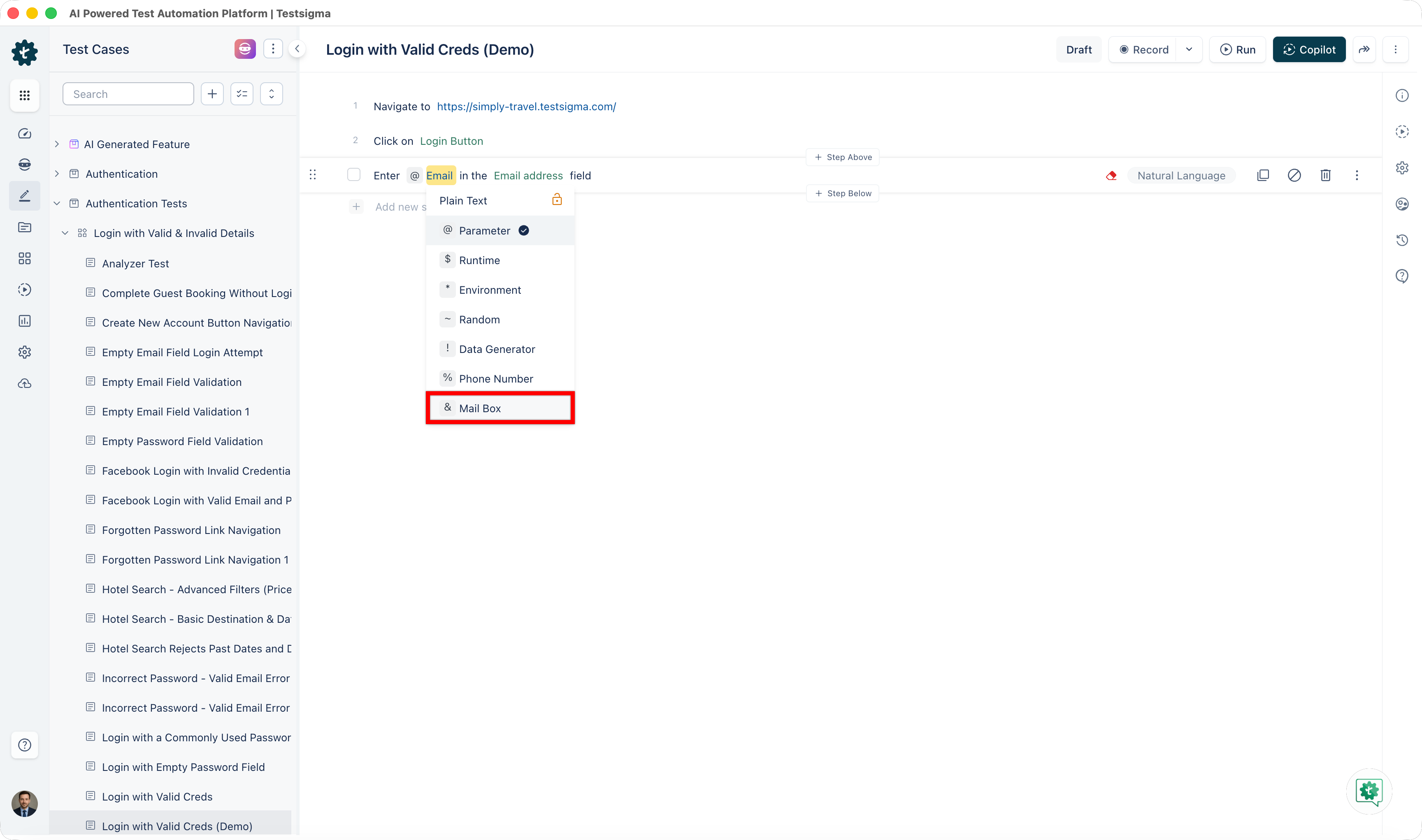

Want to contribute or report missing content?