- Testsigma REST APIs
 Manage Environments
- Elements
- Test Plans
- Upload Files
- Get Project Wide Information
- Upload & Update Test Data Profile
- Fetch Test Results (All Levels)
- Export Test Reports Using the API
- Trigger Multiple Test Plans
- Trigger Test Plans Remotely & Wait Until Completion
- Run the Same Test Plan Multiple Times in Parallel
- Schedule, Update & Delete a Test Plan Using API
- Update Test Case Results Using API
- Create and Update Values of Test Data Profile Using REST API
- Rerun Test Cases from Run Results using API
- Salesforce Metadata Refresh Using API
- Manage Test Steps Using API
Testsigma API - Overview
Testsigma has a set of REST API Endpoints to manage the entities available in Testsigma. The most common usage of these endpoints is within your CI/CD Pipeline.
A fair understanding of REST APIs is expected. If not, please refer to some relevant resources regarding REST API or consult with your dev team before proceeding further.
Authorization
All Testsigma API Endpoints require authentication. The user authenticates the request using Bearer Token which is the user’s API Key.
“Authorization” : “Bearer <API_Key>”
To know more about generating and obtaining API Keys, refer to the documentation on generating API keys
Get IDs of Projects, Applications and Uploads
Testsigma has a set of endpoints to retrieve IDs of projects, applications, and uploads using APIs. This article discusses getting these IDs by using APIs.
Get IDs using Postman API
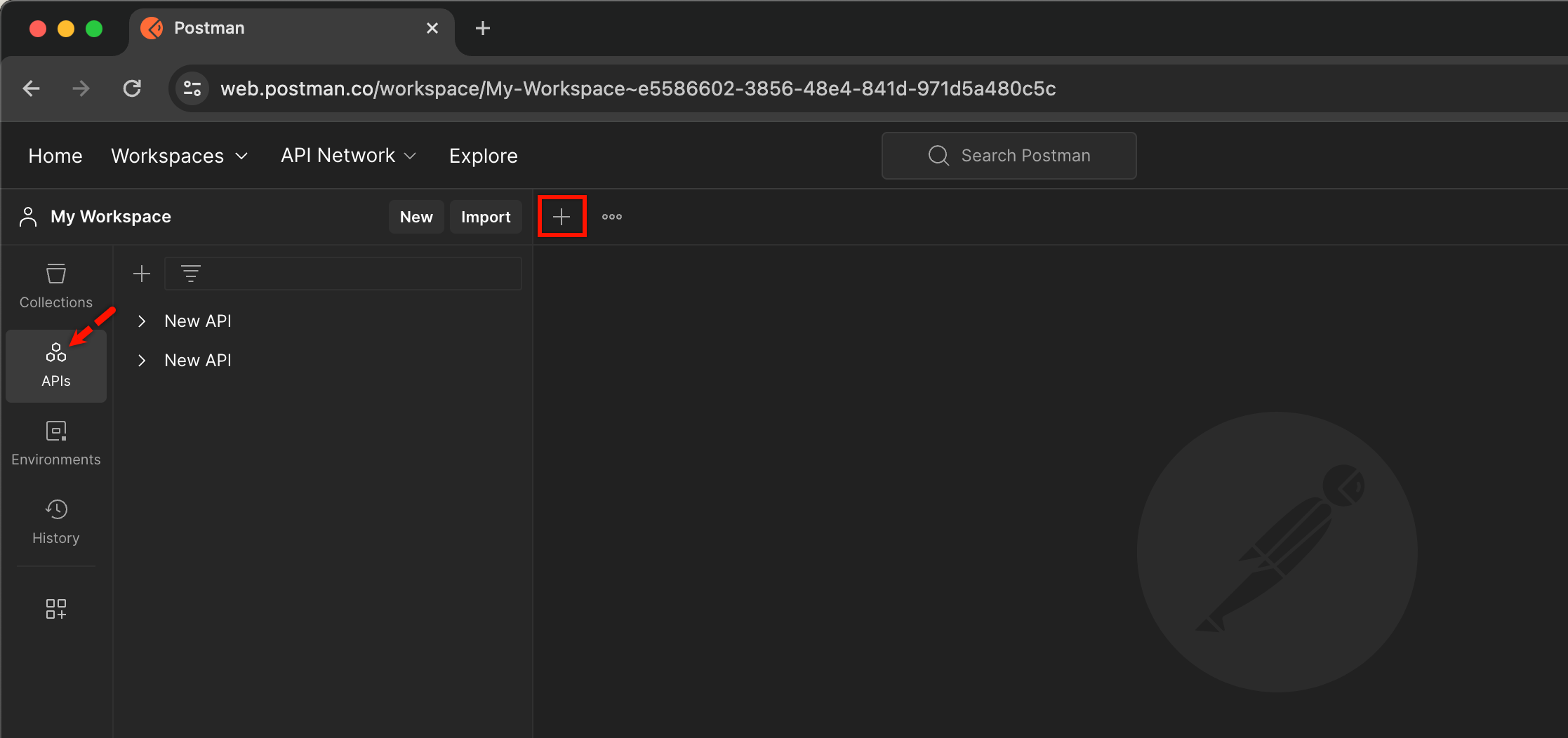
- From My Workspace, go to APIs and click on ‘+’ to open a new request.
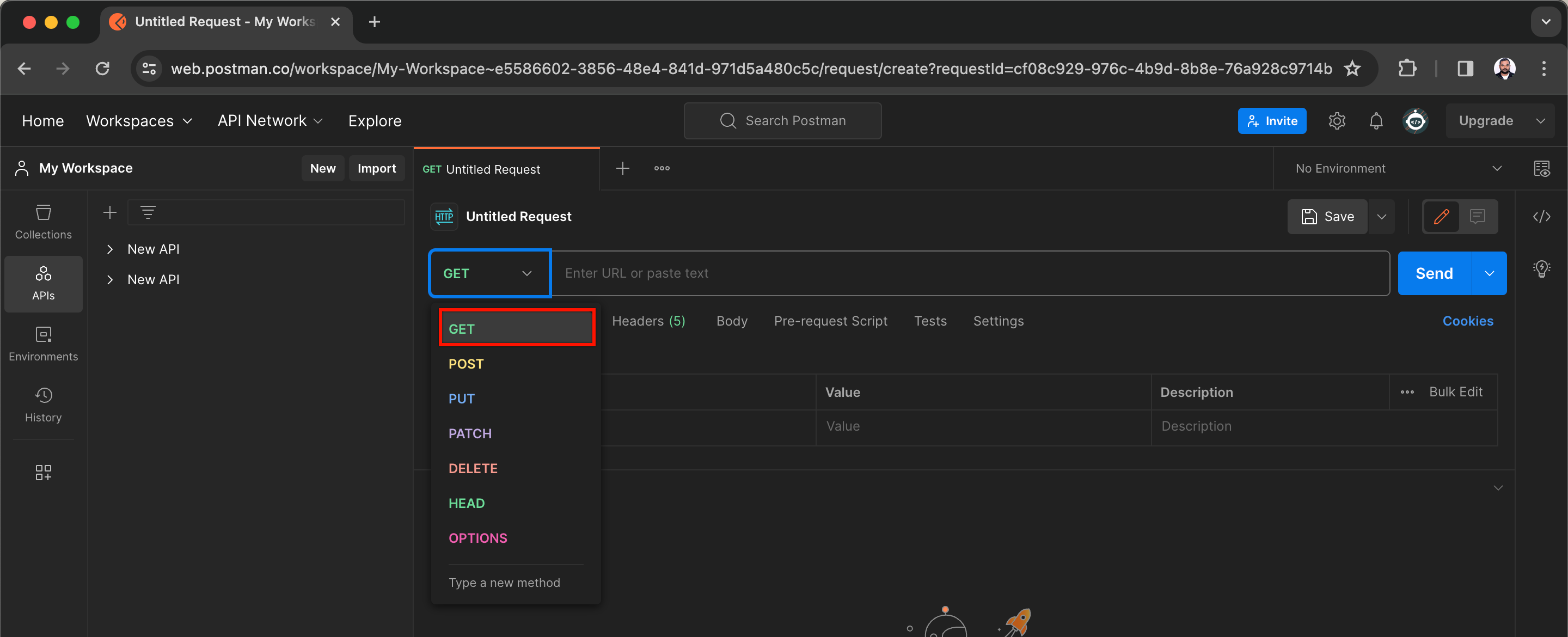
- From the new request page, select GET from the method dropdown.
-
On the URL Textbox,
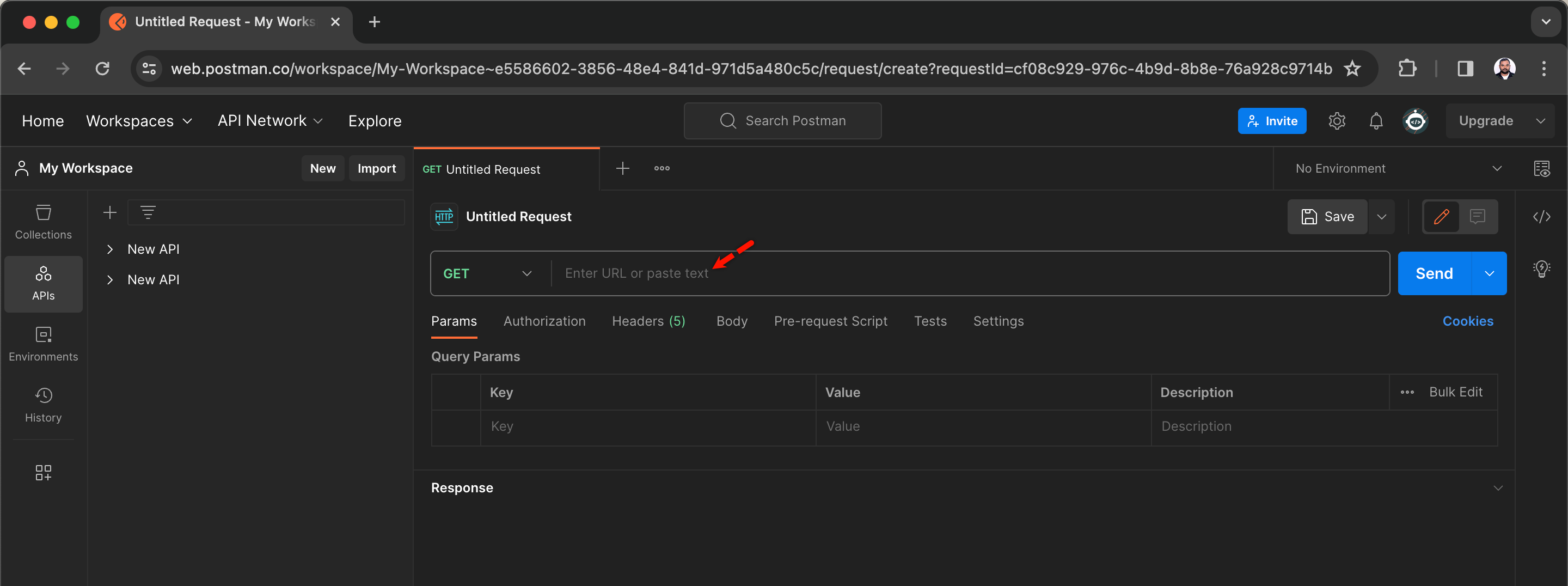
- Enter https://app.testsigma.com/api/v1/projects to get project IDs.
- Enter https://app.testsigma.com/api/v1/applications to get application IDs.
- Enter https://app.testsigma.com/api/v1/uploads to get upload IDs.
Let’s use the first URL & retrieve the IDs of projects.
- Click on Authorization, select Authorization type and enter the Token.
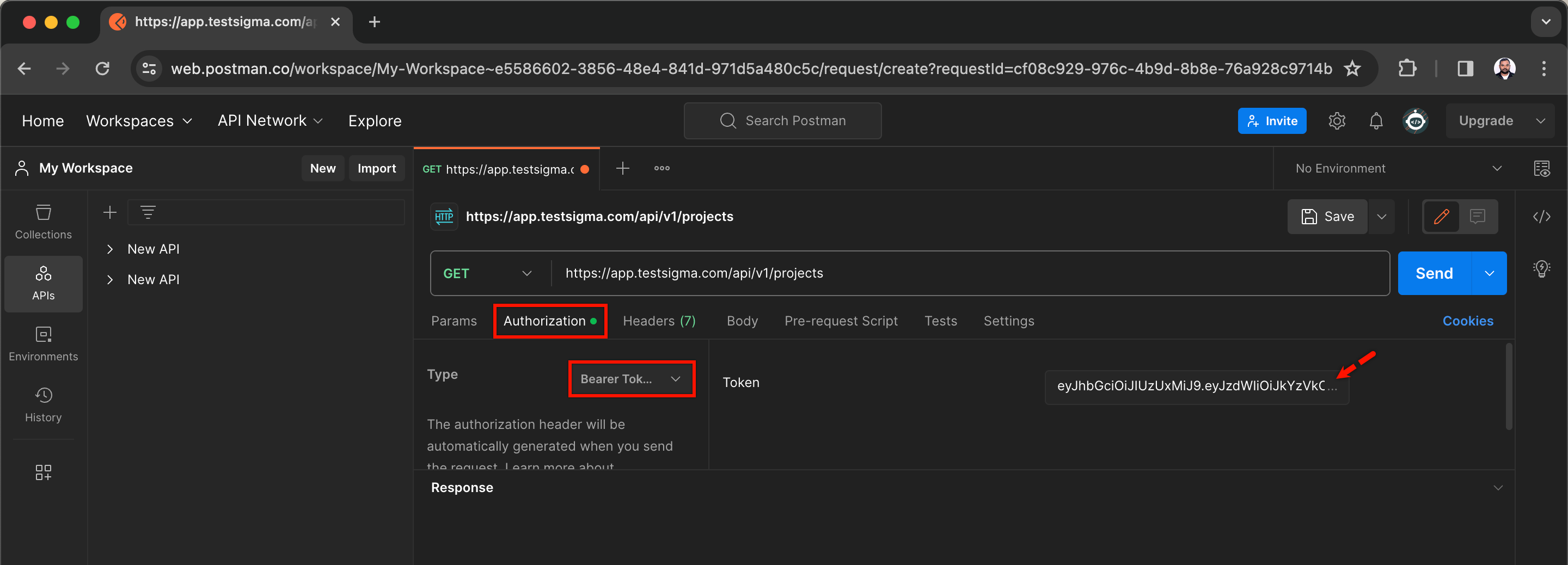
- Click on Send to retrieve details of all projects.
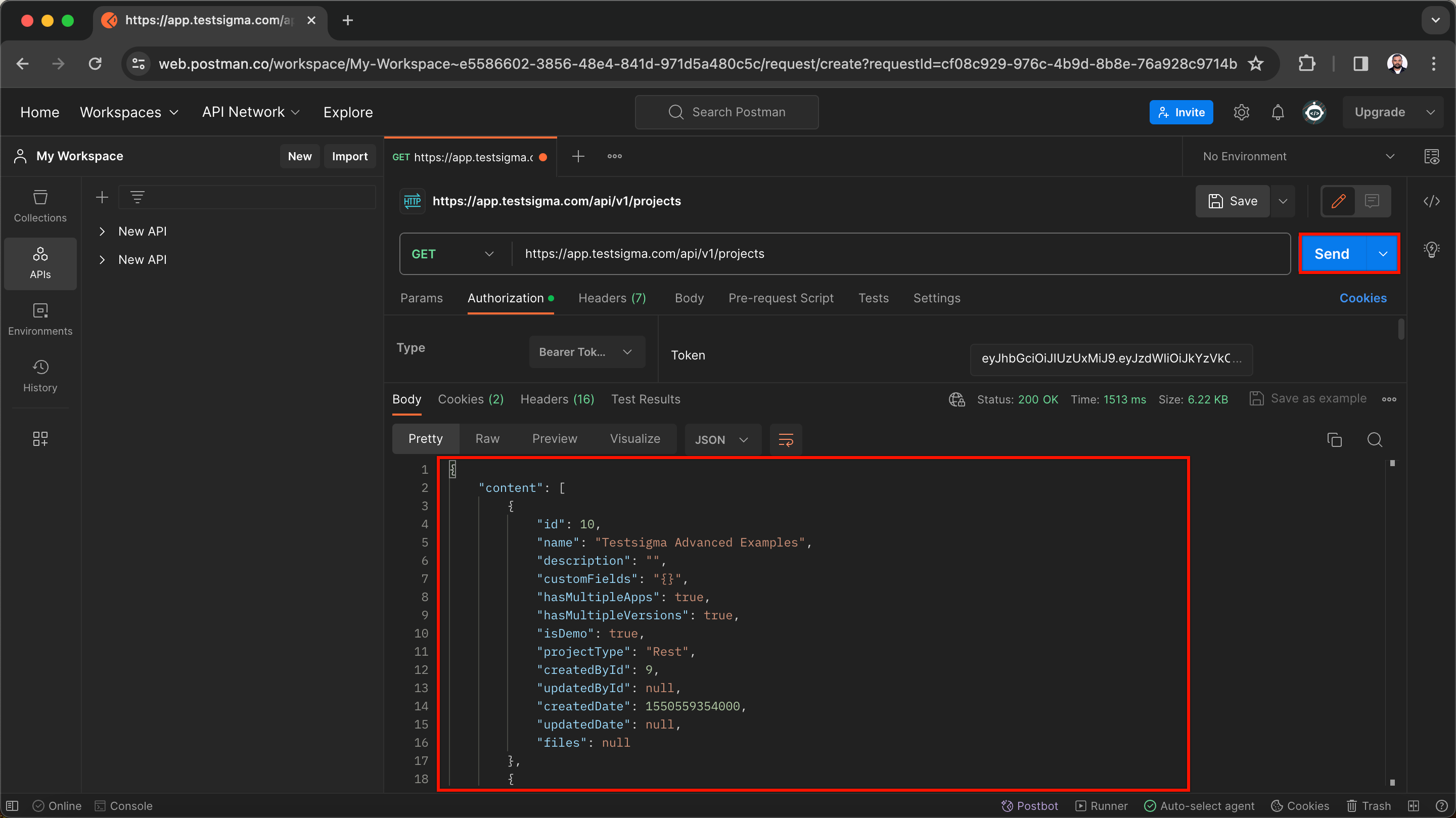
- You’ll find IDs of all projects in the response body.
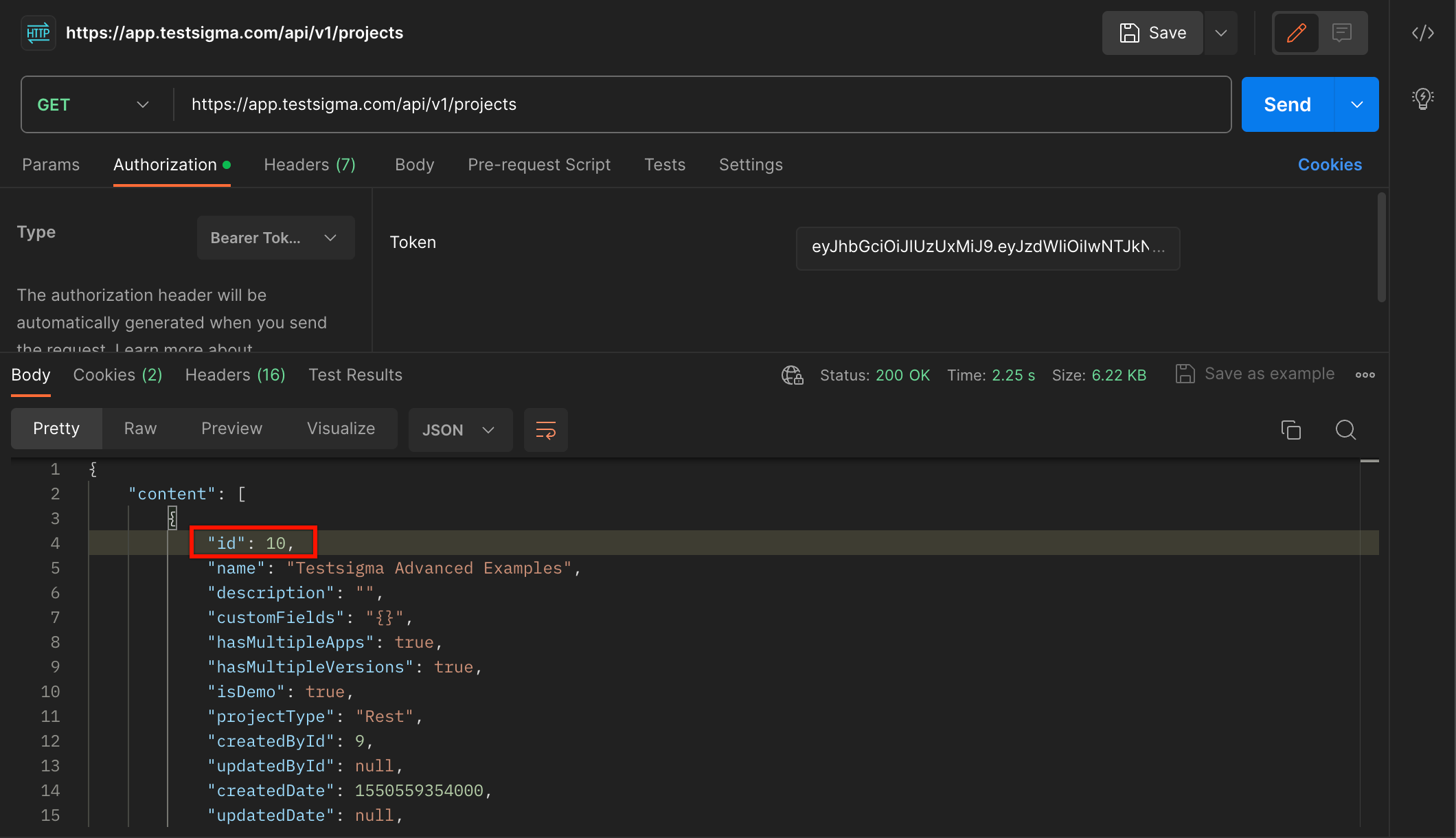
Follow the same steps from 4-6 with the other URLs mentioned in step 3 to get details of applications and uploads.
Get IDs using Testsigma API
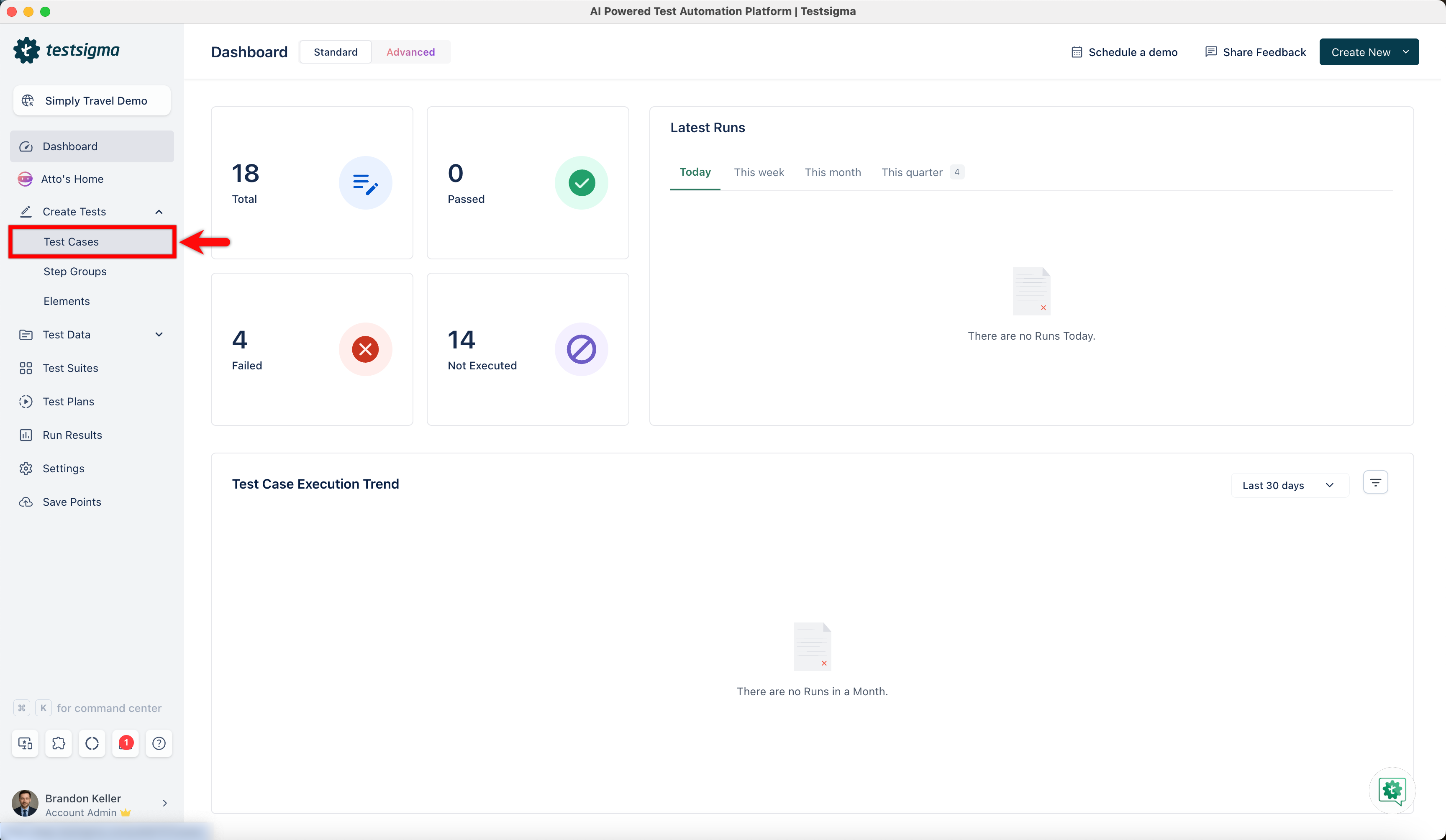
- Create a Test Case by navigating to Create Tests > Test Cases.
- Click the options icon in the step and select REST API.
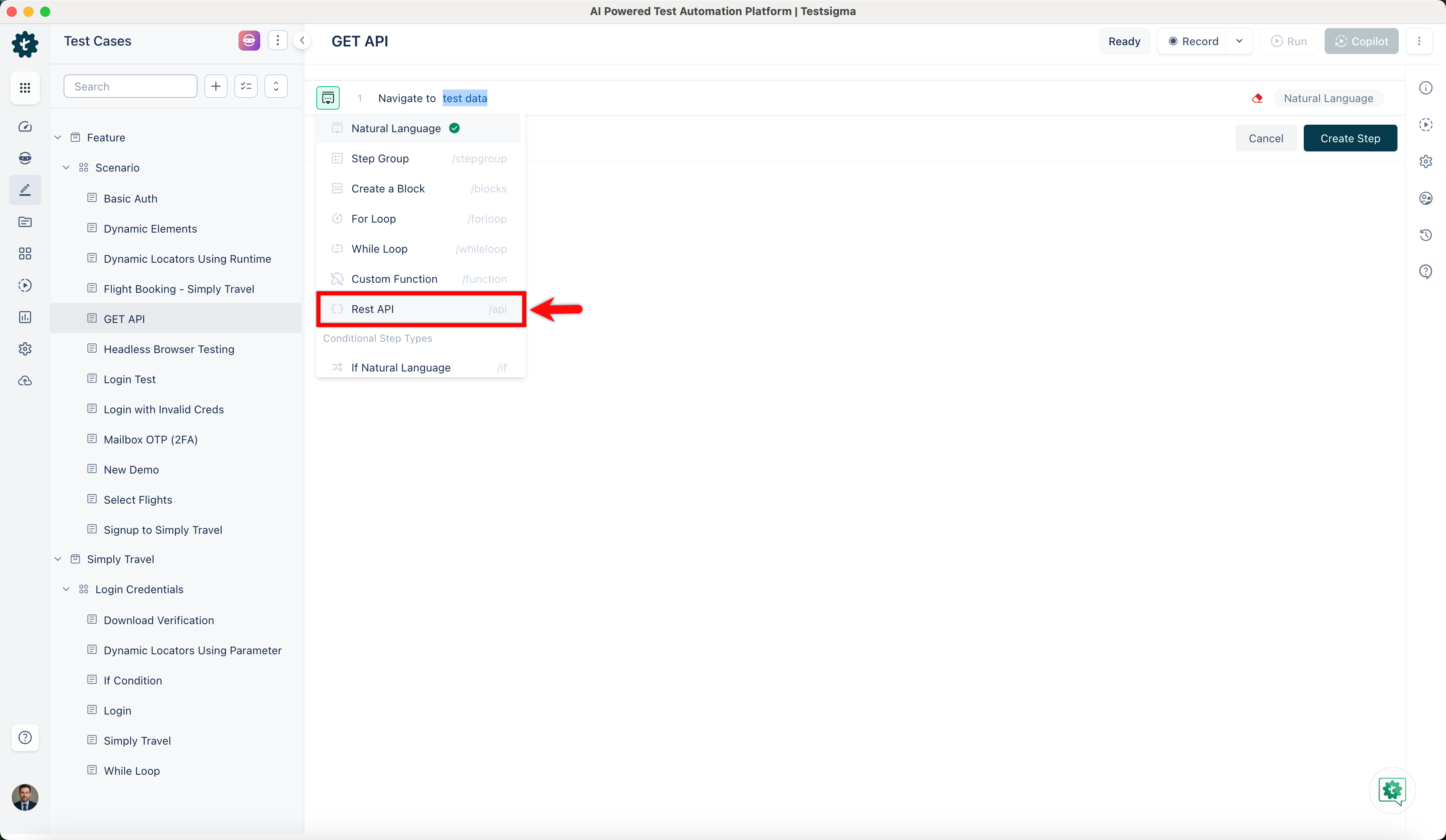
- In the REST API page, enter a name and select GET from the method dropdown.
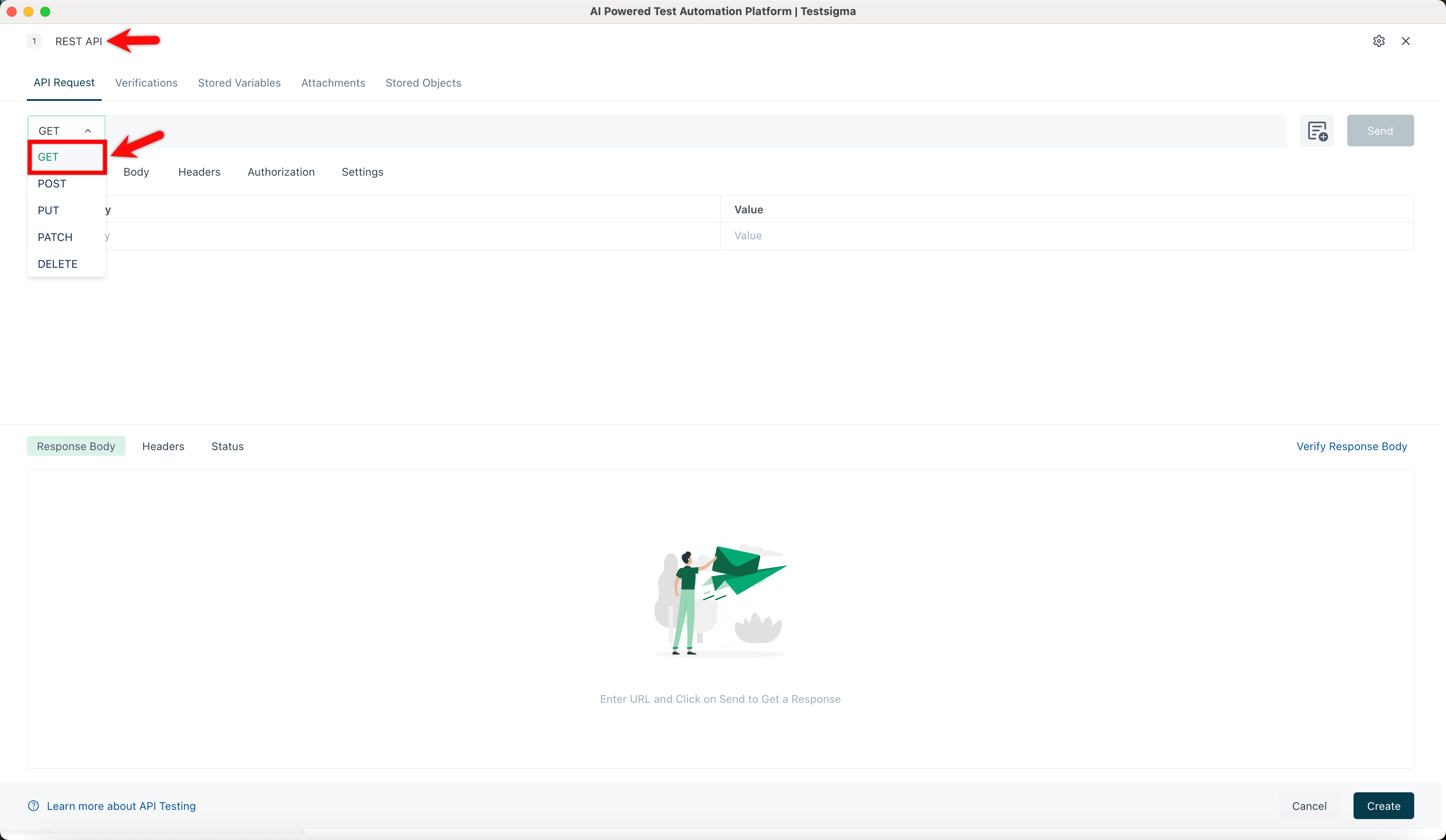
-
In the URL Textbox,
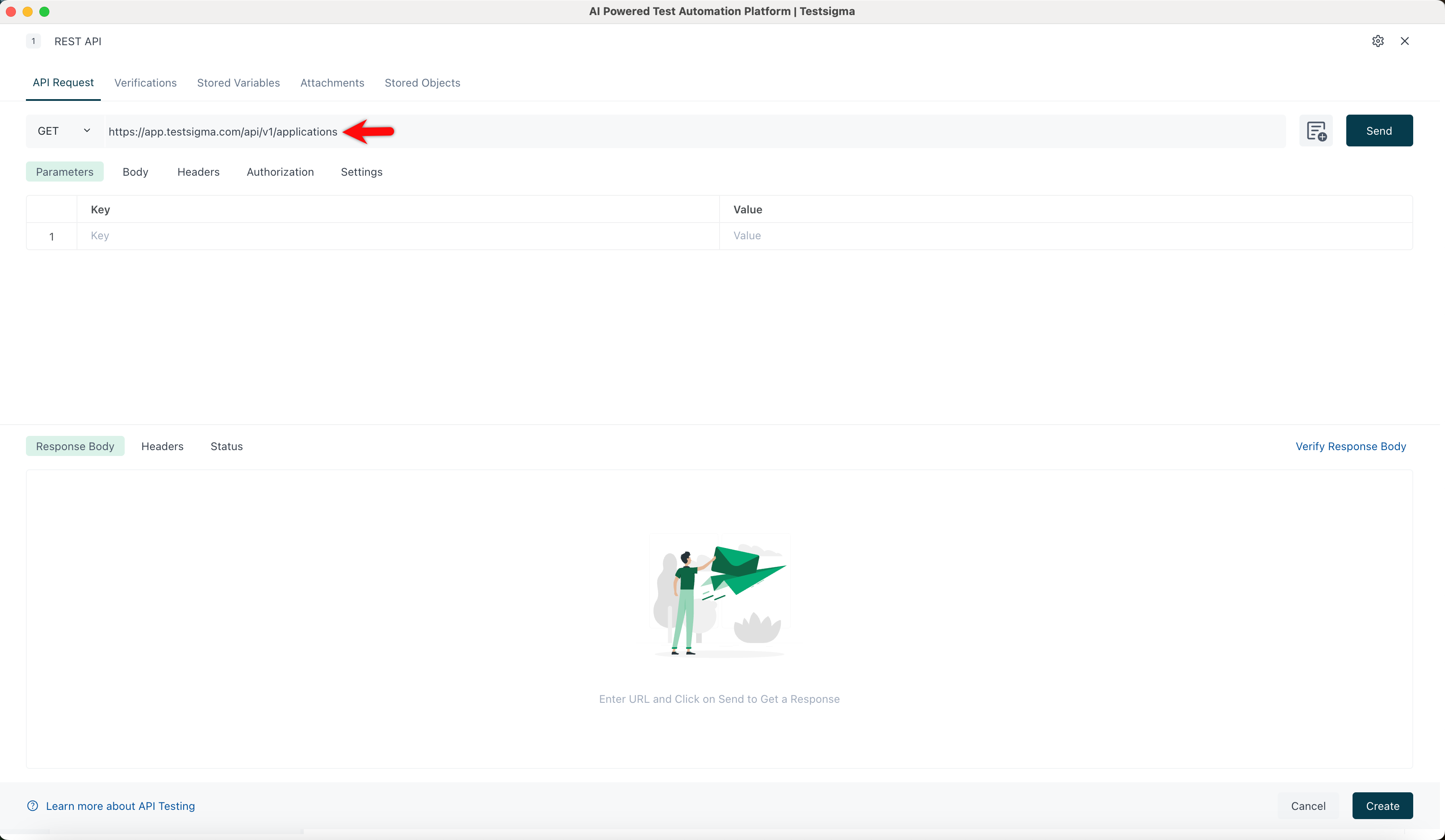
- Enter https://app.testsigma.com/api/v1/projects to get project IDs.
- Enter https://app.testsigma.com/api/v1/applications to get application IDs.
- Enter https://app.testsigma.com/api/v1/uploads to get upload IDs.
Let’s use the second URL & retrieve the IDs of applications.
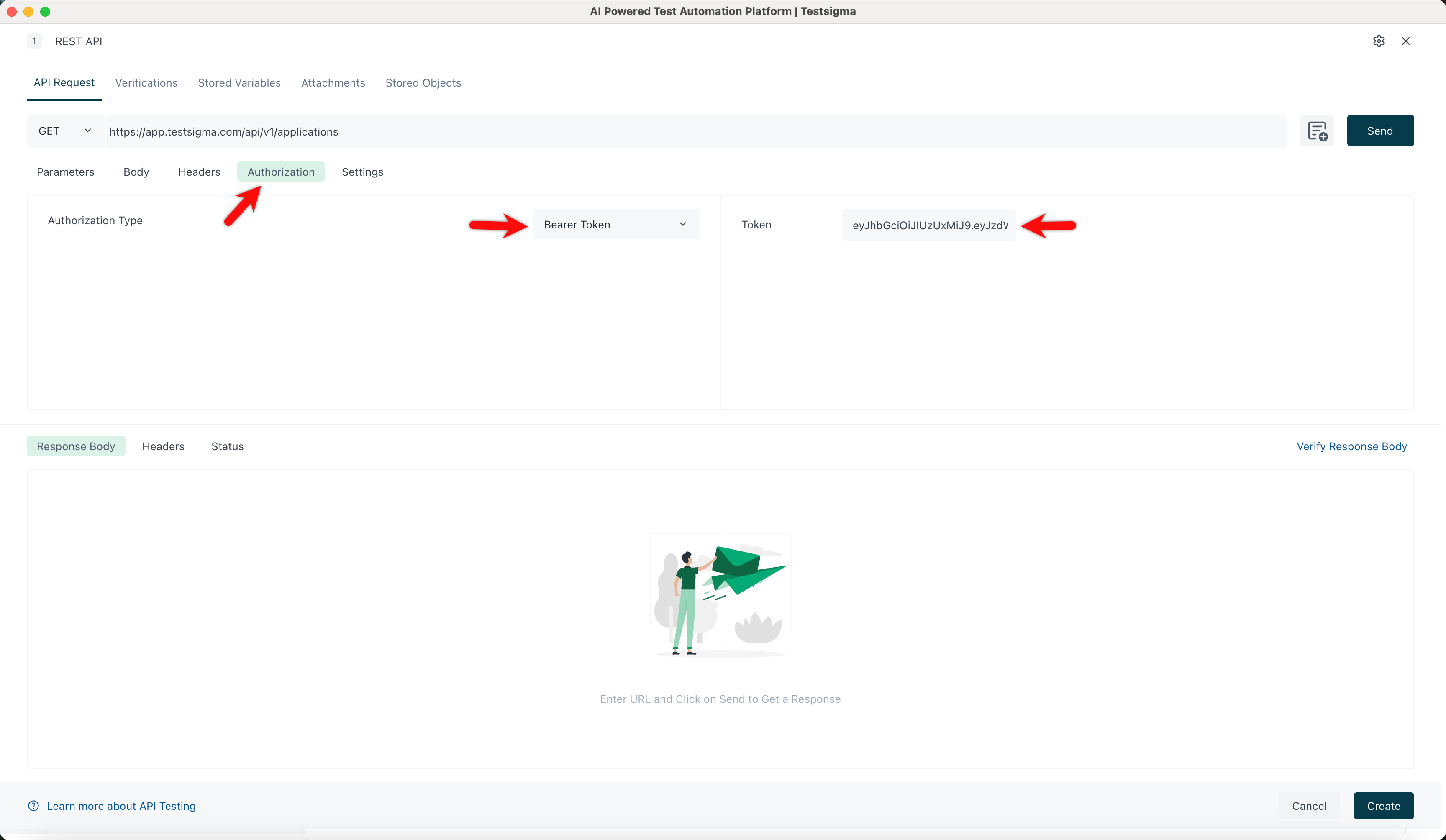
- Click Authorization, select Authorization type and enter the Token.
- Click Send to retrieve details of all applications.
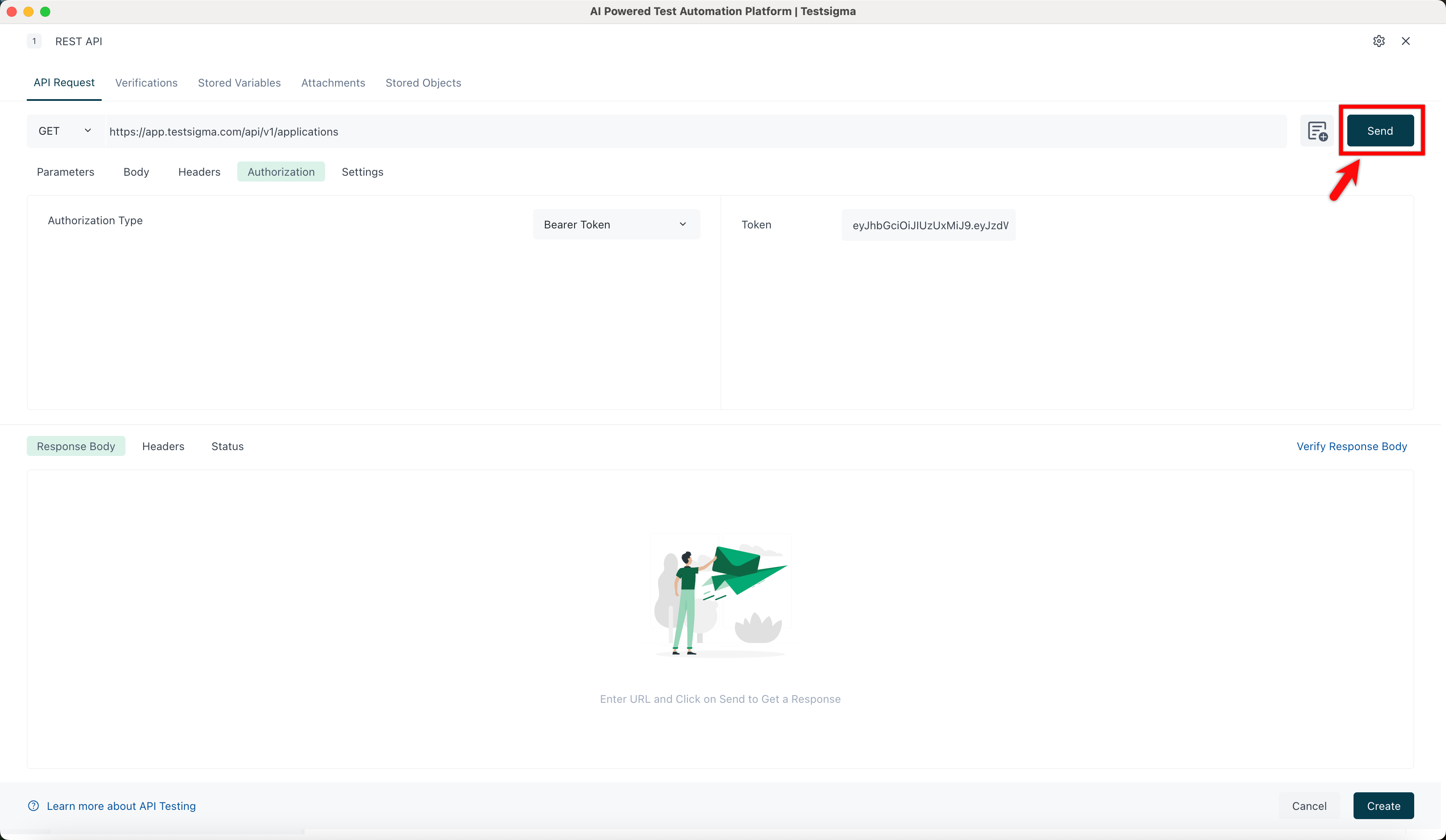
- You’ll find IDs of all applications in the response body.
Available REST API Endpoints
Advanced Use Cases
Here are some advanced use cases for Testsigma APIs:
- Documentation on triggering multiple application type test plans
- Documentation on triggering test plan remotely and wait until Completion

Want to contribute or report missing content?