- desired capabilities
 Most Common Desired Capabilities
- Browser Console Debug Logs
- Geolocation Emulation
- Bypass Unsafe Download Prompt
- Geolocation for Chrome & Firefox
- Custom User Profile in Chrome
- Emulate Mobile Devices (Chrome)
- Add Chrome Extension
- Network Throttling
- Network Logs
- Biometric Authentication
- Enable App Resigning in iOS
- Enable Capturing Screenshots (Android & iOS)
- Configure Android WebViews
- Incognito/Private mode
- Set Google Play Store Credentials
- Basic Authentication [Safari]
Using Custom User Profile in Chrome
Custom user profiles help you emulate settings such as pre-installed extensions, specific location, language, etc. for your web app test automation in Chrome browser.
To do the same, create a new profile, customize it as per your requirements by installing required extensions and changing the settings. After that, you can select the profile using Desired Capabilities in Testsigma while starting a Test Session.
You should already know how to add Desired Capabilities to your Tests. Refer to the documentation on configuring desired capabilities
Steps for using Custom User Profile in Testsigma
- Finding your current Profile path
- Making changes in the Profile folder
- Using the Desired Capability
1. Finding your current Profile path
While executing, you can check the current Profile location by going to the following URL:
chrome://version
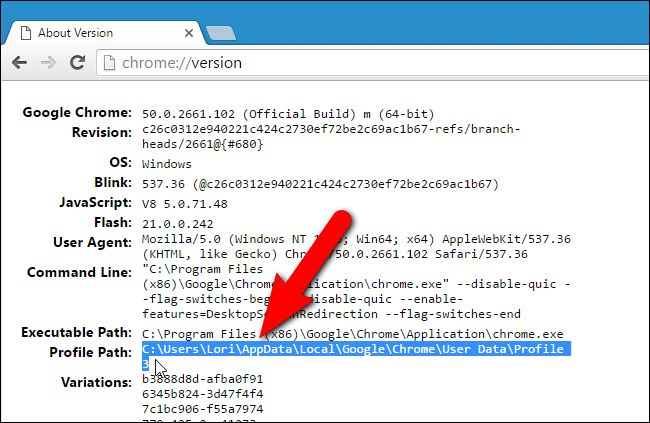
Location of Chrome Browser Profile(default profile)
| OS | Profile Path |
|---|---|
| Windows 7, 8.1, and 10 | C:\\Users<username>\AppData\Local\Google\Chrome\User Data\Default |
| Mac OS X El Capitan | Users/<username>/Library/Application Support/Google/Chrome/Default |
| Linux | /home/<username>/.config/google-chrome/default |
Workaround to use user-defined profile for Executing Tests on Testsigma
We could use the --profile-directory argument for specifying the User Profile. However, due to a known bug in Chrome, you might need to do the following workaround and use the --user-data-dir argument.
2. Making changes in Profile folder (workaround)
- Open your default File Explorer (Windows Explorer - Windows, Nautilus - Linux and Files - Mac) and navigate to the location - C:\Users<username>\AppData\Local\Google\Chrome\User Data\Profile 1
- Create a folder named 'Default' there and copy the contents of 'Profile 1' directory deselecting the recently created 'Default' folder.
- Paste the copied contents inside the ‘Default' folder.
3. Using the Desired Capability
After that, you can use Desired Capability in the following format for using a user-defined profile in Testsigma. The following Desired Capability can be used to start Chrome Browser during an automation session using a user-defined profile.
| Name | Data Type | Value |
|---|---|---|
| goog:chromeOptions | String | {"args":["user-data-dir=/path/to/your/custom/profile"]} |

Want to contribute or report missing content?