- NLPs
 Retrieve Value in Text Element
- Capture Dropdown Elements
- Unable to Select Radiobutton
- Unable to Click Checkbox
- Clearing the Session or Cookies
- UI Identifier NLP
- Drag & Drop NLP
- Uploading Files NLP
- Use MySQL Addon in NLPs
- setup
- Server Docker Deployment Errors
- Secured Business Application Support
- Troubleshooting Restricted Access to Testsigma
- Why mobile device not displayed in Testsigma Mobile Test Recorder?
- Unable to Create New Test Session
- Agent Startup Failure Due to Used Ports
- Tests Permanently Queued in Local Executions
- Fix Testsigma Agent Registration Failures
- Testsigma Agent Cleanup
- Need of Apache Tomcat for Testsigma Agent
- web apps
- URL not accessible
- Test Queued for a Long Time
- Issues with UI Identifiers
- Missing Elements in Recorder
- Collecting HAR File
- Errors with Browser Session
- Page Loading Issues
- mobile apps
- Failed to Start Mobile Test Recorder
- Troubleshooting “Failed to perform action Mobile Test Recorder” error
- Why Test Execution State is Queued for a Long Time?
- Why Mobile App Keeps Stopping After Successful Launch?
- More pre-requisite settings
- Why am I not able to start WDA Process on iPhone?
- What are the Most Common causes for Click/Tap NLP Failure?
- How to Find App Package & Activity in Android?
- Cross-environment Compatible ID Locators (Android)
- Why Accessibility IDs Over other Locators?
- What are Common Android Issues & Proposed Solutions?
- How to Find the App Bundle ID for iOS?
- Developer Mode (iOS 16 & Above)
- How to Handle iOS App Compatibility Issues?
- How to Disable Play Protect for SMS Forwarder Installation?
- How to Capture Network Logs in an Android Application?
Missing Elements in the Recorder
While recording test steps, you may encounter situations where the recorder displays a blank screen, preventing you from interacting with the expected elements. You can follow the steps below to troubleshoot the issue.
Prerequisites
Before you begin, ensure that:
- You have installed the Testsigma Chrome Extension. For more information on installing Testsigma Chrome Extension, refer to the documentation on installing Testsigma Chrome Extension.
Troubleshooting Steps
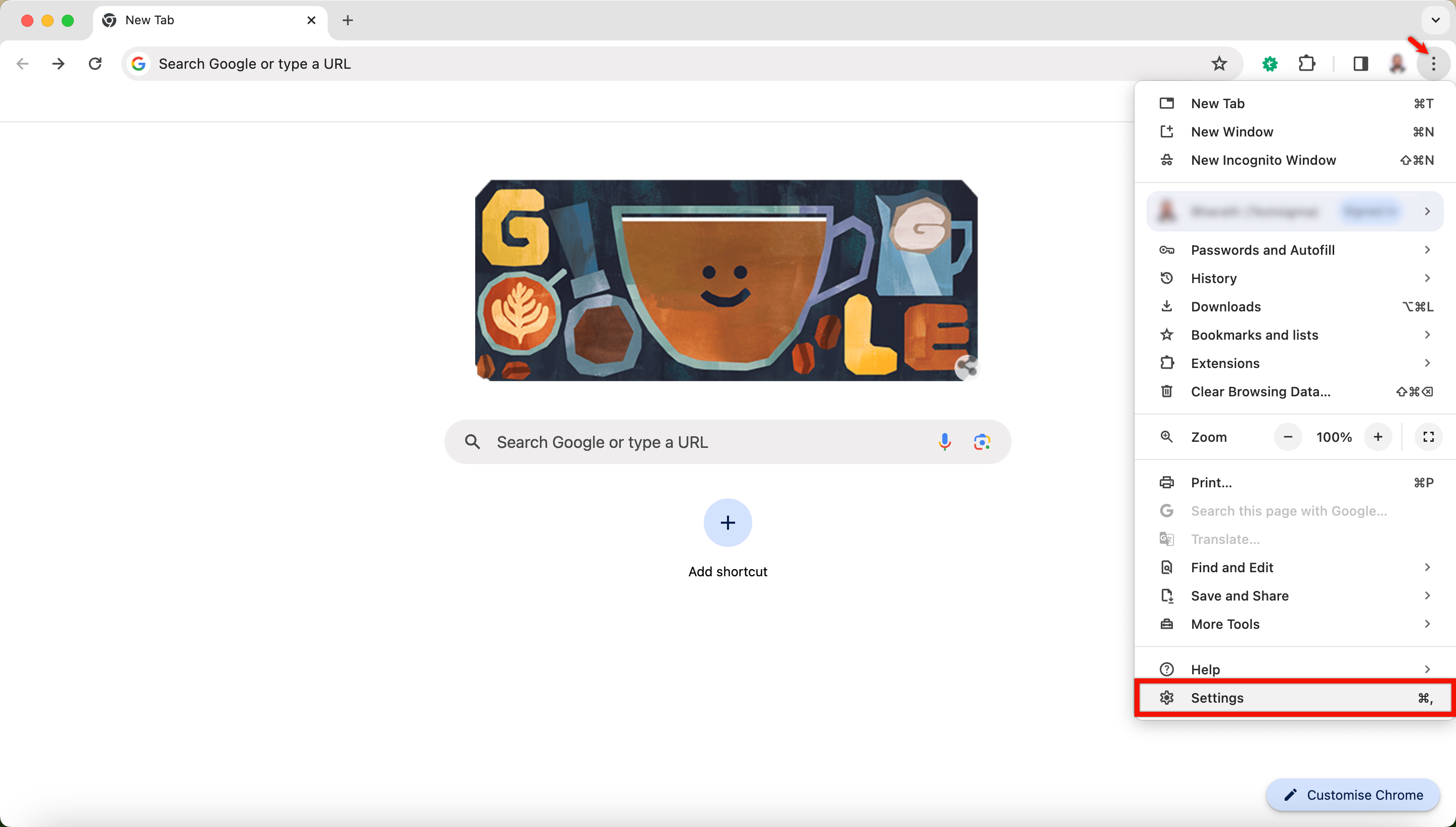
1. Navigate to Chrome Settings
- Open Google Chrome.
- Click on the three vertical dots in the top-right corner to access the menu.
- Select Settings.
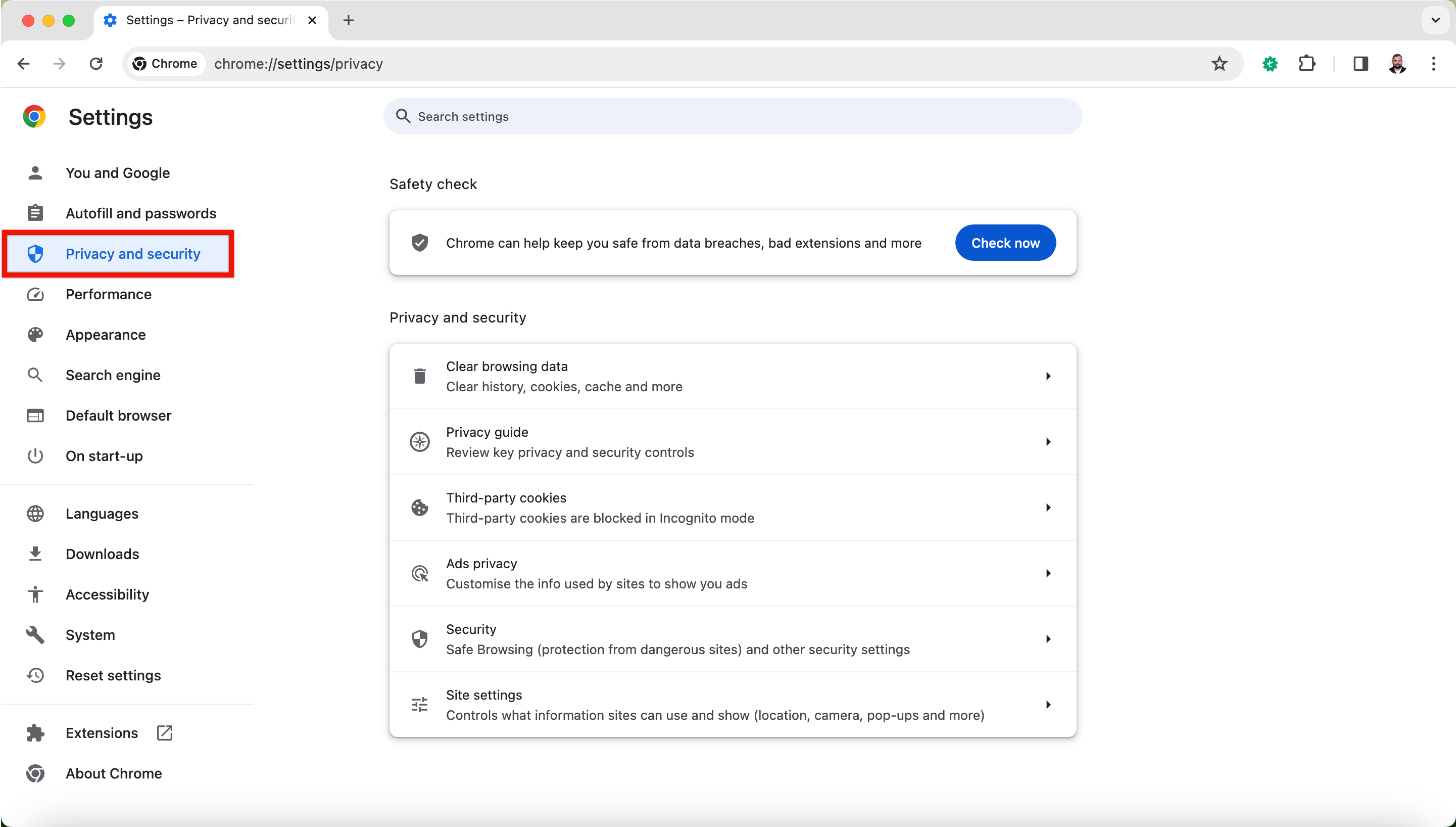
2. Privacy and Security
- In the left sidebar, choose Privacy and security.
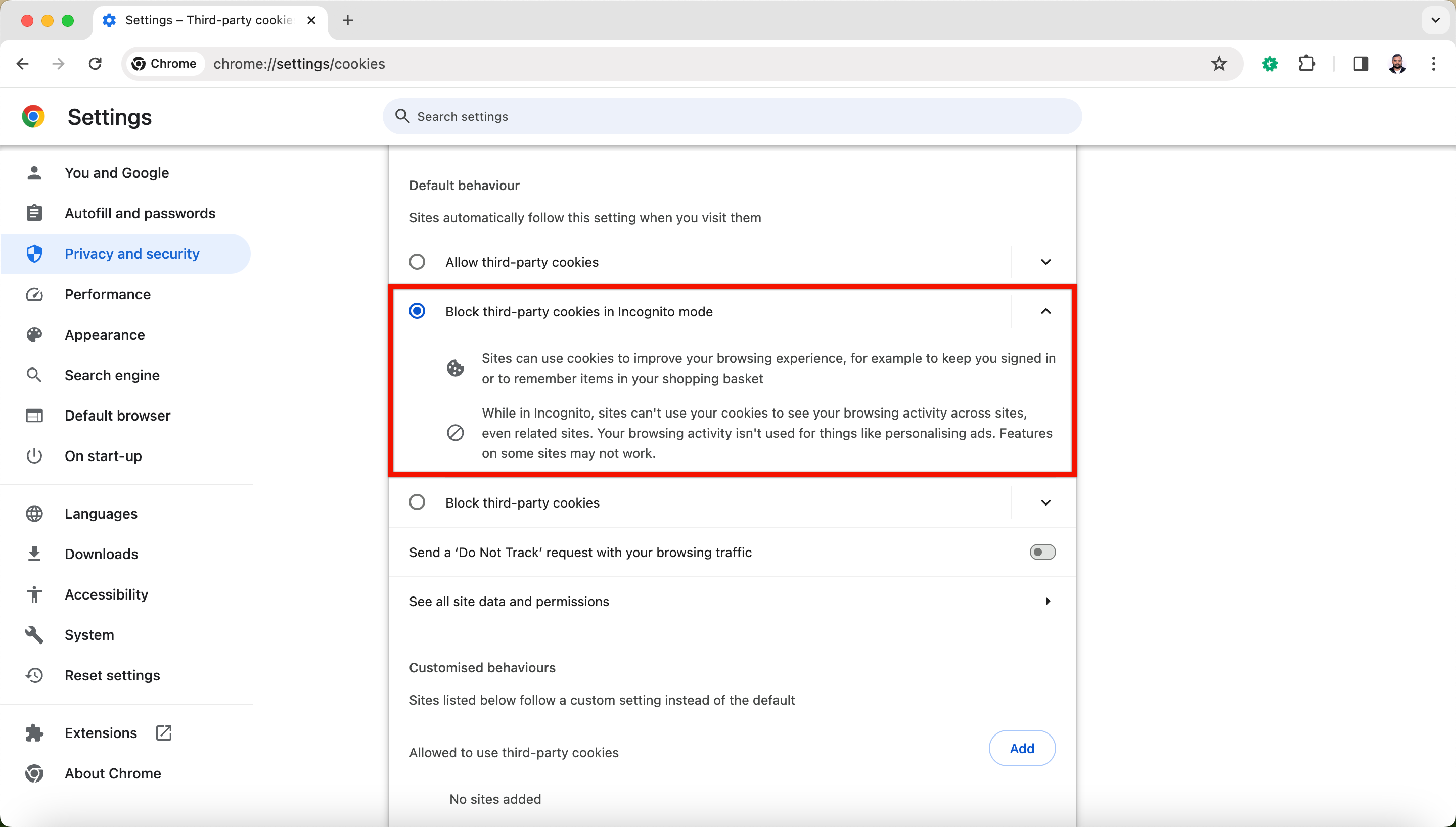
3. Third-party cookies
- Scroll down to find the Third-party cookies section.
- Click on it to expand the options.

4. Block Third-Party Cookies in Incognito
- Enable the option to Block third-party cookies in Incognito mode.

Want to contribute or report missing content?