- create test cases
 Organizing Test Cases in Folders
- Test Cases for Web Applications
- Test Cases for Mobile Applications
- Test Cases for Mobile Web Applications
- Manage Test Cases for Web Applications
- Manage Test Cases for Android & iOS Apps
- Manage Test Cases for Mobile Web Applications
- Test Case List Actions
- Importing Postman Collections and Environments
- Custom Fields for Test Cases
- Label Management
- Update Test Case Result in a Test Plan
- Test Case: Advanced Options Guide
- Test Step Types
- Type: Natural Language
- Type: REST API
- Type: Step Group
- Type: For Loop
- Type: While Loop
- Type: Block
- Type: If Condition
- Nested Step Groups
- Image Injection
- Cross-application testing
Label Management in Testsigma
The Label Management feature in Testsigma helps you manage labels linked to test cases, elements, step groups, test suites, and test plans. You can view all labels in one place, check their associations, and easily unlink or delete them from the management page. This article discusses how to manage labels in Testsigma.
Prerequisites
Before you begin, ensure that you have referred to:
Steps to Create a Label
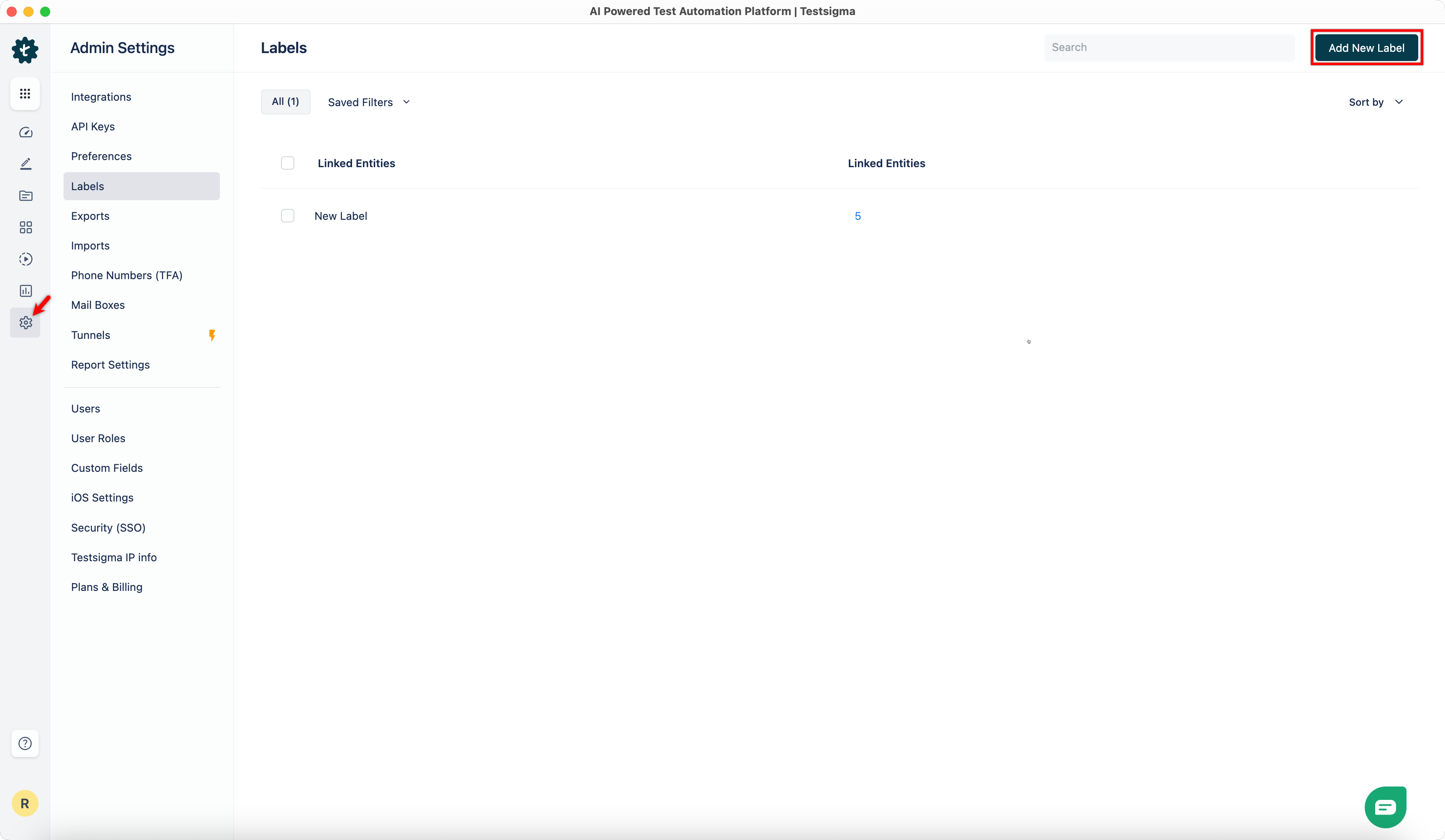
- From the left navigation bar, go to Settings > Labels, and click Add New Label in the top-right corner.
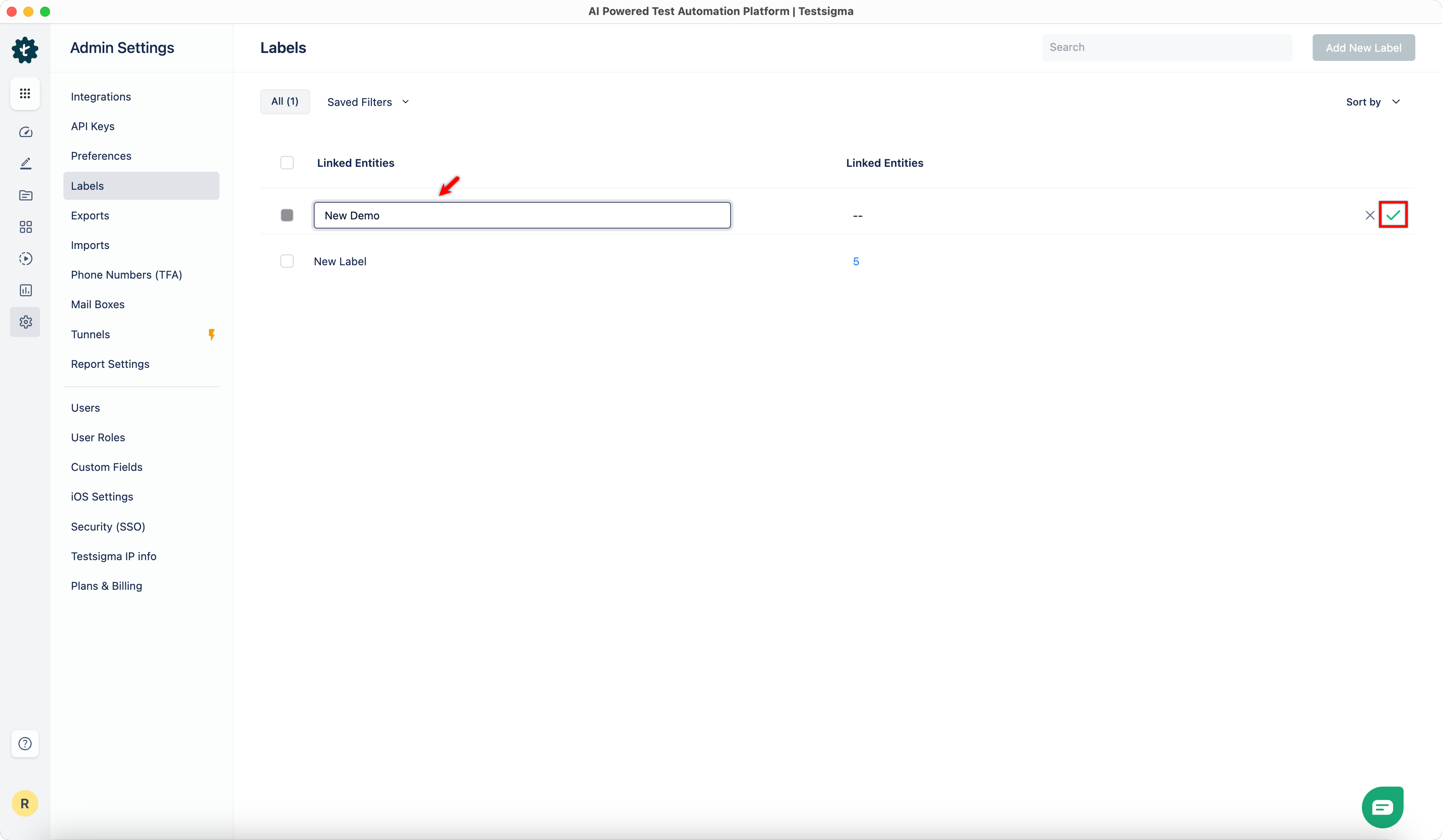
- Enter a name and click the tick mark icon to save the label.
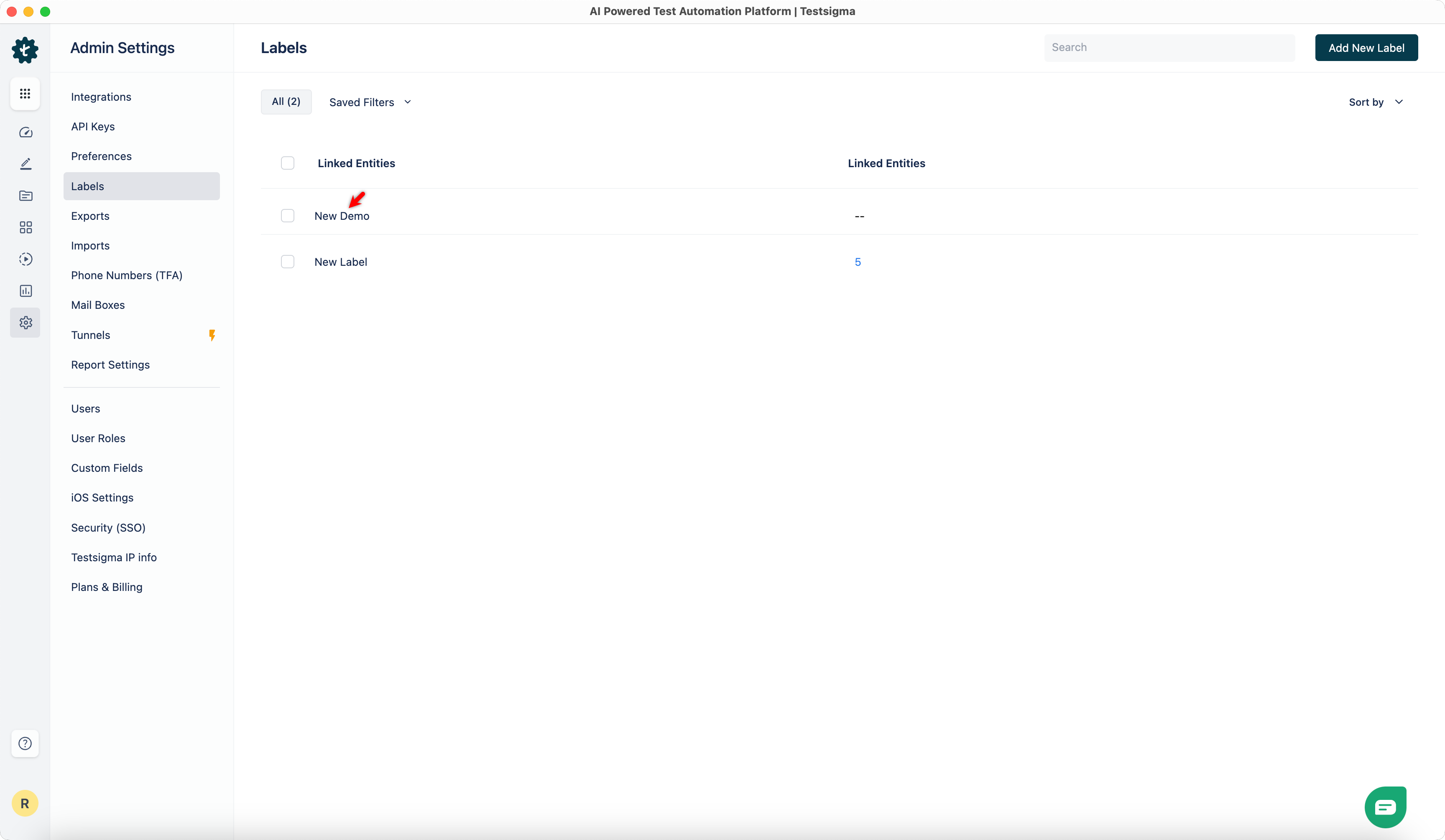
- The label will be added to the list.
NOTE:
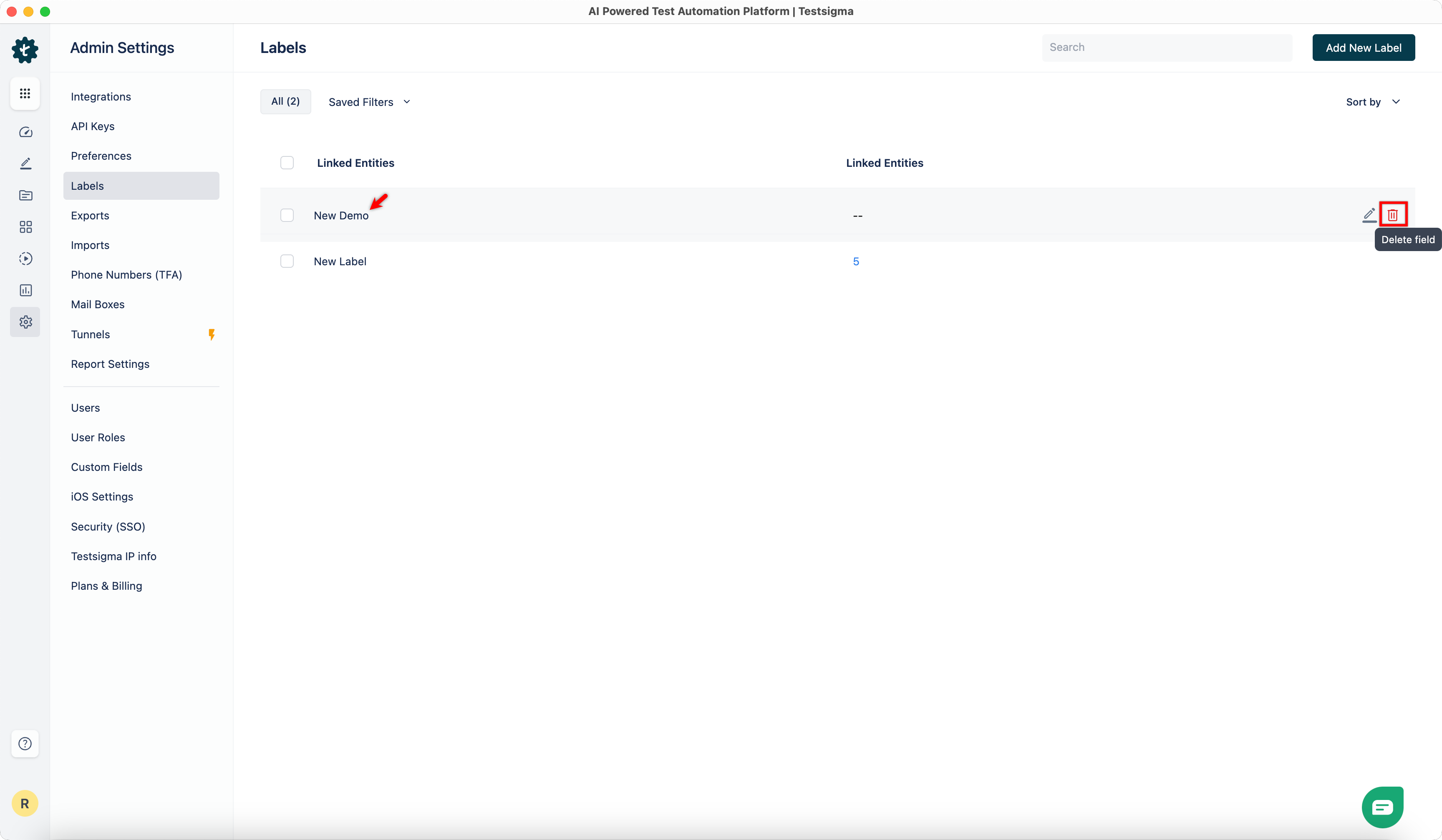
- You can edit the label by clicking on the Edit icon corresponding to the label.
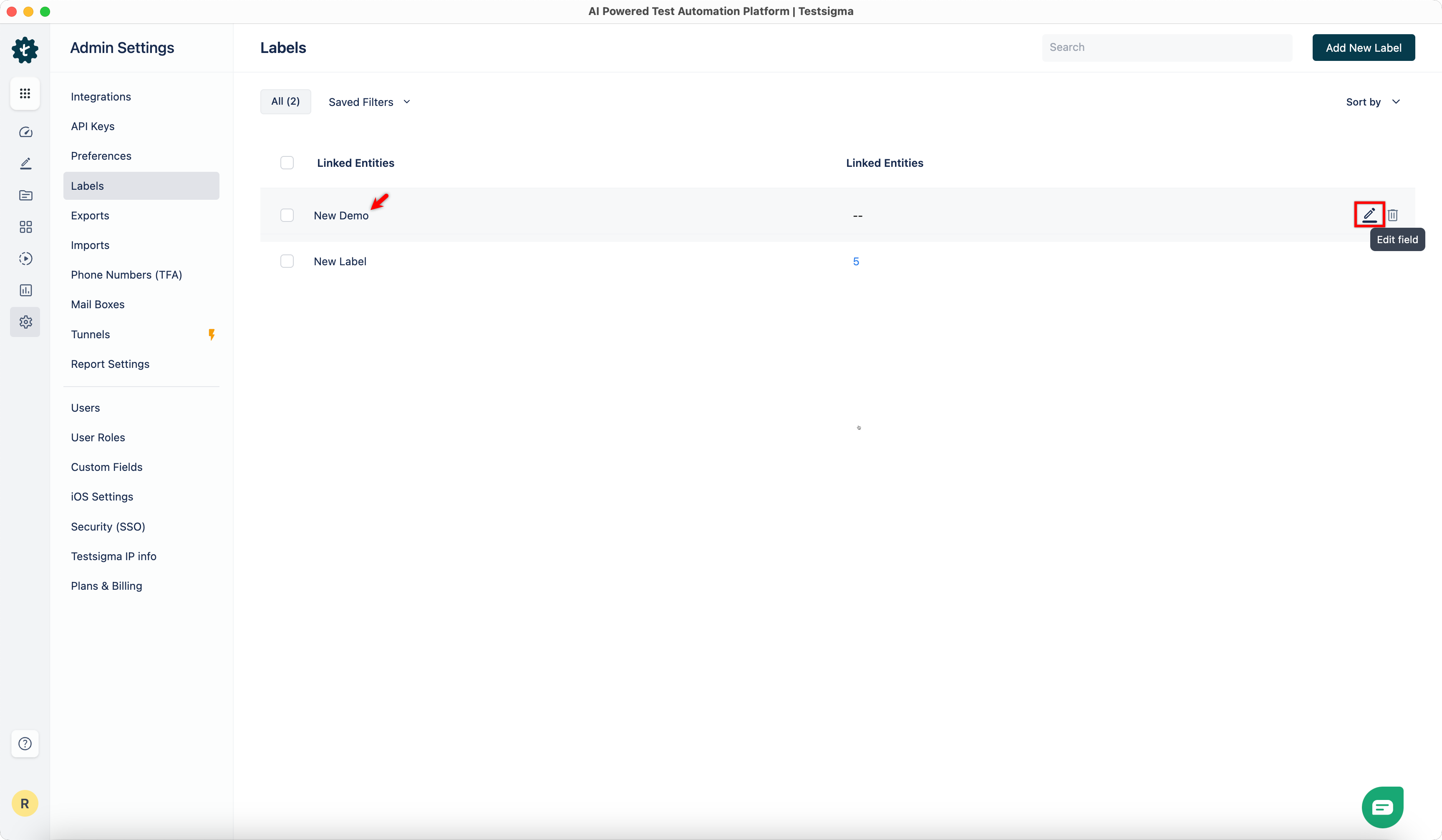
- You can delete the label by clicking on the Delete icon corresponding to the label.
Steps to Associate Label to Test Case
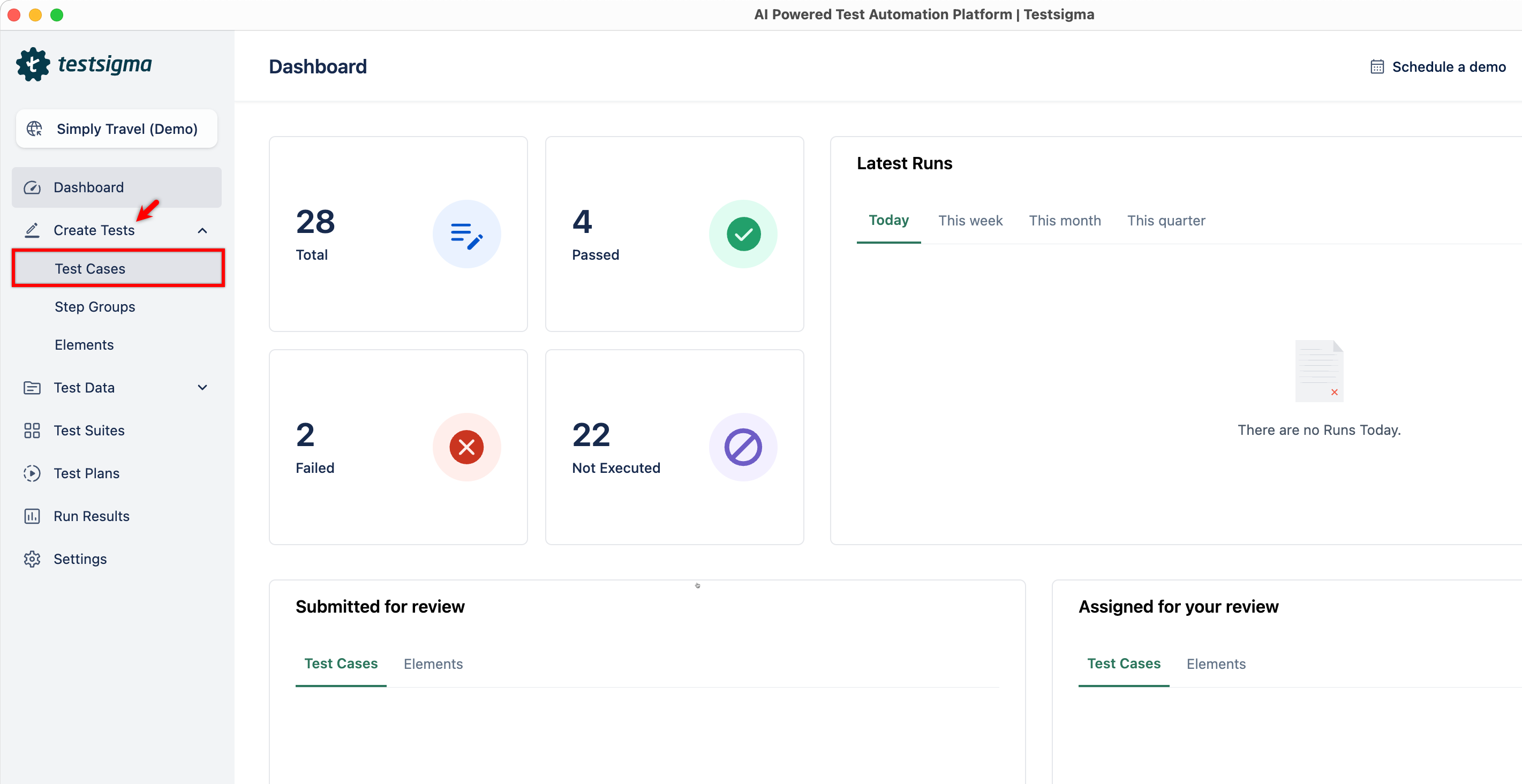
- From the left navigation bar, go to Create Tests > Test Cases.
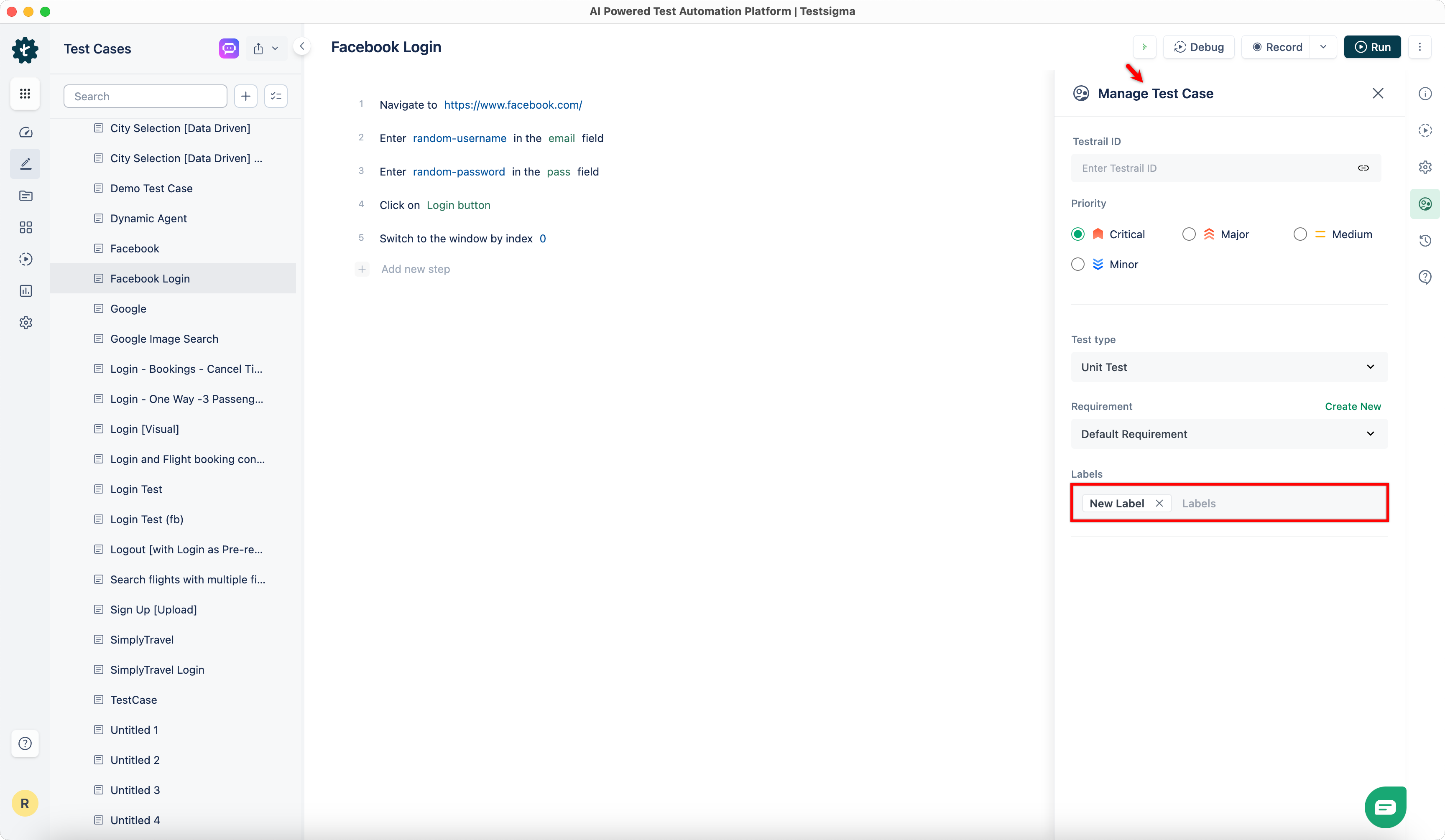
- Create a test case or open an existing test case.
- In the Utility Panel, click Manage Test Case, and scroll down to Labels.
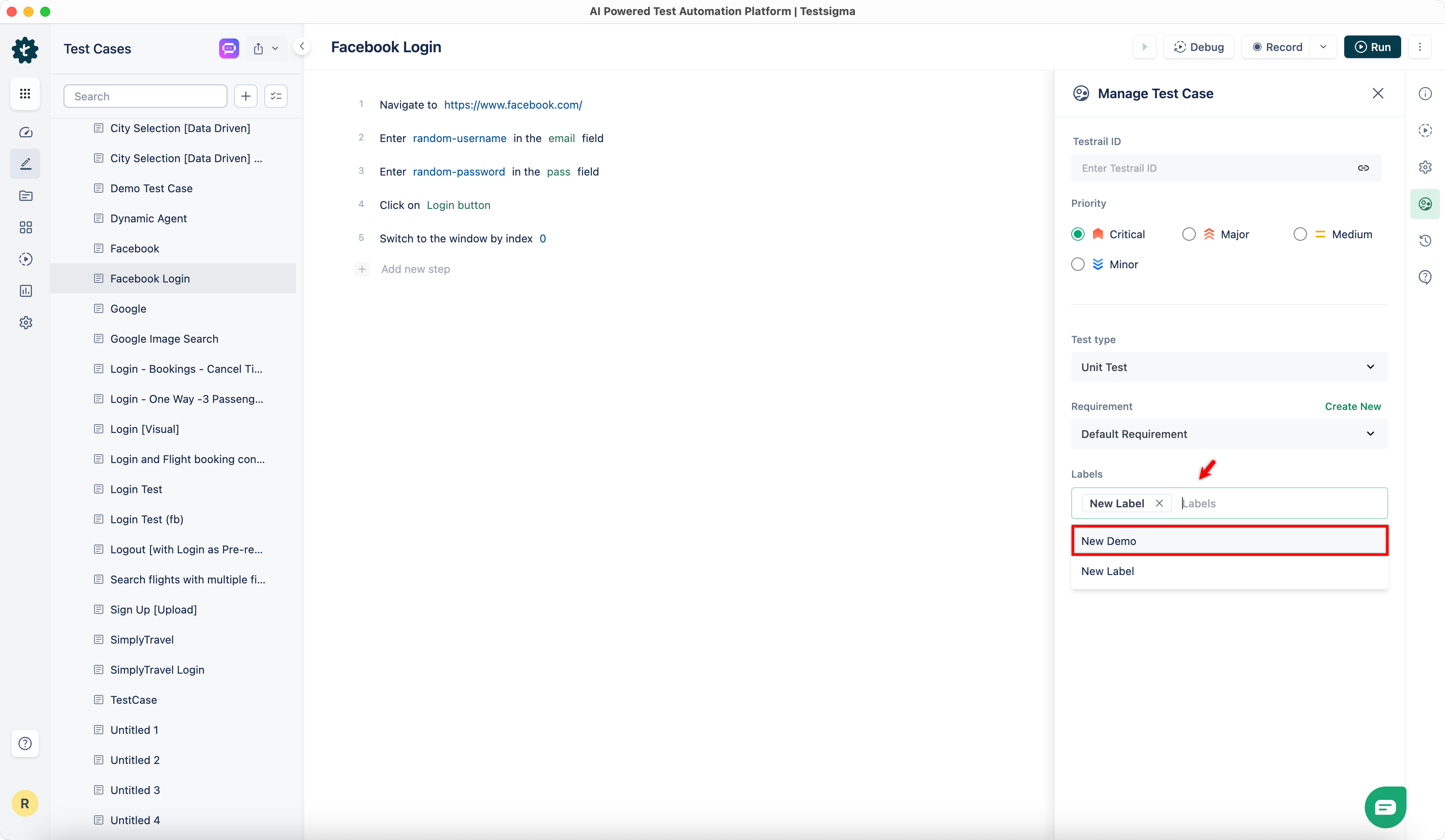
- Click Labels, then select the labels you want to associate with the test case from the dropdown menu.
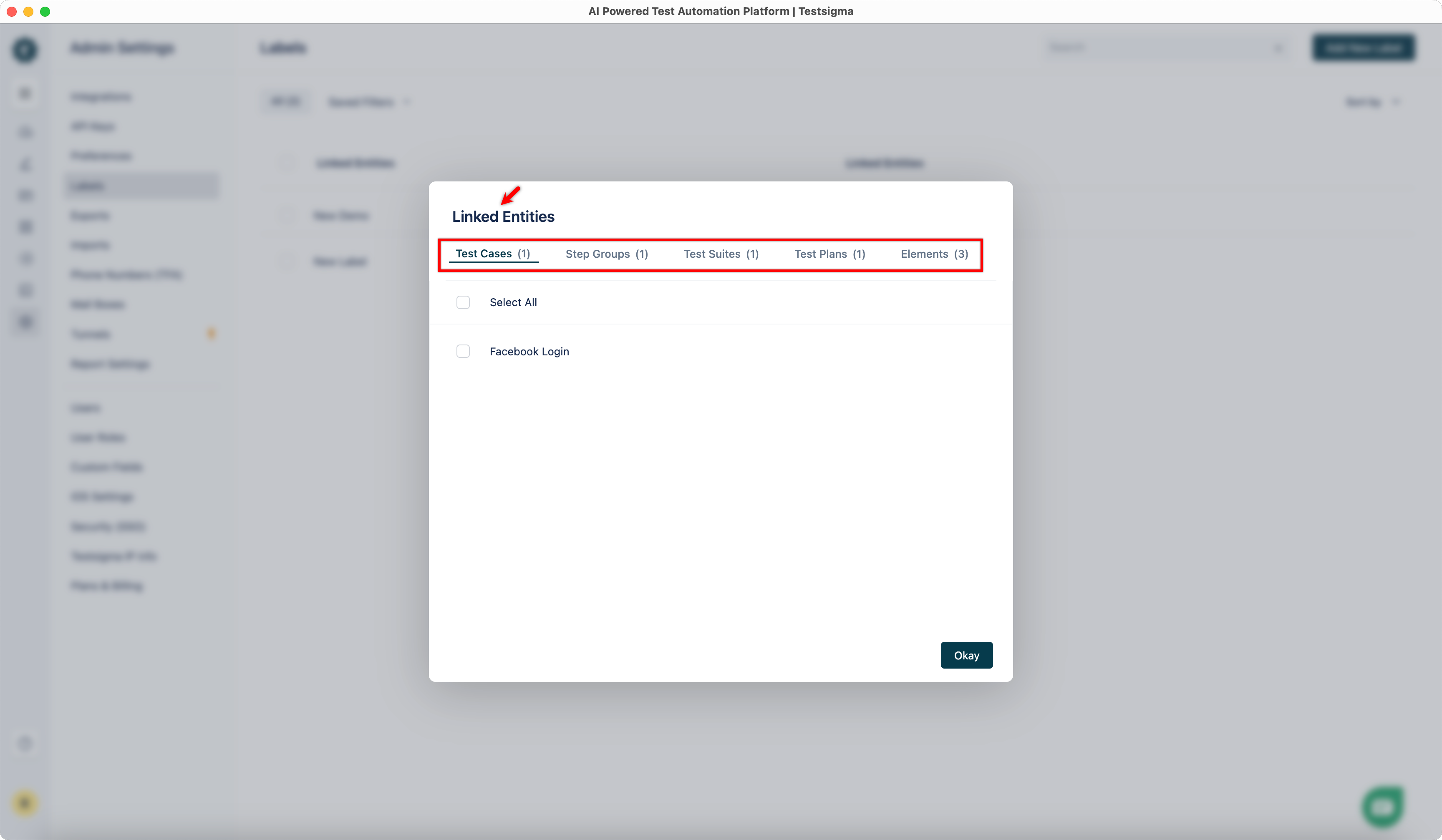
- Now go to Settings > Labels, select a label, and click the number corresponding to it to view assets associated with a label.
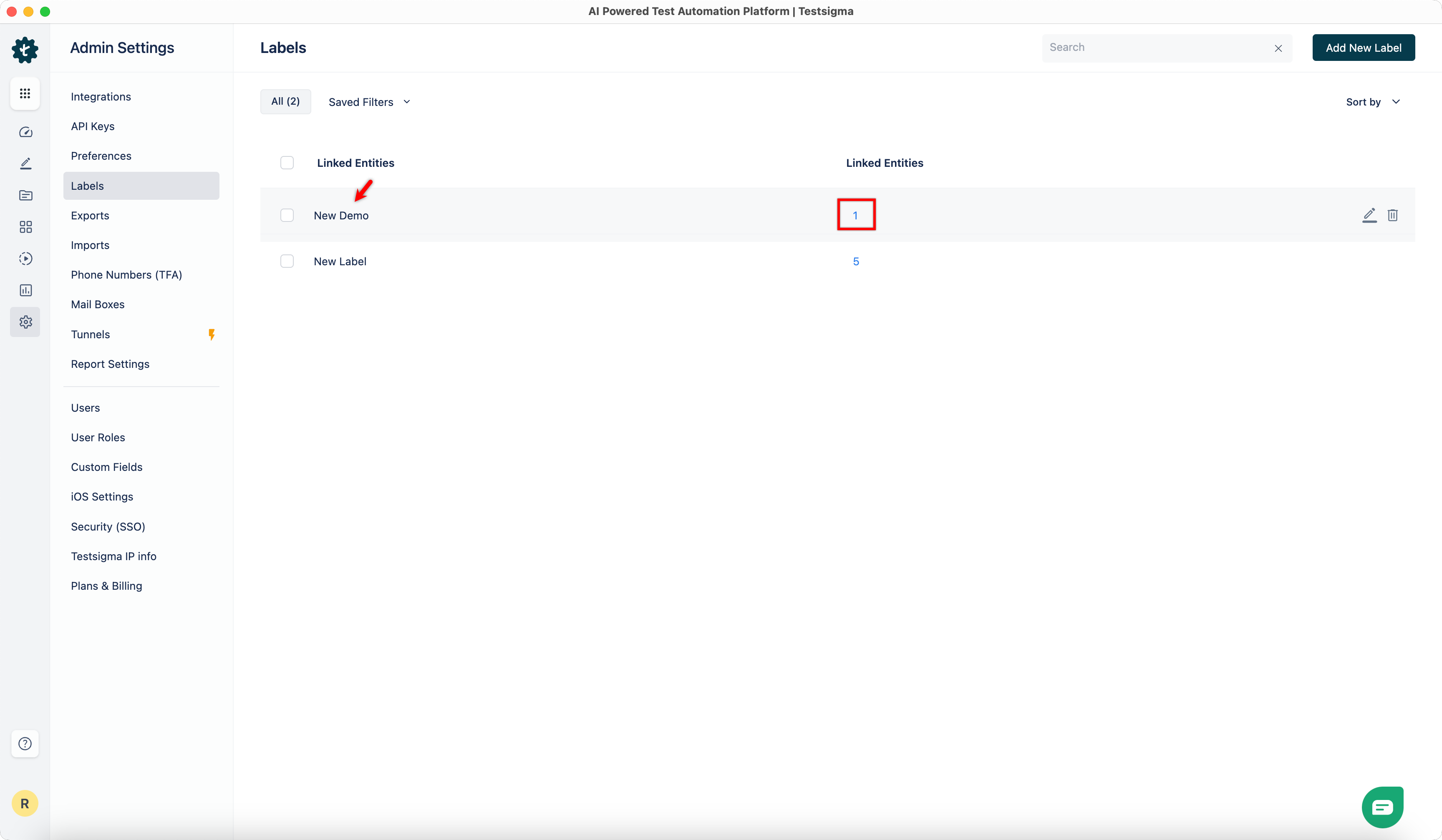
NOTE:
- You can link labels to Step Groups from the Manage Step Group panel.
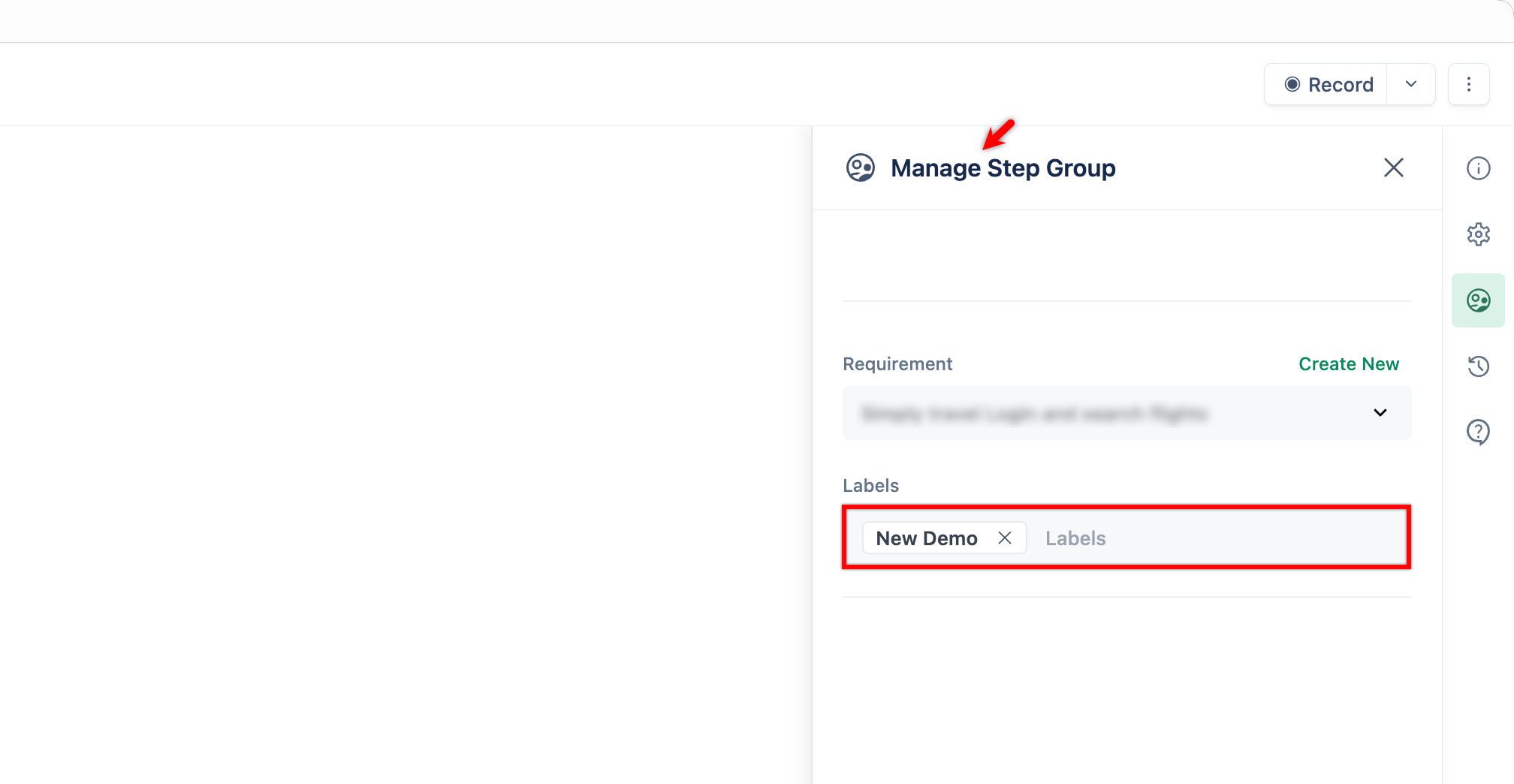
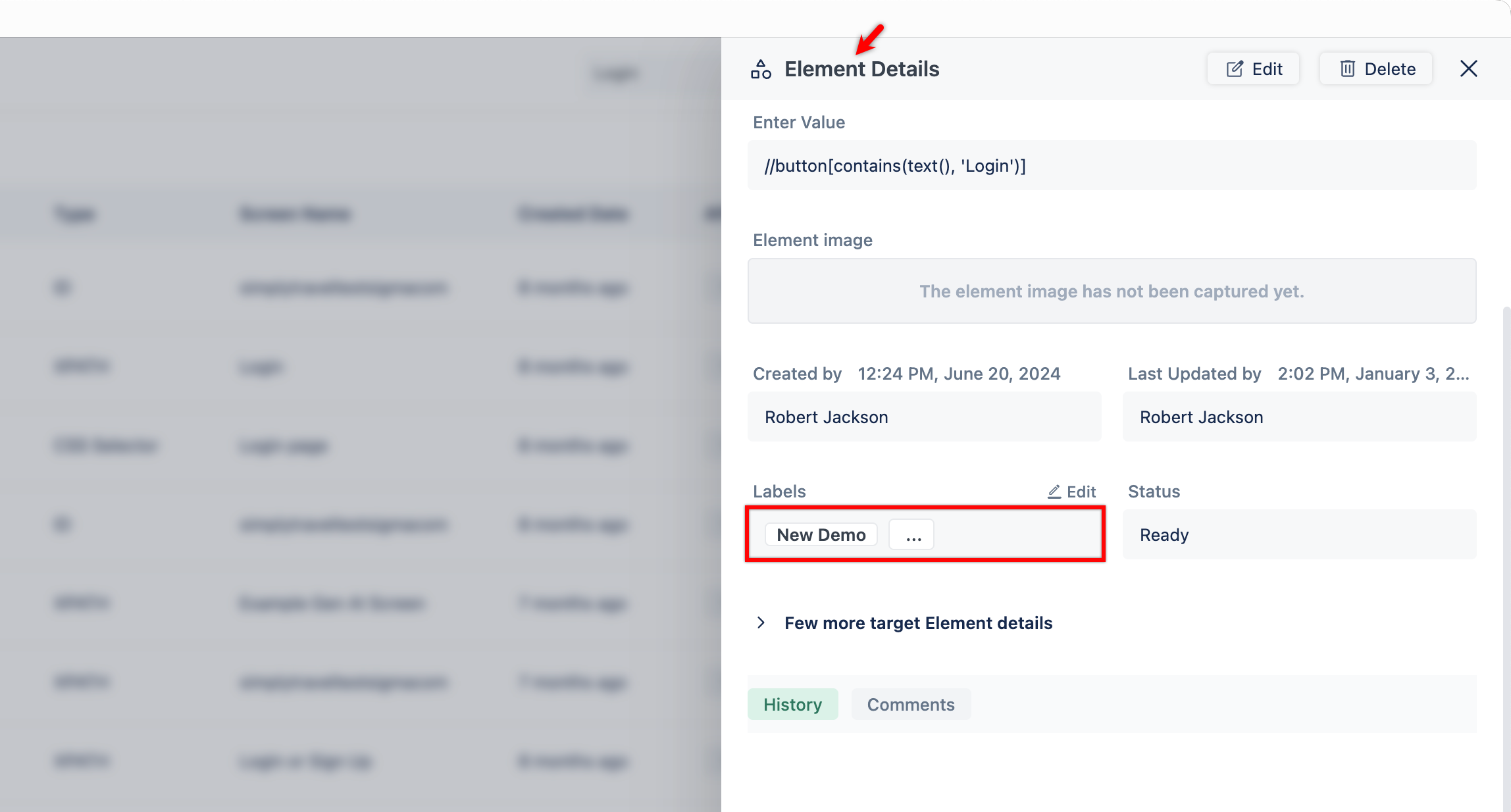
- You can link labels to Elements from the Update Element overlay.
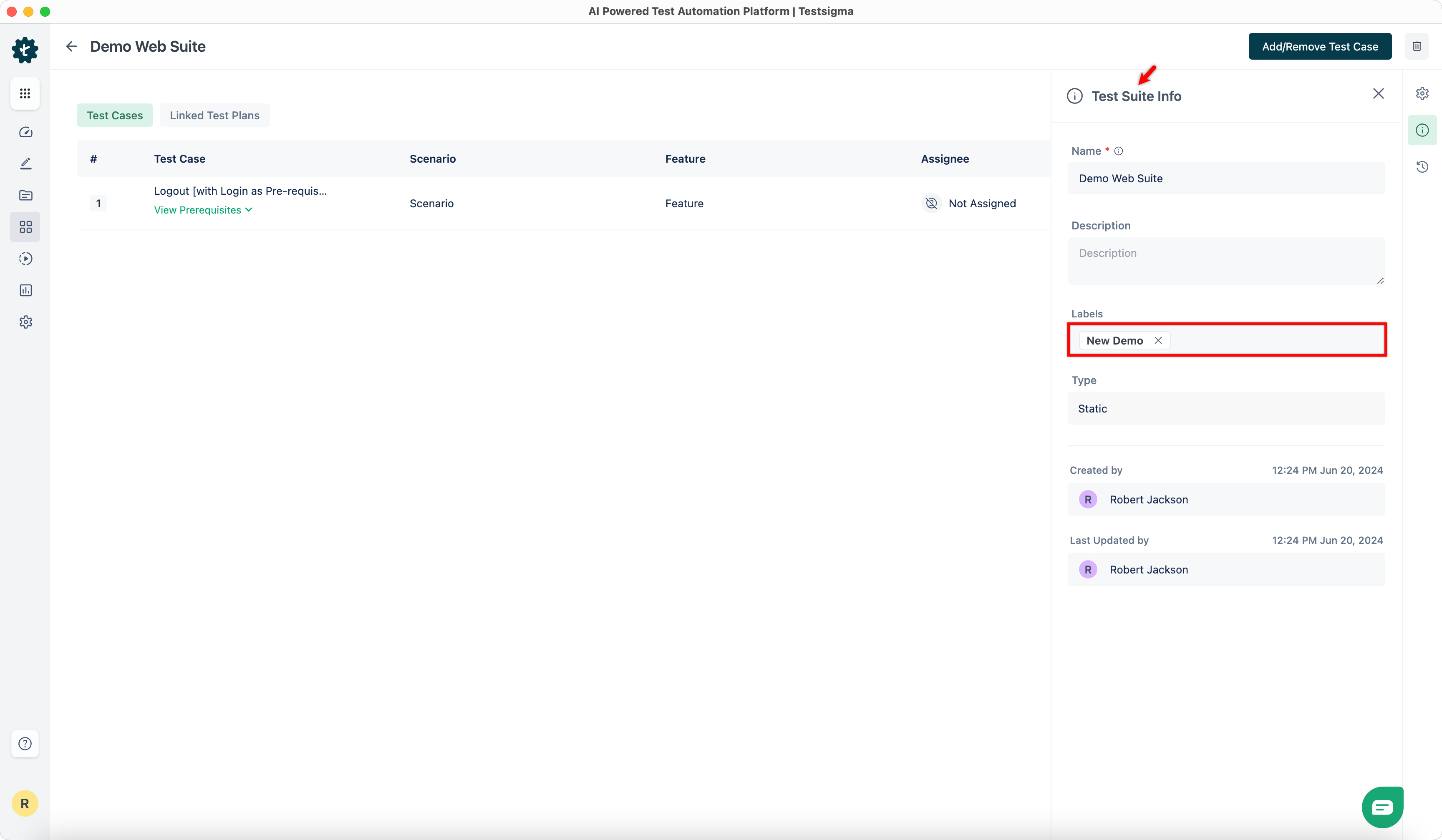
- You can link labels to Test Suites from the Test Suite Info overlay.
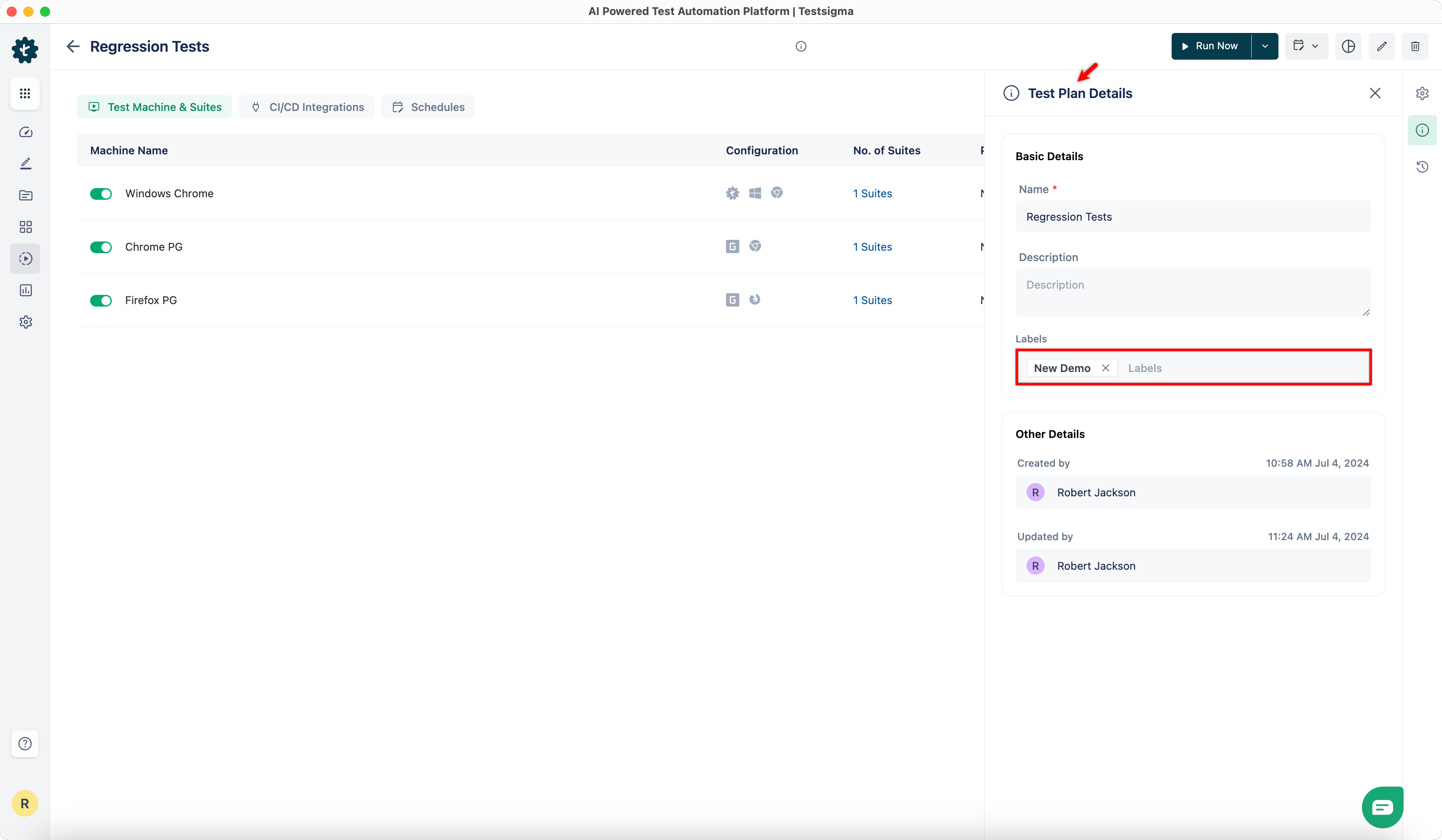
- You can link labels to Test Plans from the Test Plan Details overlay.
- All entities linked to a label, such as Test Cases, Elements, Step Groups, Test Suites, and Test Plans, appear in this dialog.
Steps to Unlink Labels from Entities
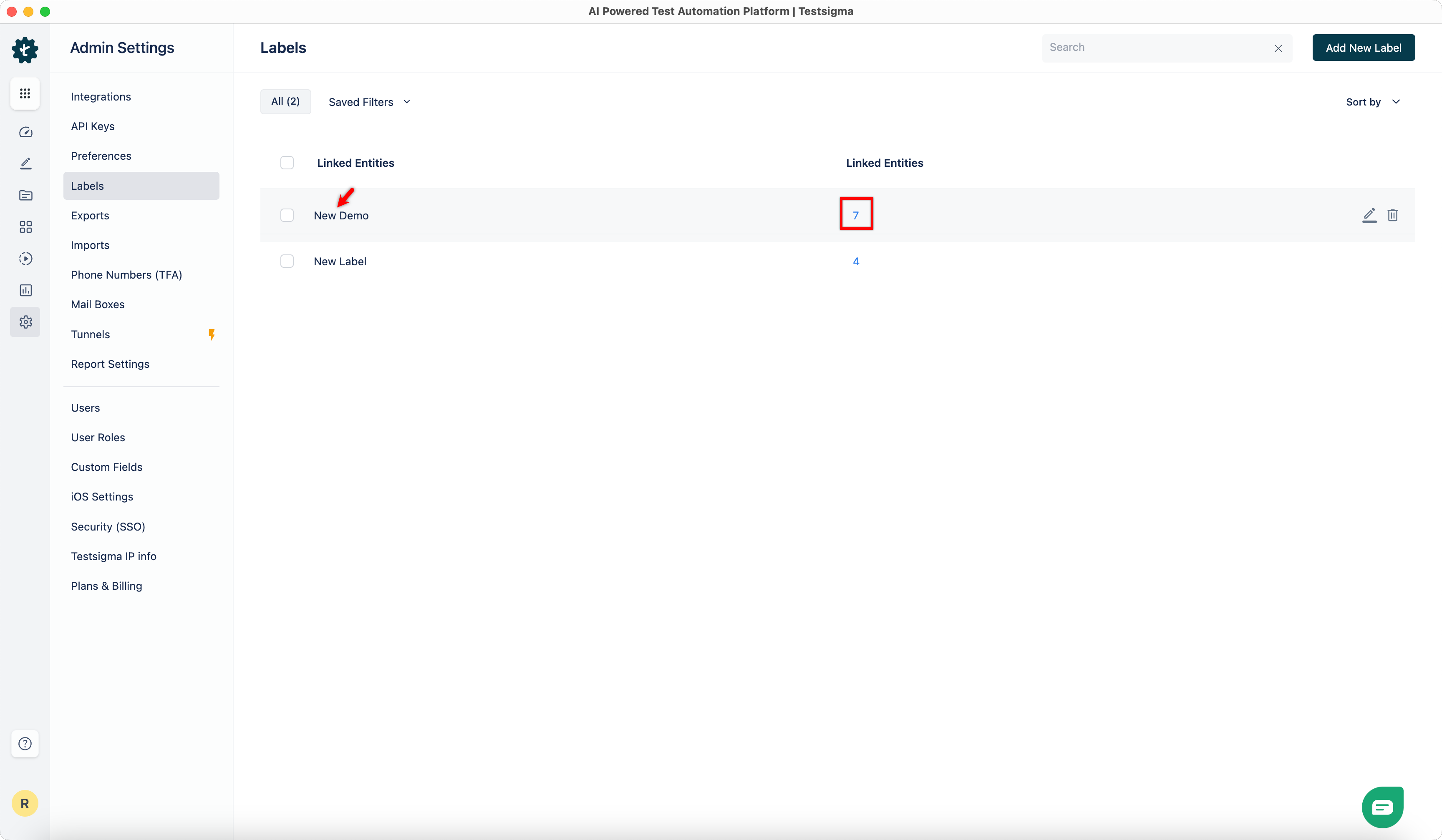
- From the left navigation bar, go to Settings > Labels, select a label, and click the number corresponding to it to view the associated assets.
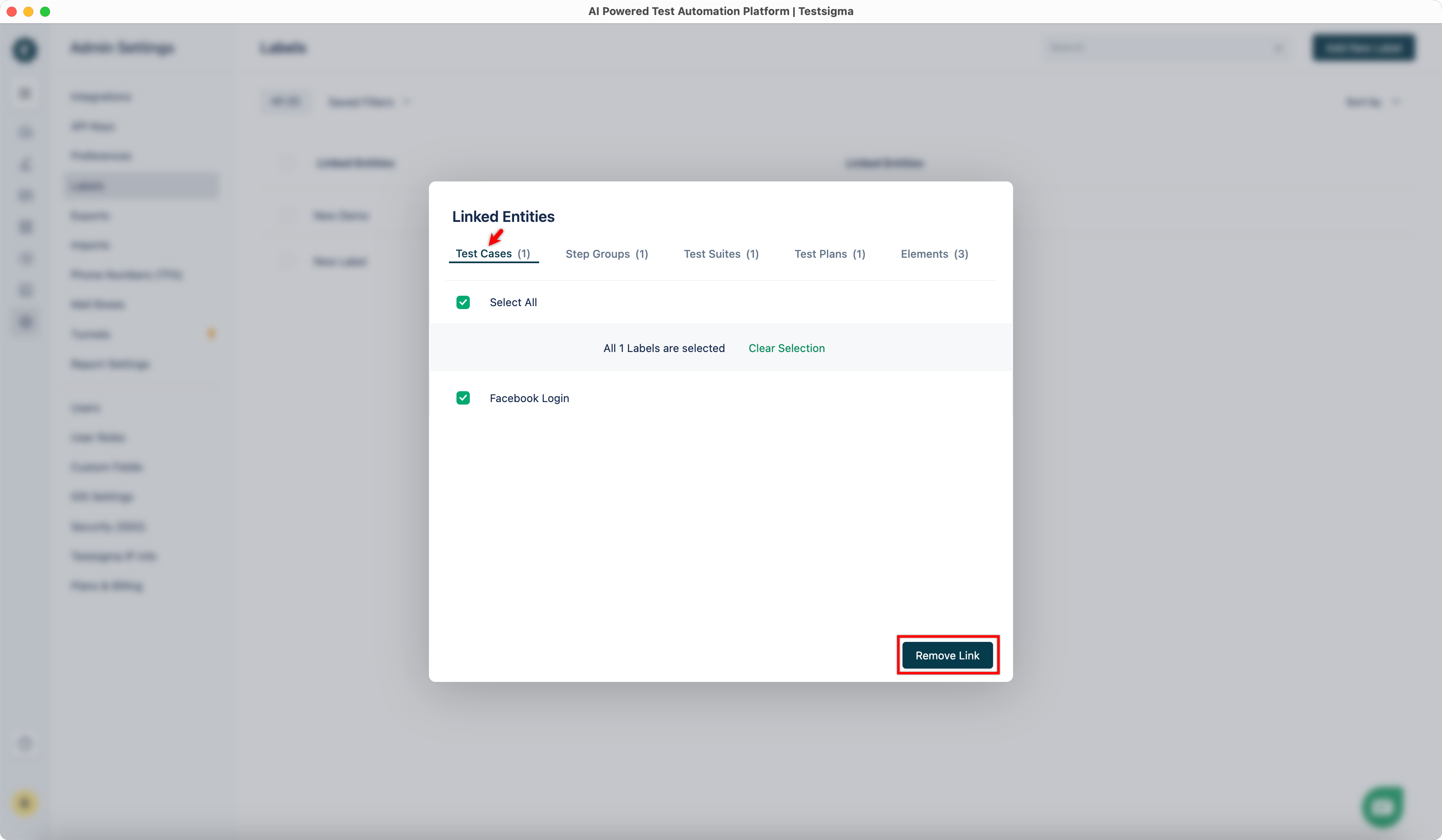
- In the Linked Entities dialog, go to the Entity tab, select the assets you want to unlink, and click Remove Link.

Want to contribute or report missing content?