- uploads
 Upload Files
- Upload Android and iOS Apps
- How to generate mobile builds for Android/iOS applications?
Upload Android and iOS Apps
Upload Android and iOS apps to Testsigma so they are available for mobile test execution. Your app can be stored in one of the following locations:
- On your local machine (for Local Hybrid Execution)
- On your server and accessible via a direct internet link
- The Testsigma application
This guide will demonstrate how to do this and automate your mobile app testing, ensuring the quality and reliability of your applications.
Prerequisites
Before you begin, ensure that you have referred to:
- Documentation on creating test cases.
- Documentation on creating projects.
- Have the Android .apk file and iOS .ipa file ready.
Upload Applications
-
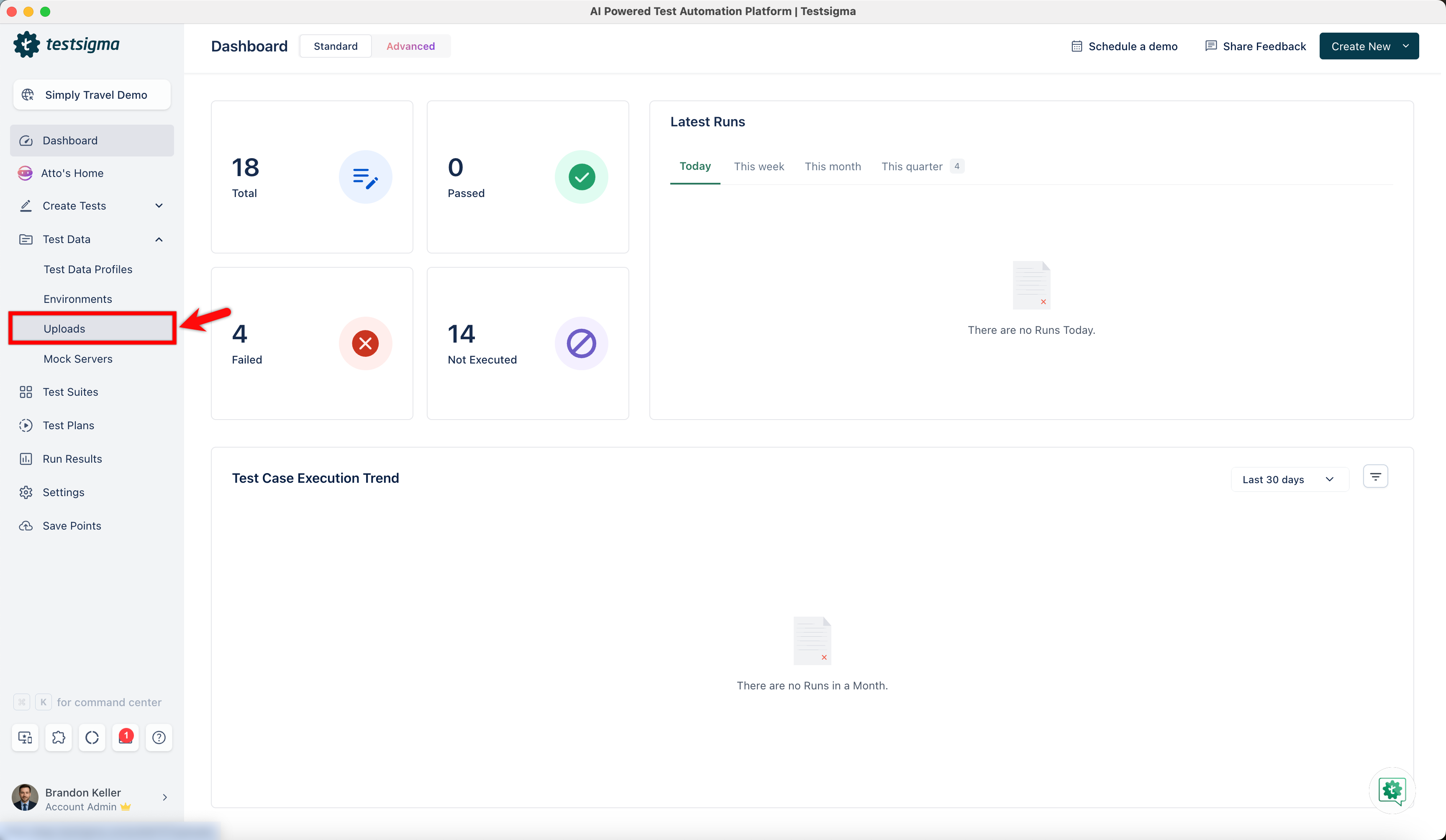
From the left navigation bar, go to Test Data > Uploads.
 NOTE:
NOTE:To upload an Android app, navigate to an Android project. To upload an iOS app, navigate to an iOS project.
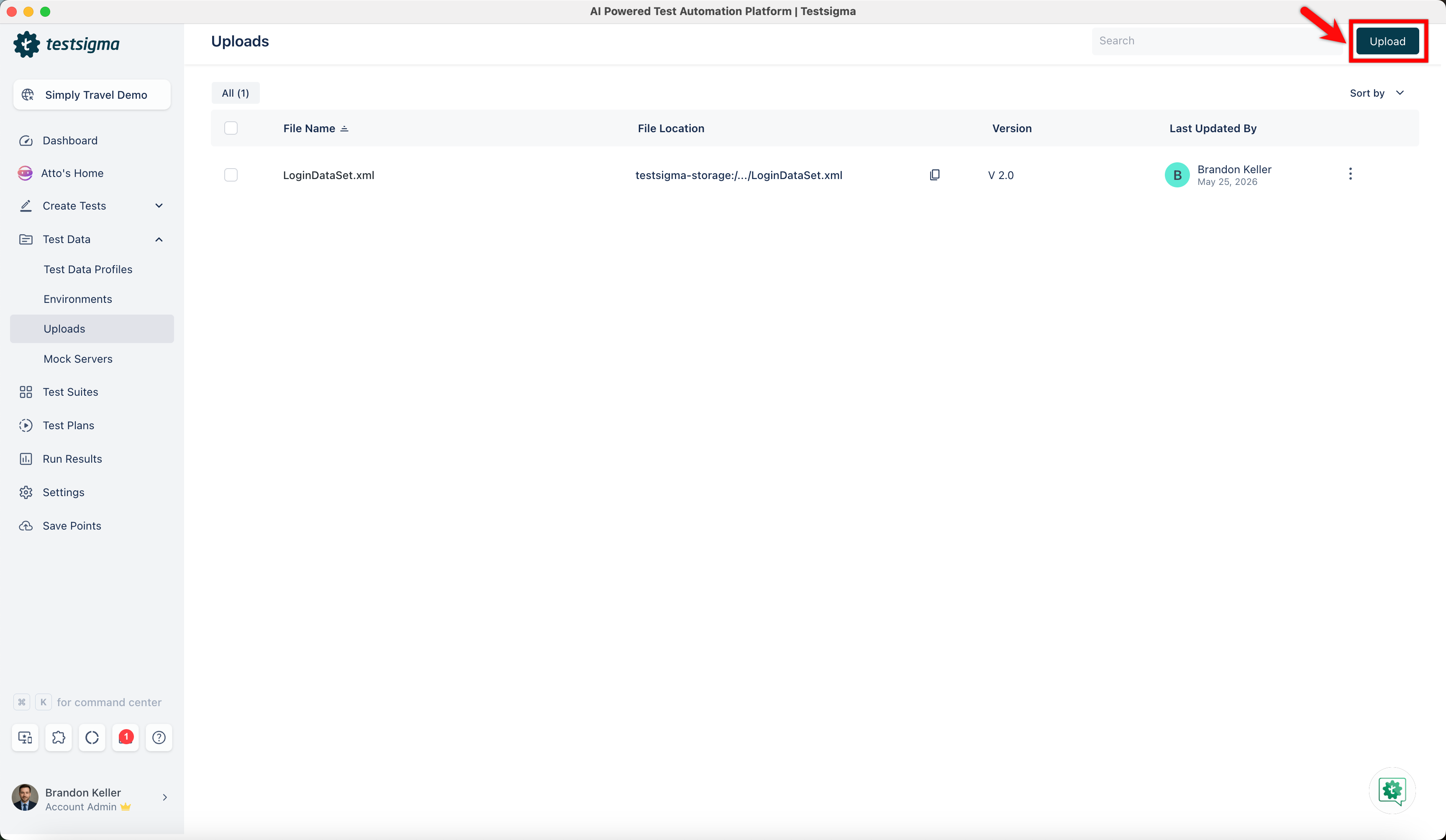
- Click Upload.
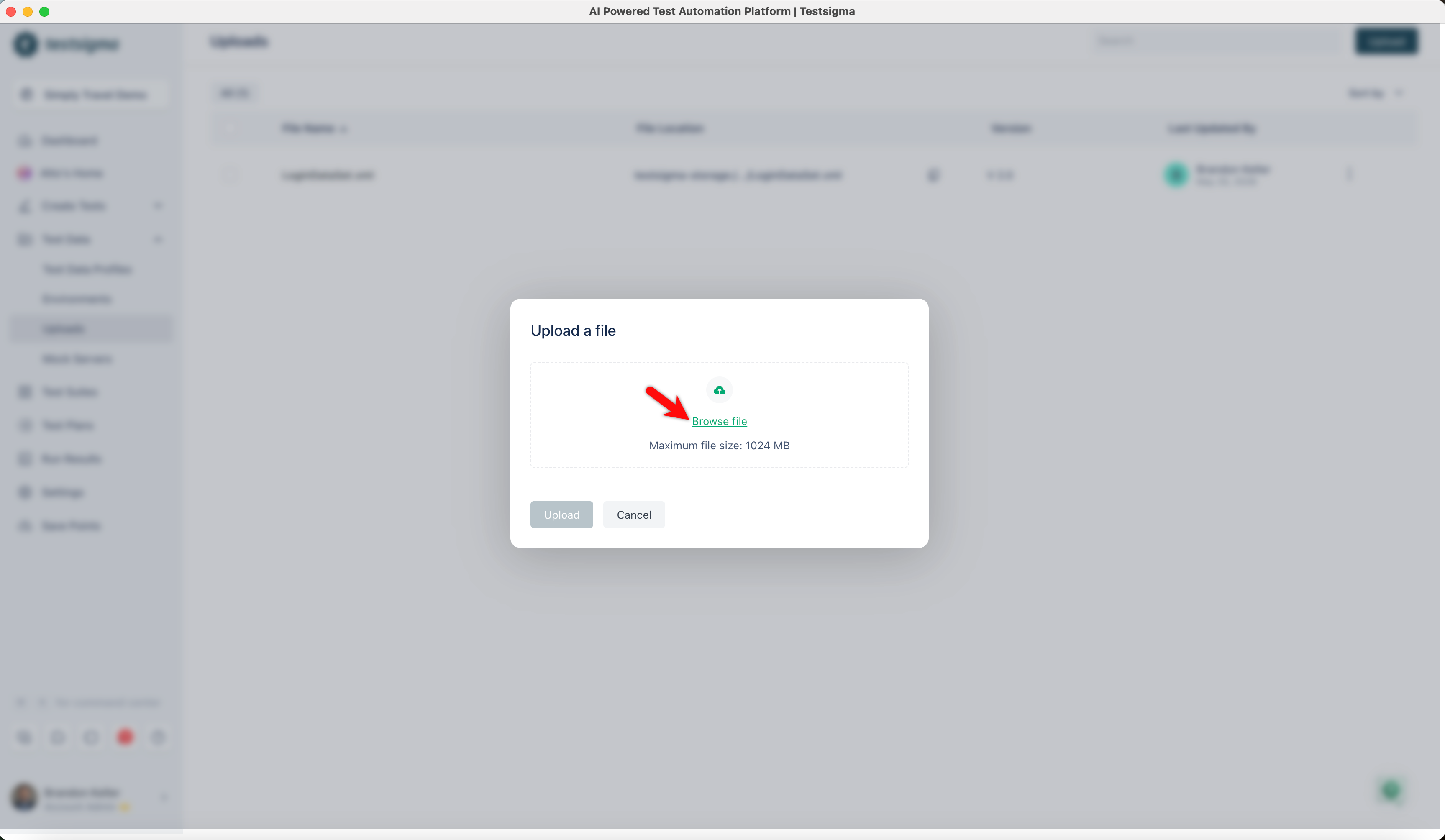
- In the Upload a file dialog, drag and drop your file or click on Browse to select the file from your local folder.
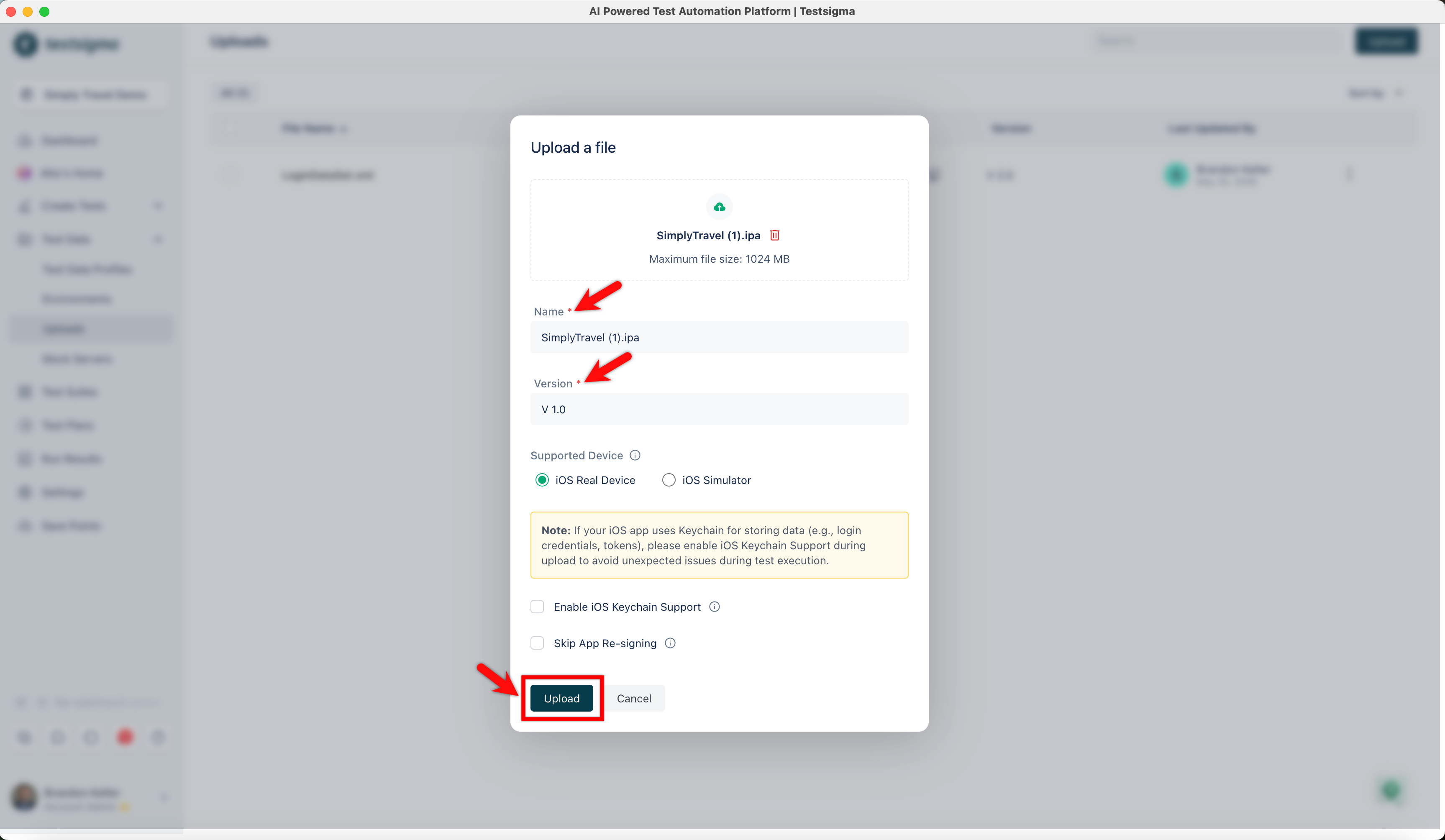
- Edit Name, Version, and click Upload.
NOTE:
You can Upload files not more than 300 Mb.
Manage Upload Application
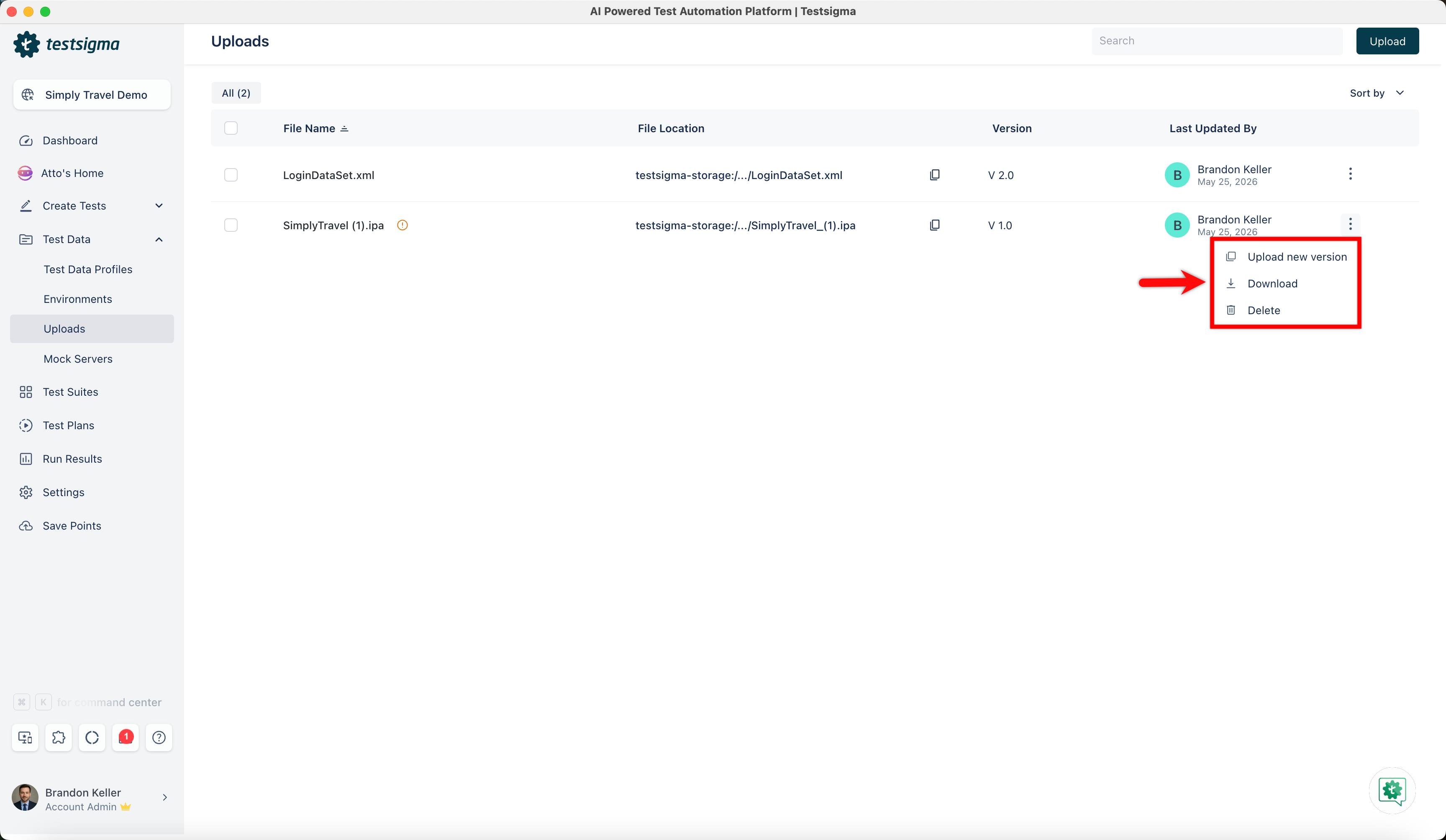
- In the Uploads list page, click the ellipsis icon next to the uploaded application you want to manage. The dropdown menu will appear, and you can then select options like Upload a new version, Download, or Delete the application.

Want to contribute or report missing content?