
Copilot in Testsigma
The Copilot in Testsigma helps you debug, execute, and modify test cases in real time. It also enables you to generate test cases using Testsigma Copilot, allowing you to convert prompts into executable test steps. Whether you're reviewing a failed step, learning elements dynamically, or creating new tests from scratch, the Copilot gives you complete control over the test execution flow. This article discusses the capabilities of the Copilot in Testsigma.
Prerequisites
Before you begin, ensure Testsigma Terminal is installed and the Copilot is ready.
Steps to Debug & Generate Tests
- From the left navigation bar, go to Create Tests > Test Cases.
- Create a new test case or open an existing one.
- From the Action Panel, click Copilot.
- In the Copilot overlay, select a step from the Select Step dropdown to specify the debug point.
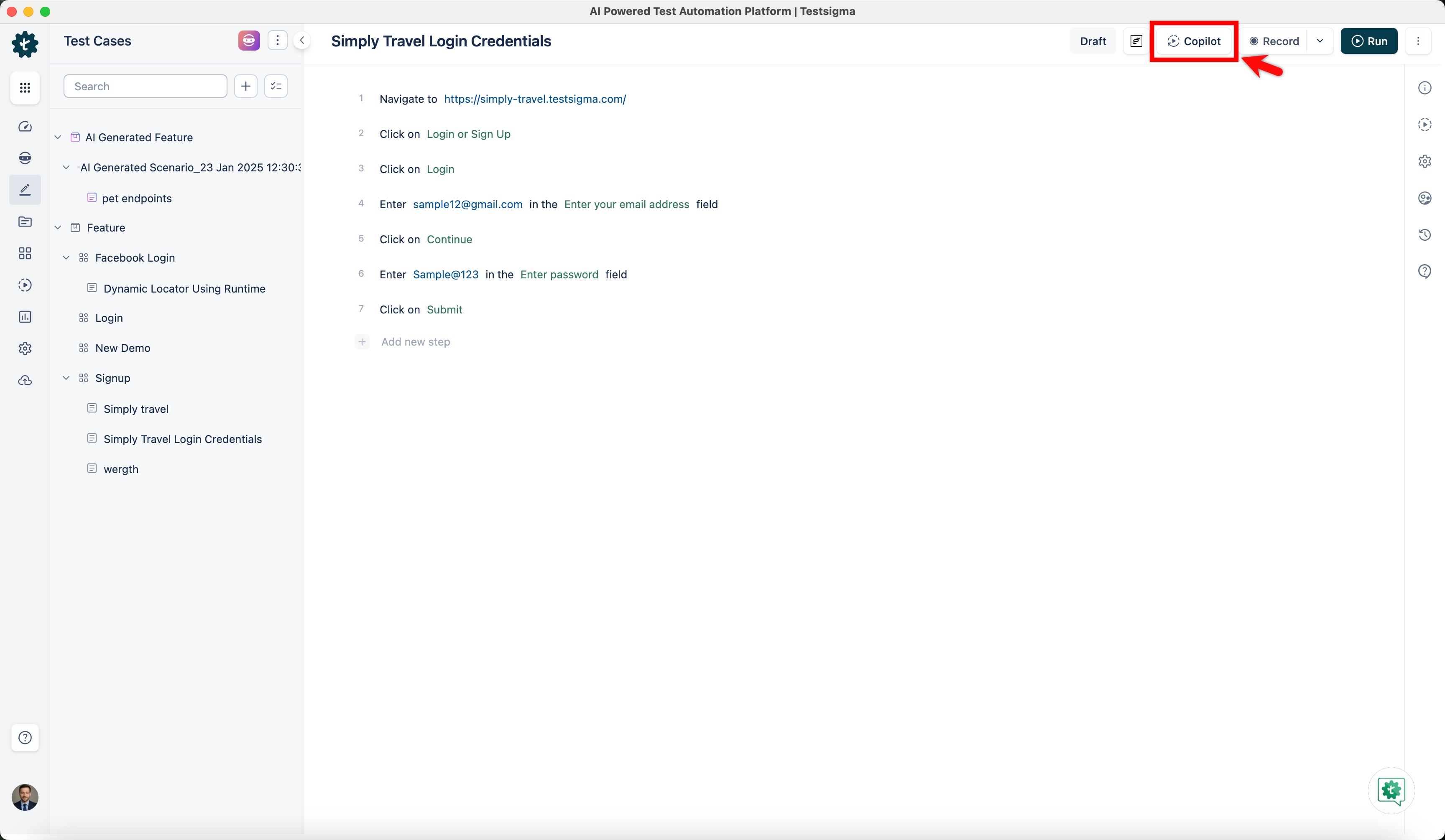
- Click Launch to begin execution.
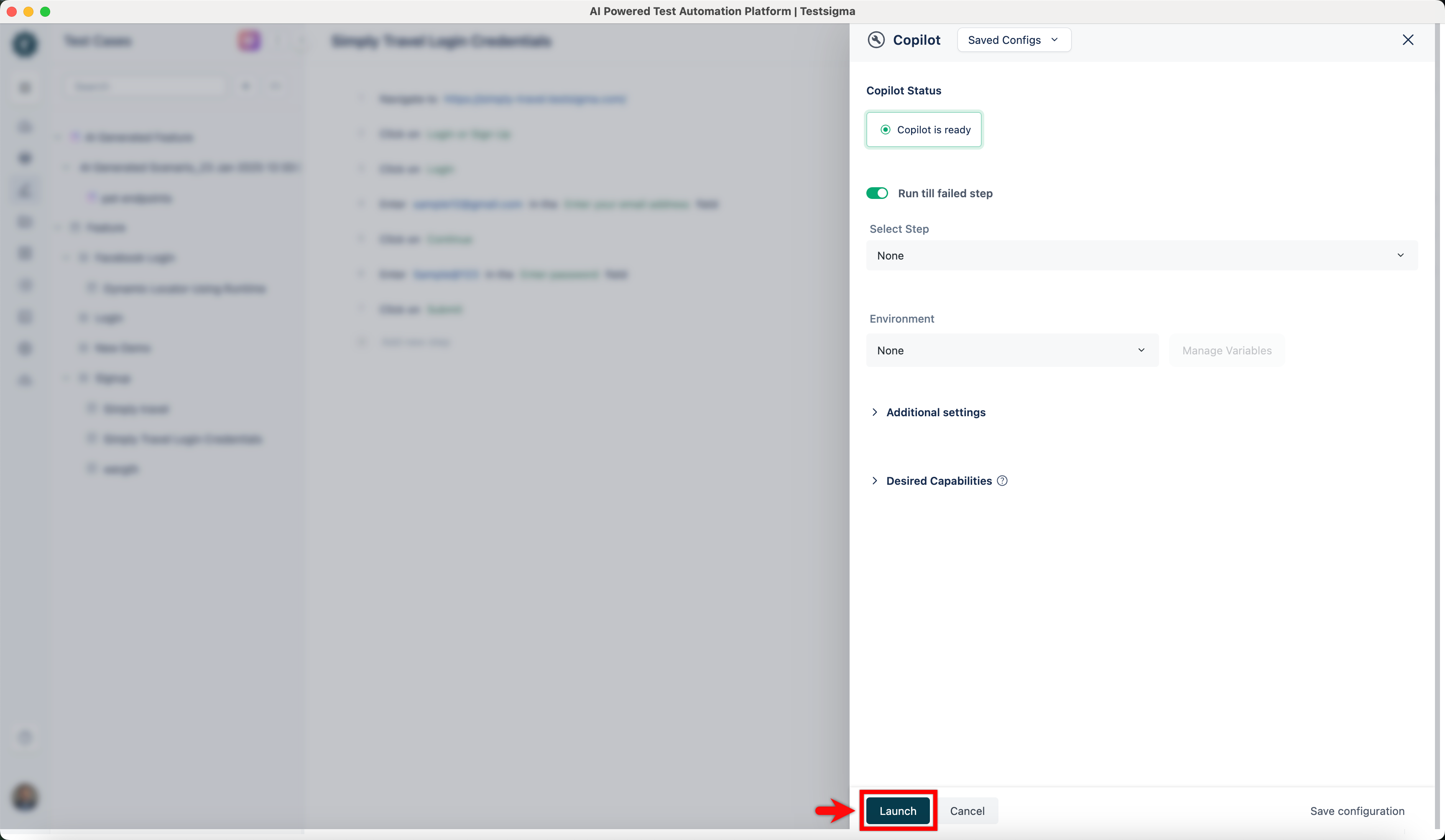
- The Copilot will execute all steps up to the debug point.
NOTE:
- When execution pauses at a debug point or a step failure, the Global Debugger Toolbar becomes active, providing options to Resume, Step Over, Skip Over, or Restart the session. This paused state gives you access to Copilot’s live authoring tools to edit, reorder, or update steps while the session remains live.
- Click Testsigma Copilot on the Copilot dialog.
- In the Testsigma Copilot overlay, click Generate Test Cases.
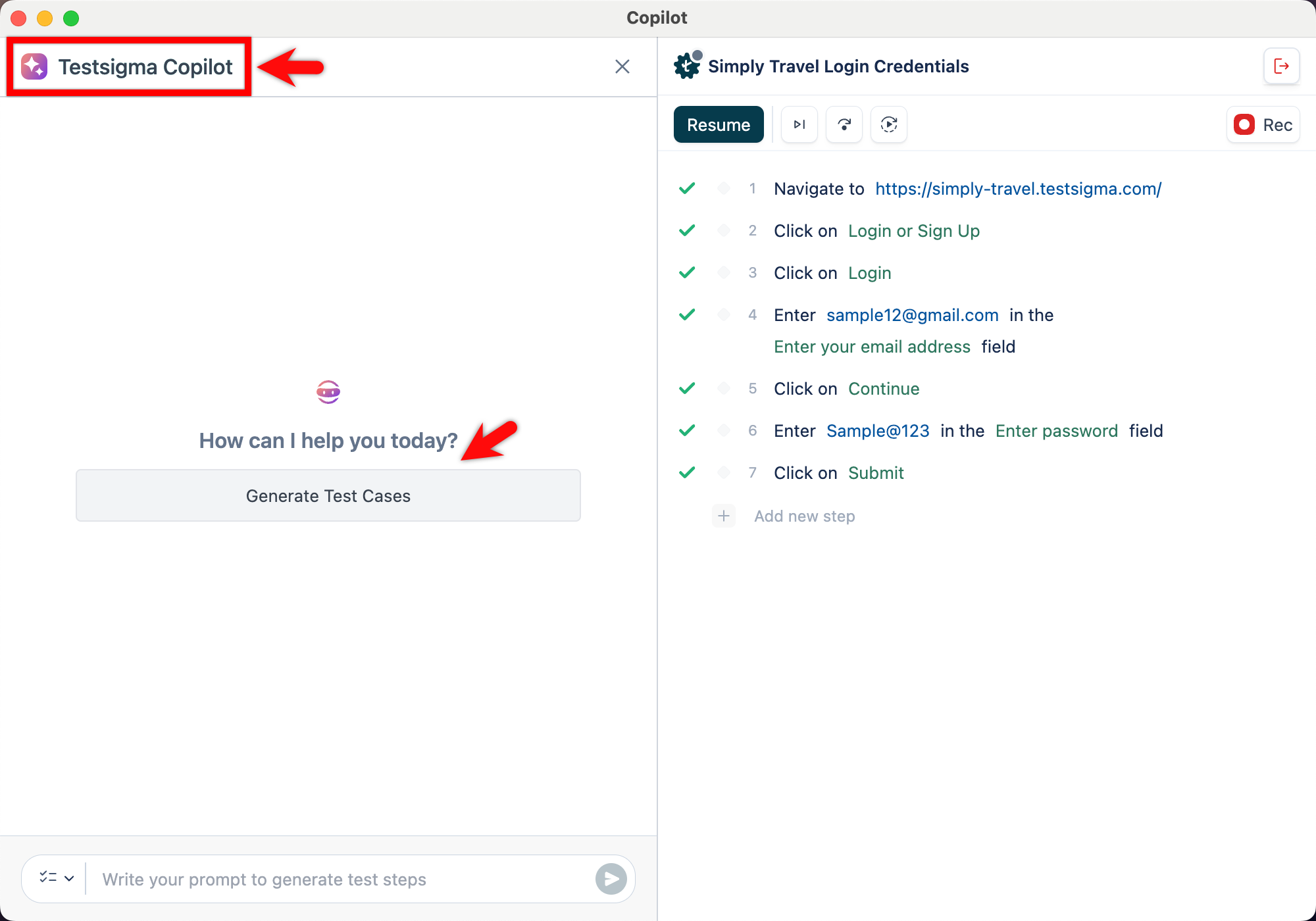
- Copilot will analyze the current page and starts generating test cases.
- Wait for the test case generation to complete.
- Click any test case to view the corresponding test steps.
- Click Add to test case to add the generated steps into the current test case.
For troubleshooting details and frequently asked questions, refer to the documentation on Copilot FAQs.

Want to contribute or report missing content?