- configuration
 API Keys
- User Settings
- Security
- Configure Organization Settings
- Two-Factor Authentication (2FA)
- Configure Password Policy
- Setting Up Google SSO Login
- Setting Up Okta SSO Login (SAML)
- Setting Up Azure SSO Login (SAML)
- iOS Settings
- Create WDA File
- SMTP Configuration
- Manage Access
Setting Up Google Single Sign-On(SSO) Login in Testsigma
With SSO, you are not required to store and manage passwords for the websites you use regularly. Instead of using passwords, applications that allow SSO login accept secured tokens that grant access to the application. This article discusses configuring Testsigma to enable Google to Single Sign-On (SSO).
Prerequisites
Before you begin, ensure you have an active Testsigma account.
Steps to Enable SSO in Testsigma
- Navigate to your profile and click Switch Account.
- Click Settings under the Others section on the home screen.
- In the Settings panel, scroll down to Organization Settings and click Security (SSO).
- In the Single Sign-On (SSO) settings, enable the toggle on Google widget.
NOTE:
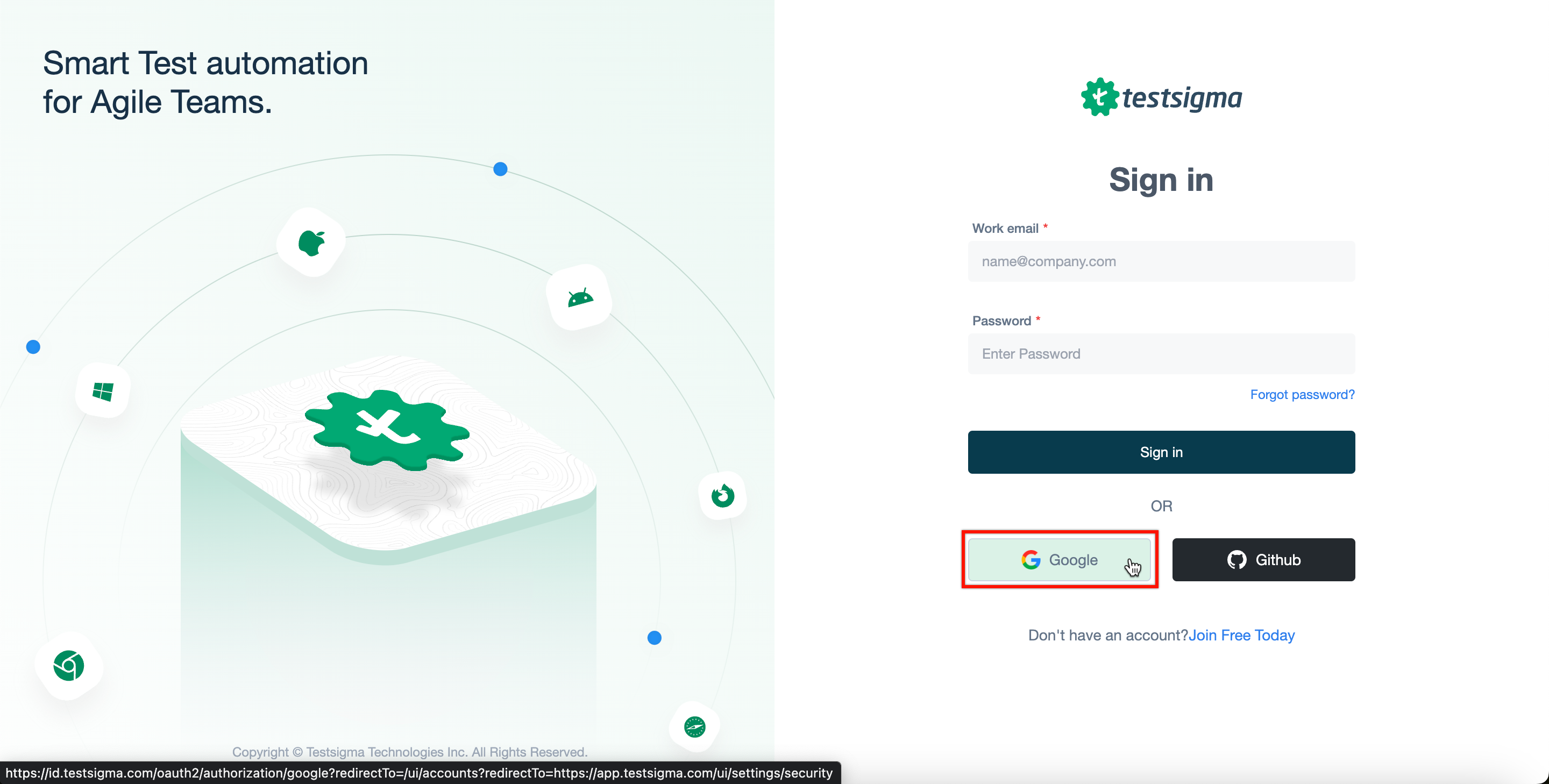
The toggle will be disabled if you’re not logged into G Suite. You can login by clicking on Click here.
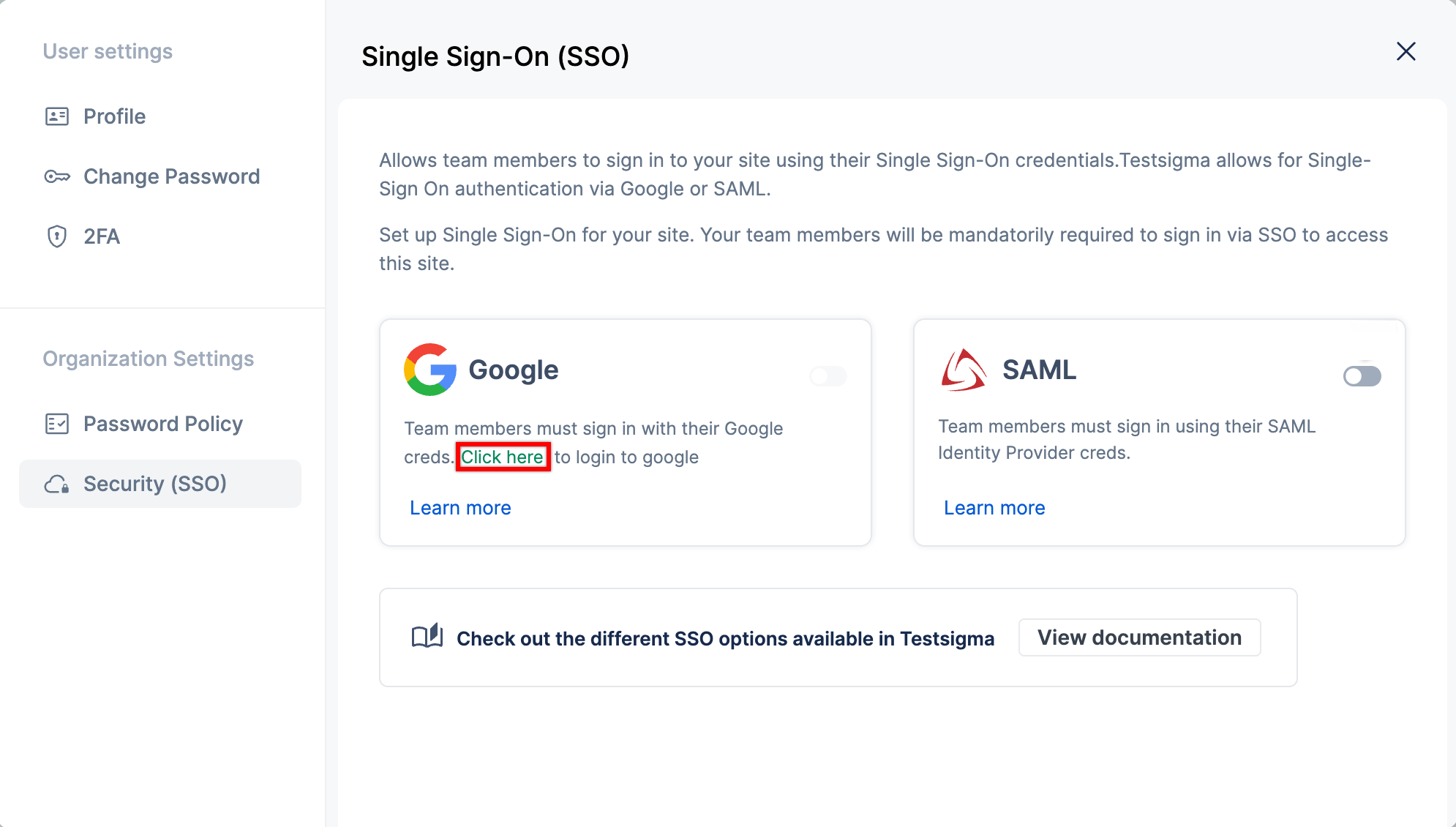
- Your Google SSO login option will now be enabled.
The next time you login to Testsigma, you and your teammates can log in using Google.

Want to contribute or report missing content?