- create test cases
 Organizing Test Cases in Folders
- Test Cases for Web Applications
- Test Cases for Mobile Applications
- Test Cases for Mobile Web Applications
- Manage Test Cases for Web Applications
- Manage Test Cases for Android & iOS Apps
- Manage Test Cases for Mobile Web Applications
- Test Case List Actions
- Importing Postman Collections and Environments
- Custom Fields for Test Cases
- Label Management
- Update Test Case Result in a Test Plan
- Test Case: Advanced Options Guide
- Test Step Types
- Type: Natural Language
- Type: REST API
- Type: Step Group
- Type: For Loop
- Type: While Loop
- Type: Block
- Type: If Condition
- Nested Step Groups
- Image Injection
- Cross-application testing
Controls and Actions
The test recorder in Testsigma lets you generate test steps automatically in plain English by recording your actions in the application UI. This article discusses the control options and actions in Testsigma's Test Recorder for Android and iOS applications.
Prerequisites
Before you begin, ensure that you have referred to:
- Documentation on creating a test case.
- Documentation on creating test steps using the recorder.
- Also, an Androiod or iOS app to test.
Controls and Actions in Test Recorder
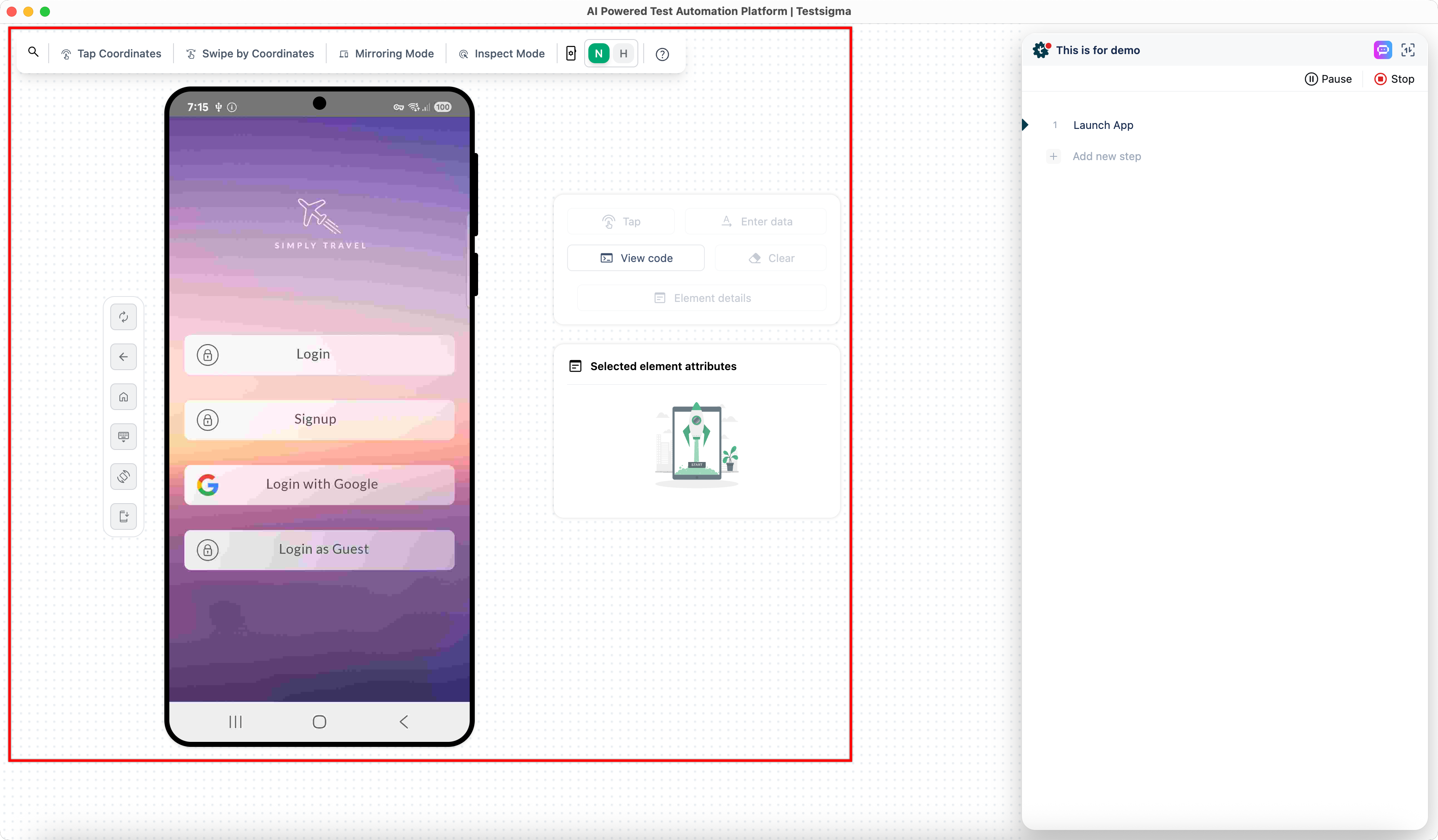
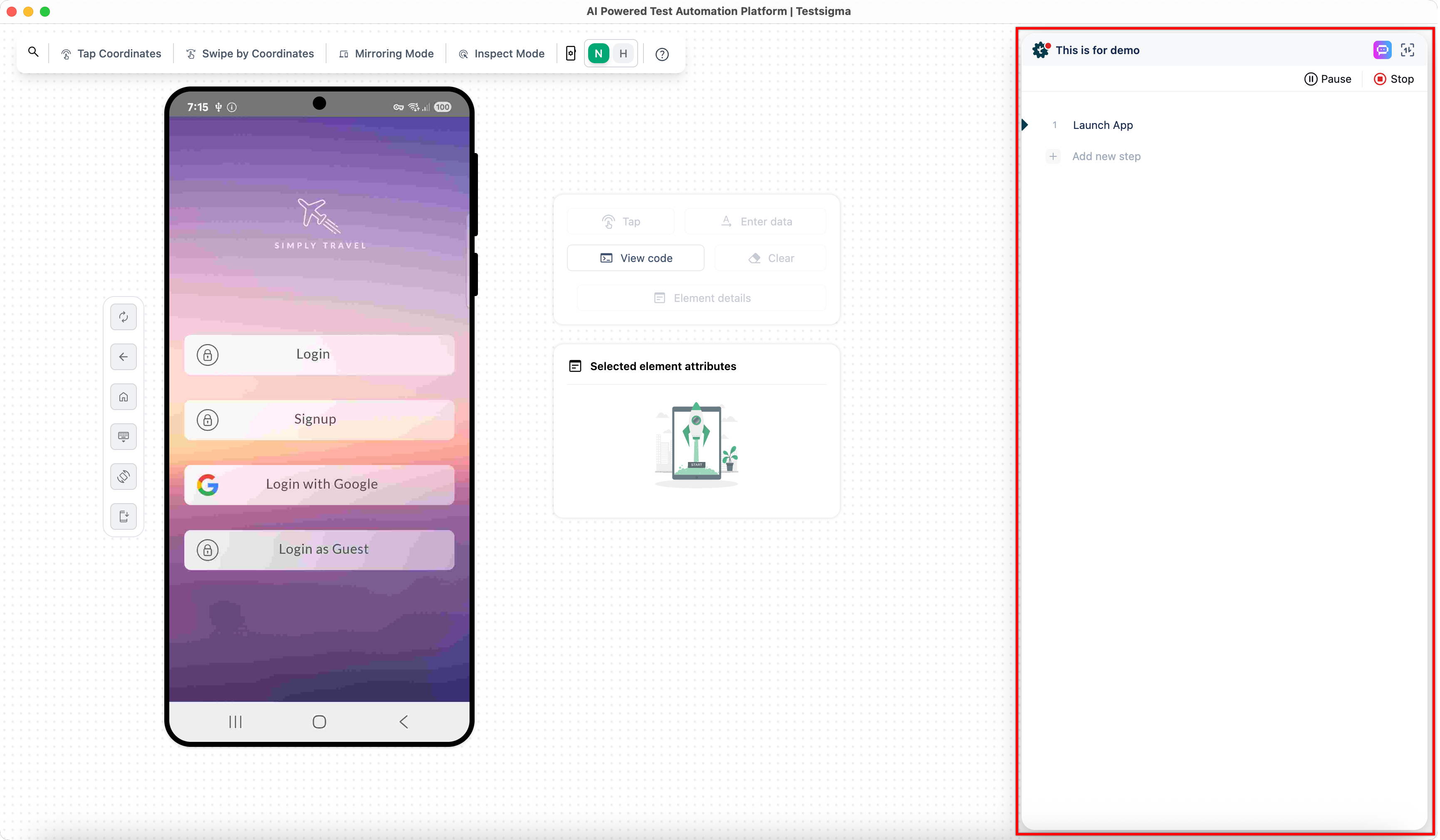
The recording screen will have two sections:
-
Device Controlling Section
-
Test Steps Section
Let’s review all the options available in the Device Controlling Section.
-
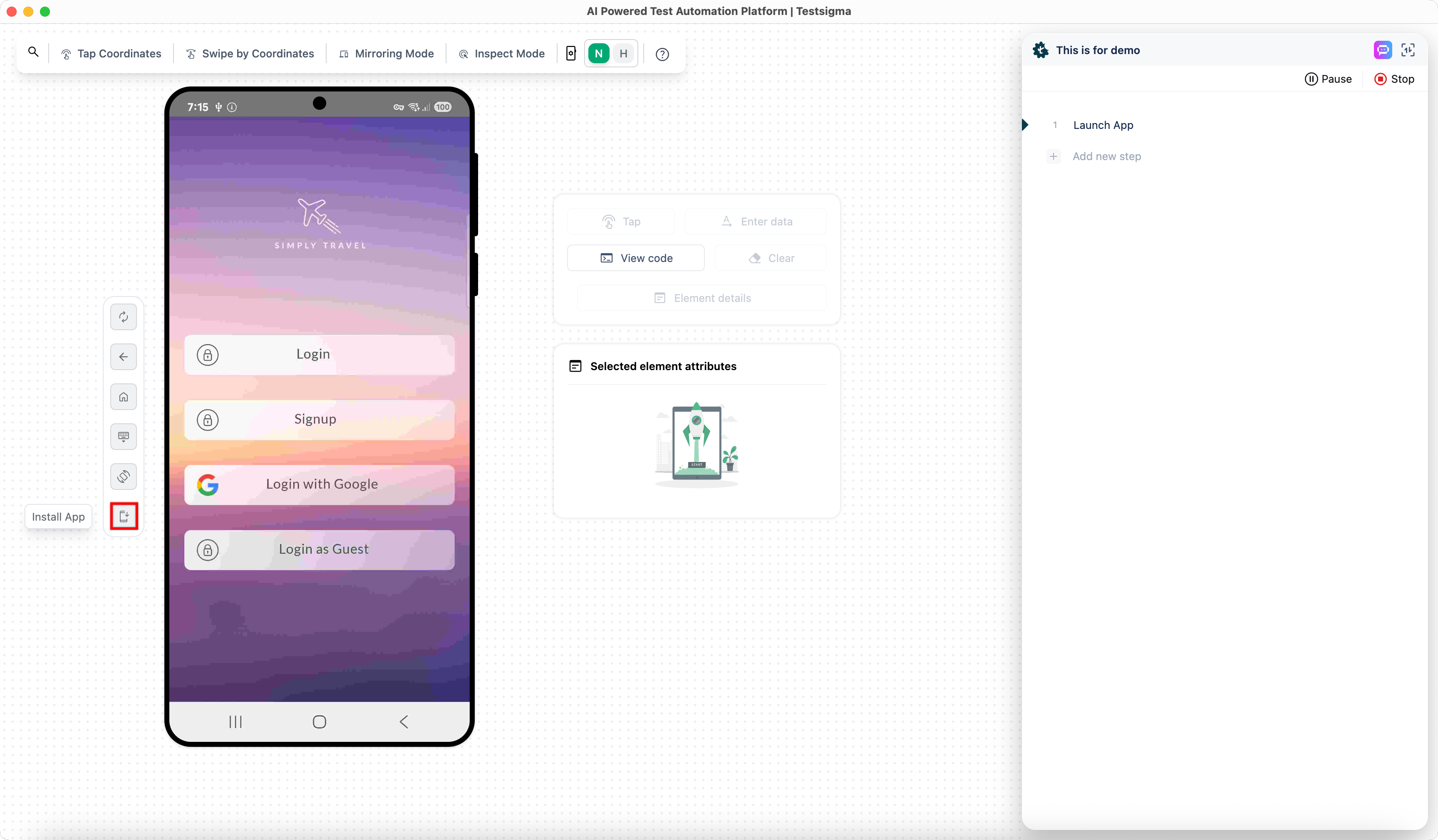
Install App: Install App lets you install a new application in the current mobile recorder session.
-
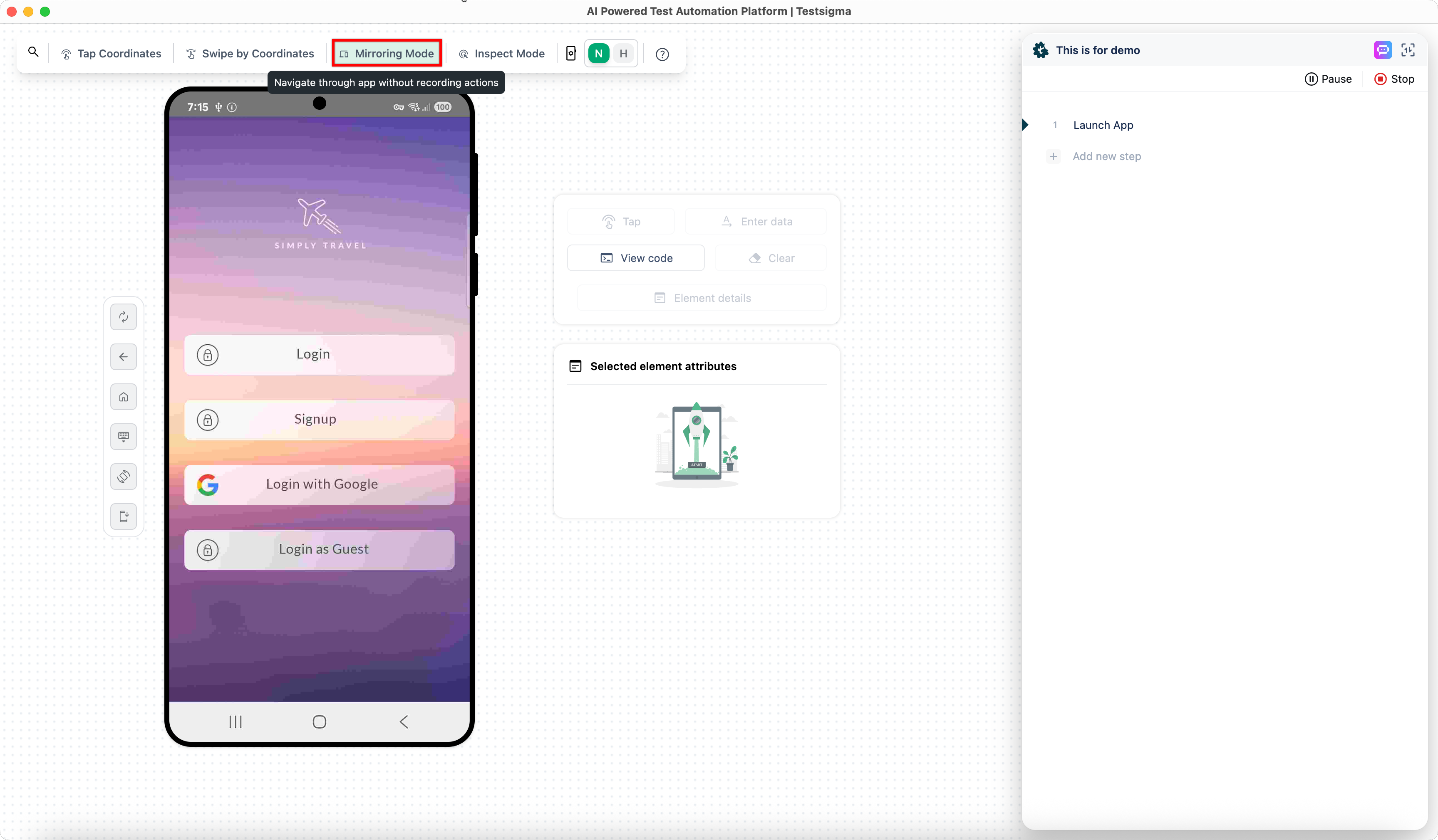
Mirroring mode: Mirror mode will allow you to use the app via Testsigma to mirror real live physical device use.
-
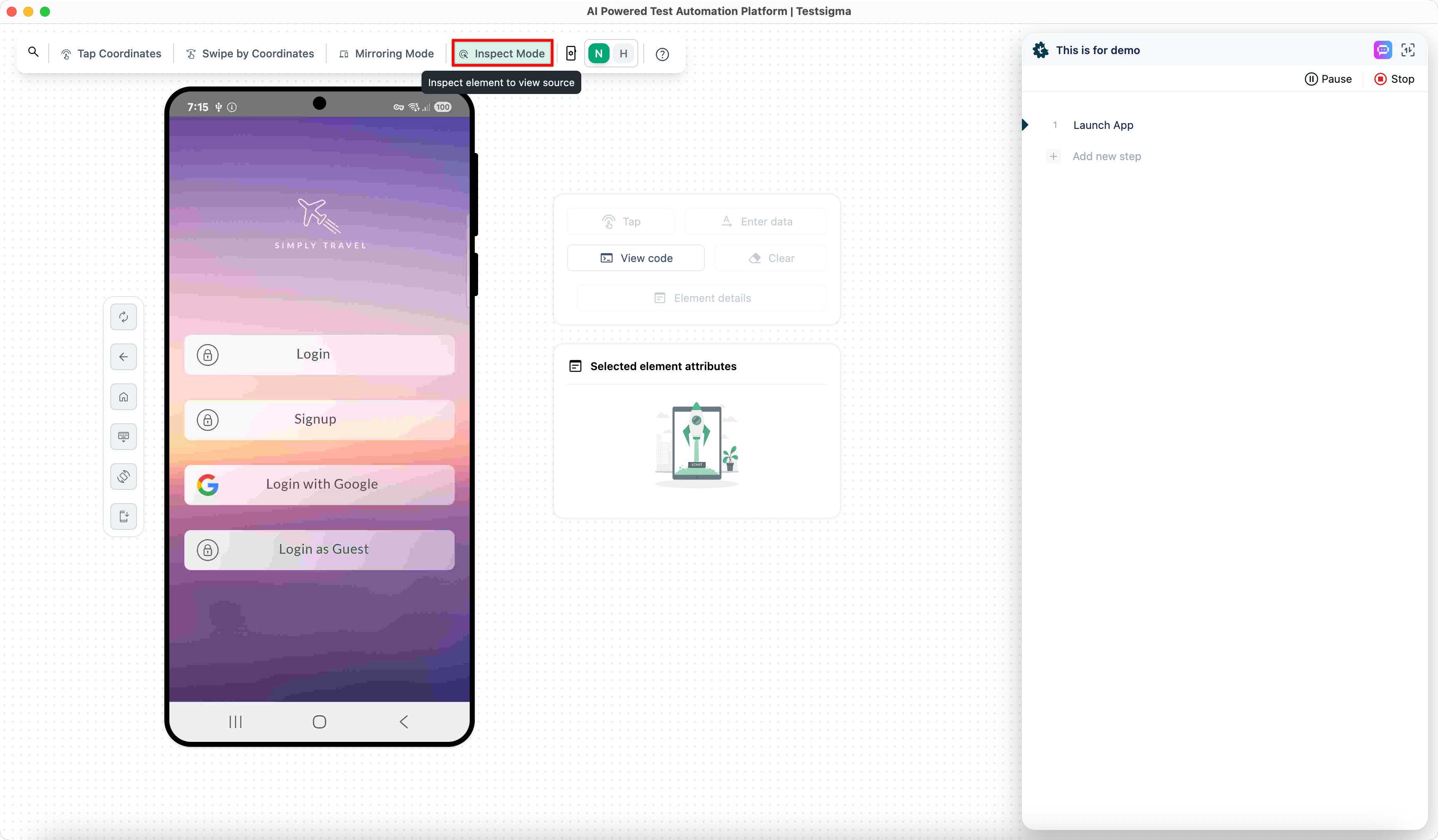
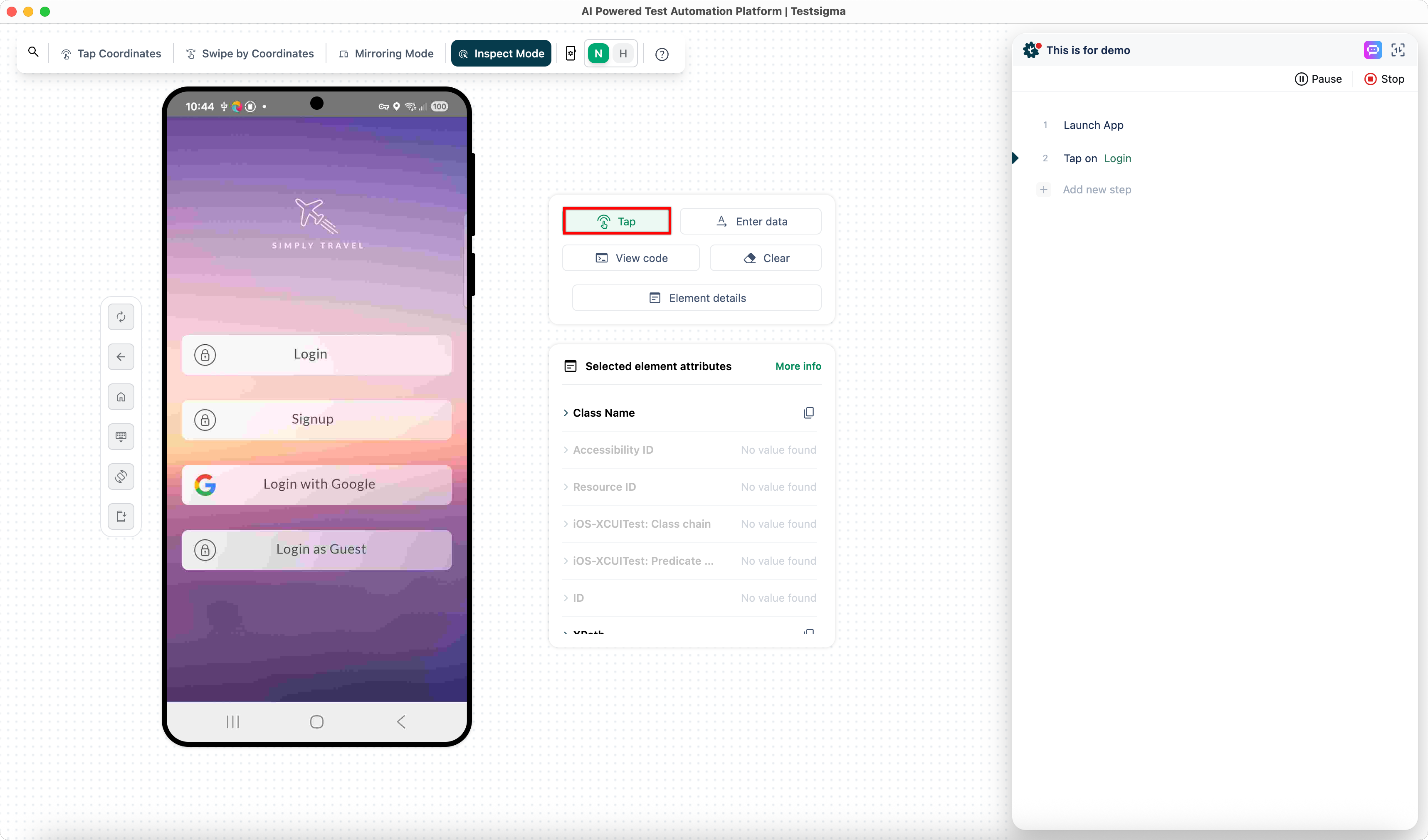
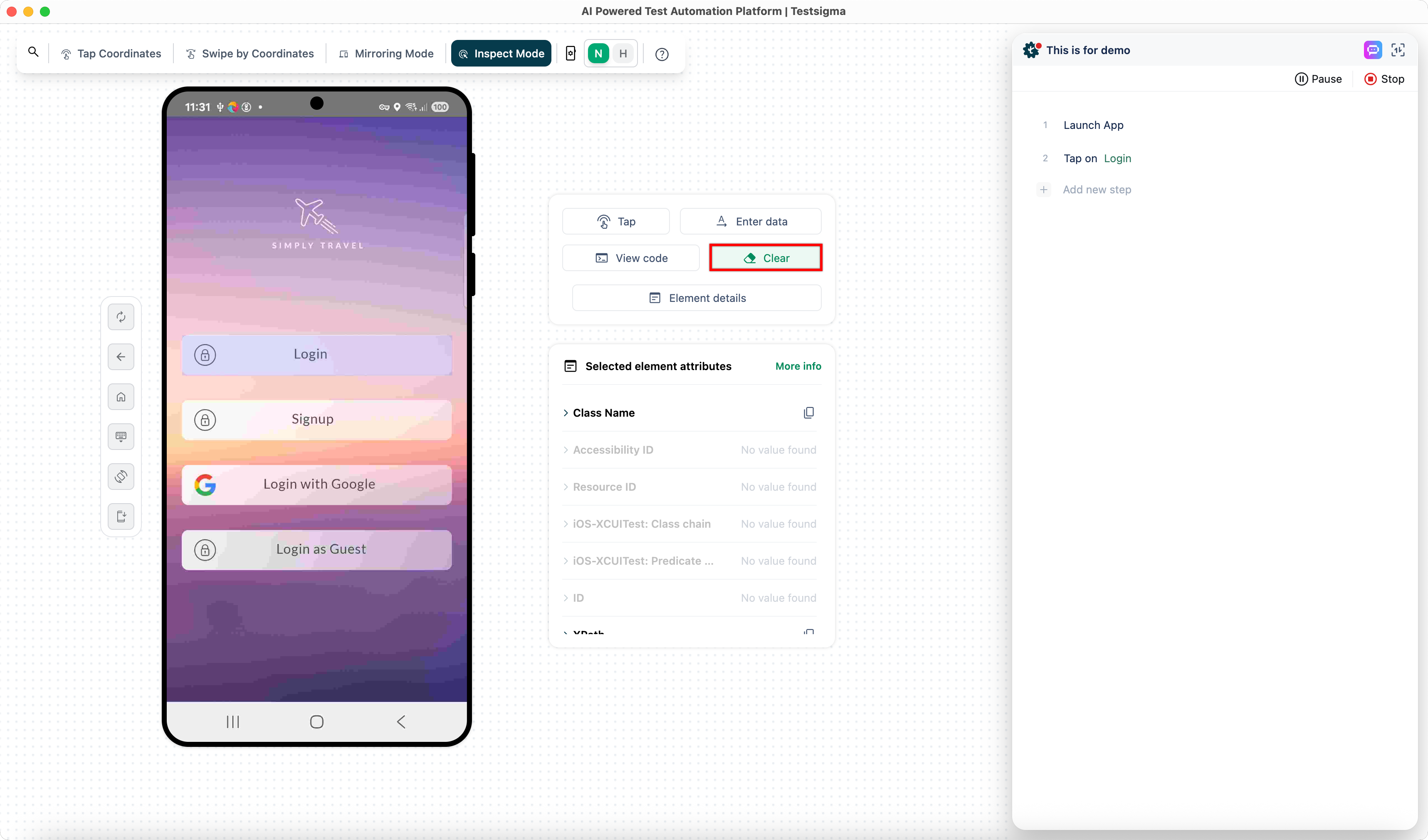
Inspect Mode: Lets you click elements to view more information about them without recording the step.
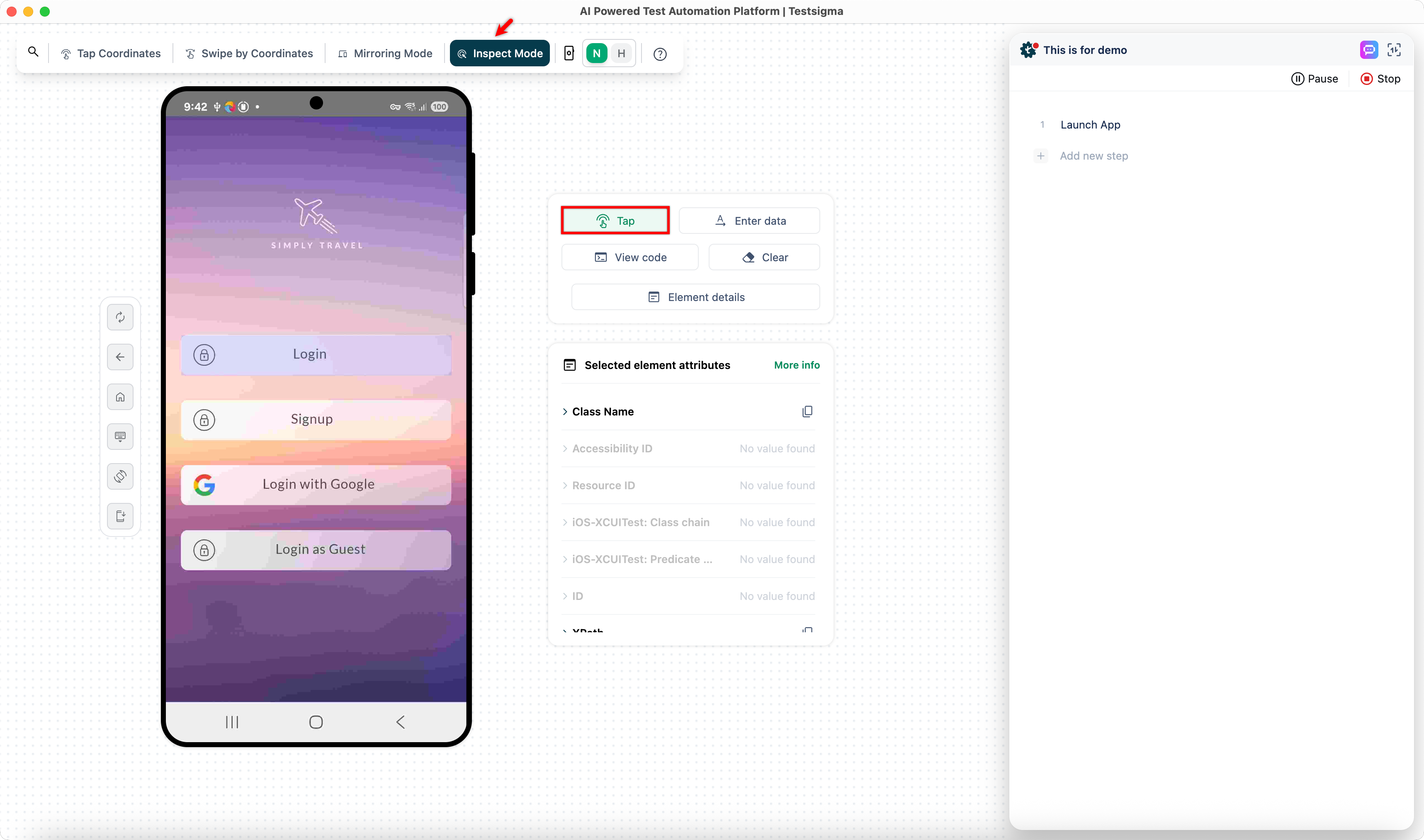
For example, if we click on Login, the information will be displayed under the section Selected element attributes. If you click on Tap, the step recorder will create the step as Tap on Login.
-
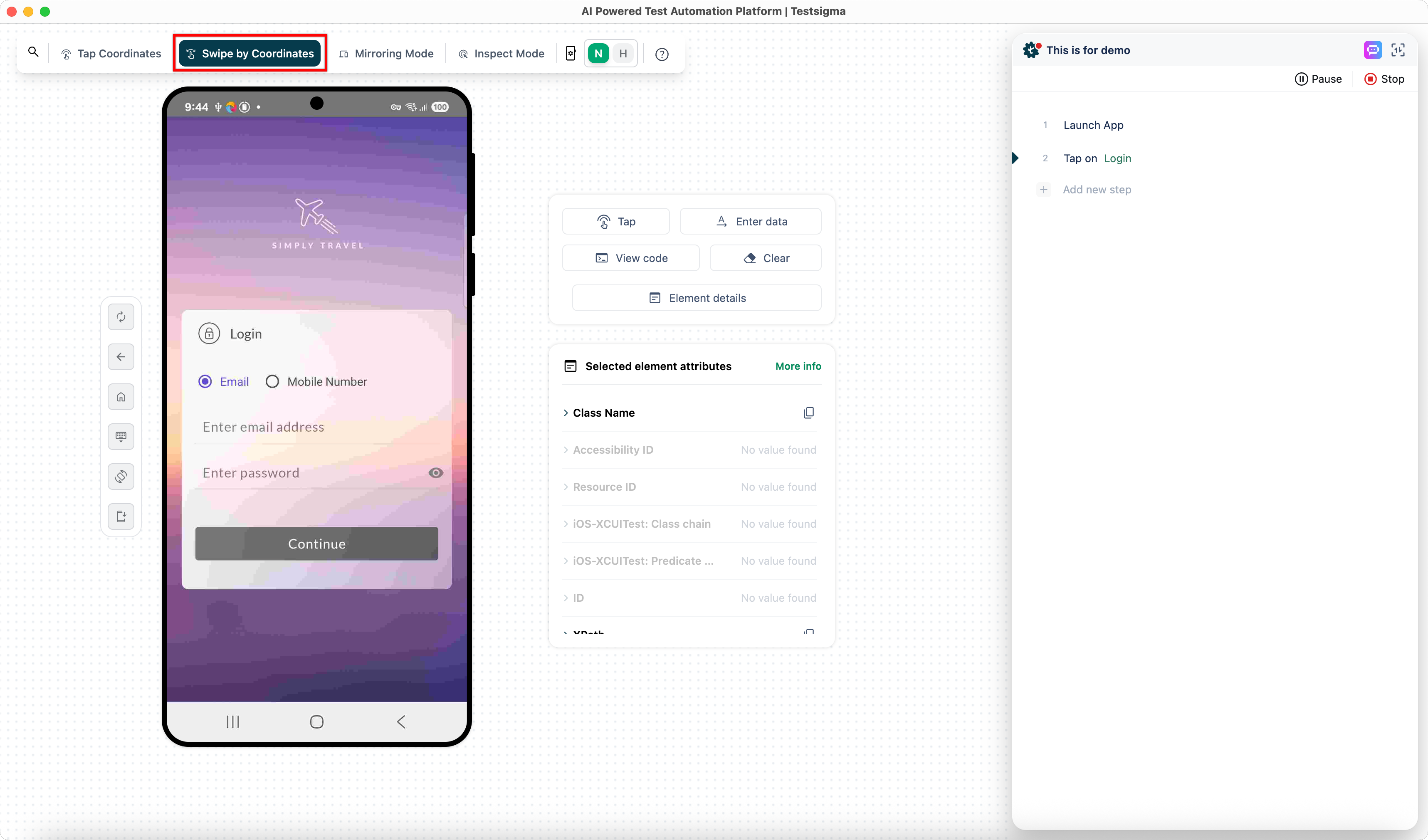
Swipe By Coordinates: The swiping action will be recorded with this option.
-
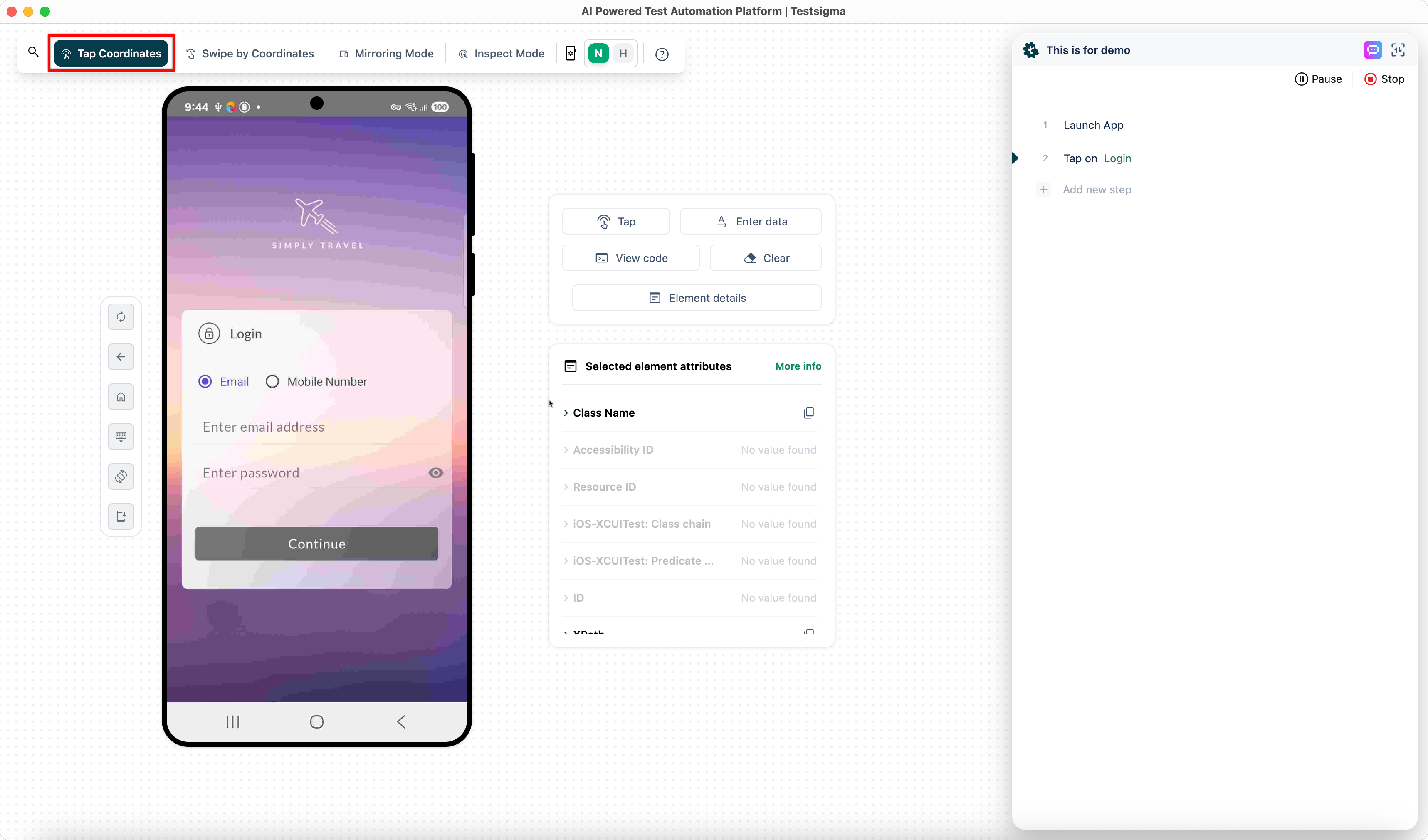
Tap By Coordinates: It lets you click on an element on the screen and record the coordinates of the click.
-
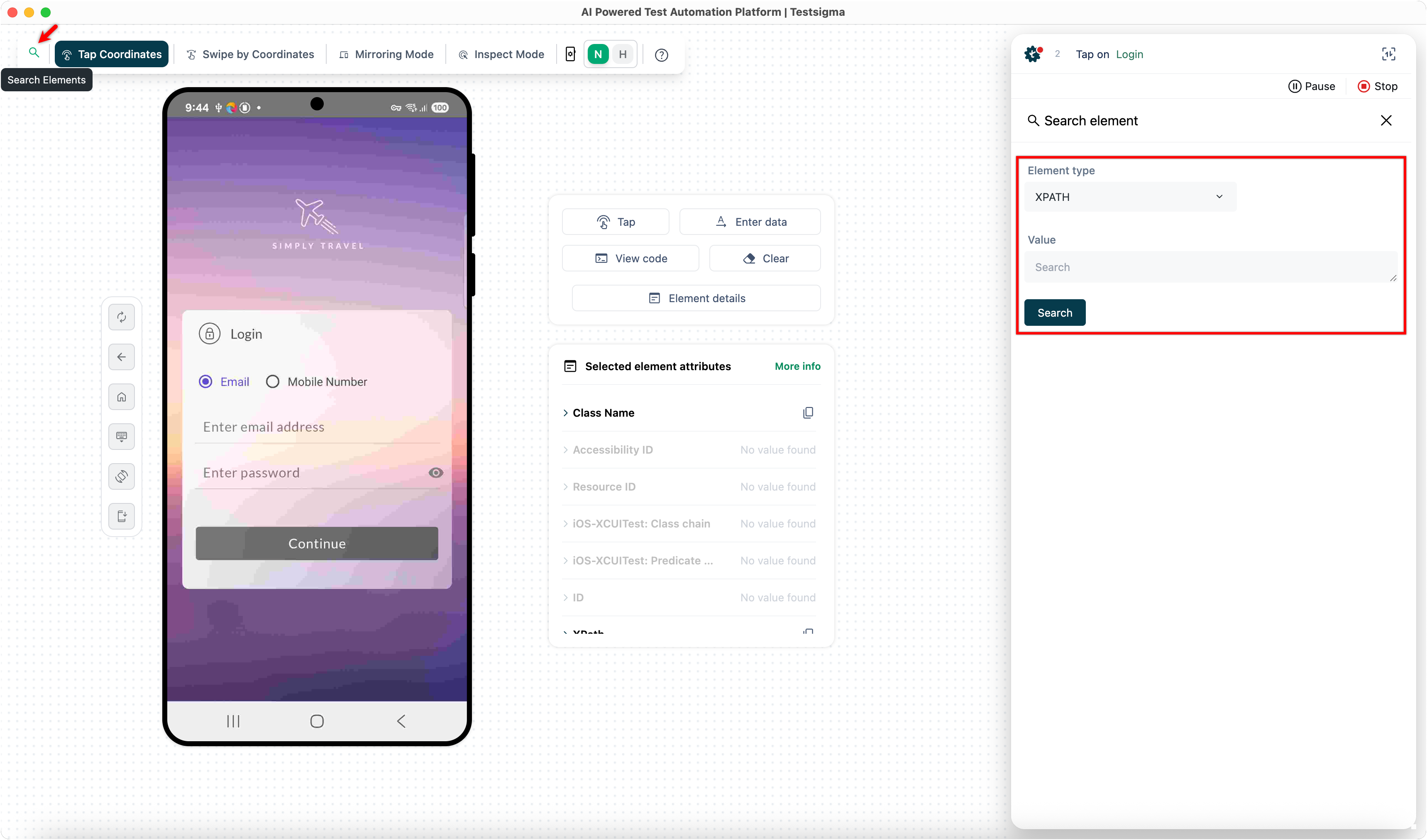
Search Element: This option can be used to search for an element in the app source.
-
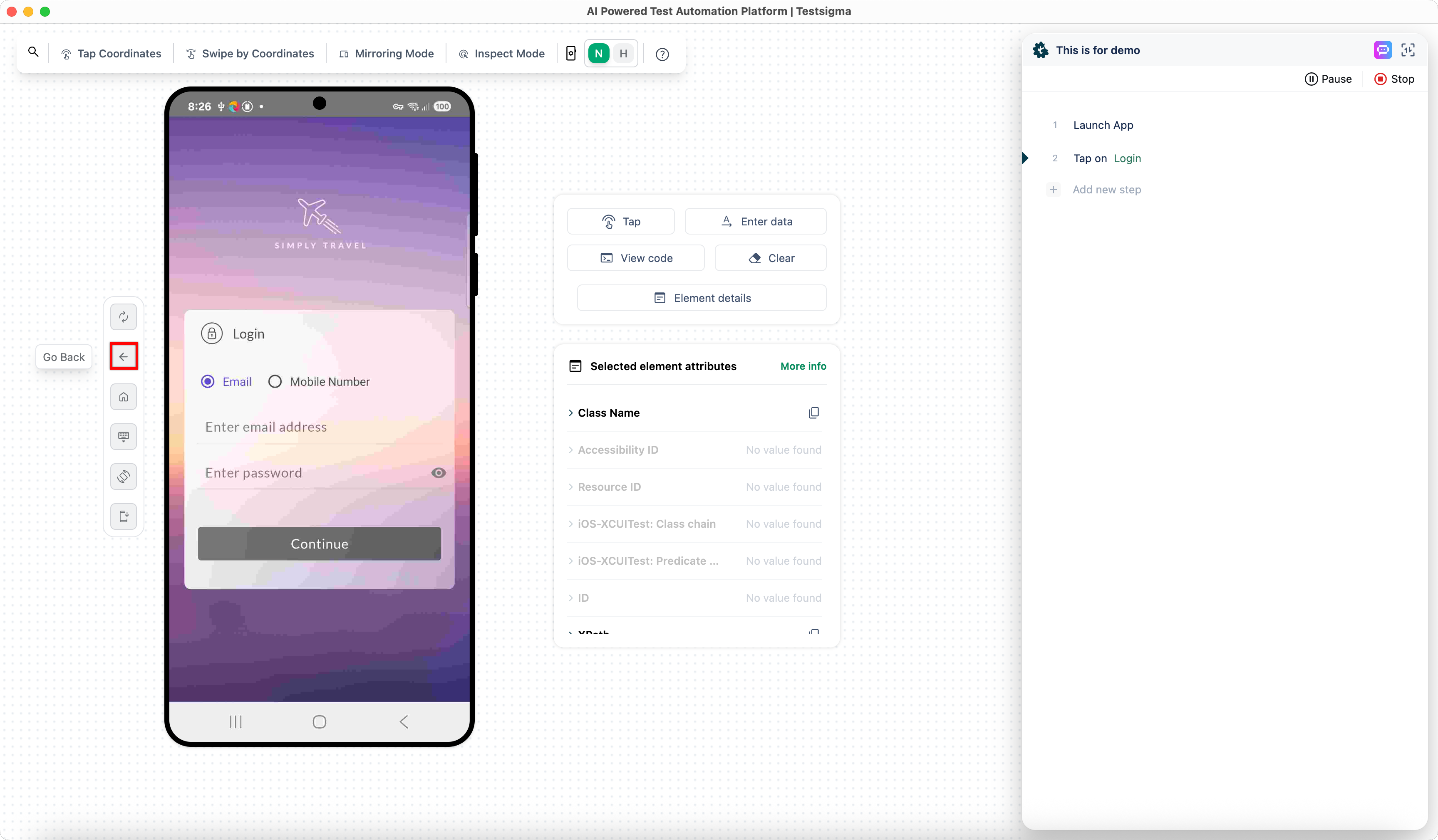
Go back: This button records the go back action from the current screen.
-
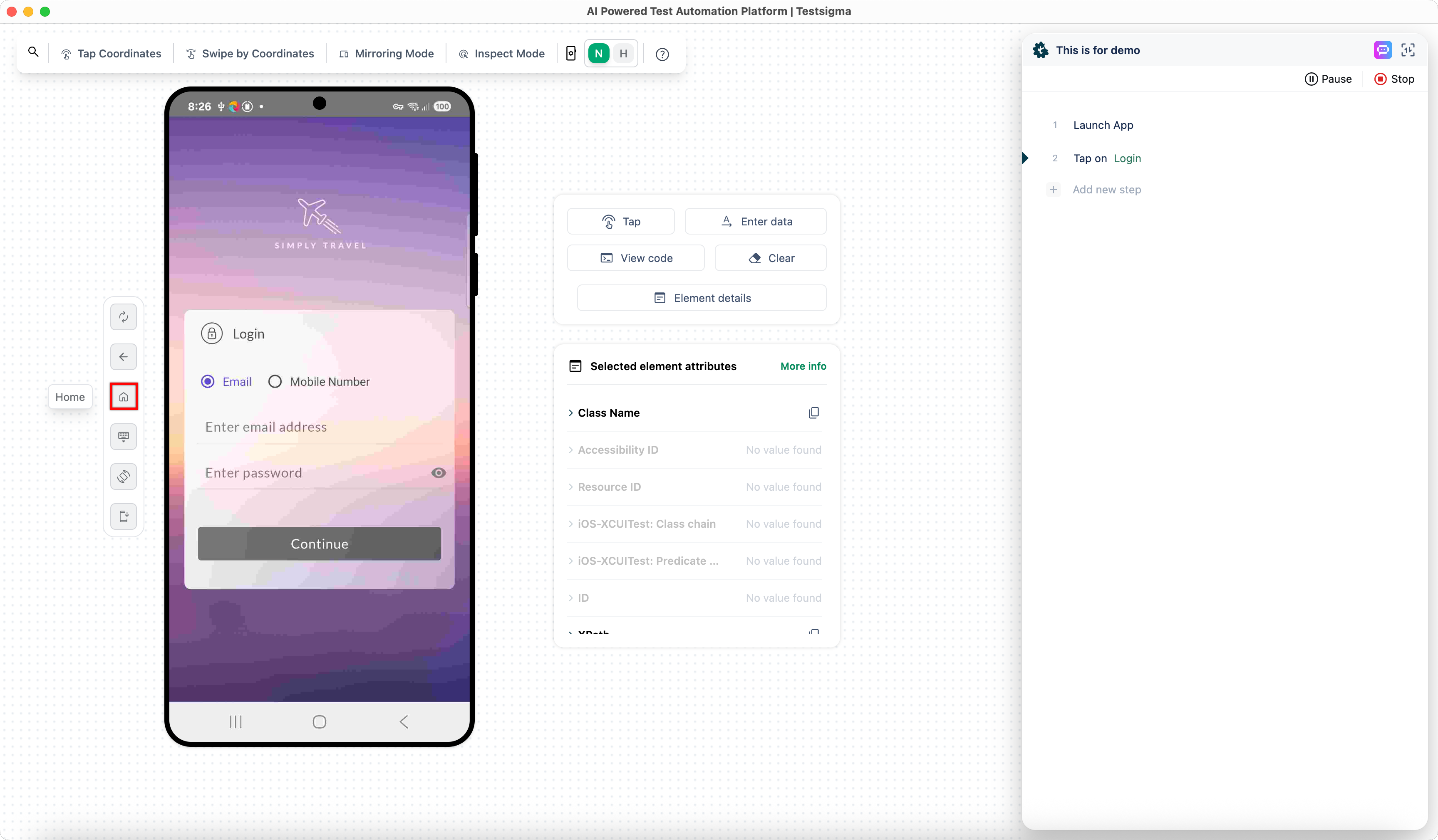
Home: This button displays the home screen of the device.
-
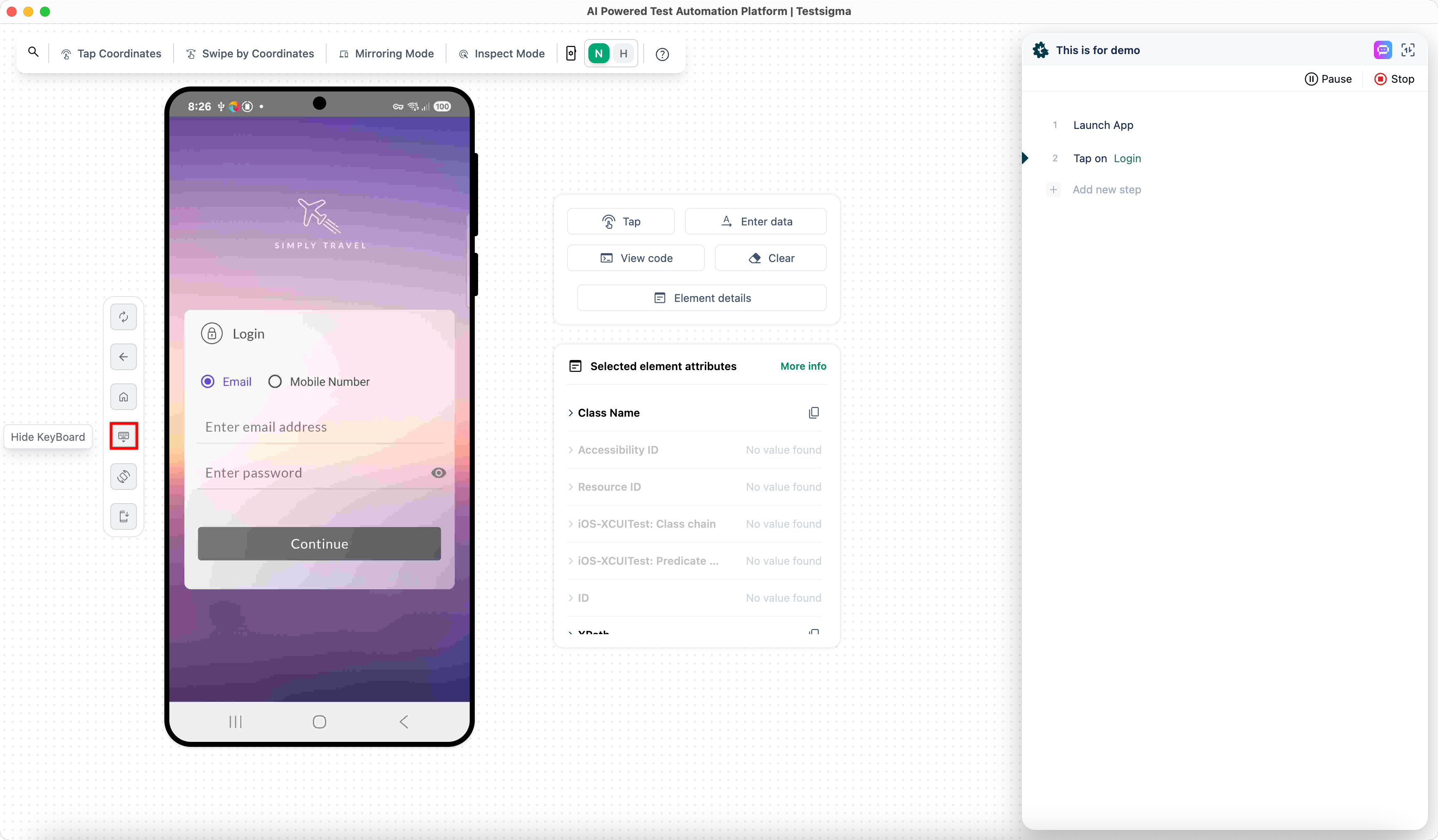
Hide Keyboard: This button lets you hide the keyboard in the application.
-
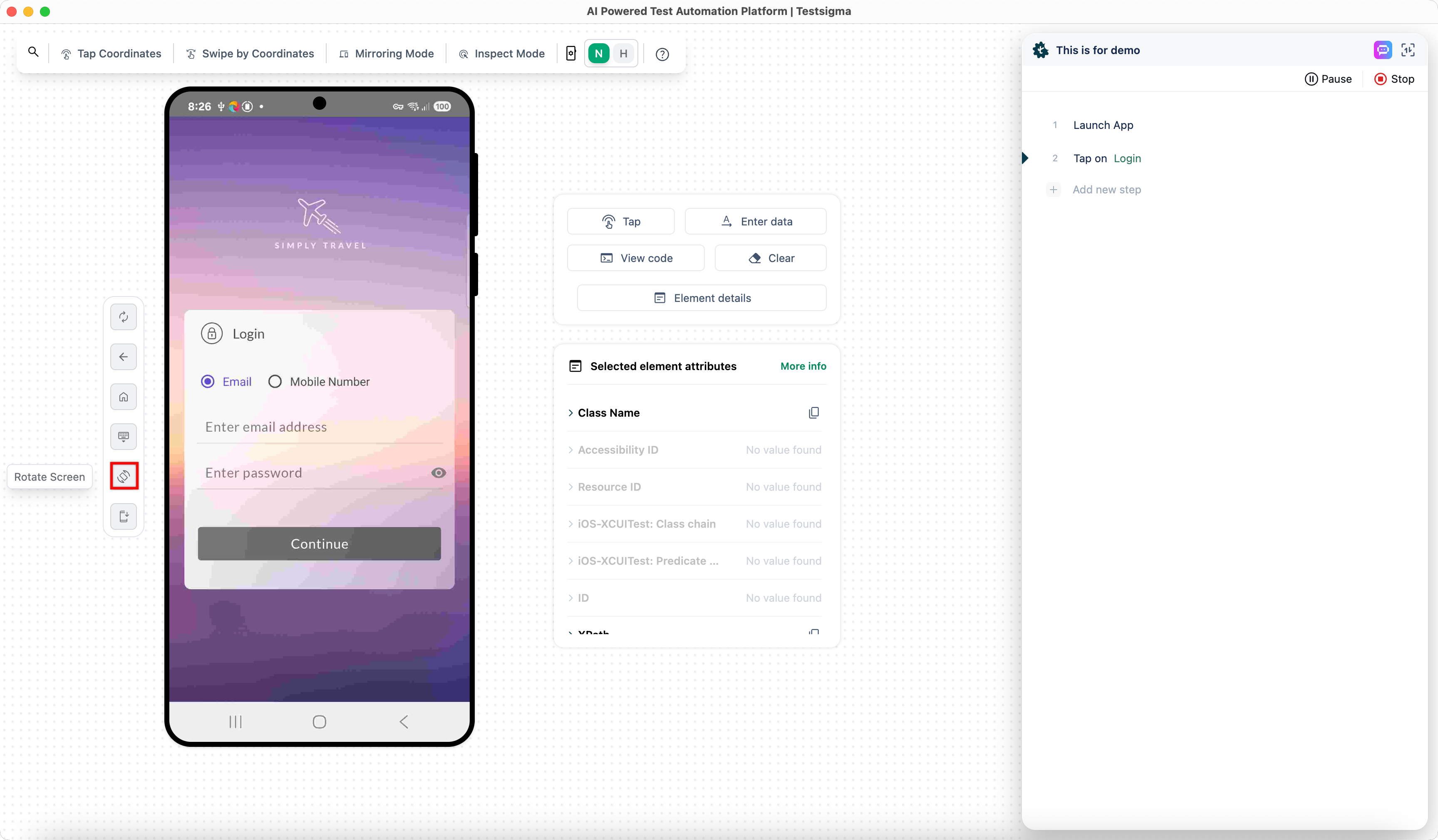
Rotate Screen: This button lets you switch between landscape and portrait mode.
-
Tap: Simulates a tap on the selected element.
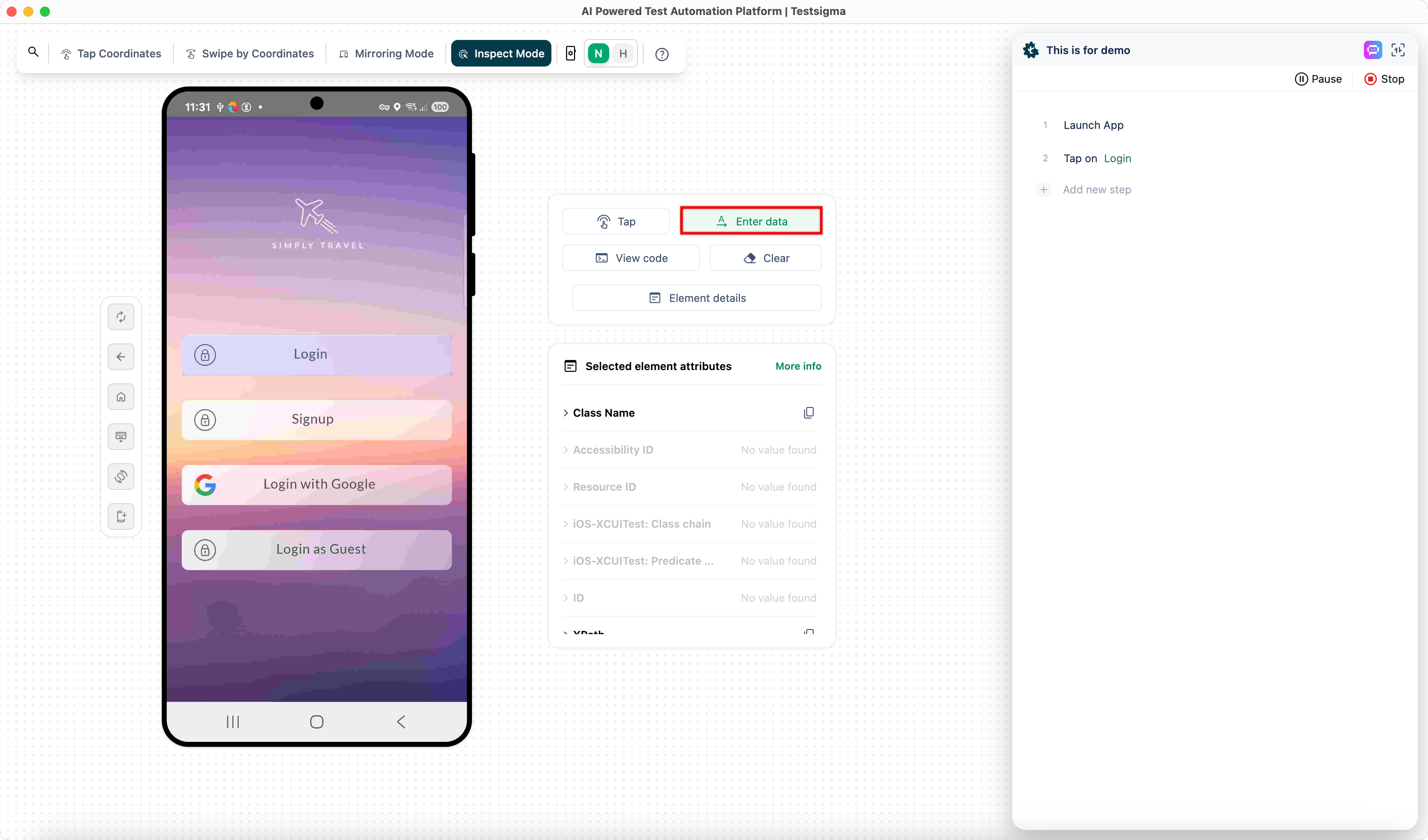
-
Enter Data: Inputs text or other values into the selected element.
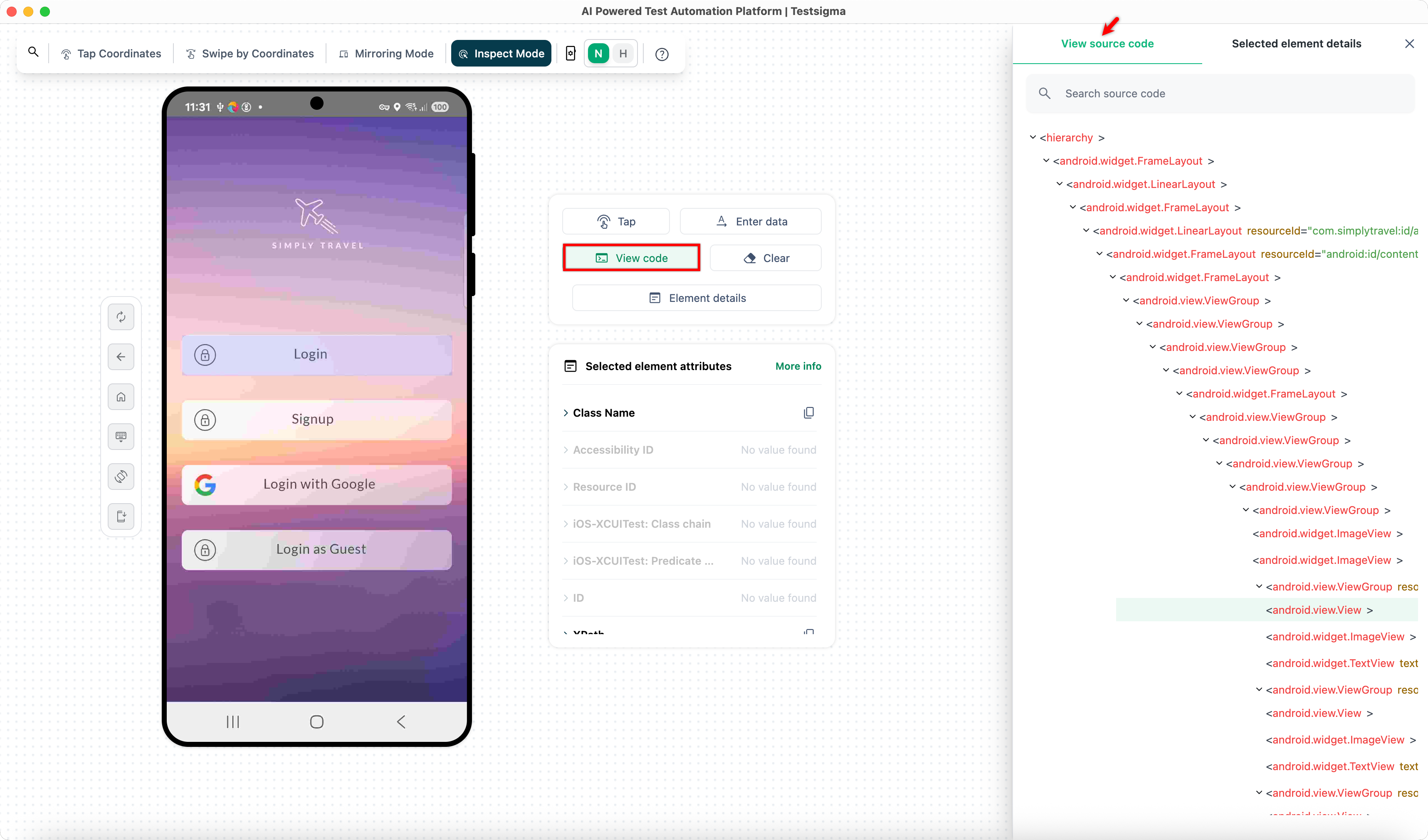
-
View Code: Displays the source code of the selected element.
-
Clear: Removes input data from the selected element.
-
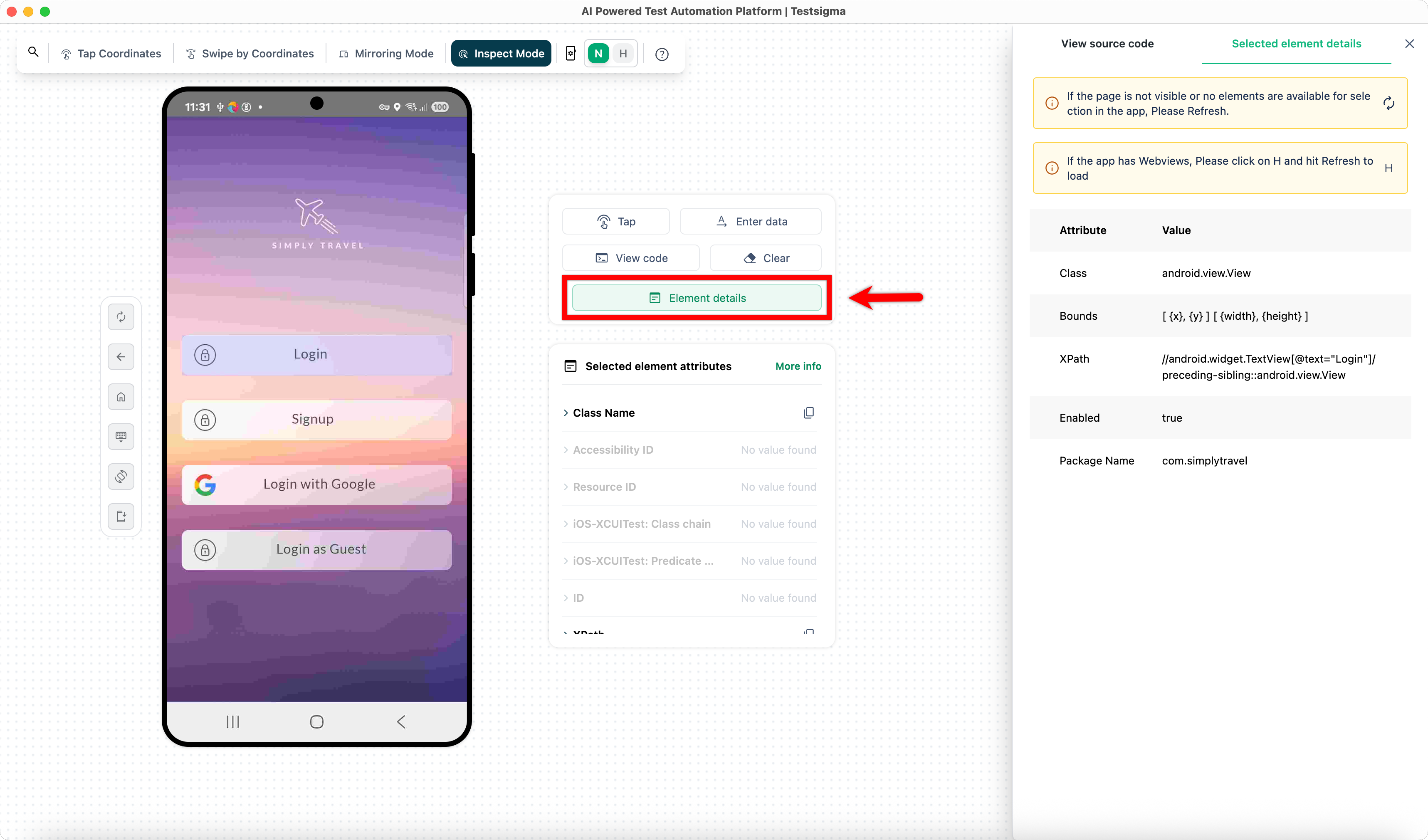
Element Details: Shows attribute information of the selected element.
The Test Steps Section will display the actions performed on the device.
Controls and Actions are same for both Android and iOS applications.

Want to contribute or report missing content?