- desktop automation
 Introduction: Desktop Automation
- Create Projects and Applications
- Selective Element Recorder
- Batch Element Recorder
- Creating Test Cases for Desktop Automation
Batch Element Recorder for Desktop Automation
Capture every UI element in a desktop application window at once using the Batch tab of the Element Recorder. Recorded elements appear in a hierarchical tree along with their properties and can be used while creating test steps.
Prerequisites
Before you begin, ensure that:
- A Desktop project and an application exist in Testsigma. See creating projects and creating applications.
- Testsigma Terminal is installed on your Windows system.
- The WinTest Automation folder exists in the Testsigma Agent directory.
- The Windows application you want to record is open on your device.
Steps to Record Elements Using the Batch Tab
- From the left navigation bar, go to Create Tests > Elements.
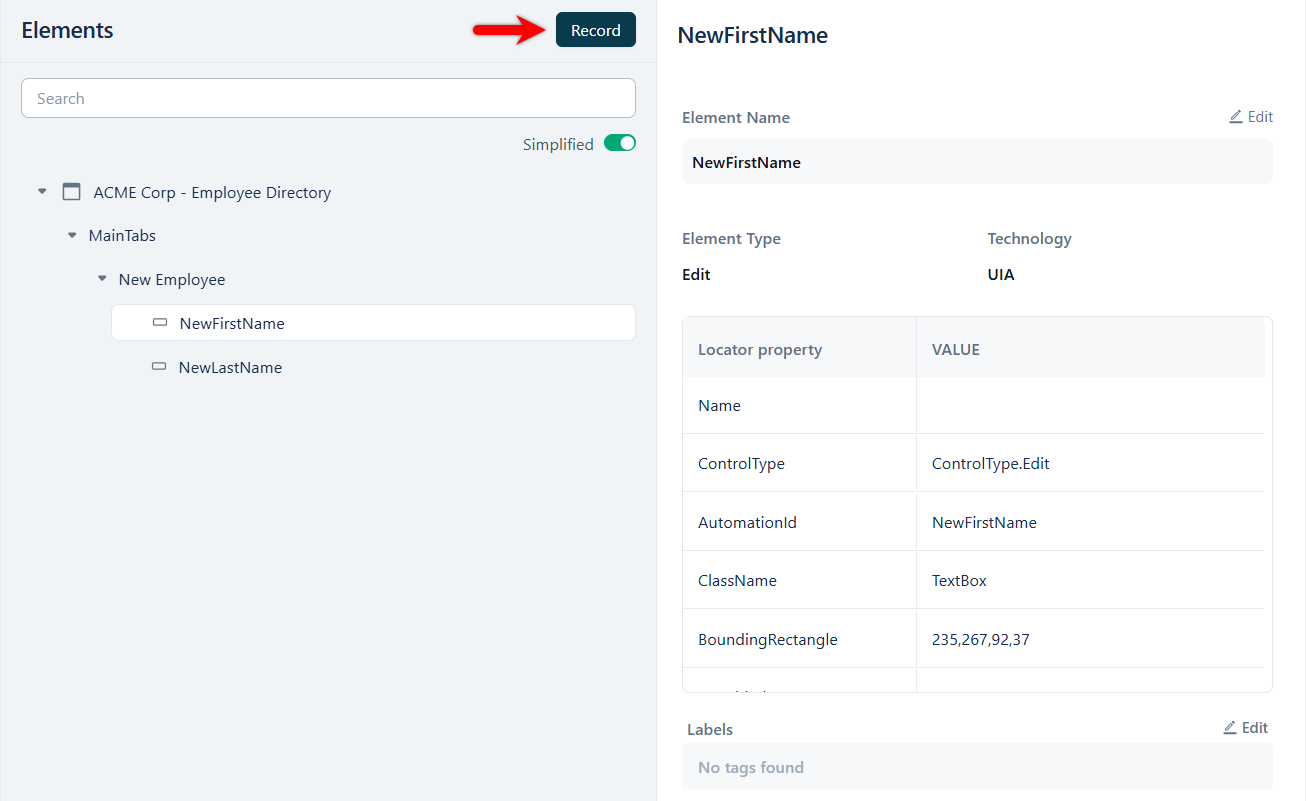
- On the Elements list page, click Record.
- In the Select application window, select the desktop application you want to record against.
Only applications running on your device are listed. Use the search field to filter the list, or click the refresh icon to reload it after opening a new application.
- Click Start recording.
- In the Element Recorder, click the Batch tab. The recorder captures every element in the currently open window of the application and lists them in a hierarchical tree.
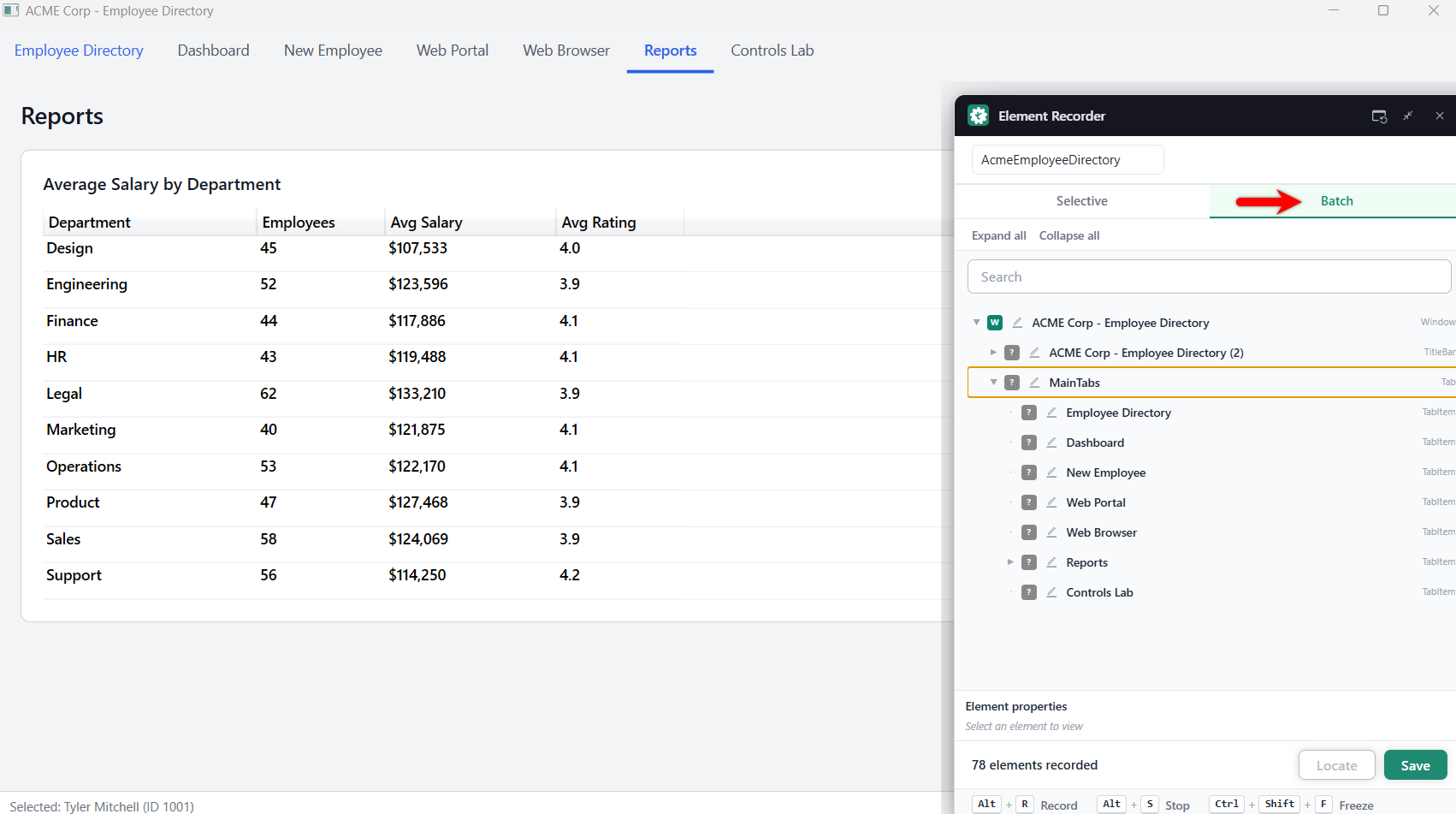
When you switch windows within the same application, the recorder captures elements from the new window and clears those recorded from the previous one.
- Select an element in the tree to view its details in the Element properties panel.
- Click Locate to highlight the selected element in the application window.
- Click Save. The recorded elements are listed under Create Tests > Elements.
Element Recorder Controls
| Control | Description |
|---|---|
| Selective / Batch | Switches the capture mode. Switch to Selective to capture elements one at a time without relaunching the recorder. |
| Expand all / Collapse all | Expands or collapses the full hierarchy of recorded elements. |
| Search | Filters the recorded element tree by name. |
| Element properties | Displays the properties of the selected element, such as Name, Type, Class, AutomationId, and FrameworkId. |
| Locate | Highlights the selected element in the application window. |
| Save | Saves the recorded elements to the Elements list. |
The recorder footer displays a running count of captured elements, such as 78 elements recorded.
Batch capture records the full control tree of the window, including containers such as the title bar and tab groups. Use the search field to narrow the tree to the elements you need before saving.
Keyboard Shortcuts
| Shortcut | Action |
|---|---|
| Alt+R | Record |
| Alt+S | Stop |
| Ctrl+Shift+F | Freeze |

Want to contribute or report missing content?