
Copilot in Mobile Recorder
Testsigma has simplified test case generation for mobile applications with Testsigma Copilot. 🤖
- With just a single click, you can create test cases.
- You can provide simple prompts to generate tests that accurately mimic the user behavior.
This article discusses test case generation for mobile applications using Testsigma Copilot.
NOTE:
This feature will soon be available for iOS applications as well 🚀.
Prerequisites
Before you begin, ensure that:
- You have enabled AI features from Settings > Preferences > Generative AI features.
- You have referred to the documentation on creating test cases.
Steps to Generate Test Cases
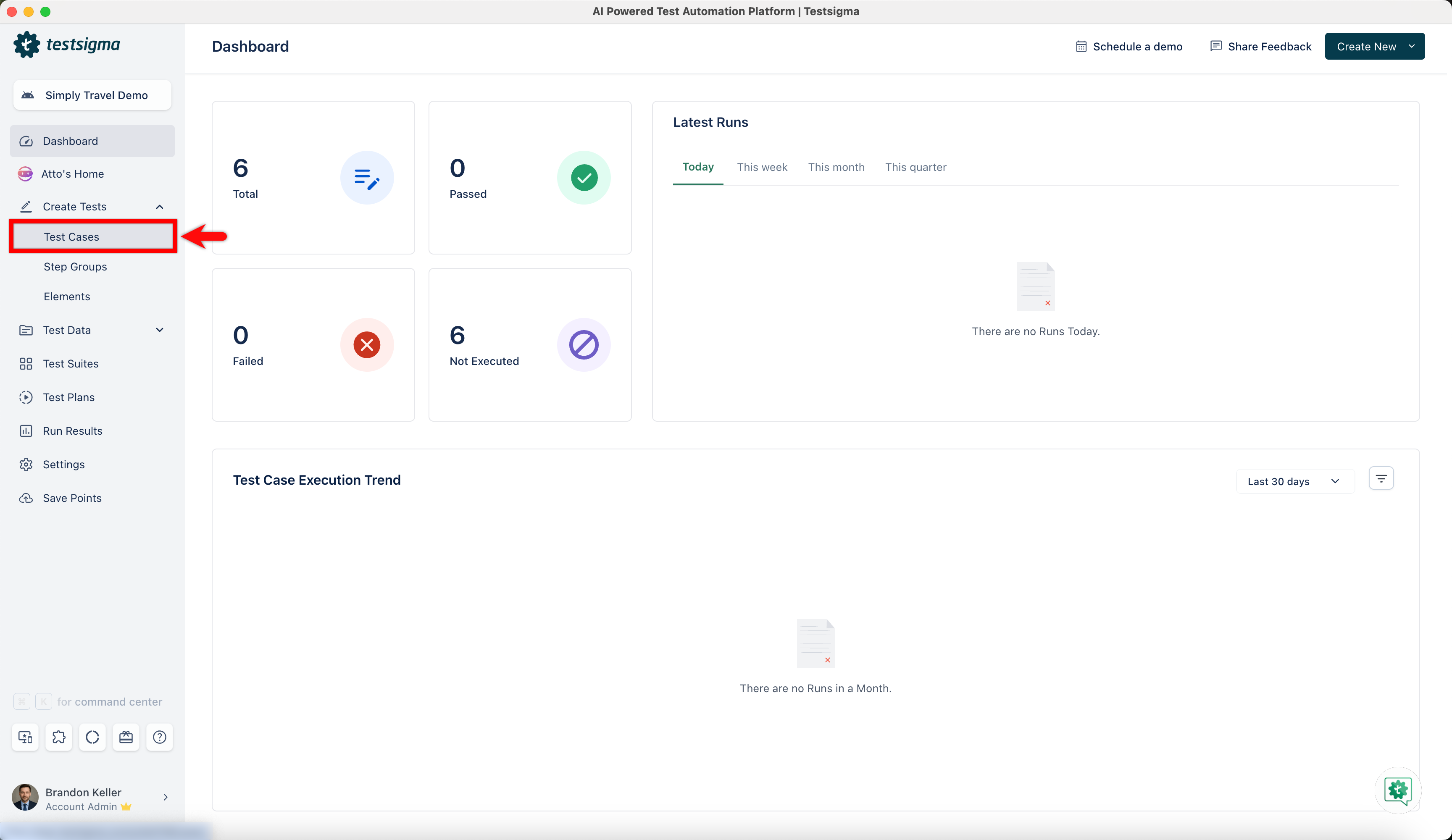
- From the left navigation bar, go to Create Tests > Test Cases and create a new test case.
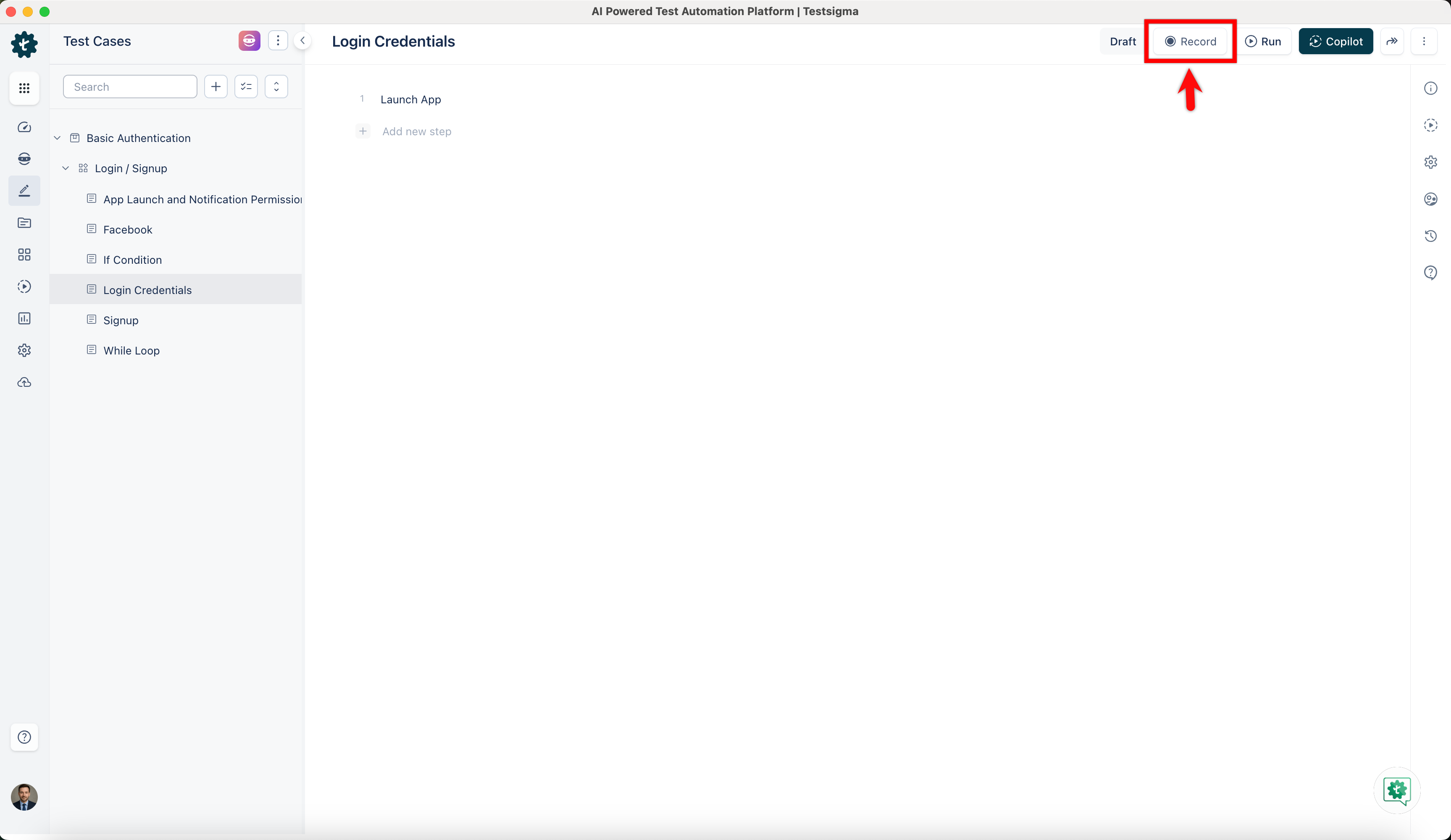
- Click Record in the top-right corner.
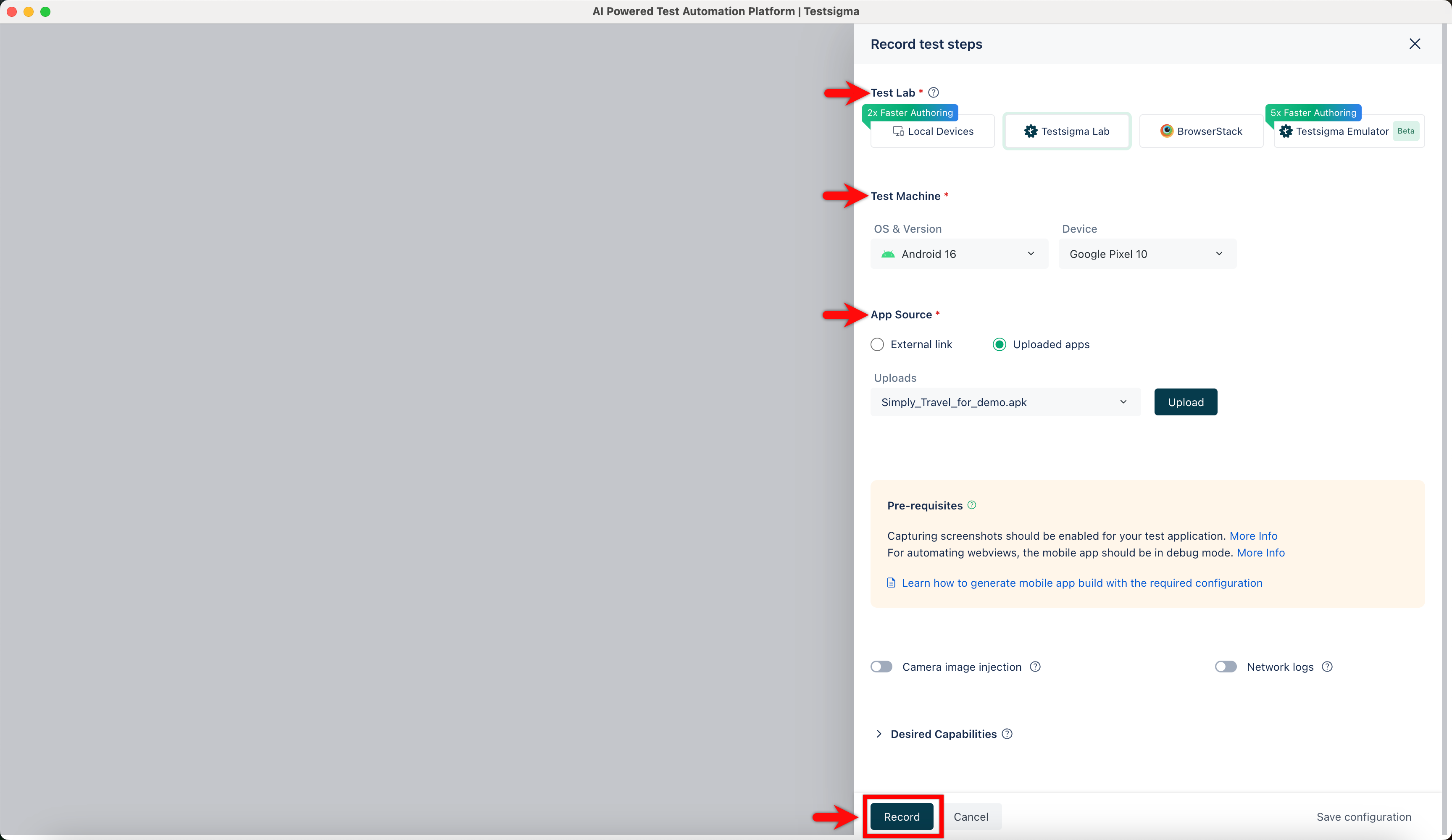
- In the Record Test Steps overlay, select the required Test Lab and Machine, upload the APK/IPA file, and click Record.
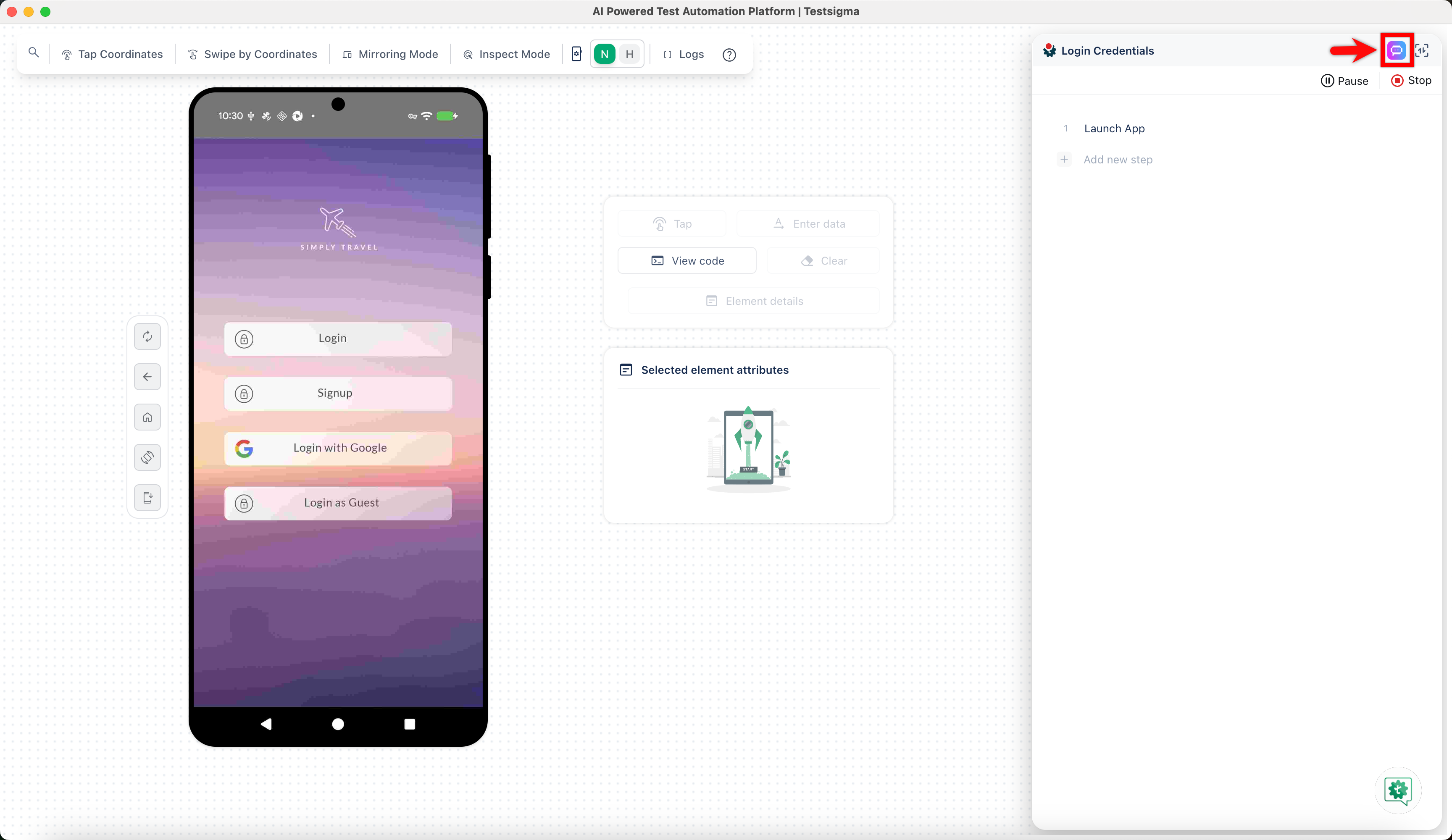
- Wait for Testsigma to load the application with the necessary configuration.
- Click Testsigma Copilot on the Test Recorder.
- In the Testsigma Copilot overlay, click Generate Test Cases. The Testsigma Copilot will start generating test cases based on the current page.
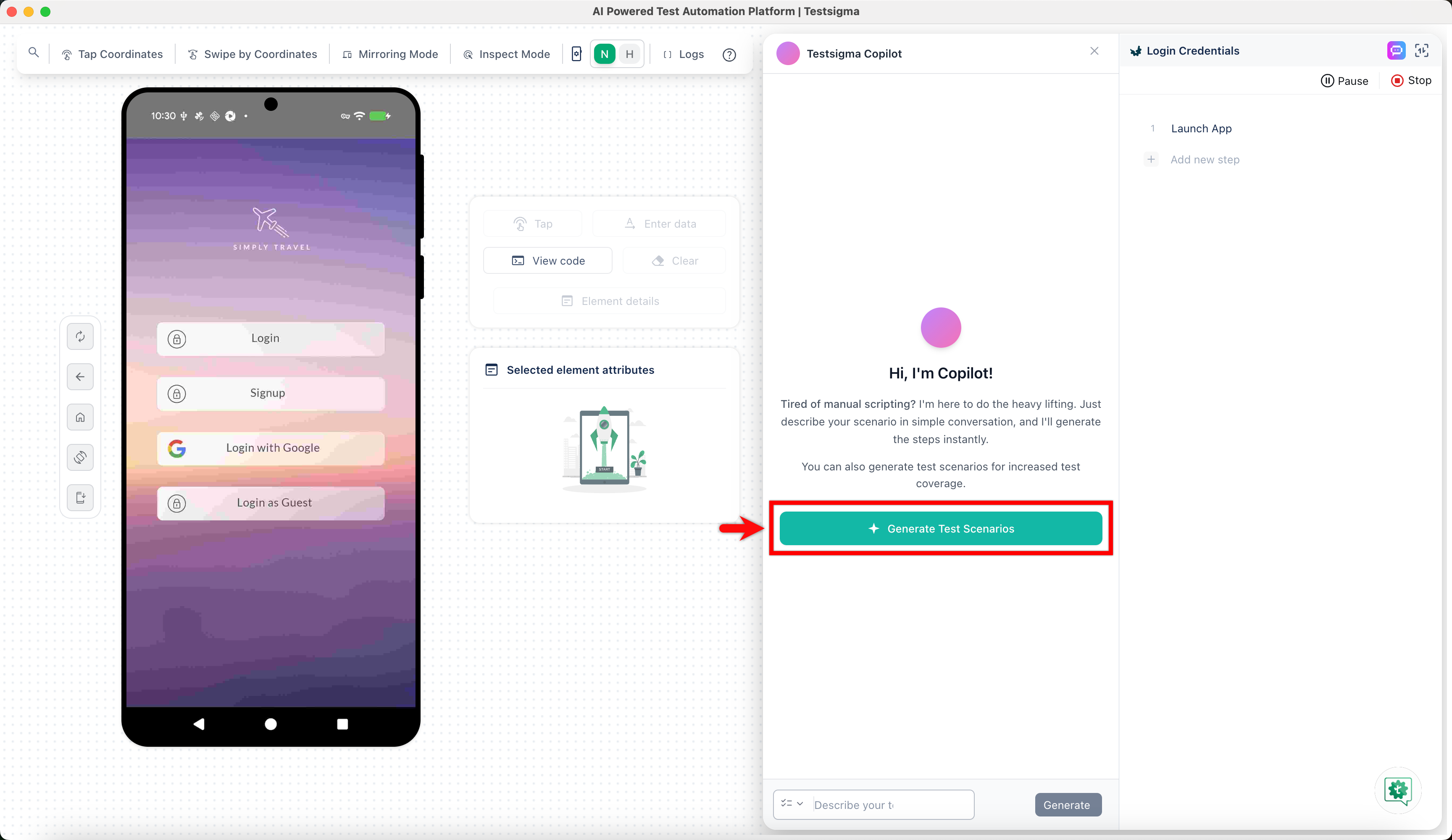
- Wait for the test cases to generate.
- Click any generated test case to view its corresponding test steps.
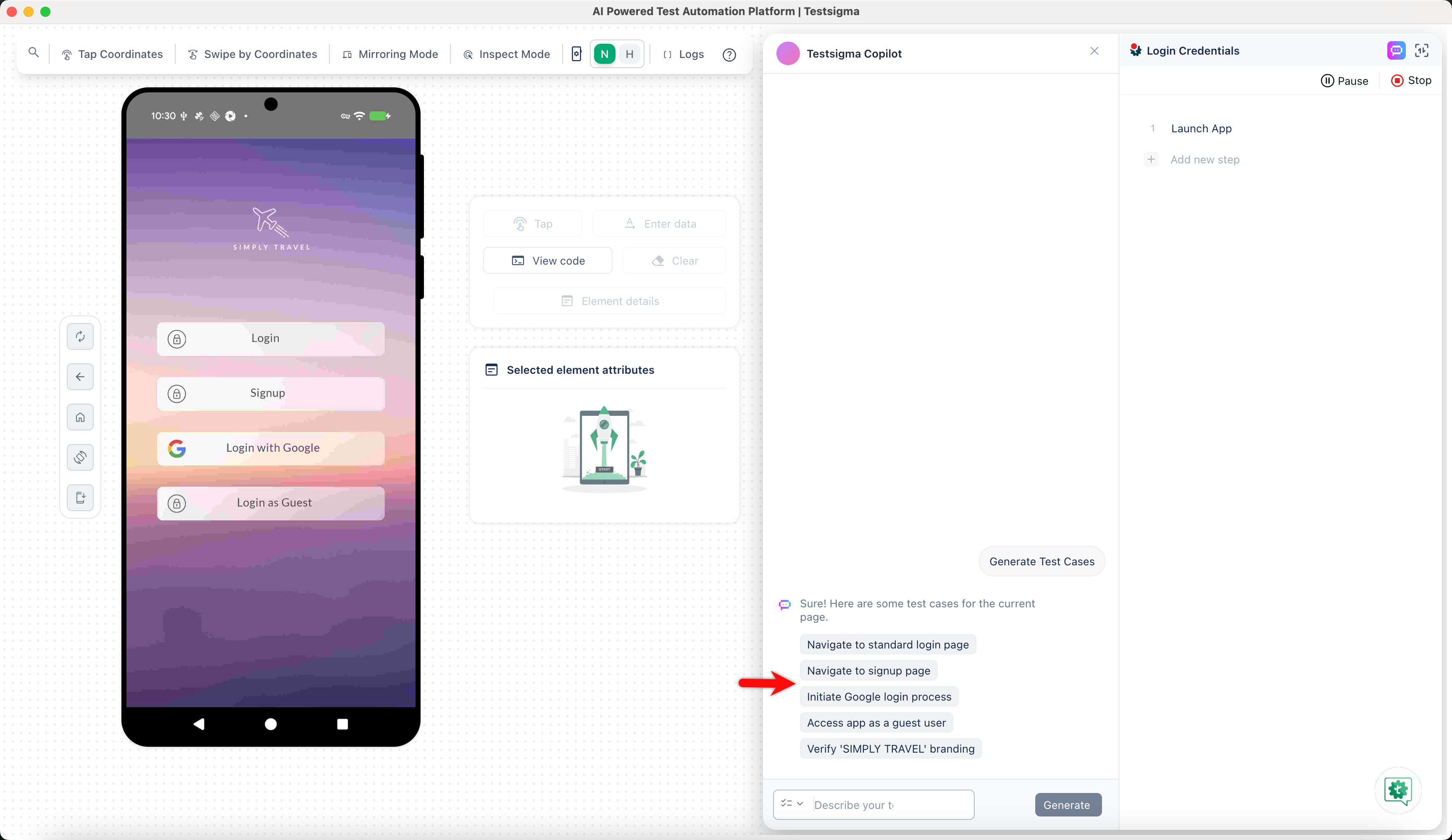
-
Select the steps and choose one of the following options:
- Click Add to test case to import the displayed test steps into the recorder.
- Click Add as step block to add the selected steps as a step block in the recorder.
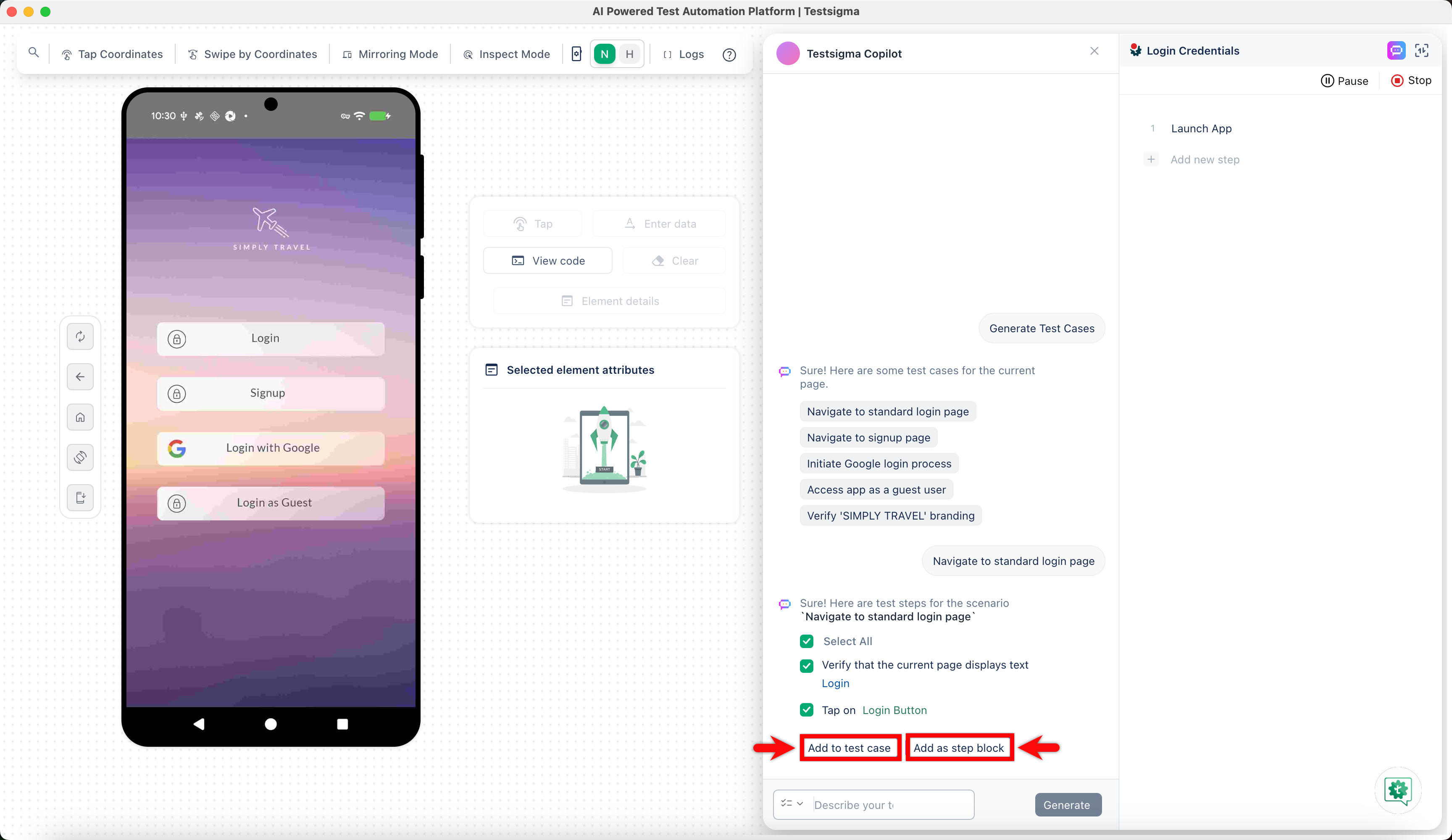
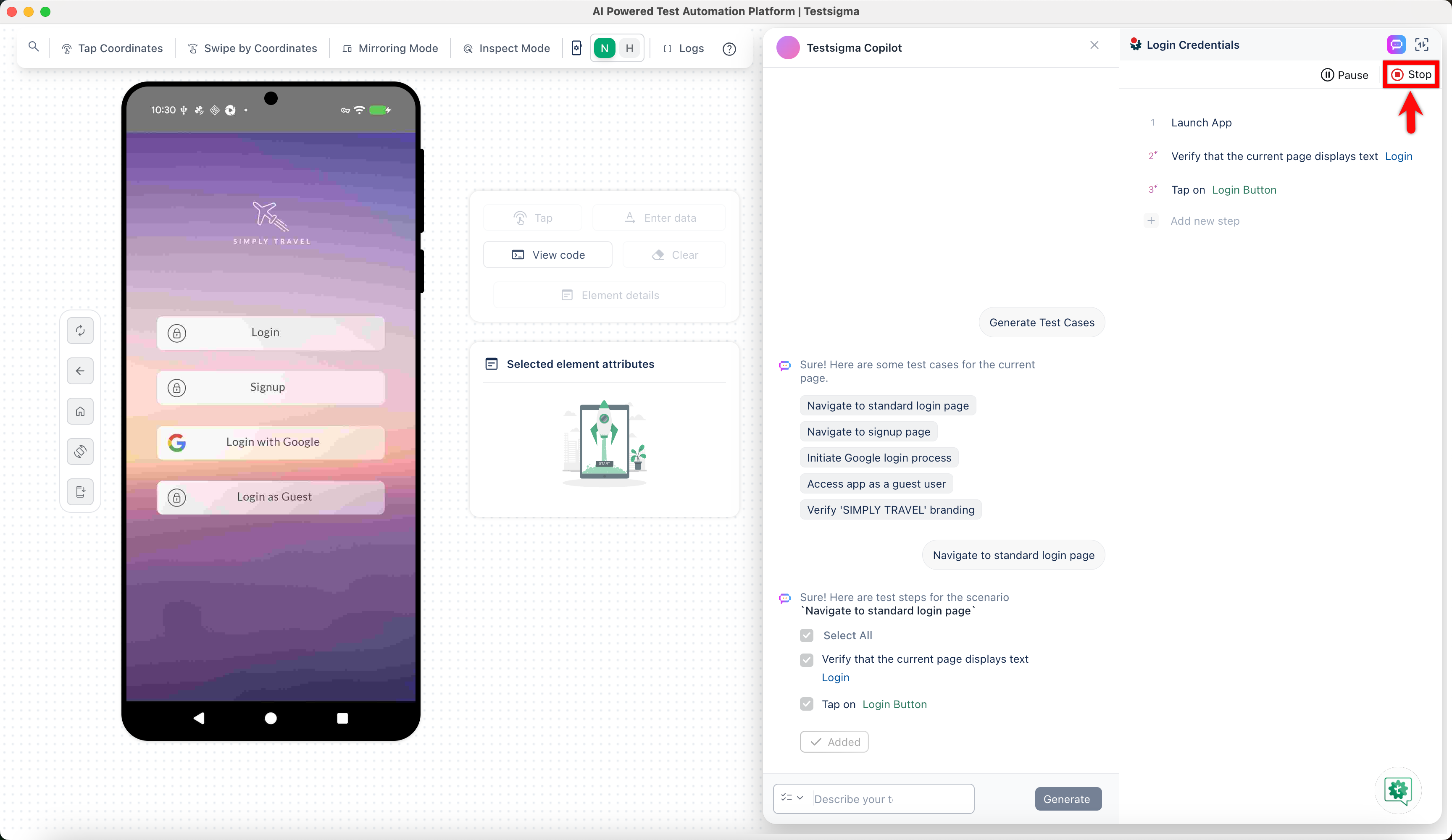
- Modify the test steps as needed to match the desired test case behavior. Once the modifications are done, click Stop to return to the test case details page.
Generate Test Cases with Prompts
- Follow the same steps from 1-7 from the above section.
- On prompt input, enter the prompt for which you want to fetch test steps and press Enter.
- Wait until the test steps are generated.
-
Select the steps and choose one of the following options:
- Click Add to test case to import the displayed test steps into the recorder.
- Click Add as step block to add the selected steps as a step block in the recorder.

Want to contribute or report missing content?