- test plans
 Add, Edit, Delete Test Machines
- Add, Edit, Delete Test Suites
- Schedule Test Plans
- Run Test Suites In Parallel
- Cross Browser Testing
- Distributed Testing
- End-to-End Testing
- Headless Testing
- Test Lab Types
- Disabling Test Cases in Test Plans
- AfterTest Case
- Post Plan Hook
- AfterTest Suite
- Email Configuration in Test Plan
- Execute Partial Test Plans via API
Execute Partial Test Plan Run via API
Performing a partial run in a test plan via an API call in Testsigma enables you to execute specific test suites and apply filters programmatically, providing flexibility and automation in your testing workflow. This documentation will guide you through configuring a partial test plan run, executing it via an API call, and scheduling the partial run for future execution.
Prerequisites
Before you begin, ensure that you have referred to:
Configure Partial Test Plan Run
Follow these steps to configure a partial test plan run.
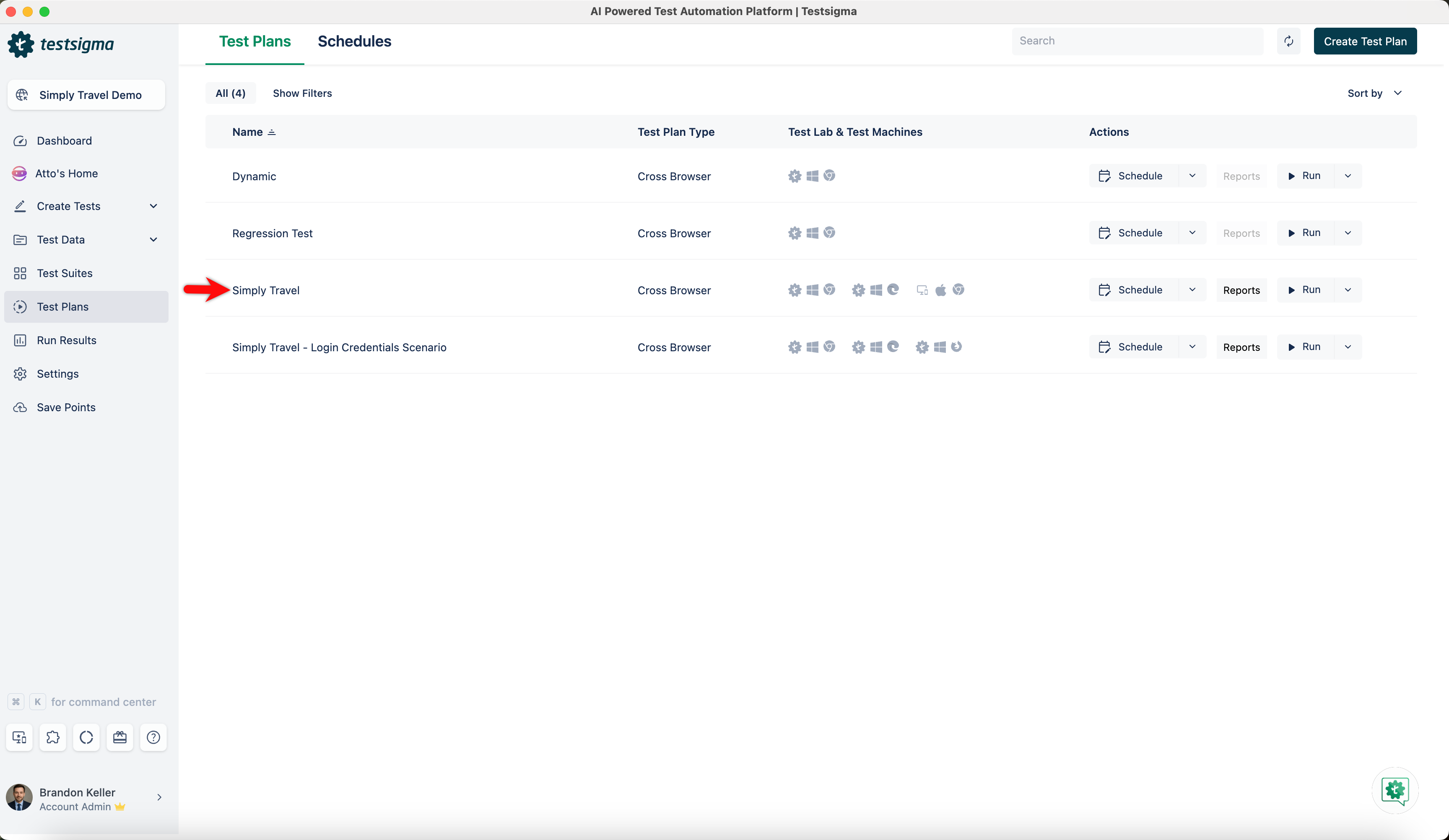
- Open the Test Plan Details page for the Test Plan you want to configure a Partial Test Run for.
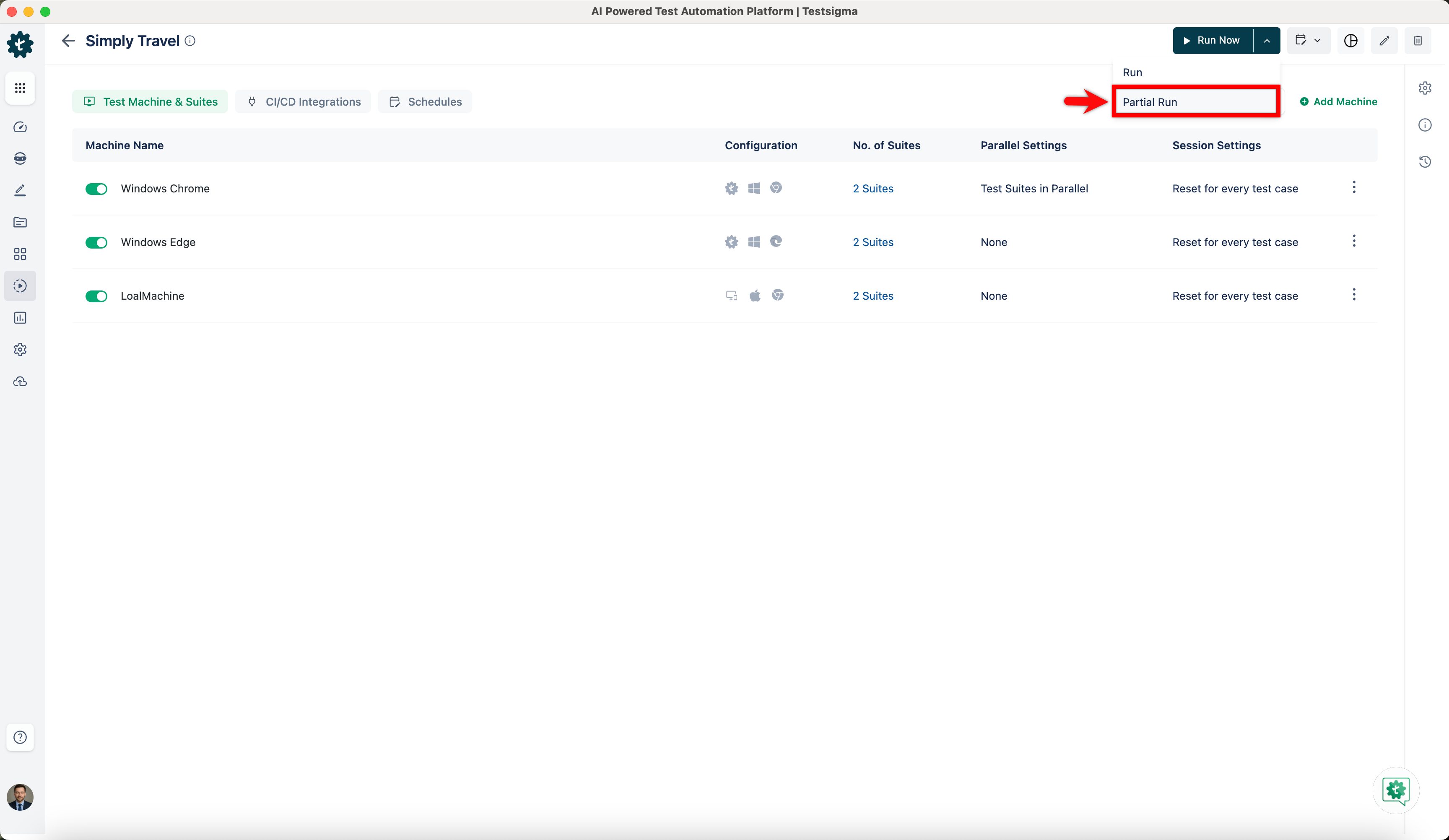
- Click the dropdown next to the Run Now button and select Partial Run.
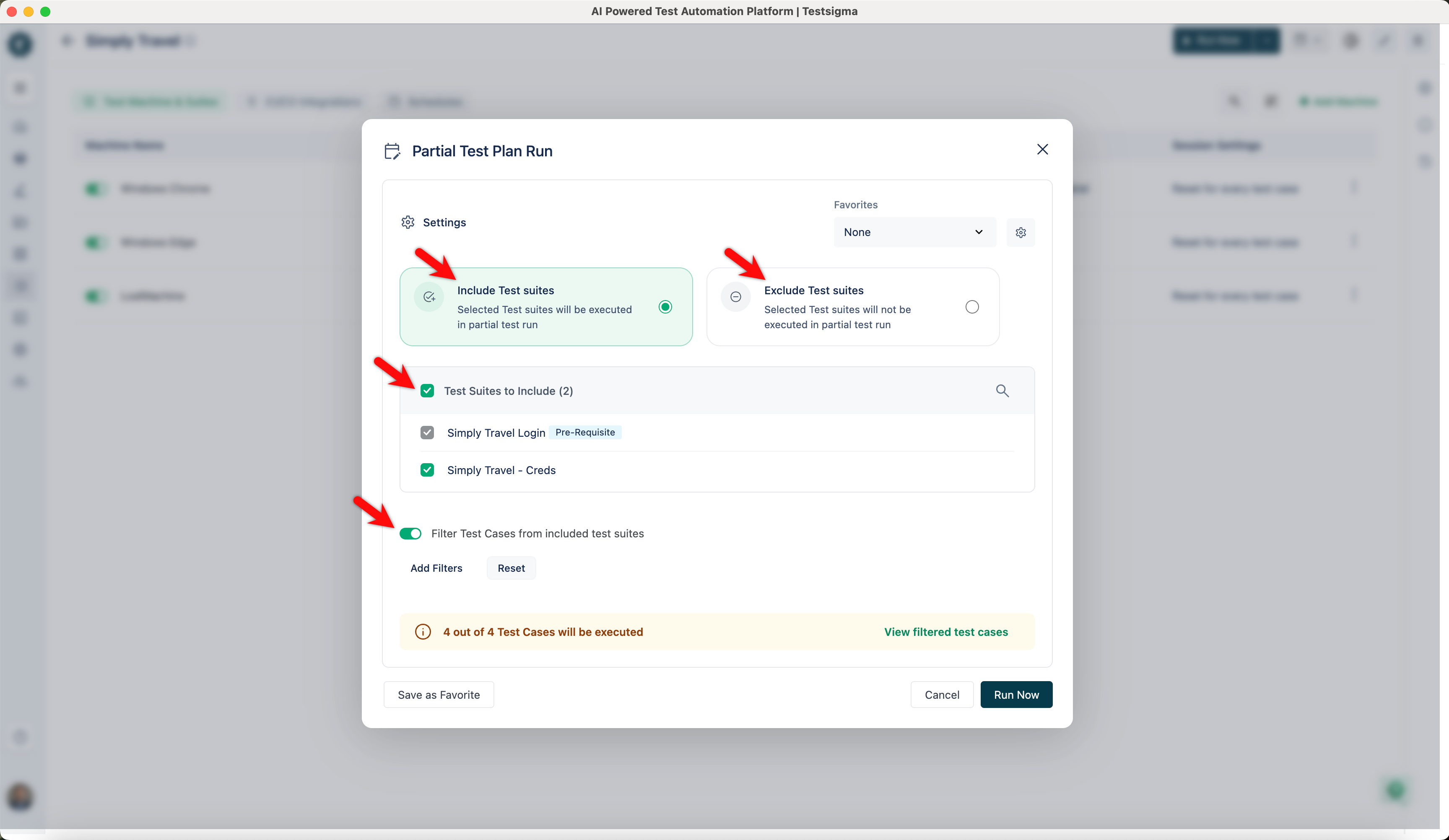
- In the Partial Test Plan Run overlay, configure your settings as needed. This includes selecting the Test Suites to include or exclude, applying filters based on specific criteria, and making any other necessary adjustments.
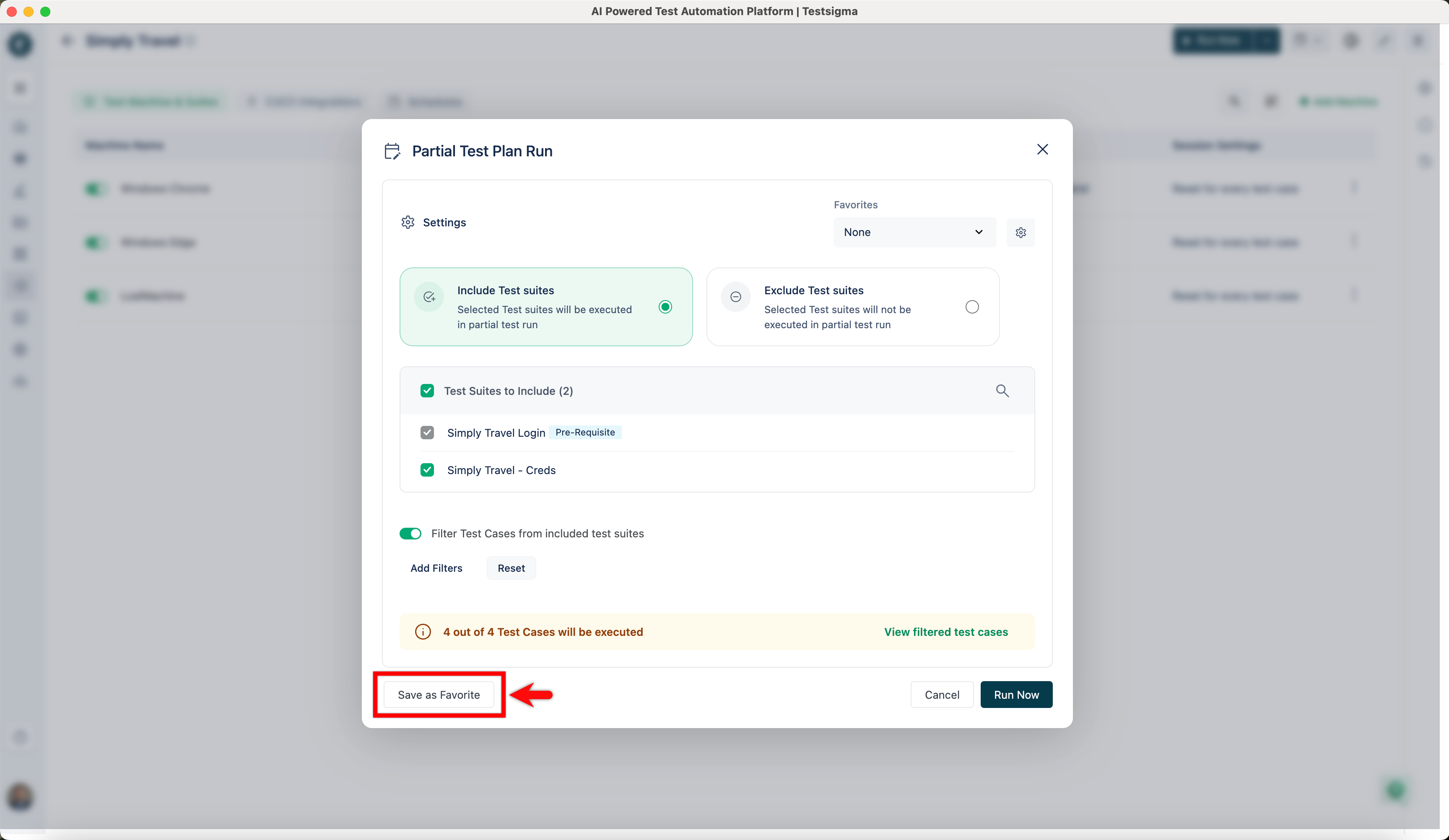
- Once you finalize the partial run configuration, click Save As Favorite.
- Enter a name for your favorite, then click Save.
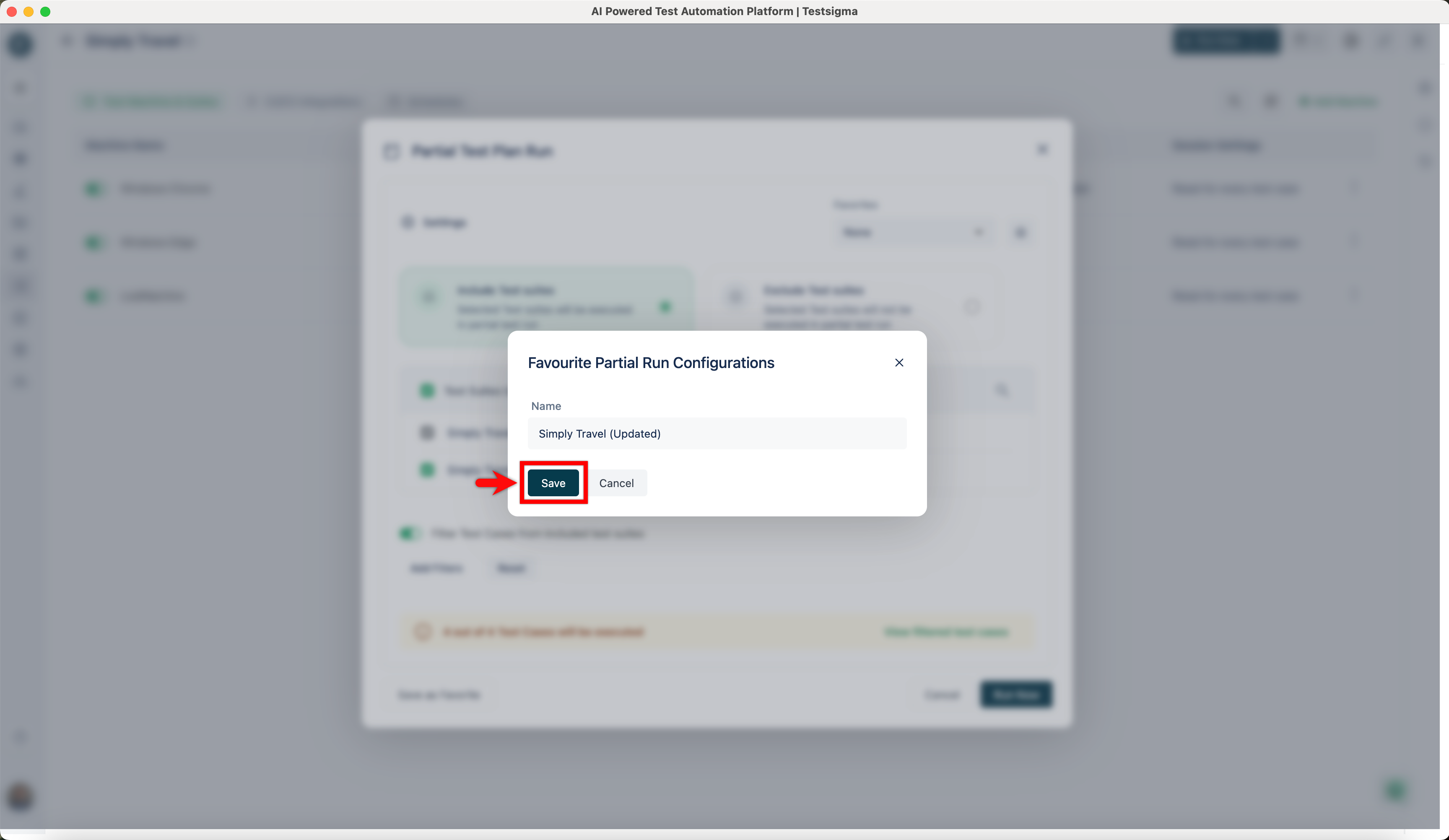
Remember the name used for the favorite configuration, as the API call will require it.
Partial Test Plan Run via API
Follow these steps to run the partial test plan via API call:
| Request Type | POST |
|---|---|
| Endpoint | https://app.testsigma.com/api/v1/execution_results |
| Authorization | Bearer Token → <API_Token> Same as the Testsigma API key mentioned above. |
| Request Body Type (JSON) | Raw |
| Payload | { "executionId": "3857", "executionConfig": { "name": "fav_config_name", "id": config_id } } |
- Find the execution ID of your test plan in the Test Plan details and replace 3857 with it.
- Replace the name of the saved favorite configuration with fav_config_name.
- Replace config_id with the ID of the saved favorite configuration.
Using the correct execution ID and favorite configuration name in the API call payload is essential to ensure accurate execution.
Fetch the Execution Config ID from the App
If you cannot use the GET API to retrieve the Execution Config ID, fetch it directly from the app using your browser's developer tools.
- Open the test plan in Testsigma.
- Right-click anywhere on the page and select Inspect.
- Select the Network tab in the developer tools panel.
- Select Preserve log.
- Select Disable cache.
- Clear existing log entries.
- In the Network search bar, enter: method:POST
- Select Run on the Partial Run configuration you want to trigger.
- In the Network tab, open the POST request that appears.
- Select the Payload tab.
- Copy the id value from the payload.
This id is the Execution Config ID. Pass it in the executionConfig object of your API request body.
Configure Schedule Partial Test Plan Run
Follow these steps to schedule a partial test run for future execution.
- Open the Test Plan Details page for the Test Plan you want to configure a Schedule Partial Test Run for.
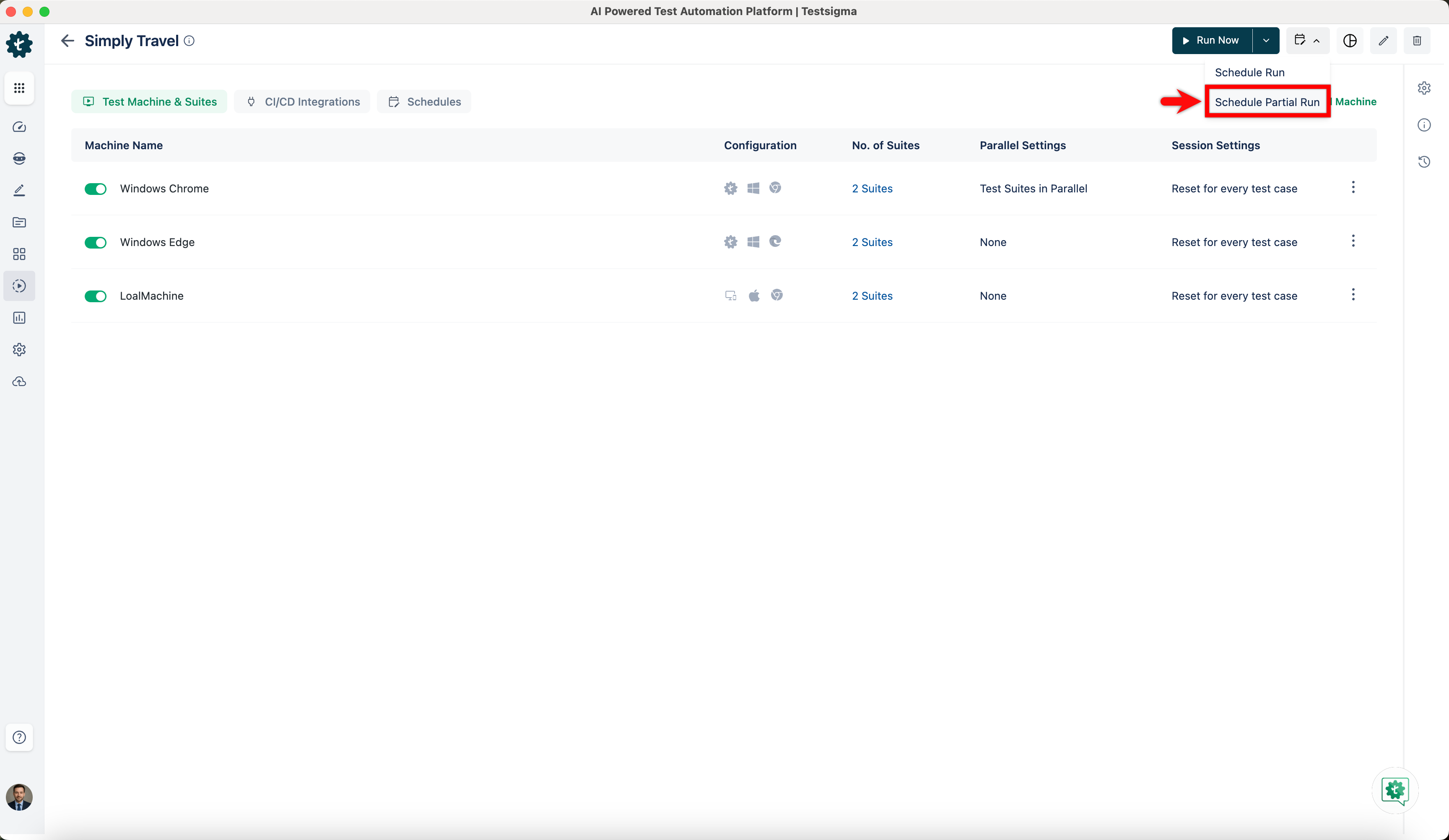
- Hover over the schedule icon and select Schedule Partial Run.
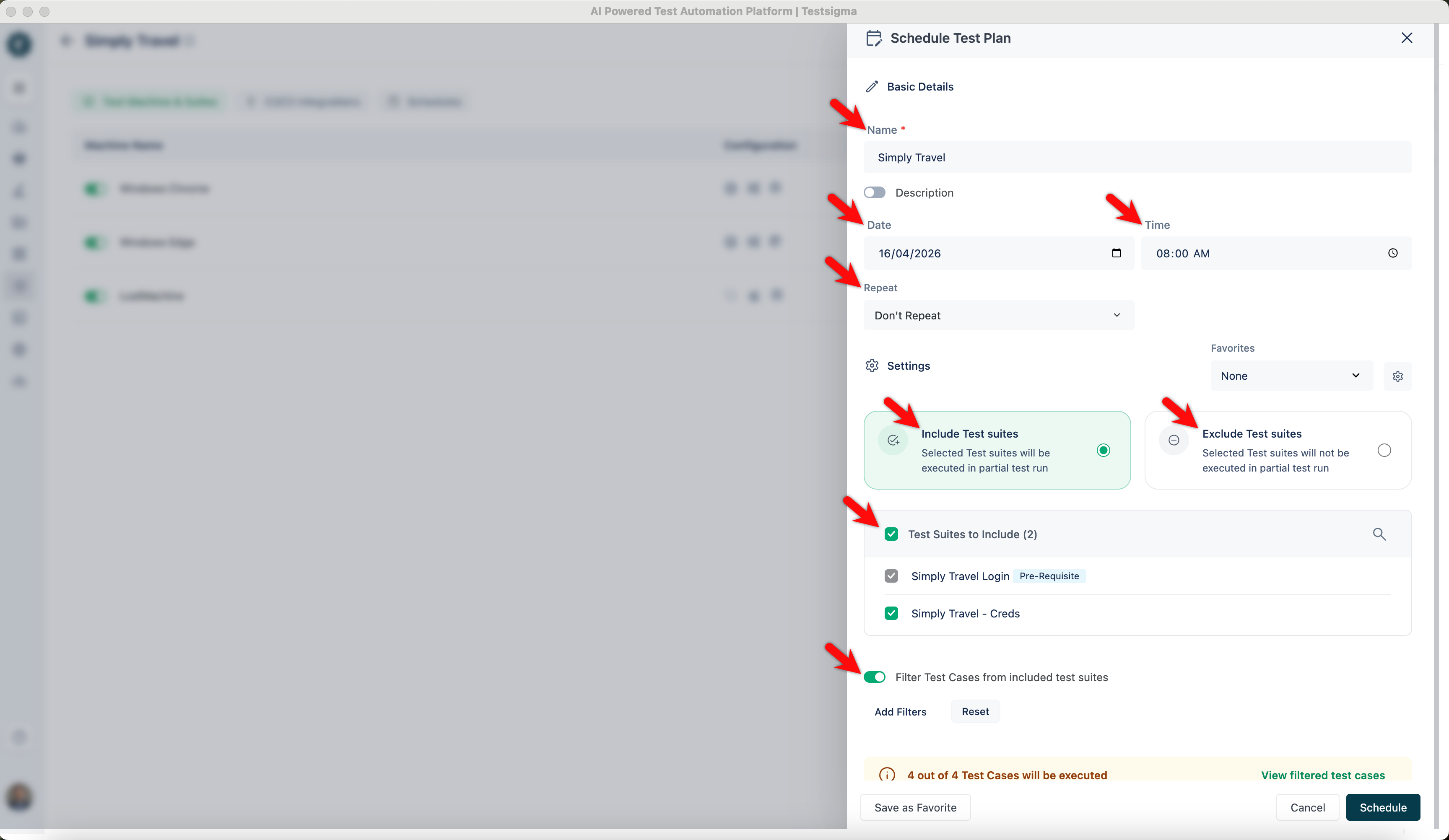
- In the Schedule Partial Test Run overlay, configure your settings as needed. This includes entering a name, selecting the time, date, and repeat frequency, choosing the Test Suites to include or exclude, and applying any necessary filters or adjustments.
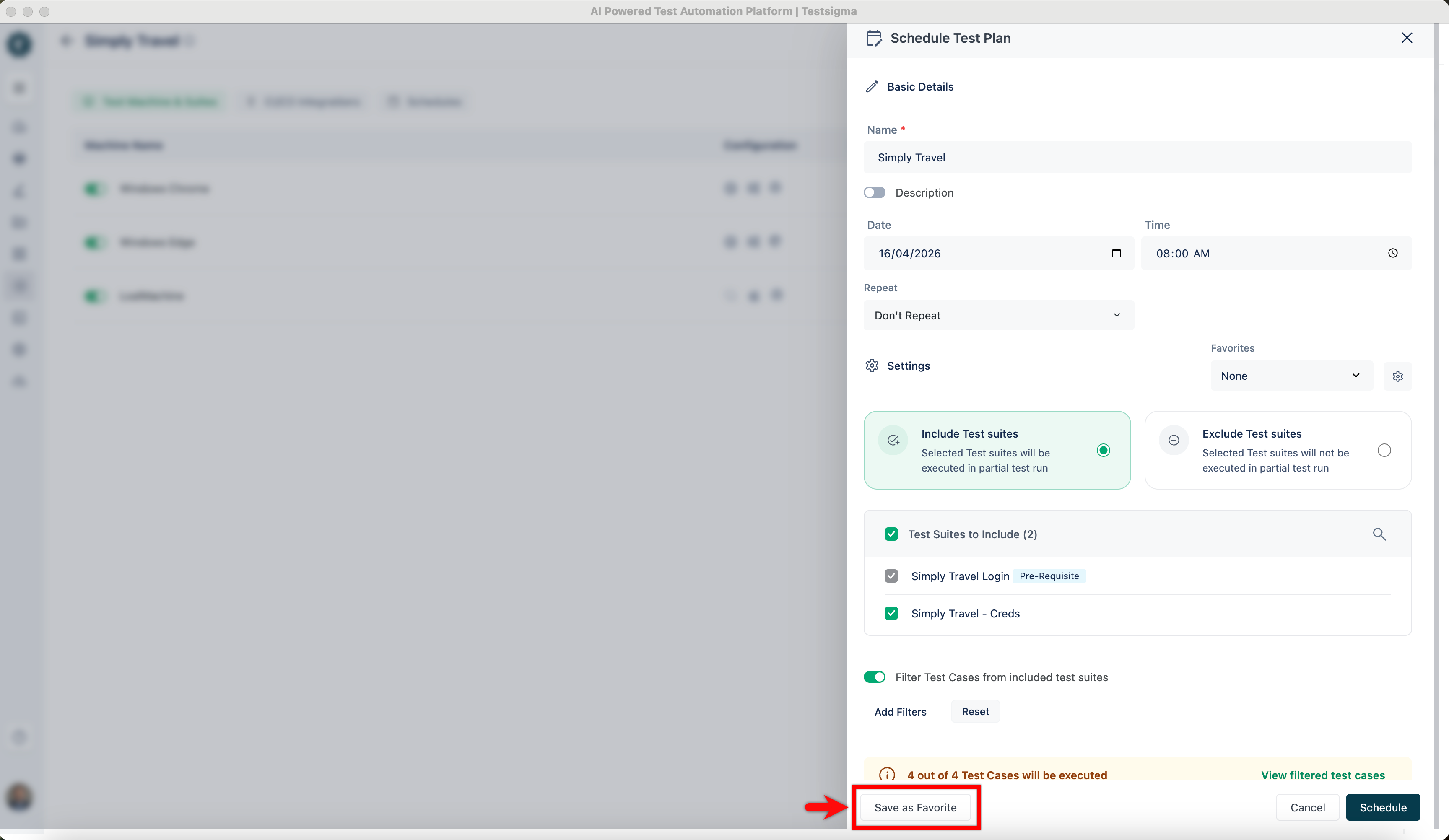
- Once you finalize the configuration, click Save As Favorite.
- Enter a name for your favorite configuration, then click Save.
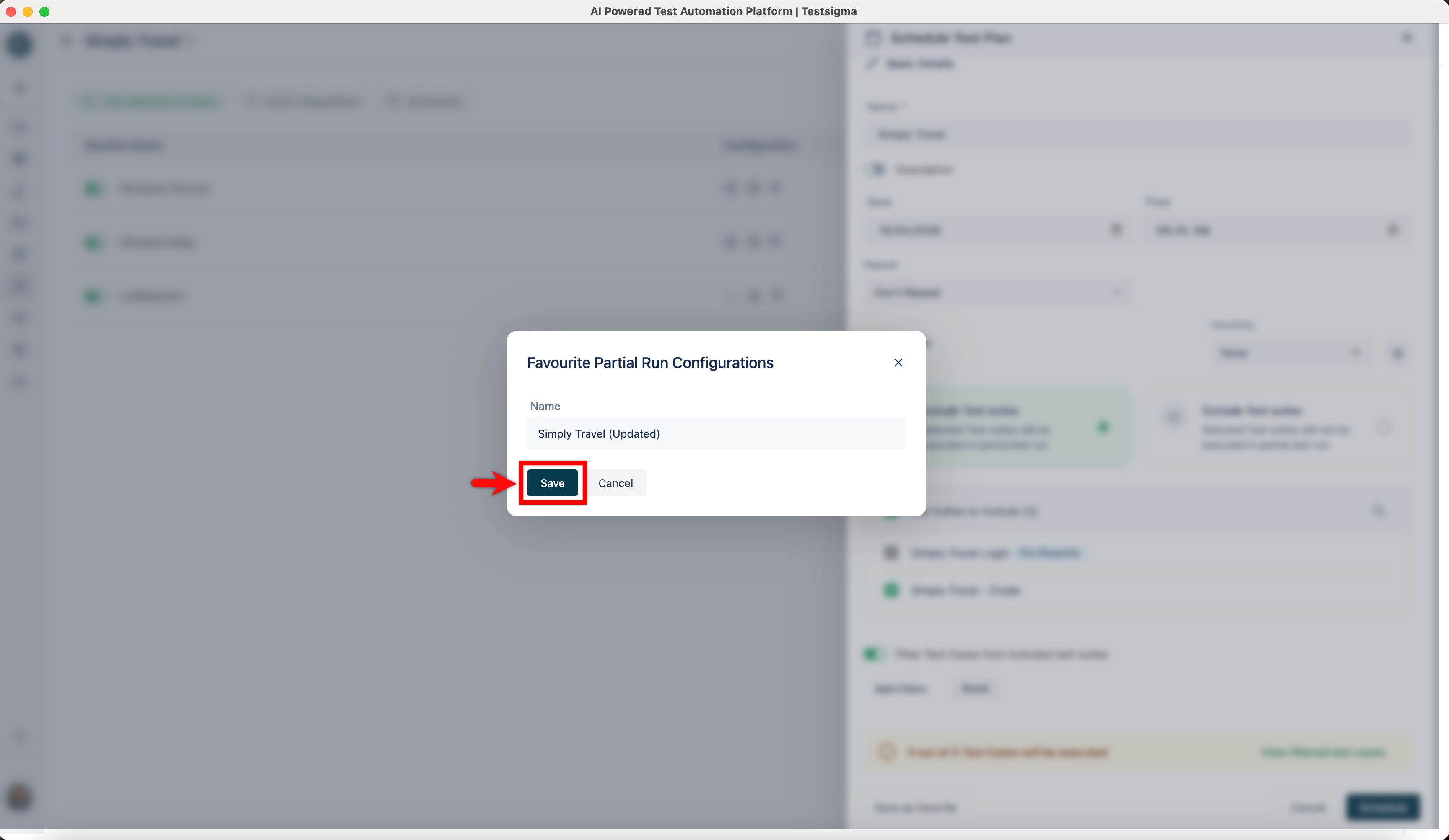
Remember the time, date, and name you used for the favorite configuration because the API call will require it.
Schedule Partial Test Plan Run via API
Follow these steps to schedule a partial test run via API call.
| Request Type | POST |
|---|---|
| Endpoint | https://app.testsigma.com/api/v1/schedule_executions |
| Authorization | Bearer Token → <API_Token> Same as the Testsigma API key mentioned above. |
| Request Body Type (JSON) | Raw |
| Payload | { "name": "RandomTest3", "executionId": 3857, "scheduleType": "ONCE", "status": "ACTIVE", "nextInterval": "2023-06-01T17:30:00.000Z", "executionConfig": { "name": "fav_config_name", "id": config_id }, "timezone": "IST" } |
Request Body Fields
- name: You can set the name of the scheduled test run.
- executionId: Replace 3857 with the execution ID of your test plan found in the Test Plan details.
- scheduleType: Defines the type of schedule. In this example, it is set to ONCE to indicate a one-time execution.
- status: Set the status of the scheduled test run to ACTIVE.
- nextInterval: Modify the time value in the schedule section to specify the desired time for the partial test run execution. Use the ISO 8601 format, such as YYYY-MM-DDTHH:MM:SSZ.
- executionConfig: Enter the details of the saved configuration in the executionConfig field. Replace fav_config_name with the name of the saved favorite configuration, and replace config_id with the ID of the saved favorite configuration.
- timezone: Specify the timezone for the scheduled execution.
Using the correct execution ID, desired time, and favorite configuration name in the API call payload is essential to ensure accurate execution.

Want to contribute or report missing content?