- NLPs
 Retrieve Value in Text Element
- Capture Dropdown Elements
- Unable to Select Radiobutton
- Unable to Click Checkbox
- Clearing the Session or Cookies
- UI Identifier NLP
- Drag & Drop NLP
- Uploading Files NLP
- Use MySQL Addon in NLPs
- setup
- Server Docker Deployment Errors
- Secured Business Application Support
- Troubleshooting Restricted Access to Testsigma
- Why mobile device not displayed in Testsigma Mobile Test Recorder?
- Unable to Create New Test Session
- Agent Startup Failure Due to Used Ports
- Tests Permanently Queued in Local Executions
- Fix Testsigma Agent Registration Failures
- Testsigma Agent Cleanup
- Need of Apache Tomcat for Testsigma Agent
- web apps
- URL not accessible
- Test Queued for a Long Time
- Issues with UI Identifiers
- Missing Elements in Recorder
- Collecting HAR File
- Errors with Browser Session
- Page Loading Issues
- mobile apps
- Failed to Start Mobile Test Recorder
- Troubleshooting “Failed to perform action Mobile Test Recorder” error
- Why Test Execution State is Queued for a Long Time?
- Why Mobile App Keeps Stopping After Successful Launch?
- More pre-requisite settings
- Why am I not able to start WDA Process on iPhone?
- What are the Most Common causes for Click/Tap NLP Failure?
- How to Find App Package & Activity in Android?
- Cross-environment Compatible ID Locators (Android)
- Why Accessibility IDs Over other Locators?
- What are Common Android Issues & Proposed Solutions?
- How to Find the App Bundle ID for iOS?
- Developer Mode (iOS 16 & Above)
- How to Handle iOS App Compatibility Issues?
- How to Disable Play Protect for SMS Forwarder Installation?
- How to Capture Network Logs in an Android Application?
Unable to capture dropdown element
A dropdown list is a commonly used graphical control element that allows users to select a value from the list. Many modern day applications implement dropdowns using <select>,<div>, <a>, or <span>. This article discusses on how to handle dropdowns using NLP's in Testsigma.
Dropdowns using <select> tag
The <select> tag is most often used in a form, to collect user input. The following is the syntax of a <select> tag:
    <select>
         <option></option>
        ...
        <option></option>
    </select>
Select NLPs work for dropdowns that use the <select> tag. The following are the different NLPs that can be used:
Select multiple options
- Select multiple options using value test-data in the element list
- Select multiple options by text test-data in the element list
- Select multiple options by index test-data in the element list
Select option using index
- Select option with index test-data in the button group element
- Select option by index test-data in the list with title attribute
- Select option by index test-data in the list with label text attribute
- Select option by index test-data in the element list
- Select option by index test-data in the list with text attribute
- Select option by index test-data in the list with label text containing attribute
- Select option by index test-data in the list with text containing attribute
Select option using label
- Select option with label containing test-data in the button group element
- Select option with label test-data in the button group element
- Select option with label test-data in the radio button group element
Select option using value
- Select option using value contains test-data in the element list
- Select option contains text test-data in the element list
- Select option using value test-data in the list with title attribute
- Select option using value test-data in the list with label text attribute
- Select option using value test-data in the element list
- Select option using value test-data in the list with text attribute
- Select option using value test-data in the list with label text containing attribute
- Select option using value test-data in the list with text containing attribute
Select option using text
- Select option with text containing test-data in the button group element
- Select option with text test-data in the button group element
- Select option by text test-data in the list with title attribute
- Select option by text test-data in the list with label text attribute
- Select option by text test-data in the element list
- Select option by text test-data in the list with text attribute
- Select option by text test-data in the list with label text containing attribute
- Select option by text test-data in the list with text containing attribute
Dropdowns using non <select> tag
Use any of the below NLP's for dropdown associated with <div>, <a>, or <span>:
- Click on element with text test-data
- Click on element with text containing test-data
- Click on coordinates test-data (% of width , % of height from element top left) inside element element
- Click on element if visible
- Click on element -Click on element using javascript executor
Verify if a dropdown has a select tag
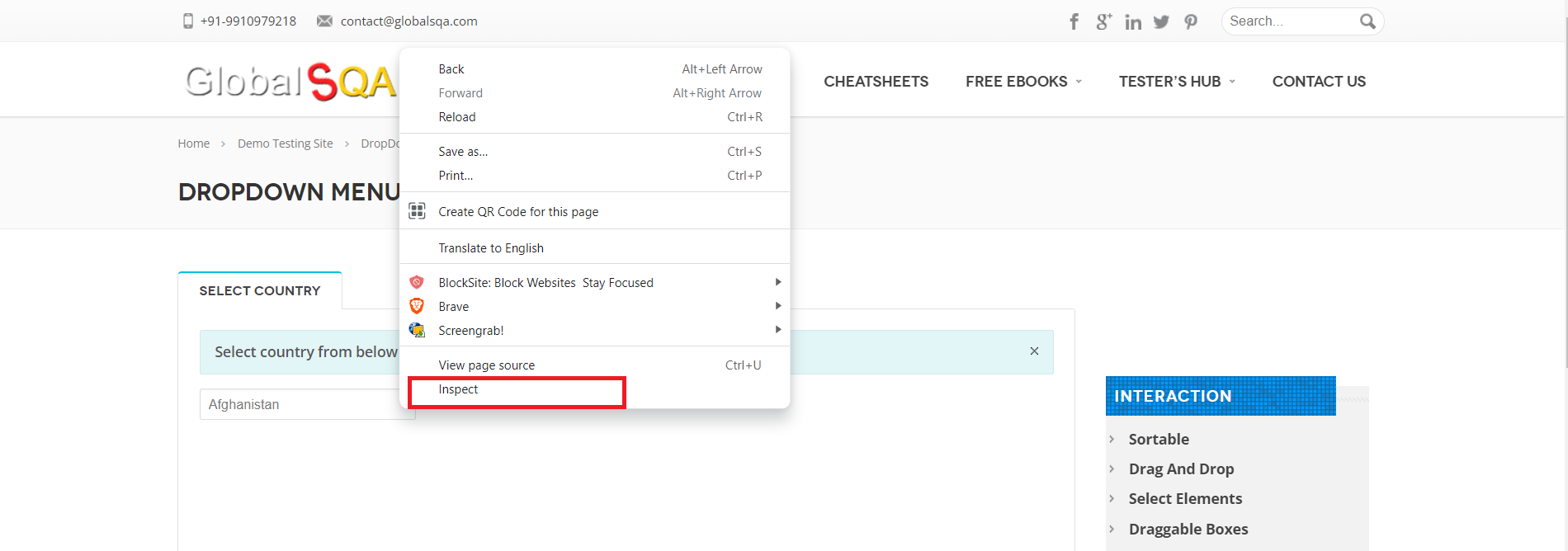
- Right-click on the element and select Inspect from the drop-down list.
- Check if the element is attached to the <select> tag as shown in the below screen shot.
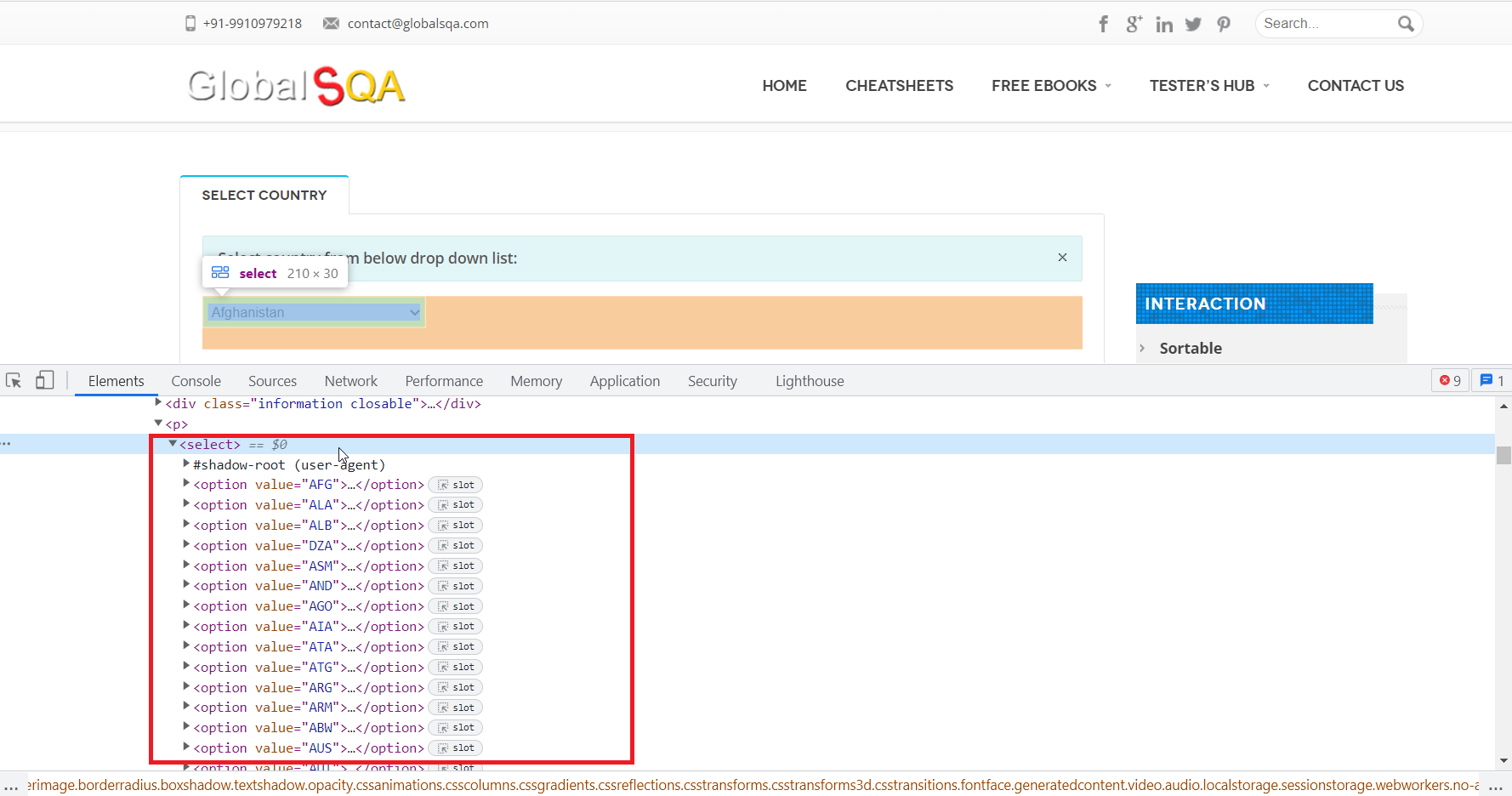
If the element is attached to the <select> tag use any of the following suitable NLP’s explained in the section dropdowns using <select> tag.
If the element uses any of the non <select> dropdown use cases, use any of the suitable NLPs explained in the section dropdowns using non <select> tag.

Want to contribute or report missing content?