- create test cases
 Organizing Test Cases in Folders
- Test Cases for Web Applications
- Test Cases for Mobile Applications
- Test Cases for Mobile Web Applications
- Manage Test Cases for Web Applications
- Manage Test Cases for Android & iOS Apps
- Manage Test Cases for Mobile Web Applications
- Test Case List Actions
- Importing Postman Collections and Environments
- Custom Fields for Test Cases
- Label Management
- Update Test Case Result in a Test Plan
- Test Case: Advanced Options Guide
- Test Step Types
- Type: Natural Language
- Type: REST API
- Type: Step Group
- Type: For Loop
- Type: While Loop
- Type: Block
- Type: If Condition
- Nested Step Groups
- Image Injection
- Cross-application testing
Adding If, Else, Else If Conditions in Test Cases
In Testsigma, you can add If, Else, and Else If in your test cases based on a true or false condition. For example, If verifies the login status in a login test case, and Else will check credentials and redirections. This article discusses using If, Else, and Else If Conditions in Testsigma.
Prerequisites
Before you begin, ensure that:
- You have installed the Testsigma Recorder Extension. For more information on installing chrome extension, refer to the documentation on installing chrome extension.
- You have referred to the documentation on creating test cases.
Using If, Else and Else If conditions in Test Cases
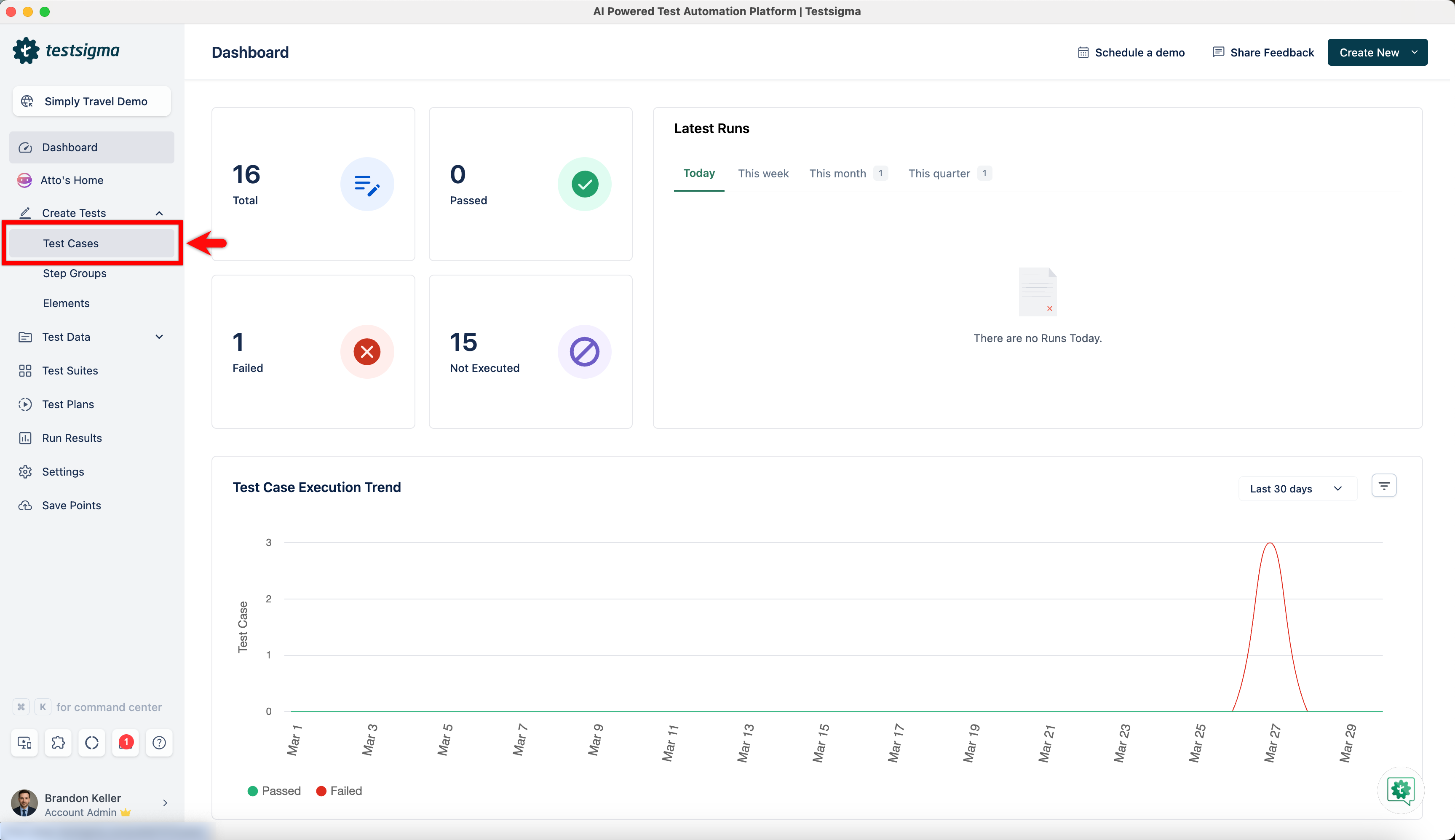
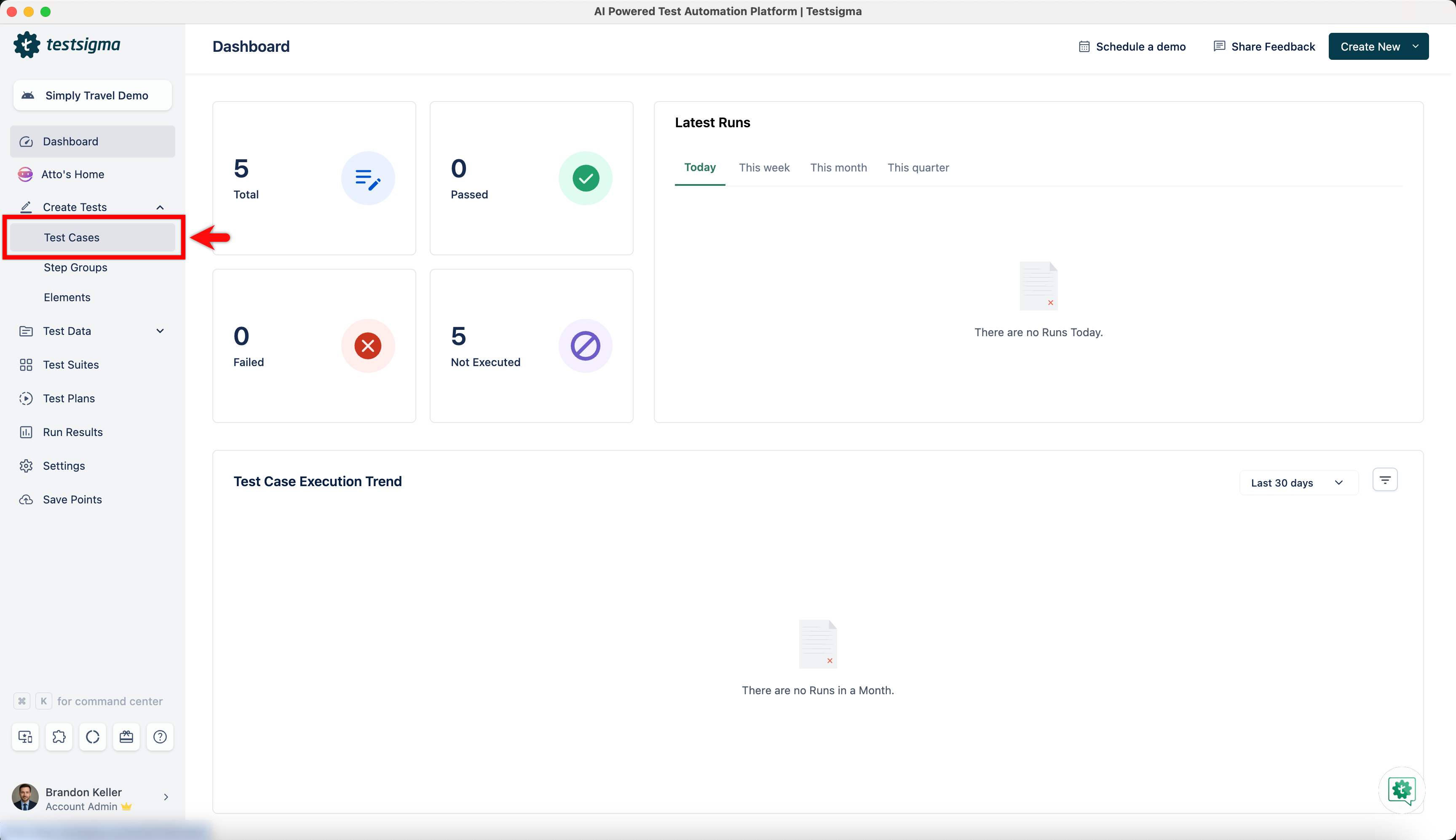
- Navigate to Create Tests > Test Cases, and click on Create Test Case.
- On Test Case Details page, click on the option on the left side of the test step. This will open a side panel.
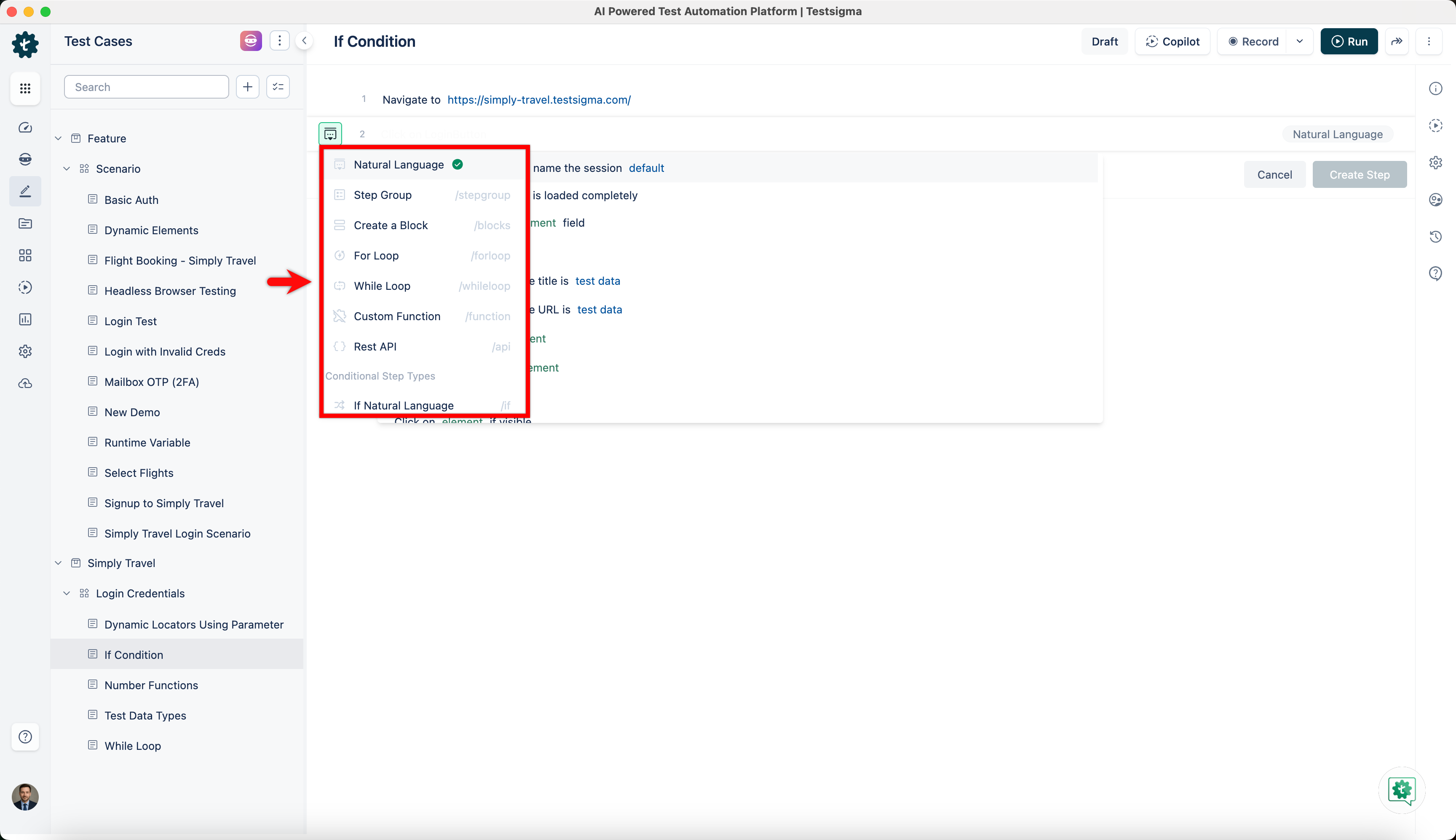
- Hover over to the Conditional Step Types and click on If Natural Language.
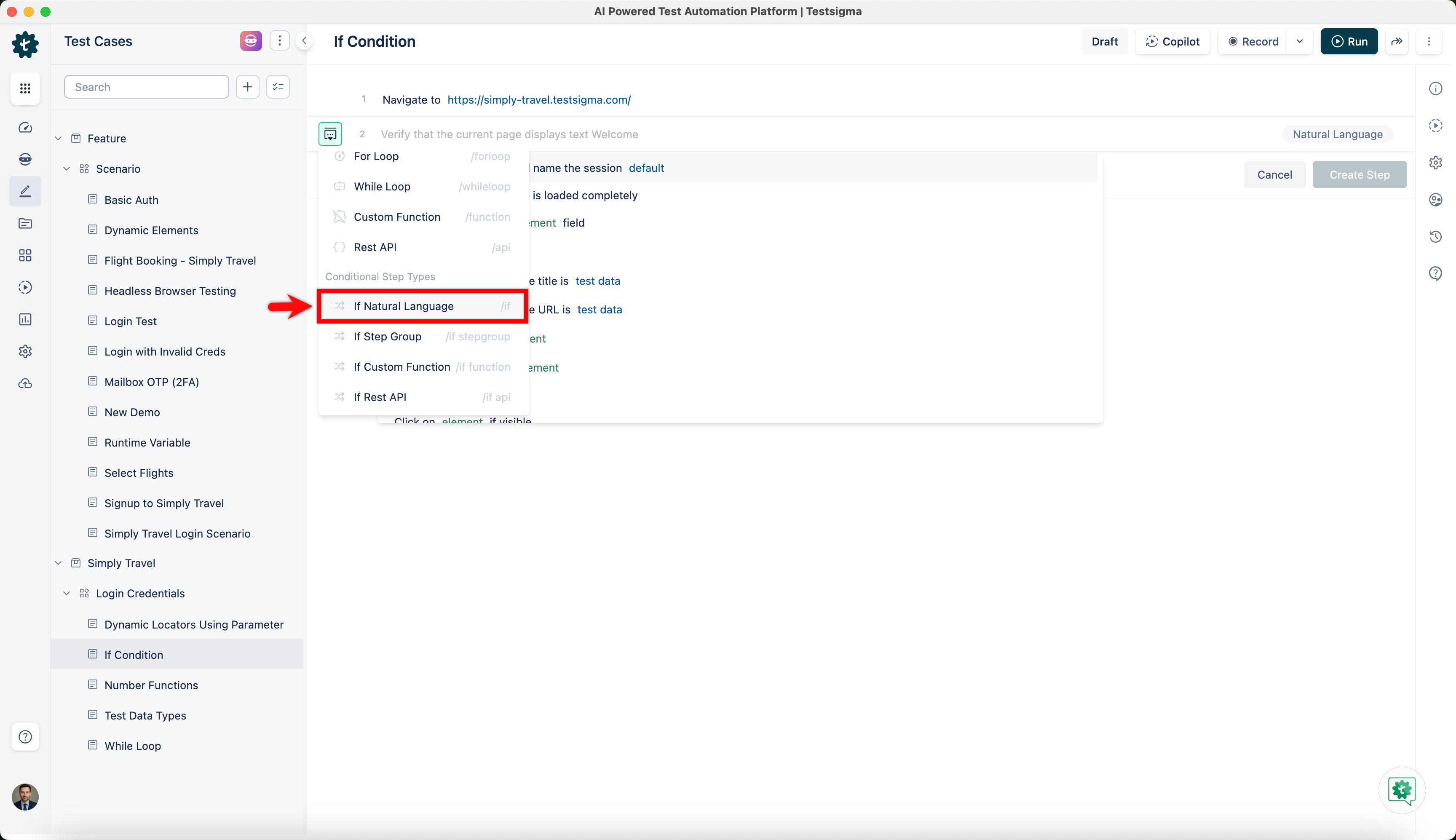
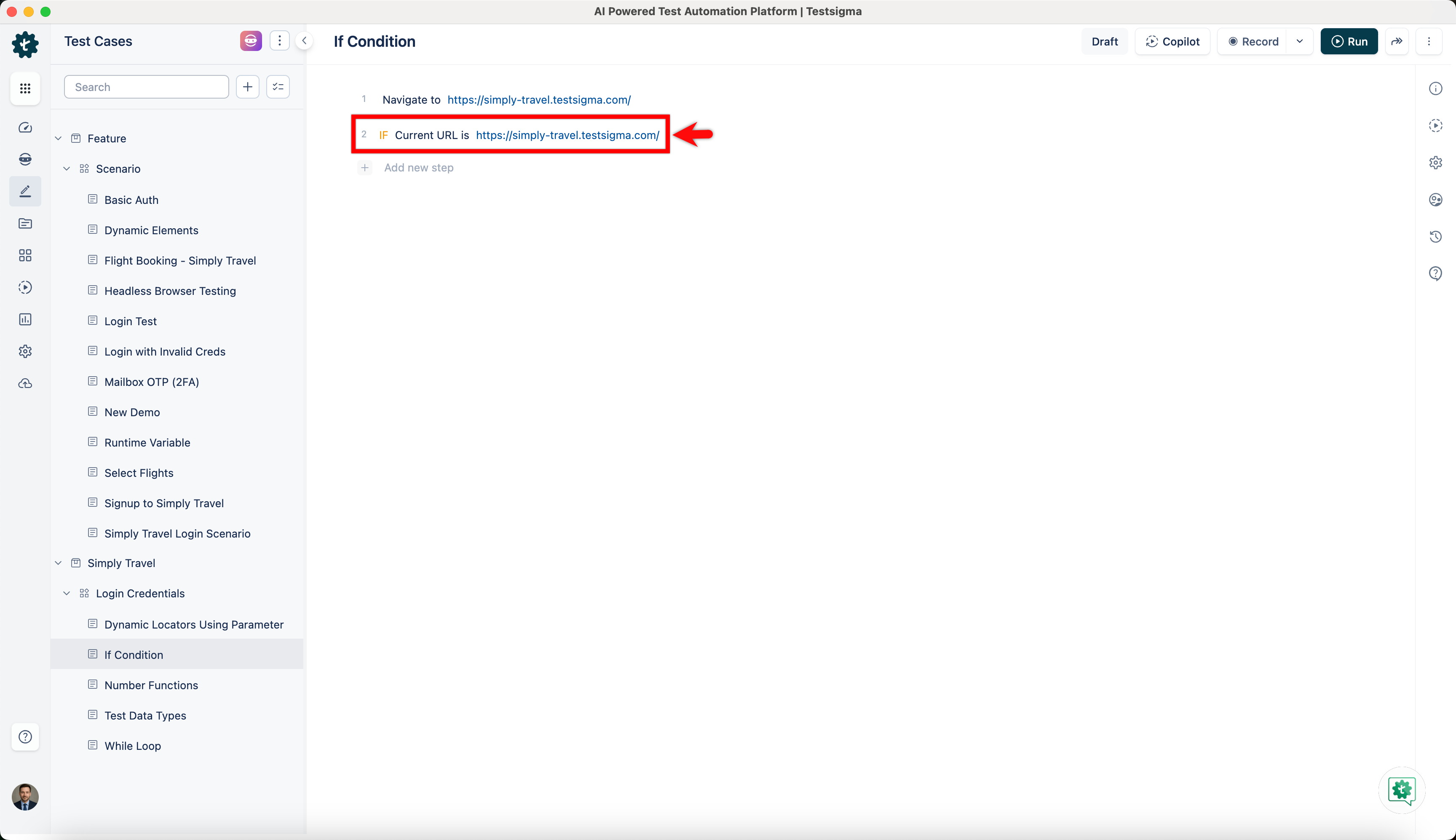
- This will add an IF condition to your test step.
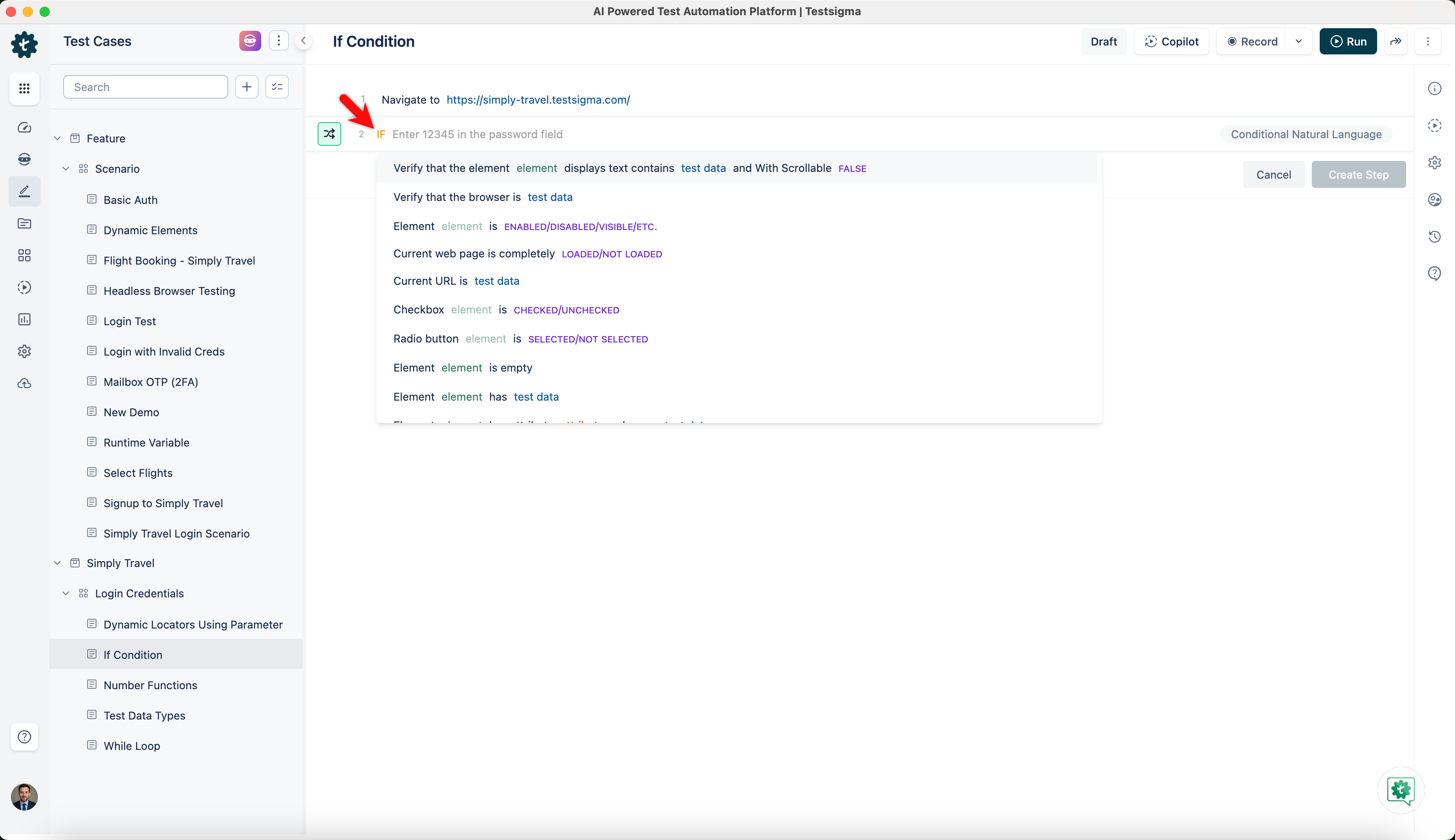
- Now add the test step within the IF statement by choosing the specific NLP.
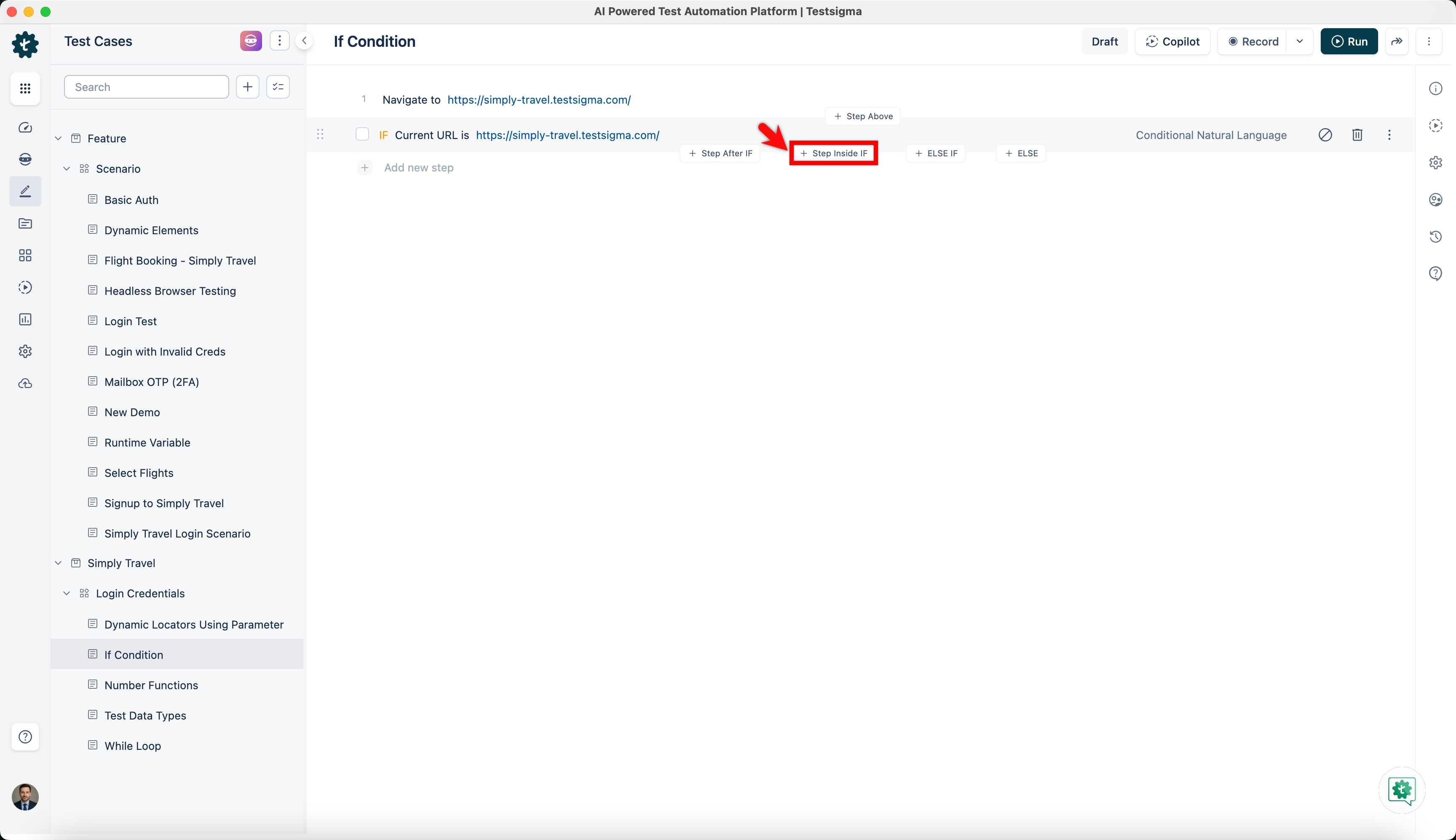
- Hover over the test step and click on Step Inside IF to add sub-steps under the IF condition.
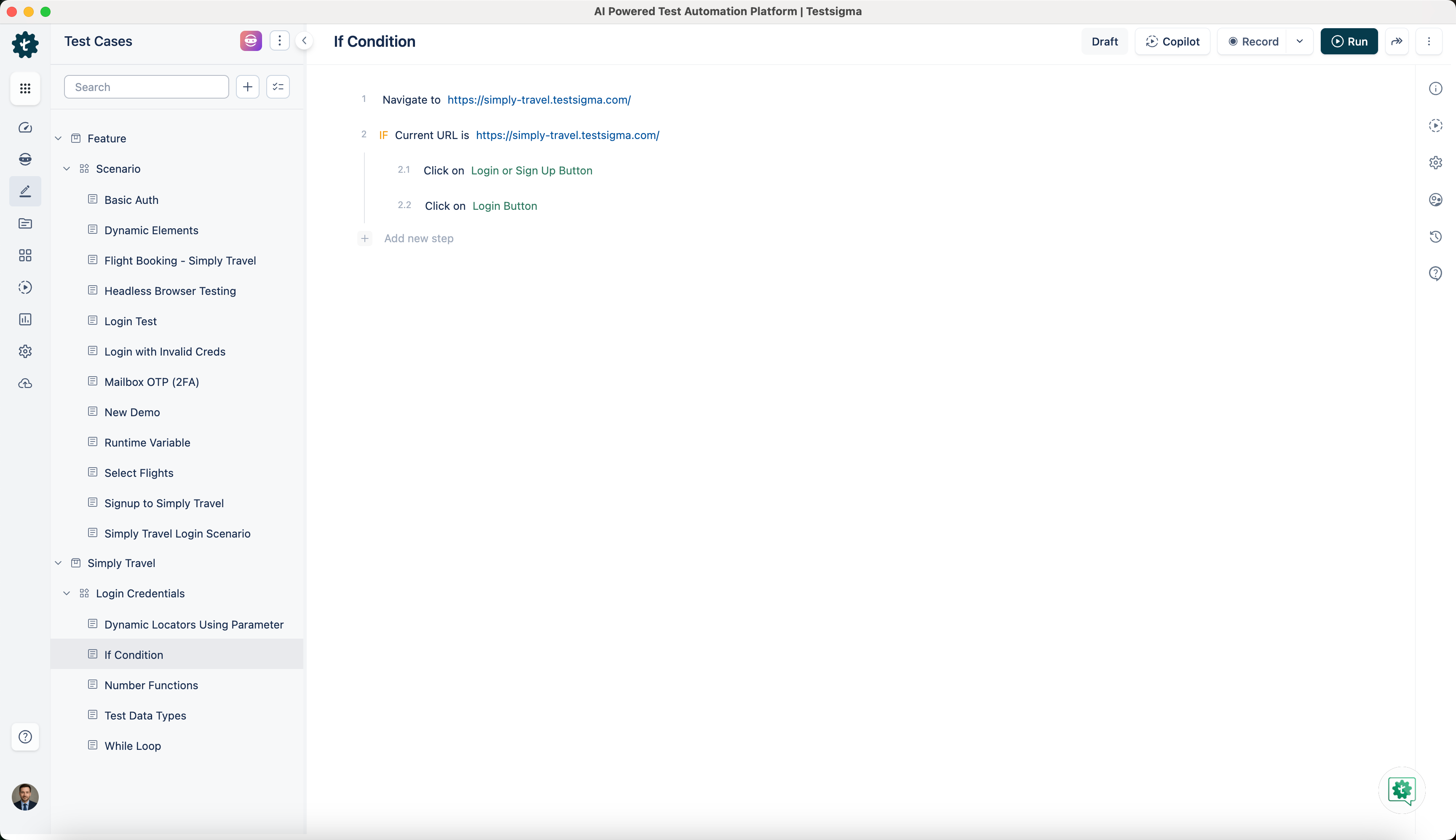
- This will create a test step number 2.1 which will be under step 2. You can continue to add sub steps numbered as 2.2, 2.3, etc. The test steps numbers 2.2, 2.3, etc will be executed only if the Conditional IF is true.
Creating “Else If” or “Else” Conditions
- Create IF condition in the test step and hover over the IF statement, you will see Else If and Else.
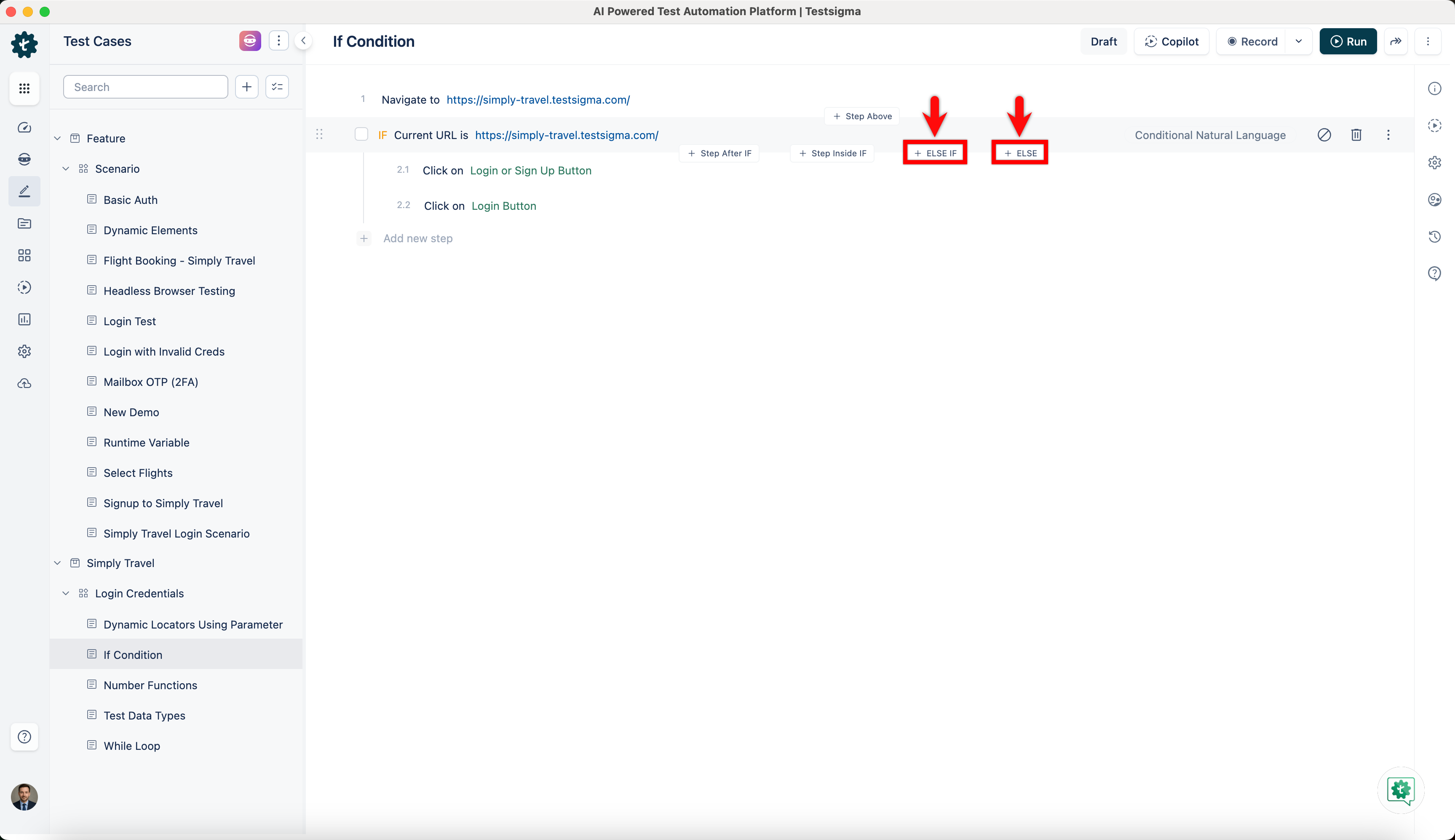
- Click on either Else If or Else to create a test step. All other steps are the same as mentioned in the previous section of this article.
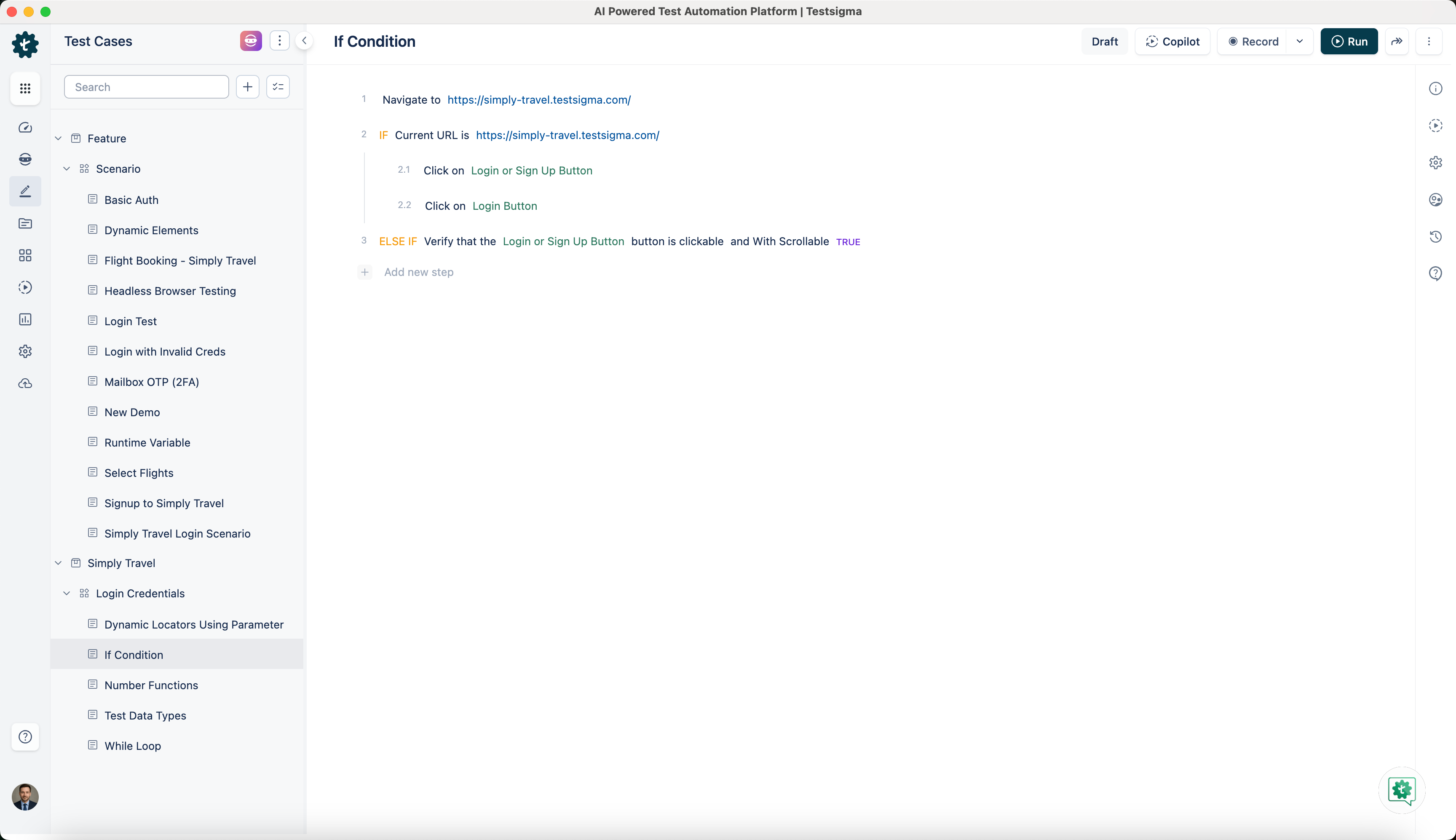
The screenshot above shows the usage of Else If condition.
Using Testsigma’s Test Step Recorder for If Conditions [Web and Mobile Web]
We can also add the If Condition while creating test steps using Testsigma’s test recorder. Follow the steps below to add the If condition using recorder.
- Navigate to Create Tests > Test Cases, and click on Create Test Case.
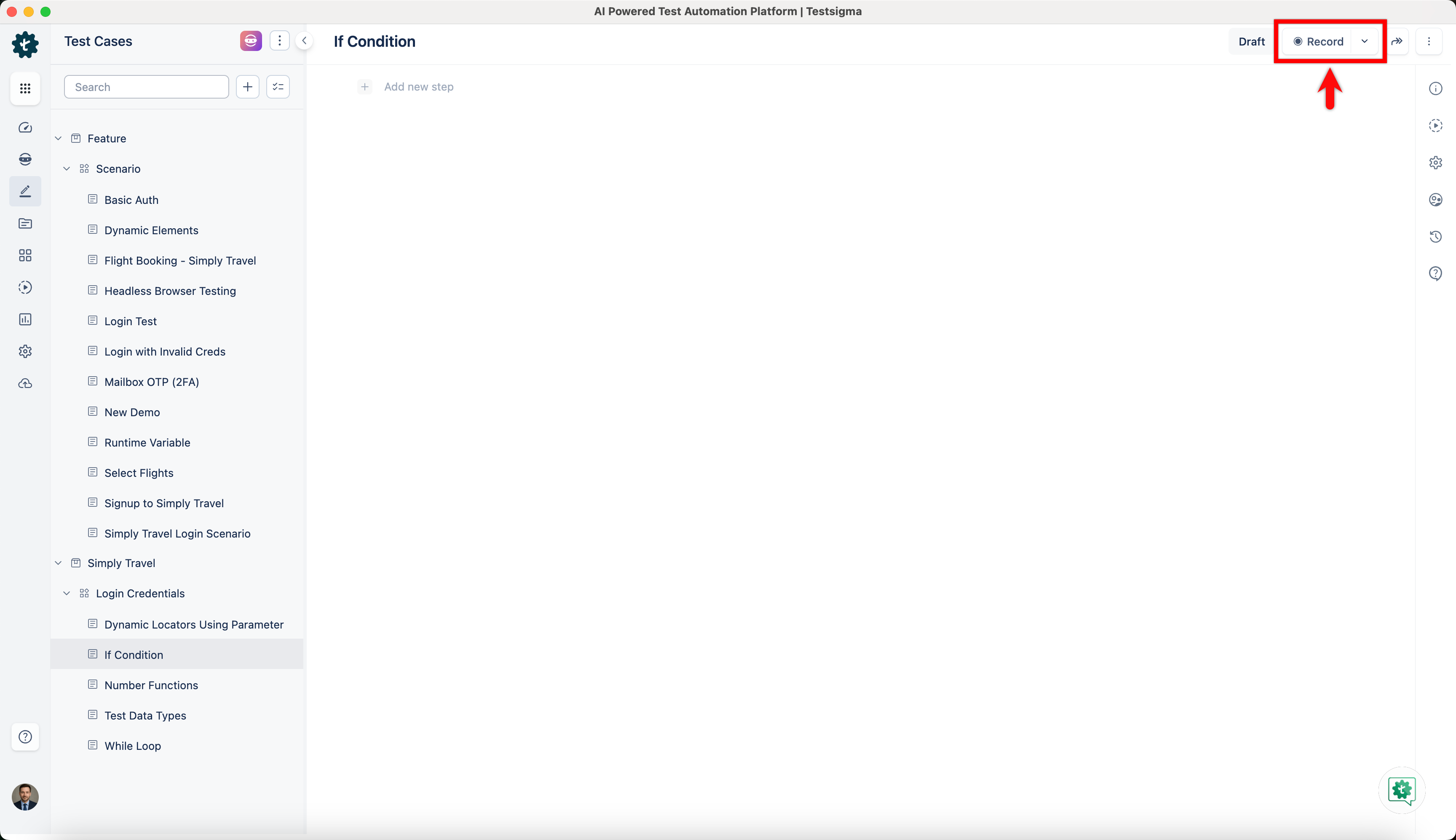
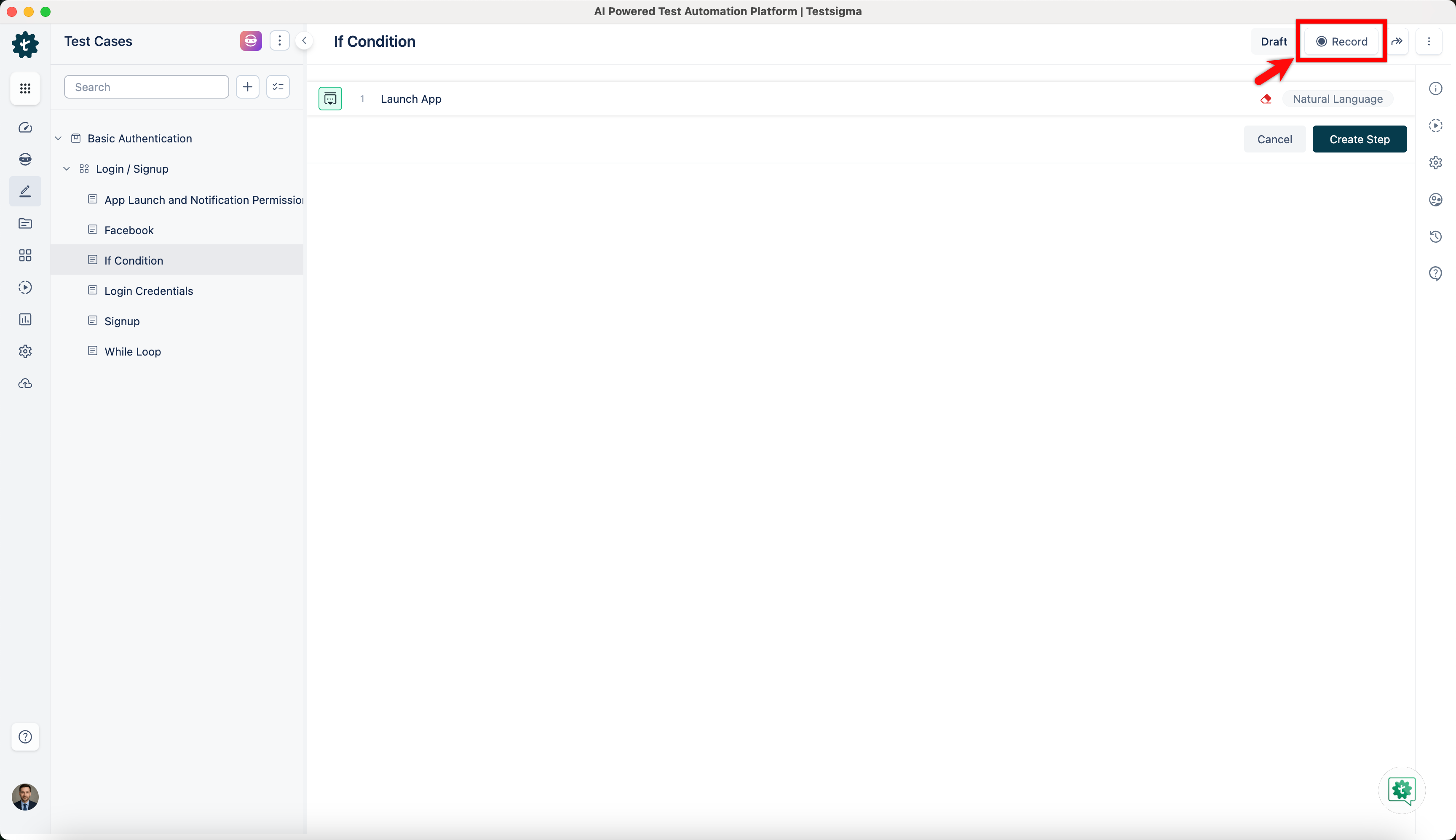
- On Test Case details page, click on Record.
- A new window will be opened along with the test step recorder.
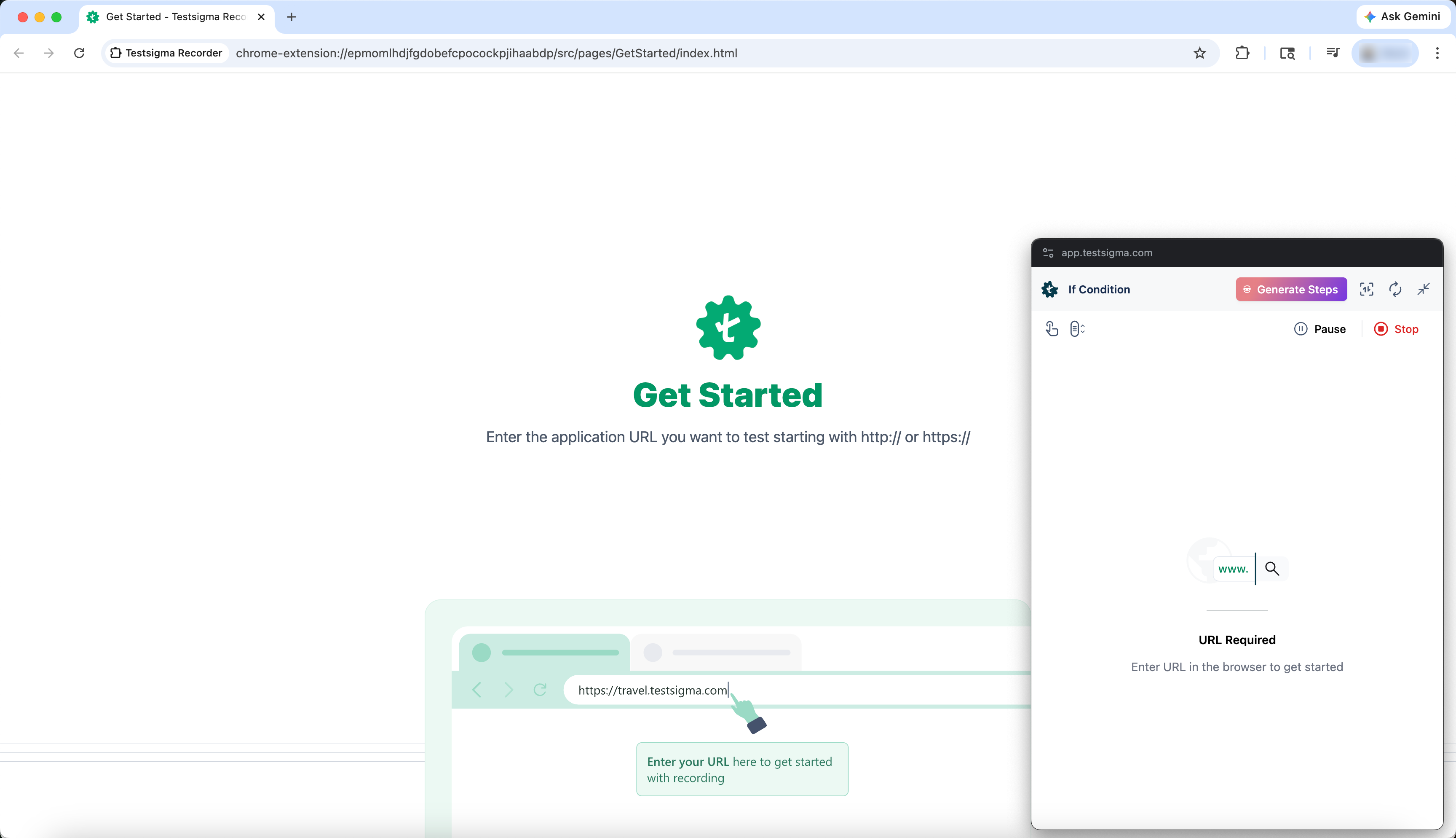
- Enter the URL https://simply-travel.testsigma.com/ and this will automatically open the URL record a test step in the test recorder.
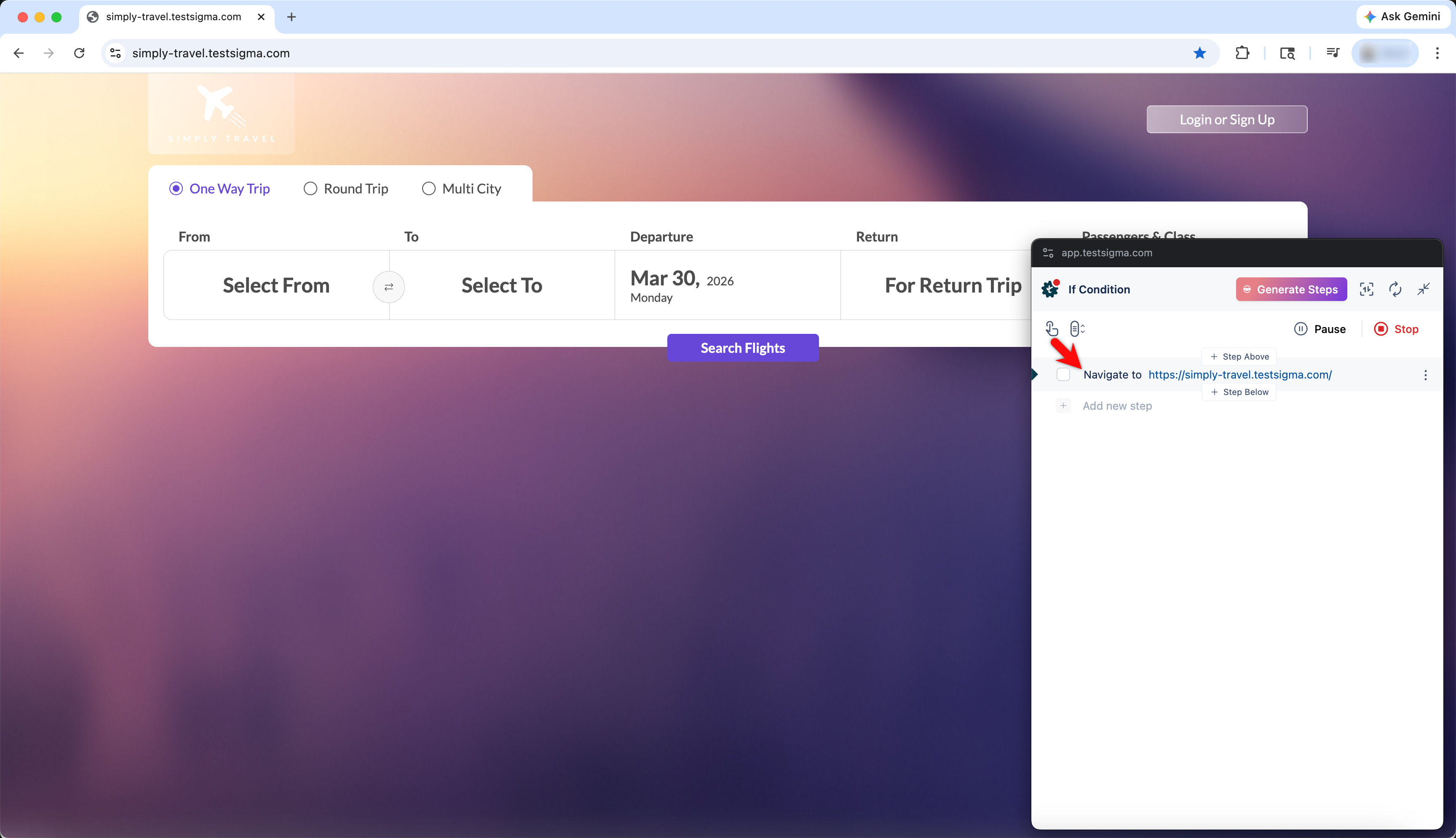
- Click on the option on the left side of the test step and choose Conditional If. This will add If Condition in your test step.
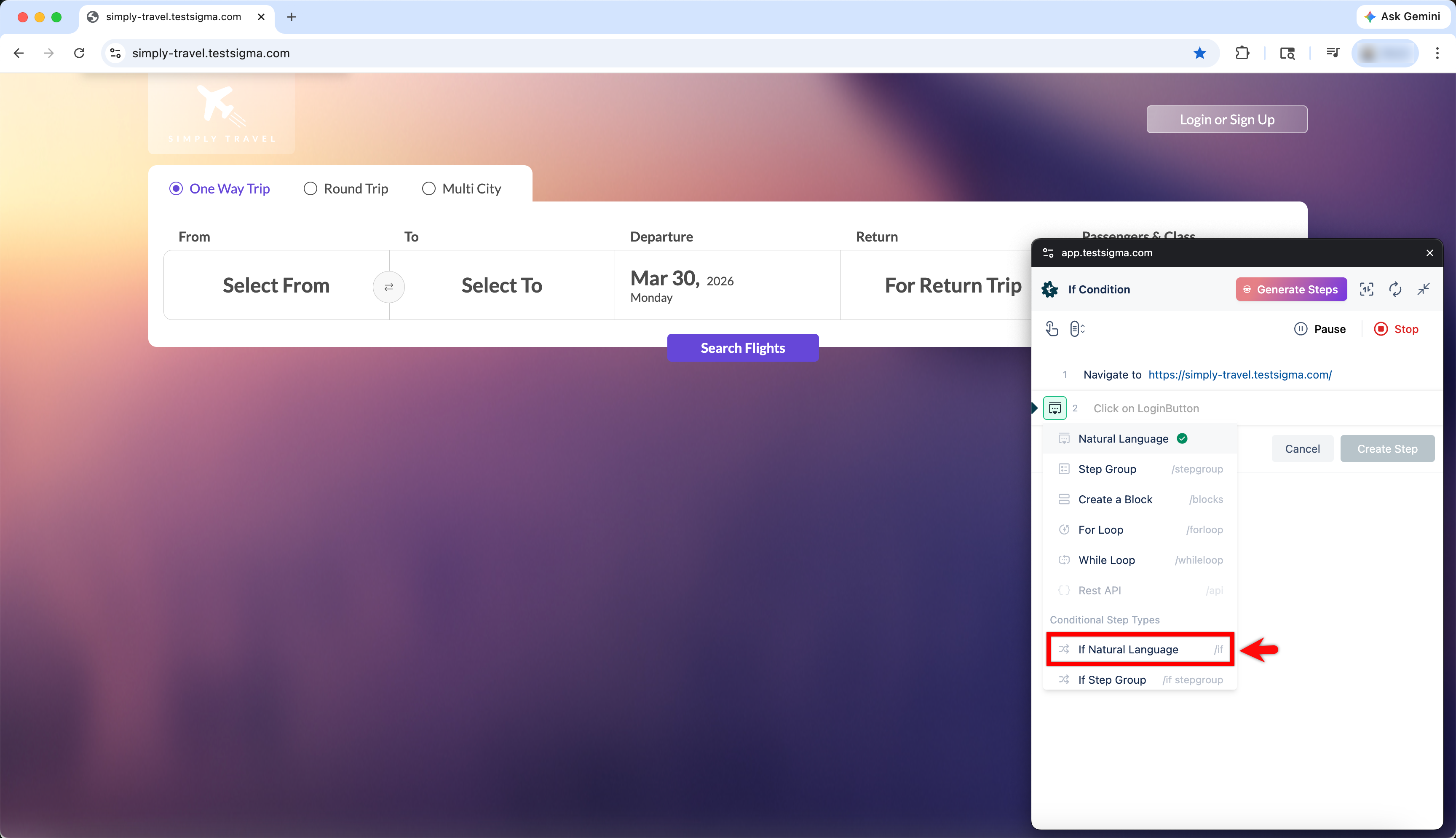
- Record all the steps and click on Stop Recording once all steps are added.
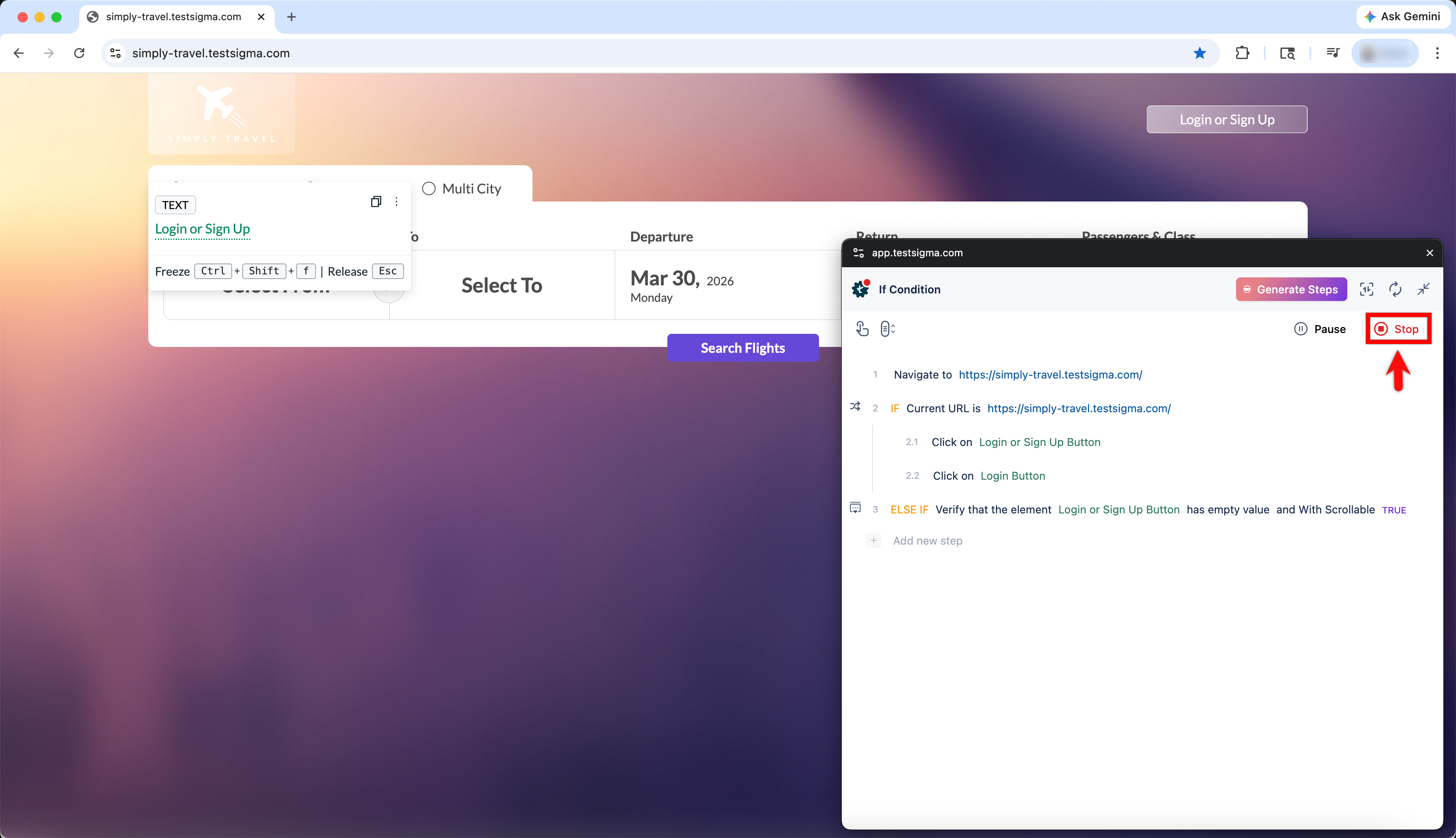
For more information on creating steps using recorder, refer to the documentation on recording test steps.
Using Testsigma’s Test Step Recorder for If Conditions [Mobile Apps]
- Navigate to Create Tests > Test Cases, and click on Create Test Case.
- Click on Record. This will open Record test steps overlay.
- Select the Test Lab, Test Machine, App Source and click on Record.
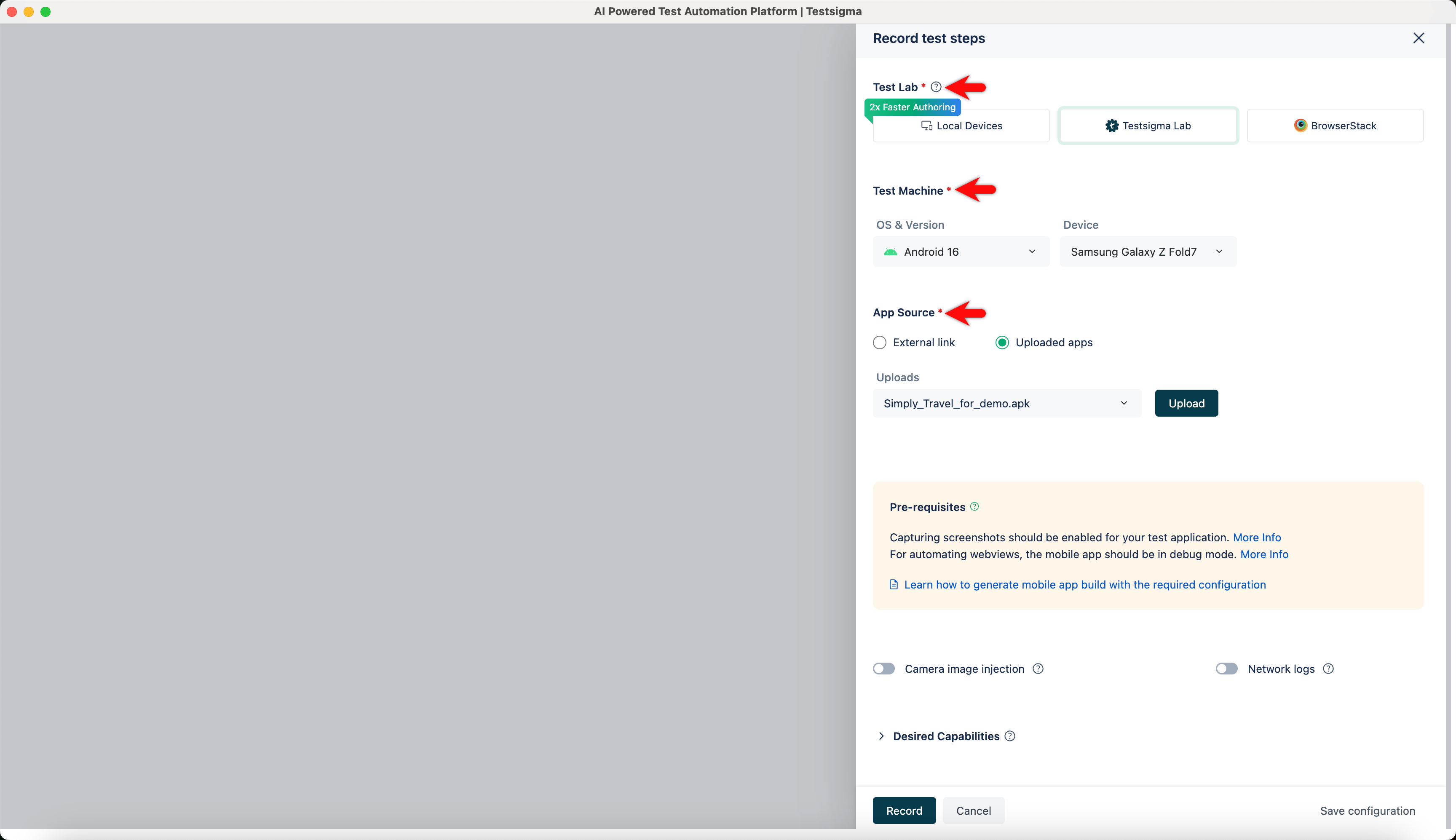
- Wait until the virtual app is loaded.
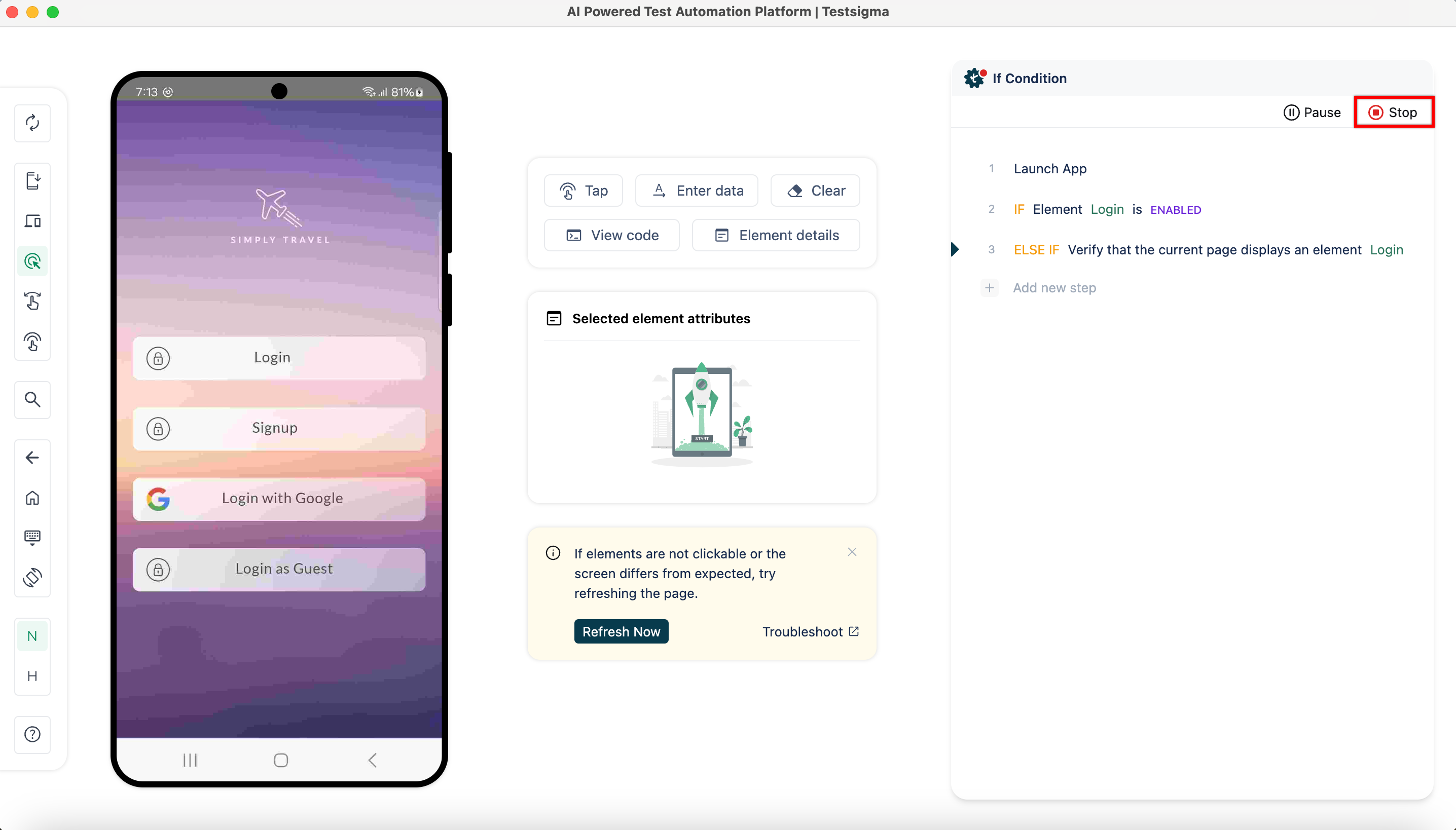
- Record the steps and stop the recorder.

Want to contribute or report missing content?