- salesforce testing
 Intro: Testsigma for Salesforce Testing
- Creating an External Client App
- Creating a Salesforce Project
- Test Salesforce Connection
- Creating Metadata Connections
- Adding User Connections
- Build Test Cases: Manual+Live
- Salesforce Element Repositories
- Intro: Testsigma Special NLPs
- SOQL as Test Step
- Query Builder for Salesforce Testing
- Automating Listview Table NLPs
- Error Handling On Metadata Refresh
Query Builder for Salesforce Testing
Use the Query Builder in Salesforce Testing to create and run SOQL (Salesforce Object Query Language) queries without writing code. This feature allows you to retrieve Salesforce data dynamically and use it in test scenarios. This article discusses building queries for Salesforce testing in Testsigma.
Prerequisites
Before you begin, ensure the Salesforce app is connected to Testsigma with a valid metadata connection.
Steps to Use the SOQL Query Builder Tool
- Open the Salesforce Query Builder from the test case page in the Utility Panel.
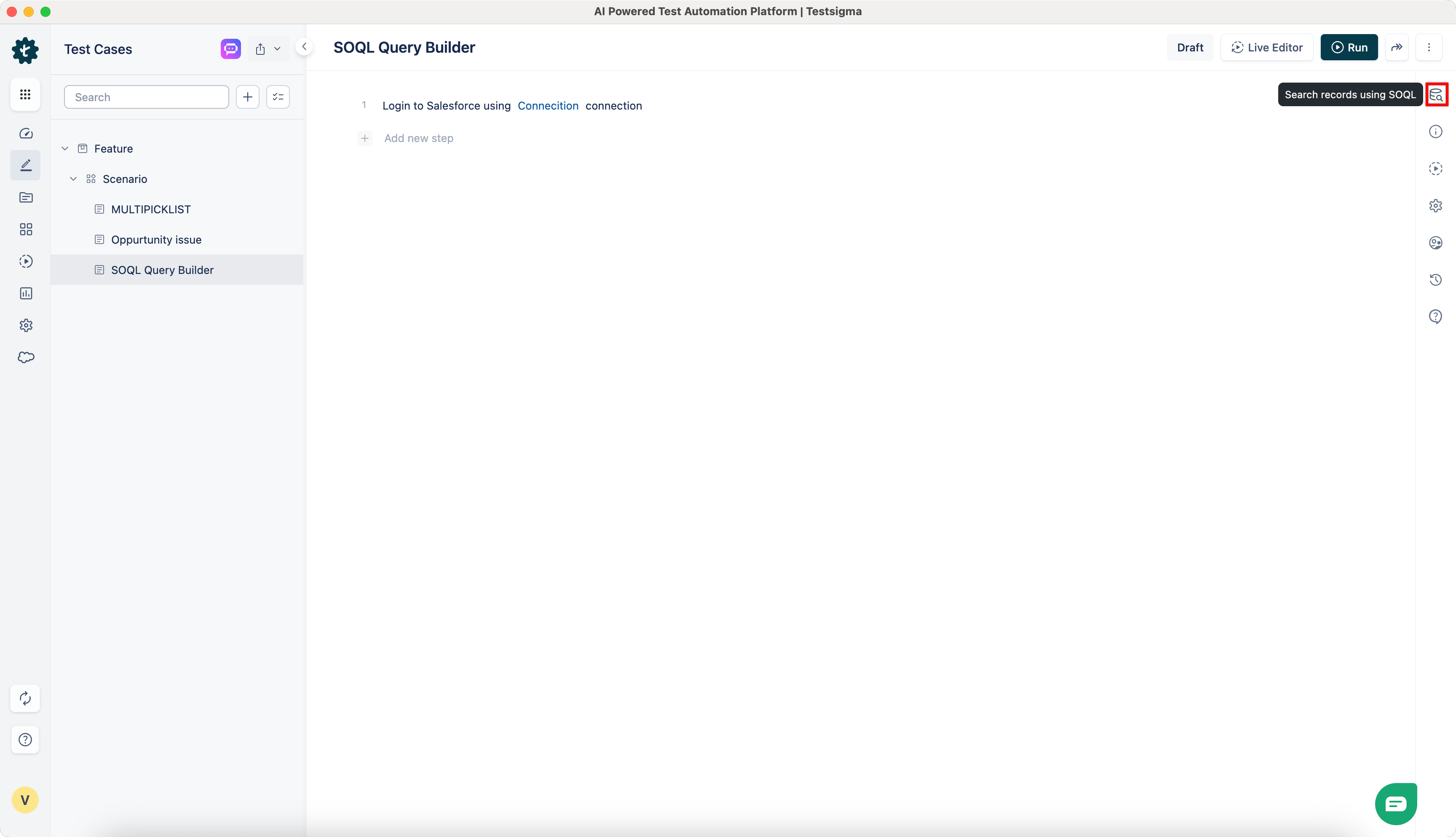
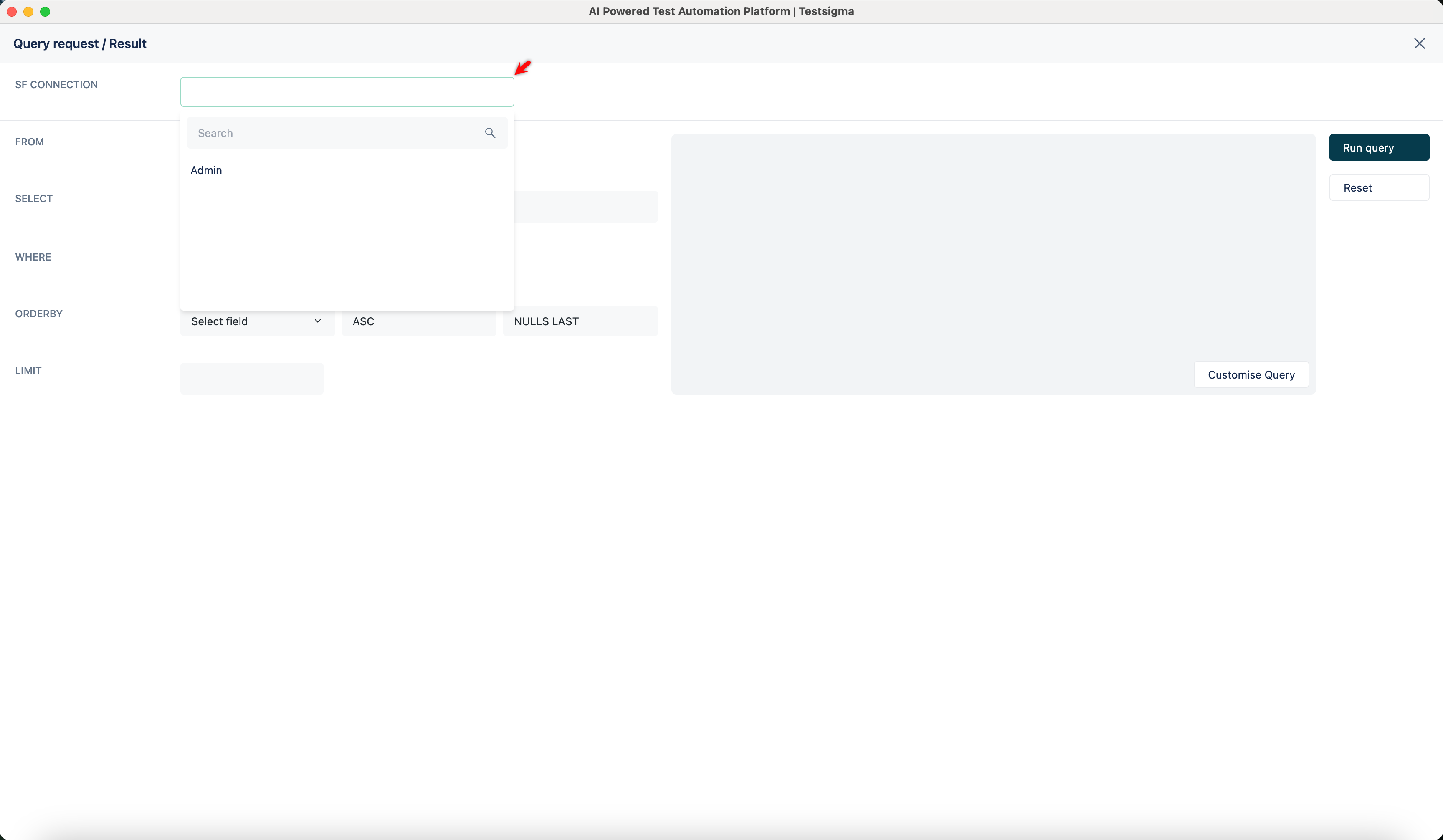
- From the SF Connection dropdown, select the Salesforce connection to use.
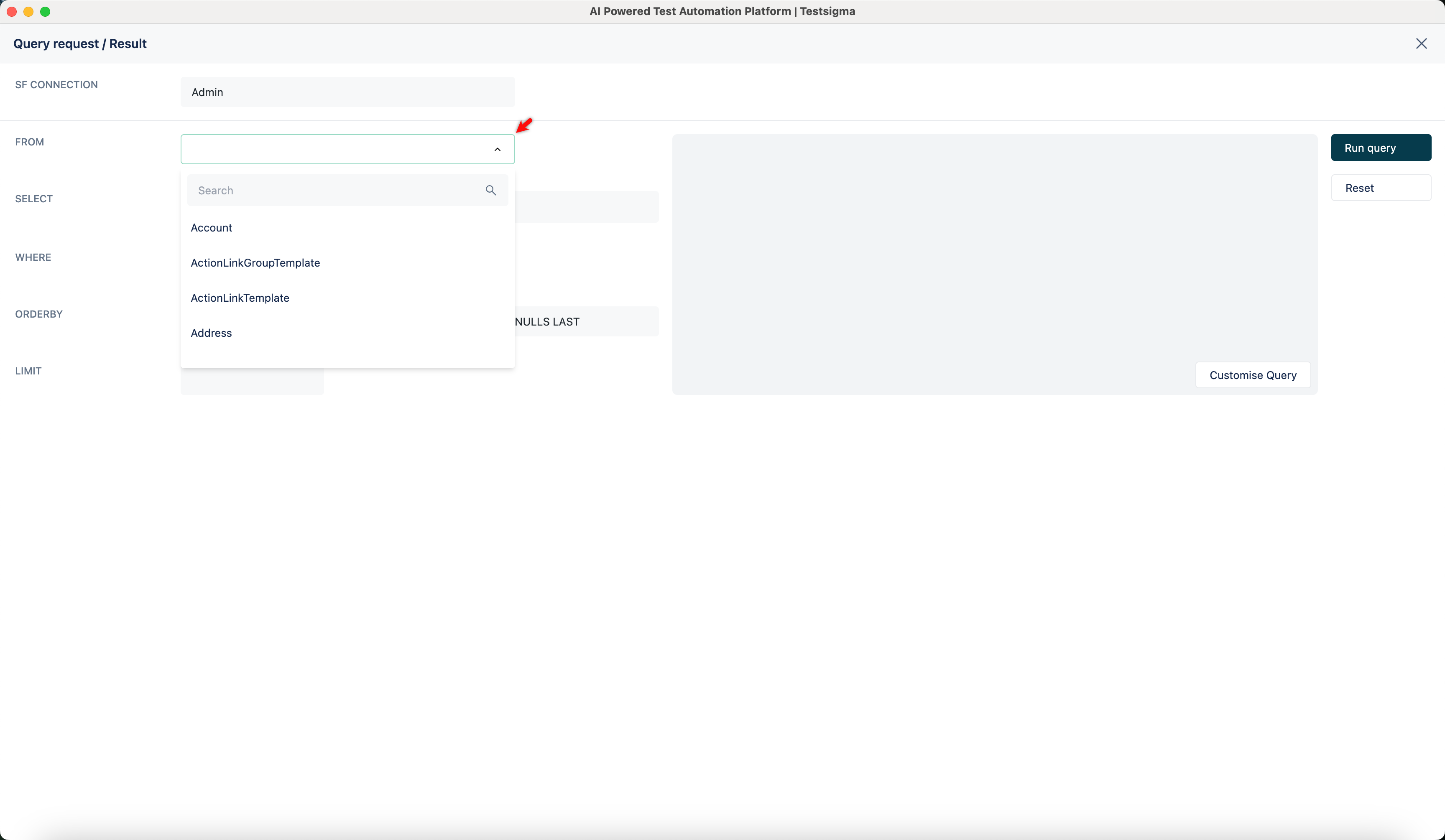
- In the FROM field, choose a Salesforce object (e.g., Account, Contact).
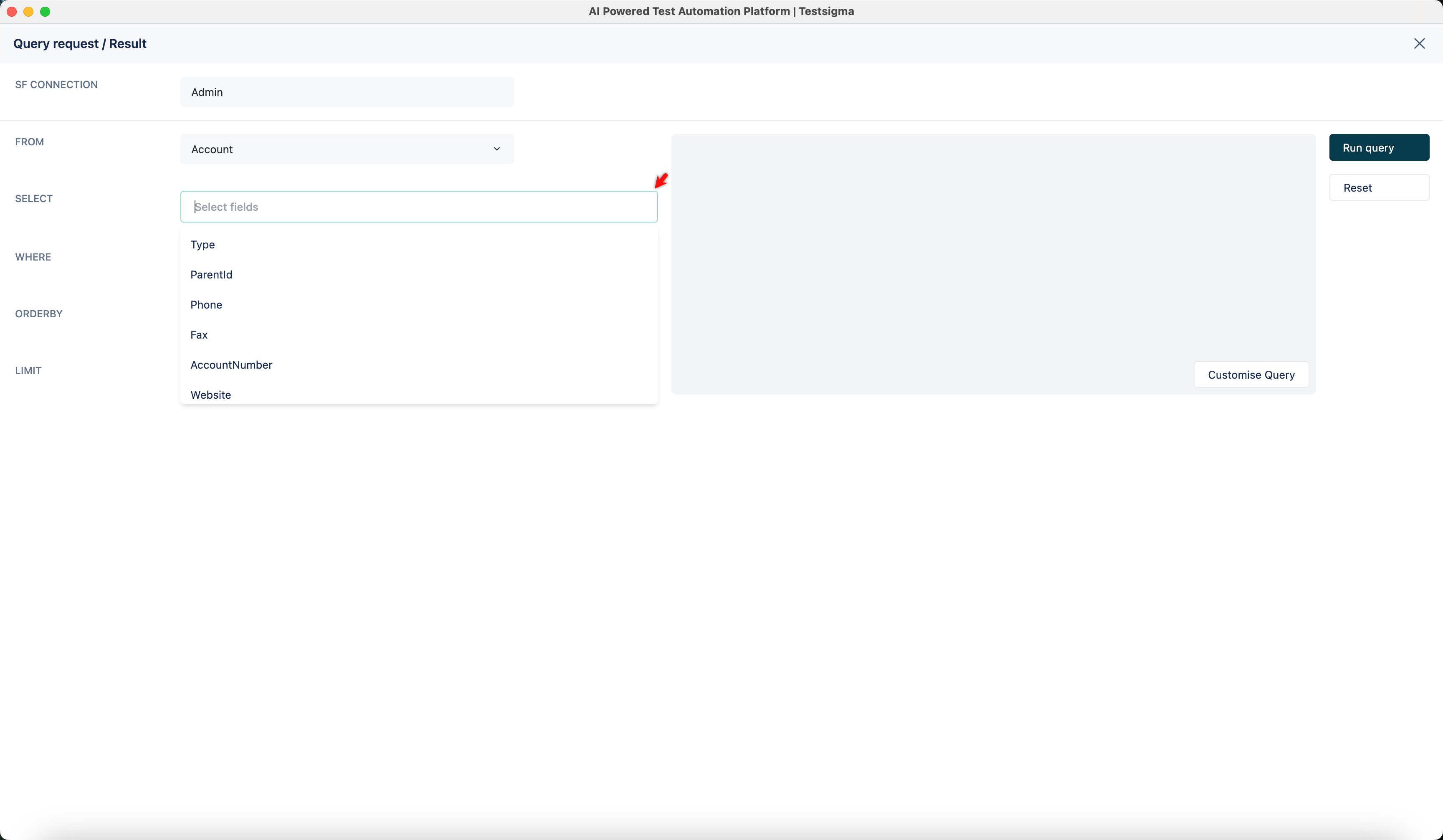
- Use the SELECT section to add fields (e.g., Type, RecordTypeId, Industry). The SOQL query updates automatically in the preview pane.
- Click + Add Condition to filter results using WHERE clauses if required.
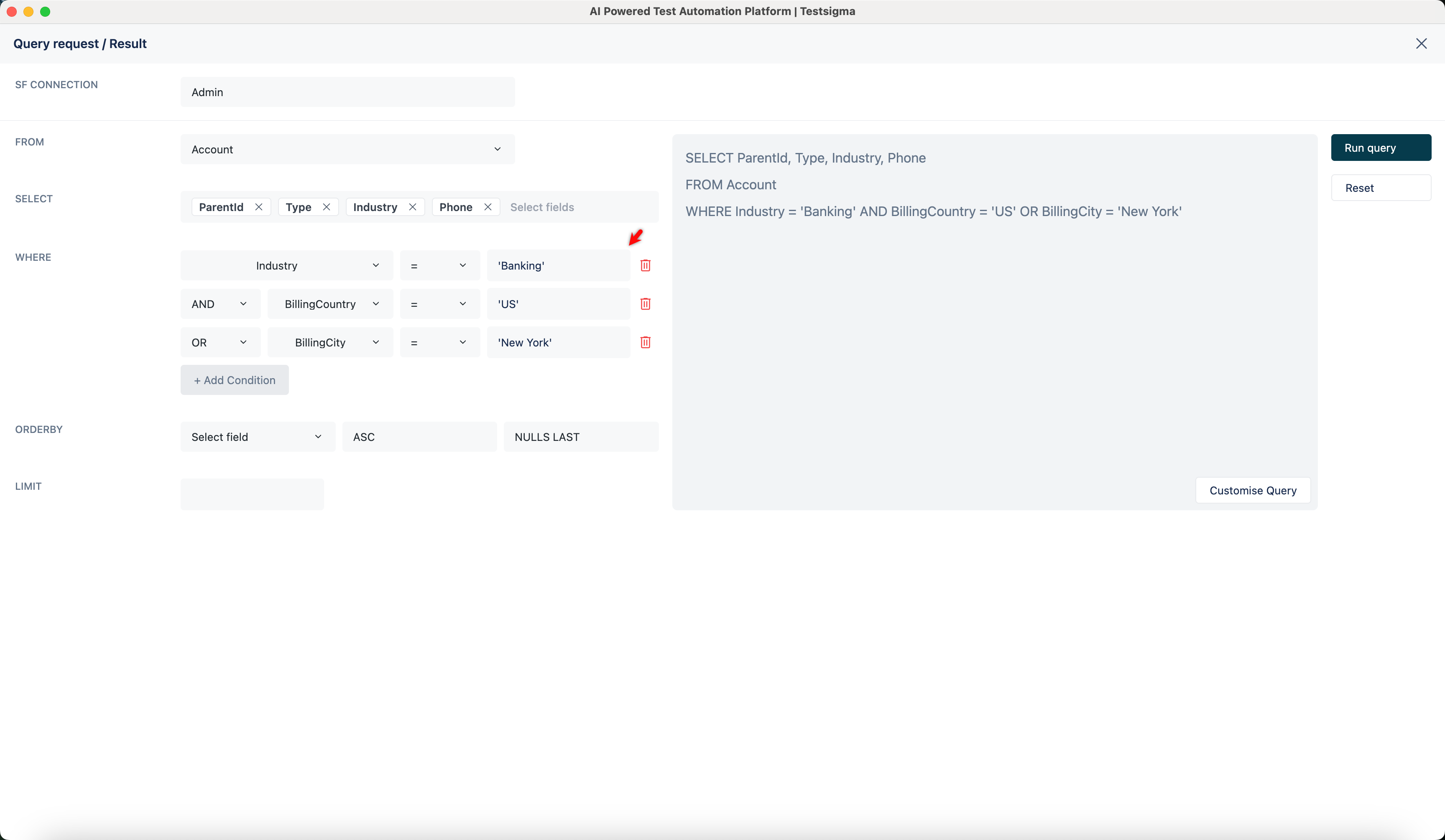
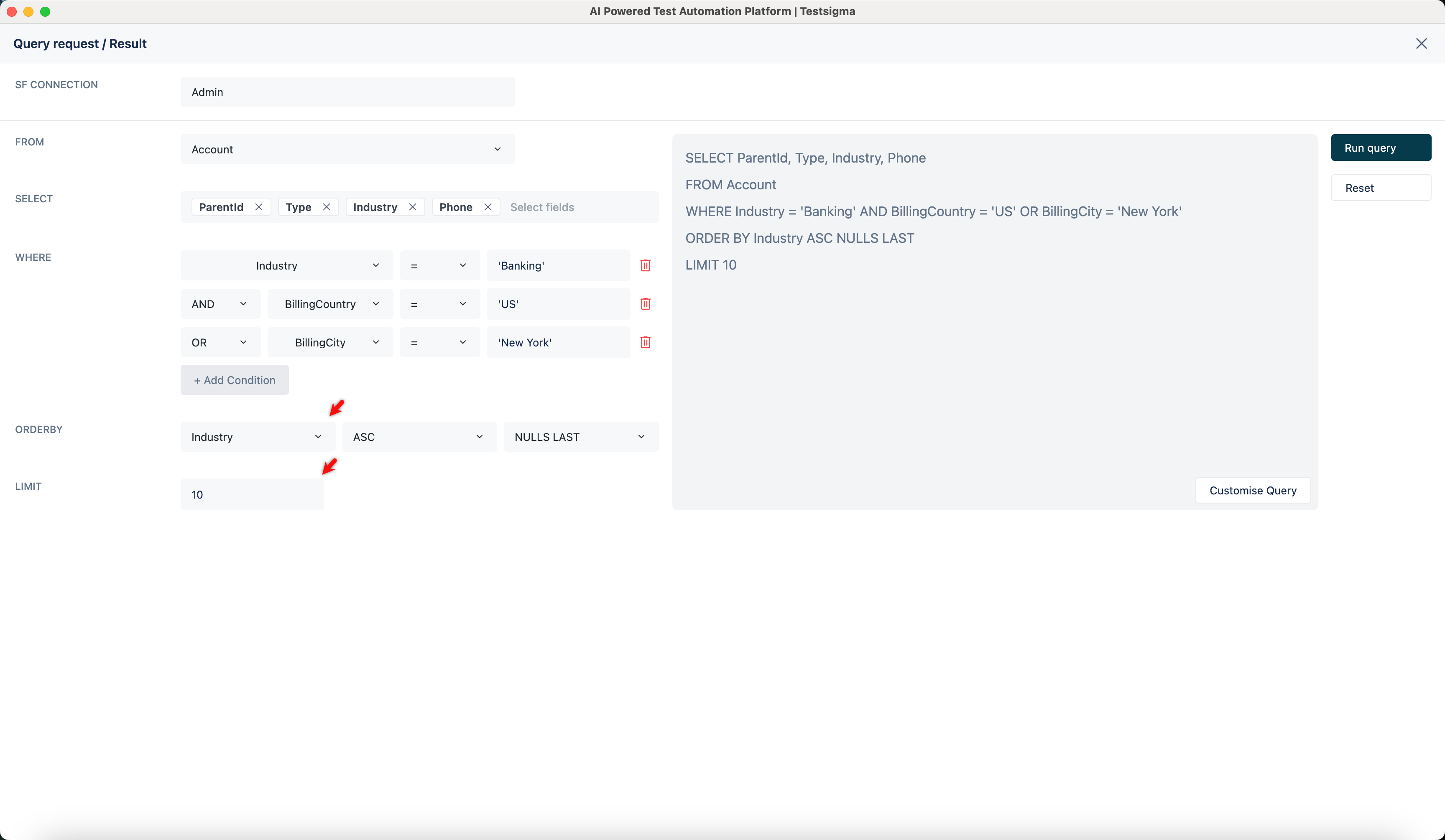
- Use ORDER BY and LIMIT to specify the order and number of records.
NOTE:
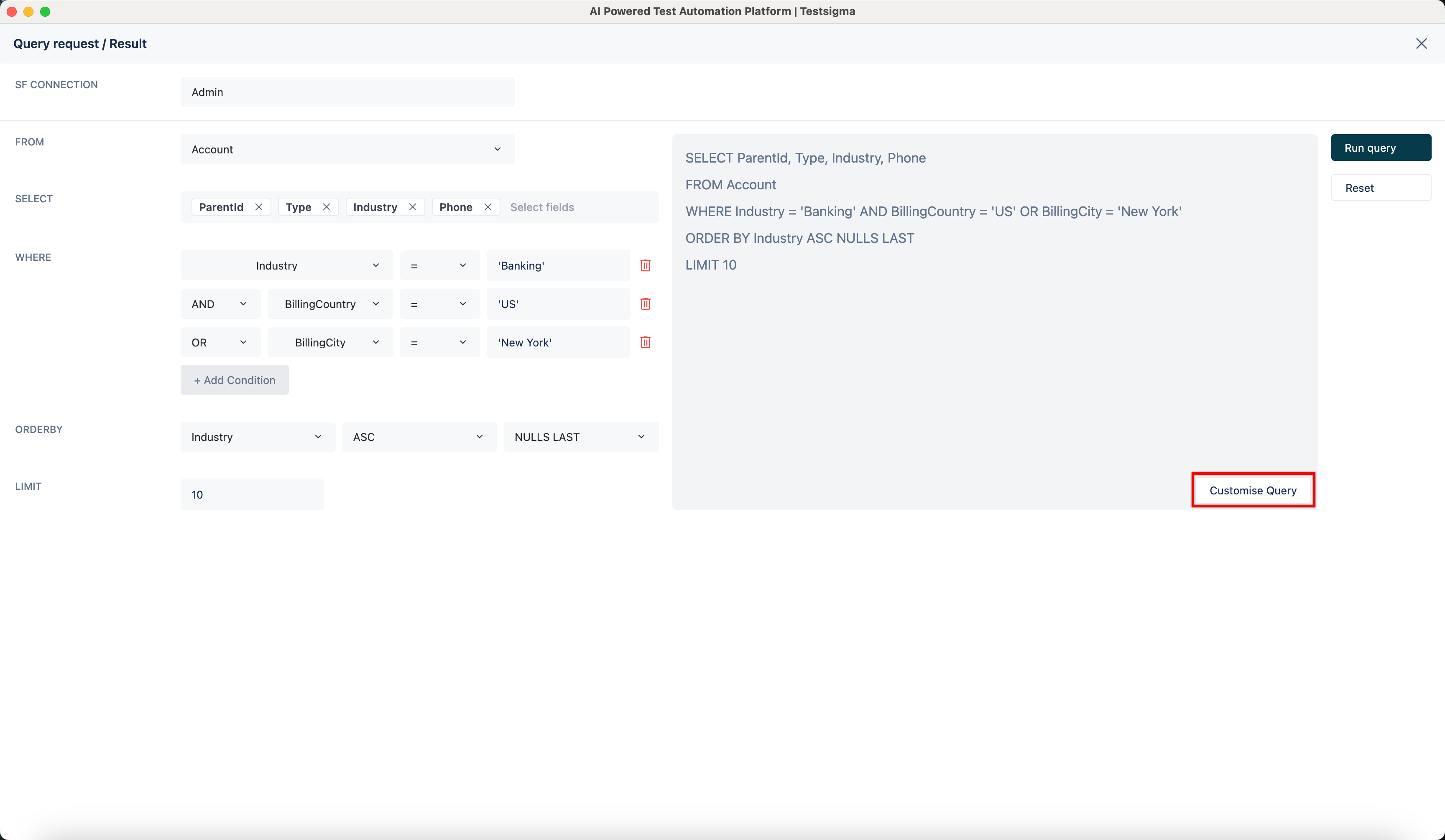
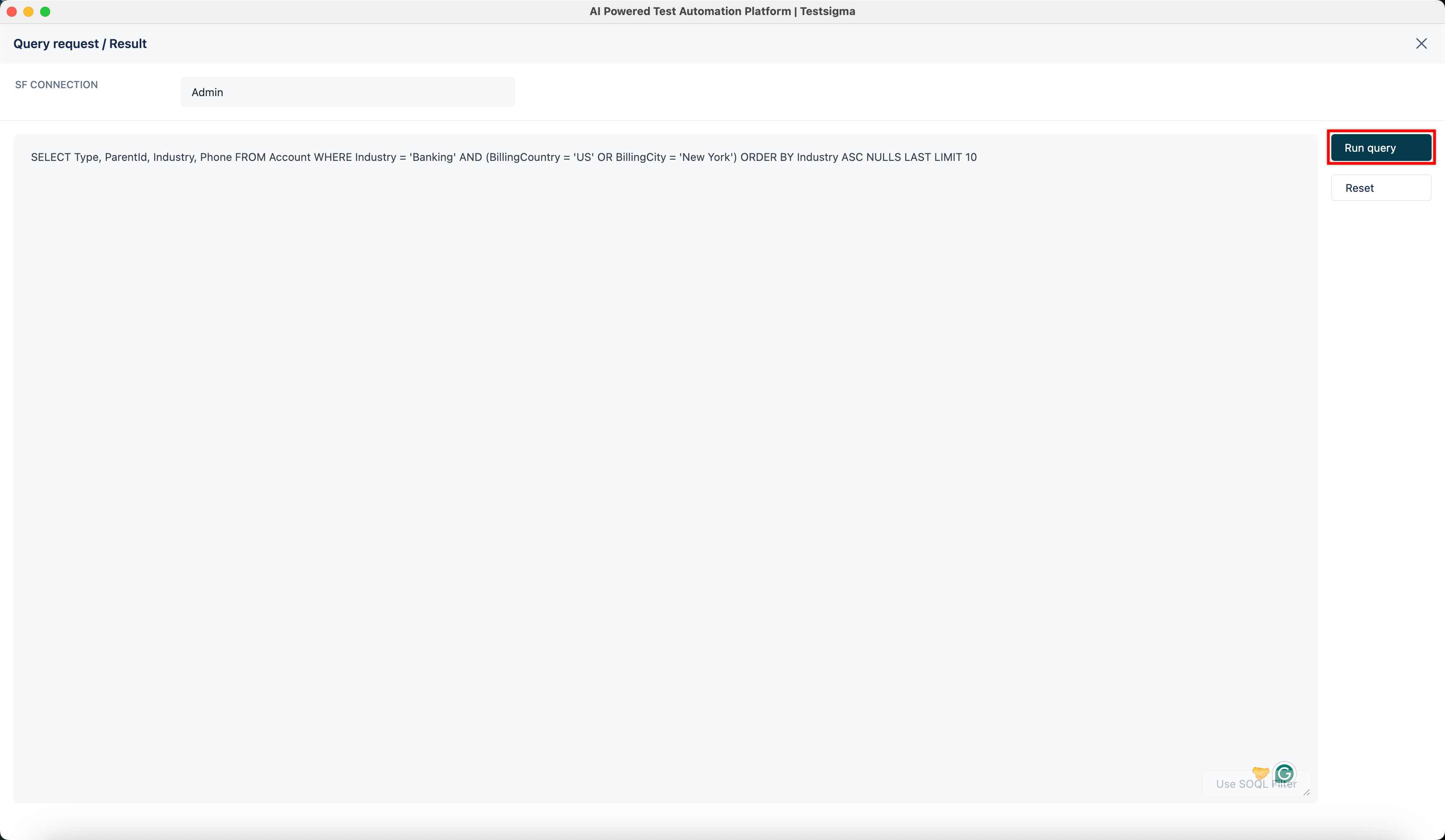
- You can customize your query by clicking Customise Query and editing the required parameters.
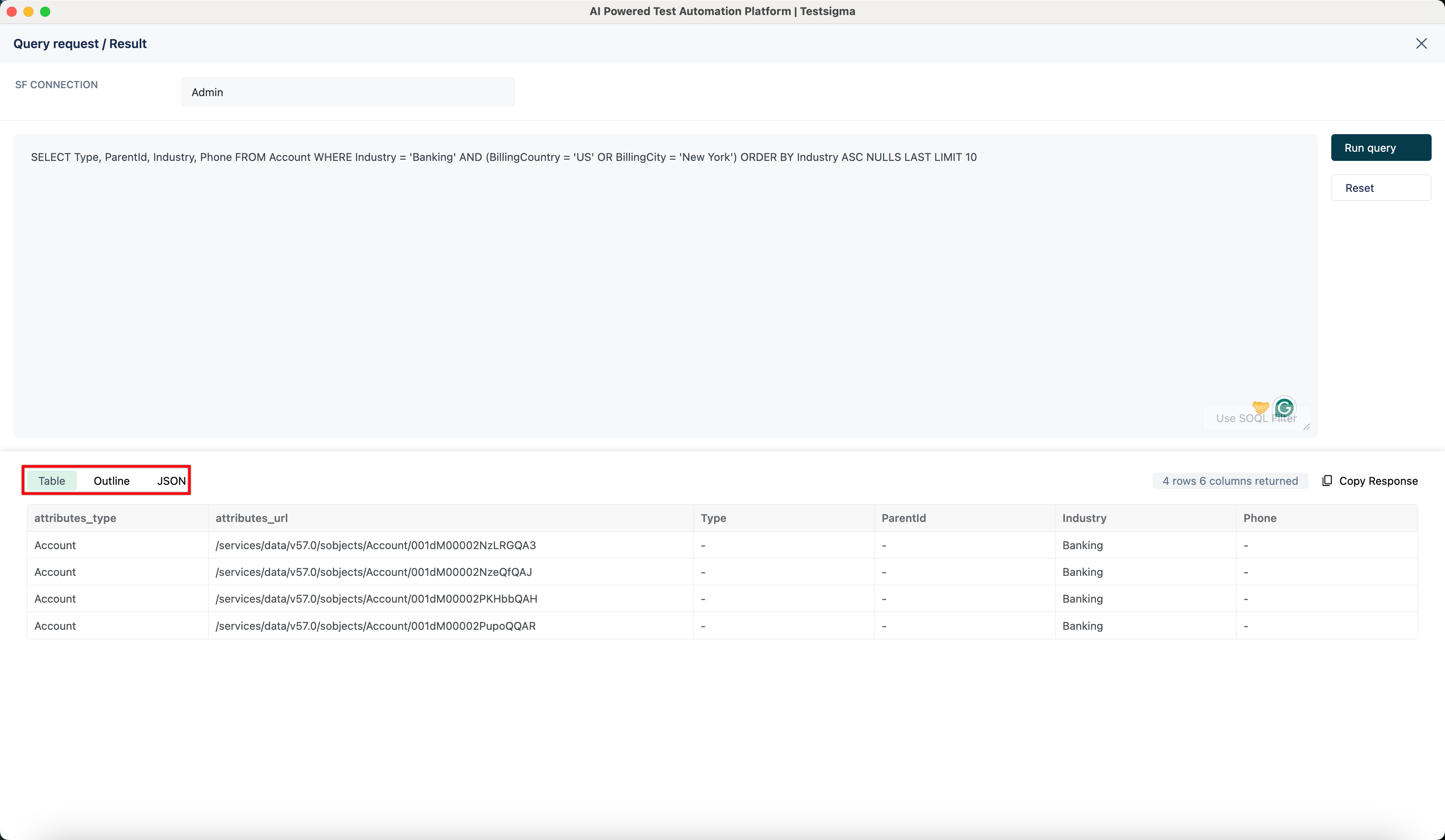
- Click Run Query to execute the SOQL query.
- View the results in Table, Outline, or JSON format.

Want to contribute or report missing content?