- configuration
 API Keys
- User Settings
- Security
- Configure Organization Settings
- Two-Factor Authentication (2FA)
- Configure Password Policy
- Setting Up Google SSO Login
- Setting Up Okta SSO Login (SAML)
- Setting Up Azure SSO Login (SAML)
- iOS Settings
- Create WDA File
- SMTP Configuration
- Manage Access
Manage Access: Grant/Revoke Permissions
Admin in the Testsigma account can grant temporary access to the Testsigma Support team for diagnosing and resolving support related issues. This article discusses how to authorize and revoke support access.
NOTE:
Only users with Admin access can authorize or revoke support access.
Prerequisites
Before you begin, ensure you have Admin access to your Testsigma account.
Managing Access
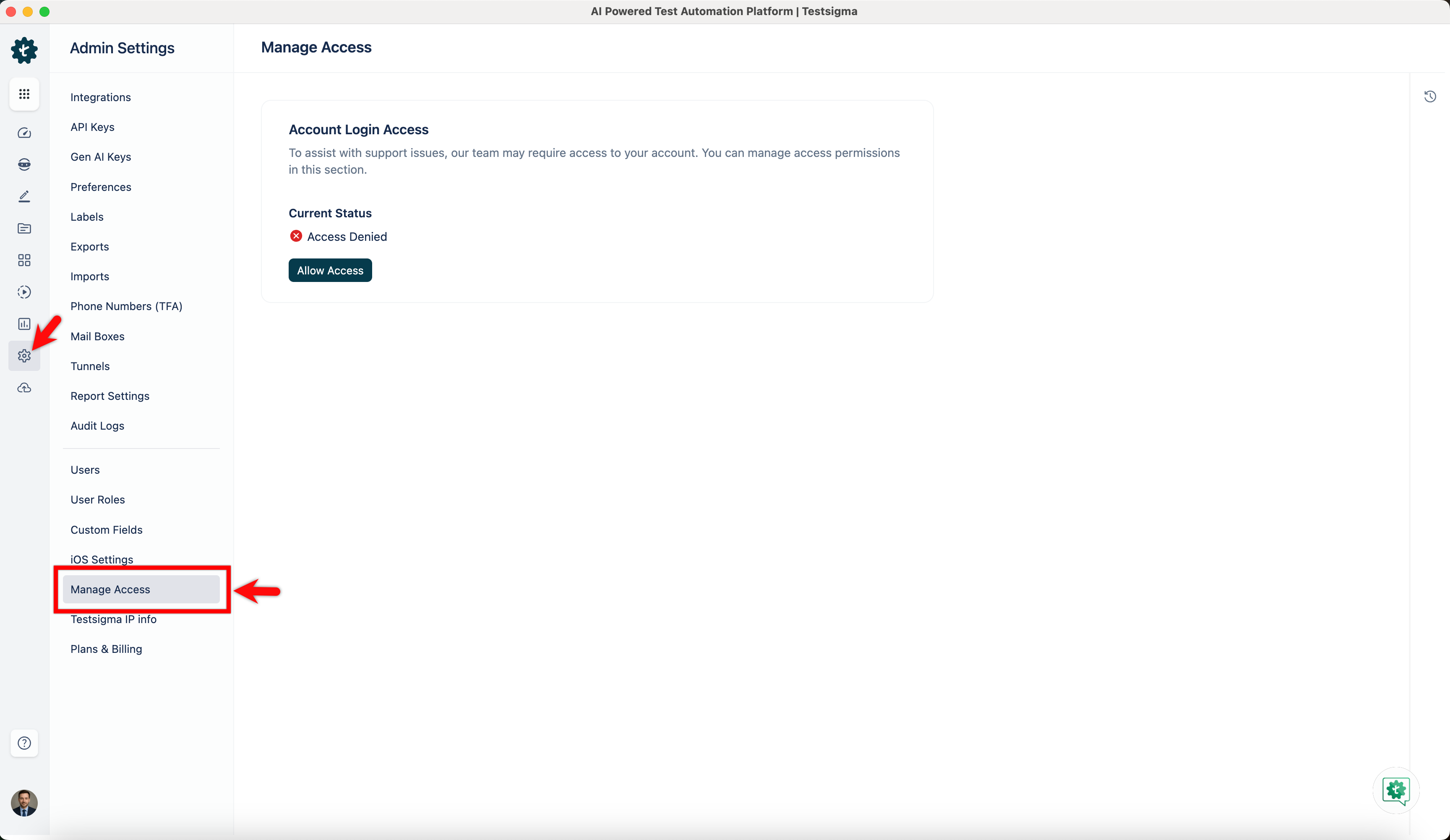
- From the Dashboard, go to Settings > Admin Settings > Manage Access.
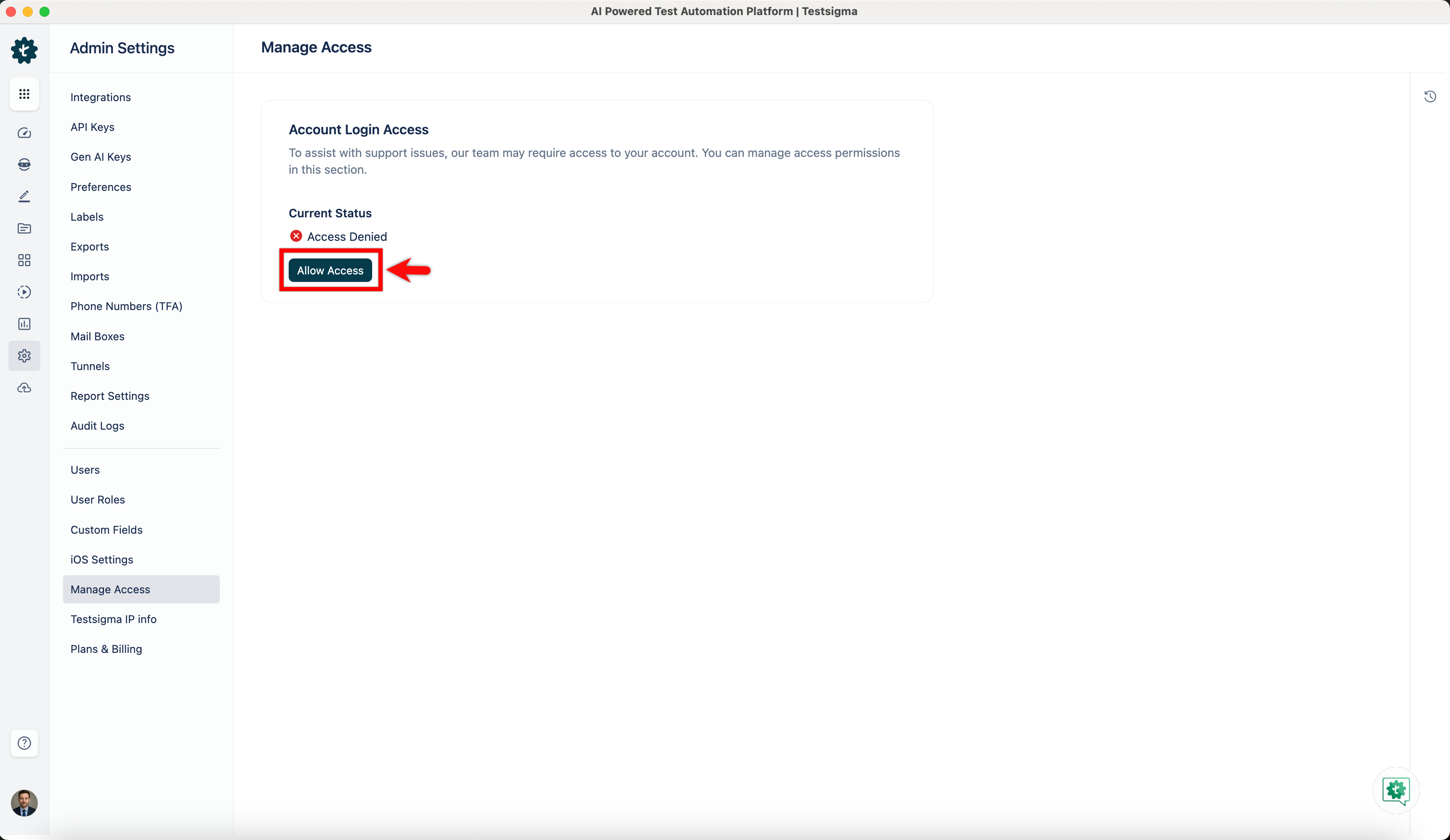
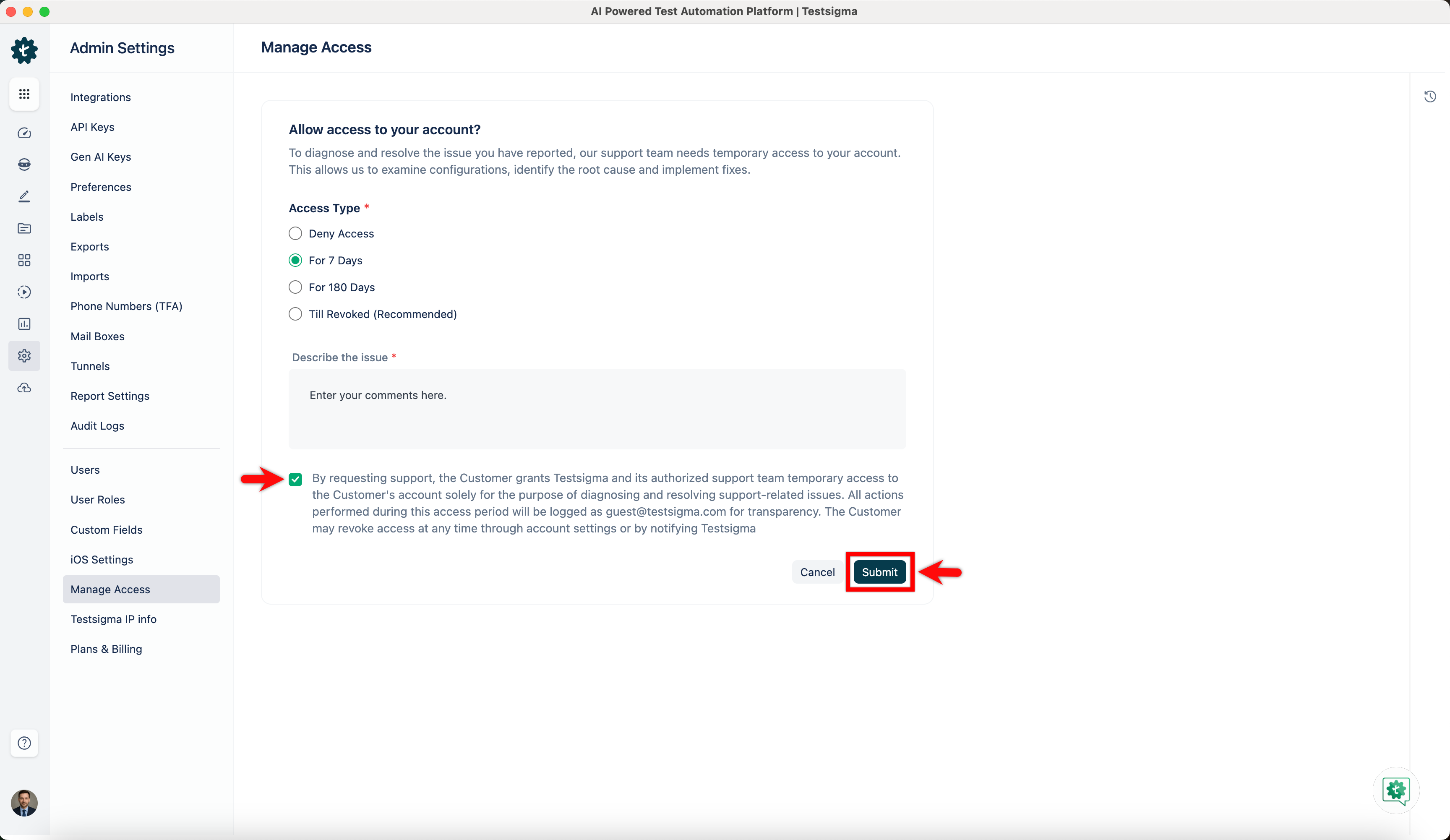
- In the Manage Access section, click Allow Access.
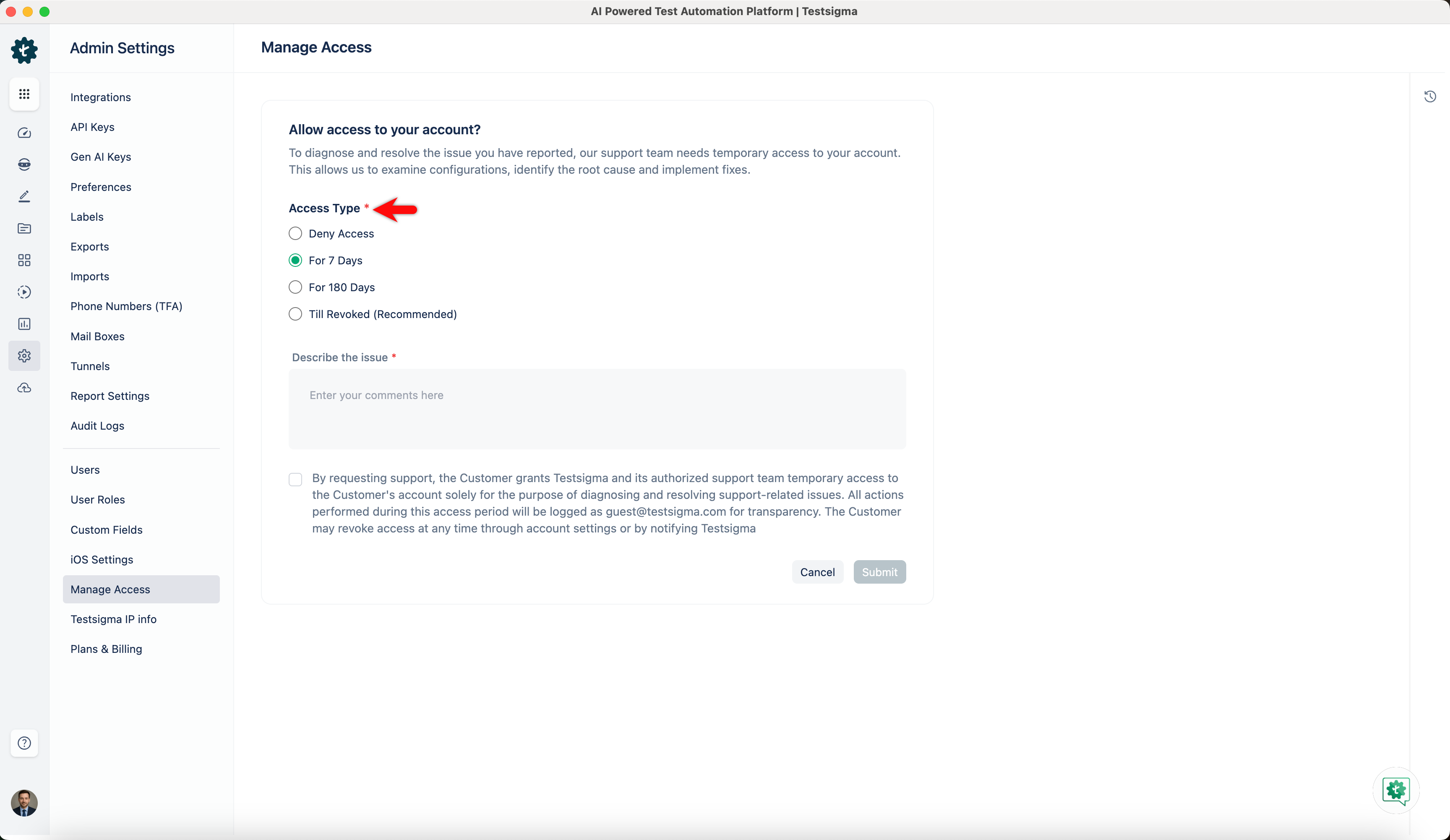
- Select the Access Type from the available options.
- In the Describe the Issue field, briefly explain the reason for providing access.
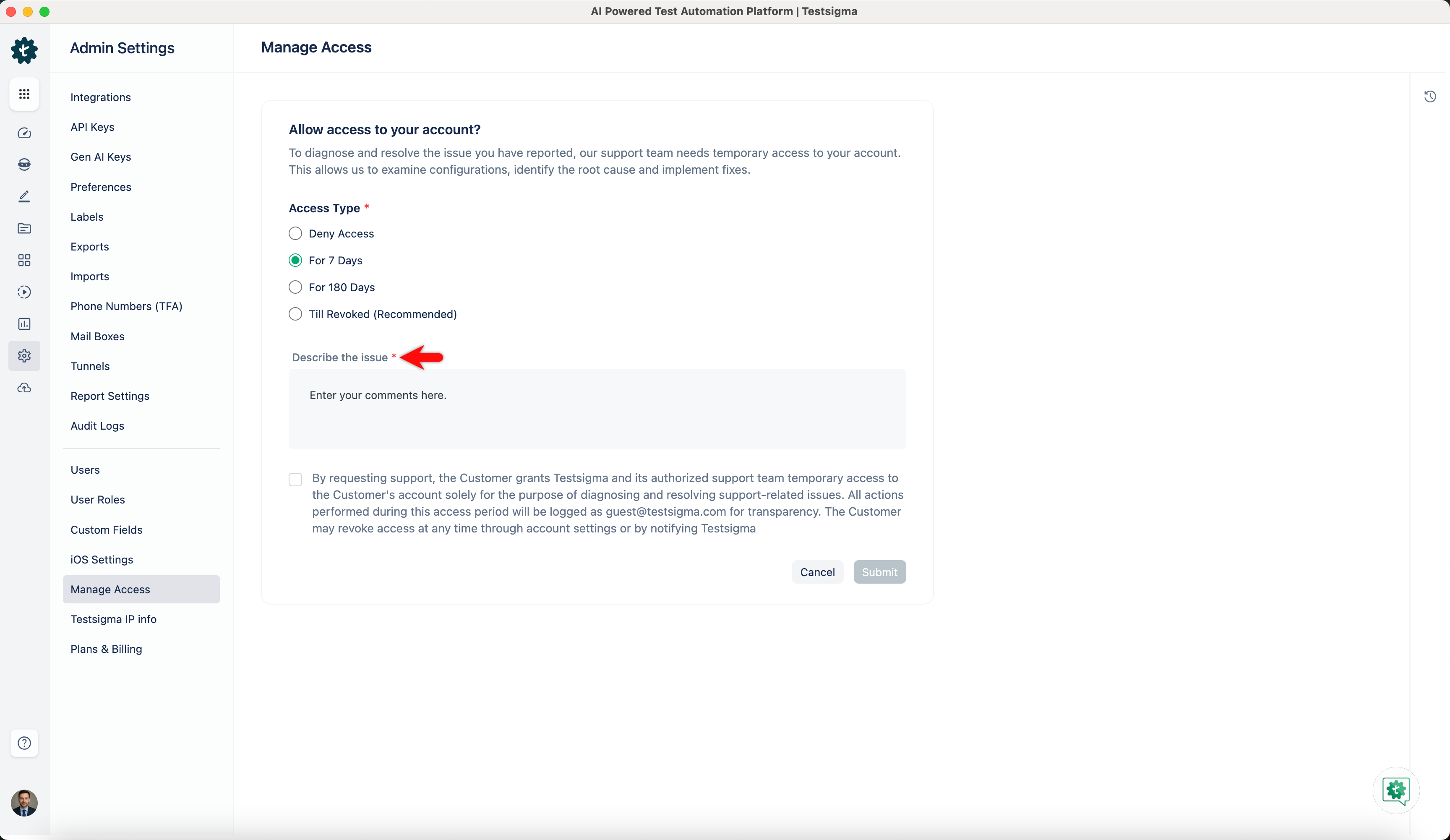
- Select the consent checkbox and click Submit to grant access.
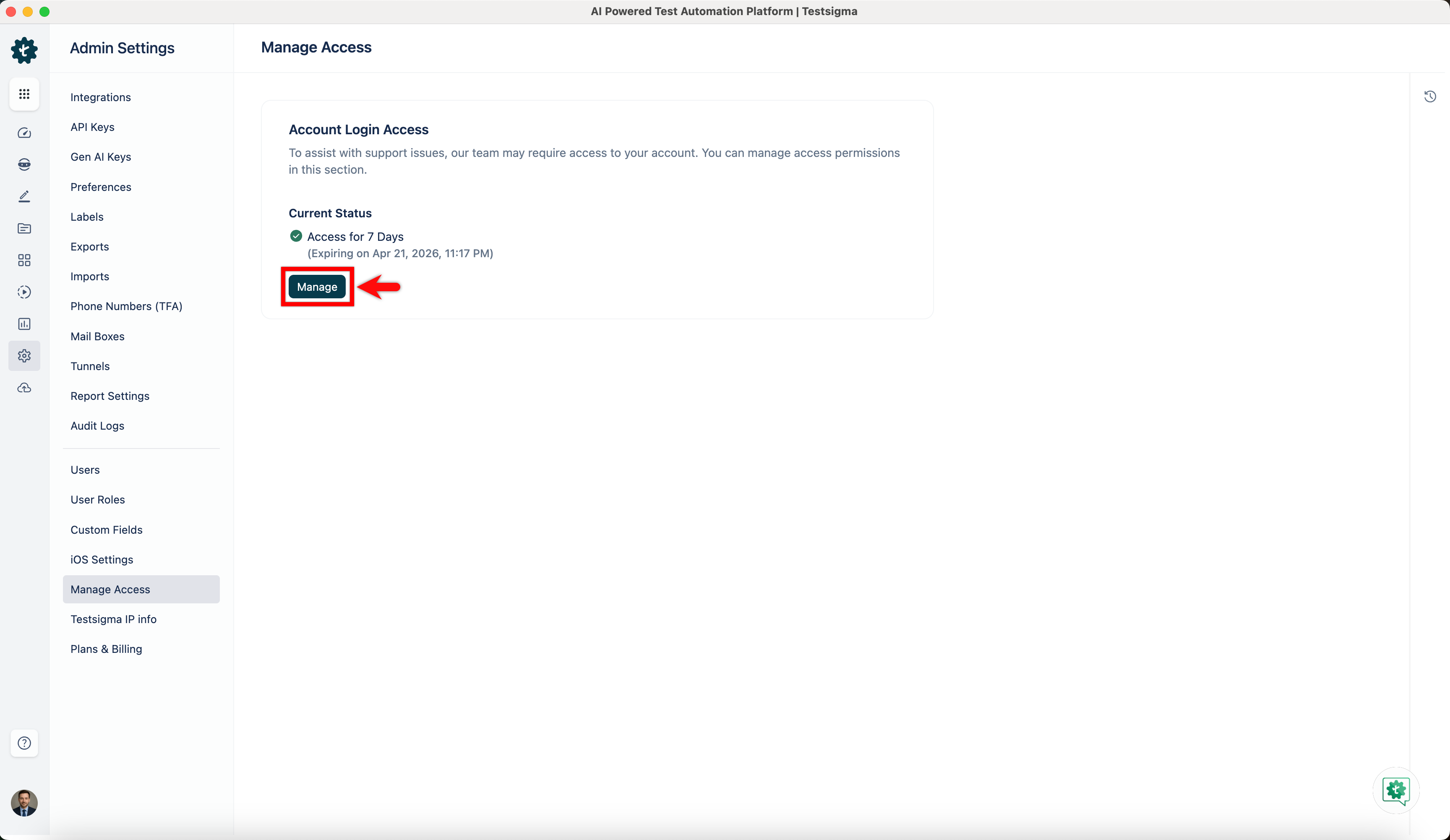
- View the Current Status and Access Expiry information on the same page.
- Click Manage to update or revoke access as needed.
Security and Privacy
- Testsigma logs all support actions under the user guest@testsigma.com, ensuring full traceability.
- Access is strictly limited to the scope necessary for troubleshooting and issue resolution.
- The support team follows industry standard security protocols and best practices at all times.
- You retain full control over access and can revoke it anytime based on your needs.
View Access Logs
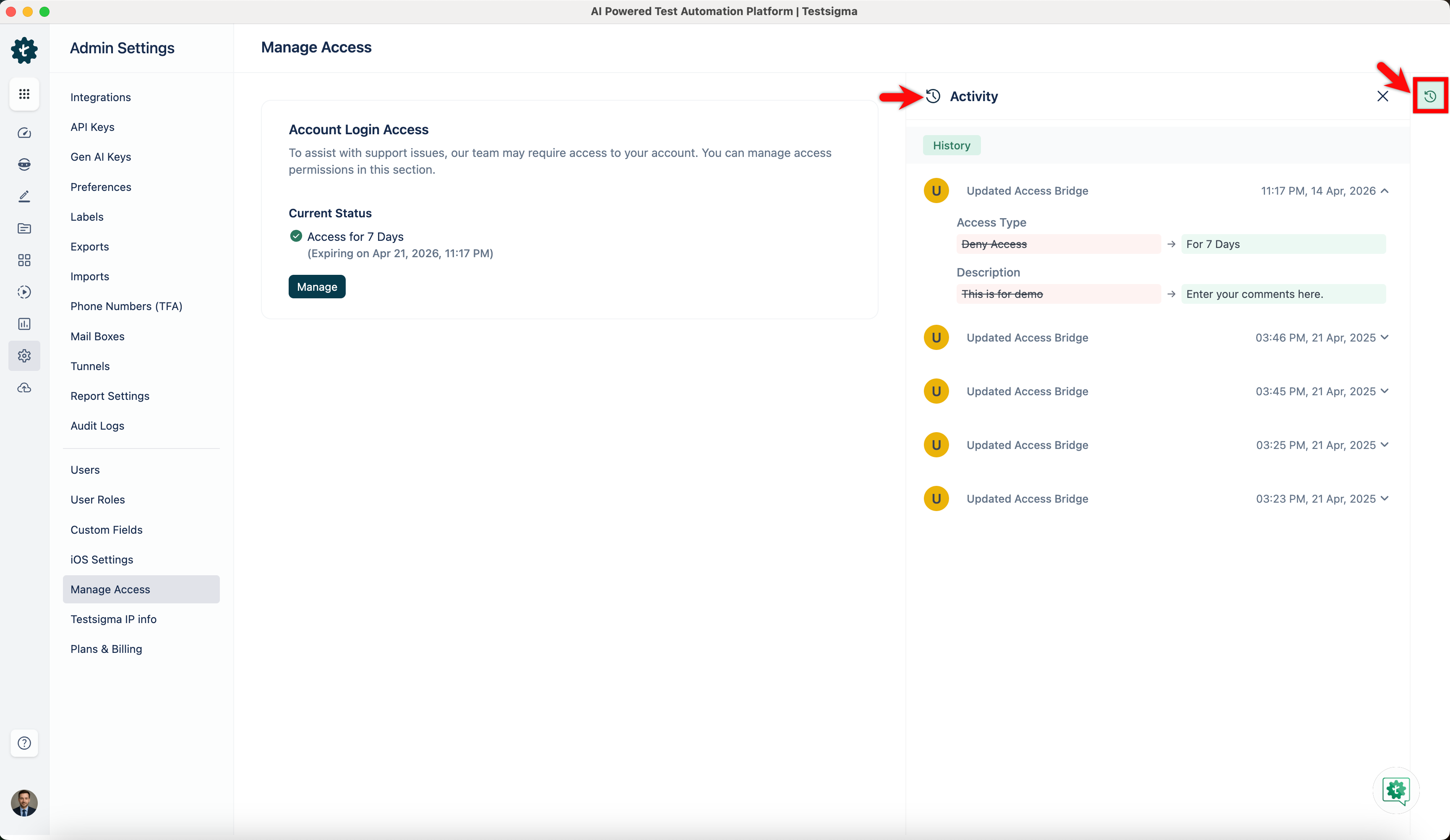
- View access-related logs by clicking Activity in the Utility Panel. The system stores logs for 3 years.
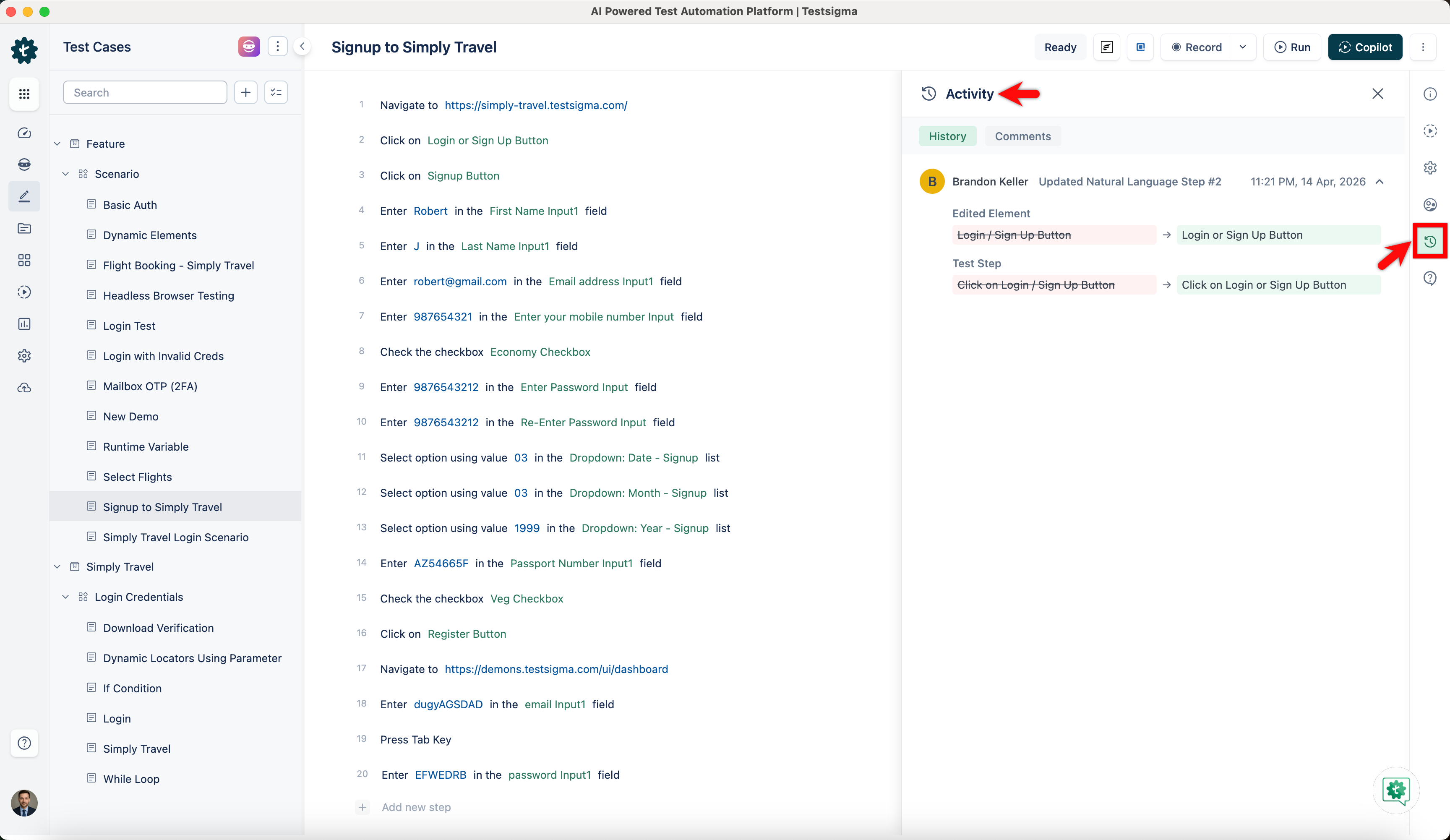
- You can also view logs in the relevant test cases, elements, test suites, and test plans for actions performed by Testsigma Guest.

Want to contribute or report missing content?