- uploads
 Upload Files
- Upload Android and iOS Apps
- How to generate mobile builds for Android/iOS applications?
Upload Files
In Testsigma, you can upload small files as attachments and then use their links in your test steps. This document will discuss how to do that.
Steps to Upload Files
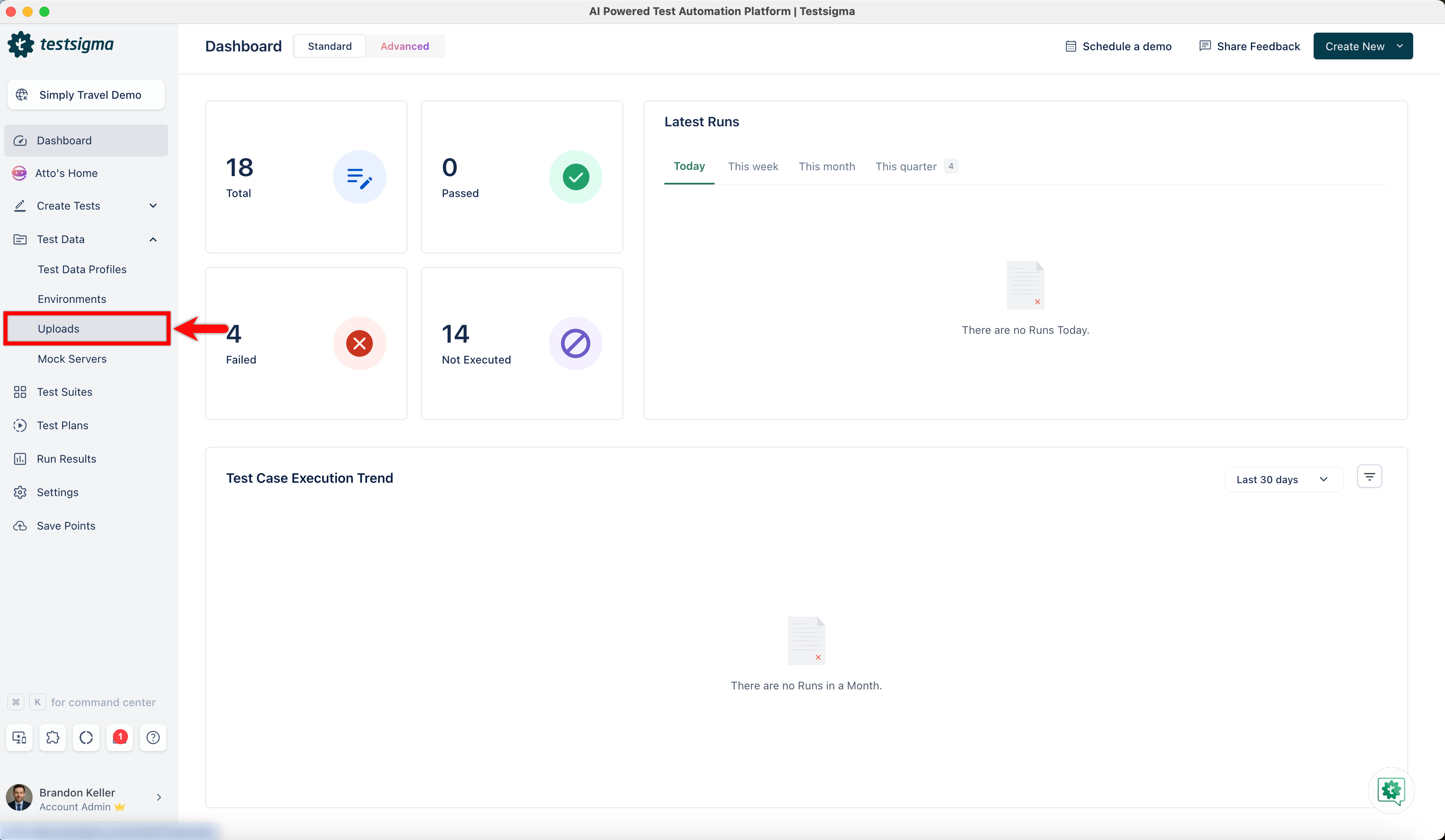
- Navigate to Test Data > Uploads.
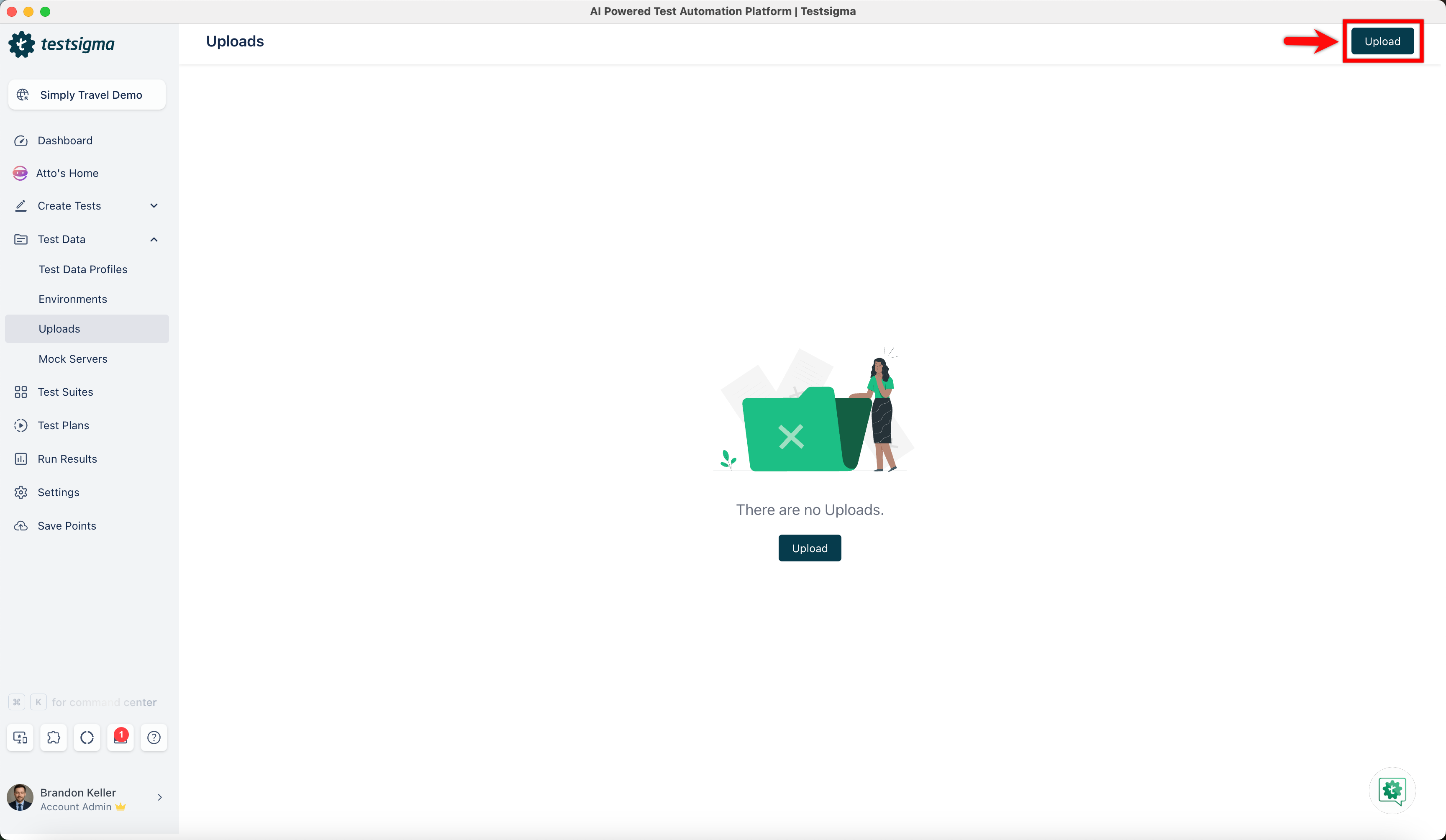
- Click on Upload.
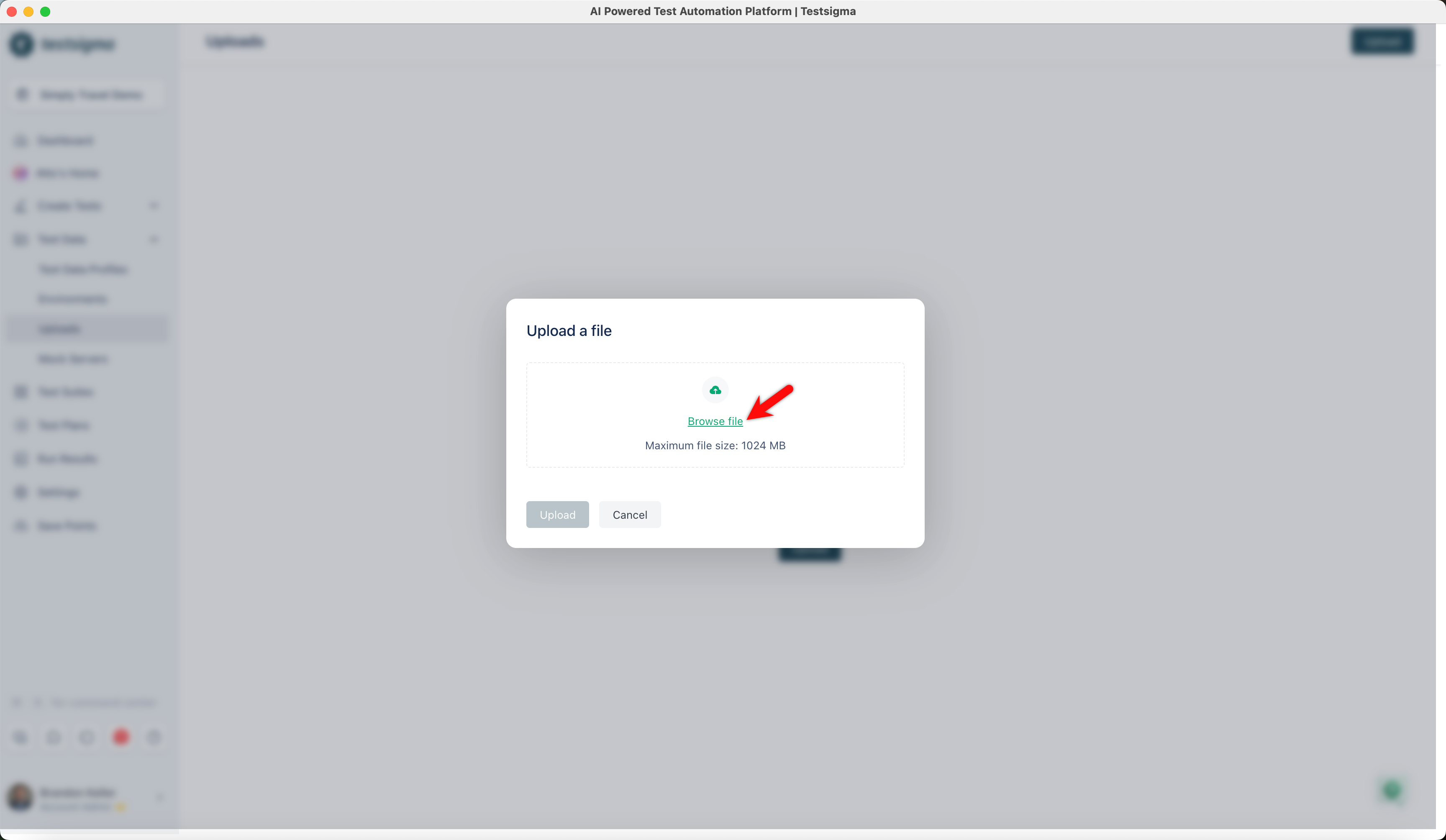
- On Upload a File prompt, drag and drop your files or click on Browse to select the file from your local folder.
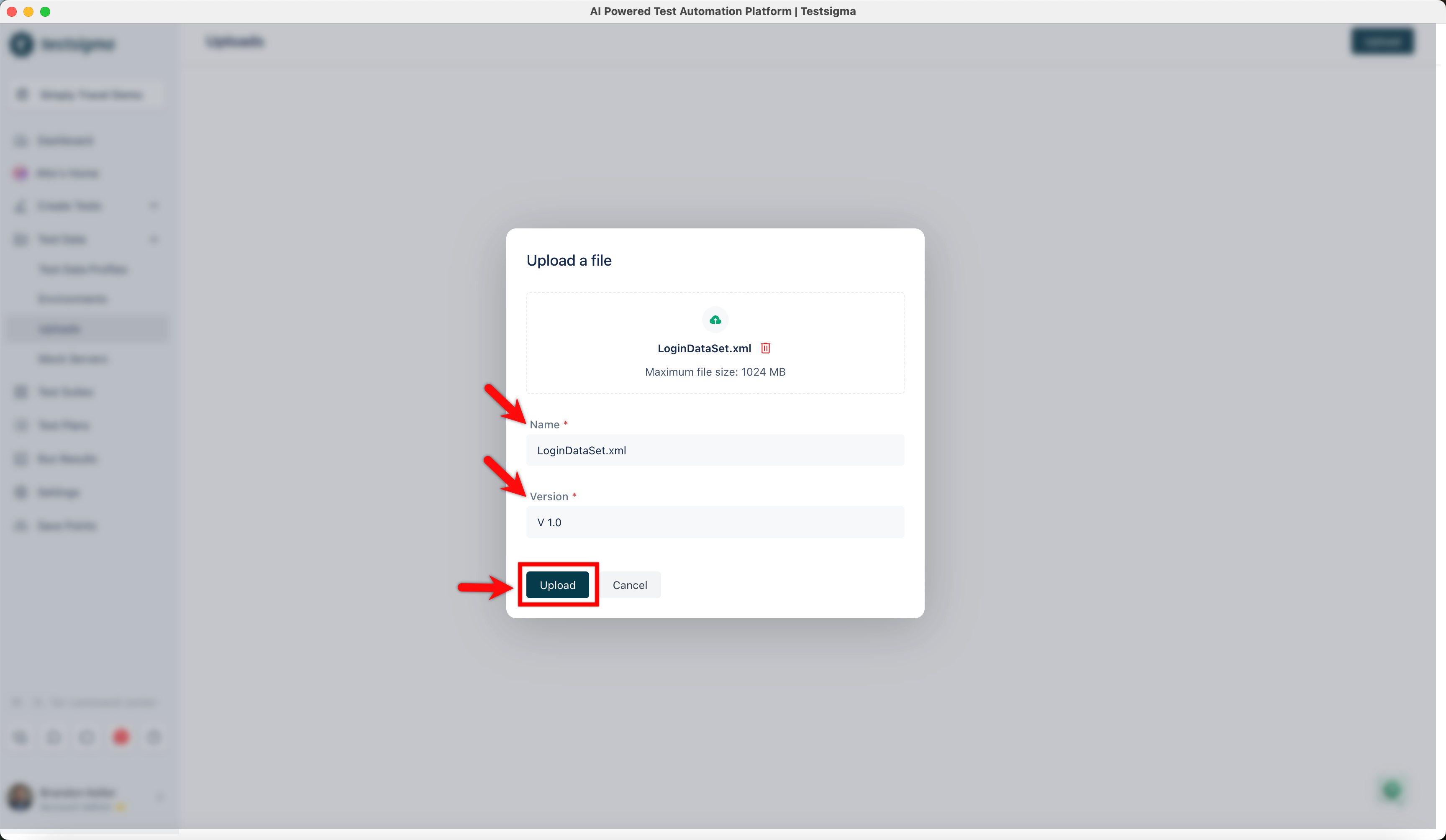
- Enter Name, Version, and click on Upload.
Updating an Uploaded File
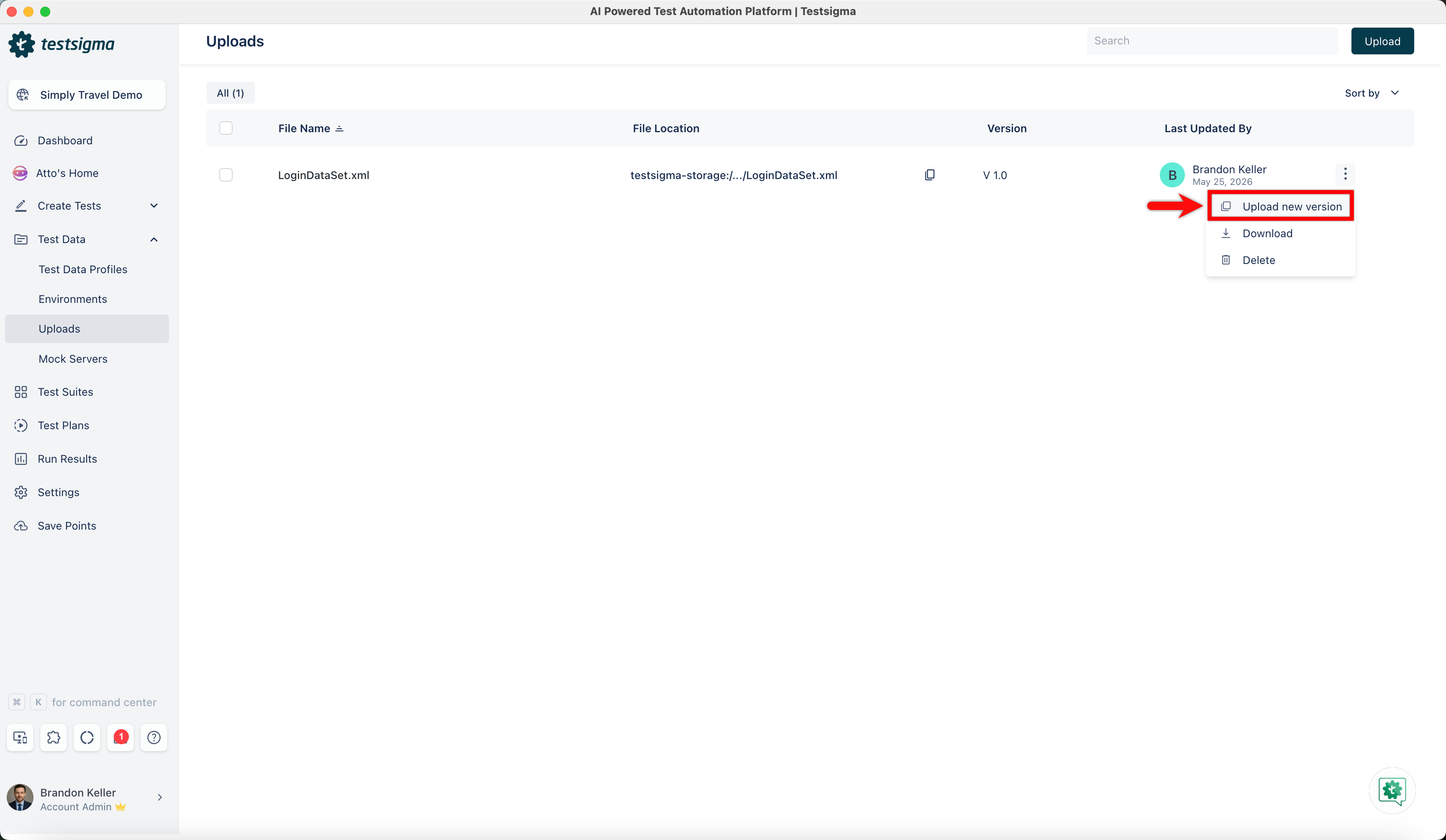
- Navigate to Test Data > Uploads.
- Click the ellipsis icon against the required upload and click Upload new version.
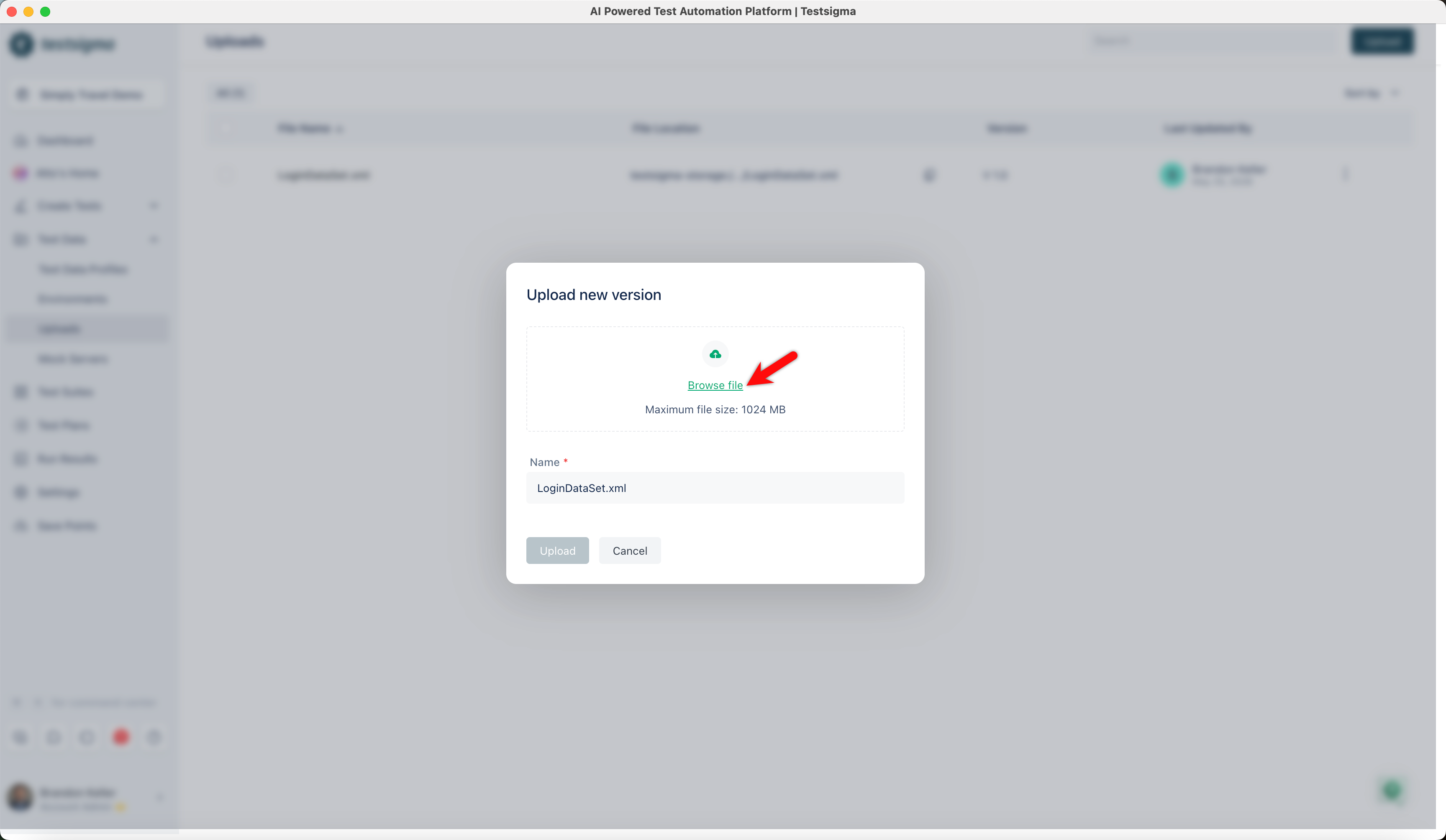
- In the Upload new version dialog, drag and drop your files or click on Browse to select the file from your local folder.
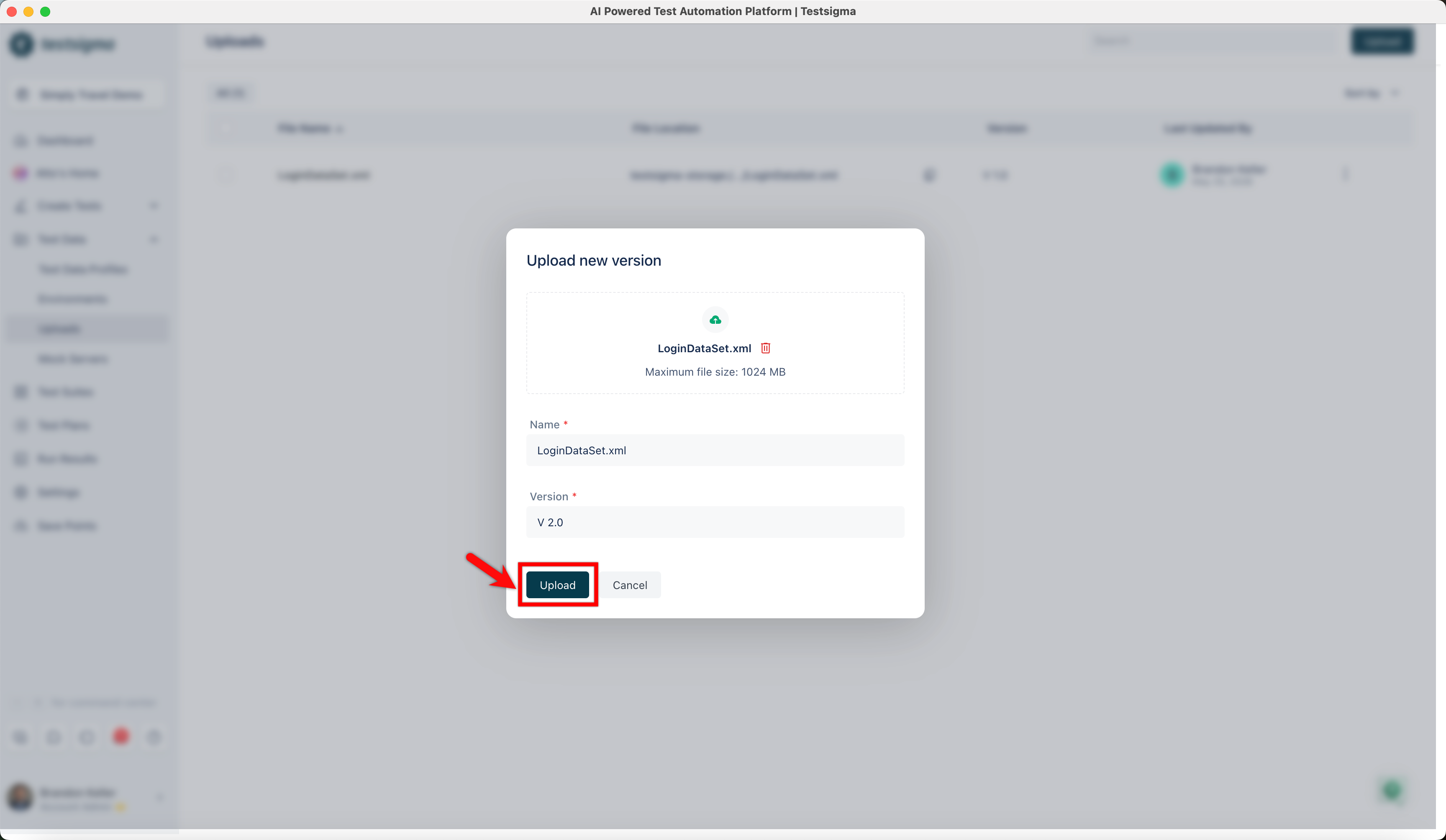
- Enter Name, Version, and click on Upload.
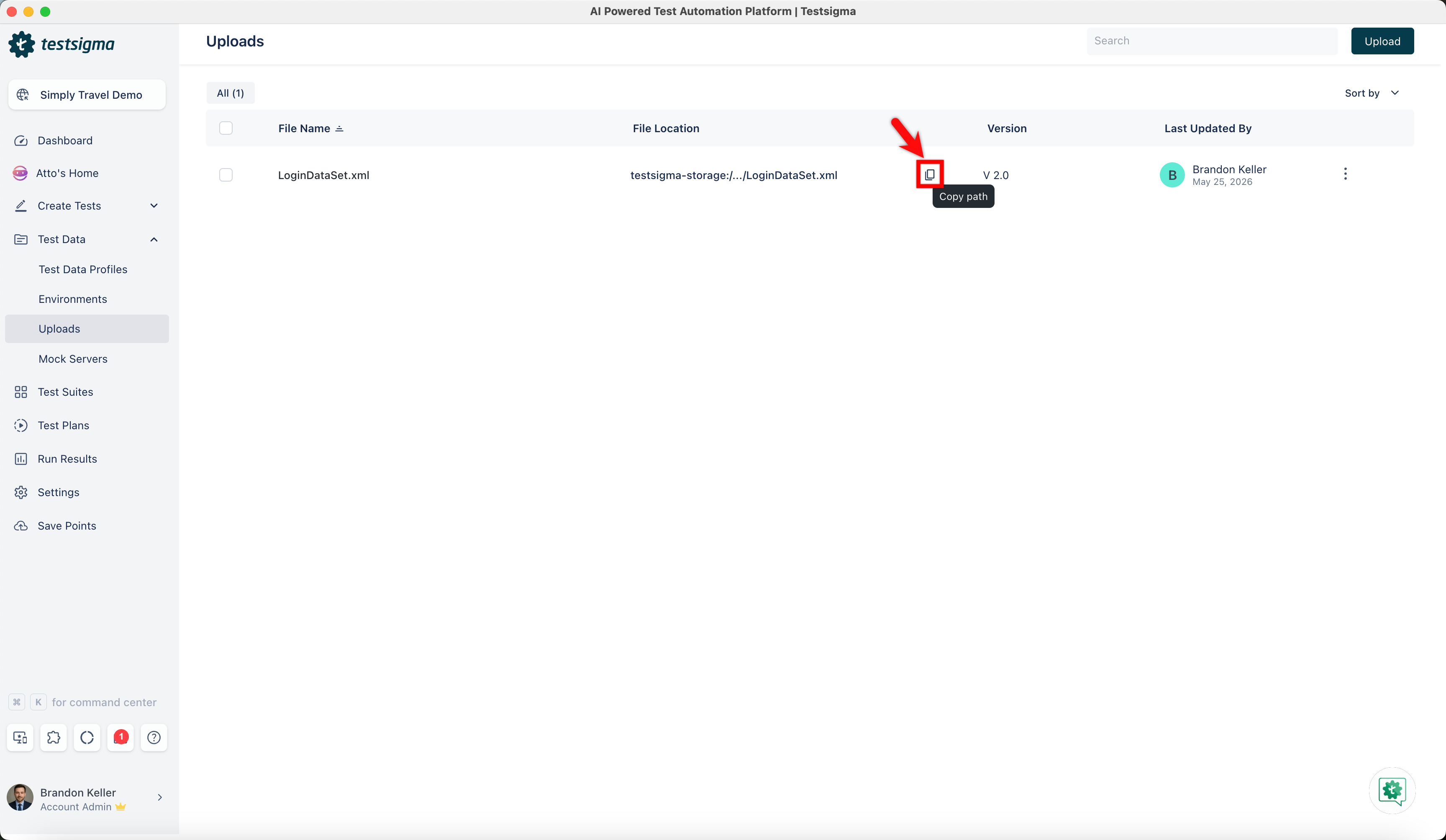
Getting the file URL
From the Uploads page, copy the file path from the copy button and paste this URL when needed in the test steps.
For more information about using uploaded files in Test Steps, refer to the documentation on test steps for uploaded files

Want to contribute or report missing content?