- accessibility testing
 Accessibility Testing for Web Applications
- Accessibility Testing for Android & iOS
Accessibility Testing for Android & iOS Applications
With Testsigma, you can perform accessibility testing to ensure your iOS and Android mobile applications meet accessibility standards. You can enable accessibility checks at specific test steps to scan the application’s screen state at the exact point you want to validate. This article discusses how to perform Accessibility Testing for mobile applications in Testsigma.
Prerequisites
Before you begin, ensure that you have referred to:
- You have enabled Web Accessibility Testing - Step Level from Settings > Preferences > Web Accessibility Testing.
- Documentation on creating test plans.
- Documentation on creating test suite.
- Documentation on creating test machines.
Steps to Enable Accessibility Testing in Test Steps
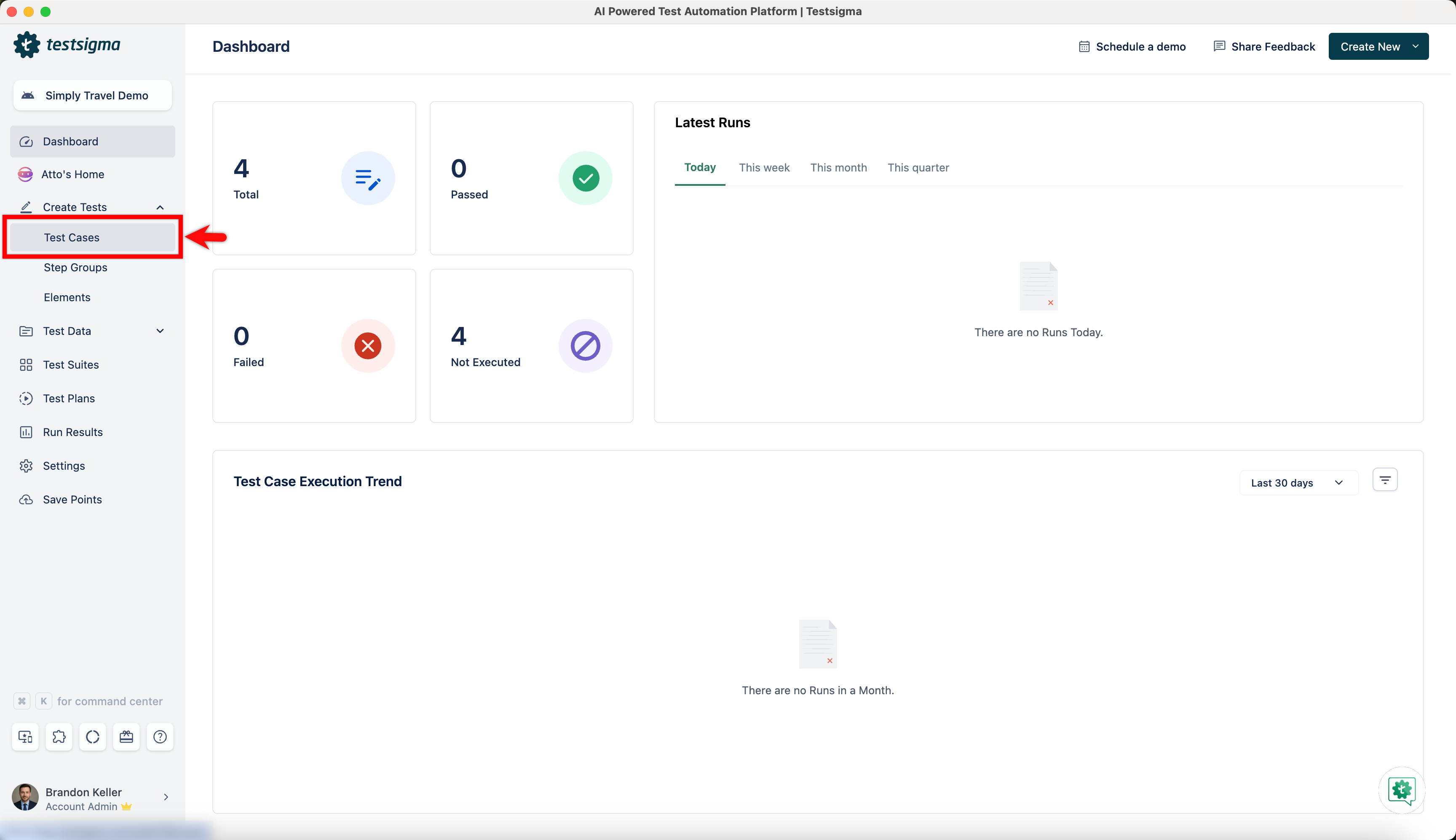
- From the left navigation bar, go to Create Tests > Test Cases.
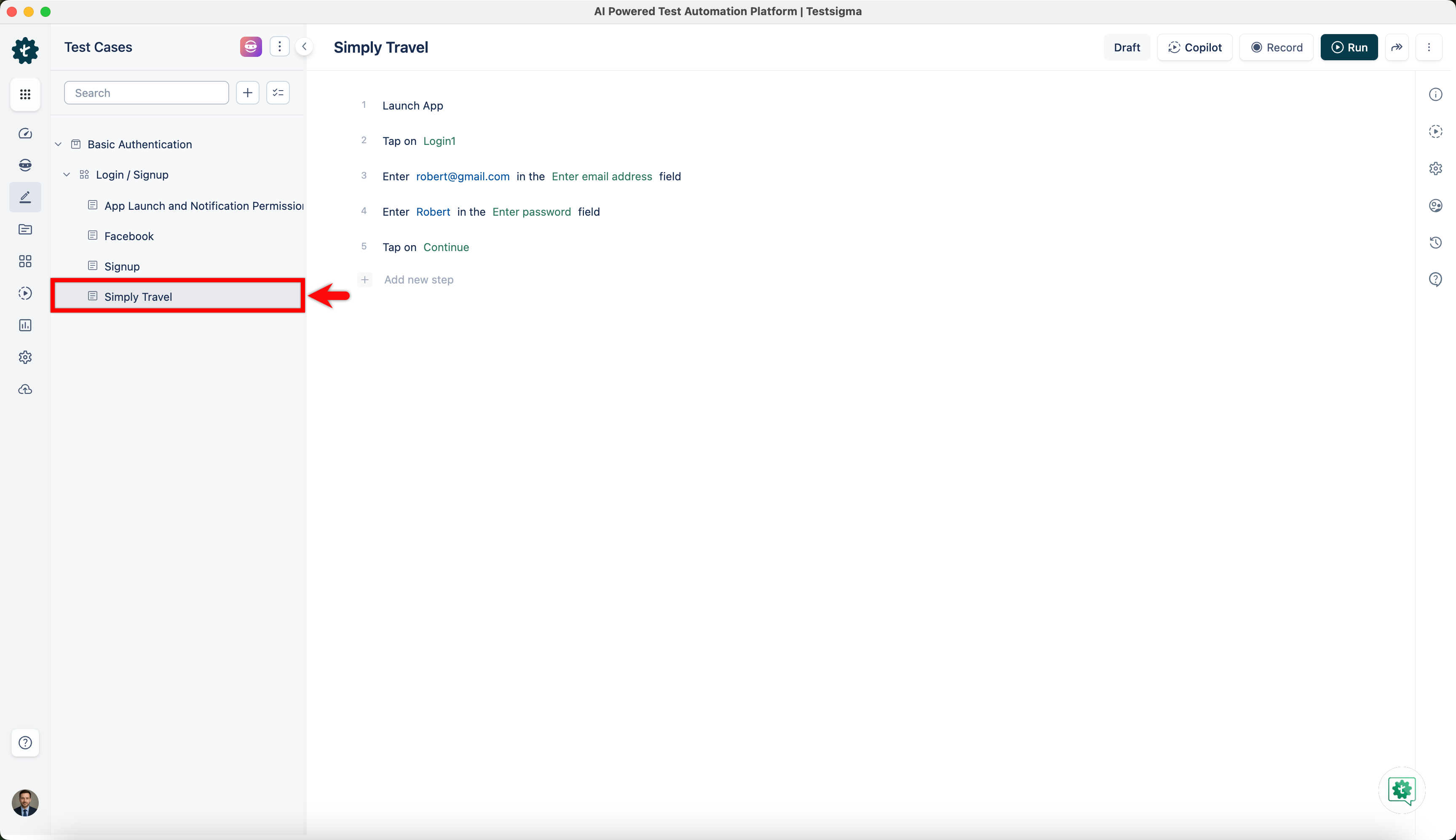
- Open the test case in which you want to configure test steps for Accessibility Testing.
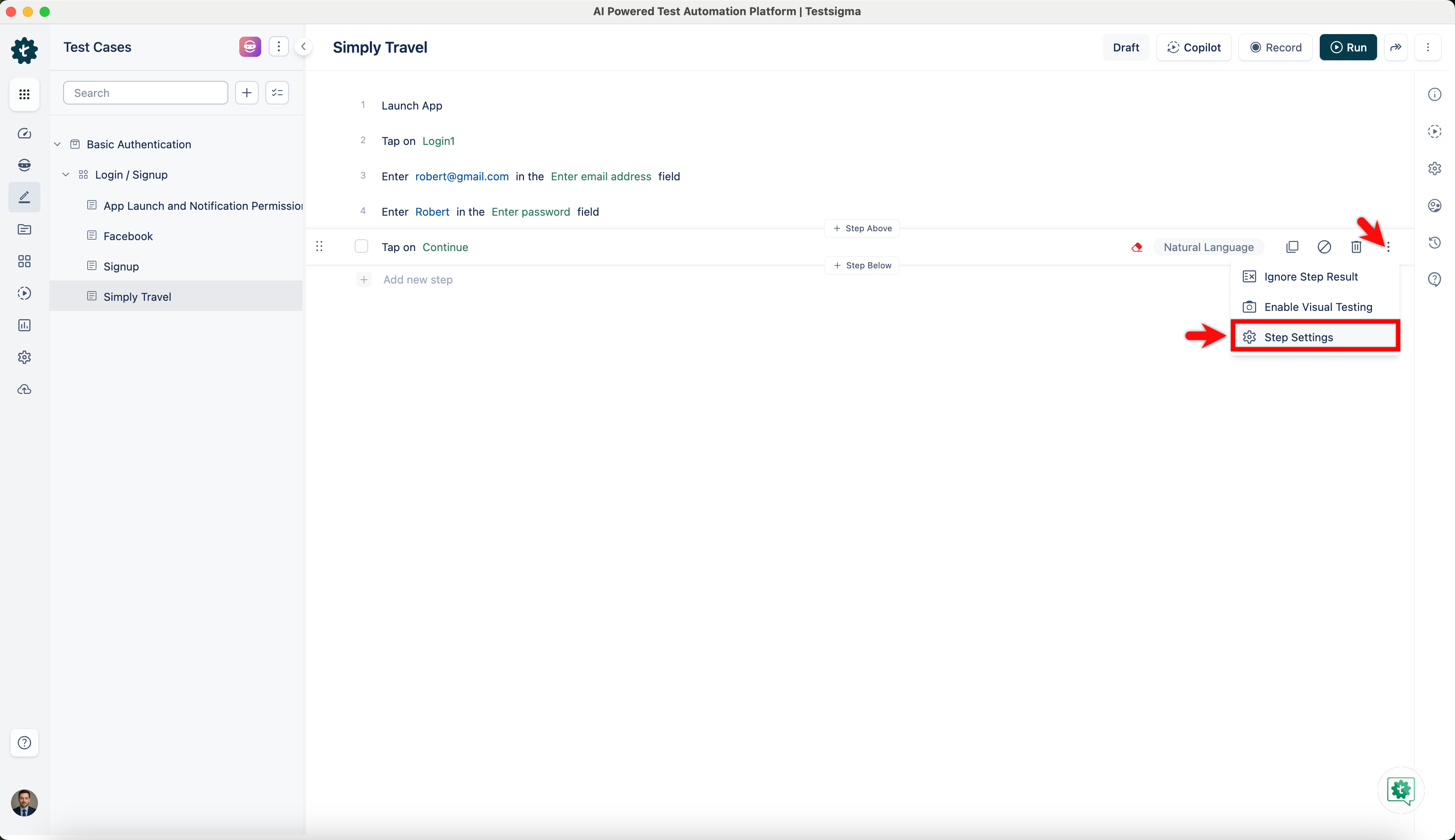
- Hover over the test step, click Kebab Menu, and select Step Settings from the dropdown menu.
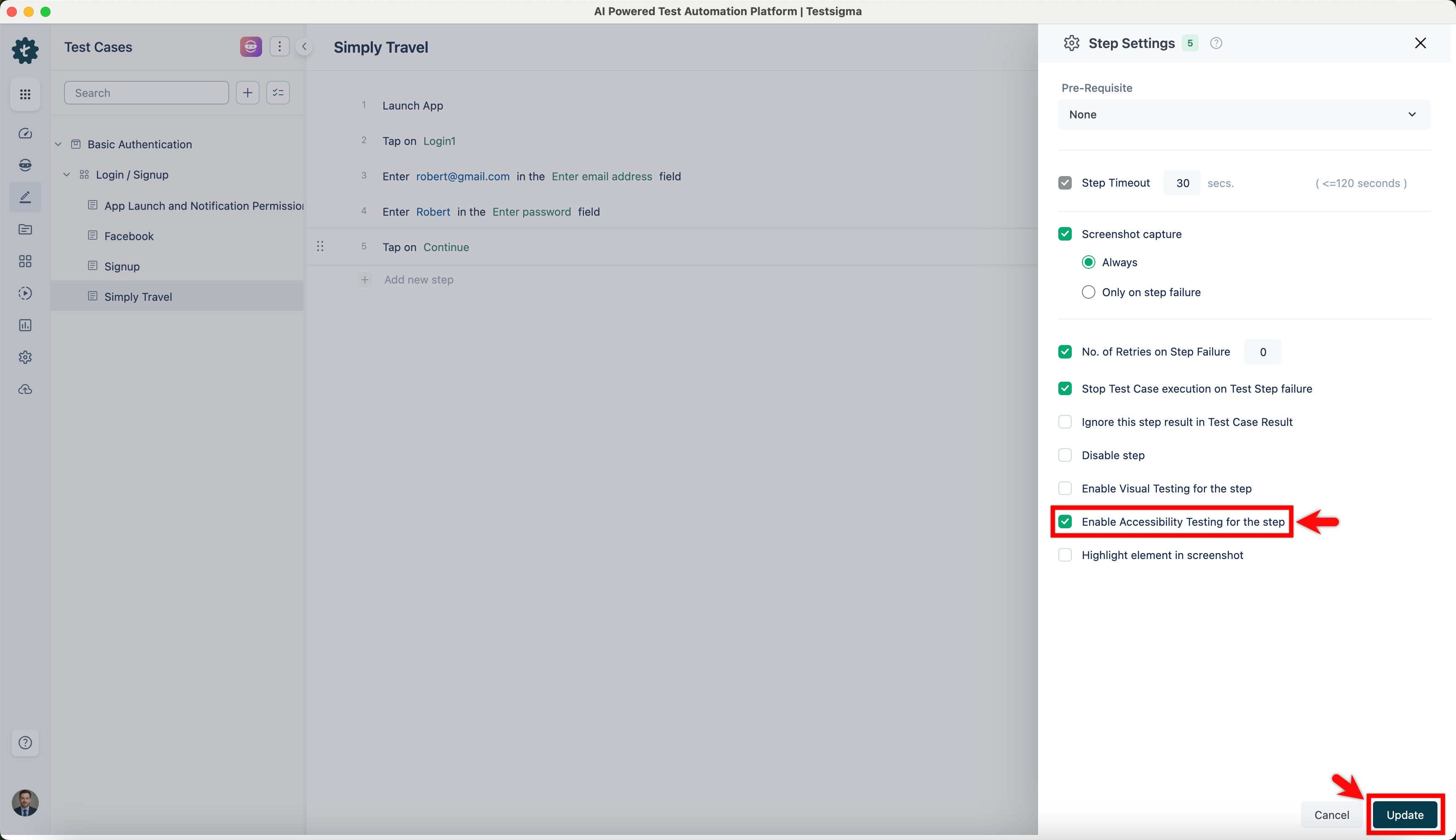
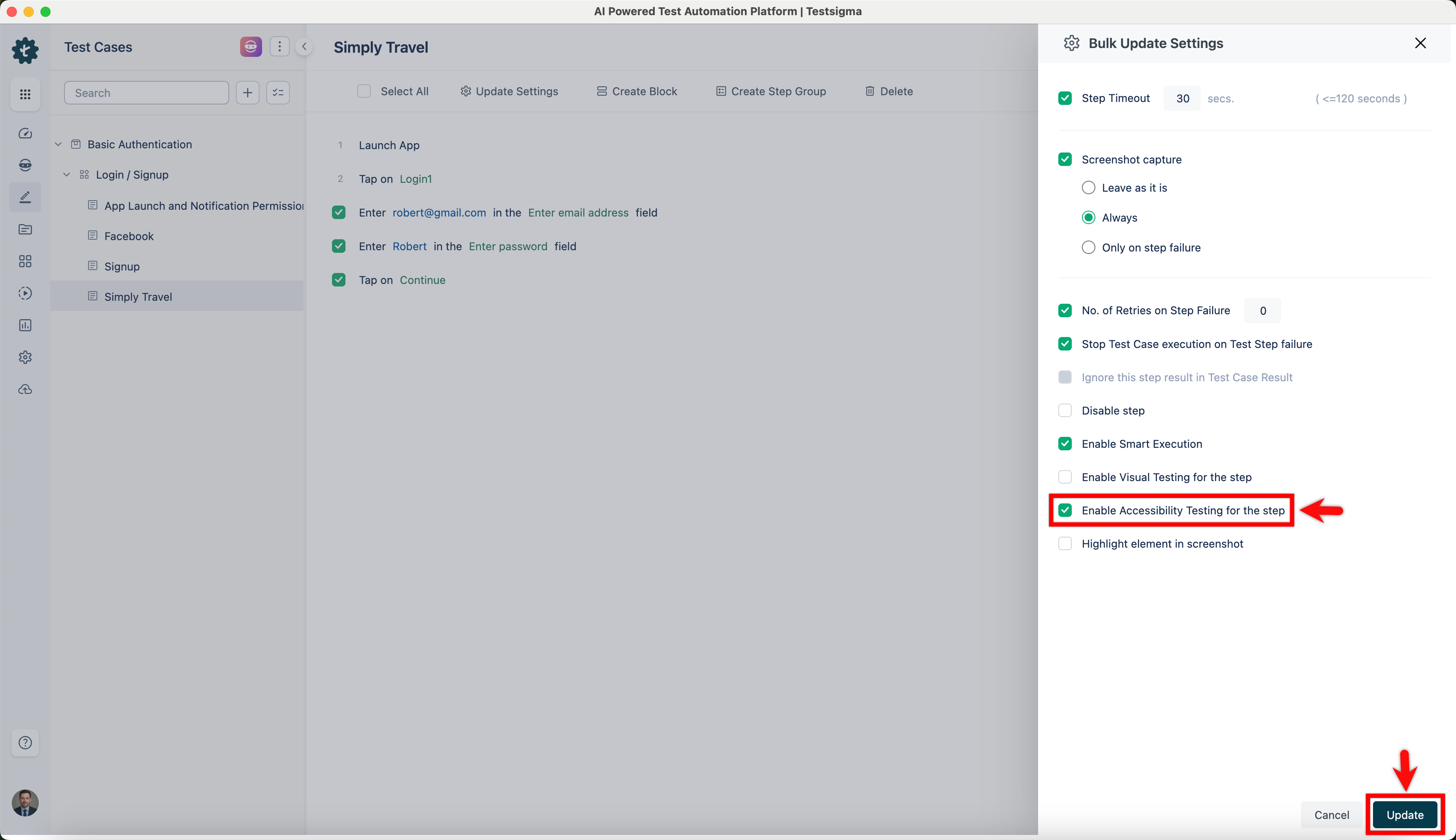
- Select Enable Accessibility Testing for the Step and click Update.
- You can also select Enable Accessibility Testing for the Step from Bulk Select > Update Settings > Bulk Update Settings.
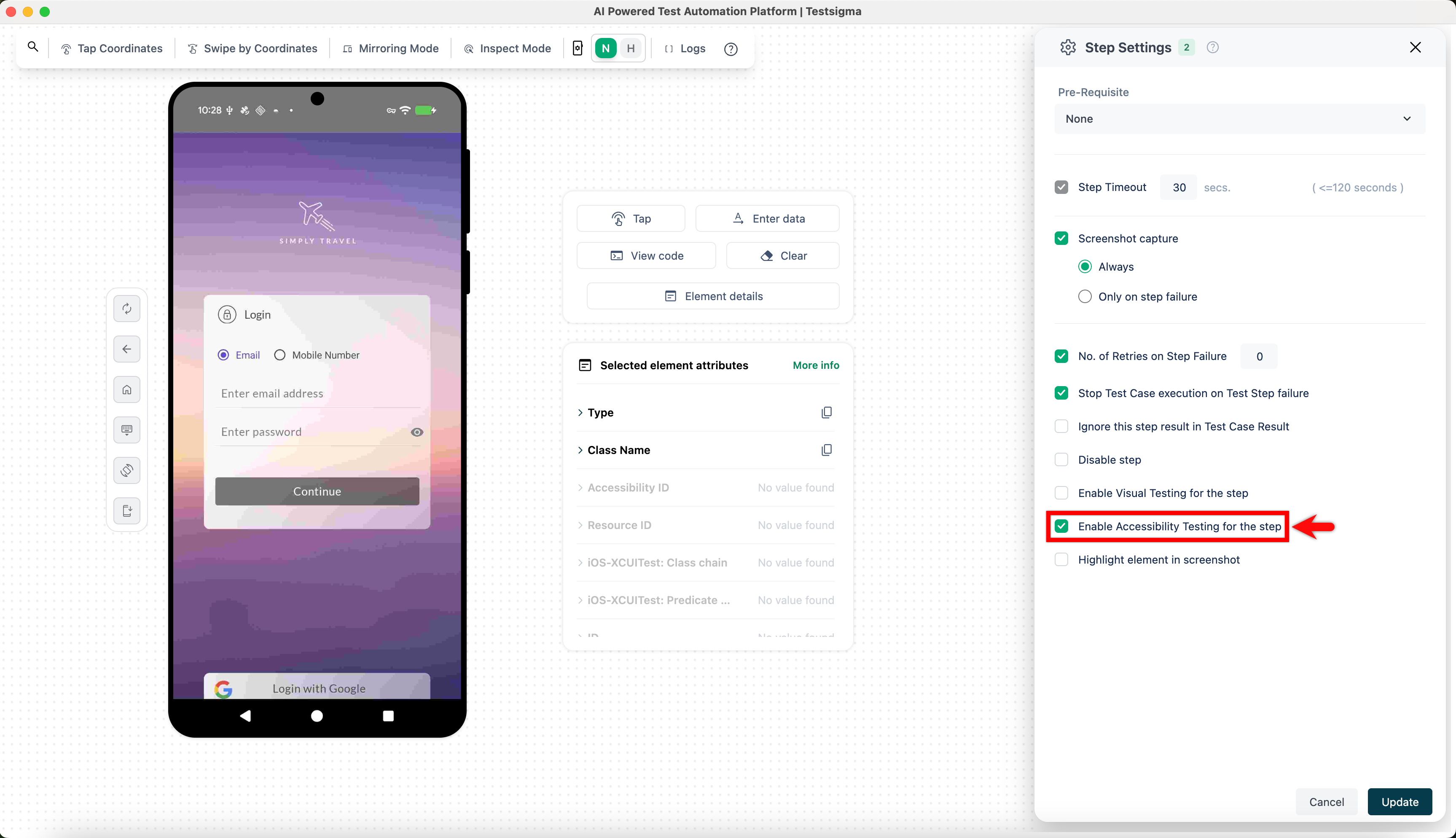
- To select this option in the Recorder, go to Test Step > Step Settings, select Enable Accessibility Testing for the Step, and click Update.
- Repeat steps 3–4 for all test steps you want to configure in the required test cases.
- After configuring test steps in the test cases, add them to a test suite, and then add test suites to a test plan.
You can configure Step Groups for Accessibility Testing using the same steps. However, this feature is available only on the Test Authoring page and not in the Recorder.
Steps to Enable Accessibility Testing in Test Plans
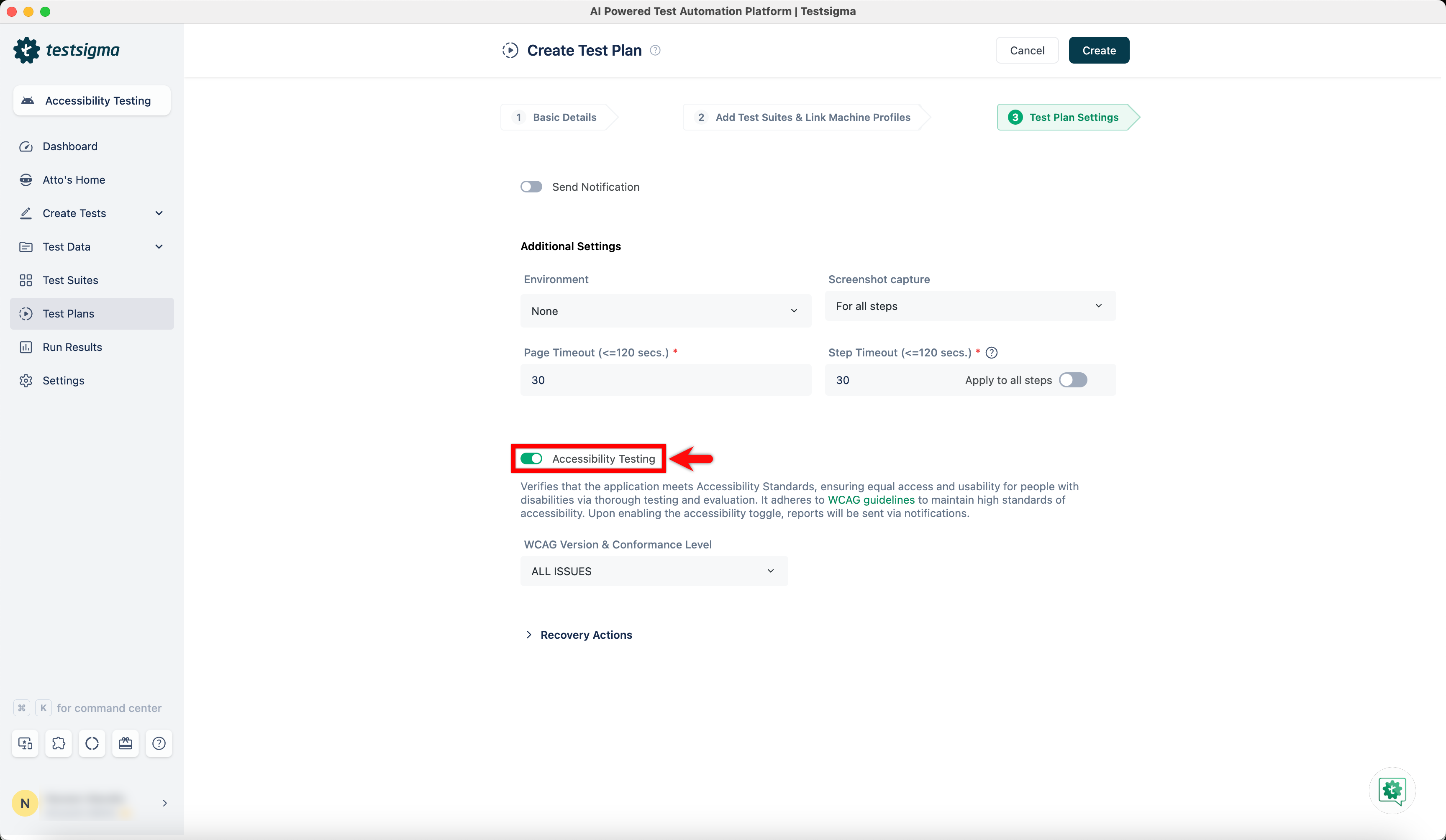
- When creating a test plan, enable the Accessibility Testing toggle in Additional Settings.
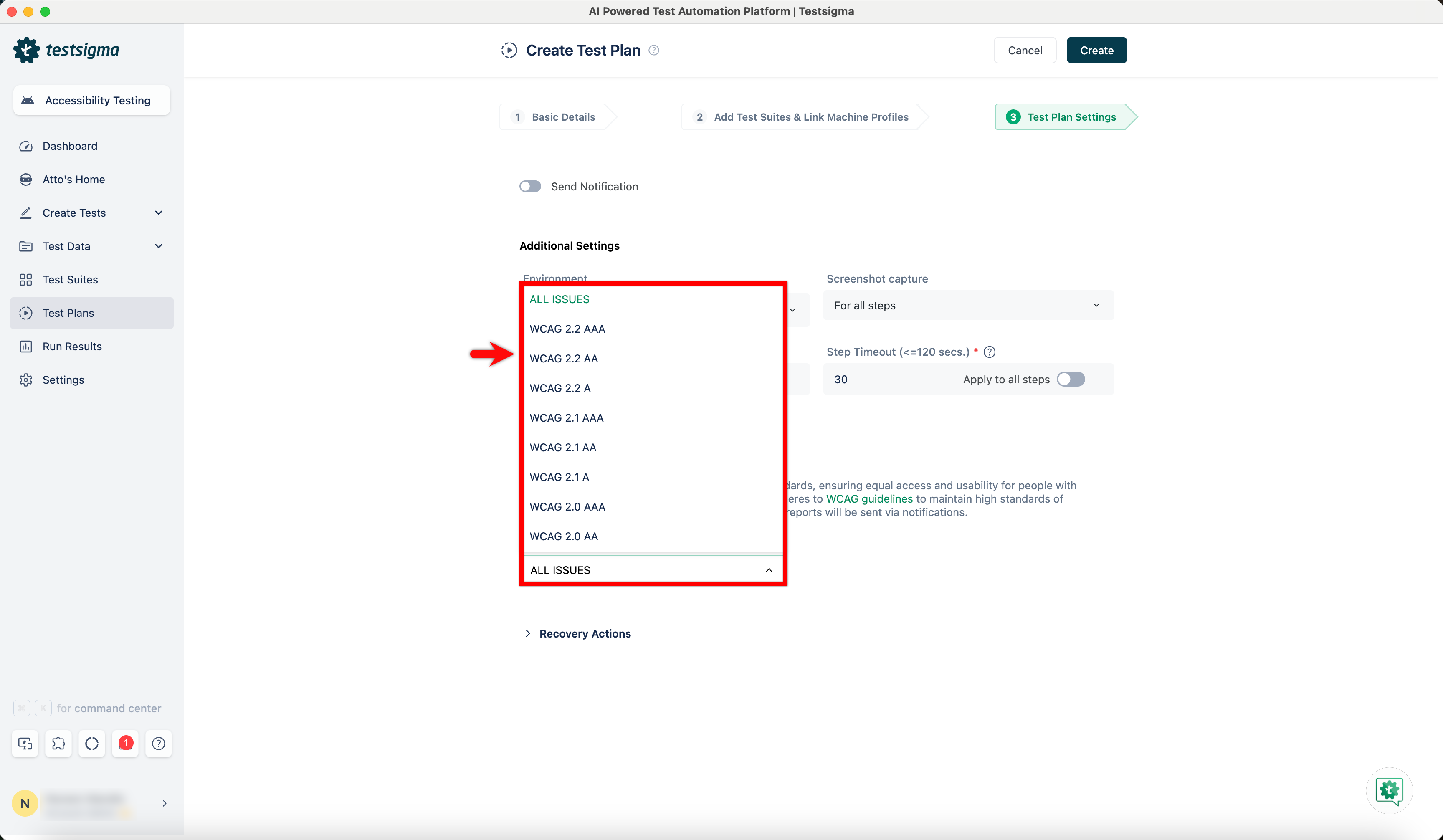
- Expand the WCAG Versions & Conformance Level dropdown, and select the required version in Additional Settings.
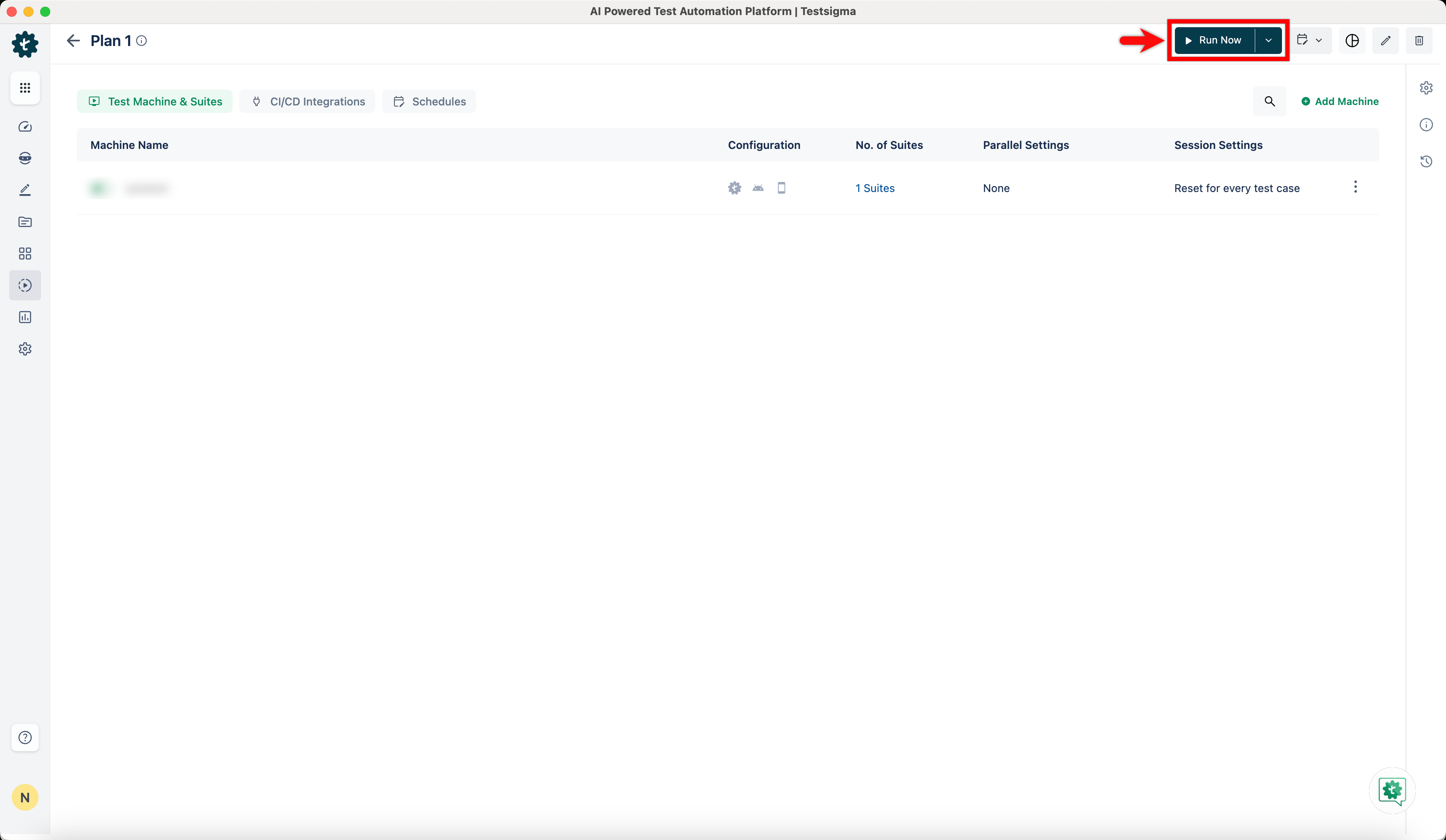
- To execute the test plan, click Run Now.
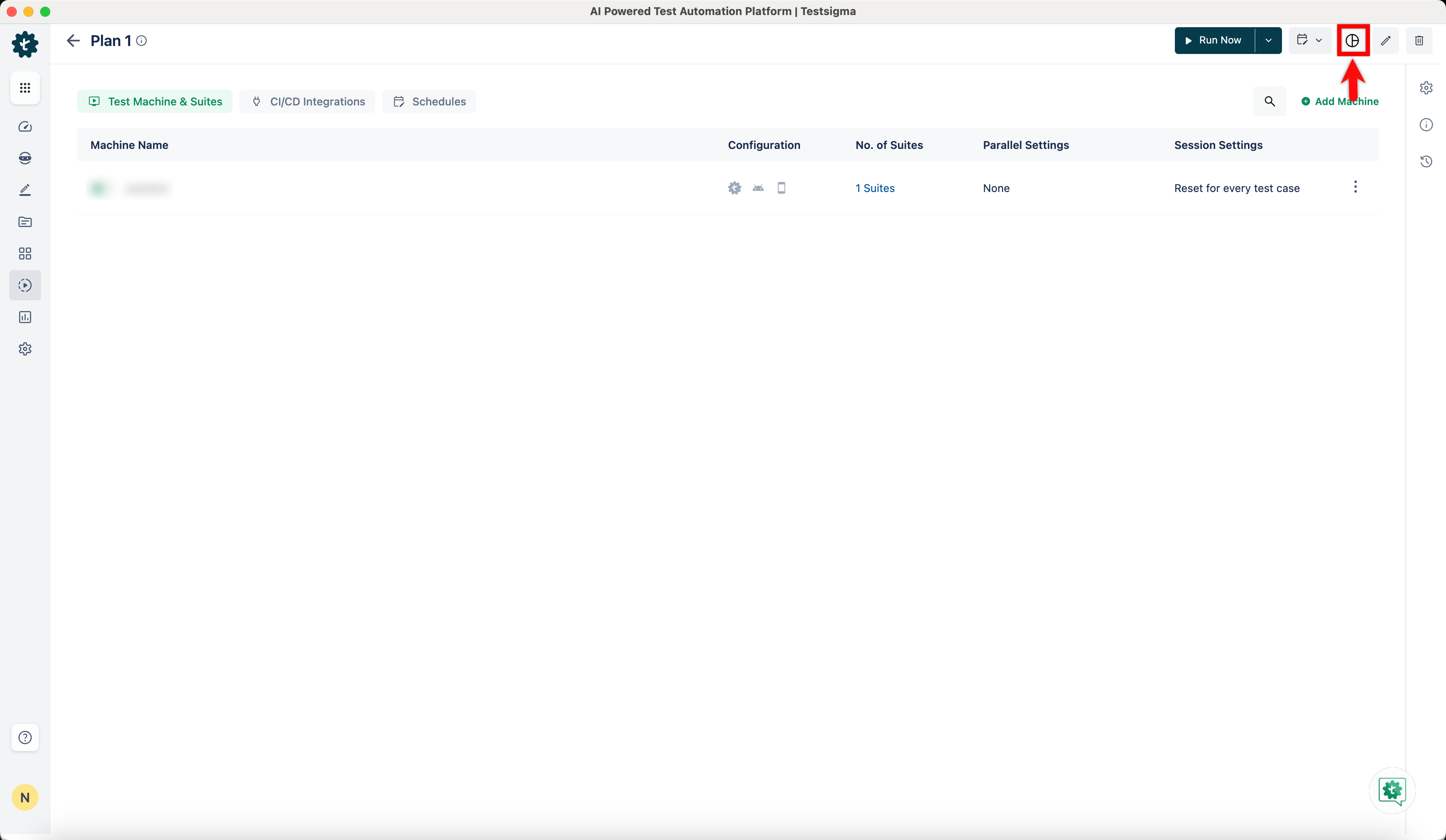
- After the test plan execution completes, click View Reports for that test plan.
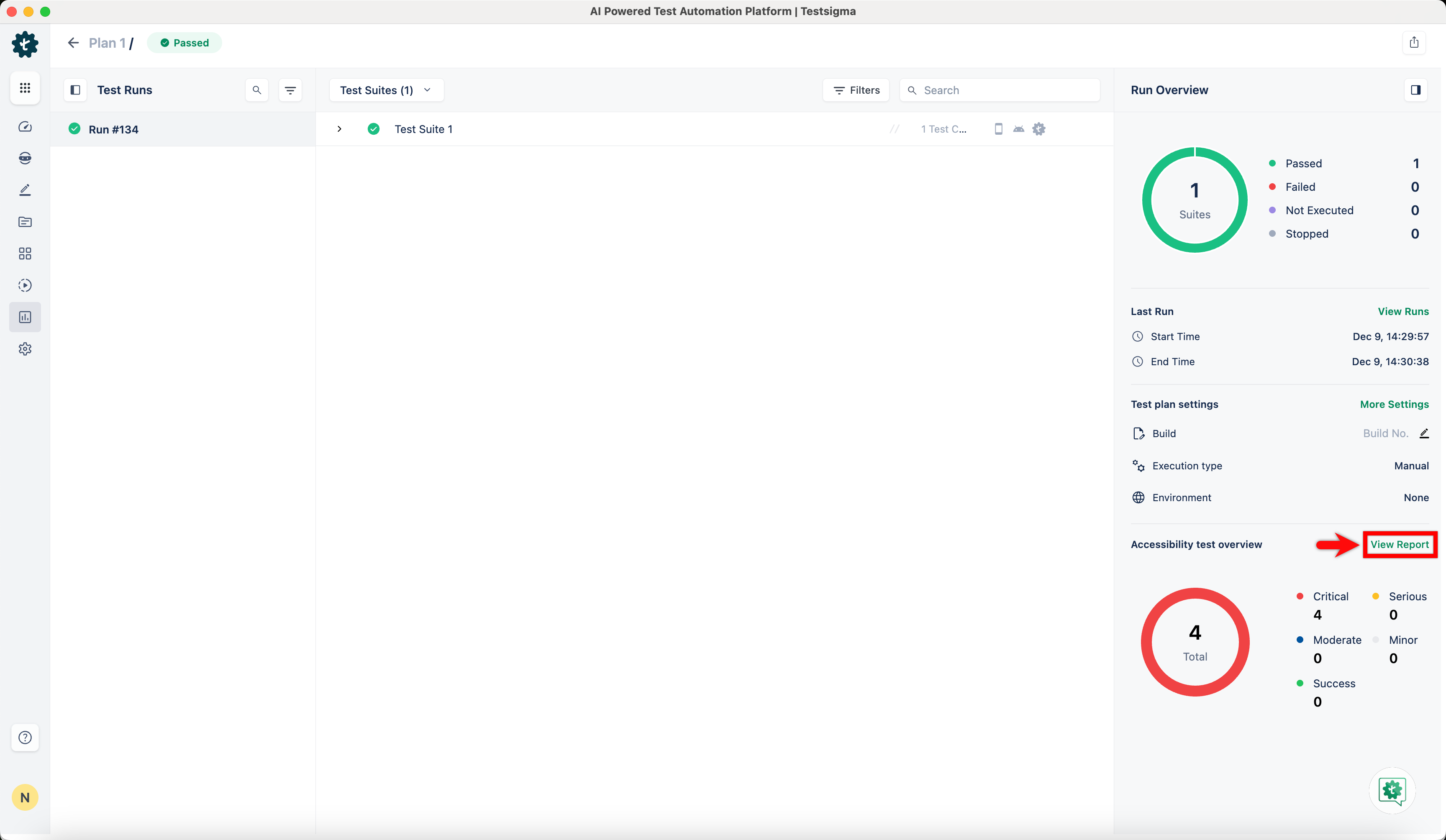
- On the Report page, click View Report in the bottom right corner to open a detailed Accessibility Testing Report.
Interacting with Accessibility Report
The Accessibility Report page displays the results of your accessibility scans for Android and iOS applications. You can use this page to review errors, check severity levels, and identify the specific UI elements that need attention.
The page is organized into two main tabs: Overview and All Issues.
Overview Tab
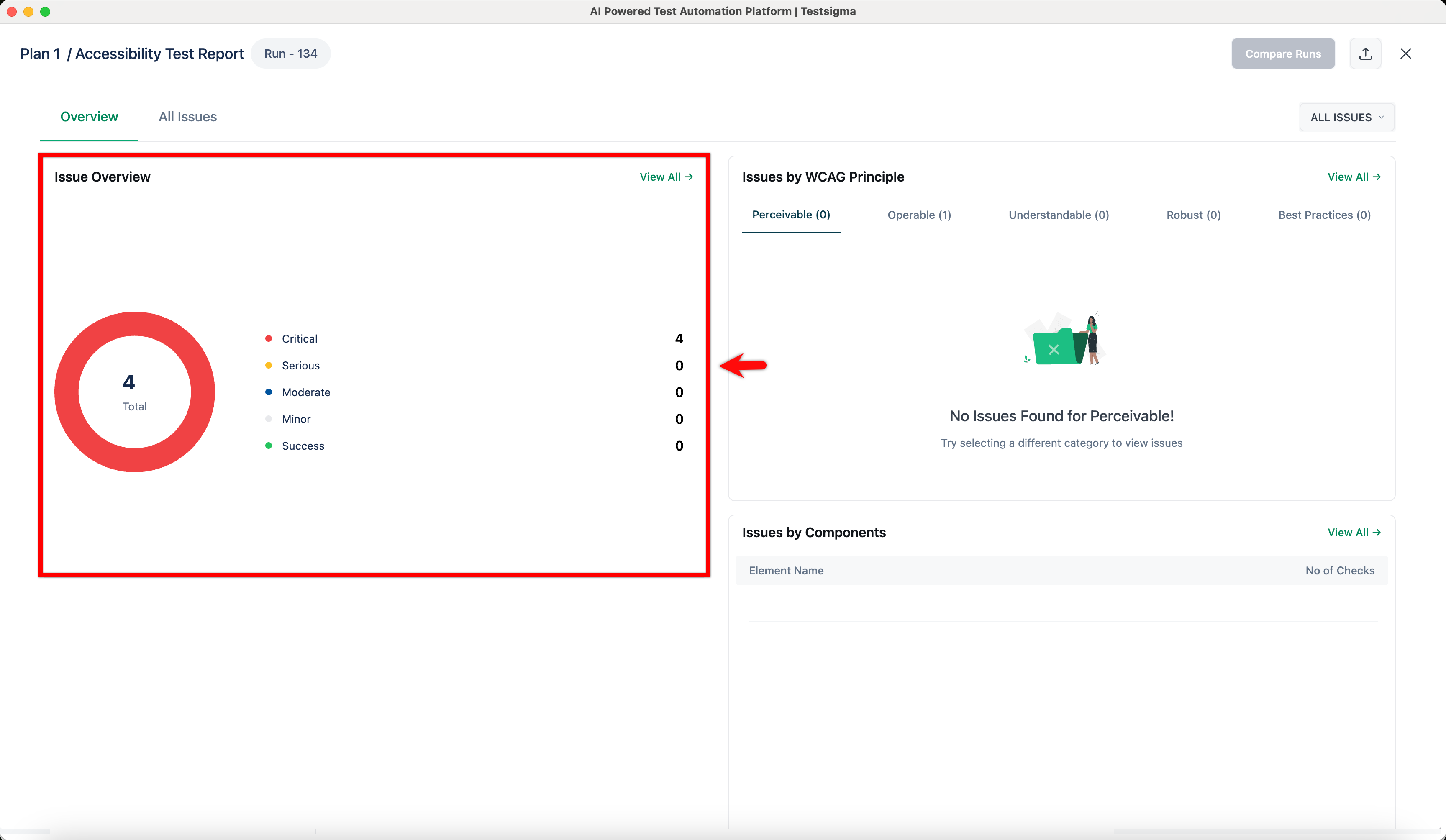
The Overview tab provides a visual summary of the test execution, helping you quickly check the overall status of the application.
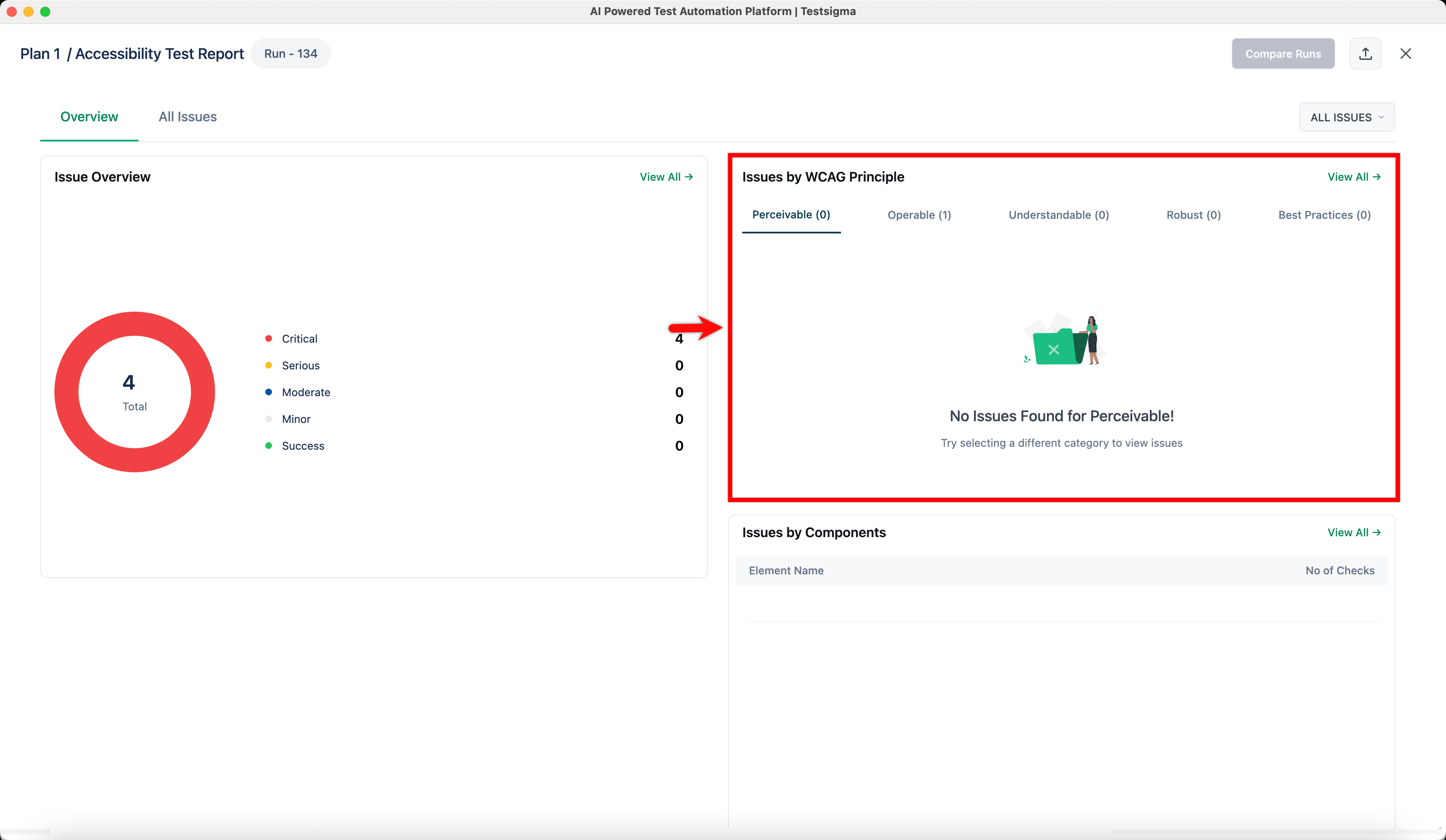
- Issue Overview: Displays a donut chart that summarizes all issues found during the test. The chart groups issues by severity: Critical, Serious, Moderate, Minor, and Success.
- Issues by WCAG Principle: Organizes findings by WCAG principles, such as Perceivable, Operable, Understandable, and Robust. This section lists the specific criteria violations and the number of failed checks for each principle.
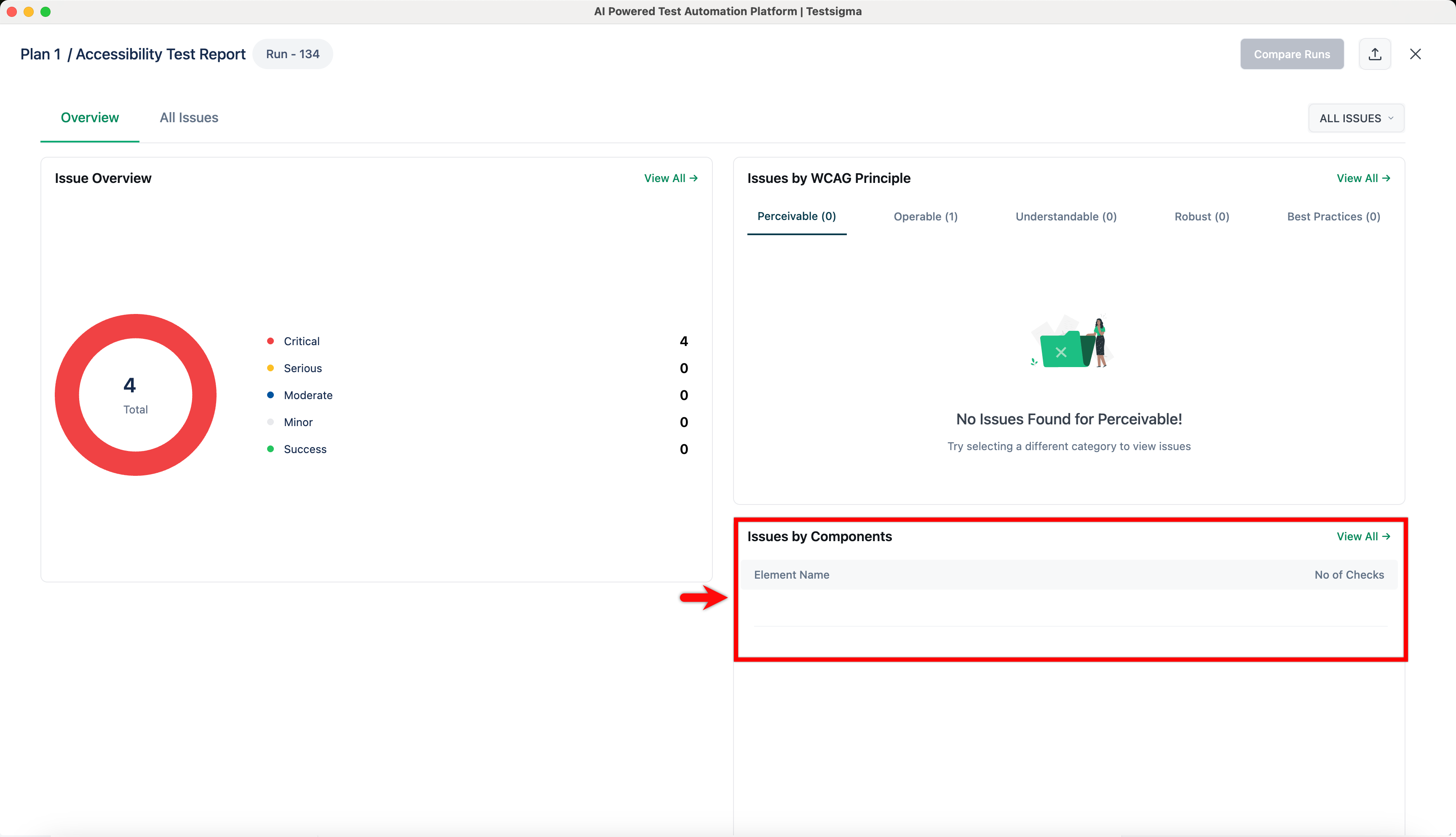
- Issues by Components: Categorizes issues by native UI element types. This helps you see if specific mobile components cause repeated errors.
All Issues Tab
The All Issues tab displays a detailed list of every violation found. You can use this tab to investigate specific bugs and view relevant code. This tab includes search tools, an issues list, and a details pane.
-
Search and Filter Options
The top bar helps you locate specific issues:
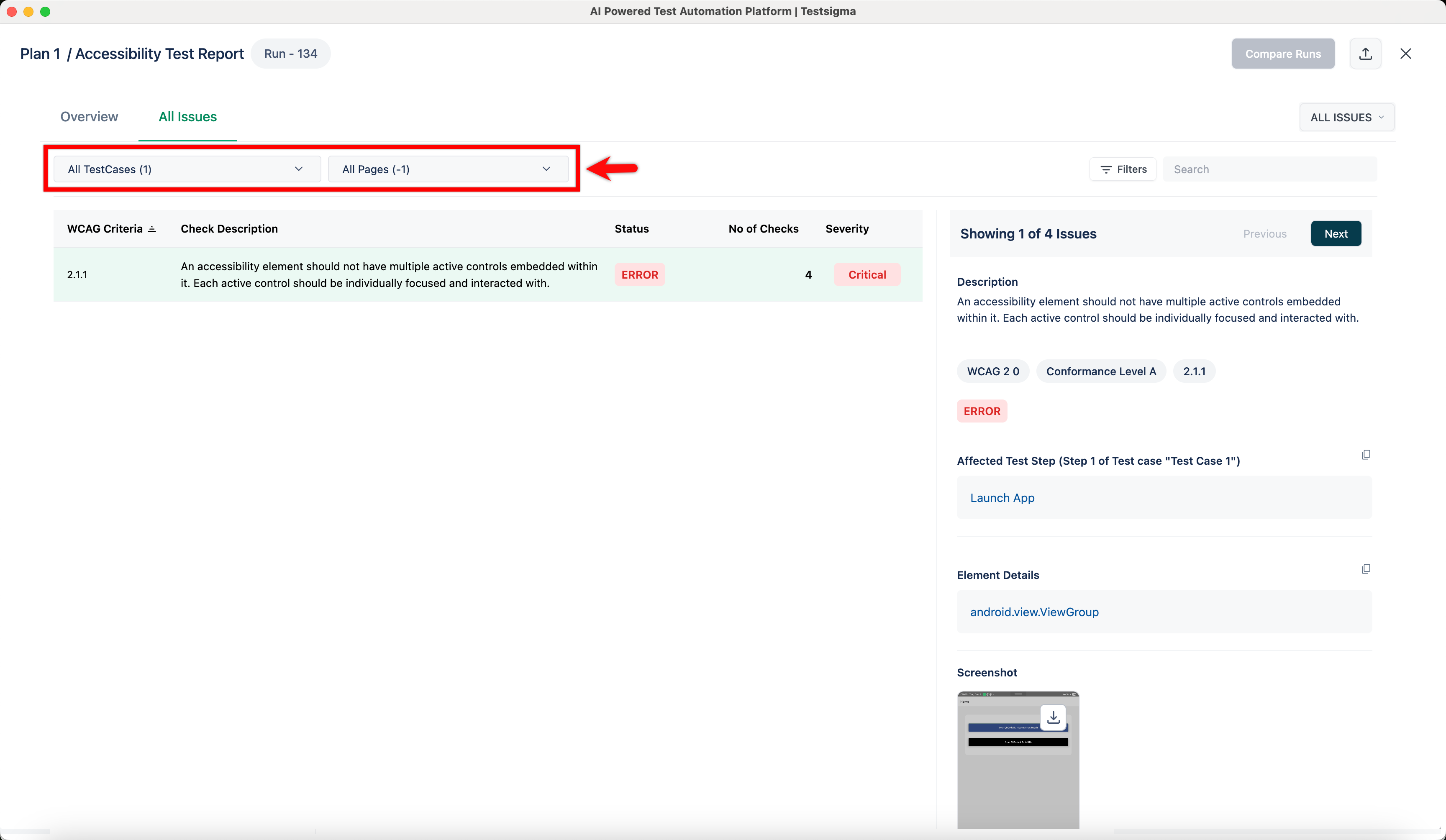
- Dropdown Filters: Select All TestCases to view all issues, or select a specific test case to filter the results.
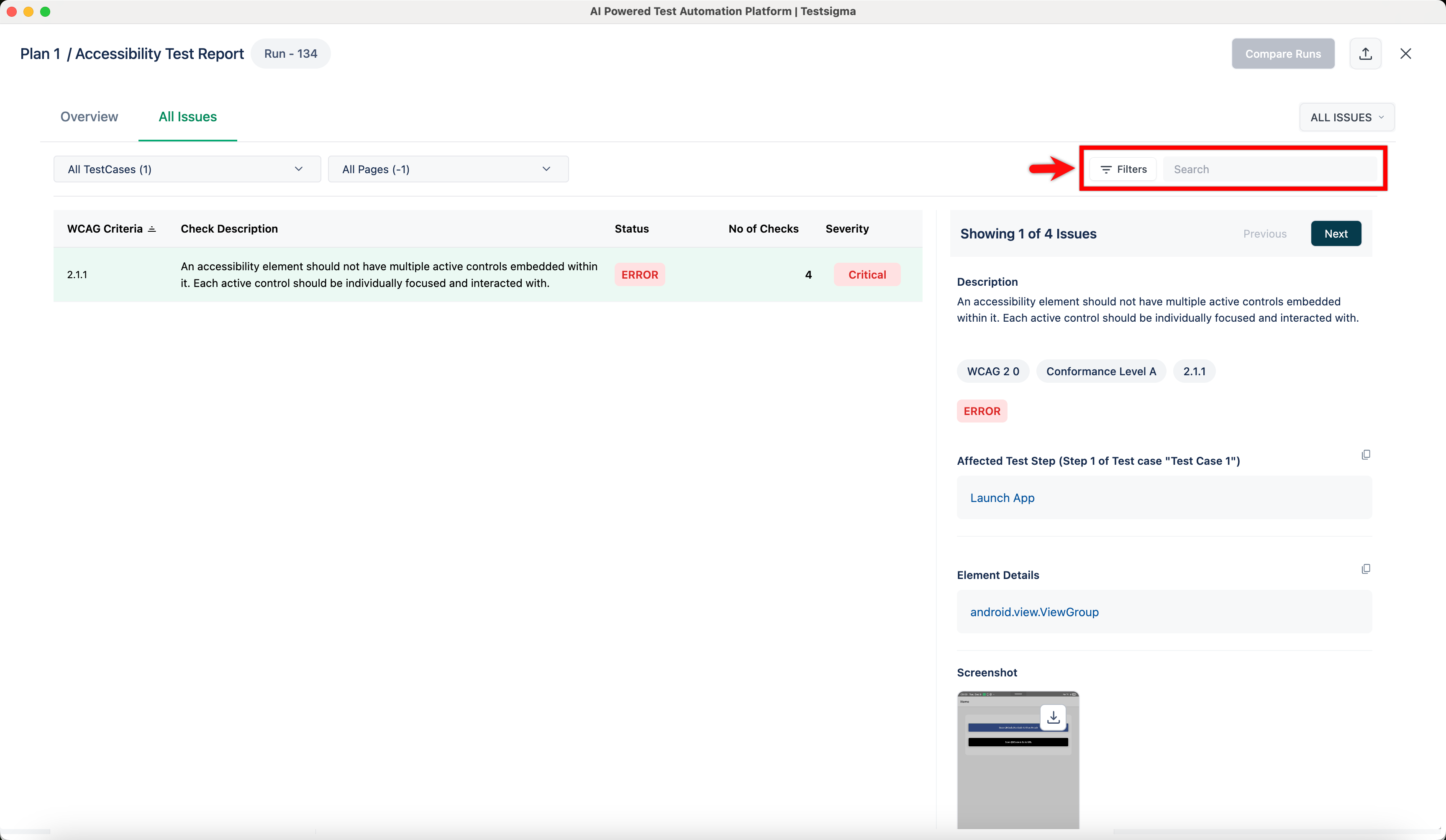
- Filter and Search: Select Filters to apply specific criteria, or use the Search box to find issues by keyword.
- View Options: Use the status dropdown to filter the list by issue status.
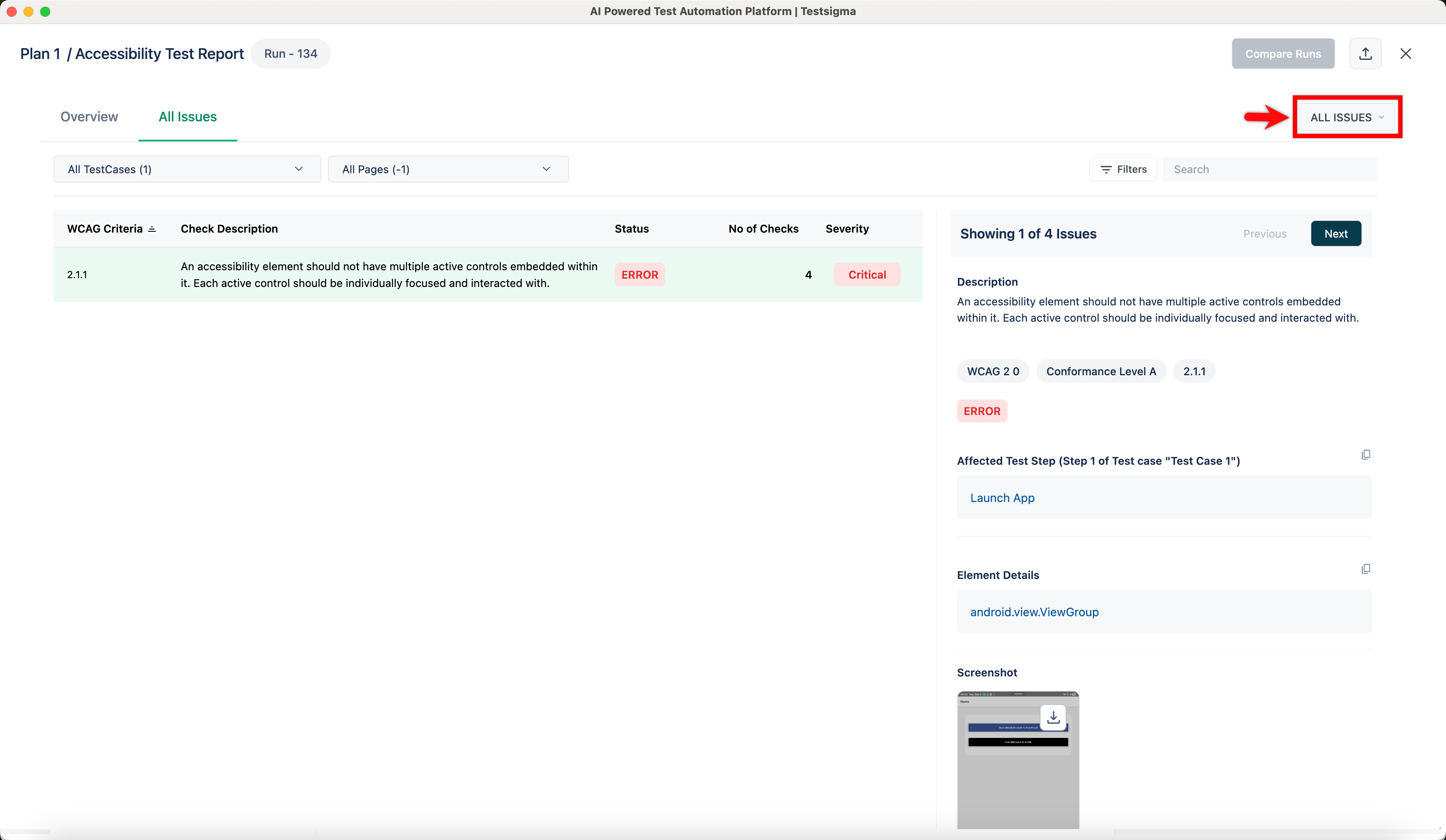
- Dropdown Filters: Select All TestCases to view all issues, or select a specific test case to filter the results.
-
Issues List
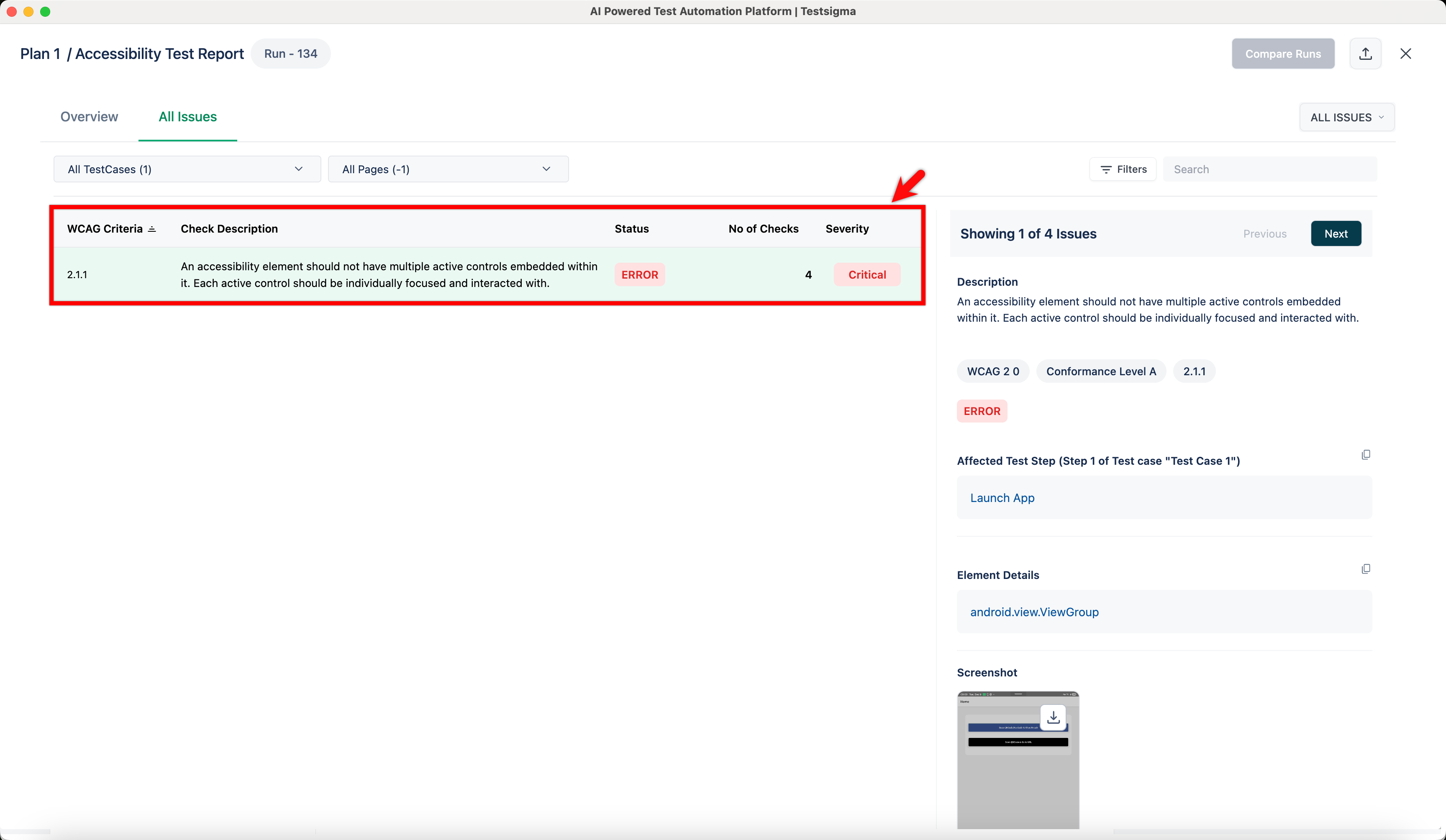
The main table on the left lists the violations based on your search criteria.
- WCAG Criteria: Shows the specific rule ID. You can sort the list by this column.
- Check Description: Provides a summary of the rule violation.
- Status: Indicates the result of the check.
- No of Checks: Shows the number of times this specific issue occurred.
- Severity: Displays a color-coded label indicating the impact level.
-
Issue Details
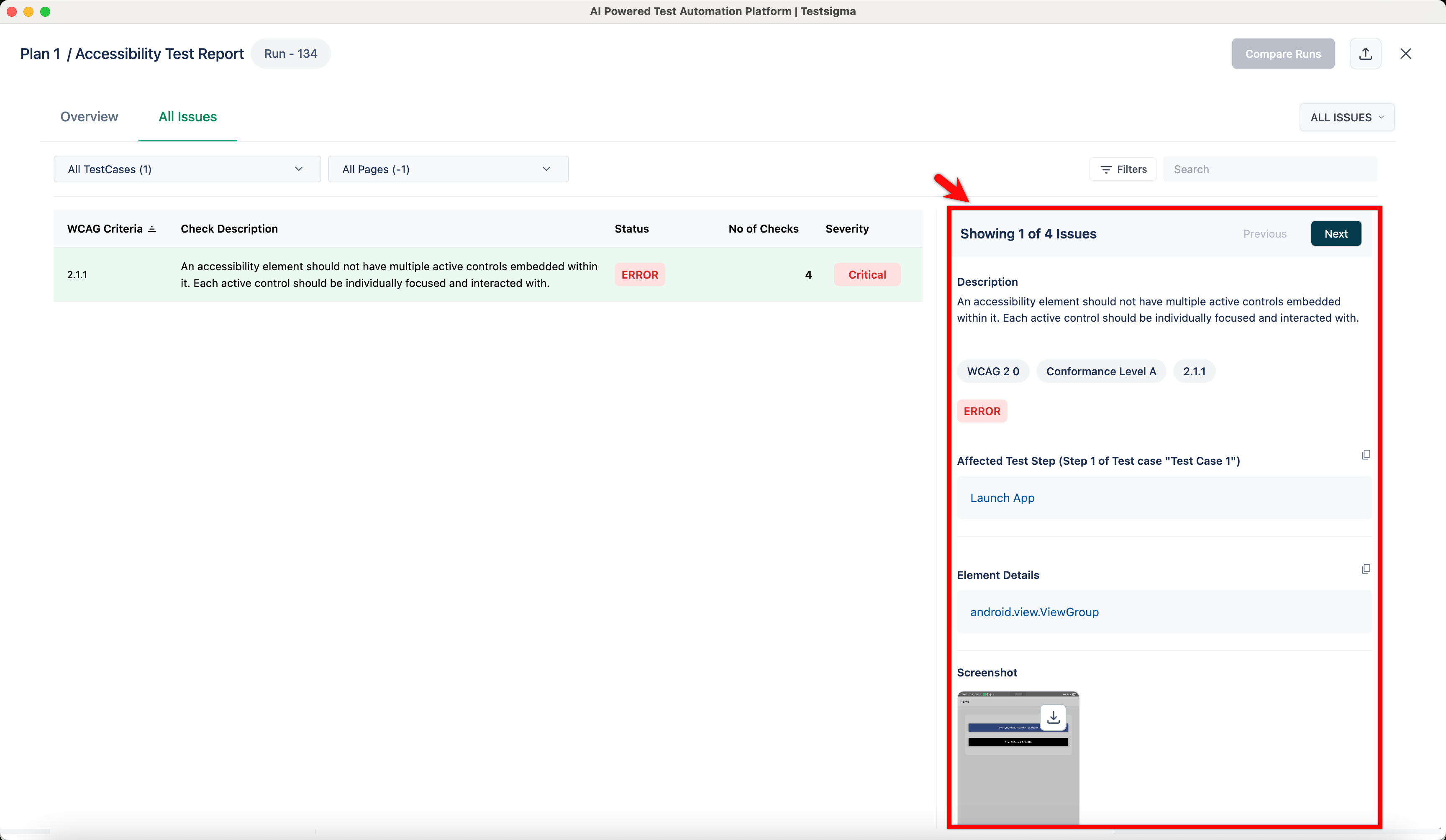
When you select a row in the Issues List, the pane on the right displays detailed information to help you fix the bug.
- Previous / Next: Select these buttons to look through all the instances of the single selected issue. If the No of Checks shows that the issue occurred multiple times, you can use these buttons to cycle through and inspect all of those instances.
- Description & Tags: Shows the full definition of the violation, along with tags for the WCAG Version and Conformance Level.
- Affected Test Step: Identifies the specific Test Case and Test Step where the failure occurred.
- Element Details: Displays the actual native code for the element causing the issue.
- Screenshot: Shows an image of the mobile screen element at the time the error was detected.
Global Header Actions
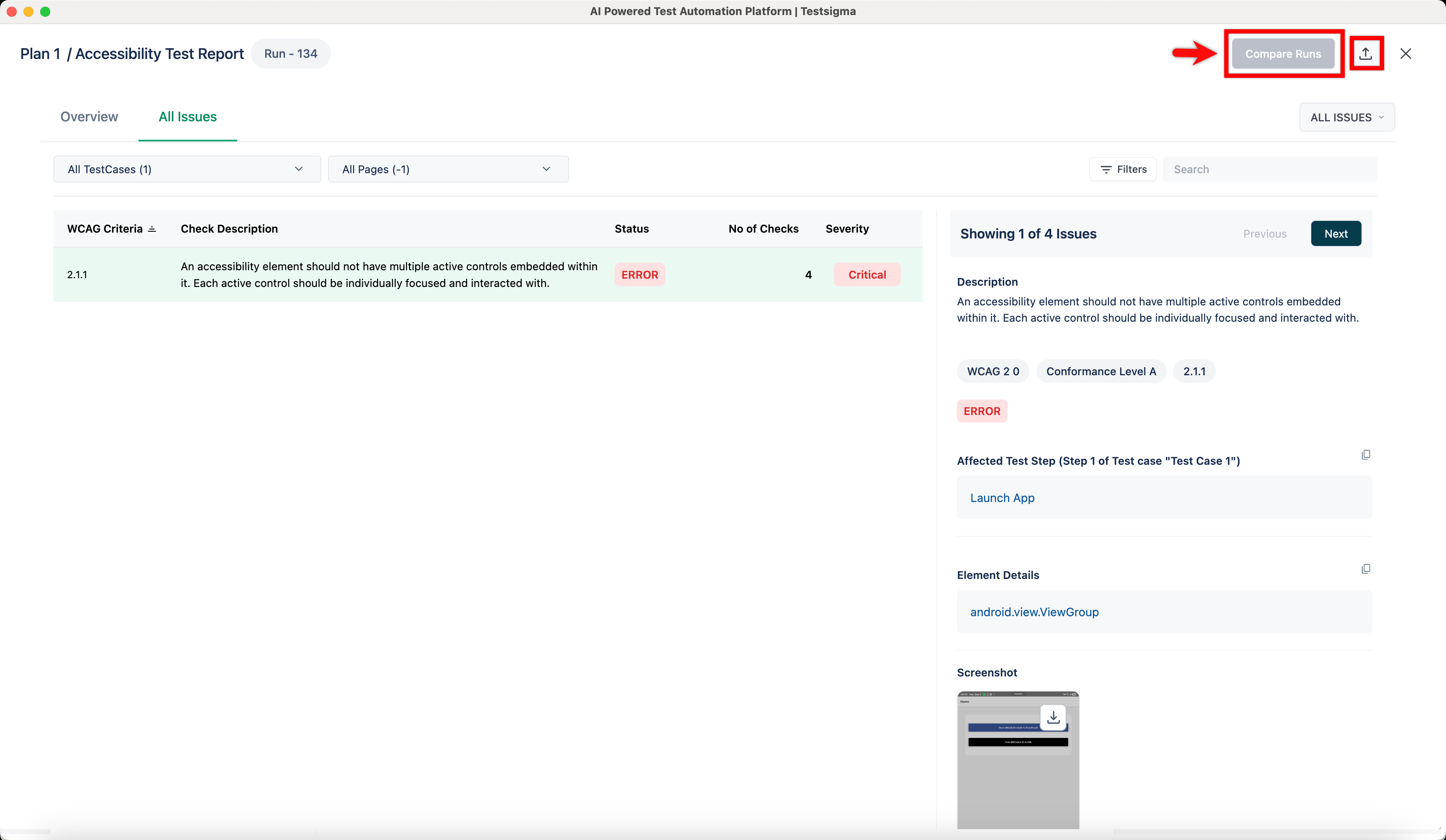
The top-right corner of the page provides global actions for the report:
- Compare Runs: Select this to compare the current report against previous test runs to track improvements.
- Export: Select the export icon to save the report data.

Want to contribute or report missing content?