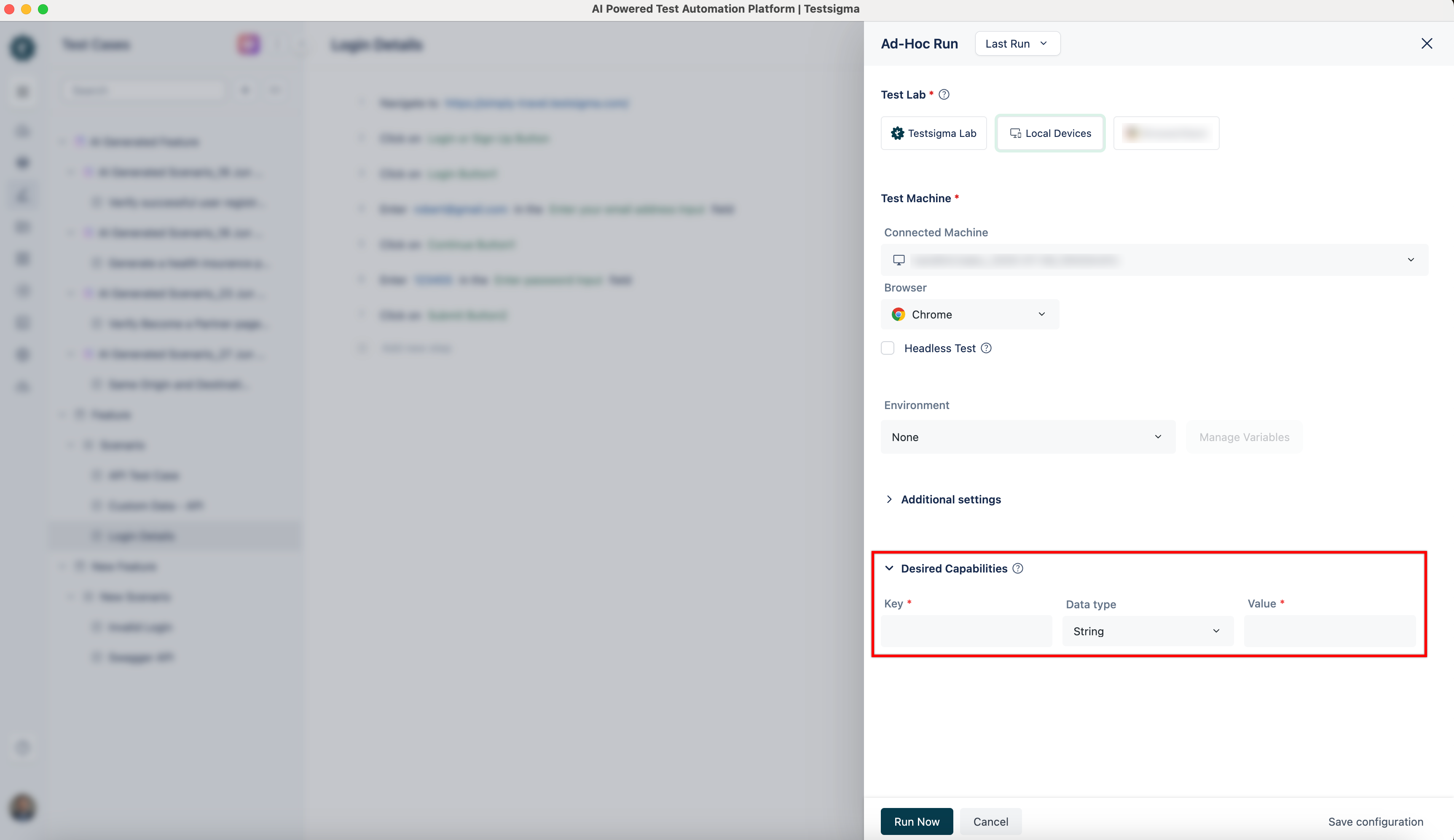
If you encounter browser-related permission issues during execution in Testsigma, you can resolve them by configuring specific desired capabilities. This article discusses configuring the desired capabilities to address such permission issues.
Steps to Resolve Permission Issues
From the left navigation bar, go to Create Tests and click Test Cases.
In the Test Case Explorer section, expand the required Feature and Scenario and select the required test case.
In the Test Case Details page, click Run.
In the Ad-Hoc Run overlay, expand the Desired Capabilities field and specify the following desired capability.
For Firefox
Use the following desired capabilities to configure site permissions for Microphone, Camera, Location, and Notifications in Firefox.
Microphone:
Name
Data Type
Value
firefoxprofile
string
{"permissions.default.microphone": 1}
Camera:
Name
Data Type
Value
firefoxprofile
string
{"permissions.default.camera": 1}
Location:
Name
Data Type
Value
firefoxprofile
string
{"permissions.default.geo": 1}
Notifications:
Name
Data Type
Value
firefoxprofile
string
{"permissions.default.desktop-notification": 1}
NOTE:
You can always change the value as needed:
0 - Ask Always
1 - Allow
2 - Block
All values are in JSON format.
To add multiple values, separate them with a comma (,).
For Chrome
Use the following desired capabilities to configure site permissions for Microphone, Camera, Location, Notifications, and Clipboard in Chrome.
 Why Install Chrome Extension?