- desktop automation
 Introduction: Desktop Automation
- Create Projects and Applications
- Selective Element Recorder
- Batch Element Recorder
- Creating Test Cases for Desktop Automation
Creating Test Cases for Desktop Automation
Create test cases for a desktop application by recording your interactions or by adding steps manually. Recording captures each interaction as a test step and creates the underlying elements as it goes. Testsigma suggests relevant actions based on the type of element used in a step.
Prerequisites
Before you begin, ensure that:
- A Desktop project and an application exist. See Create Projects and Applications.
- Testsigma Terminal is installed on your Windows system.
- The WinTest Automation folder exists in the Testsigma Agent directory.
- The Windows application you want to test is open on your device.
Record Test Steps for a Desktop Application
- From the left navigation bar, go to Create Tests > Test Cases.
- Open the test case you want to record into.
- On the test case details page, click Record in the Action Panel.
- In the Select application window, select the desktop application you want to record against.
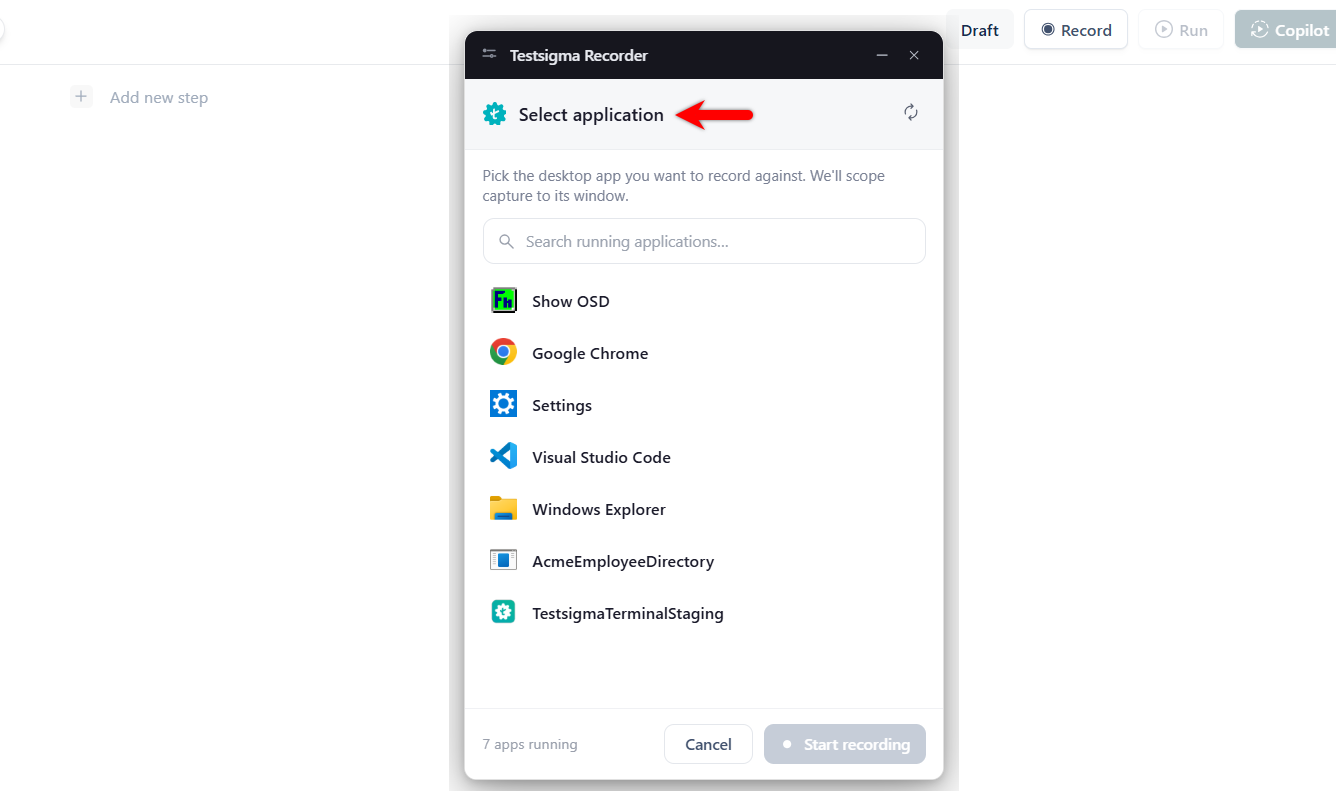
Only applications running on your device are listed. Use the search field to filter the list, or click the refresh icon to reload it after opening a new application.
- Click Start recording. The Testsigma Recorder opens, the selected application comes to the foreground, and Open application is added as the first test step with the application path.
- Perform actions in the application. Each interaction is captured as a test step, and the elements involved are created automatically.
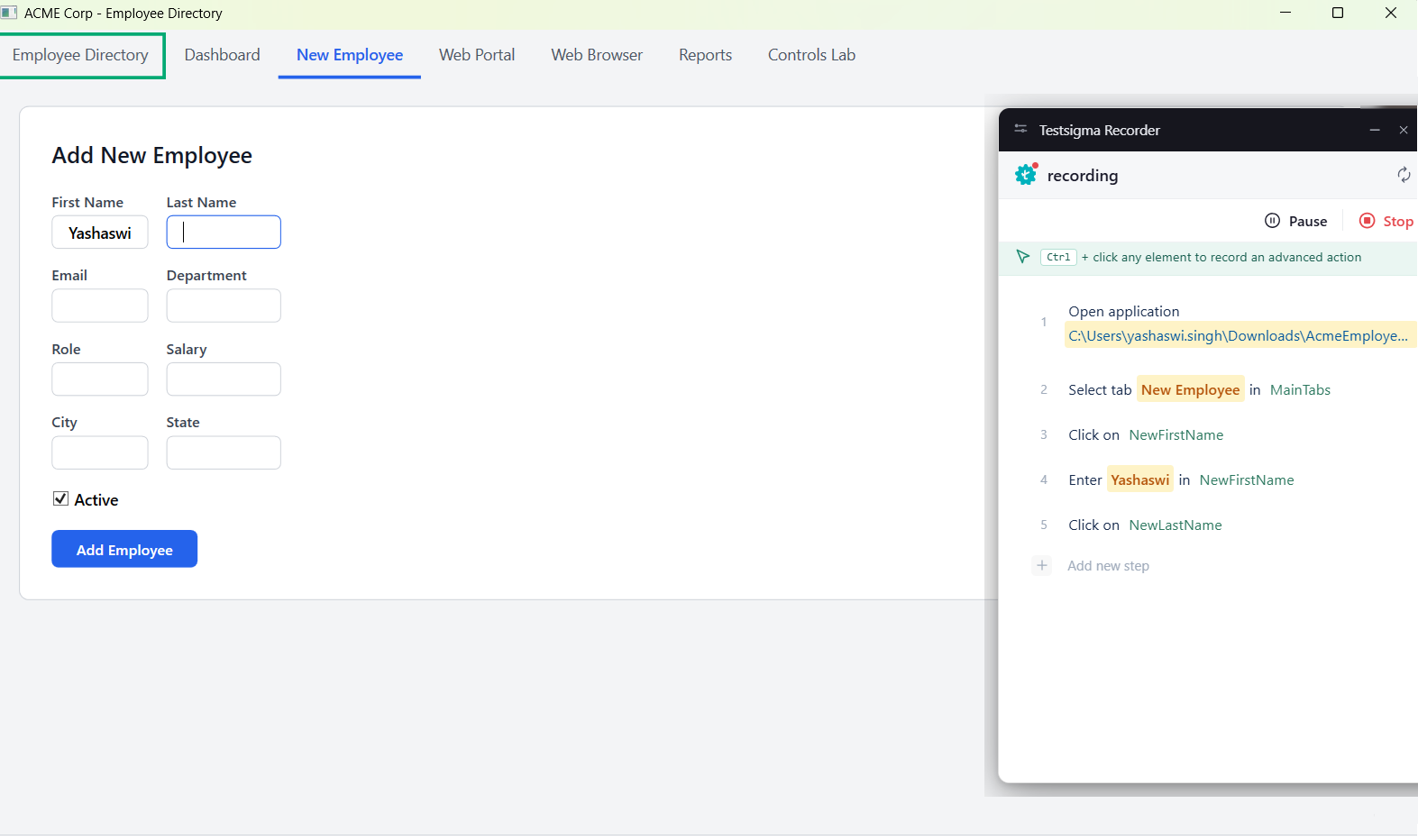
To record an advanced action on an element, press Ctrl and click the element.
- Click Pause to hold recording without ending the session, or click Stop to end it.
Add Test Steps Manually
To add a step manually, click Actions from the drop-down on the test case details page, select the required action from the Actions overlay, and select a captured desktop element for the step. Testsigma suggests inbuilt actions based on the element type, and you can also use other step types to build the test case.
Run a Desktop Test Case with Copilot
- On the test case details page, click Copilot in the Action Panel.
- In the Copilot overlay, set the Set Initial Debug Point and Execute from Step fields, and configure the additional settings if needed.
- Click Launch and wait for Copilot to start a session. Execution begins on the Windows test machine, and the Copilot panel opens alongside the step results.
- When execution pauses at a debug point or on a failure, inspect the application and use the execution controls to continue.
The execution status appears at the bottom of the Copilot panel, for example Execution paused.
- Click Rec to record additional steps by performing actions in the application.
-
Click Resume to continue the run.
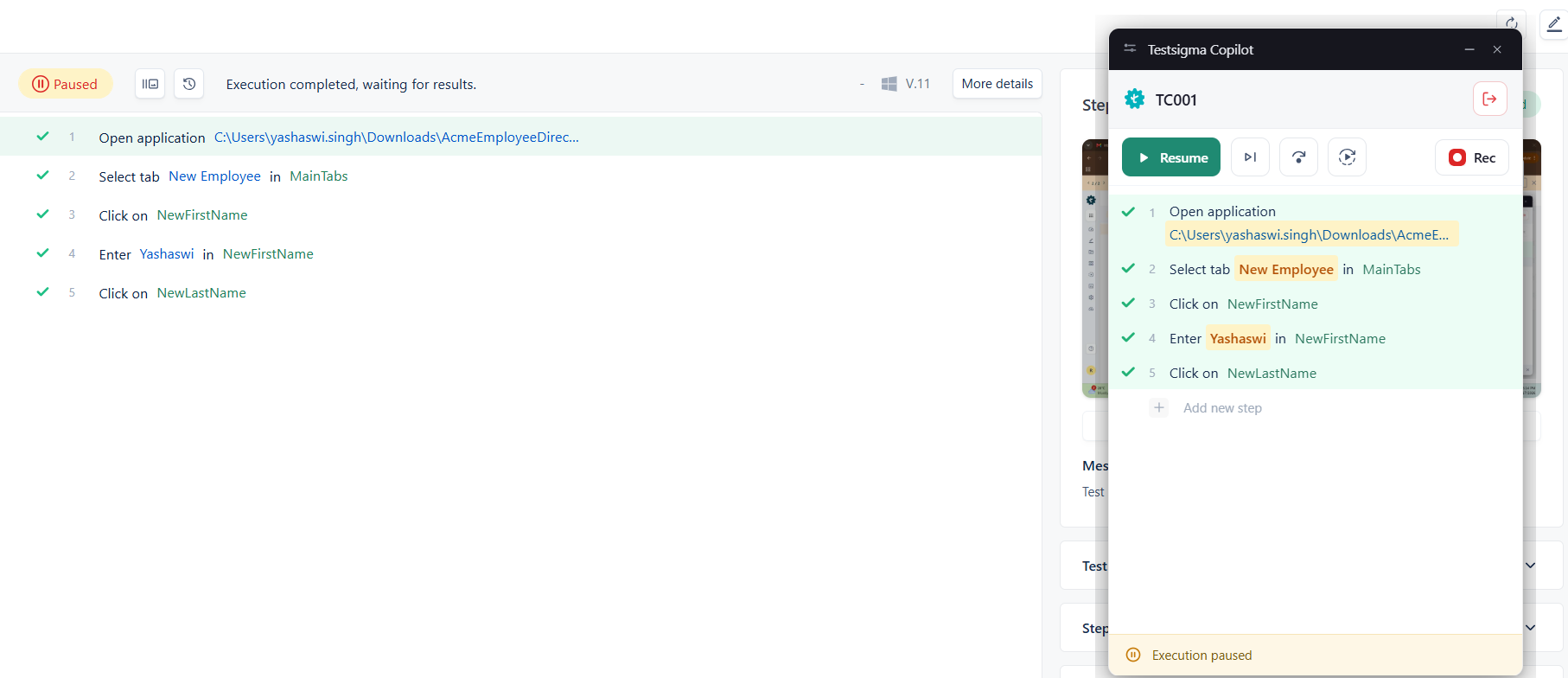
Execution Controls
Resume continues the test from the next execution step without restarting from the beginning. Rec records additional steps into the test case during the session.
Copilot provides a further set of execution controls, including Pause, Step Over, Skip Over, and Restart Execution.

Want to contribute or report missing content?