- Elements (Objects)
- Web Applications
 Record Single Element
- Record Multiple Elements
- Create Elements
- Supported Locator Types
- Formulating Elements
- Shadow DOM Elements
- Verifying elements in Chrome DevTools
- Handling iframe Elements?
- Create Image Based Elements
- Dynamic Locators using Parameter
- Dynamic Locators using Runtime
- Using Environment Test Data for Dynamic Locators
- Locating Dynamic Elements in Date Widget
- Freeze & Inspect Dynamic Elements (WebPage)
- Locating Dynamic Elements in Tables
- Import/Export Elements
- Locator Precedence (Web Apps)
- Verify Elements from Test Recorder
Dynamic Locators using Runtime
Dynamic locators are essential in handling web elements that may undergo attribute changes during test execution. Traditional locators like XPath or CSS selectors may lose reliability when these dynamic changes occur. Testsigma offers a solution that enables you to create dynamic locators at runtime, guaranteeing the stability and dependability of your automated tests. This documentation guides you through utilising dynamic locators in Testsigma by storing elements into Runtime Variables.
Prerequisites
Before you begin, ensure that you have referred to:
Store Element into Runtime Variable
We will manually create an element and store it in a Runtime Variable to create dynamic locators. This is important because recording dynamic elements may not be reliable.
-
Create a new step in your Test Case using NLP. Use placeholders for elements and test data to create an element and store it as a Runtime Variable.
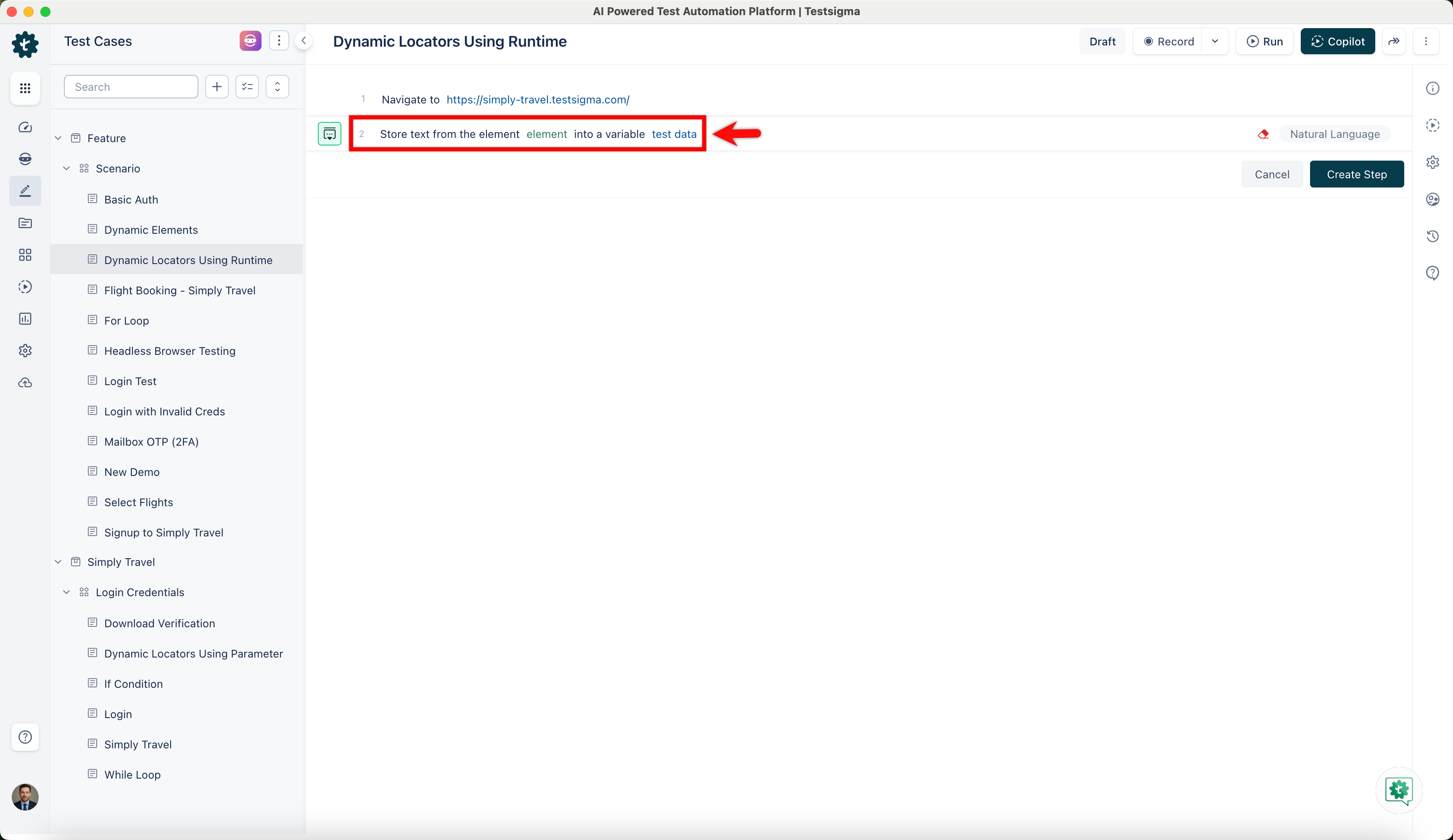 Example:
Use NLP "Store text from the element into a variable test data". The NLP helps you store text from an element identified into a variable.
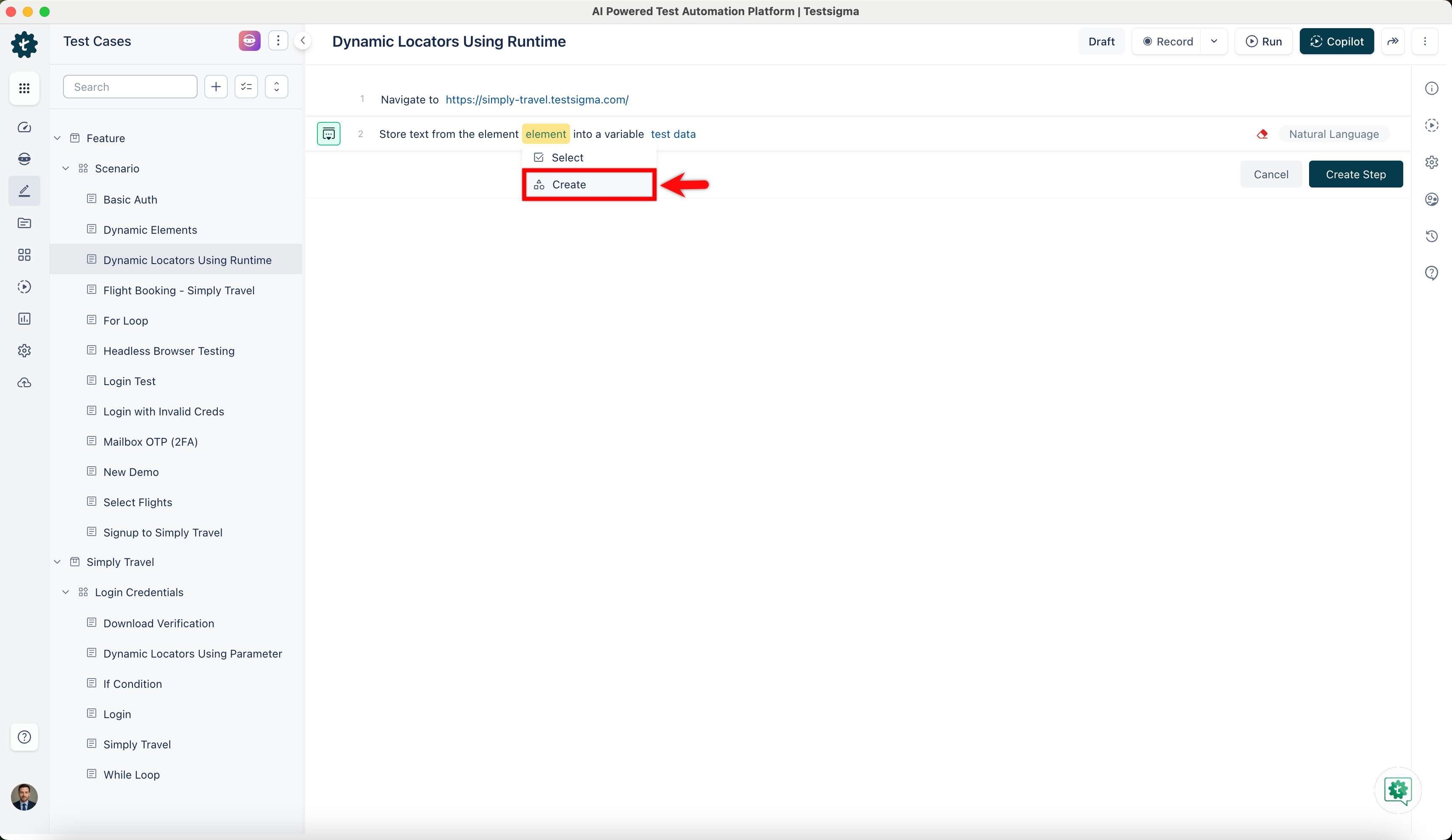
- Click on the element, then select Create from the dropdown list. The Create Element overlay screen will appear on the right side of the page.
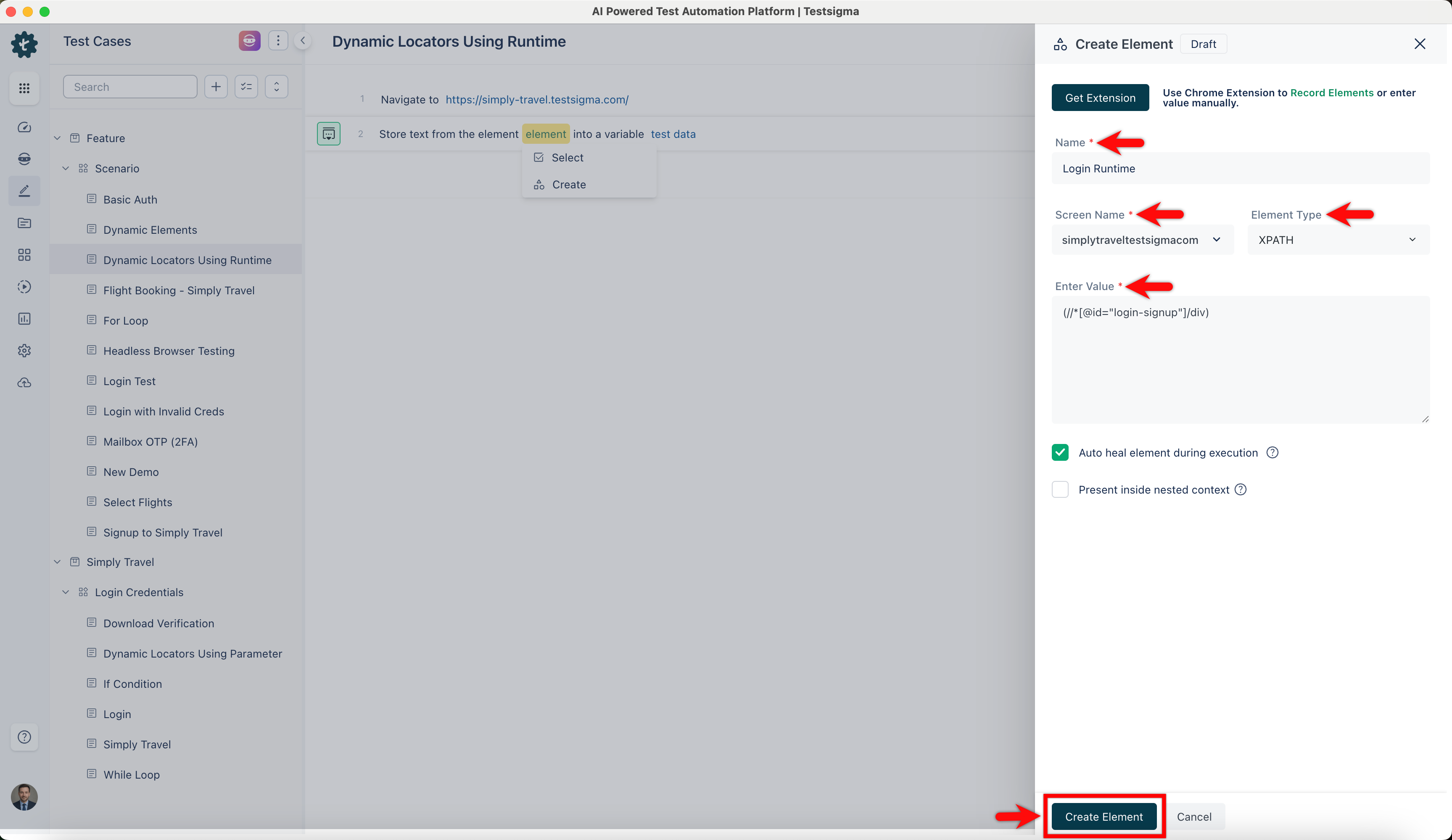
- Manually enter the Element Name, Screen Name, Element Type, and Element Value. Finally, click Create Element to complete the element creation.
-
Substitute specific text for the test data placeholder and click Create Step to save the test step, storing the element within the text as a Runtime Variable.
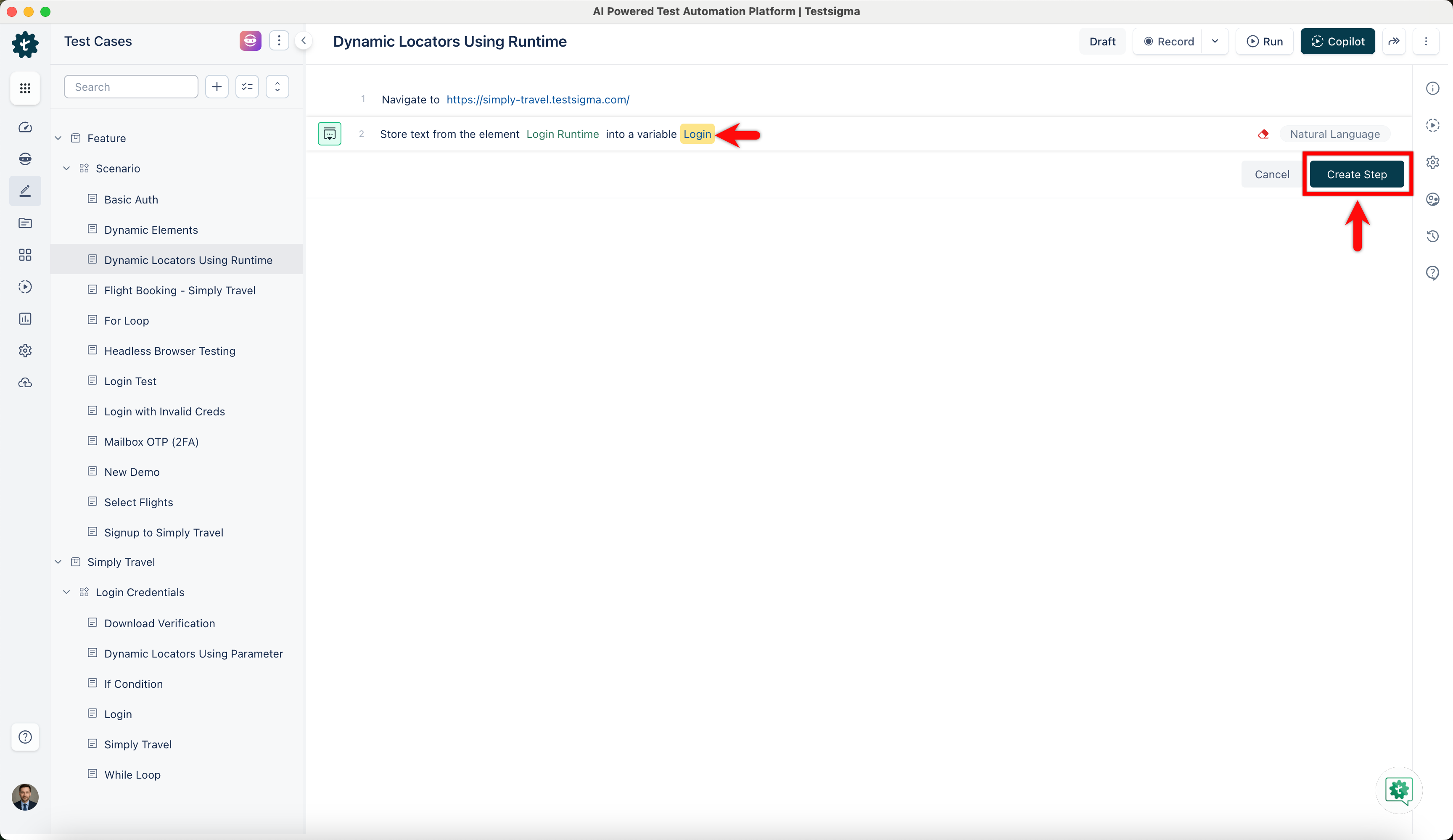 Example:
- We are using the Simply Travel Flight website as an example. If we want to locate the Login or Sign Up button and its XPath is (//*[@id="login-signup"]/div), we can store its value in a runtime variable ($|login|).
- When we run the test, we can use this variable to locate the button. If the value changes later, we can update it without affecting the test. This method works even if the button is used in different test steps and its value changes.
Creating Dynamic Elements using Runtime Test Data
-
Use NLP to create a new step in the Test Case and include a placeholder for the element.
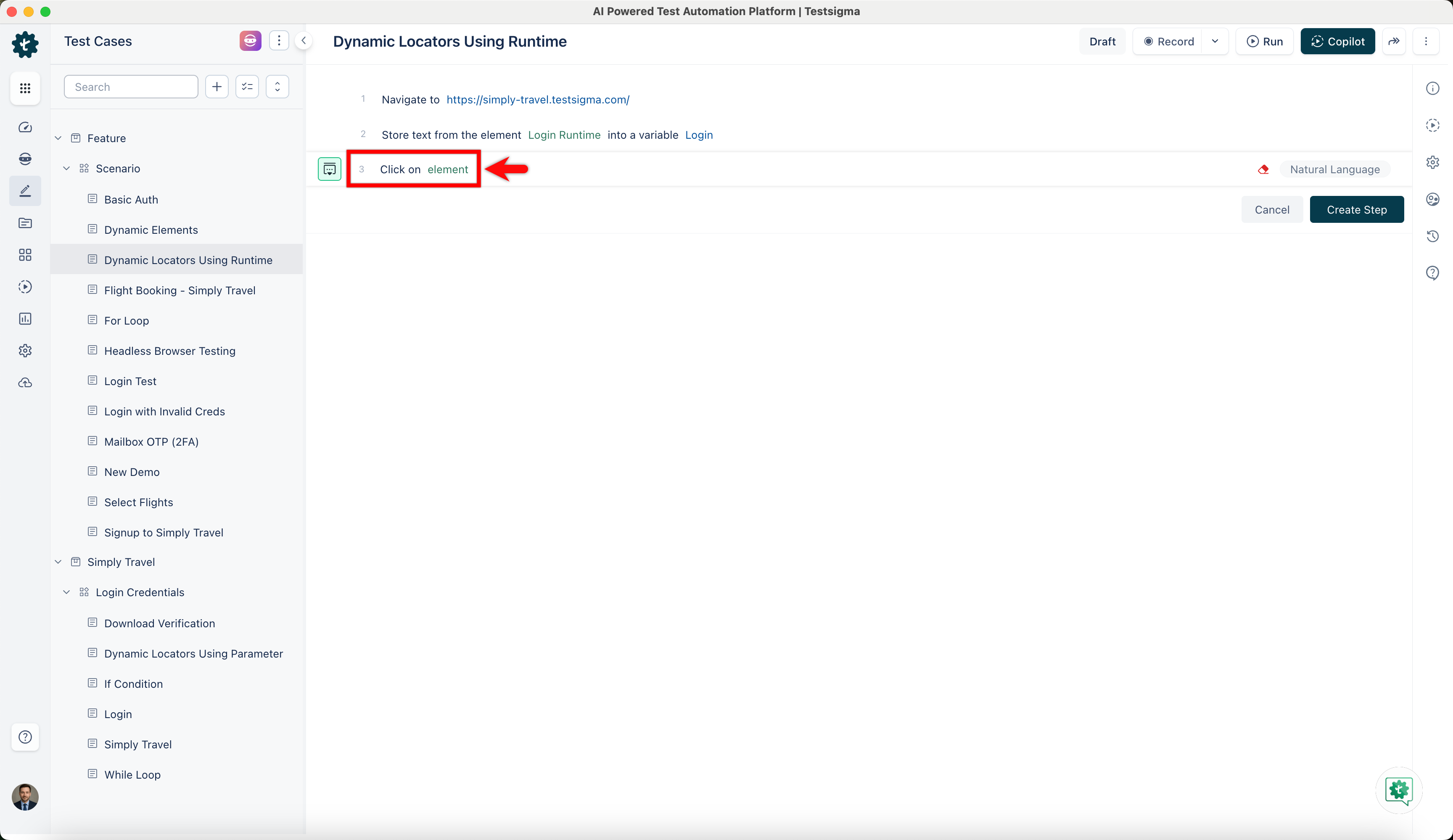 Example:
Utilise NLP "Click on Element" to click an element with a given UI Identifier.
- Click on the element, then select Create from the dropdown list. The Create Element overlay screen will appear on the right side of the page.
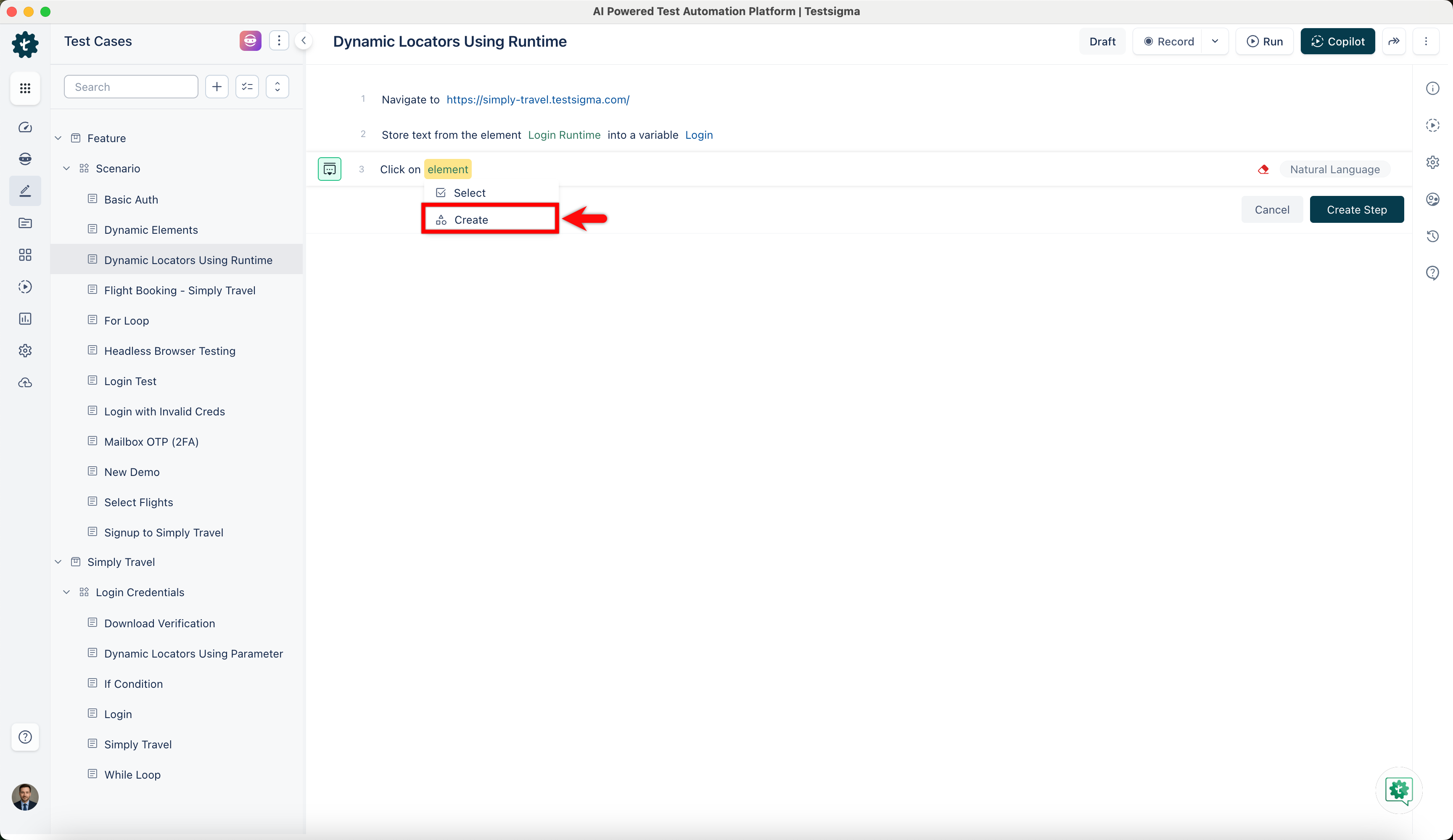
- Manually enter the Element Name, Screen Name, and Element Type.
-
Provide Dynamic Element Value //*[@id="$|login|"]/div, where 'login' is the stored Runtime Variable. Click Create Element to complete element creation.
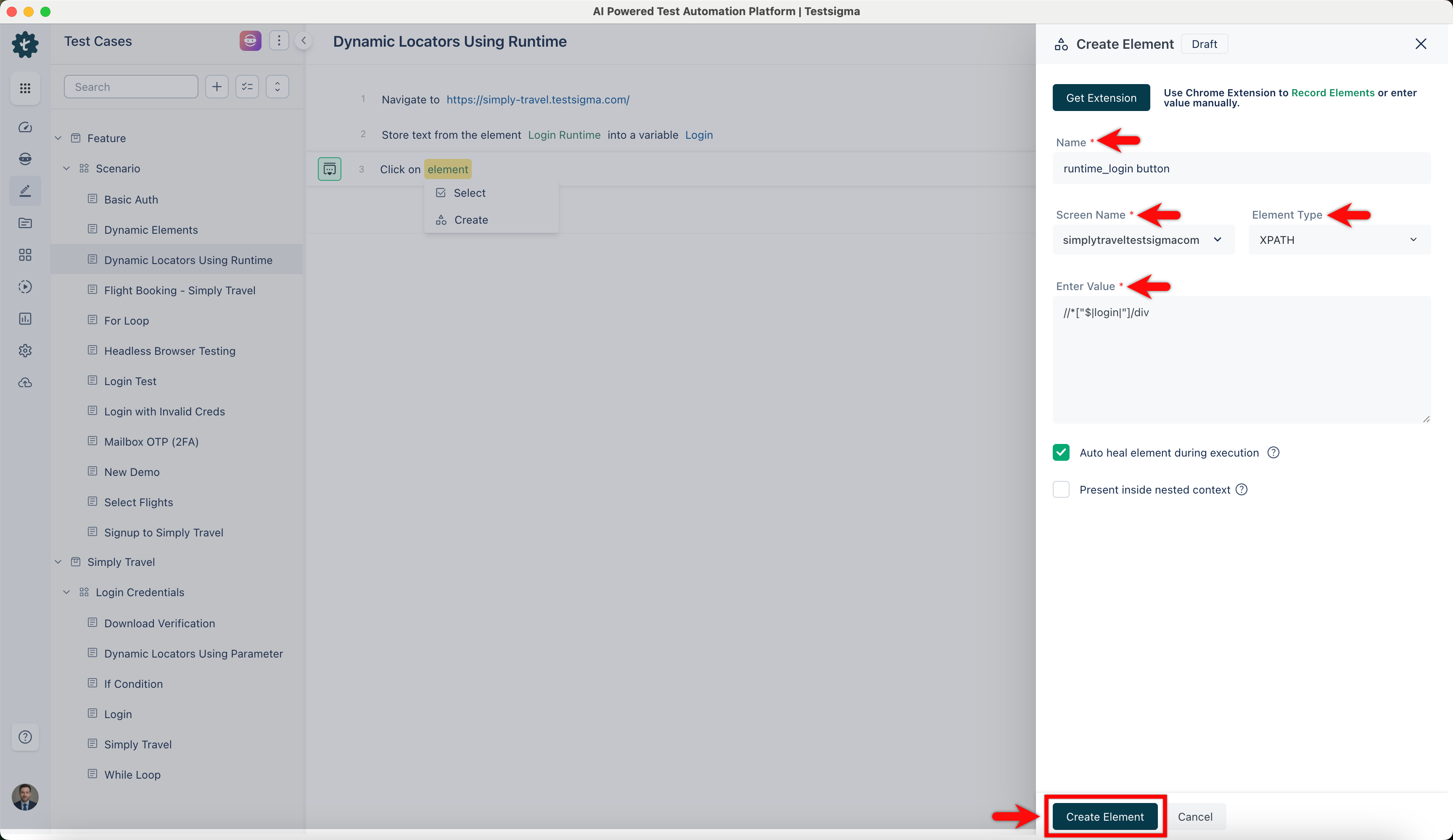 Example:
During testing, accurately locate the actual 'Login or Sign Up' element on the Simply Travel Flight website with the dynamic XPath //*[@id="$|login|"]/div using the Runtime Variable 'login'.
Implementing Dynamic Locators using Runtime
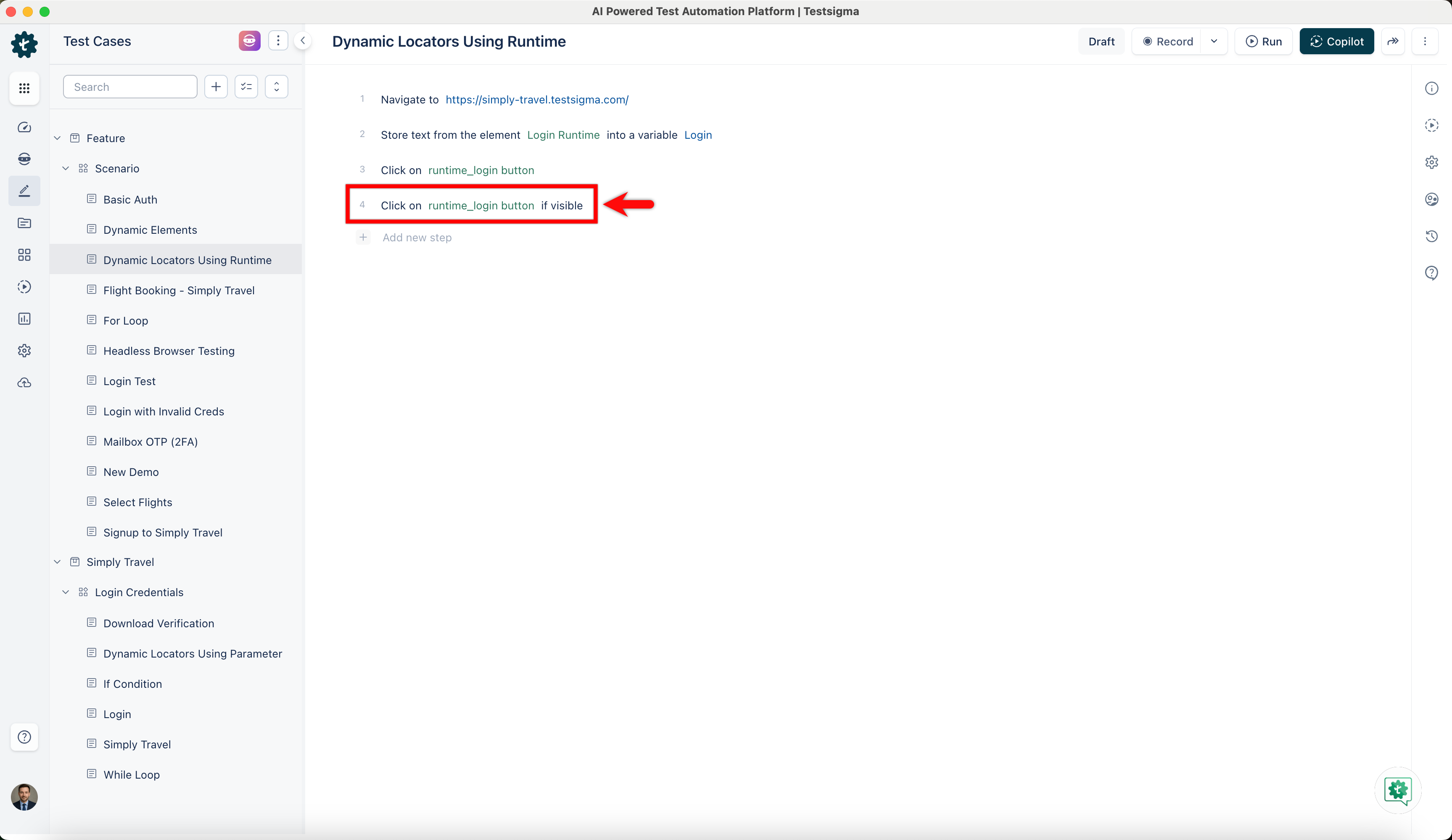
With the Runtime Variable in place, follow these steps to implement dynamic locators in your test cases:
- Add a new step in the test case where interaction with the dynamic element is required.
- Manually select the dynamic element and proceed with your test steps. Testsigma will dynamically locate the element during test execution.

Want to contribute or report missing content?