- configuration
 API Keys
- User Settings
- Security
- Configure Organization Settings
- Two-Factor Authentication (2FA)
- Configure Password Policy
- Setting Up Google SSO Login
- Setting Up Okta SSO Login (SAML)
- Setting Up Azure SSO Login (SAML)
- iOS Settings
- Create WDA File
- SMTP Configuration
- Manage Access
SMTP Configuration in Testsigma
Simple Mail Transfer Protocol (SMTP) is a standard protocol for sending mail from a configured email address. This article discusses how to configure SMTP in Testsigma Application.
Prerequisites
Before you begin, ensure that you have:
- SMTP Server Address
- Port Number
- Valid Credentials
- Additional Parameters
Steps to Configure SMTP in Testsigma
- Navigate to Settings > SMTP Configuration.
- Turn on the SMTP Configuration toggle.
You will stop getting emails if you turn off the SMTP Configuration toggle.
- Select @own, and enter all the details.
- Click on Save.
If you select Testsigma, the mails will go with default email. For @own configuration, you need to enter the following details:
host: smtp.gmail.com
port: 587
username: <email>
password: <Generated from your email client>
keys:
{
mail.smtp.auth: true,
mail.smtp.starttls.enable: true
}
Steps to generate Password from email
- Navigate to Manage Accounts > Security > App passwords.
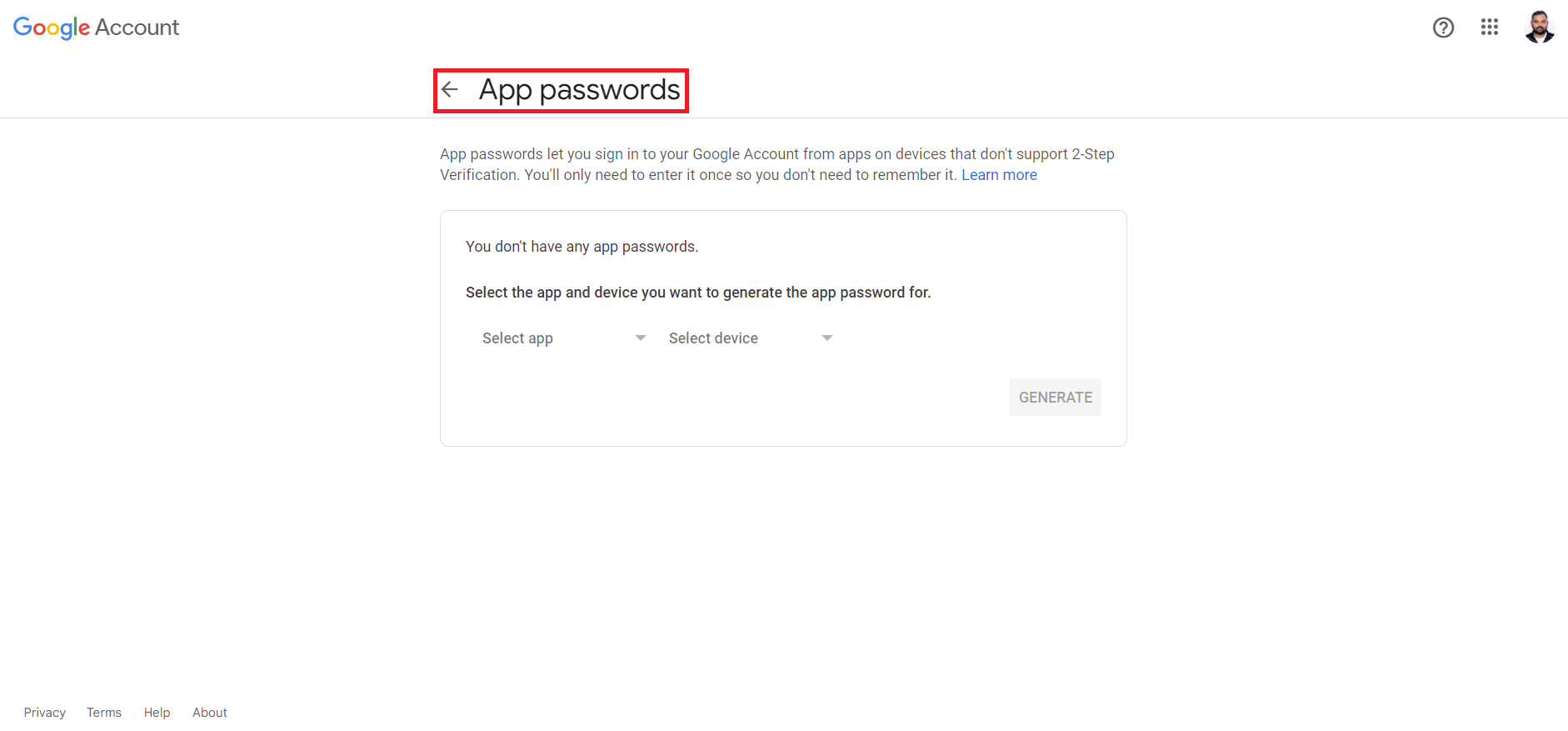
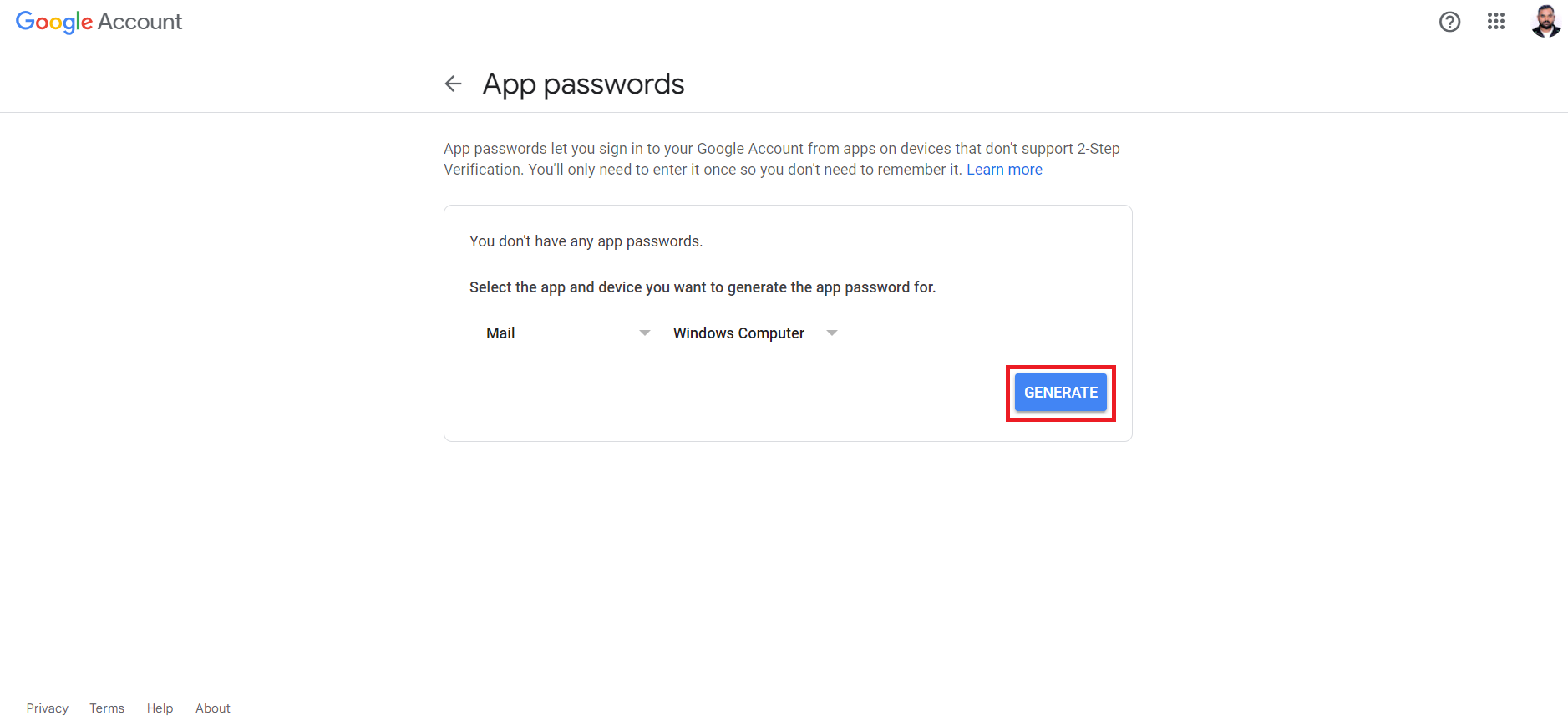
- Select app, device, and click on Generate.
- The password will be generated and displayed as below:
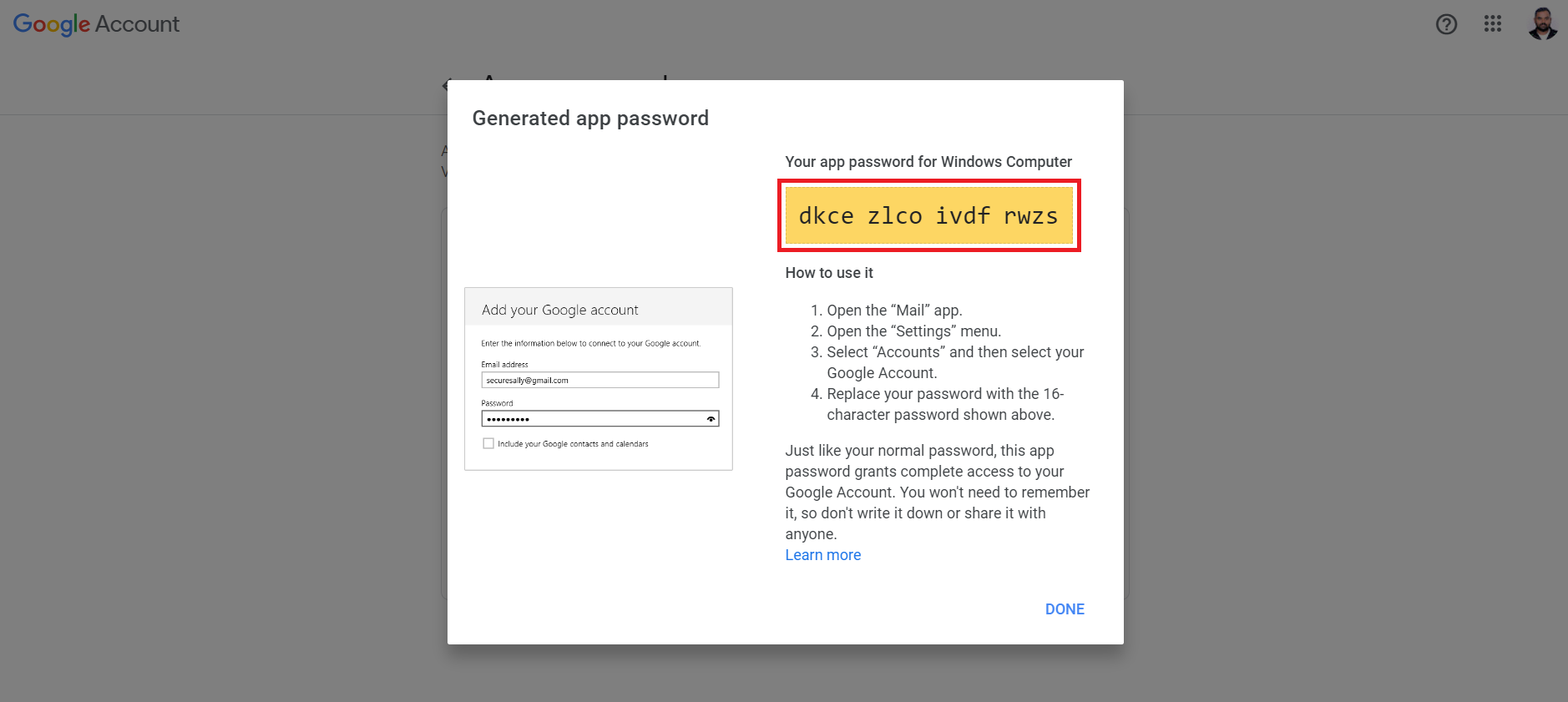
These steps are specific for generating an app password in a Google account. The process may be different for other email clients/services.

Want to contribute or report missing content?