- Elements (Objects)
- Web Applications
 Record Single Element
- Record Multiple Elements
- Create Elements
- Supported Locator Types
- Formulating Elements
- Shadow DOM Elements
- Verifying elements in Chrome DevTools
- Handling iframe Elements?
- Create Image Based Elements
- Dynamic Locators using Parameter
- Dynamic Locators using Runtime
- Using Environment Test Data for Dynamic Locators
- Locating Dynamic Elements in Date Widget
- Freeze & Inspect Dynamic Elements (WebPage)
- Locating Dynamic Elements in Tables
- Import/Export Elements
- Locator Precedence (Web Apps)
- Verify Elements from Test Recorder
Verifying elements in Chrome DevTools
Verifying elements in Chrome DevTools during testing ensures that the right elements are being targeted to avoid test case failures. This article explains how to verify elements in Chrome DevTools.
Steps to verify elements in Chrome DevTools
- Open the Chrome DevTools panel with Ctrl+Shift+C and select the Elements tab.
- Use the mouse pointer to hover over the element you want to verify. As the pointer move, the corresponding HTML code will be highlighted in the Elements panel.
- Once you have found the element you want to verify, you can inspect its properties in the Elements panel.
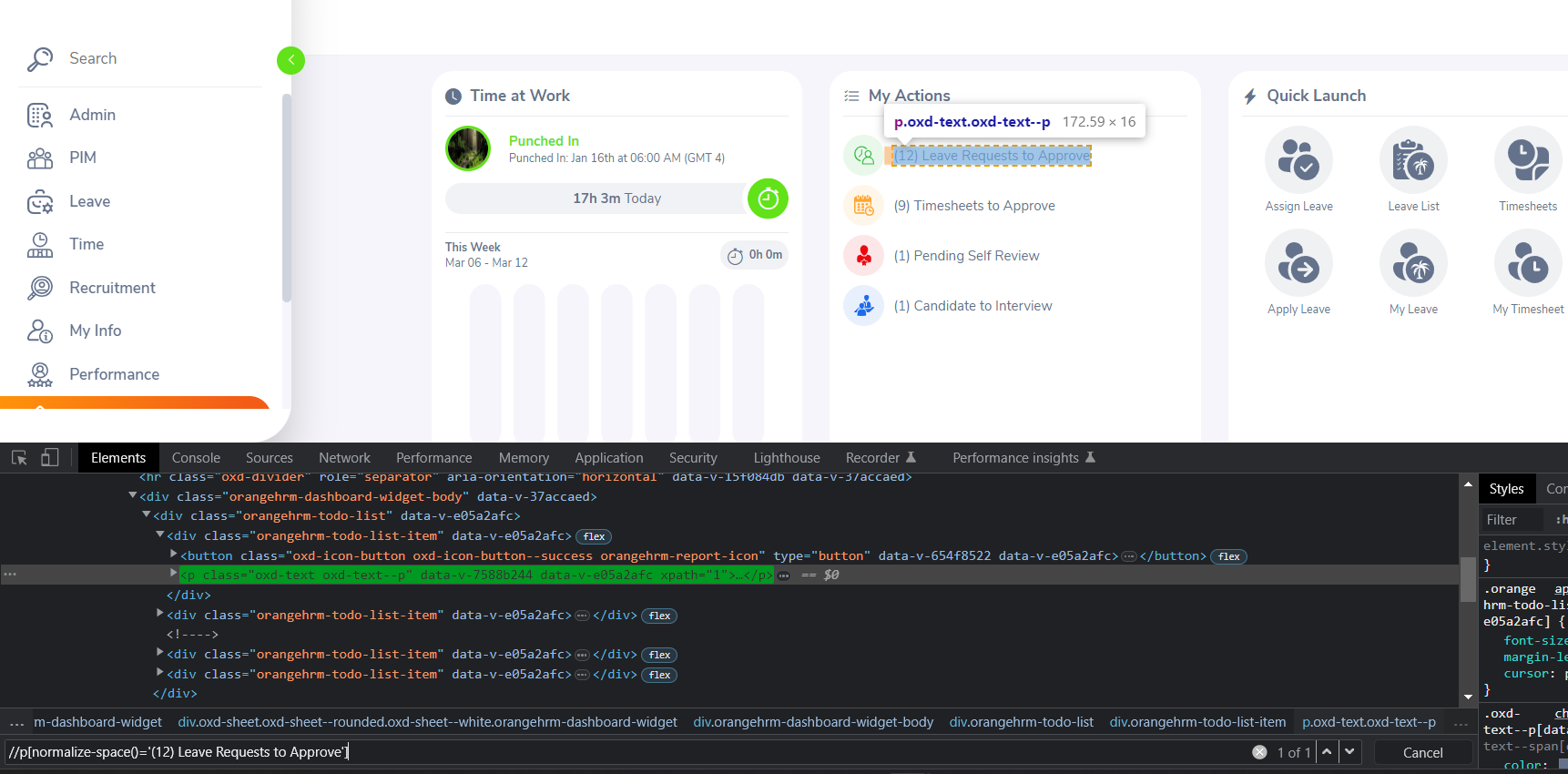
- Click Ctrl+F and paste the xpath in the DevTools to verify if you have targeted the right element.
Example
Here, let's say we want to target Leave Requests to Approve element, Xpath for the same is linked to four other elements. If we use this Xpath, the test case will fail intermittently.
So, we need to target a unique Xpath as shown in the image below.

Want to contribute or report missing content?