- continuous integration
 Test Plan Details
 - REST API (Generic)
- Jenkins
- Azure DevOps
- AWS DevOps
- AWS Lambda
- Circle CI
- Bamboo CI
- Travis CI
- CodeShip CI
- Shell Script(Generic)
- Bitrise CI
- GitHub CI/CD
- Bitbucket CI/CD
- GitLab CI/CD
- Copado CI/CD
- Gearset CI/CD
- Codemagic CI/CD
- Google Cloud Build CI/CD
Integrate Testsigma with CodeShip CI
Testsigma offers powerful webhooks for triggering Testsigma executions remotely from any third-party tool that provides a Command Line Interface (CLI). This article discusses how we can integrate Testsigma in Codeship for automatically triggering test executions with successful builds on CodeShip. Then, we will wait for the tests to pass and proceed with deployment.
Prerequisites
- A CodeShip Account configured with your organization details and the Project that needs to be triggered. If you are new to CodeShip, please follow the following link to create an Account (using your email or OAuth), add your organization and create a Project. Refer to the documentation on signing up for a new Codeship Account.
Connect your Source Code Management (SCM) tool such as Github, BitBucket, or GitLab to your account.
In this Guide, we will be using GitHub as our SCM. Therefore, we need to install CodeShip App from GitHub Marketplace in our GitHub Account so that the repositories in the Github account are accessible. Refer to the documentation on configuring Github as your SCM in CodeShip.
- For help on configuring other SCMs, please check CodeShip Documentation or contact CodeShip Support.
- You can view the Connected Services at Authentications page - Connected Services
Integrating Testsigma to CodeShip Test Pipelines
- Click on the Projects link on the CodeShip home page and then select your required Project. The one we are selecting is testsigma-demo in this case.
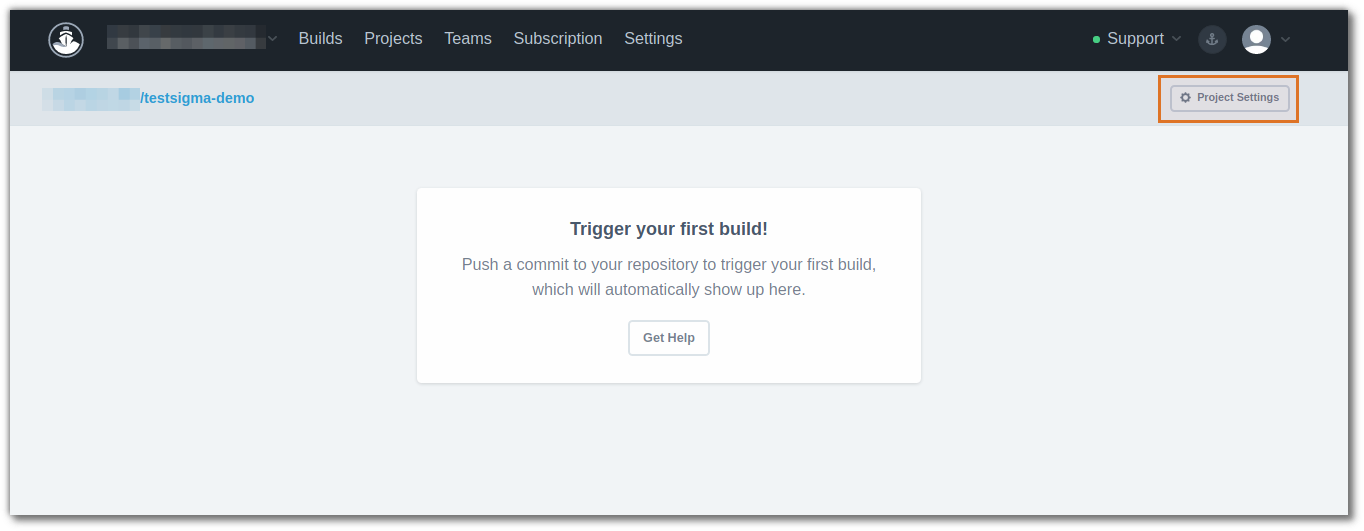
- From the Dashboard, click on Project Settings.
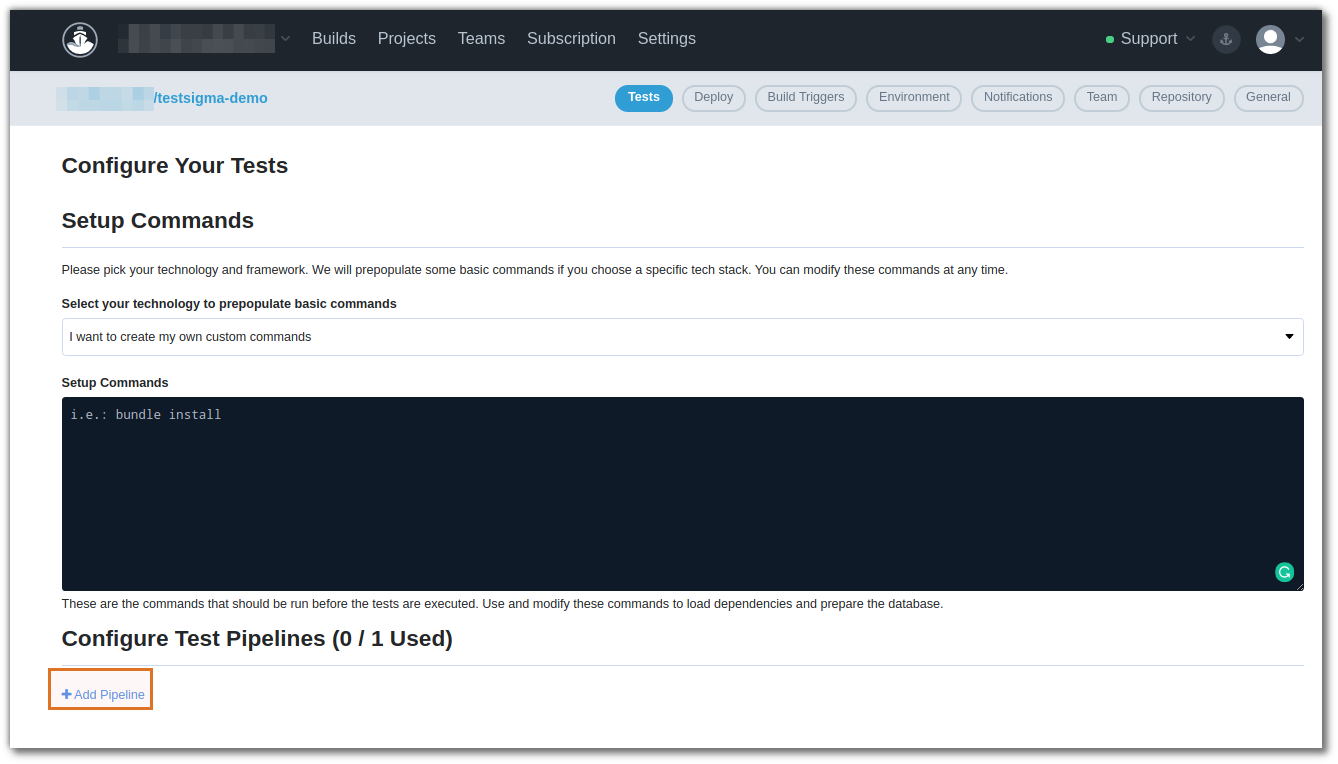
- On Configure your Tests page, select the option I want to create my own custom commands in the Select your technology selector box.
-
In Setup Commands, enter the below command to install jq package:
'sudo apt-get install jq'
'Info: jq is json query parser library for bash'
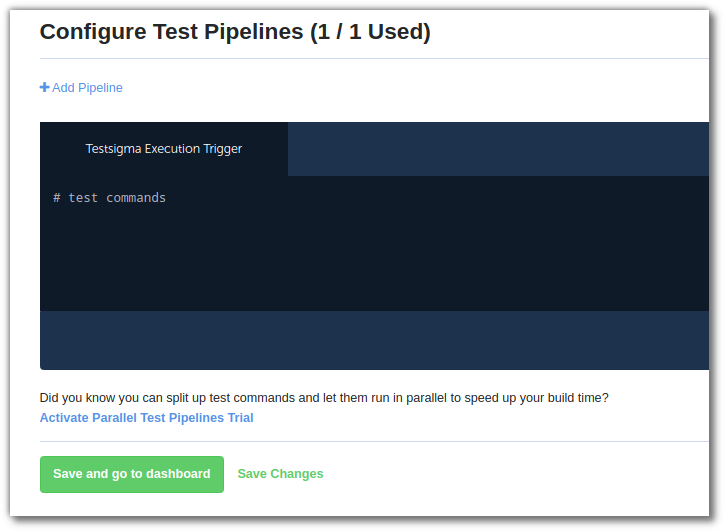
- Click on Add Pipeline and enter a name for the pipeline. We will be entering Testsigma Execution Trigger.
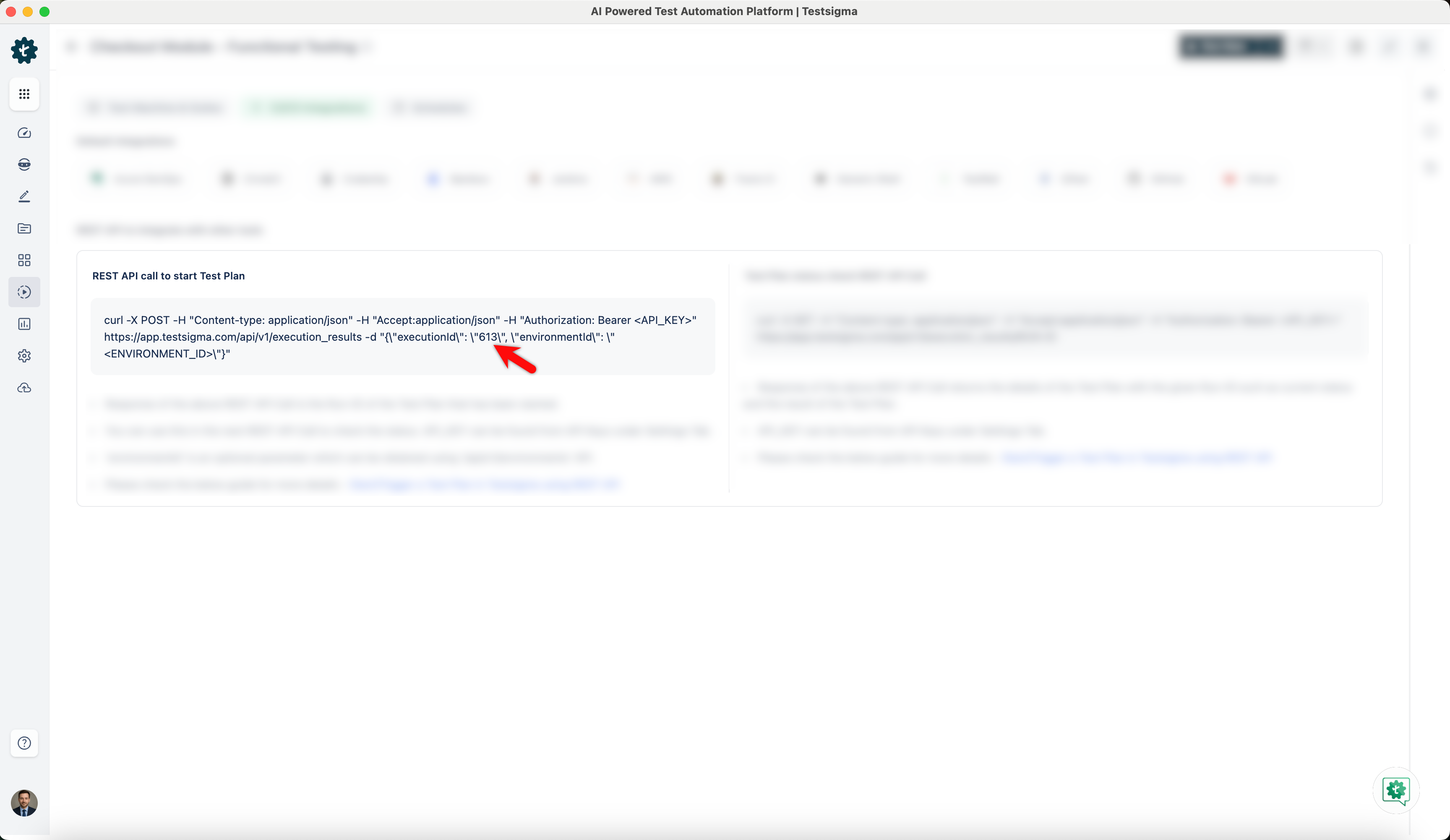
- Go to the Testsigma Executions page to get the execution ID. Refer to the documentation on getting the execution ID and documentation on generating API keys as shown below:
- Replace the <execution-ID>, <Username> and <Password> in the following script:
Perl
#!/bin/bash

echo "Triggering Execution!"

# Triggering an execution using the <Execution-ID> from Testsigma Execution details page. Use your account login details as <Username> and <Password>
currentrunid=$(curl -sS -X POST -H 'Content-type: application/json' -u <Username:<Password> https://app.testsigma.com/rest/execution/<Execution-ID>/run)

echo "Started Execution. Waiting for tests to complete..."

currentstatus=1

#Use the Execution Status Check API and loop until the value of 'status' in the API Response equals to 0.
while [ $currentstatus -ne 0 ]; do currentstatus=$(curl -sS -X GET -H 'Content-type: application/json' -u <Username:<Password> https://app.testsigma.com/rest/execution/<Execution-ID>/run/$currentrunid/status | jq '.status'); sleep 5; done

echo "Test Execution Completed. Checking results..."

#Get the value of 'result' from the API Response for Execution Status Check API
currentresult=$(curl -sS -X GET -H 'Content-type: application/json' -u <Username:<Password> https://app.testsigma.com/rest/execution/<Execution-ID>/run/$currentrunid/status | jq '.result')

echo $currentresult

#Check the result of the execution using Execution Status Check API - If the value of 'result' is 0, the test passed. Else, the test failed.
if [ $currentresult -ne 0 ]; then echo "Test Failed. Please check Testsigma to know the reason for failure."; else echo "Test Passed! You may deploy now!"; fi

#Return the result as exit code - Non-zero value for execution result depicts Test failure and also triggers this script failure.
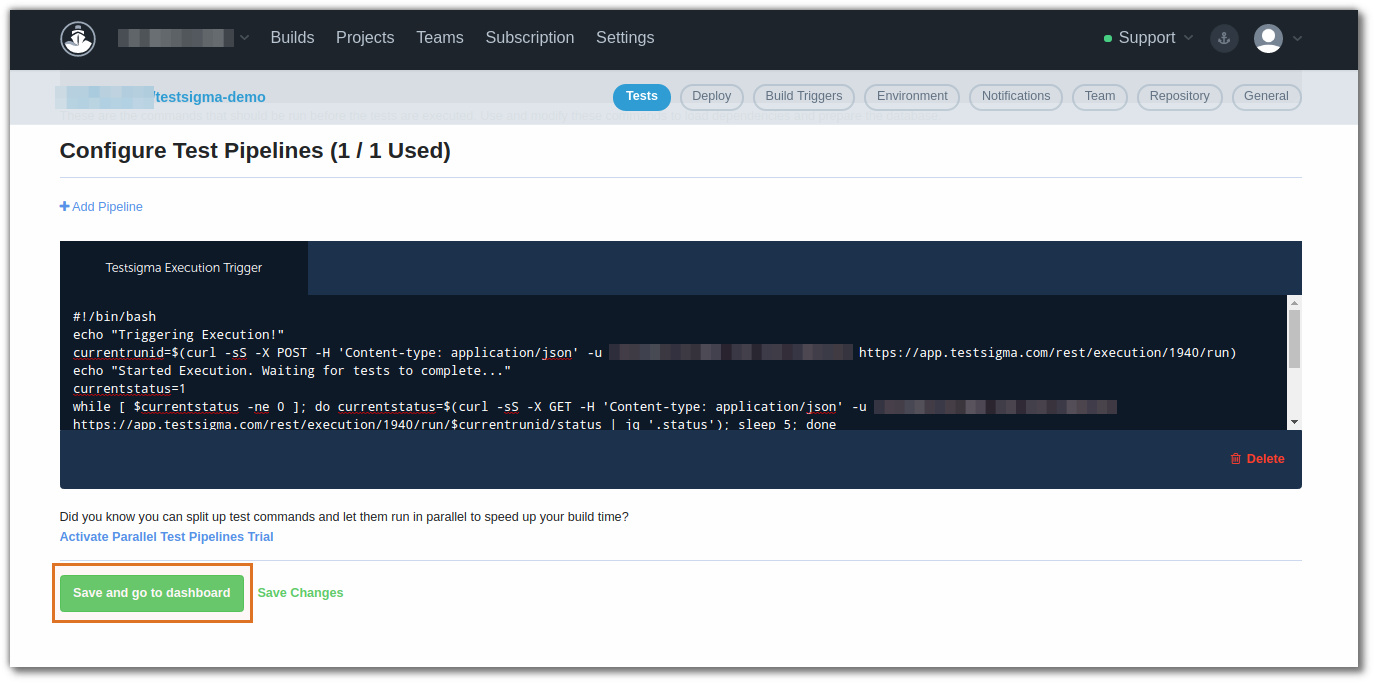
$(exit $currentresult)- Paste the script in the new test commands box as shown below and click on the Save and go to Dashboard button.
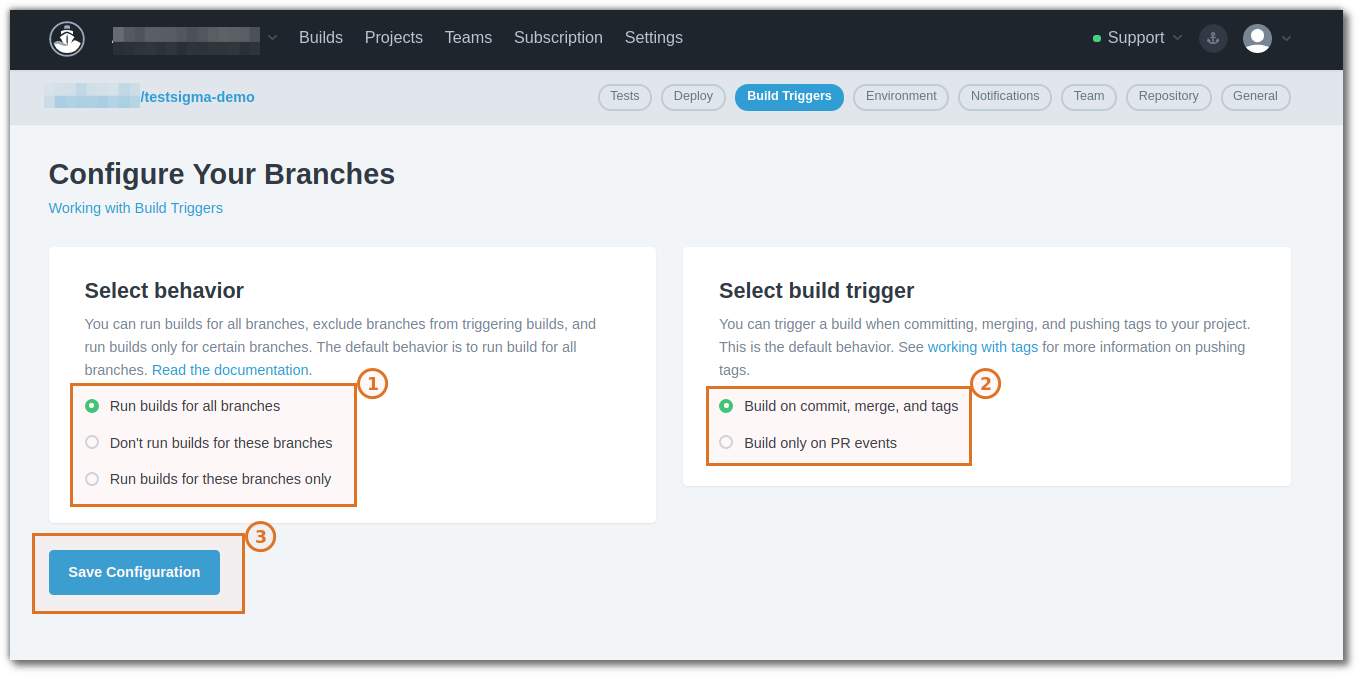
- Now go to the Project Settings > Build Trigger to add a build Trigger.
- Optional - You may also go to Project Settings > Deploy to add details of your deployment platform.
That's all we need to do to trigger the Testsigma Executions in the CodeShip Pipeline. With the above settings, the build will be triggered whenever there is a change in the repository and as soon as the build is triggered, the tests will begin in Testsigma. The script will wait until the test completes and checks that the result of the tests is passed.

Want to contribute or report missing content?