- Results & Reports
 Test Plan Run Results
- Filters on Run Results
- Custom PDF Report Generation
- Custom Allure Reports Generation
- Custom JUnit Report Generation
- Dashboard
Exporting MS Excel Sheet Reports
Effortlessly generate detailed Excel reports for your test runs in Testsigma. This documentation guides you step-by-step on exporting your test plan reports in the widely-used xlsx format.
Prerequisites
Before you begin, ensure that you have referred to:
- Documentation on creaing test plans.
- Documentation on creaing test runs and having access to export test reports.
Please contact us at support@testsigma.com or use the Instant Chat option to enable this exclusive feature provided by Testsigma Enterprise.
Exporting Test Reports in Excel Format
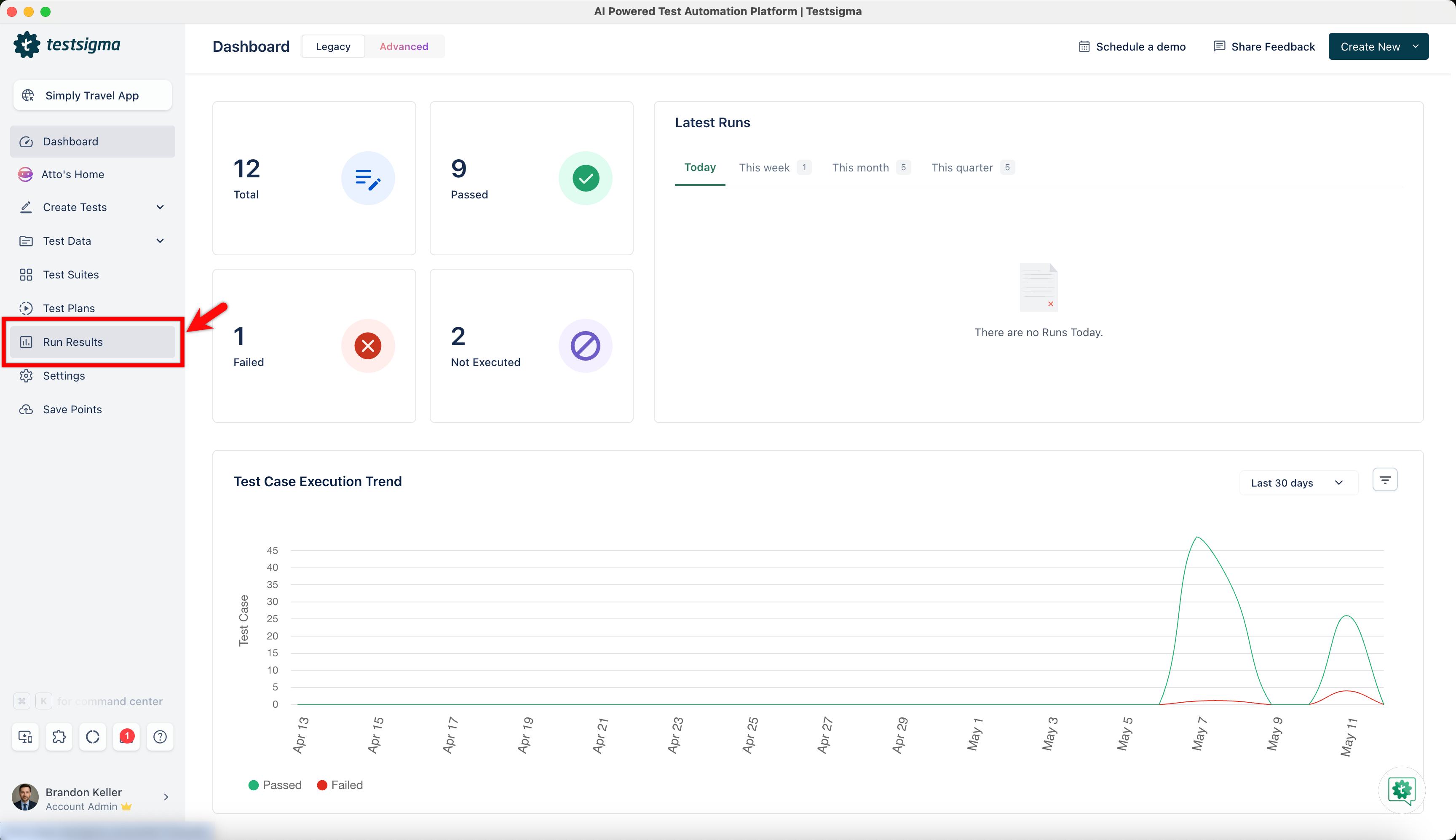
- Navigate to Run Results.
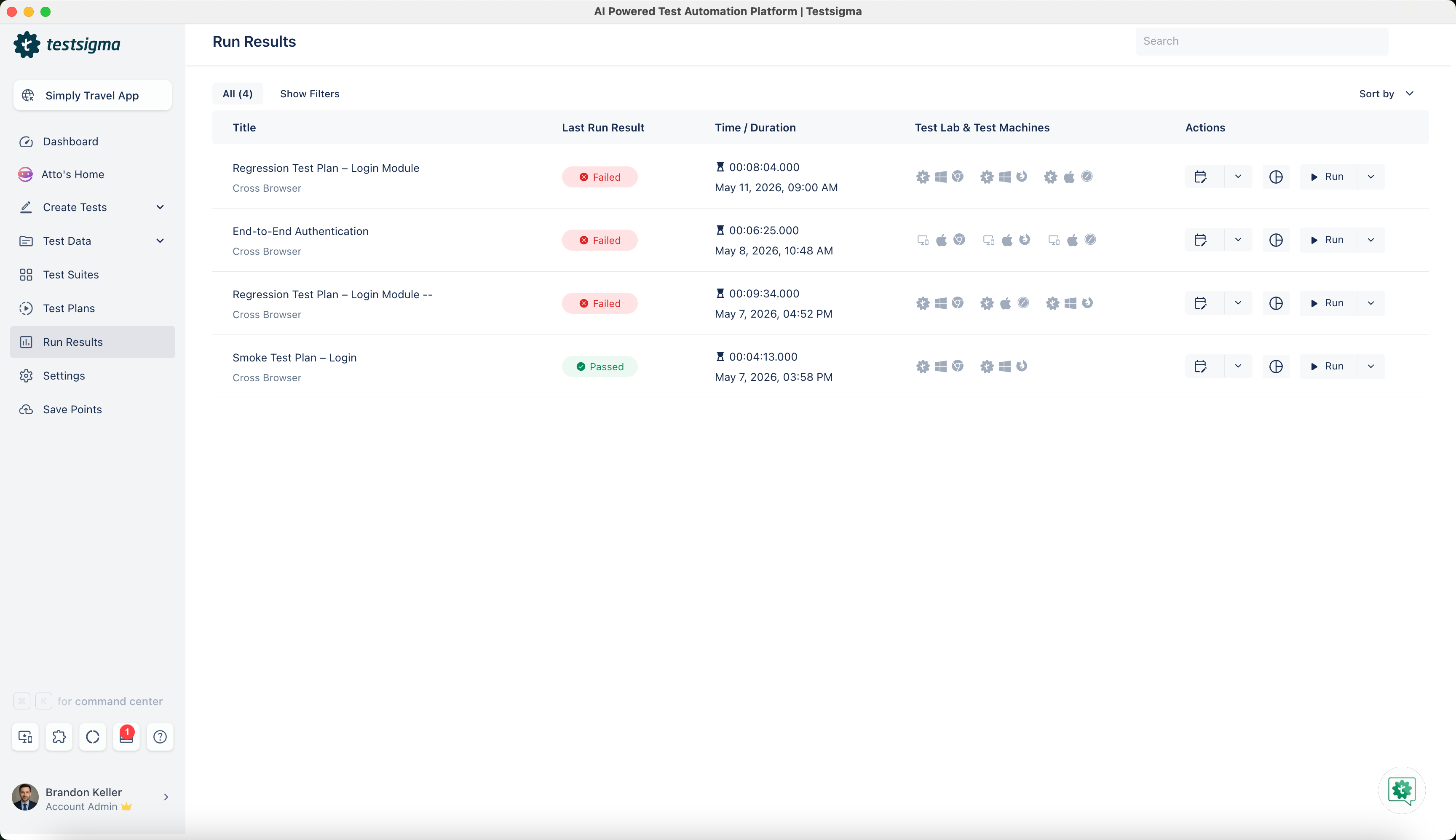
- Open the specific Test Run from the Run Result list page to export the test report file.
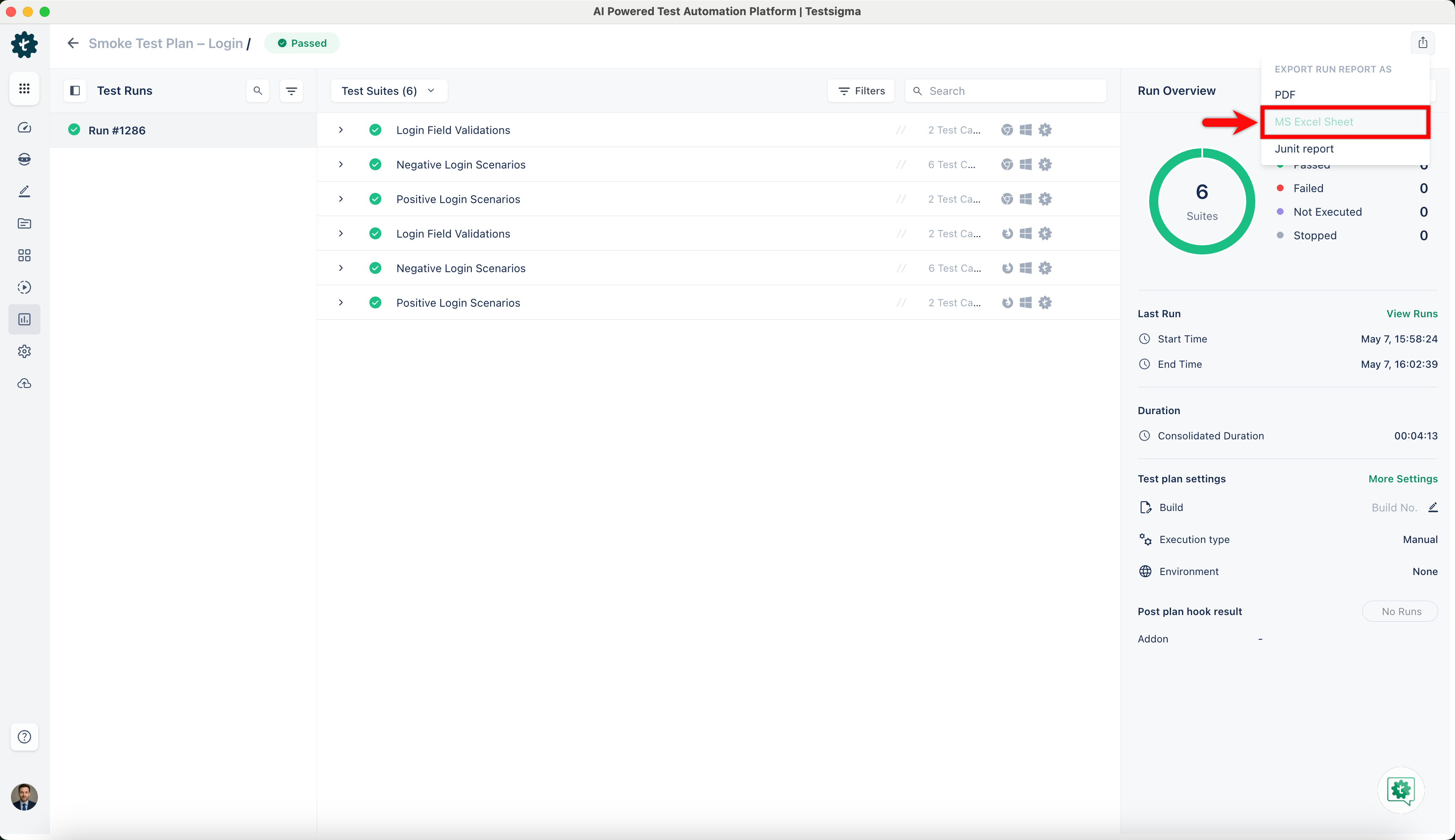
- Click the Export icon, and select MS Excel Sheet from the dropdown list to initiate the export of the Test Plan results.
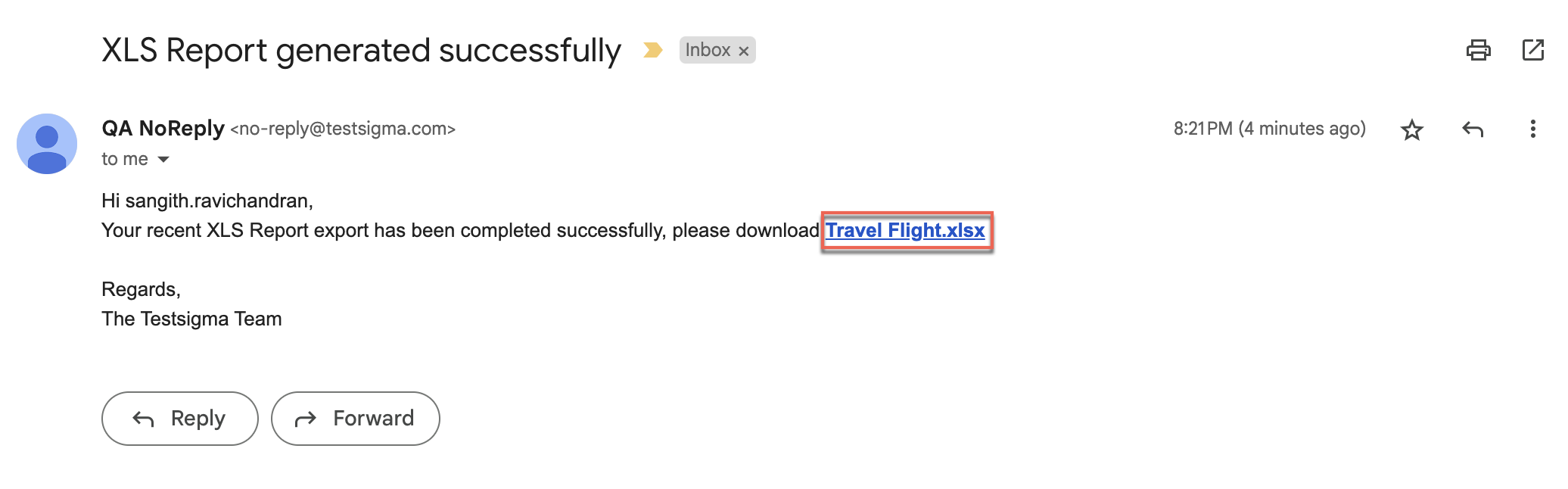
- Once you select, Testsigma will generate and automatically download a report in Excel format. Testsigma will notify you via email (using the email address associated with your Testsigma account) upon completion.
-
Click on the file named (Test Plan Name).xlsx to access the exported results.
If you choose to rerun the test cases from the reports, the rerun results will also be consolidated into the exported reports.
Test Data Details in the Report
For data-driven test cases, the report includes the test data used for each iteration at the test case level.
| Field | Description |
|---|---|
| Test Data Profile | Name of the test data profile the test case ran against |
| Test Data Set | Name of the data set within that profile |
These fields appear for data-driven test cases only. Test cases that don't use a test data profile omit them.
How Reports Handle Renamed and Deleted Items
A report captures its inputs as they were when the run executed. Renaming or deleting a test plan, test suite, test case, environment, test machine, or test data profile after a run doesn't change the report for that run, and exporting the same run again reproduces the same document.
User names are the exception. Reports always show a user's current name, so renaming a user updates their name in existing reports.
Additional Information: Runs that executed before this release fall back to the current name of each item. If an item from one of those older runs has since been deleted, the report shows a hyphen (-) in that field and the rest of the report renders normally.

Want to contribute or report missing content?