- continuous integration
 Test Plan Details
 - REST API (Generic)
- Jenkins
- Azure DevOps
- AWS DevOps
- AWS Lambda
- Circle CI
- Bamboo CI
- Travis CI
- CodeShip CI
- Shell Script(Generic)
- Bitrise CI
- GitHub CI/CD
- Bitbucket CI/CD
- GitLab CI/CD
- Copado CI/CD
- Gearset CI/CD
- Codemagic CI/CD
- Google Cloud Build CI/CD
Integrate Testsigma with Codemagic
You can integrate Codemagic with your version control system to automate test execution using a shell script that triggers Testsigma tests via CI/CD. This article discusses configuring Codemagic with a repository and executing test automation workflows using a codemagic.yaml file.
Prerequisites
Before you begin, ensure you have:
- A repository on a supported version control system (e.g., GitHub).
- A Codemagic account.
- A shell script in your repository that triggers Testsigma test execution.
Sign Up and Authorize Codemagic
- Navigate to Codemagic.
- Sign up using your version control system (We’re using GitHub).
- After signing in, authorize Codemagic by clicking Authorize Codemagic CI/CD.
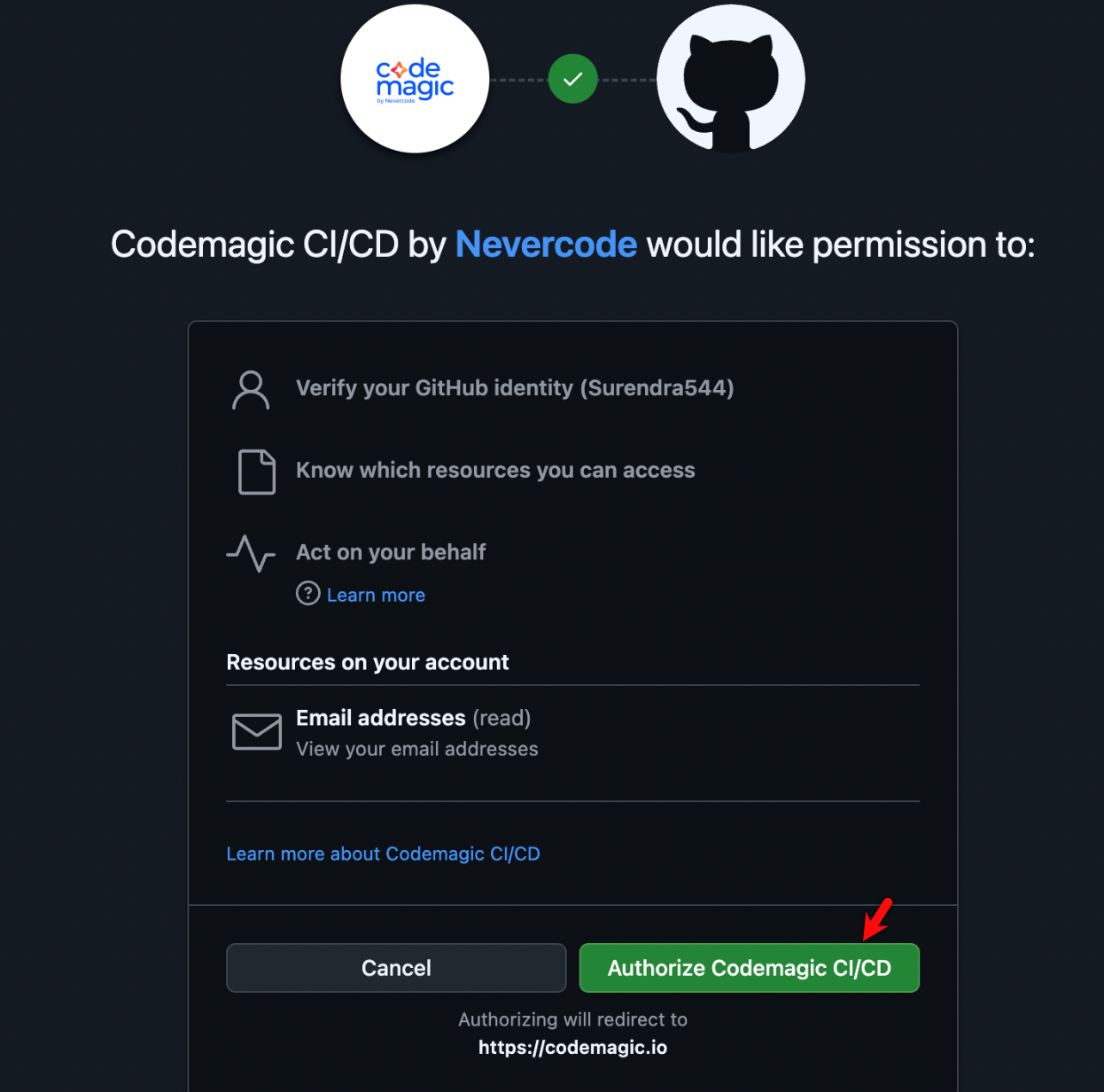
- On the How will you be using Codemagic? page, select the preferred option.

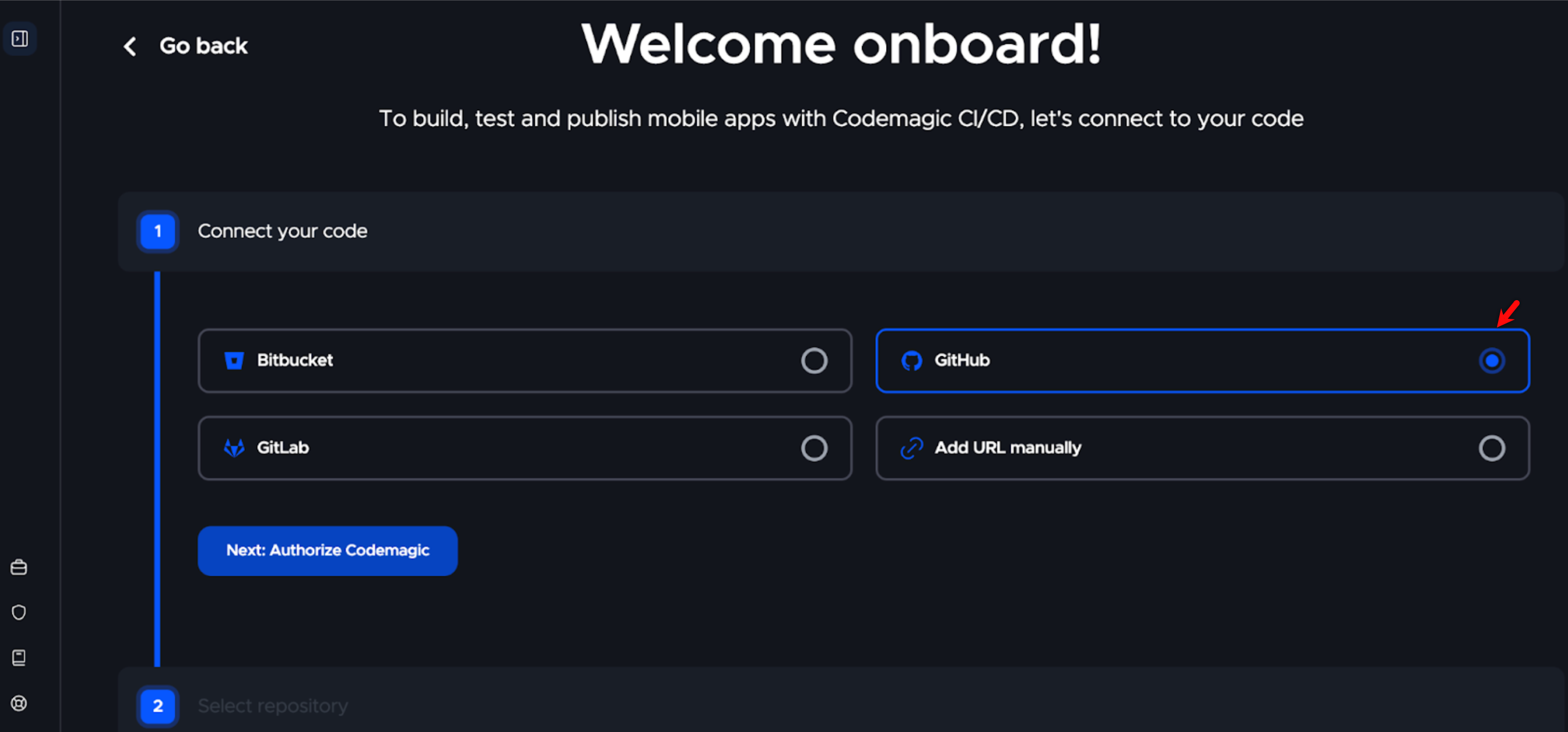
- On the Welcome Onboard page, under Connect Code, choose your version control provider (e.g., GitHub).
NOTE:
- If your repositories do not appear, click Click here, then select Install and Authorize to refresh the connection.
Select and Configure Your Repository
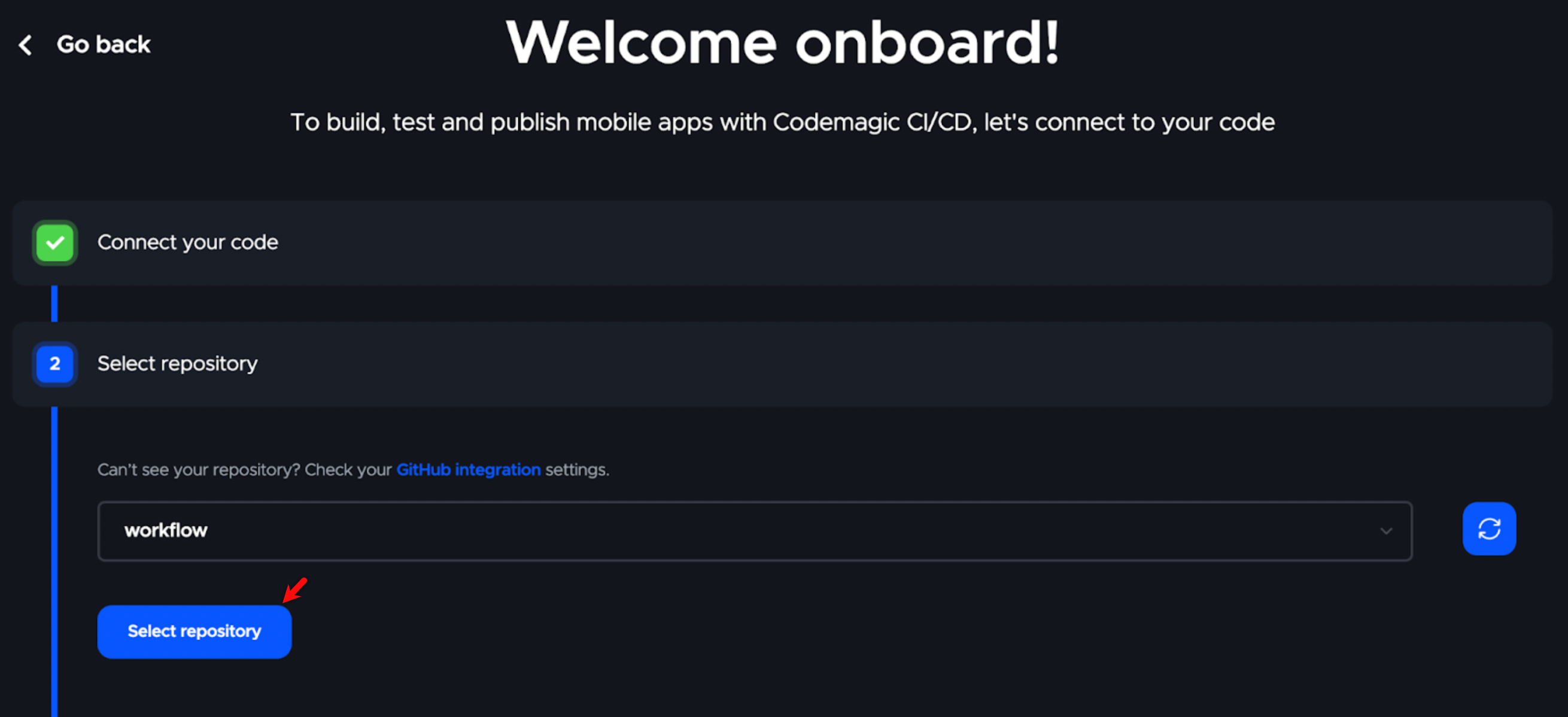
- Under Select repository, choose the appropriate repository from the dropdown menu and click Select repository.
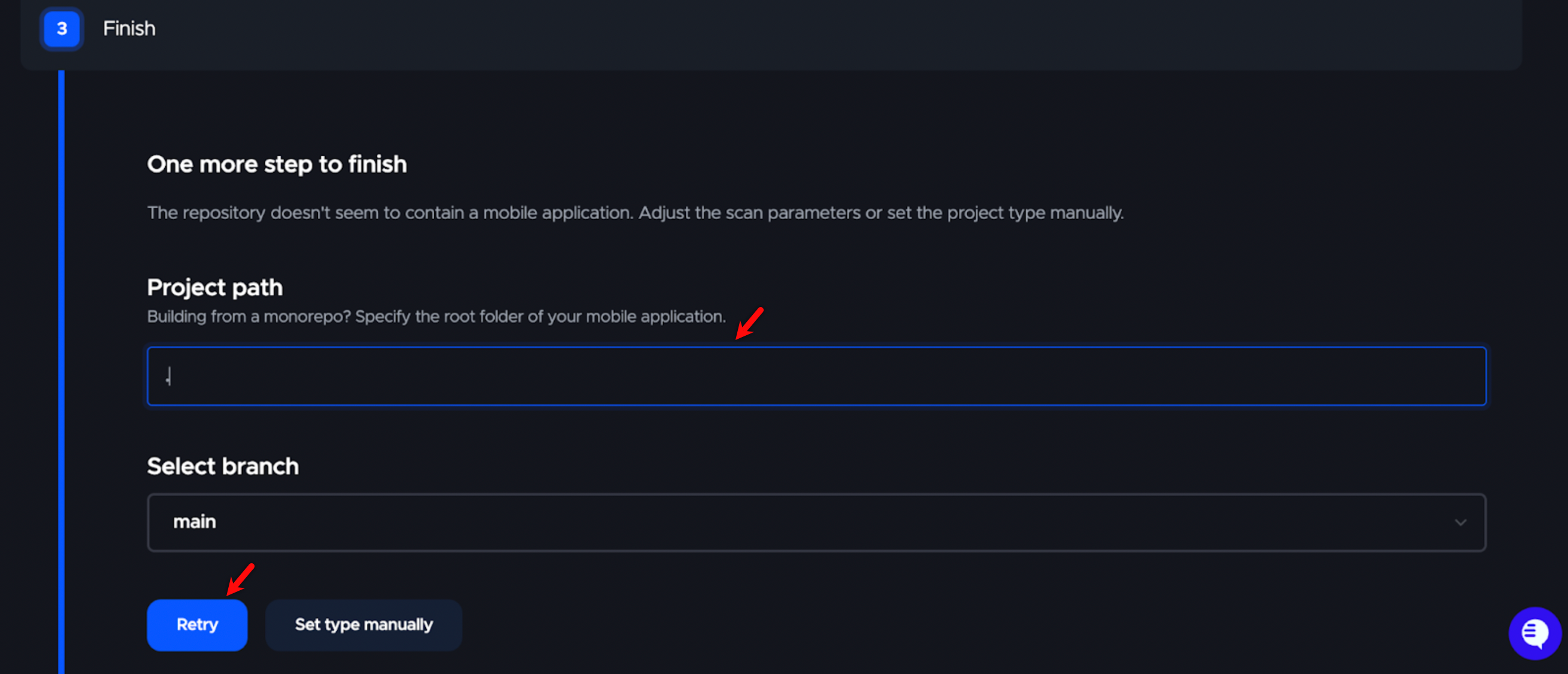
- Enter the relative path to your project in the Project path field.
- Click Retry to allow Codemagic to scan the repository.
Alternatively, click Set Type Manually to specify the project type.
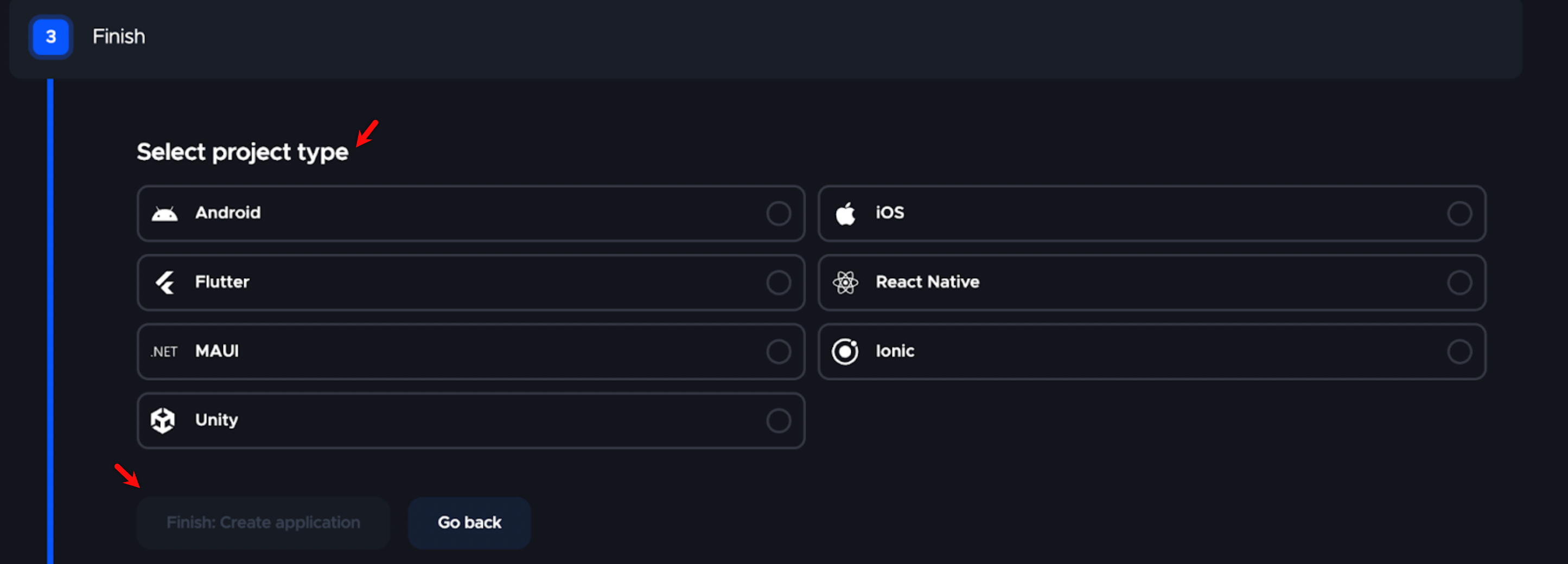
- Select the project type and click Create Application.
Configure the YAML Workflow
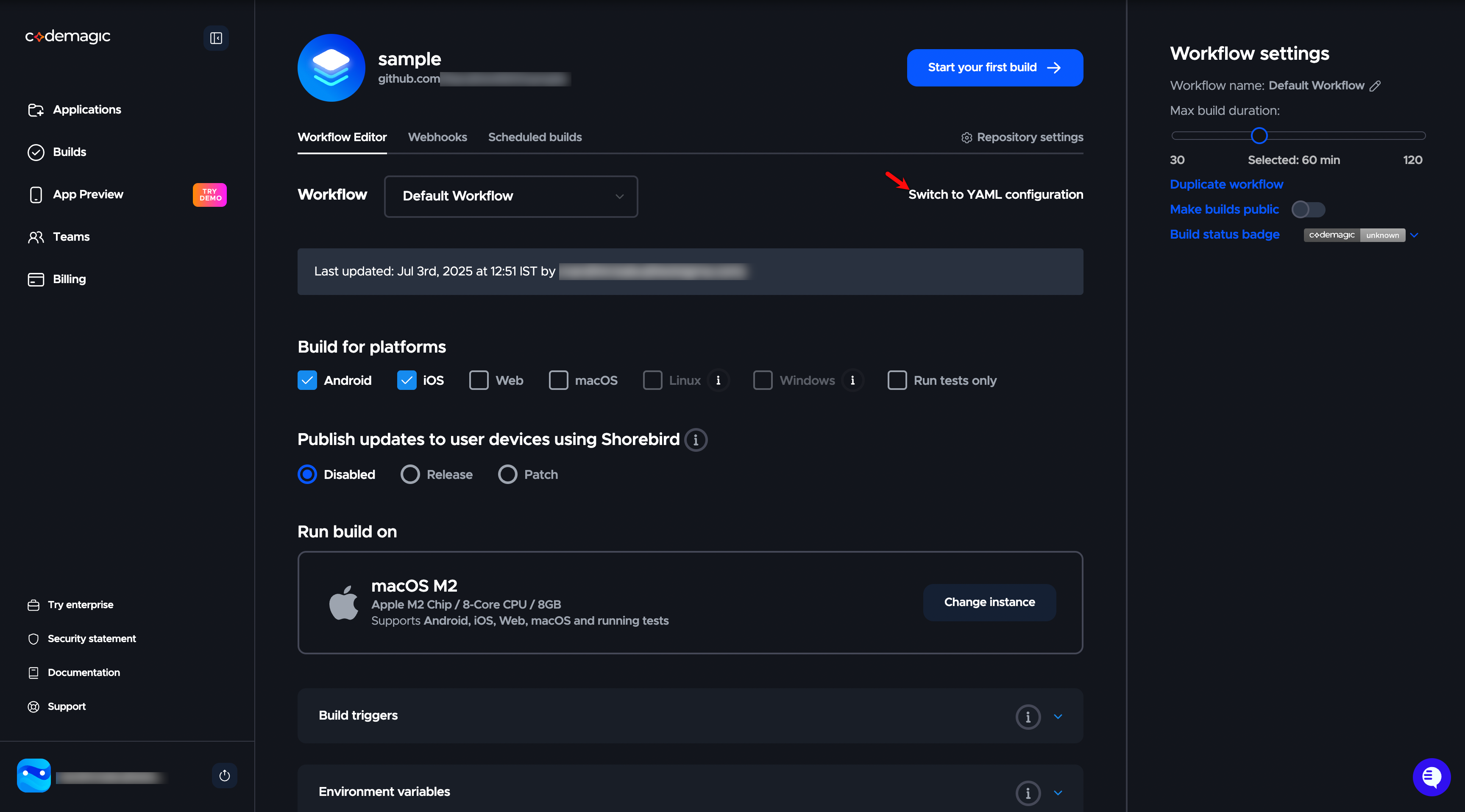
- On the workflow screen, click Switch to YAML configuration.
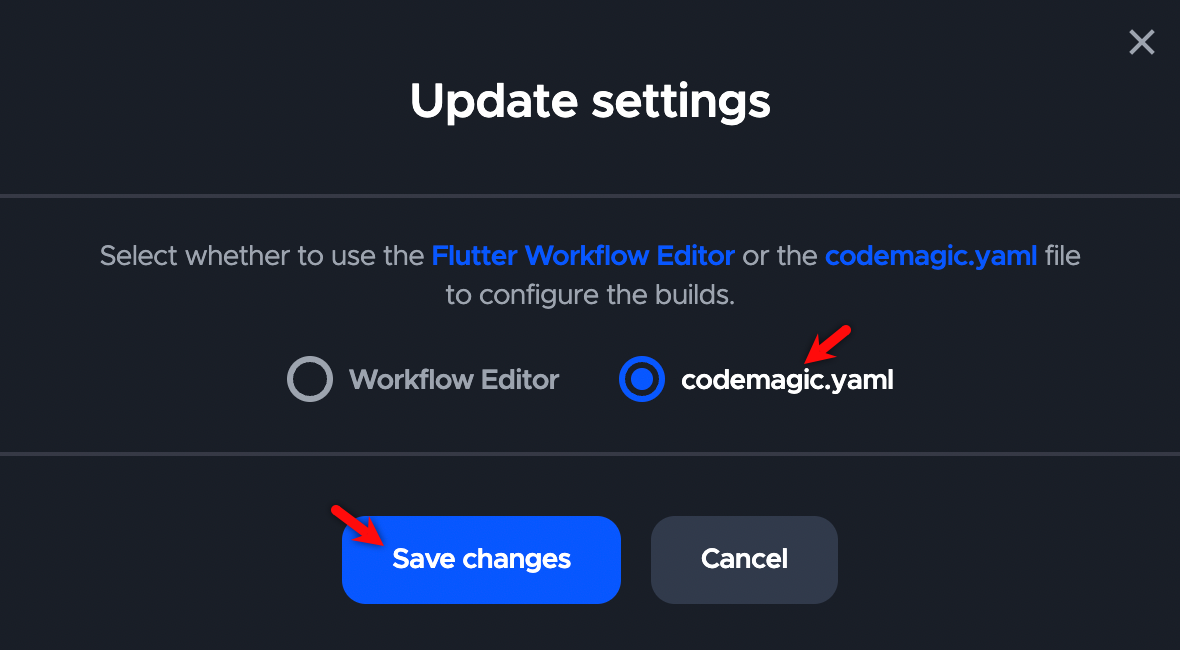
- In the Update Settings dialog, select the codemagic.yaml radio button and click Save changes.
Add the YAML Configuration File
- In your repository, create a new file named codemagic.yaml at the root directory.
- Add the following YAML script:
workflows:
  run-testsigma:
    name: Run Testsigma Shell Script
    scripts:
      - name: Trigger Testsigma
        script: |
          chmod +x ./magictrigger.sh
          ./magictrigger.sh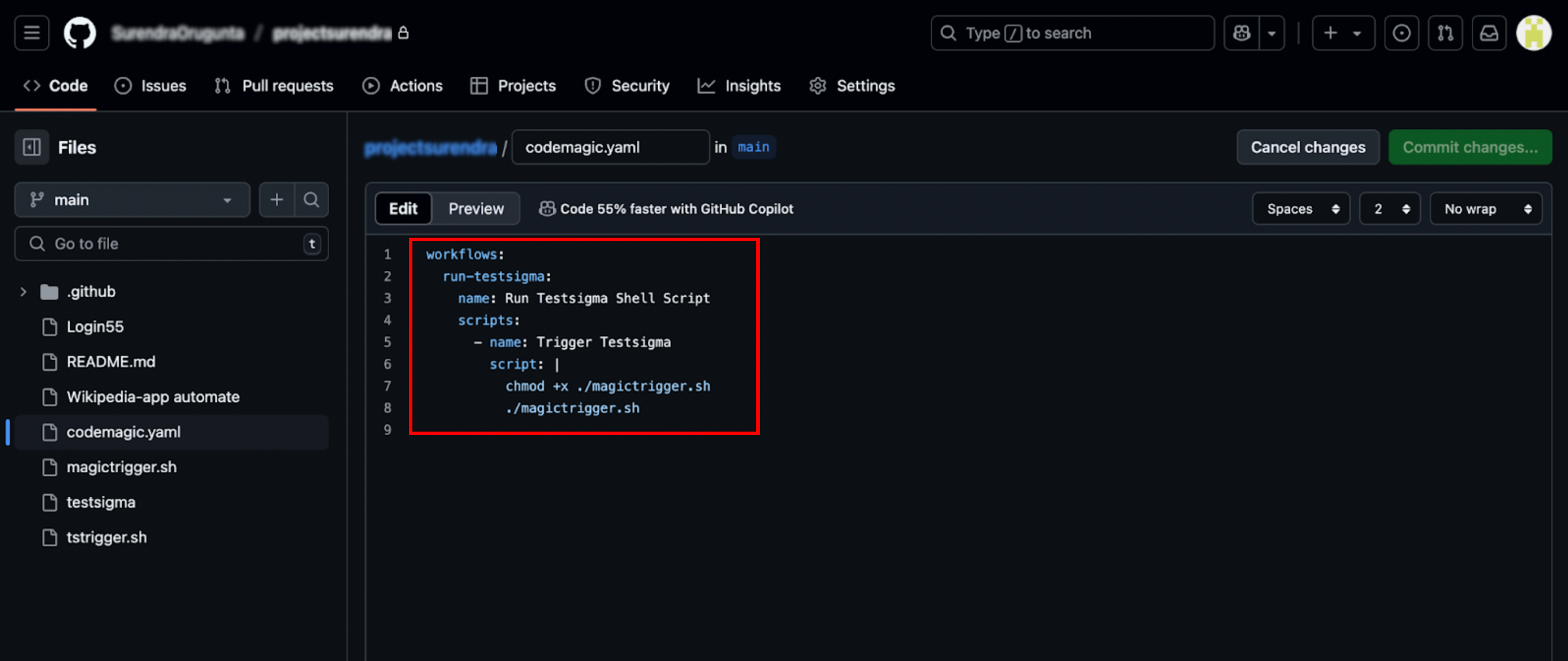
- Commit and push the file to your repository.
- (Optional) Configure Environment Variables, Webhooks, and other settings in Codemagic if necessary.
NOTE:
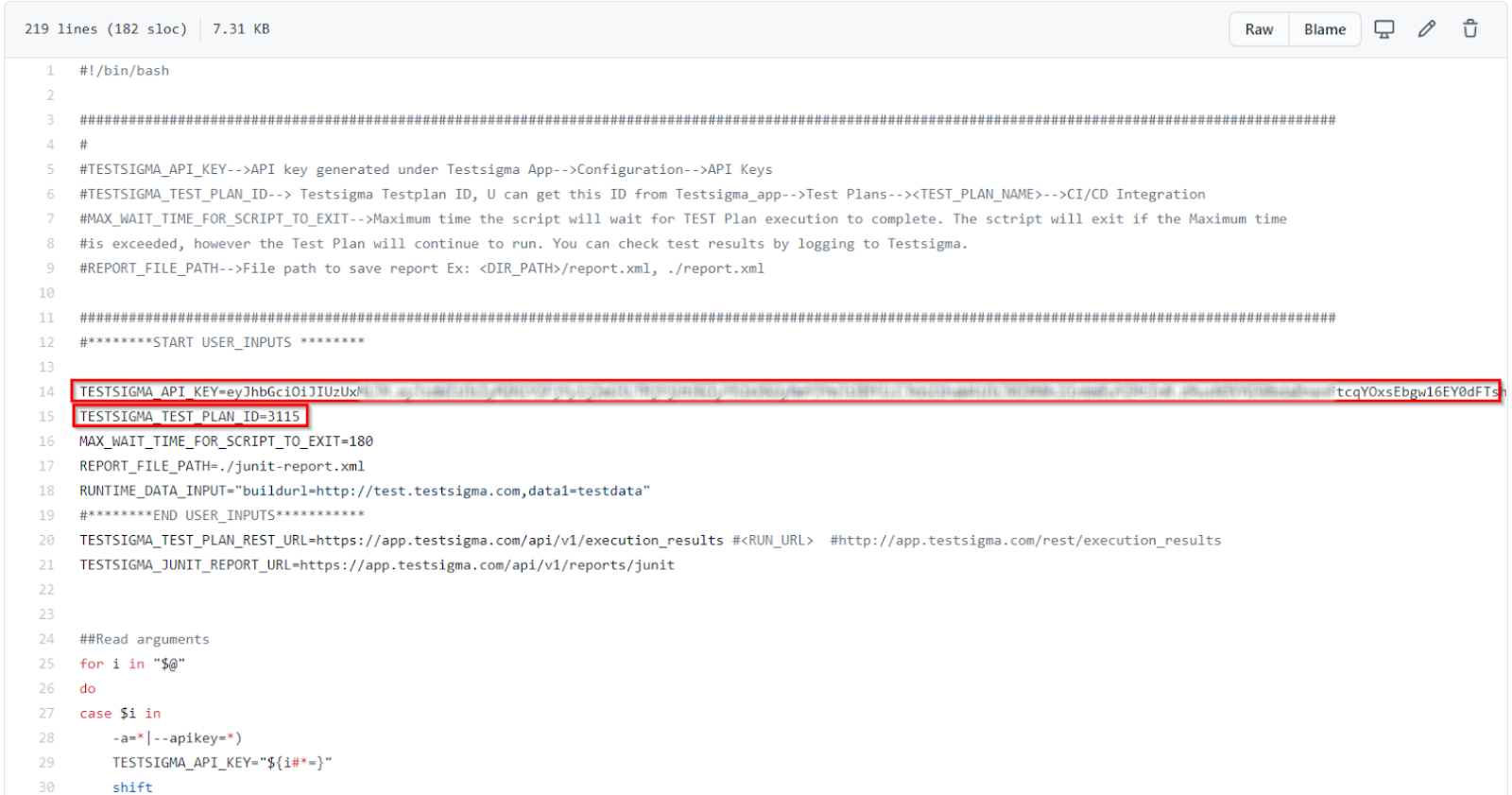
- Ensure the magictrigger.sh file is present in the same repository and marked as executable. For information on the generic shell script, see Shell Script.
- Ensure you have an API key and a Test Plan ID. For more information, see API Keys and Get Test Plan ID.

Trigger the Workflow
- Navigate to Codemagic.
- Click Start new build.
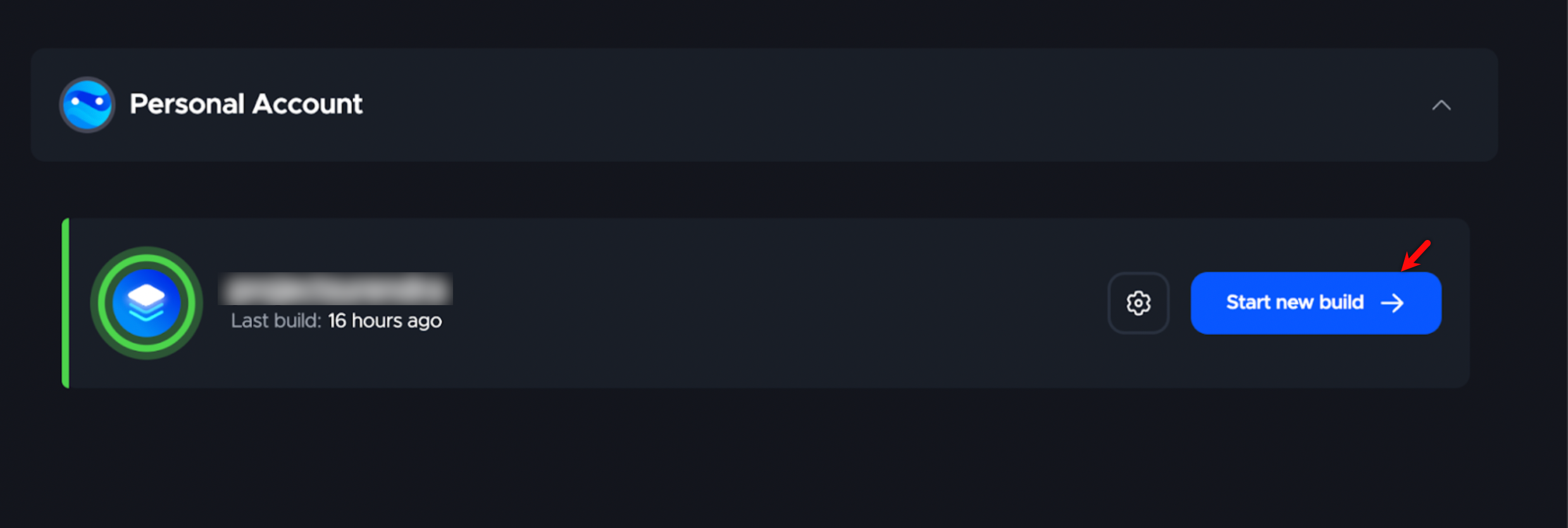
Codemagic will detect the codemagic.yaml file and initiate the workflow. After the build completes, you can view the execution logs and test results.

Want to contribute or report missing content?