- test plans
 Add, Edit, Delete Test Machines
- Add, Edit, Delete Test Suites
- Schedule Test Plans
- Run Test Suites In Parallel
- Cross Browser Testing
- Distributed Testing
- End-to-End Testing
- Headless Testing
- Test Lab Types
- Disabling Test Cases in Test Plans
- AfterTest Case
- Post Plan Hook
- AfterTest Suite
- Email Configuration in Test Plan
- Execute Partial Test Plans via API
Manage Test Machines in Test Plans
While creating a test plan, you must add at least one test machine to a test suite to develop it successfully. This article discusses how to manage test machines in test plans.
Prerequisites
Before you begin, ensure that you have referred to:
Adding a Test Machine to an Existing Test Plan
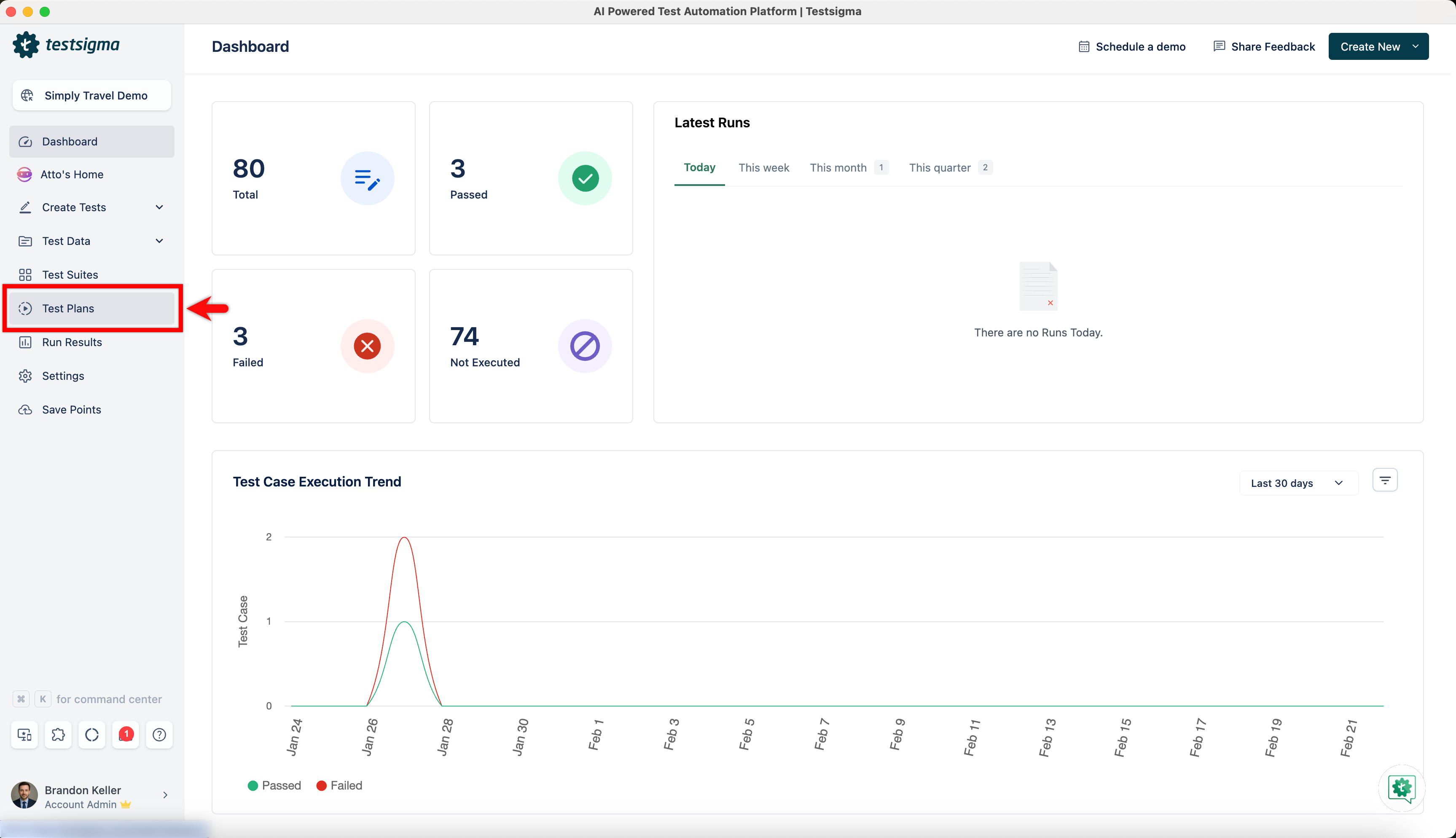
- Navigate to Test Plans and click on an existing test plan.
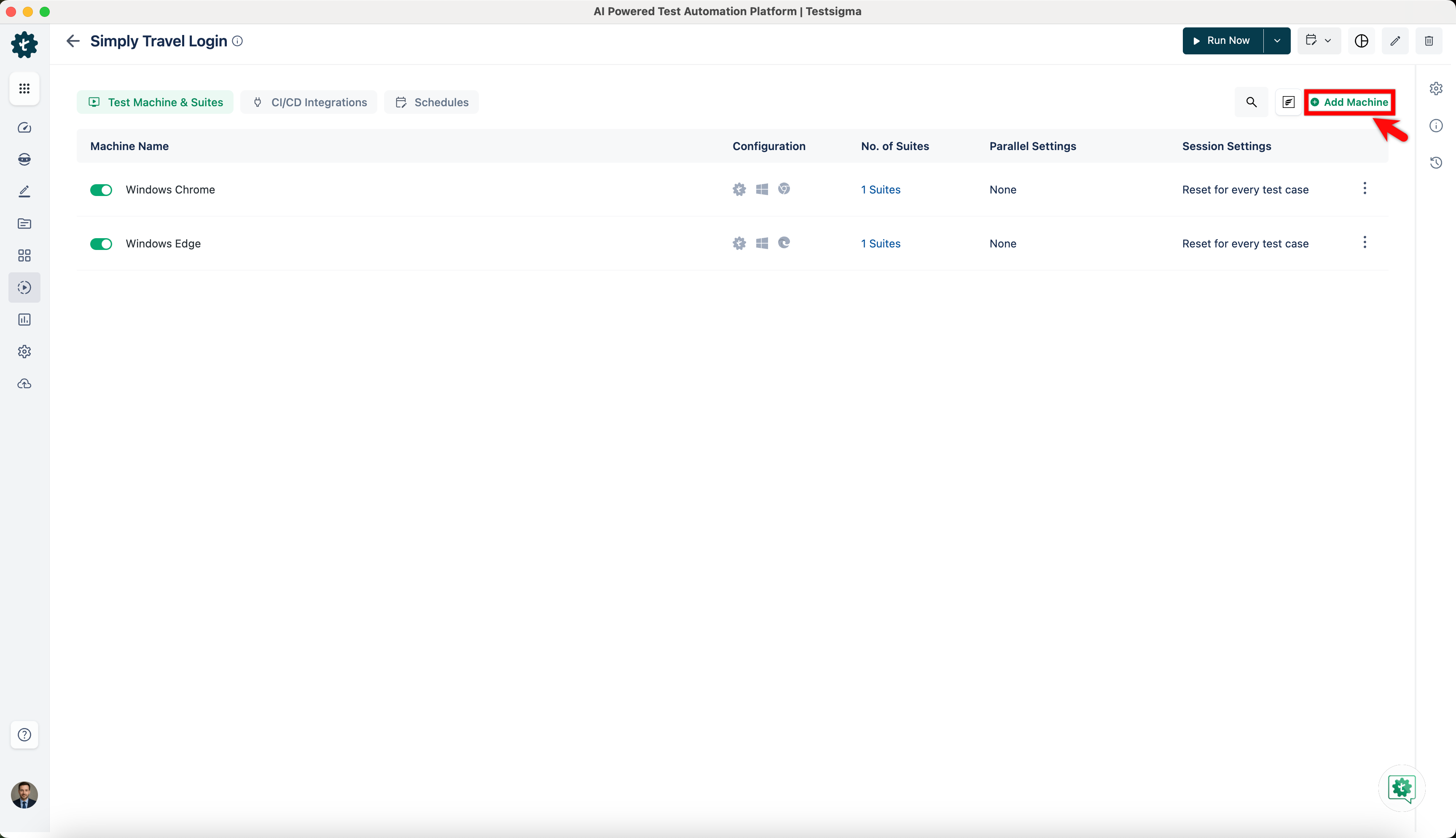
- On the Test Plan Details page, click on Add Machine.
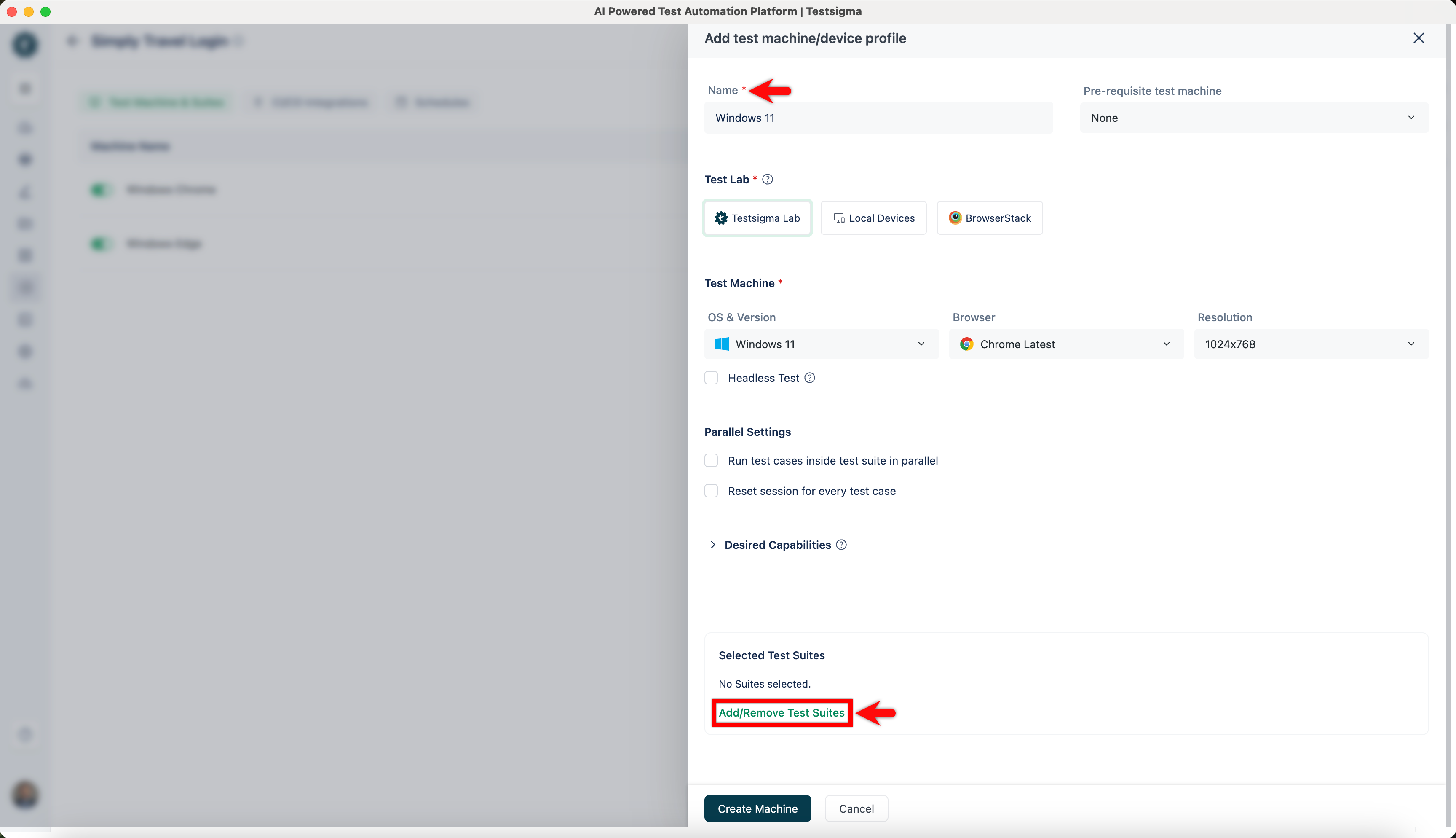
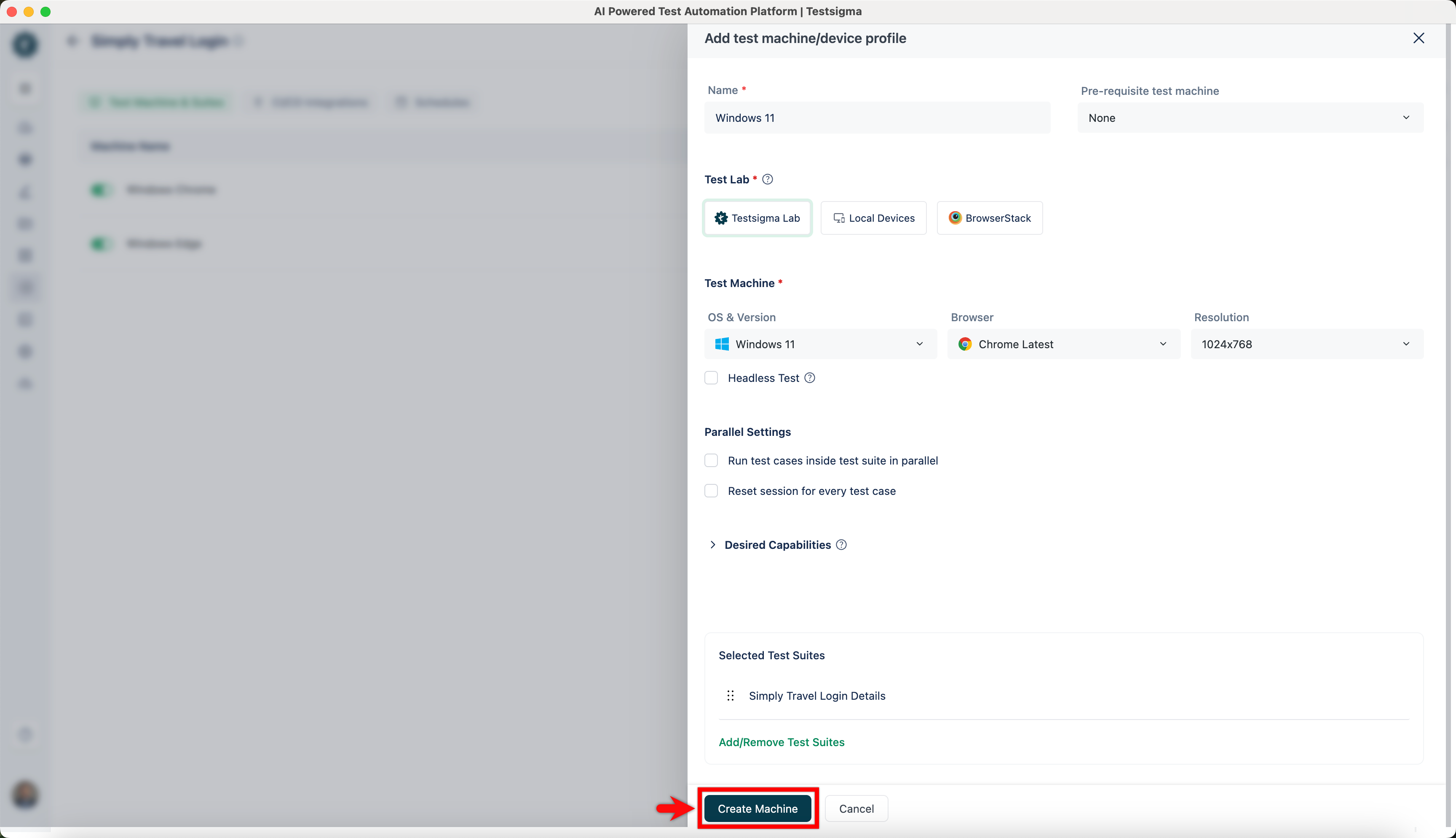
- On Add test machine/device profile overlay, add Name and click on Add/Remove Test Suites.
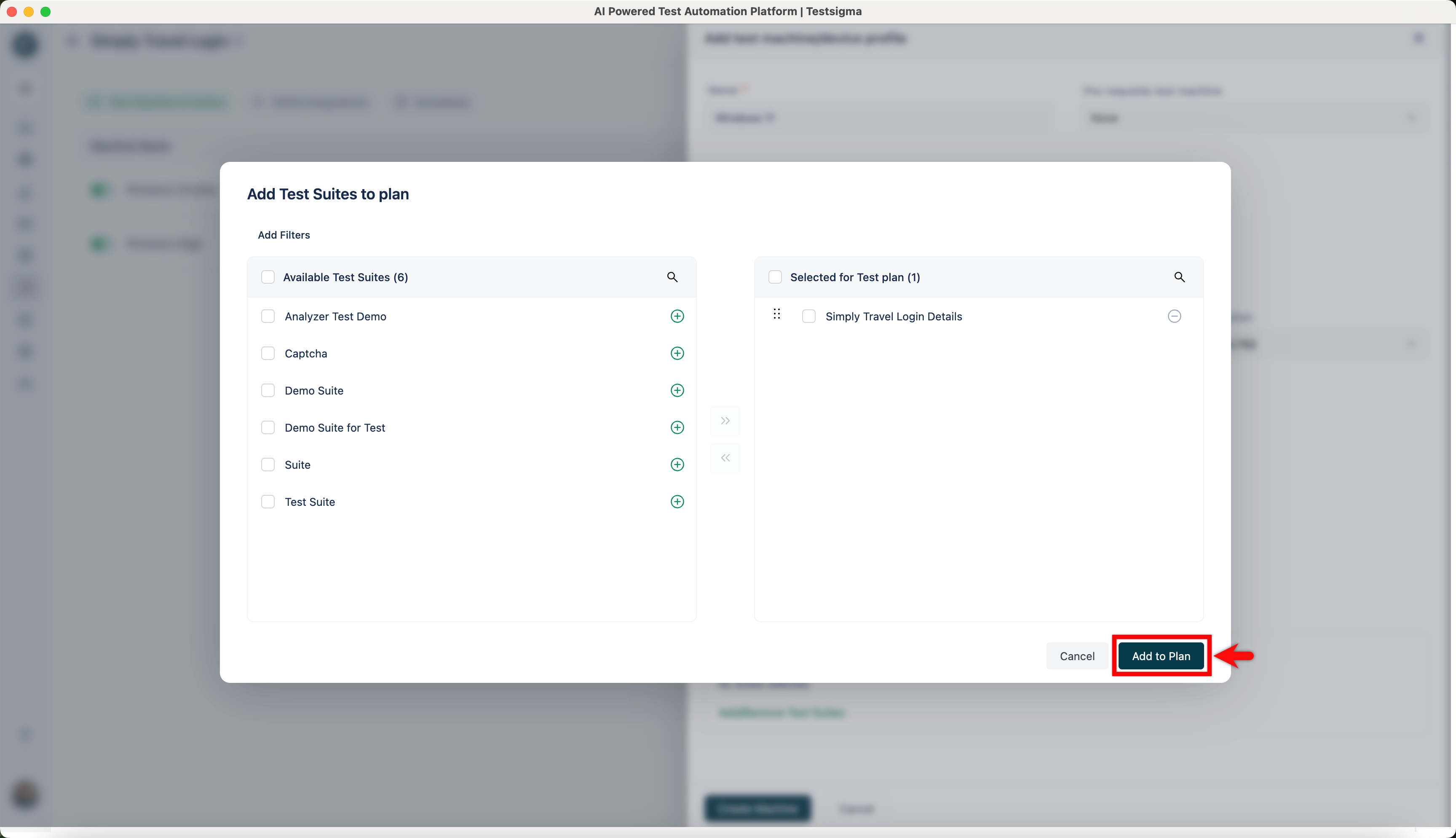
- Select test suites and click on Add to Plan.
- Click on Create Machine.
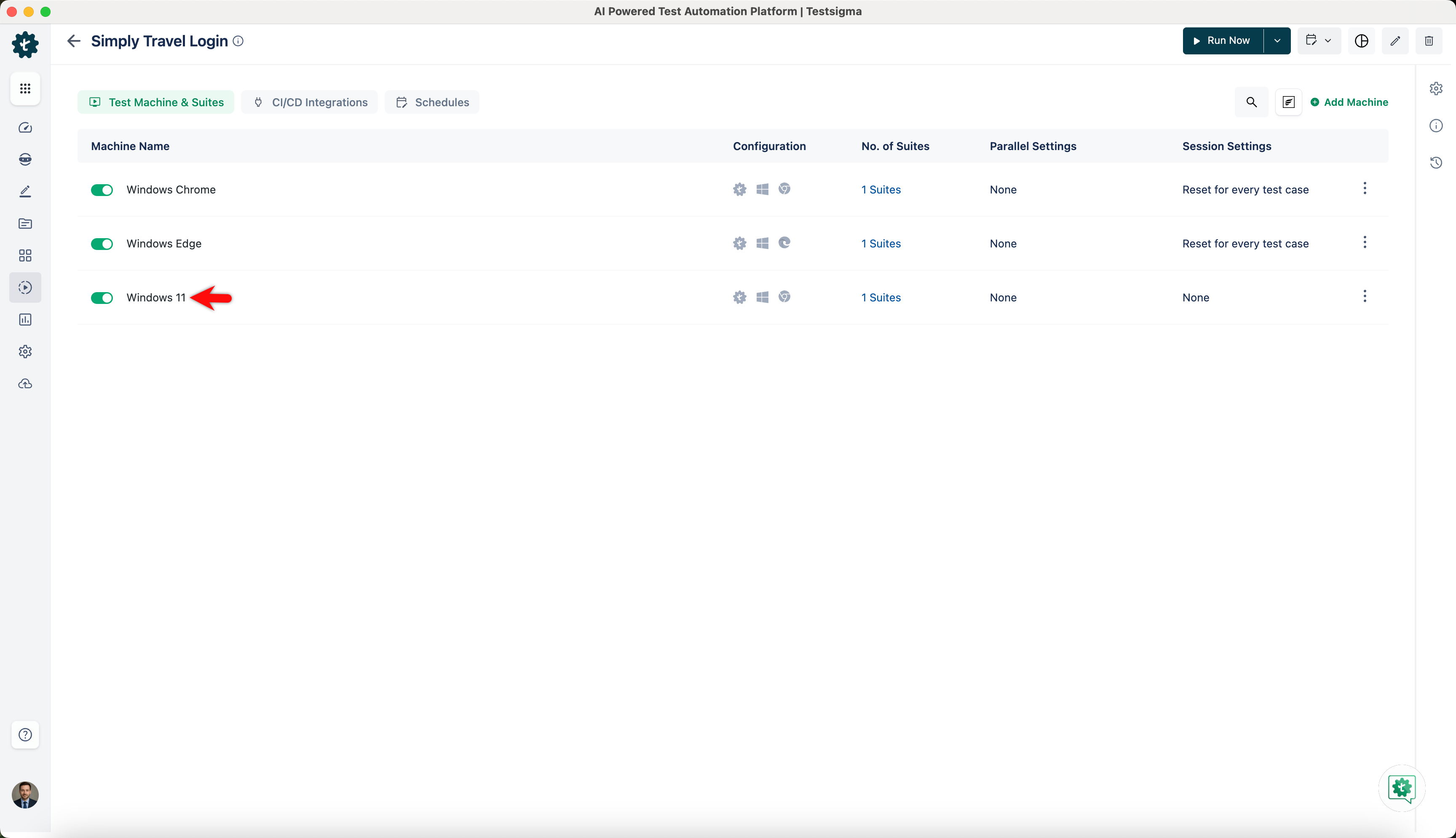
- A New machine will be added to the test plan.
Alternatively, you can also add new machines from the edit test plan page.
Adding a Test Machine From Edit Test Plan Page
- Navigate to Test Plan and click on an existing test plan.
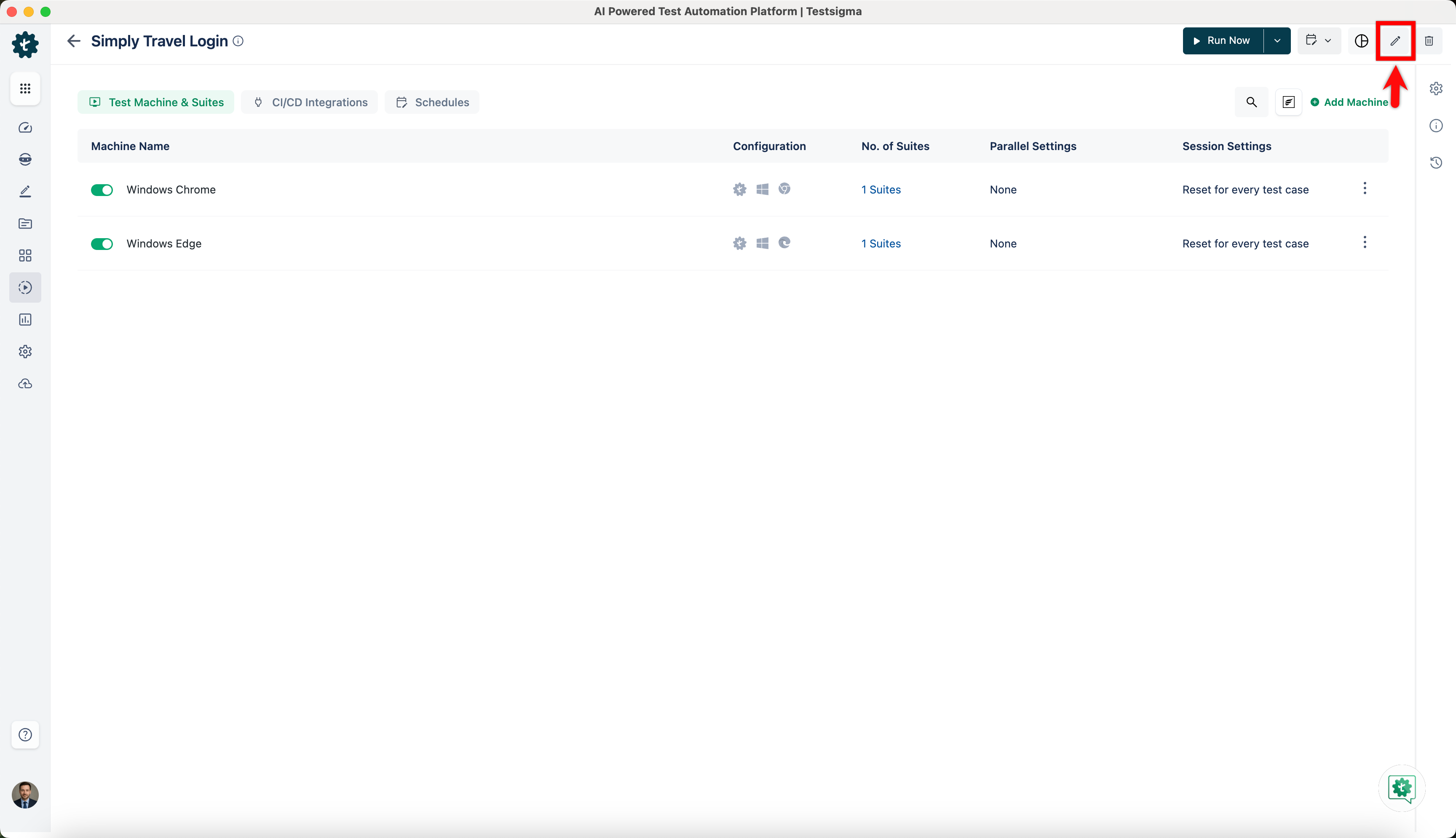
- On the test plan details page, click on Edit.
- Go to Add Test Suites & Link Machine Profiles and click on Test Machine.
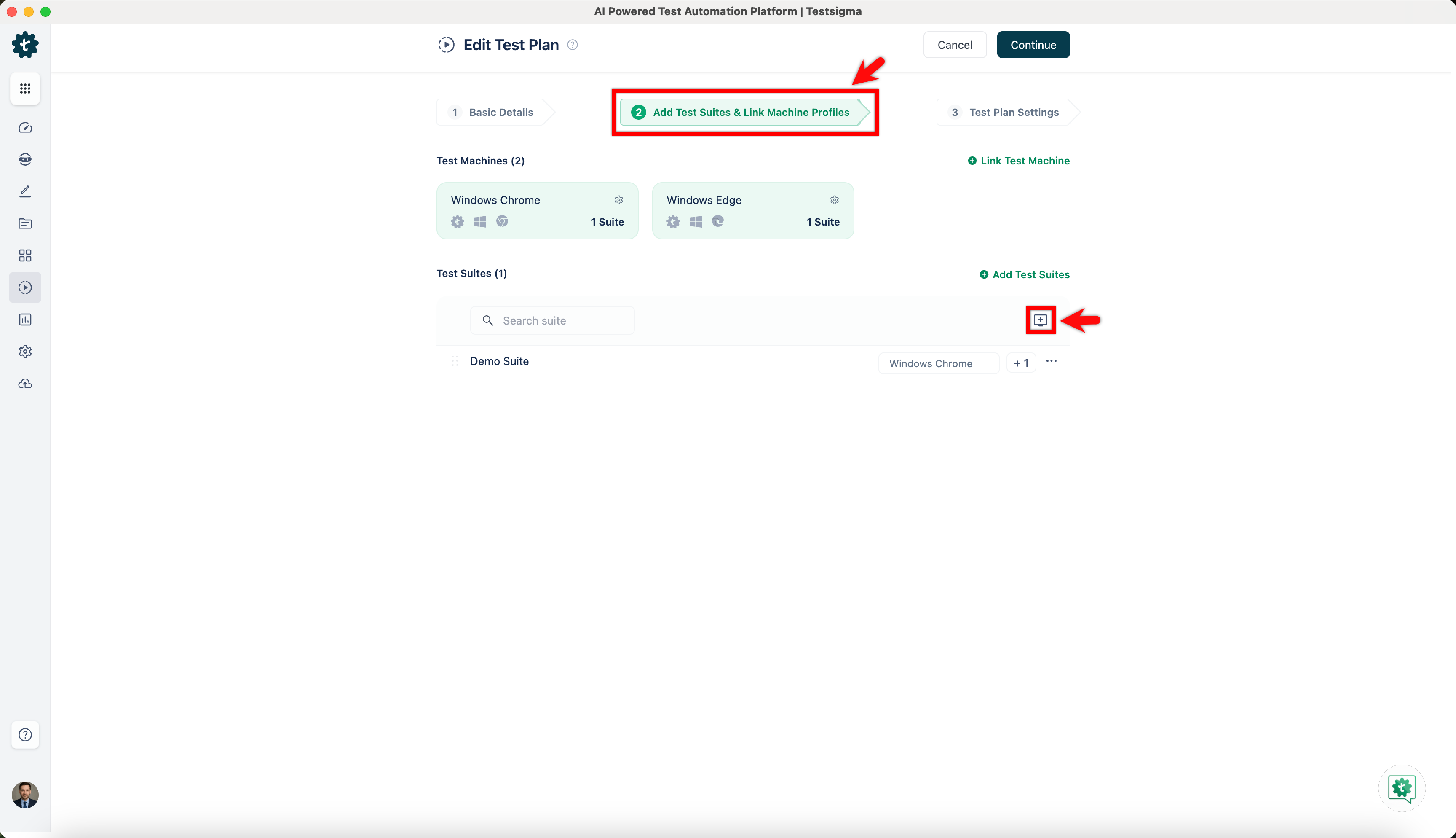
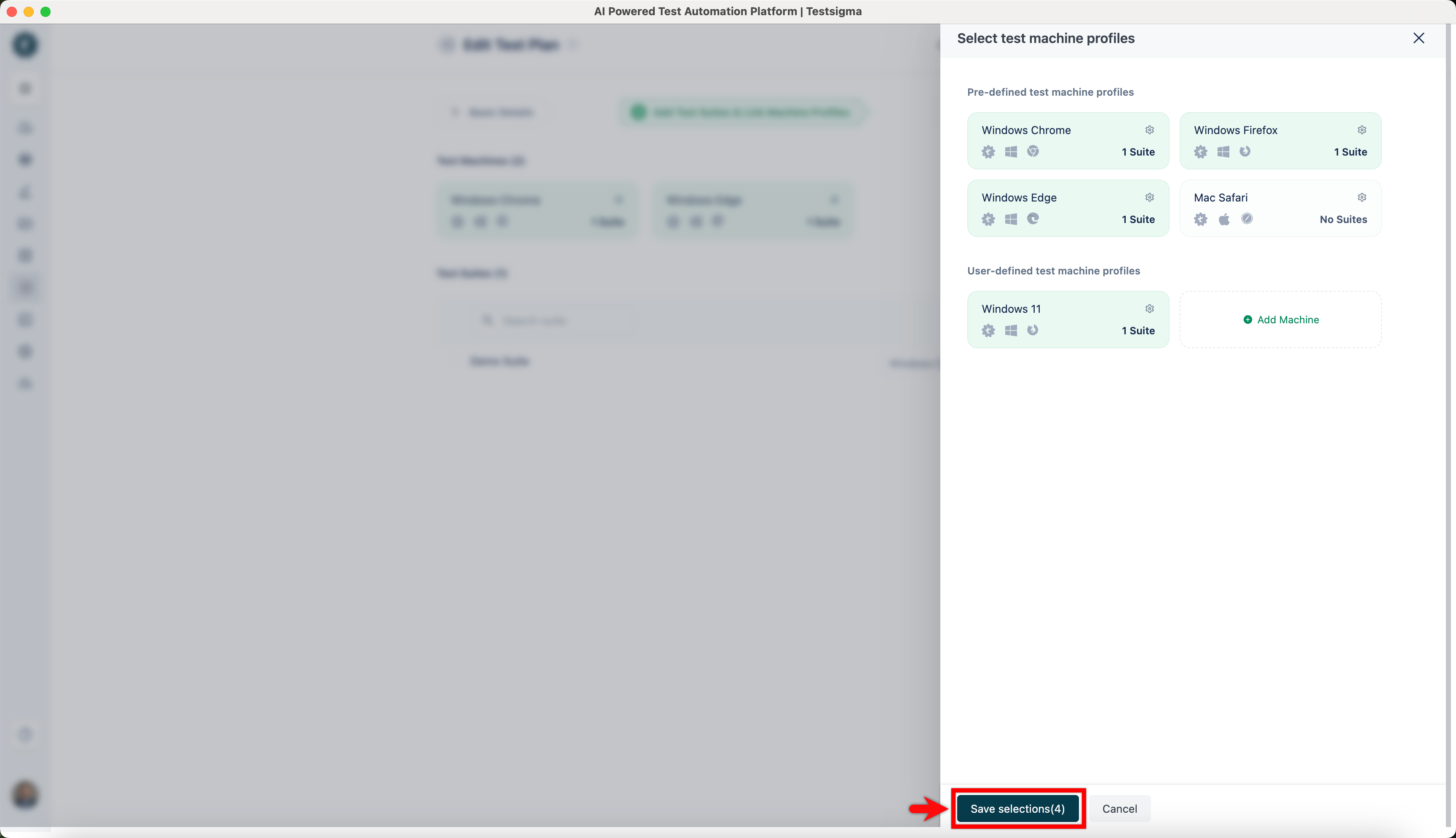
- From Select test machine profiles overlay, select test machines and click on Save selections.
- Go to Test Plan Settings and click on Update.
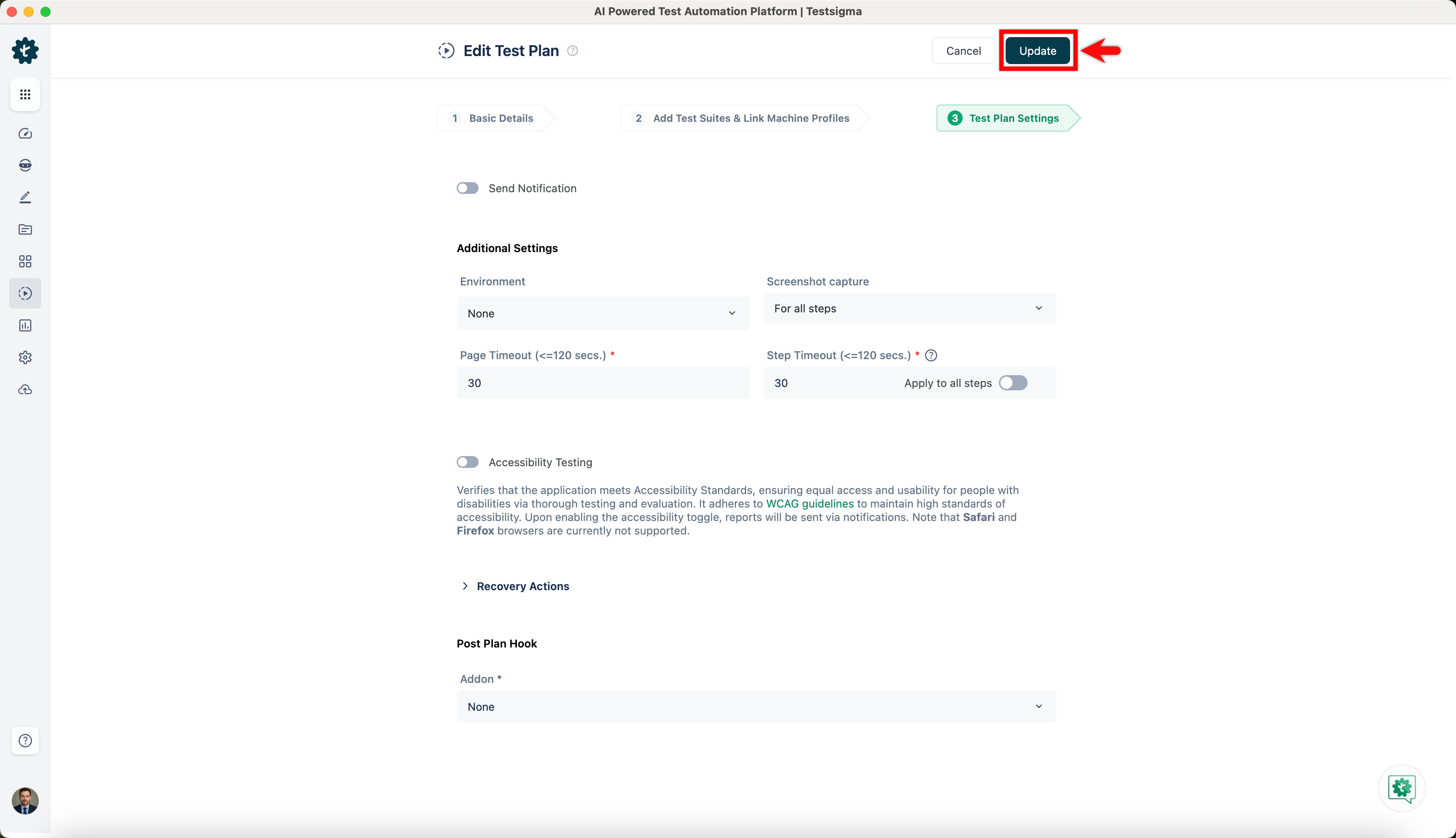
- Selected machines will be added to the test plan.
Setting Pre-Requisite Rerun Options for a Test Machine
Choose whether a prerequisite test machine runs again in full or only its failed iterations run when you rerun the test plan.
- In the Add Test Suites & Link Machine Profiles tab, click the Link Machine to all suites. This will oprn Select test machine profiles panel.
NOTE:
To link a test machine to a single test suite, click the test machine icon next to that test suite's name.
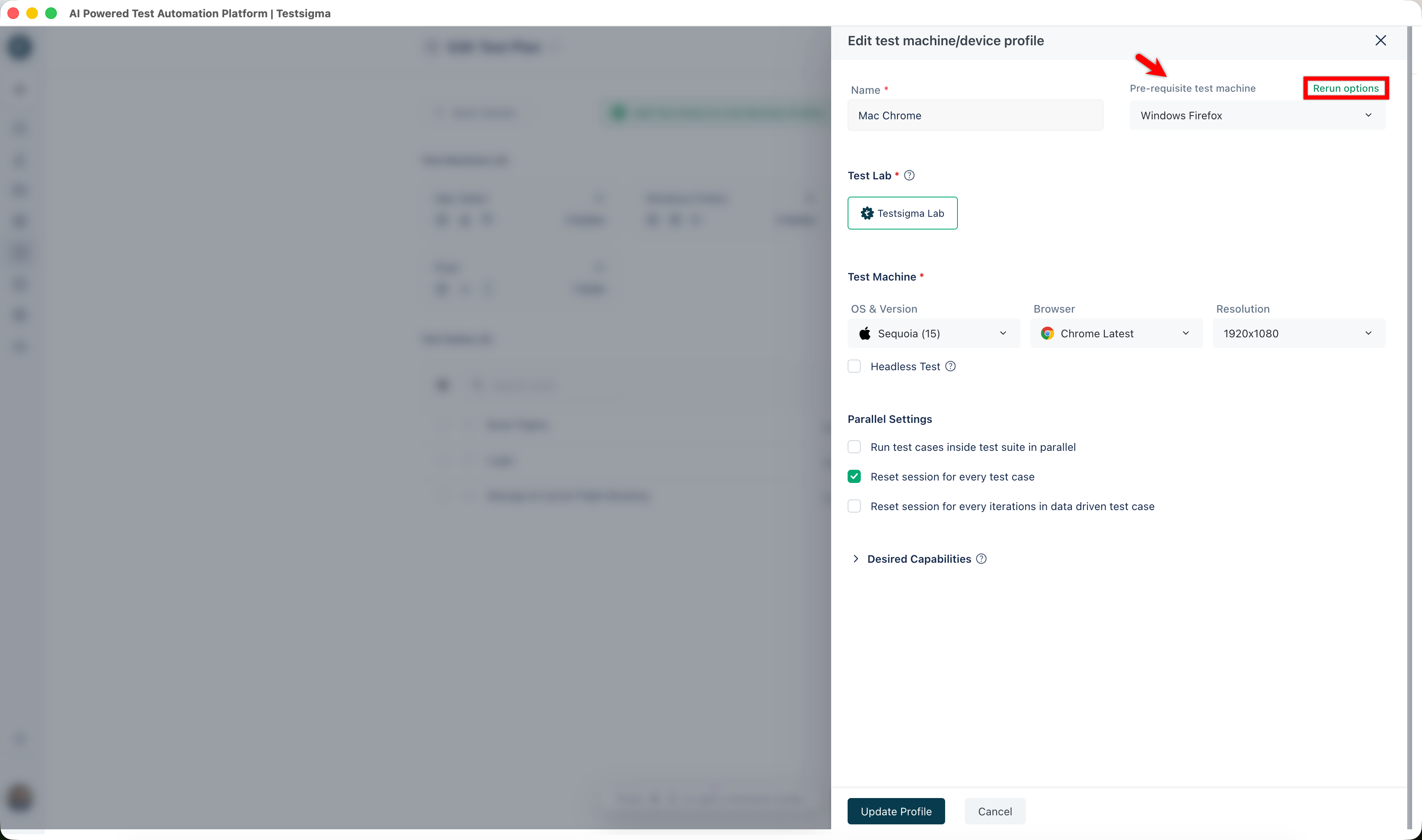
- Click the Test machine settings on the test machine profile you want to configure. This will open Edit test machine/device profile panel.
- From the Pre-requisite test machine list, select the prerequisite test machine.
- Click Rerun options. This will open Pre-Requisite Rerun Options dialog.
- Select Always run Pre-Requisite or Only execute failed Pre-Requisite iteration(s).
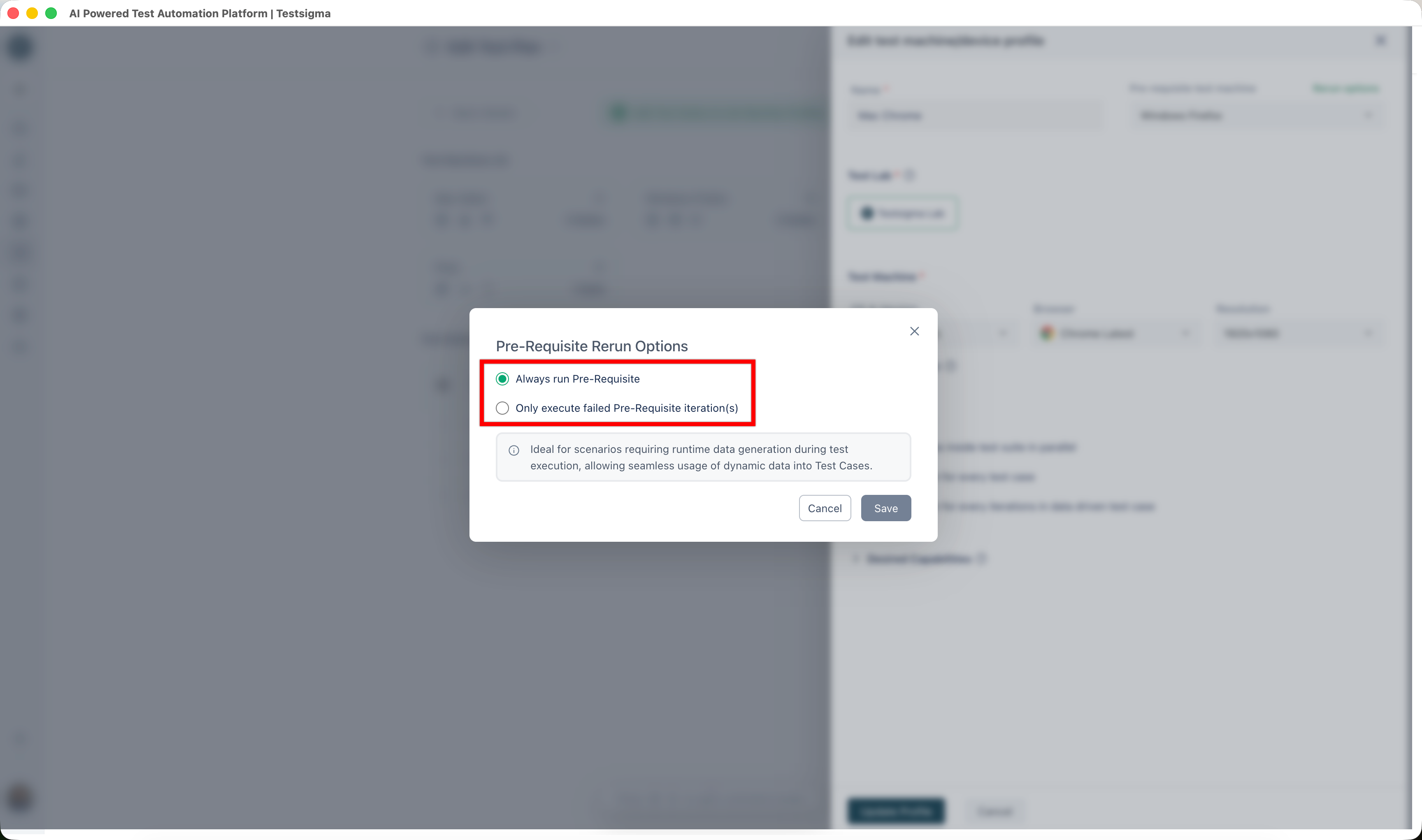
- Click Save.
- Click Update Profile.
Delete Test Machine
- Navigate to Test Plan and click on an existing test plan.
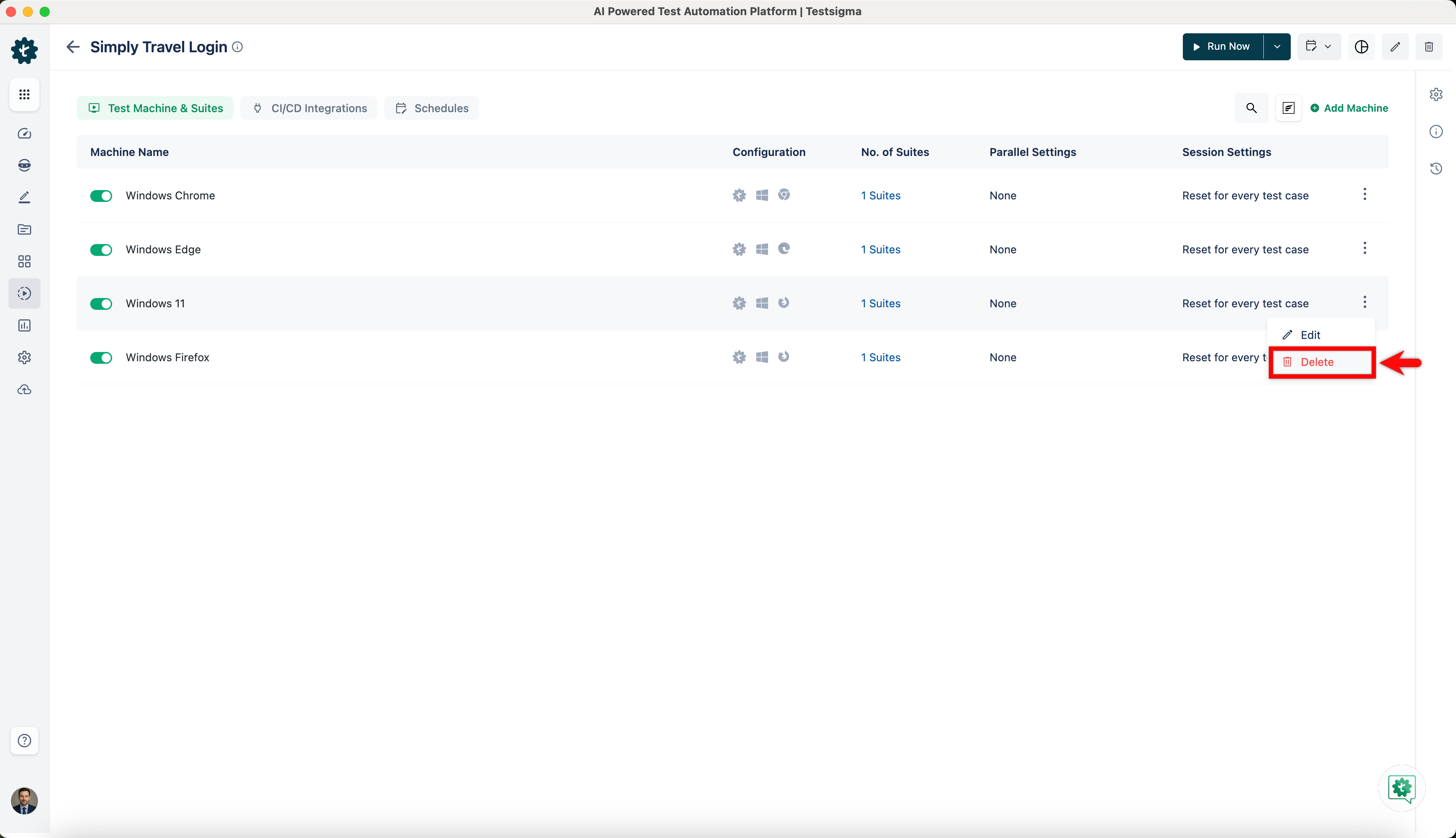
- On the test plan details page, click on Kebab Menu and click on Delete.
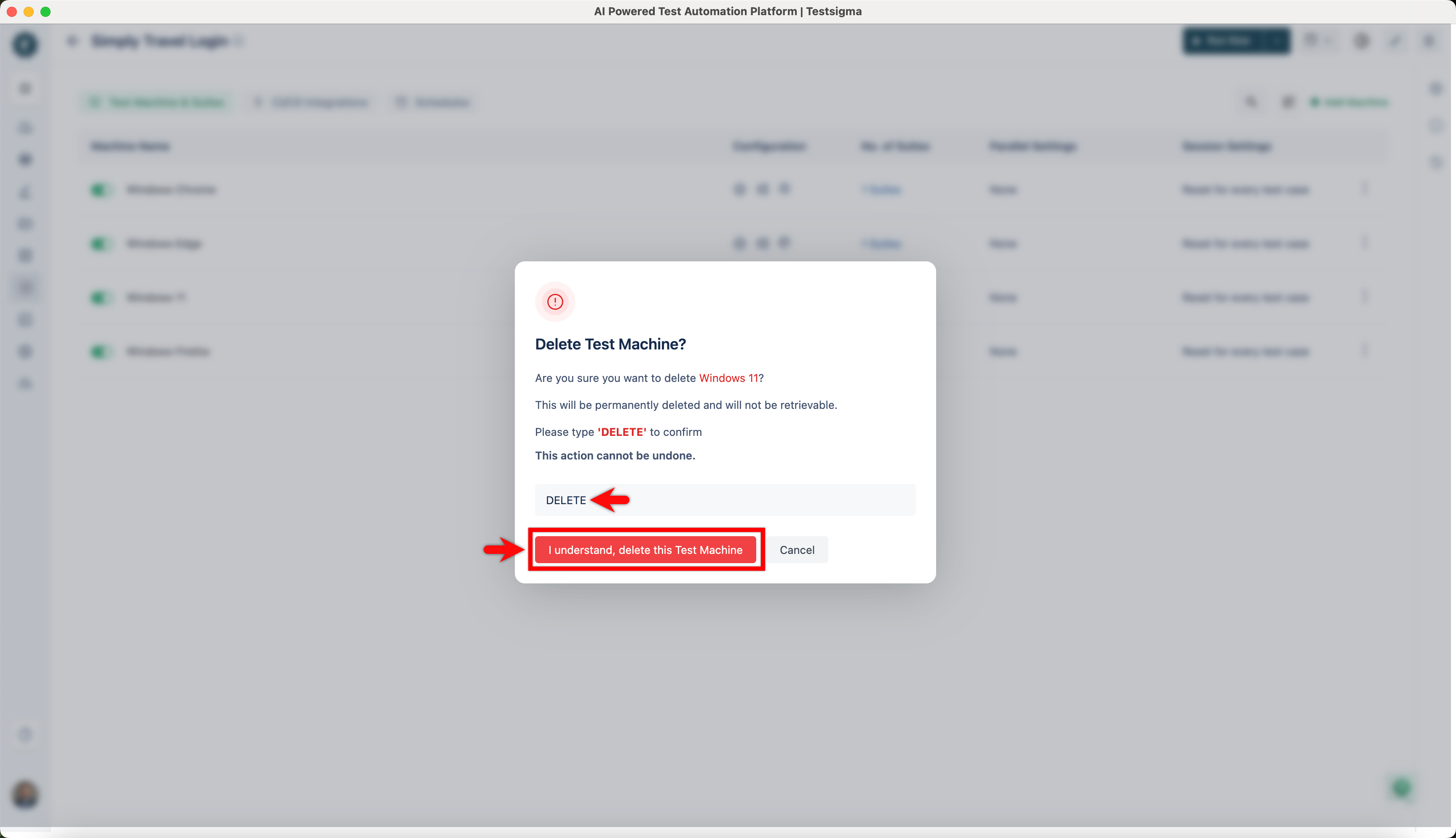
- On the Delete Test Machine? prompt, enter DELETE and click on I understand, delete this Test Machine.

Want to contribute or report missing content?