- integrations

Xray Integration with Testsigma
Xray is a test management tool that provides the structure to organize, plan, and report with accuracy on the progress of testing as well as the readiness to deploy. This article discusses Xray integration with Testsigma.
With Xray integration, you can link:
- An Xray test case to a Testsigma test case.
- An Xray test set to a Testsigma test suite.
- An Xray test plan to a Testsigma test plan.
Prerequisites
Before you begin, ensure that:
- You have a working JIRA integration. For more information on Jira bug reporting, refer to the documentation on jira bug reporting.
You have a working Xray integration.
- JIRA Account URL
- Client ID
- Client Secret
For more information on configuring global settings, refer to the documentation on configuring global settings.
Steps to Integrate Xray with Testsigma
- Navigate to Settings > Integrations.
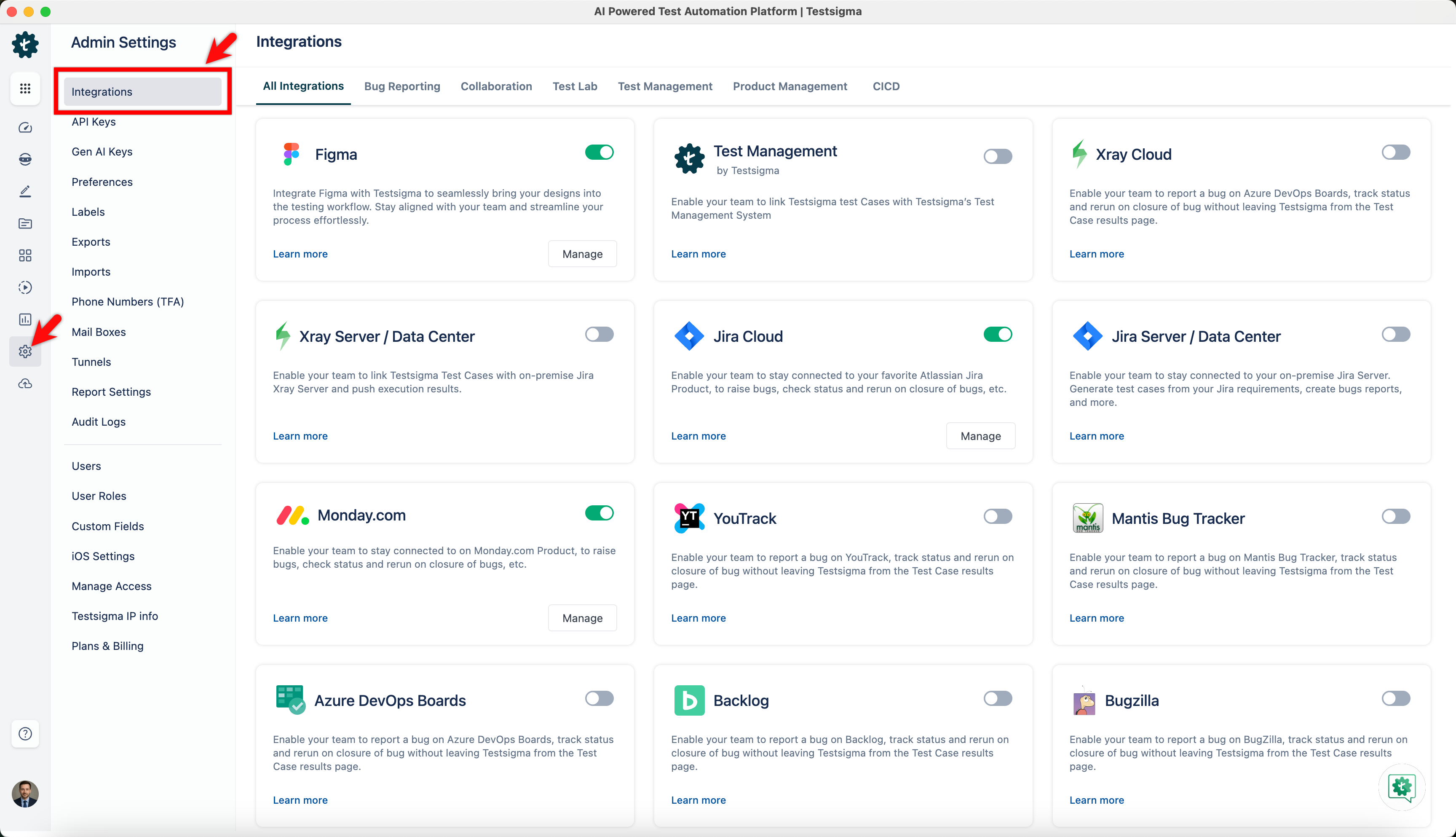
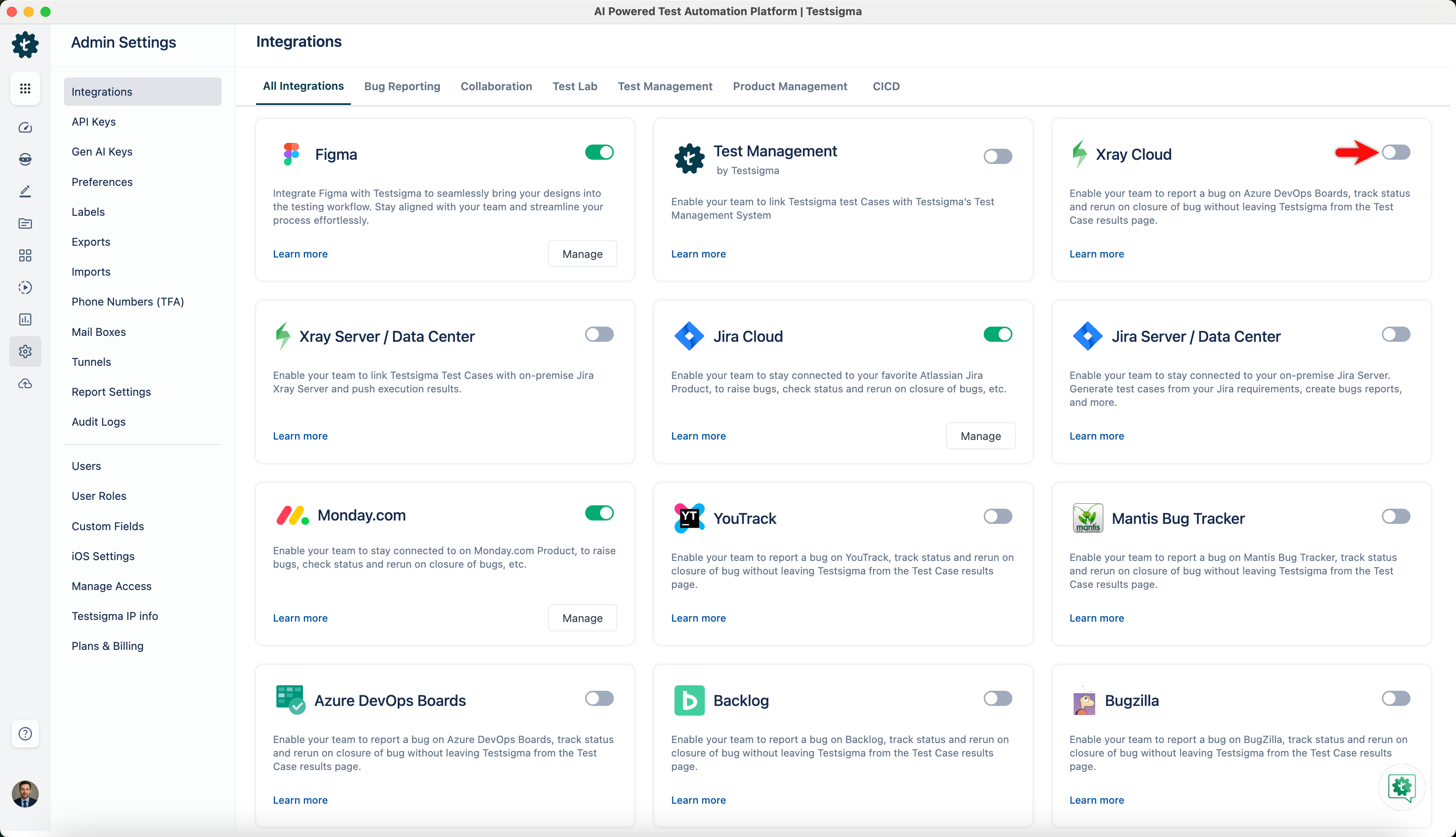
- Enable toggle on Xray widget.
- In the Xray Details dialog, enter Jira Account URL, Client Id and Client Secret, and click Save & Enable.
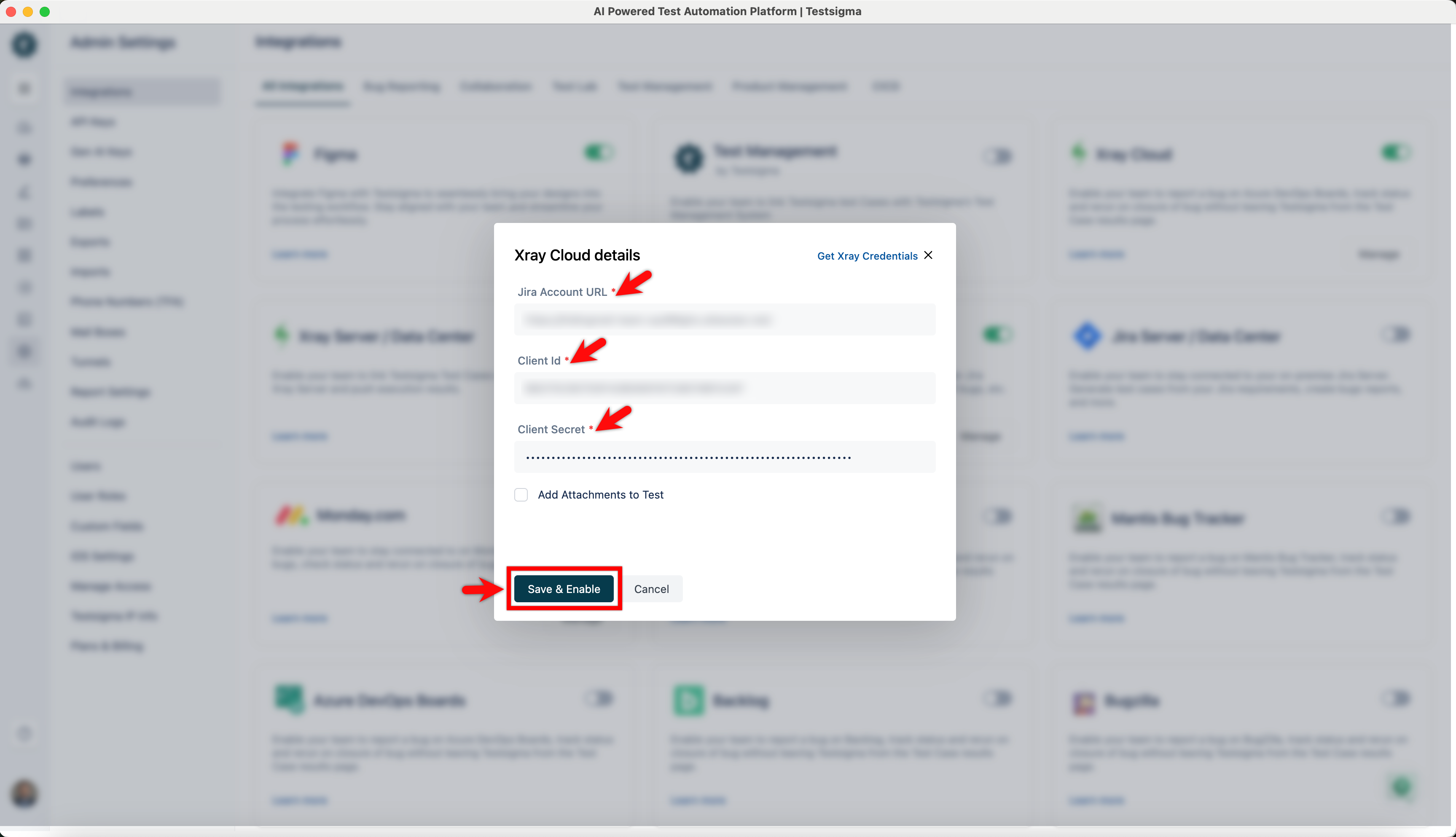
If you want to add attachments like logs, screenshots, and videos of execution for the test executions, please check the Add Attachments to Test.
Steps to Link an Xray Test Case to a Testsigma Test Case
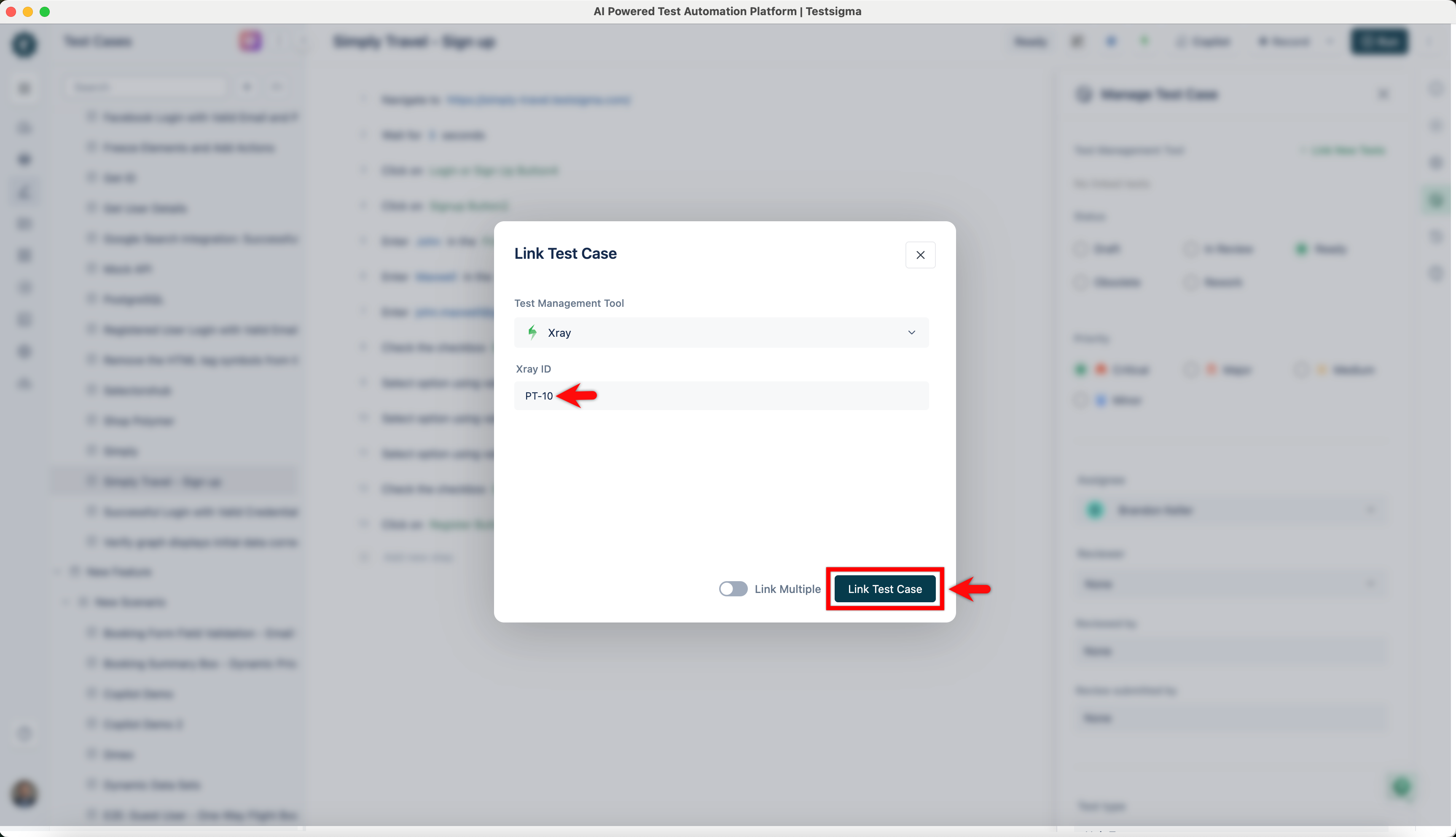
- Get the ID of an already created test from Xray. For example, if my test url on Xray is https://testserver.atlassian.net/browse/PT-10, then the ID would be: PT-10
- Navigate to the test case details page corresponding to the test case you want to link with.
- Enter Xray ID and click Link Test Case.
Steps to Link an Xray Test Set to a Testsigma Test Suite
- Get the ID of an already created test set from Xray. For example, if my test set url on Xray is https://testserver.atlassian.net/browse/PT-11, then the ID would be: PT-11
- Navigate to the test suite details page corresponding to the test suite you want to link with.
- Enter Xray ID and click on click the link button.
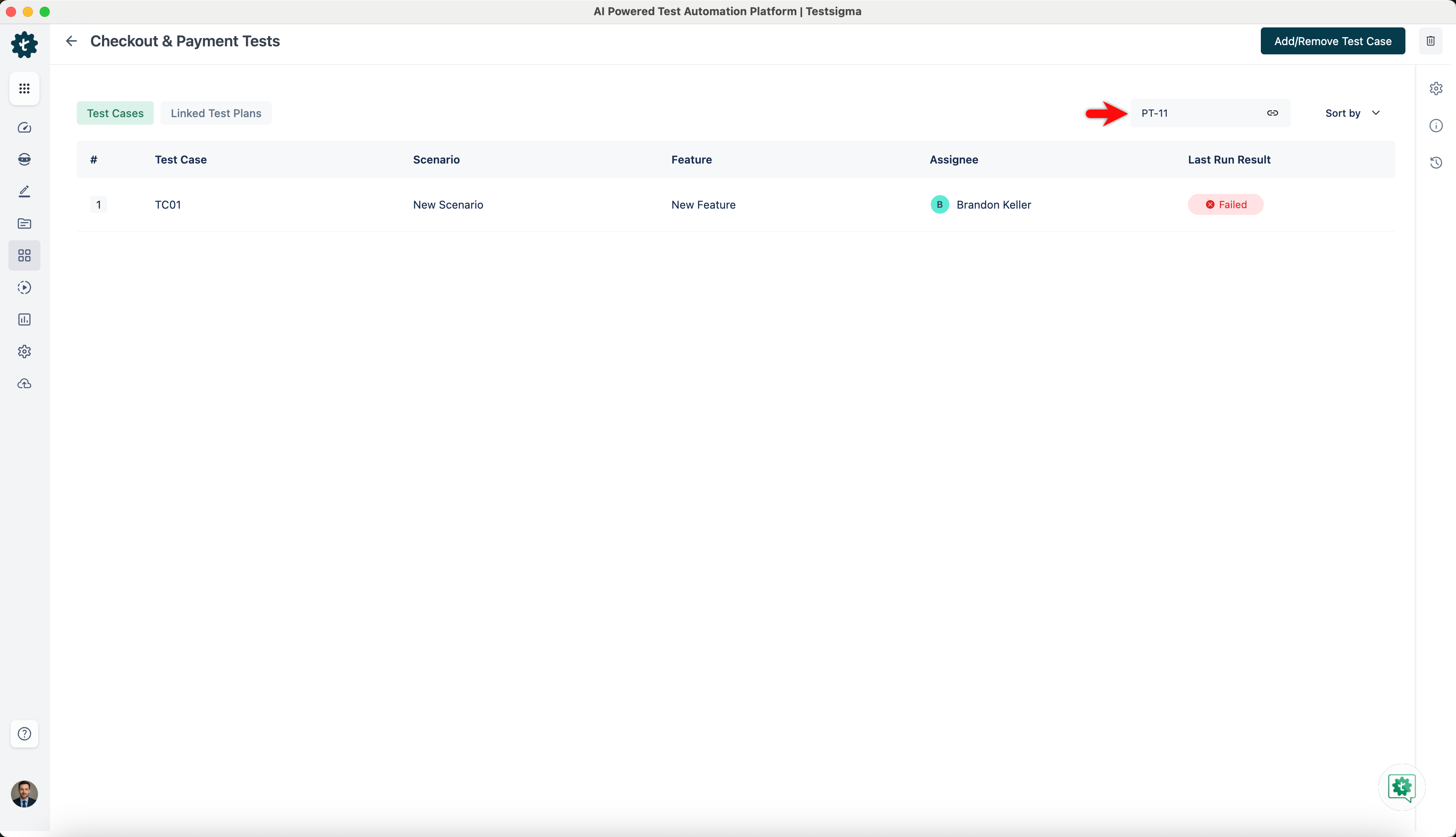
For the test execution of all the test cases inside the test suite, the test cases should also be linked to appropriate test cases on Xray.
Steps to Link an Xray Test Plan to a Testsigma Test Plan
- Get the ID of an already created test plan from Xray. For example, if my test plan URL on Xray is: https://testserver.atlassian.net/browse/PT-12, then the ID would be: PT-12
- Navigate to the test plan details page corresponding to the test plan you want to link with.
- Enter Xray ID and click Link Test Plan.
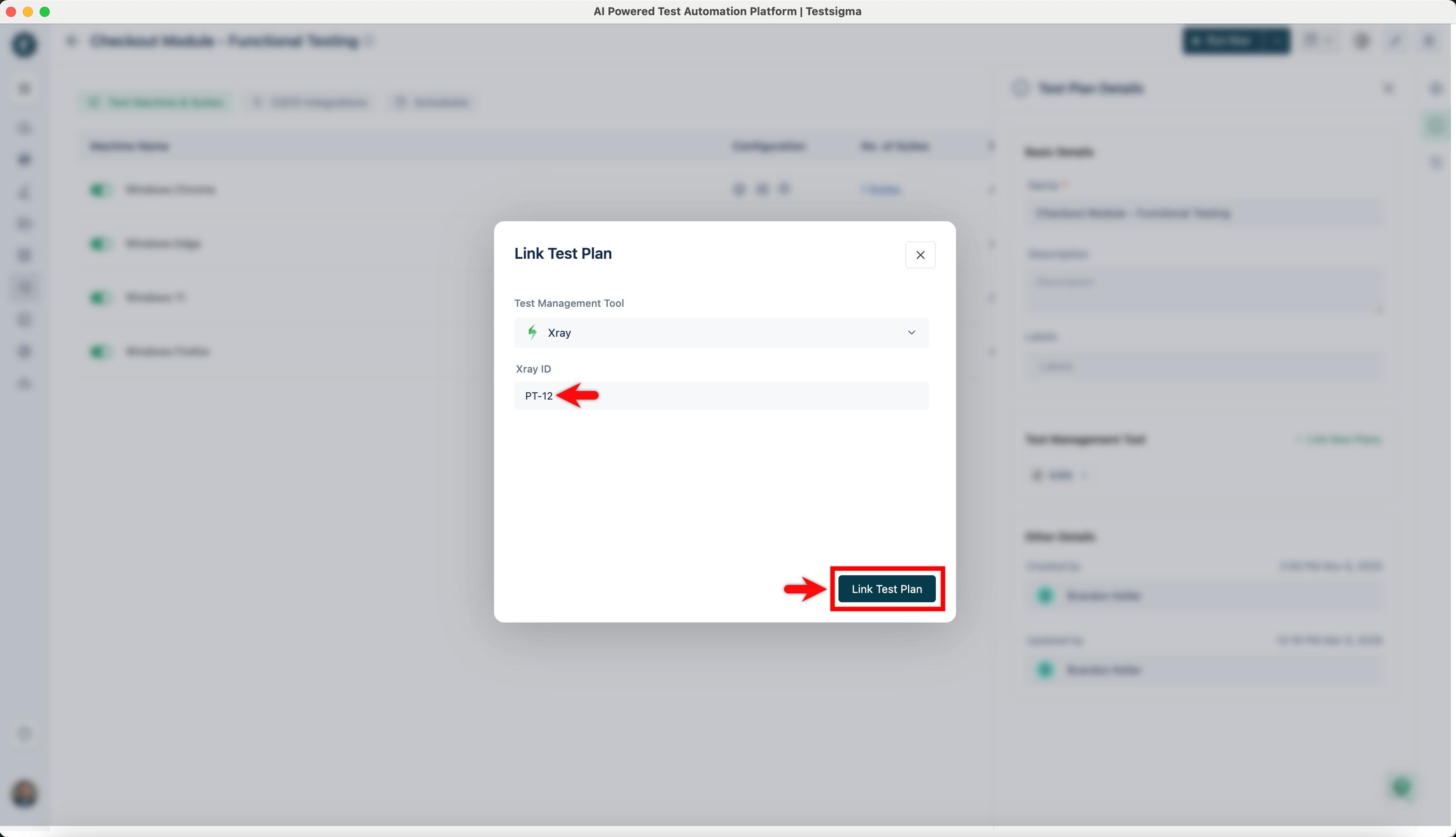
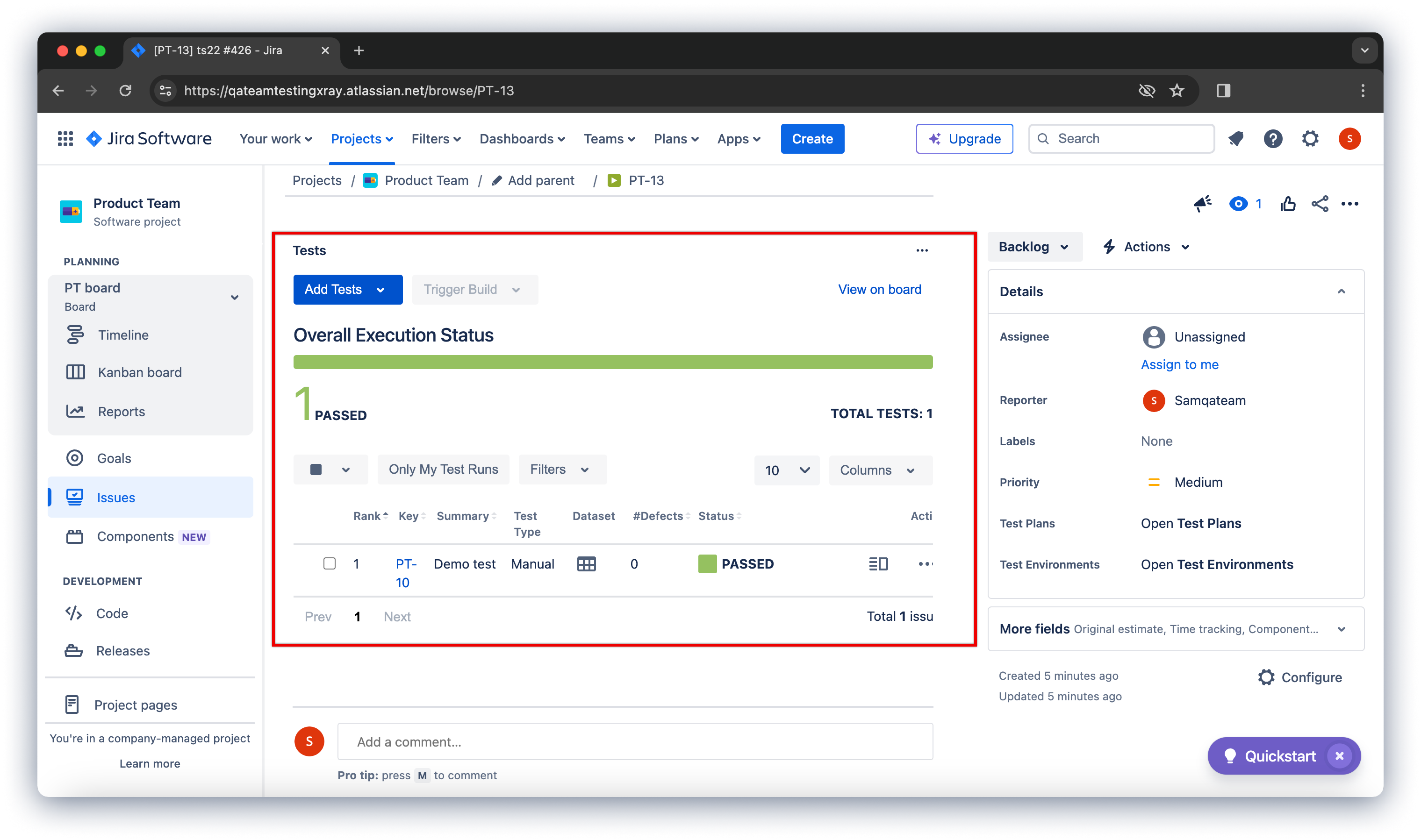
When you execute a Test Plan in Testsigma, the execution status will be updated for the linked test sets in Xray.
Refer to the screenshot below, which displays the test execution details in Xray.

Want to contribute or report missing content?