
Integrating Figma with Testsigma
With Figma integrated into Testsigma, you can generate test cases directly from design artifacts. By selecting relevant frames, sections, or pages and providing a prompt, Testsigma’s Generative AI transforms Figma designs into executable test scenarios. This ensures early alignment between design and testing, and improves test coverage across visual flows.
Getting Team ID in Figma
- Open Figma in a web browser.
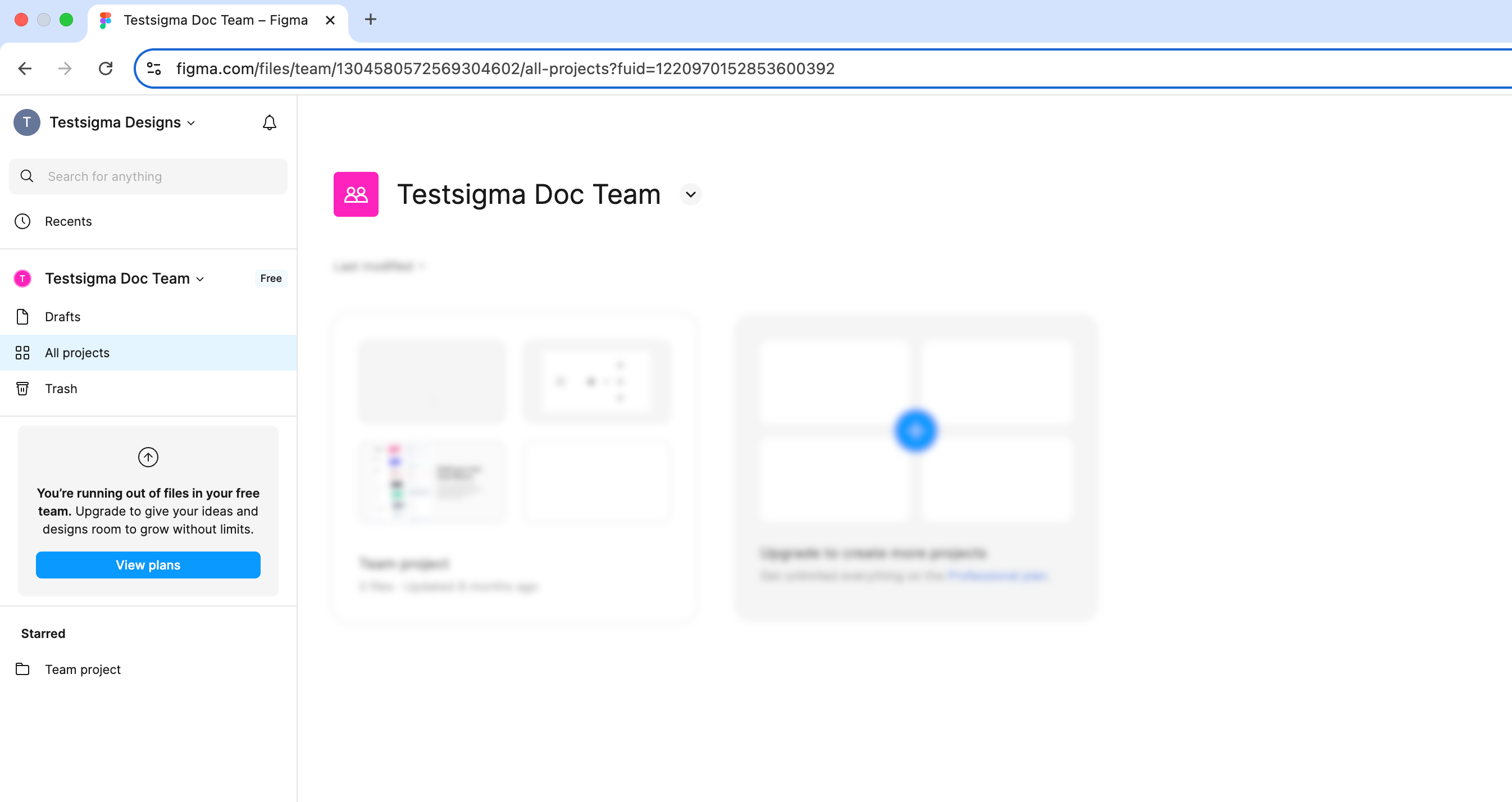
- In the left navigation bar, select the team from the dropdown menu.
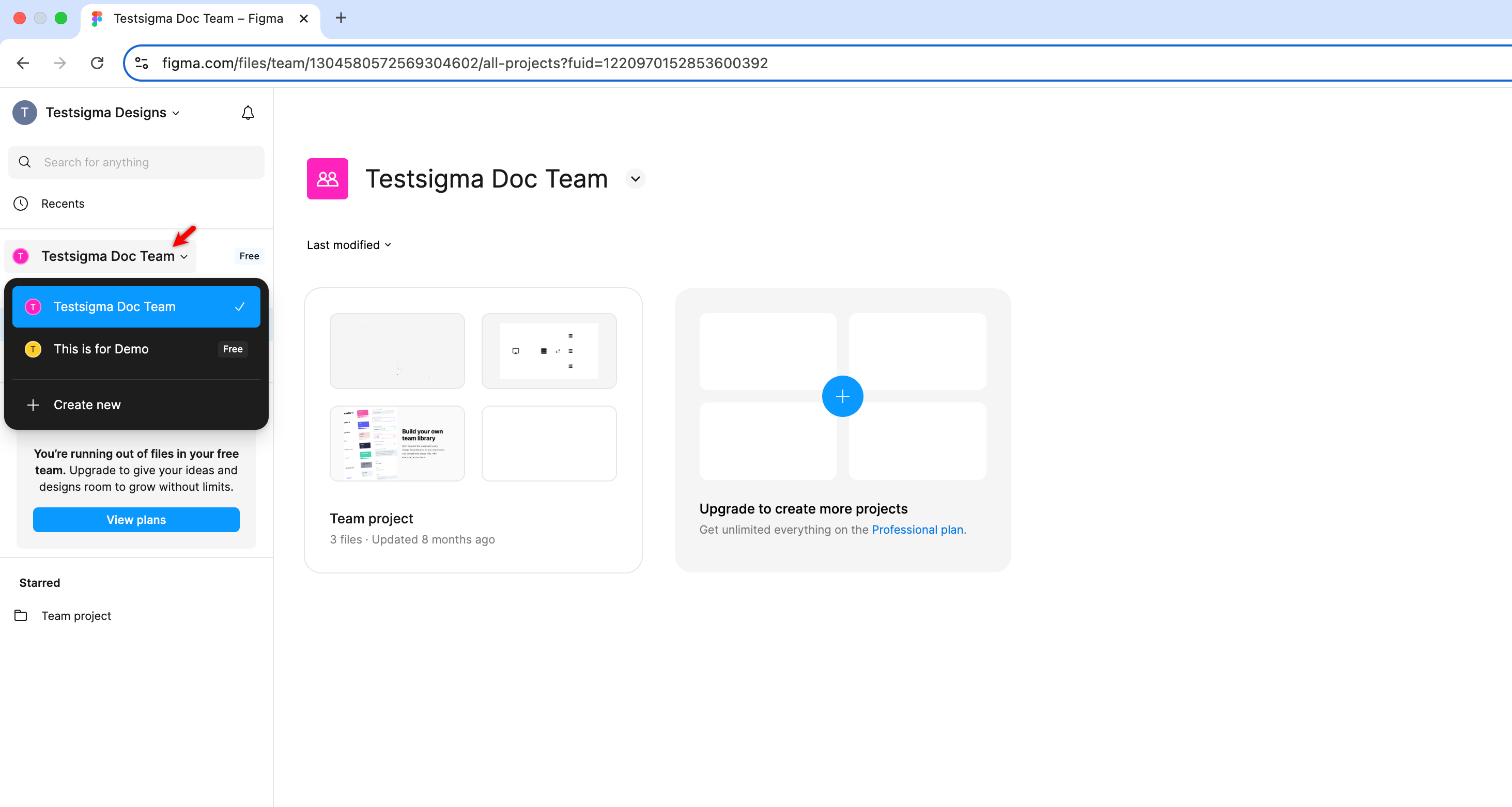
-
In the address bar, locate the URL in the following format:
https://www.figma.com/files/team/{TEAM_ID}/your-team-name
The {TEAM_ID} in the URL is your Figma Team ID.
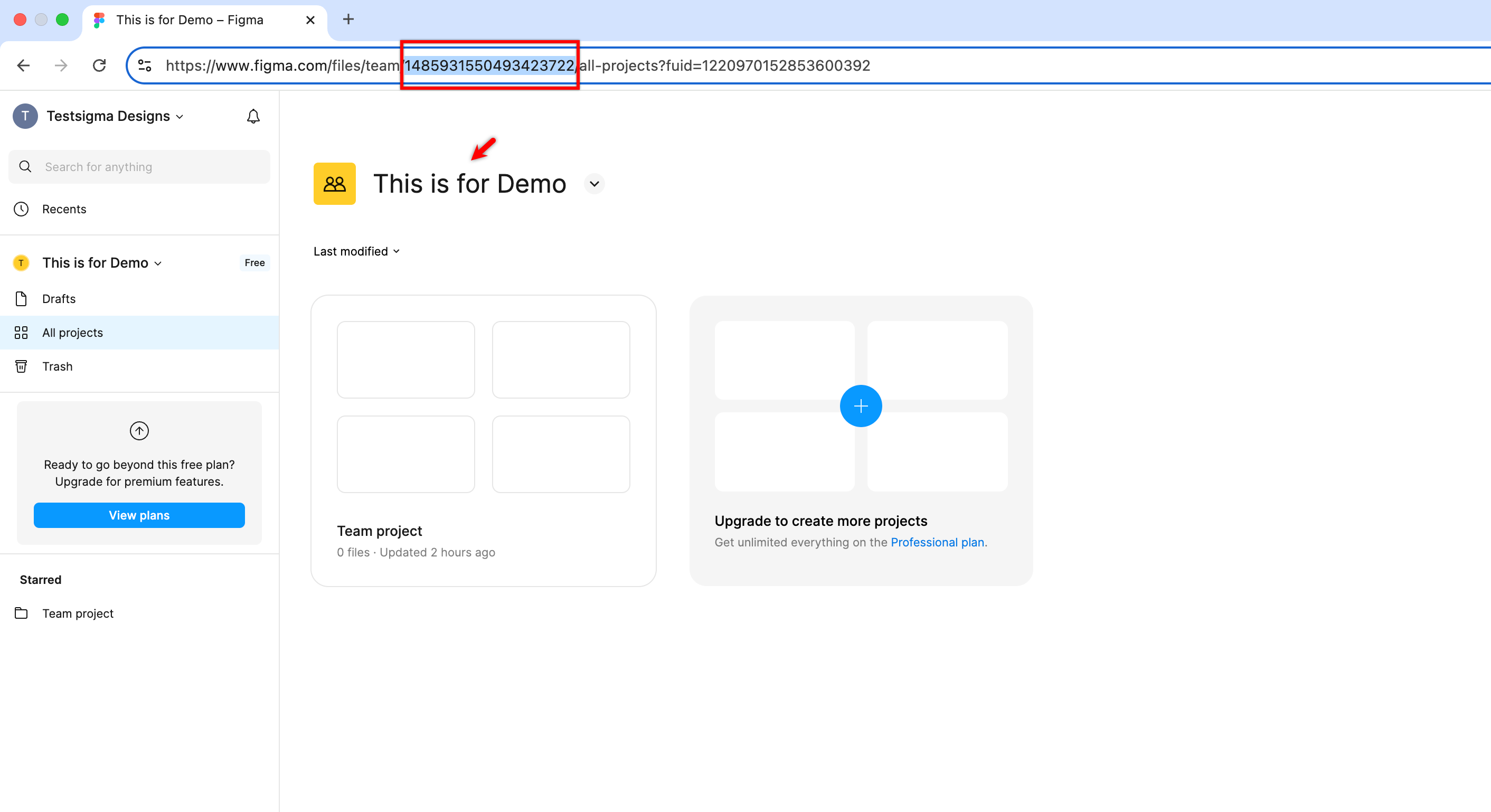
If you don’t have access to the team page, contact your Admin to get the Team ID.
Generating a Personal Access Token in Figma
- Open Figma in a web browser.
- In the top-right corner, click your profile icon, and select Settings.
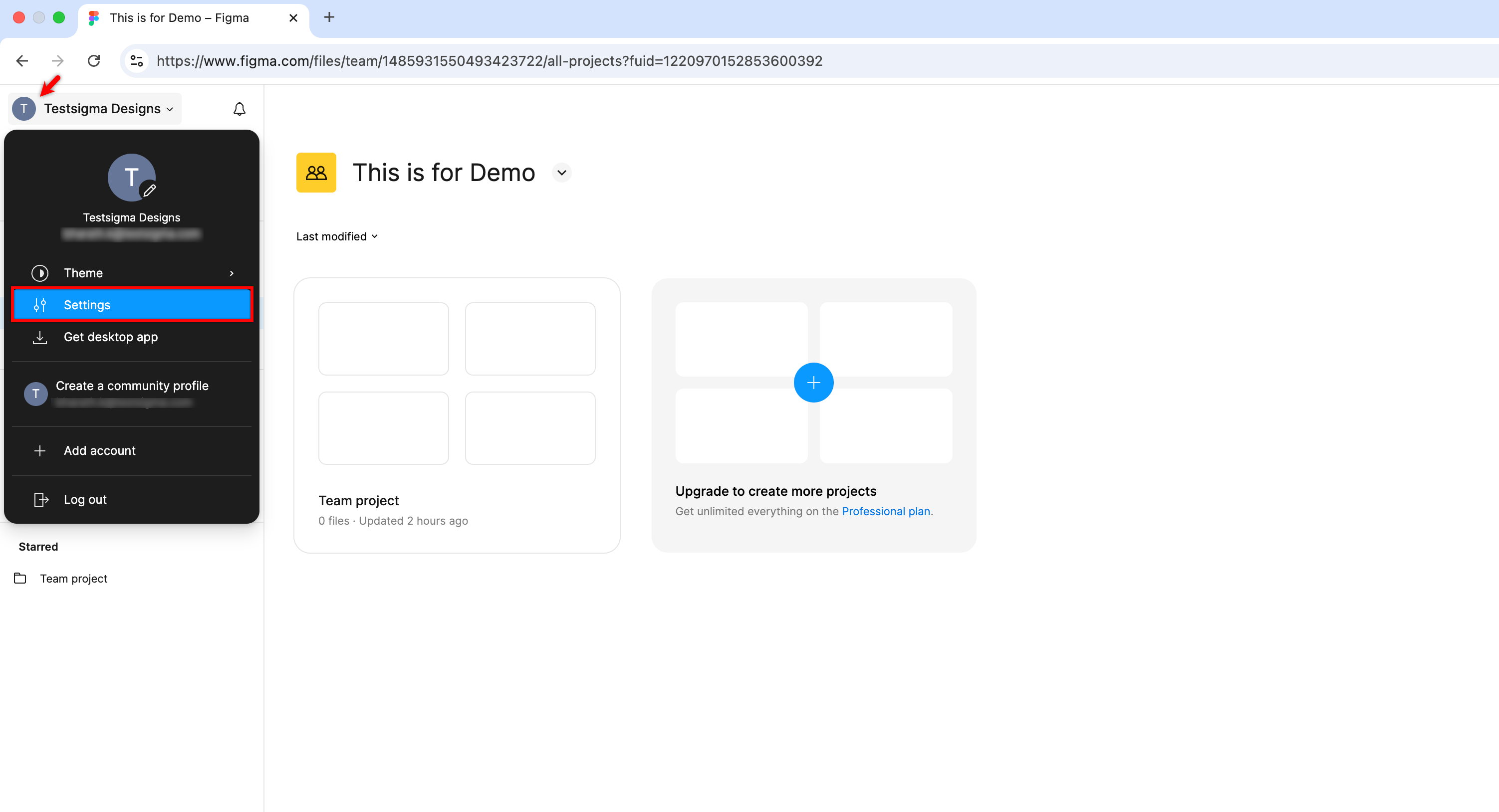
- Navigate to Security > Personal access tokens section.
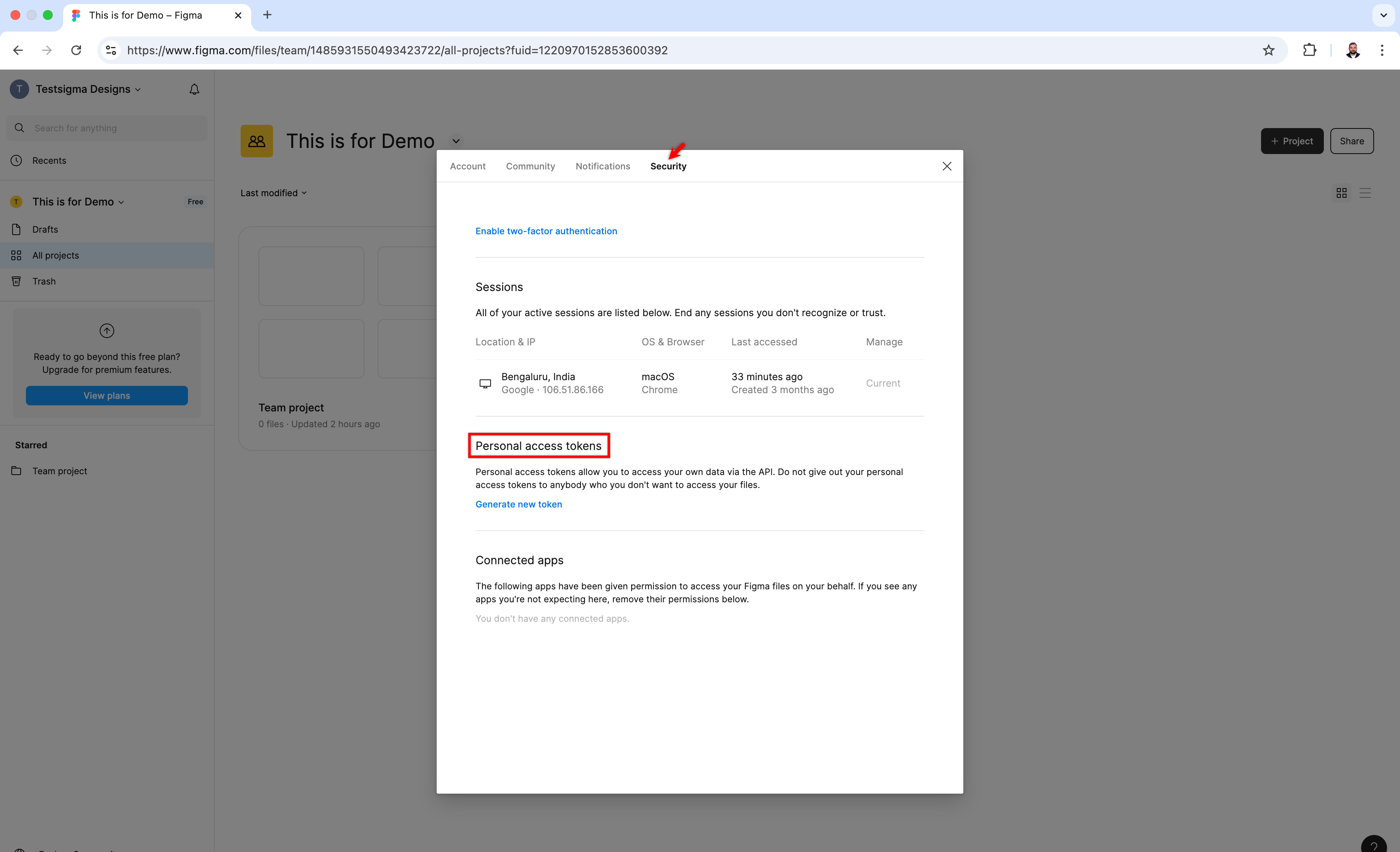
- Click Generate new token.
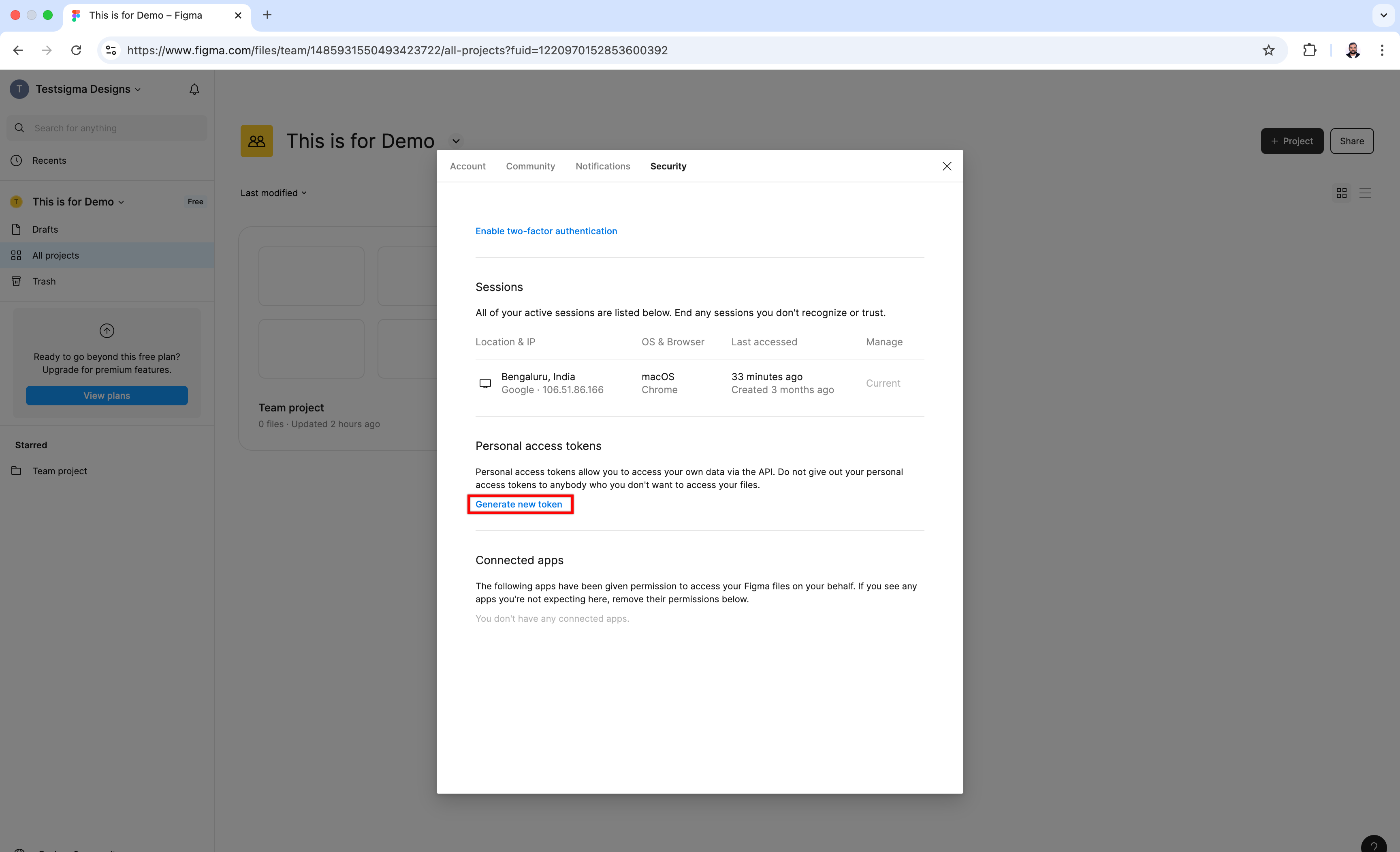
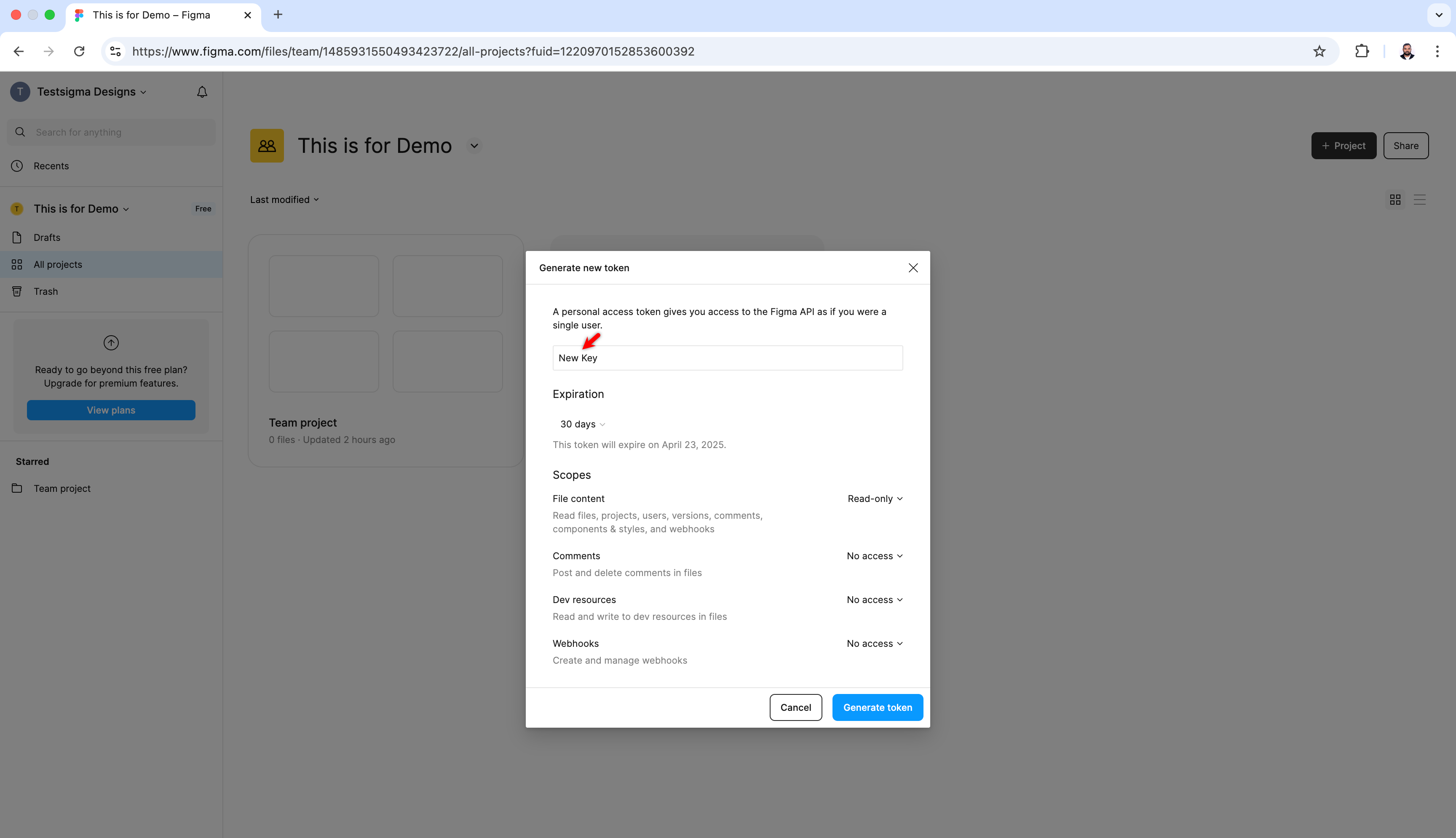
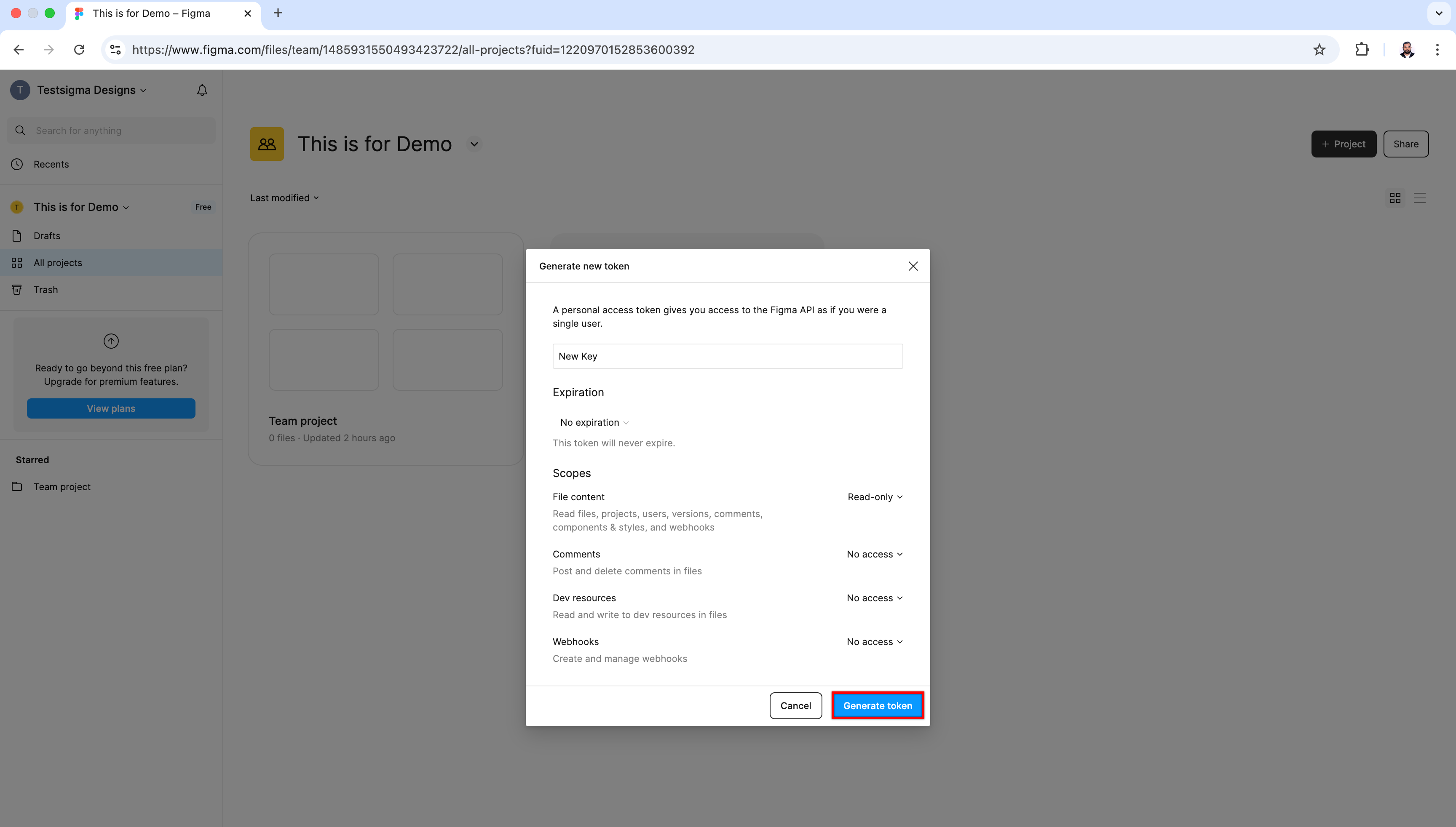
- In the Generate new token dialog, enter a Token name.
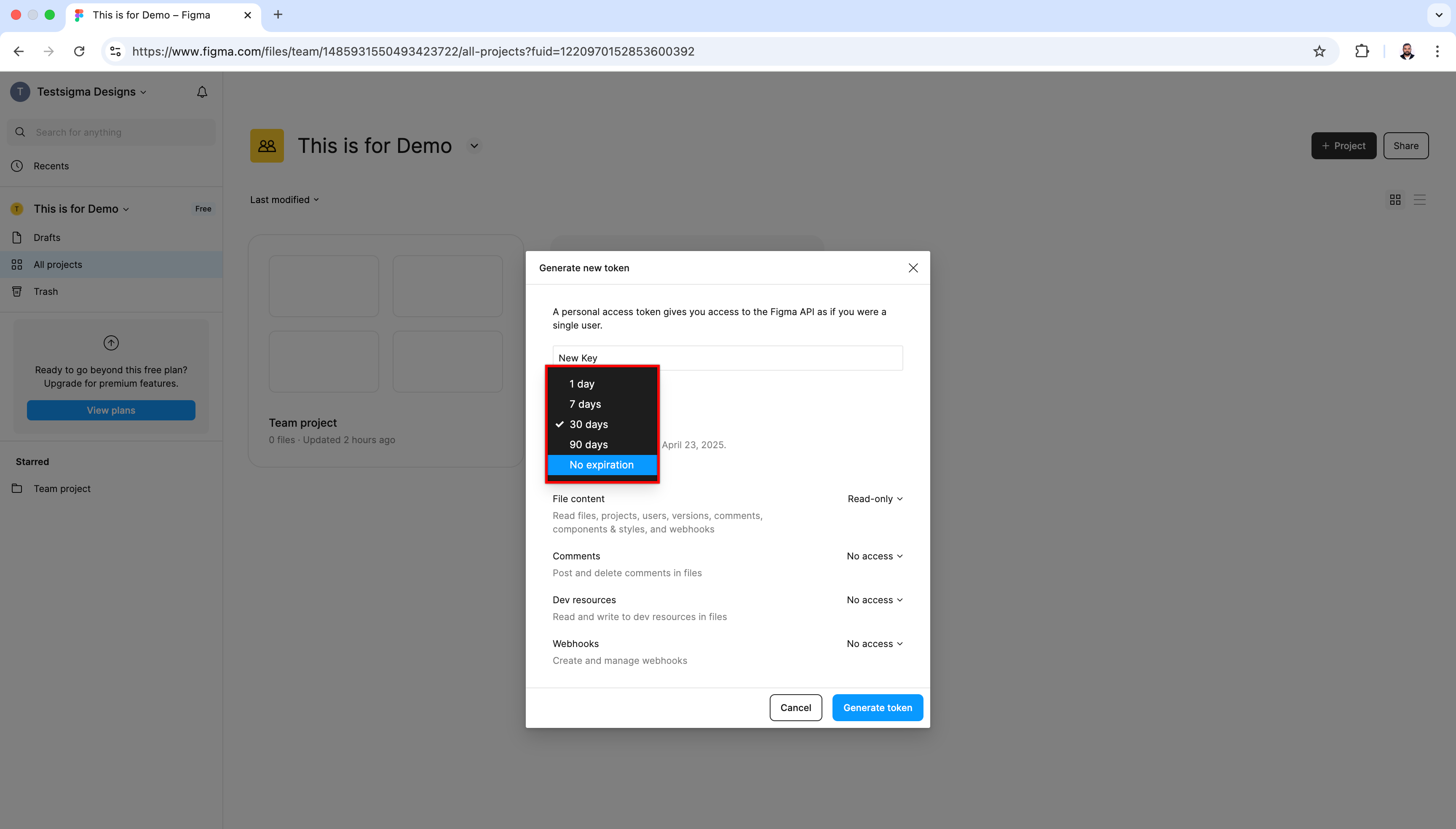
- From the Expiration dropdown, select an expiration period.
- Click Generate token.
- Click Copy this token to copy the key.
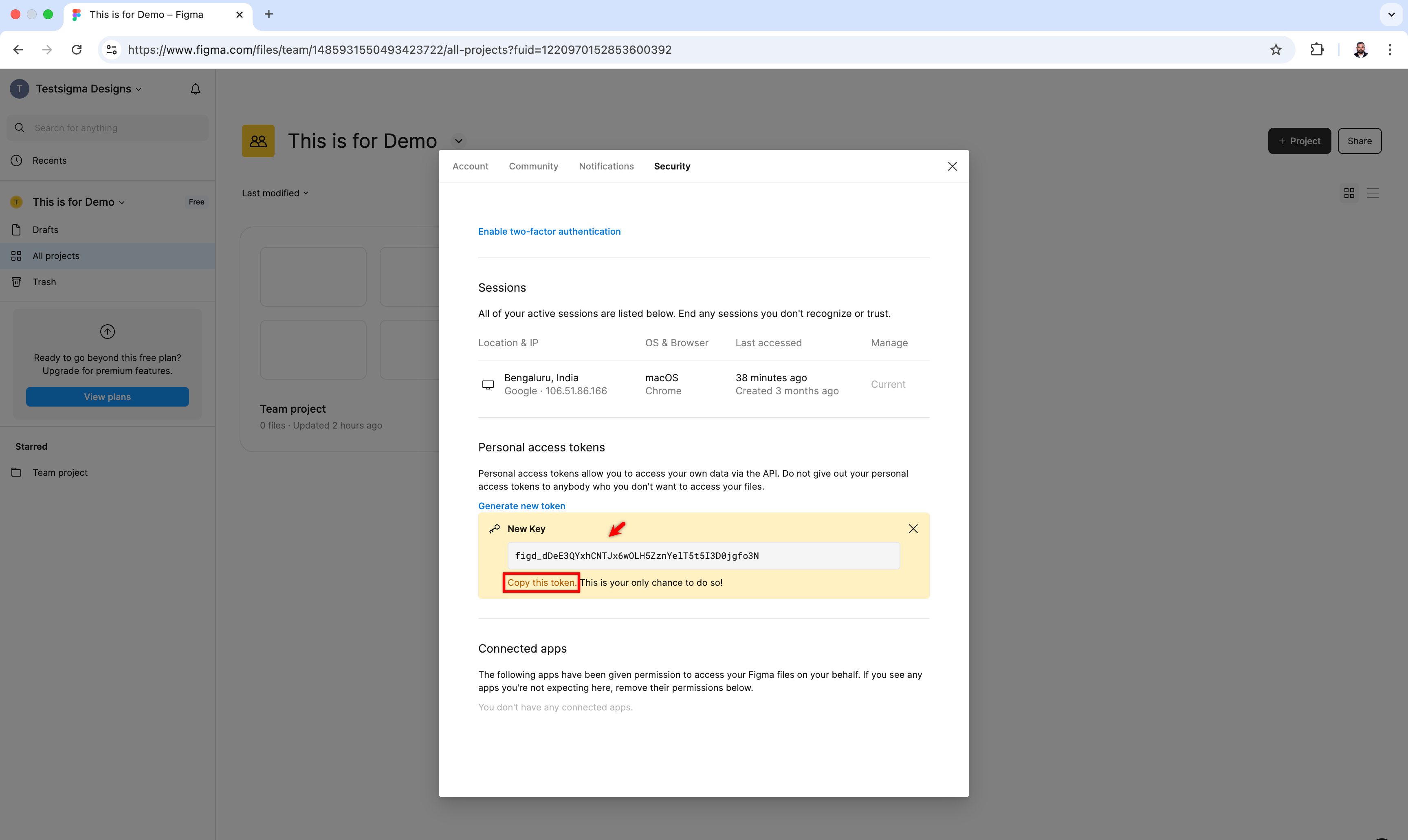
Store the token securely. You won’t be able to view it again.
Integrating Figma with Testsigma
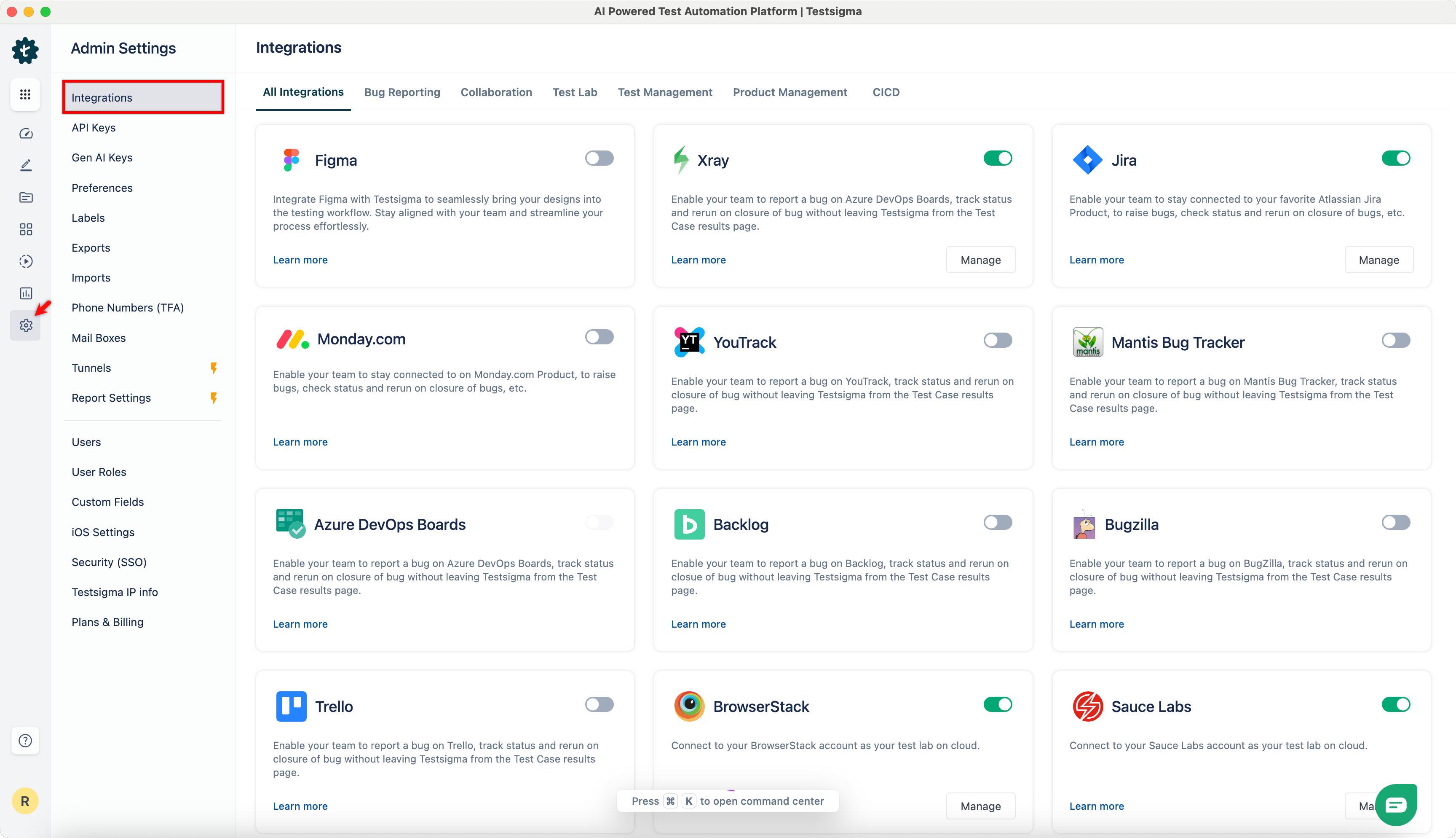
- From the left navigation bar, go to Settings > Integrations.
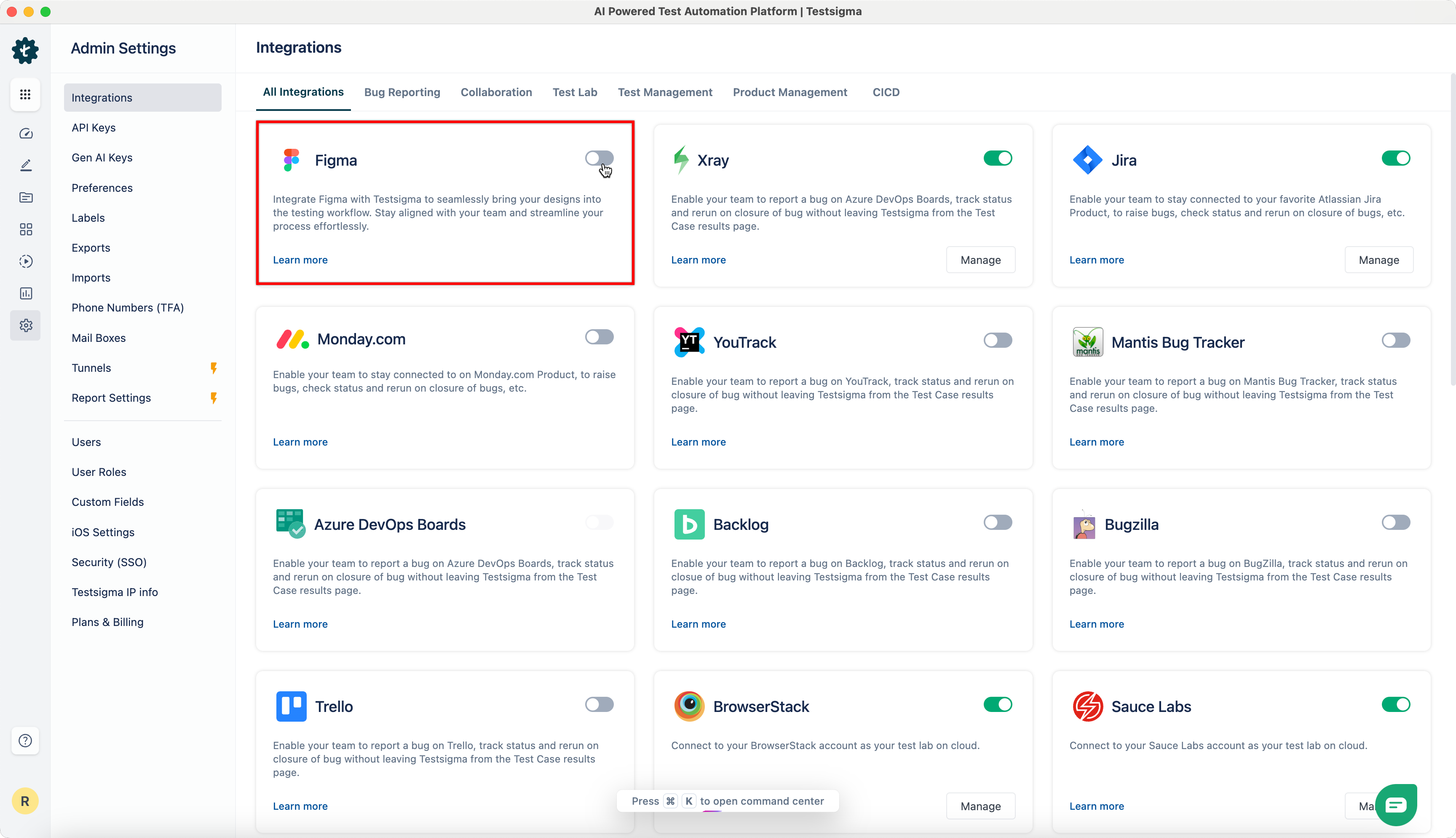
- Enable the toggle on Figma widget.
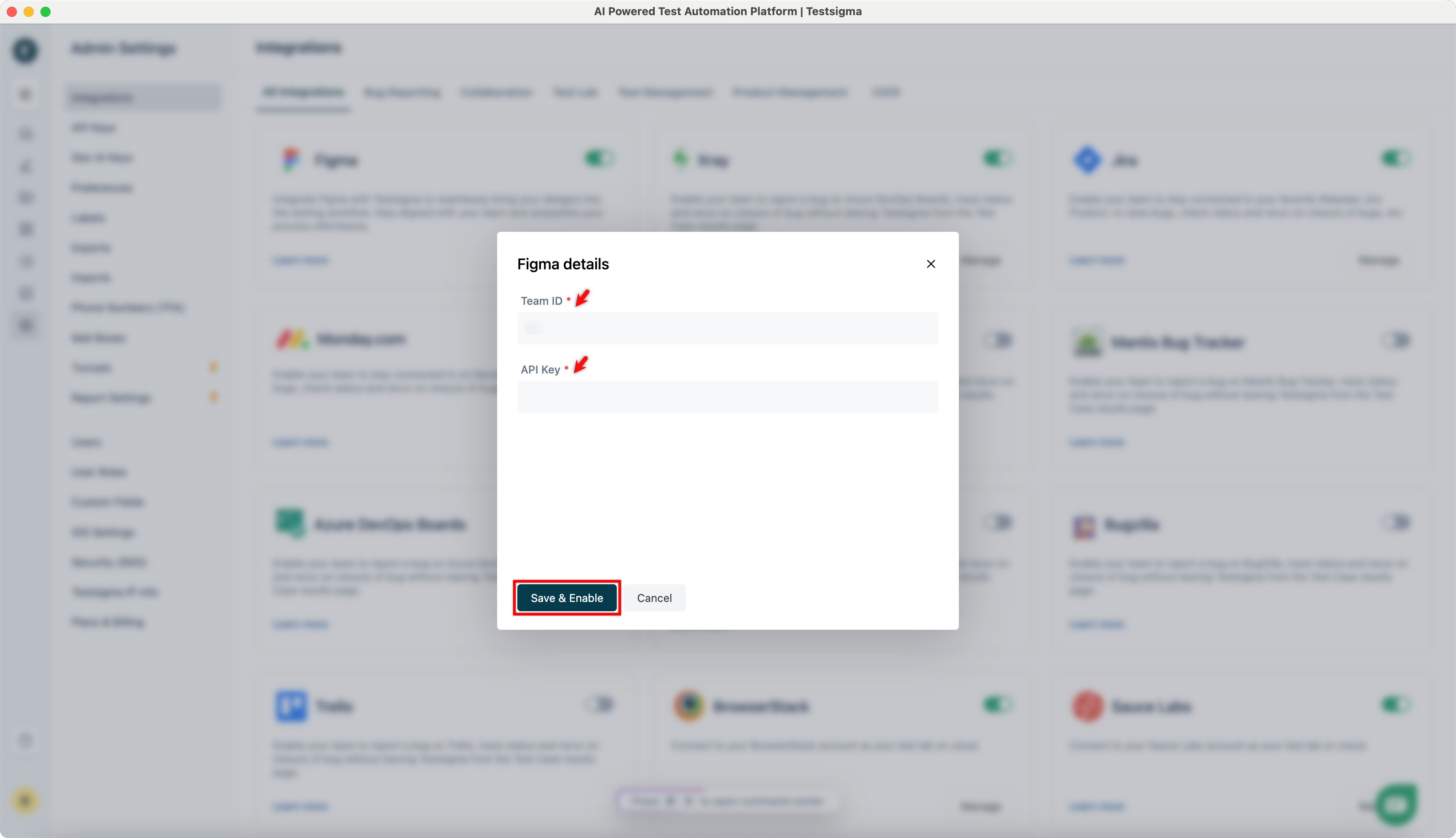
- On the Figma Details prompt, enter the Team ID and API Key and click Save & Enable.
Components of Figma
Before generating test cases from Figma design, it’s essential to understand how Figma and its features work. Figma is a powerful, cloud-based design tool that is widely used for UI/UX design, prototypes, and collaboration.
A Figma file hierarchy is in this way Project > Design File > Pages > Sections > Frames.
Projects
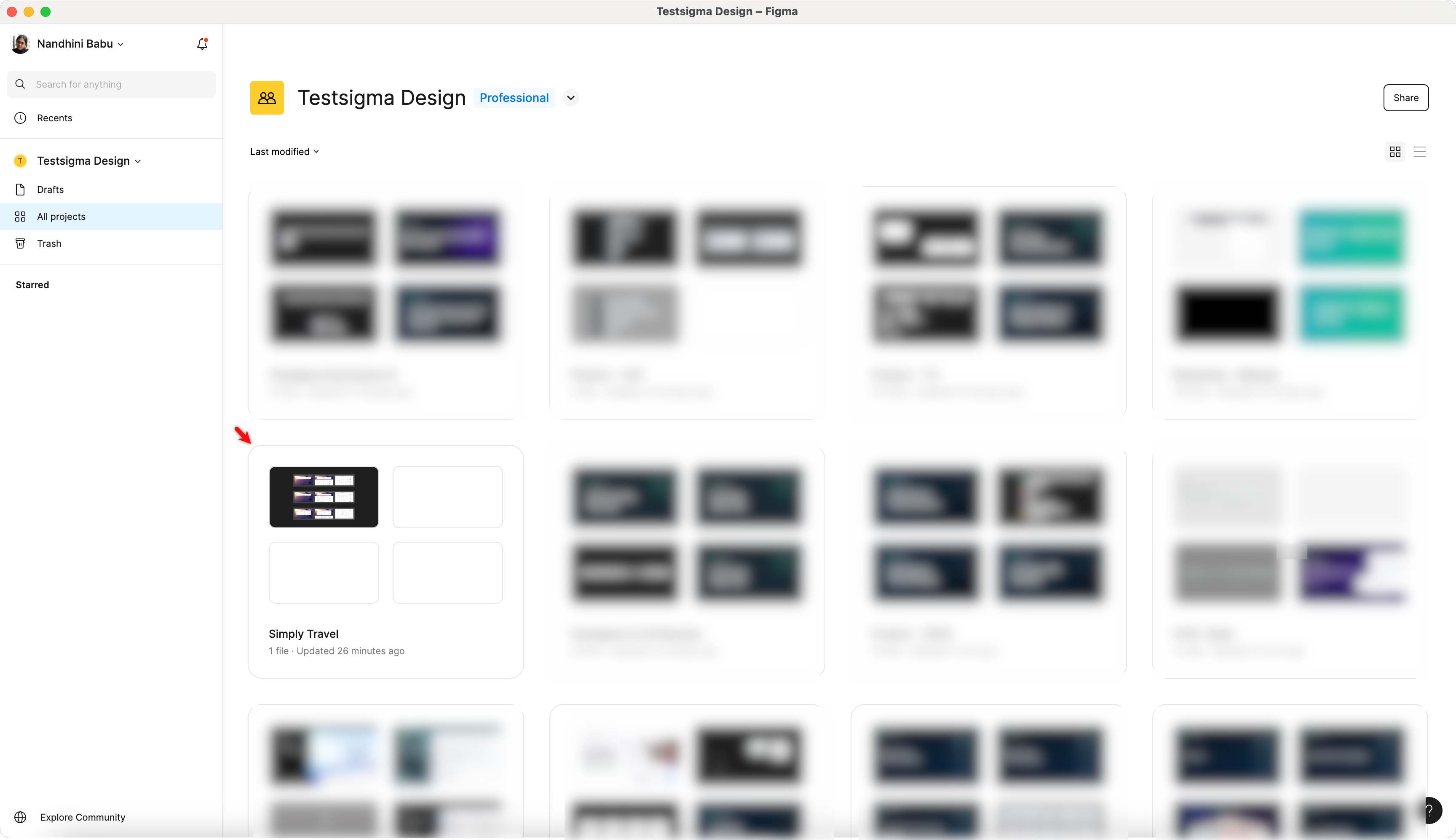
Projects act as containers for organizing related design files and can hold multiple design files.
To view all projects, navigate to the left panel and select All Projects.
Files
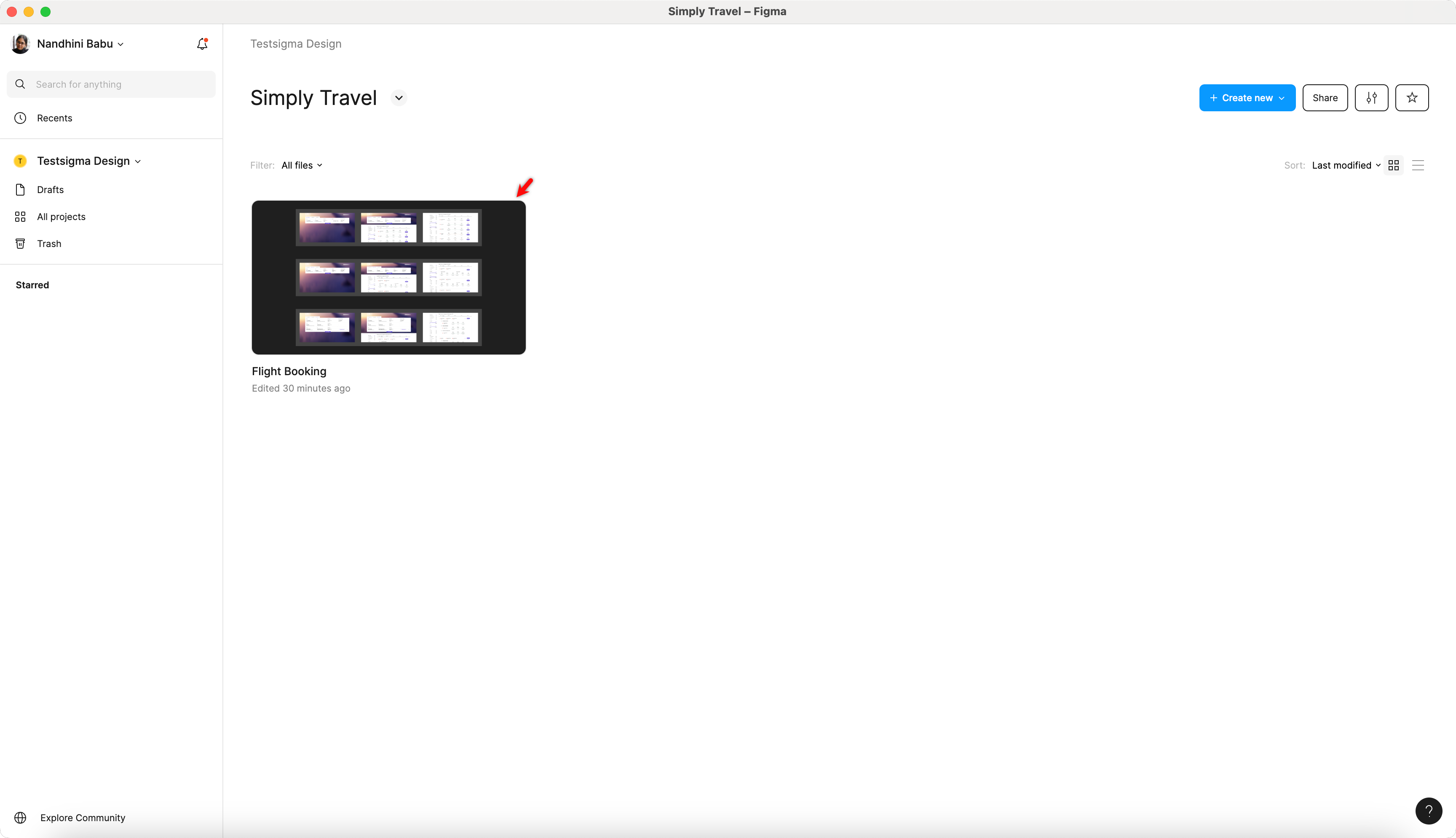
Files contain the actual design work. Each file contains multiple pages where designers create and store UI elements, prototypes, etc.
To access the files within a project, double-click on the project.
Pages
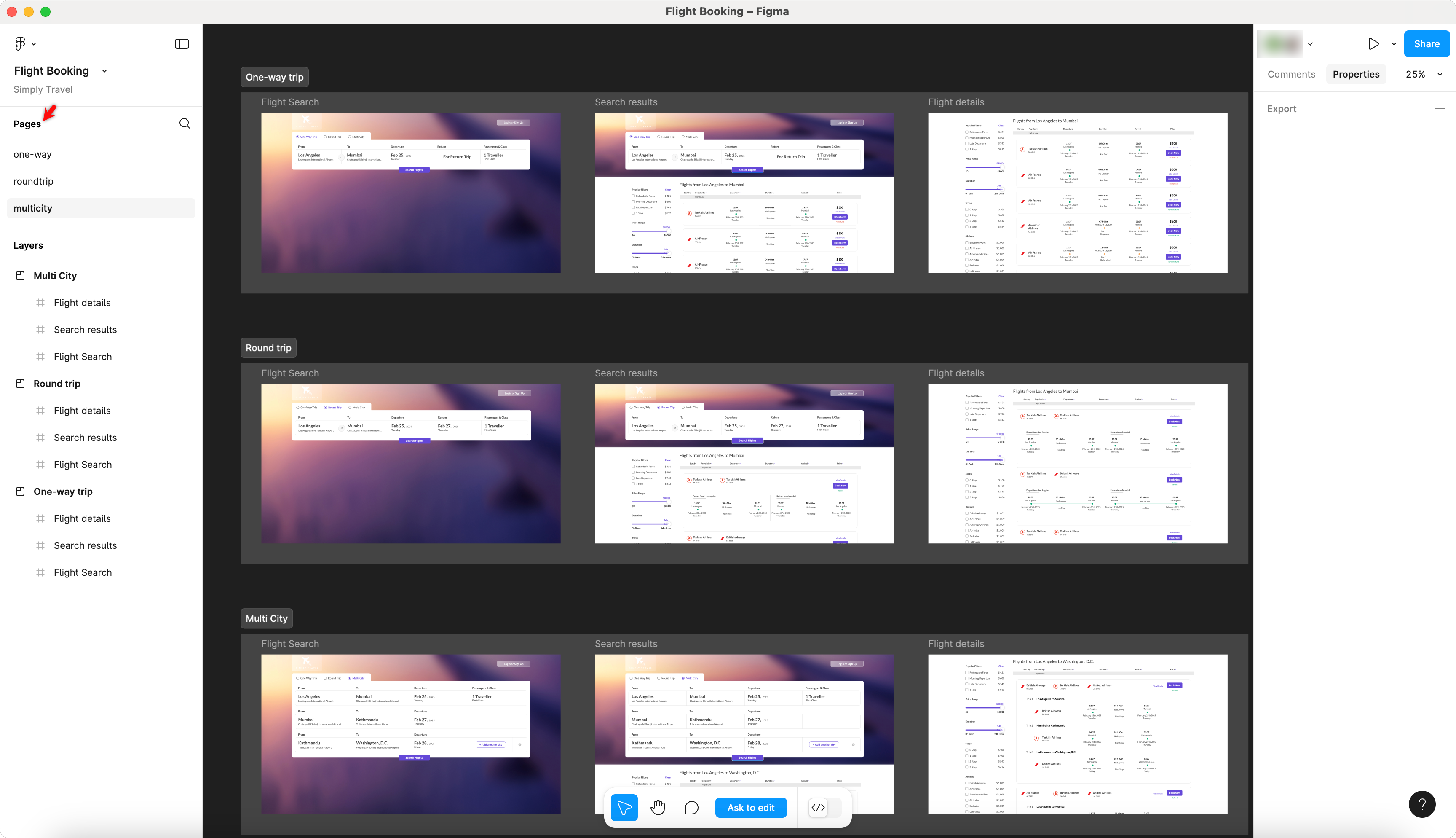
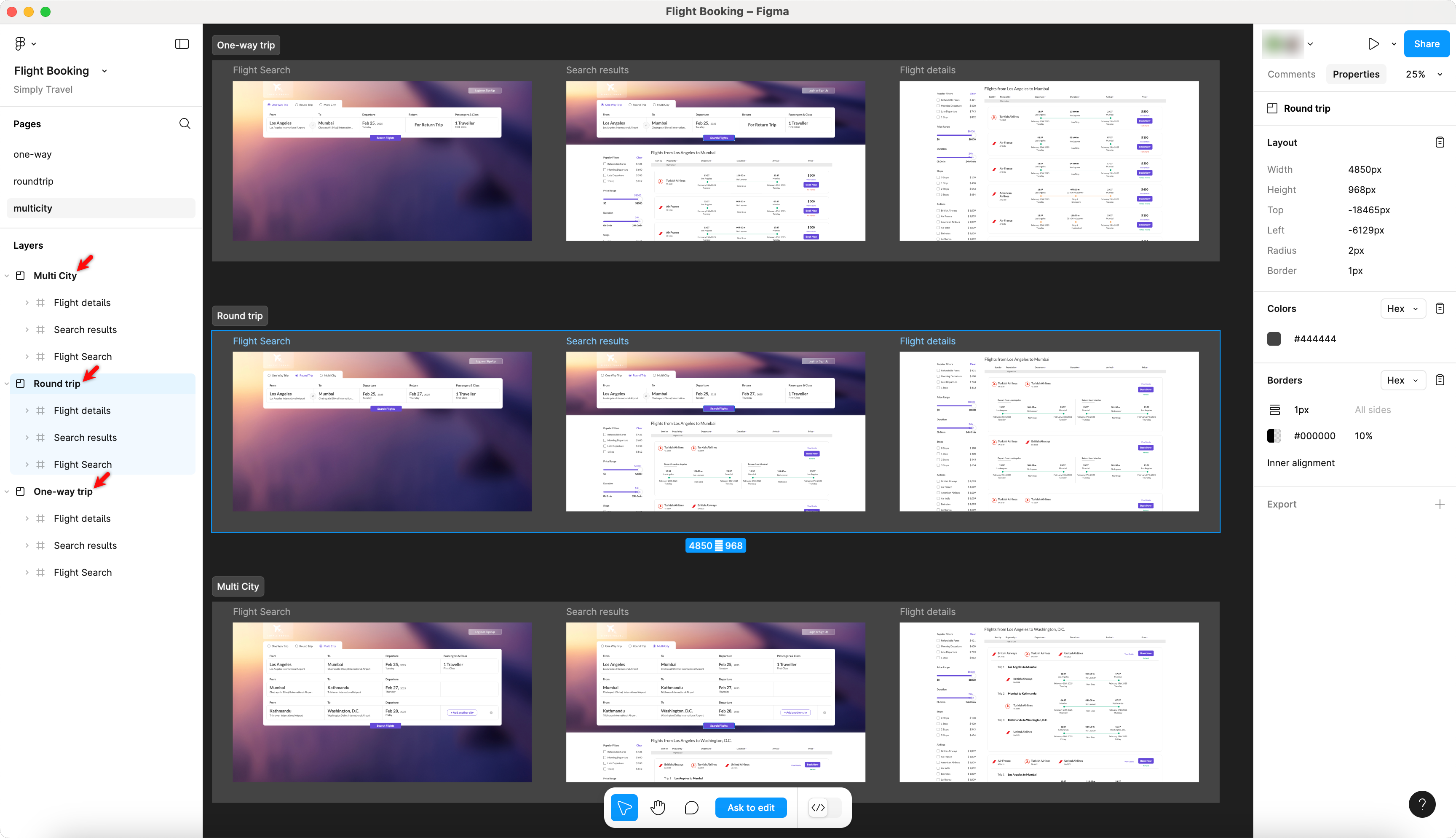
A page inside Figma can have Sections as well as Frames.
Sections
Sections are used within a page to organize related frames visually.
A section inside a page, can have a set of Frames.
Frames
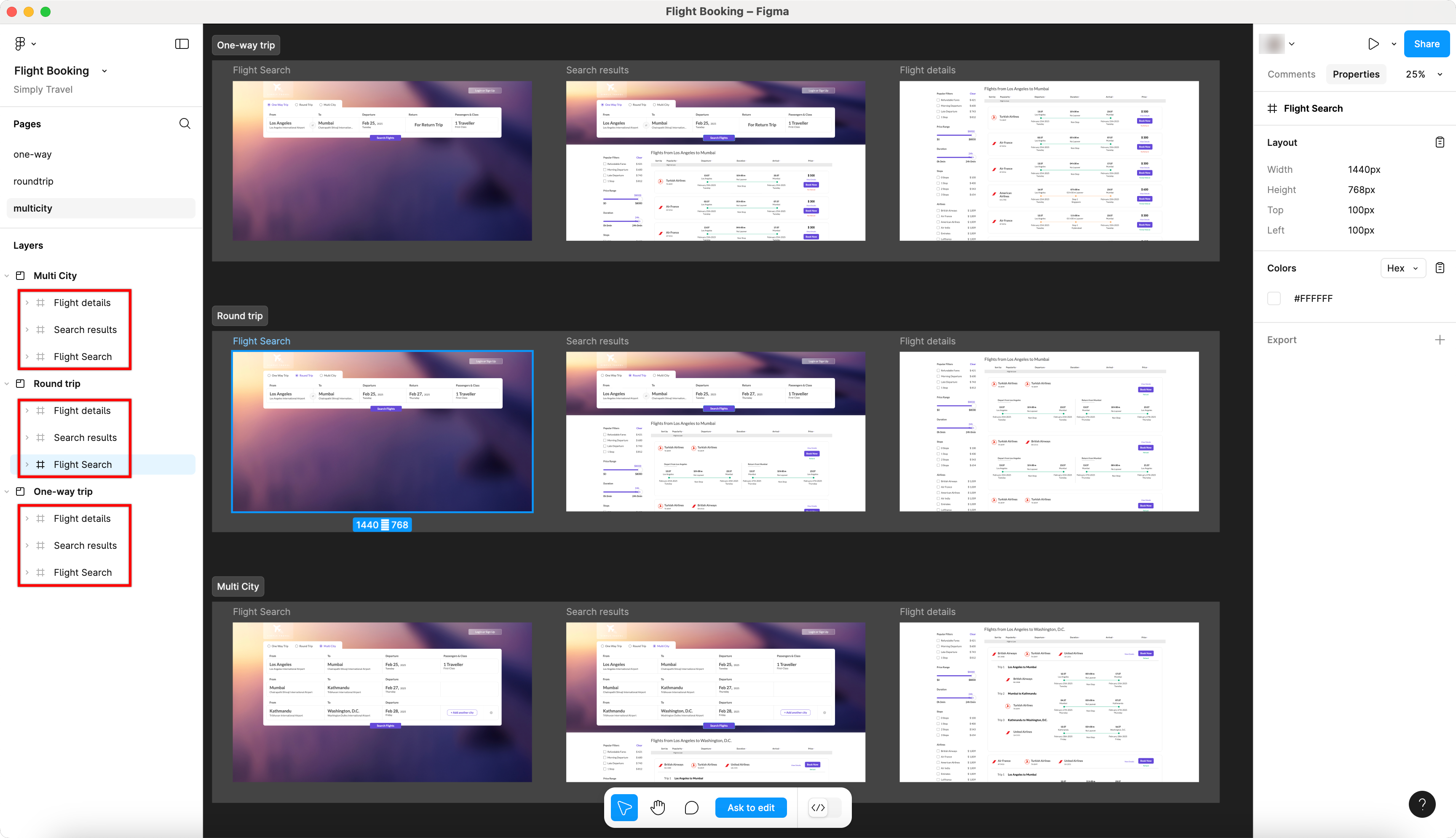
Frames are the primary design components in Figma. Each UI/UX design screen is typically represented by a frame.
A frame inside a page or a section represents a screen of web or mobile app.

Want to contribute or report missing content?