- Elements (Objects)
- Web Applications
 Record Single Element
- Record Multiple Elements
- Create Elements
- Supported Locator Types
- Formulating Elements
- Shadow DOM Elements
- Verifying elements in Chrome DevTools
- Handling iframe Elements?
- Create Image Based Elements
- Dynamic Locators using Parameter
- Dynamic Locators using Runtime
- Using Environment Test Data for Dynamic Locators
- Locating Dynamic Elements in Date Widget
- Freeze & Inspect Dynamic Elements (WebPage)
- Locating Dynamic Elements in Tables
- Import/Export Elements
- Locator Precedence (Web Apps)
- Verify Elements from Test Recorder
Dynamic Locators using Parameter
Dynamic locators are necessary for data-driven testing because they help adjust to changes in elements. You can use a Test Data profile to set the variable part of the ID attribute. The parameter name, called elements, holds the dynamic data for storing the dynamic part. Testsigma makes this easy using parameterised XPath or CSS Selectors in test steps. This guide will show you how with a practical example.
Prerequisites
Before you begin, ensure that:
Store Elements ID attribute into Test Data Profile
We are using the Simply Travel Flight website as an example and sorting the city names and the variable part of the element's ID attribute in the test data profile.
- Navigate to the website containing the elements you want to copy the XPath.
- Right-click on the desired and select Inspect to open Chrome Developer Tools.
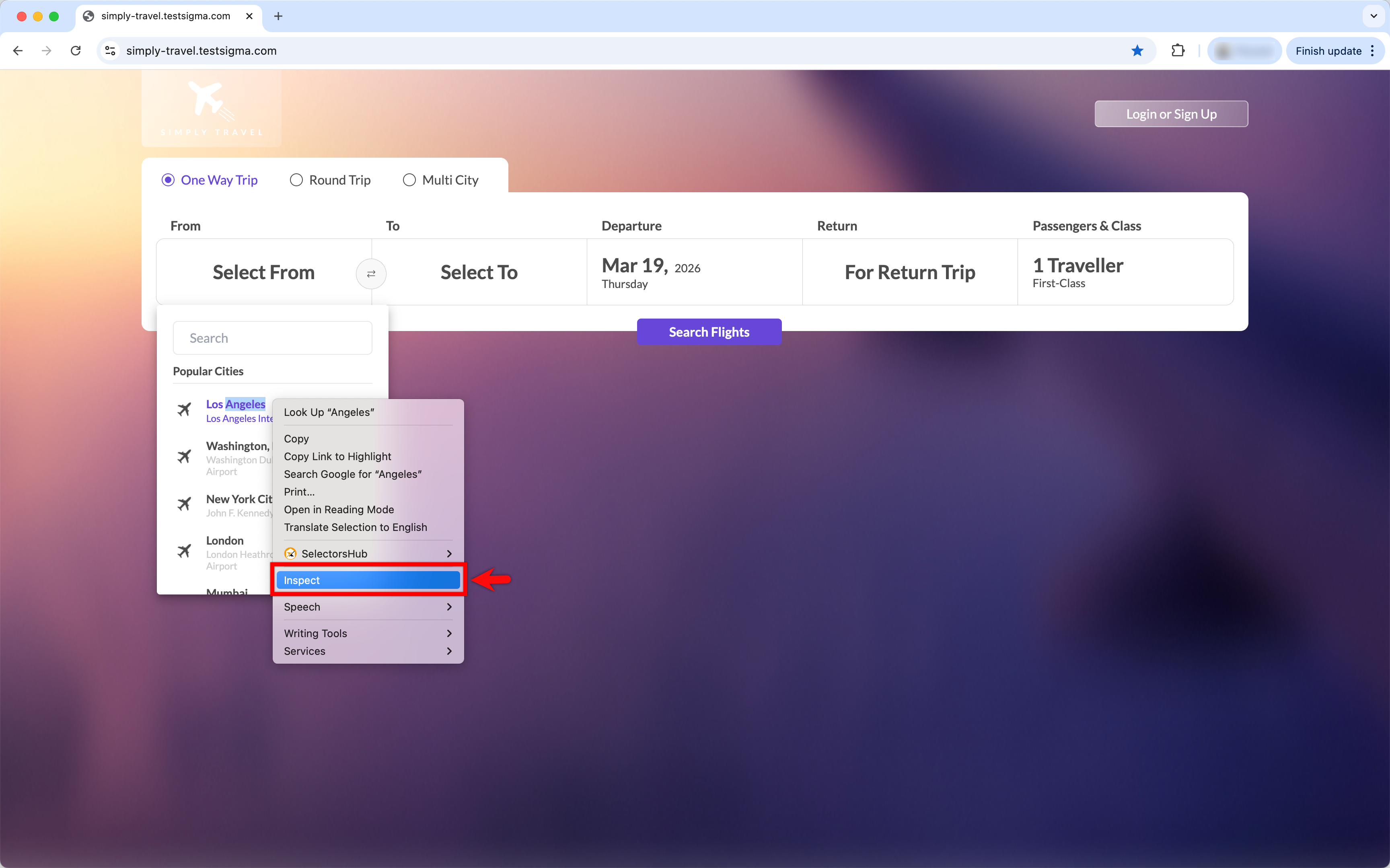
- Use the Select Element icon to locate and inspect the element, then right-click the HTML tag and copy the XPath.
- We will use the Simply Travel Flight website as an example of the above test steps. Click Select from Cities and copy the XPath values for the cities.
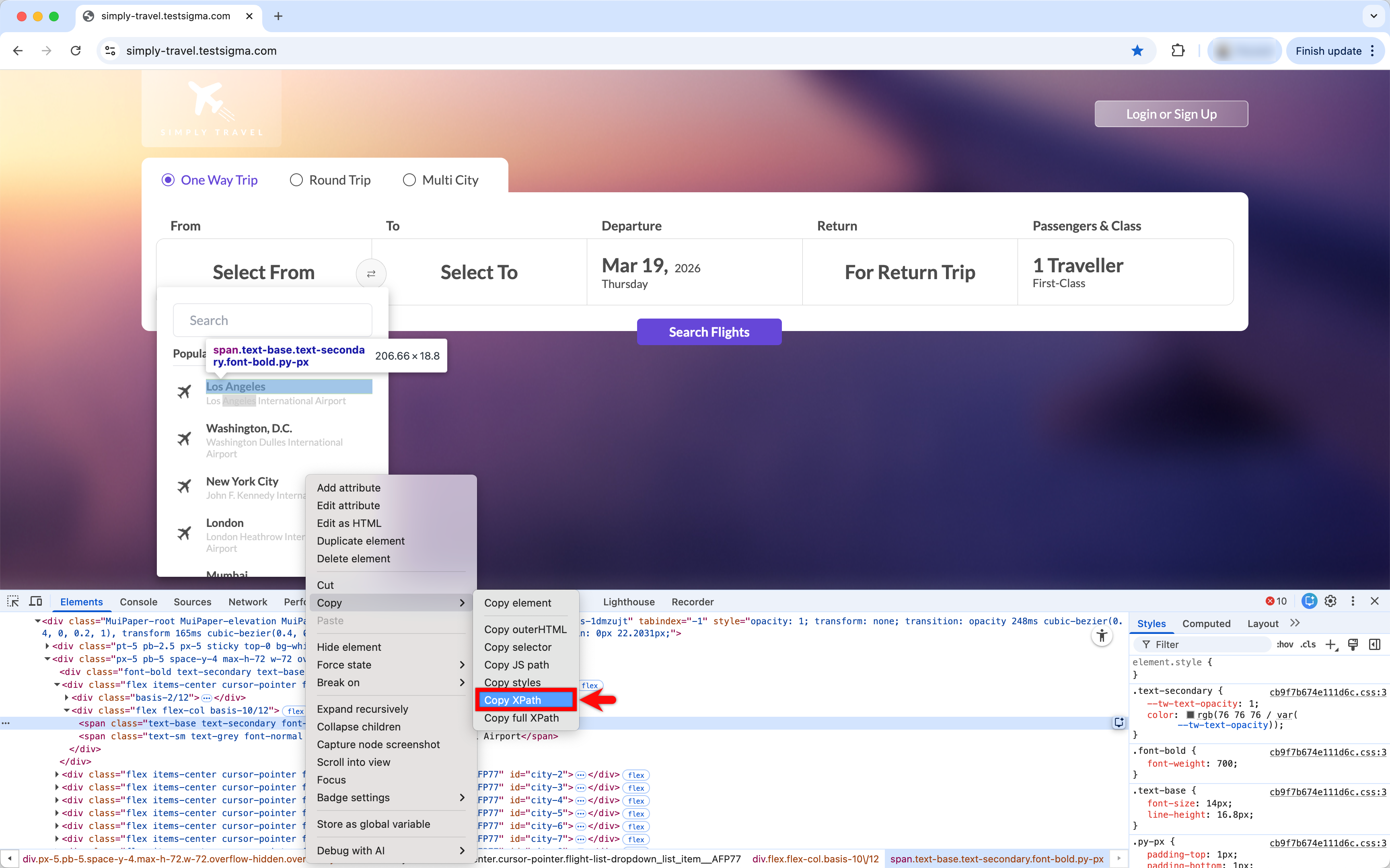
-
The table below explains how the city names and their corresponding XPath for an element.
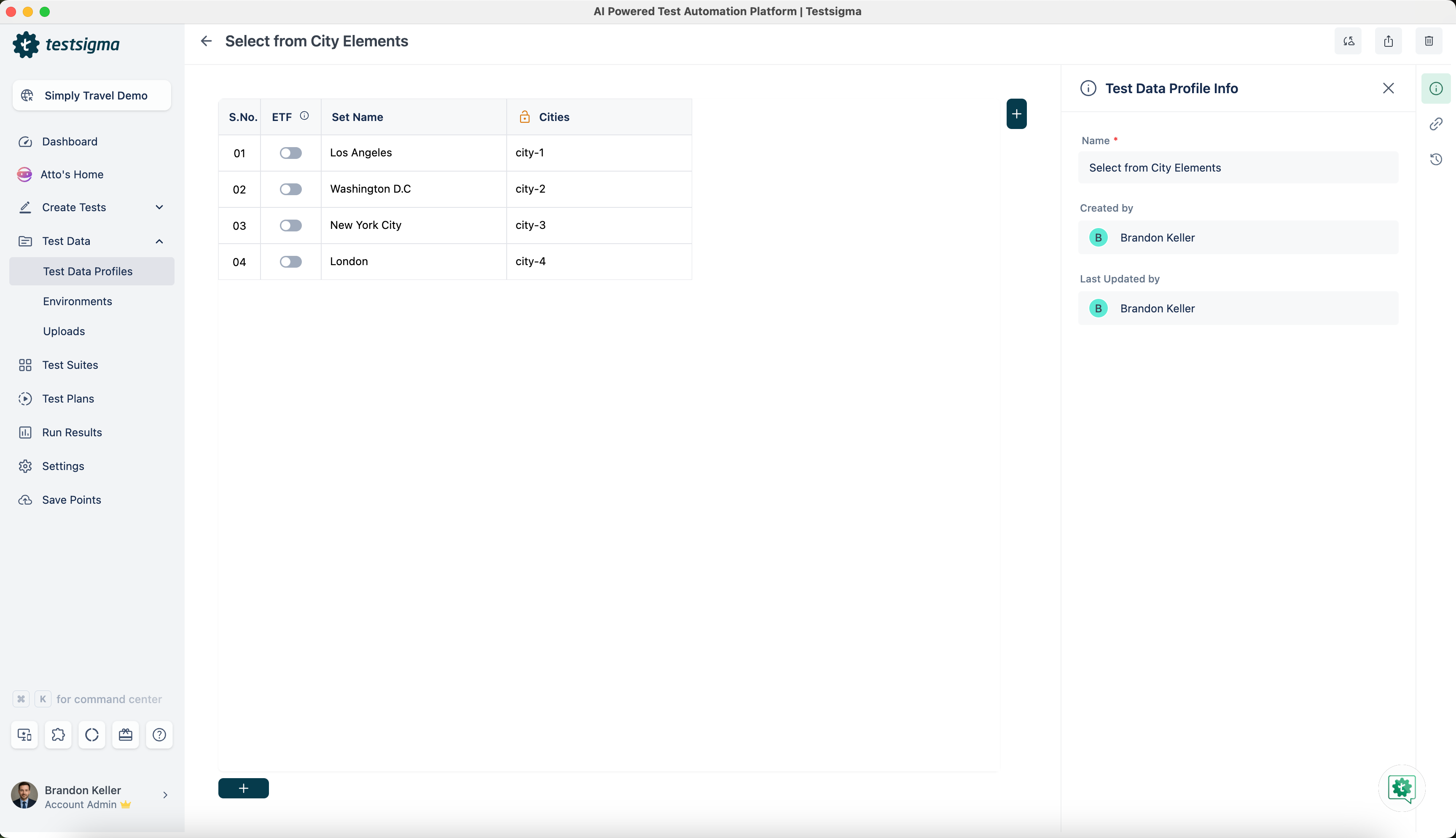
Cities XPath Los Angeles //*[@id="city-1"]/div[2]/span[1]Washington, D.C. //*[@id="city-2"]/div[2]/span[1]New York City //*[@id="city-3"]/div[2]/span[1]London //*[@id="city-4"]/div[2]/span[1] - In the provided XPath examples, the IDs of the cities have a common portion, city-, followed by a variable digit from 1 to 4. We will parameterise this by storing the city and the variable portion using a Test Data profile.
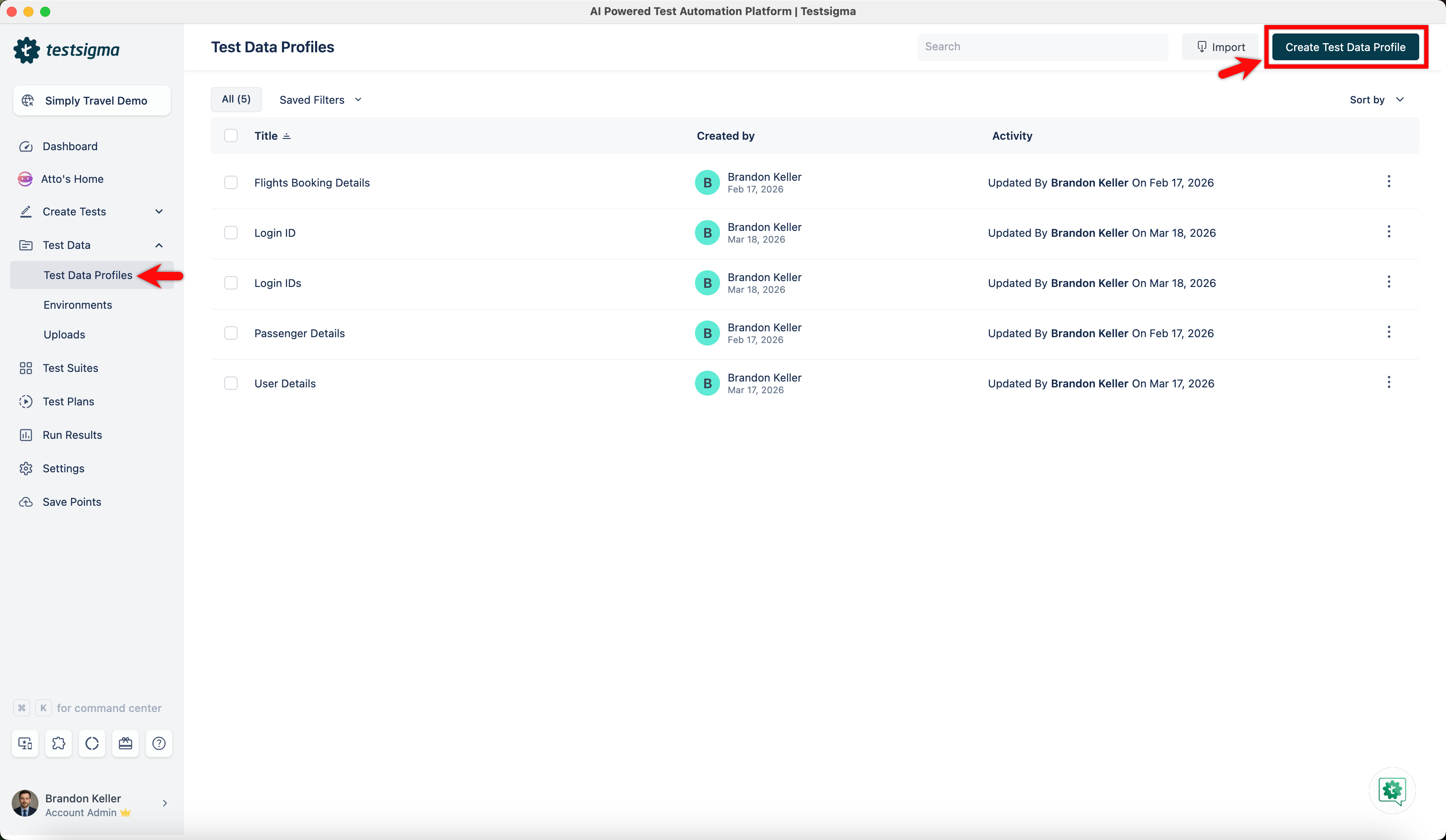
- Navigate to Test Data > Test Data Profile. Click on Create Test Data Profile.
- Below is the created Test Data profile for storing element ID attributes:
Creating Dynamic Elements using Parameter
-
Use NLP to create a new step in the Test Case and include a placeholder for the element.
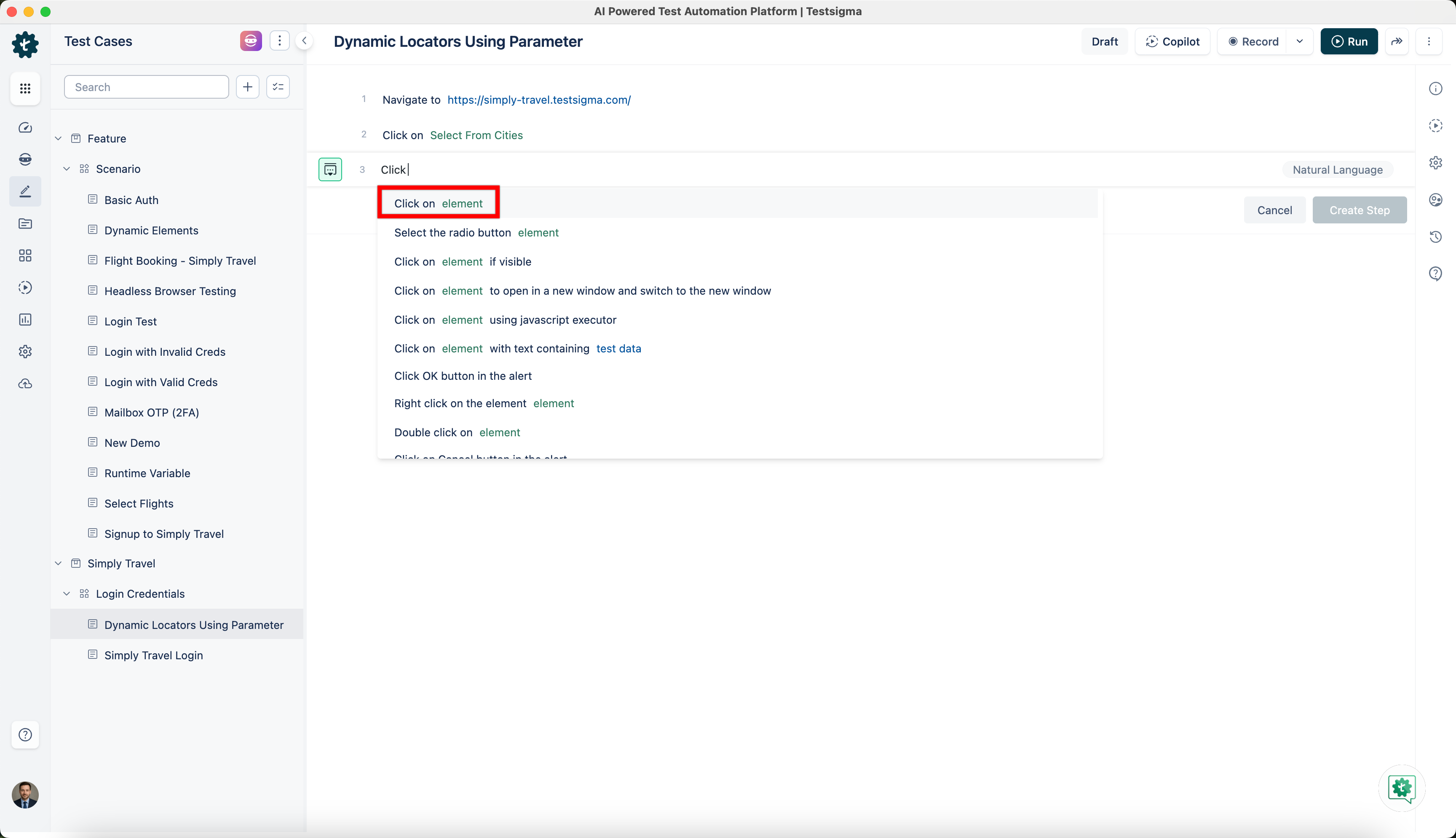 Example:
Utilise NLP "Click on Element" to click an element with a given UI Identifier.
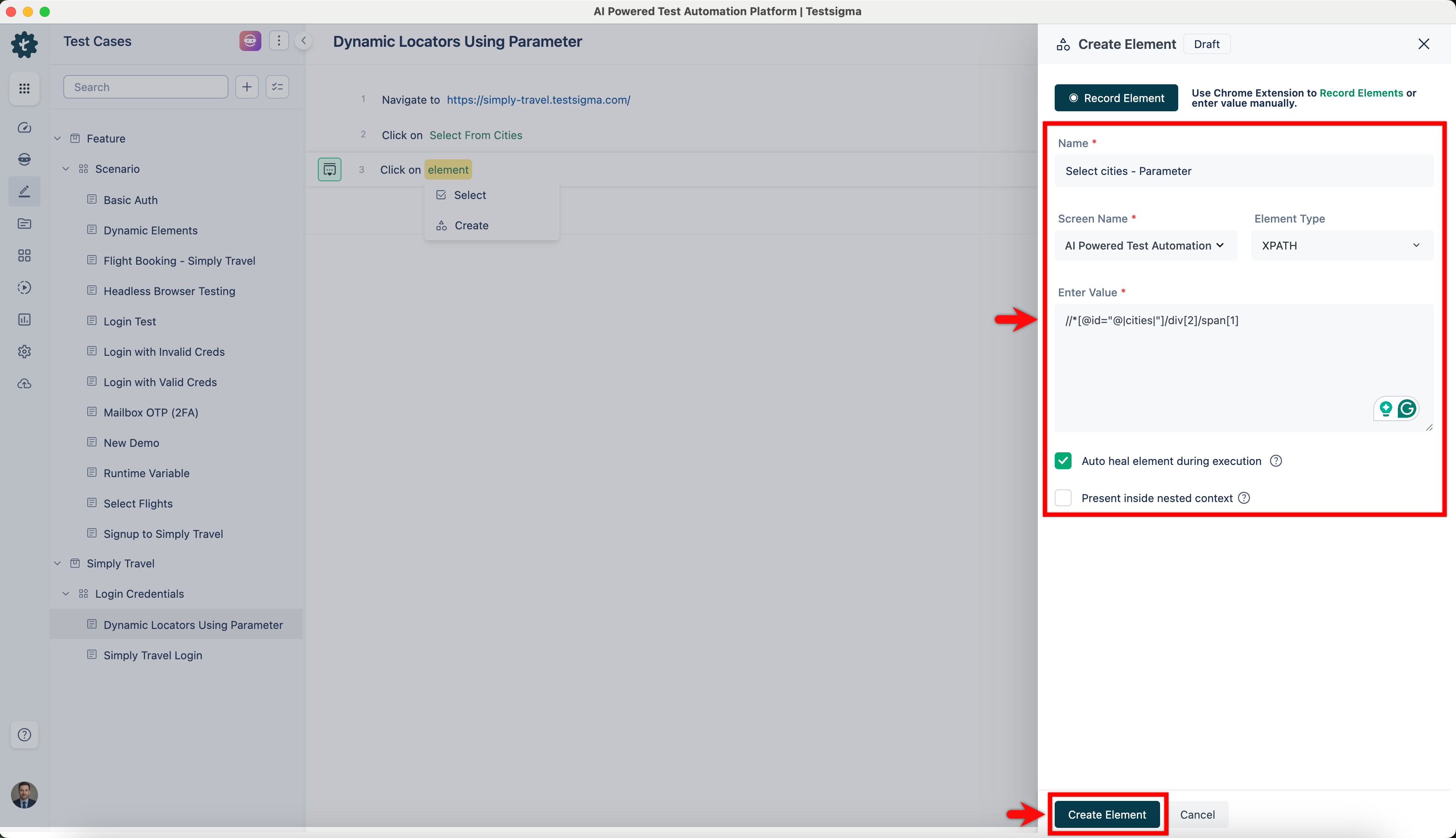
- Click on the Element, then select Create Element from the dropdown list.
- Manually enter the Element Name, Screen Name, and Element Type in the Create Element overlay screen.
- Provide the dynamic element value //*[@id="@|cities|"]/div[2]/span[1], where cities is the parameter name containing dynamic data.
- Click Create Element to complete element creation and then Create Step.
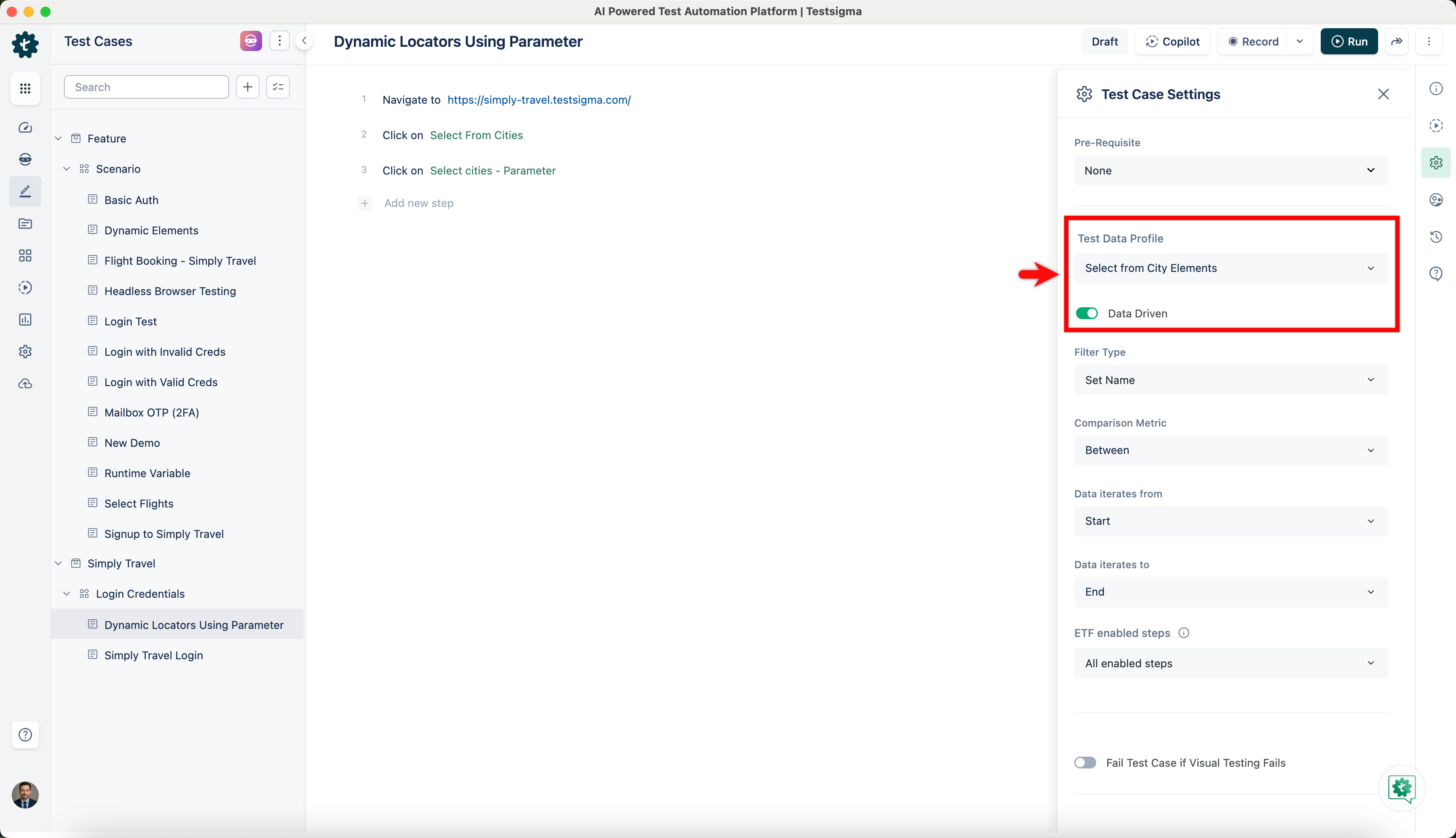
Configuring Test Data Profile in Test Case
- In Test Case details page, click Test Case Settings in the right-side navbar.
- Choose the associated Test Data Profile.
- Enable the Data-Driven toggle and select Filter Type, Comparison Metric, and Data Iteration.
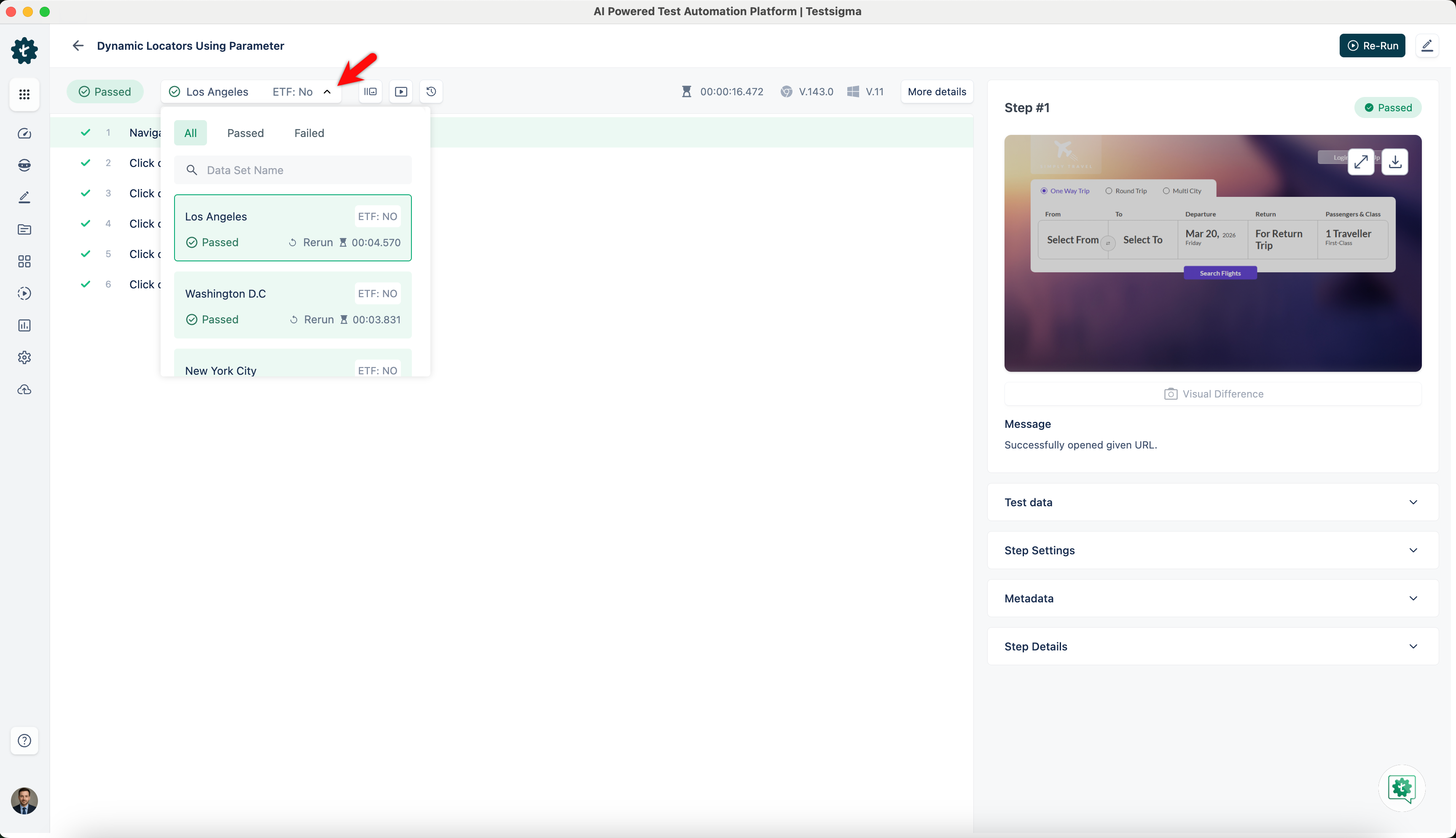
Run Results for Dynamic Elements using Parameter
- Once the test step created with the dynamic Element, execute the Test Case.
- Wait until the Test Case execution is completed.
- The Test Case will iterate as many times as there are Test Data Sets (rows) in the Test Data Profile, resulting in four iterations based on the provided example.

Want to contribute or report missing content?