
Manage Application Versions
Due to constantly changing requirements and application features, version control is essential in software development. Let's say you've created 10 automated UI tests for app version 1.0.0 in Testsigma, and a new beta version with additional features is in development. In this case, you can copy the existing version 1.0.0 and rename it to version 1.0.0-beta. By doing this, you preserve the original 10 tests while allowing the addition of new tests specific to the beta version. Actions performed on version 1.0.0-beta won't impact the original tests in version 1.0.0. This article discusses how to manage application versions in Testsigma.
Prerequisites
Before you begin, ensure that you have referred to:
Create Application Version
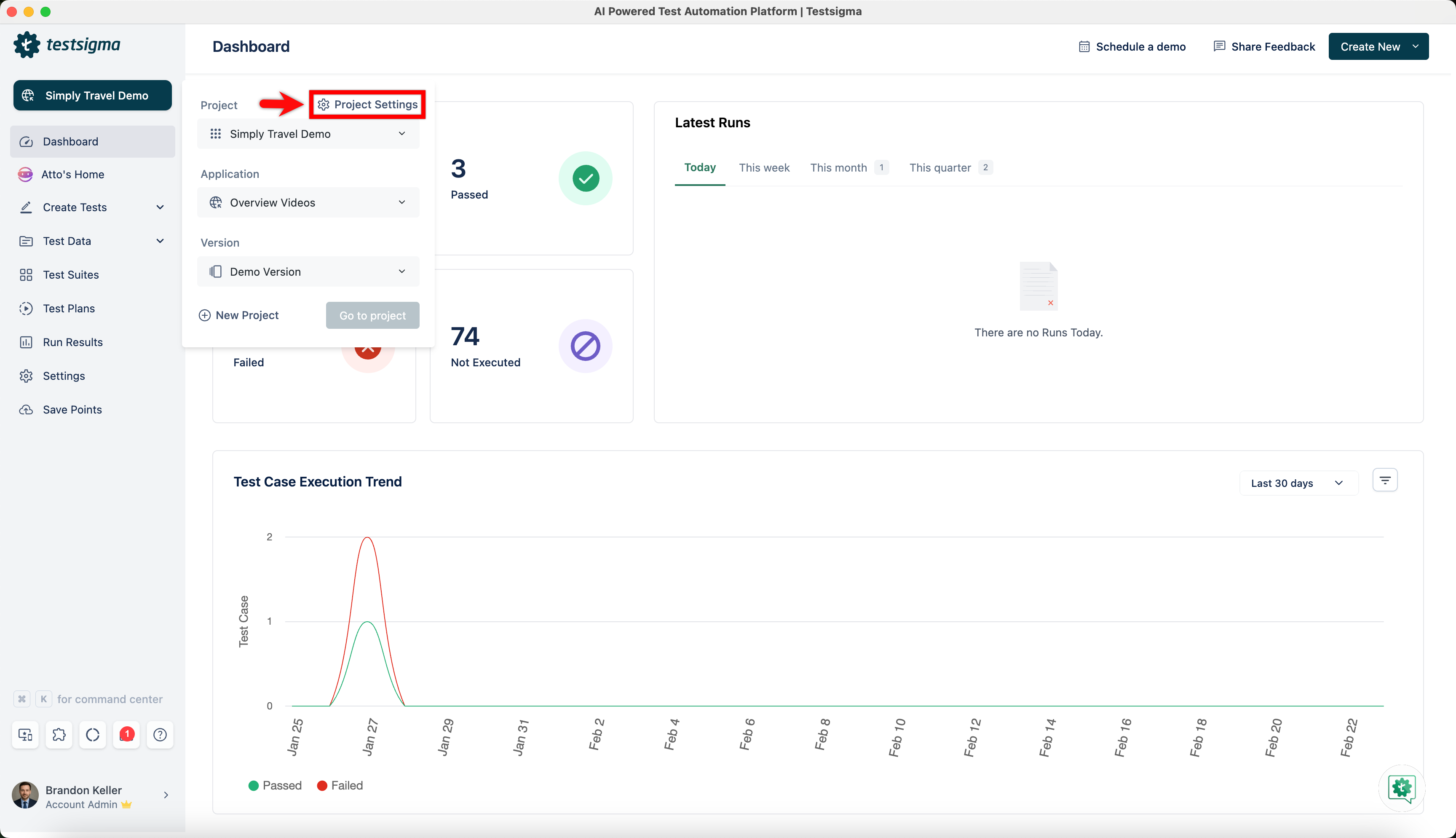
- From the left navigation bar, Navigate to Project Settings.
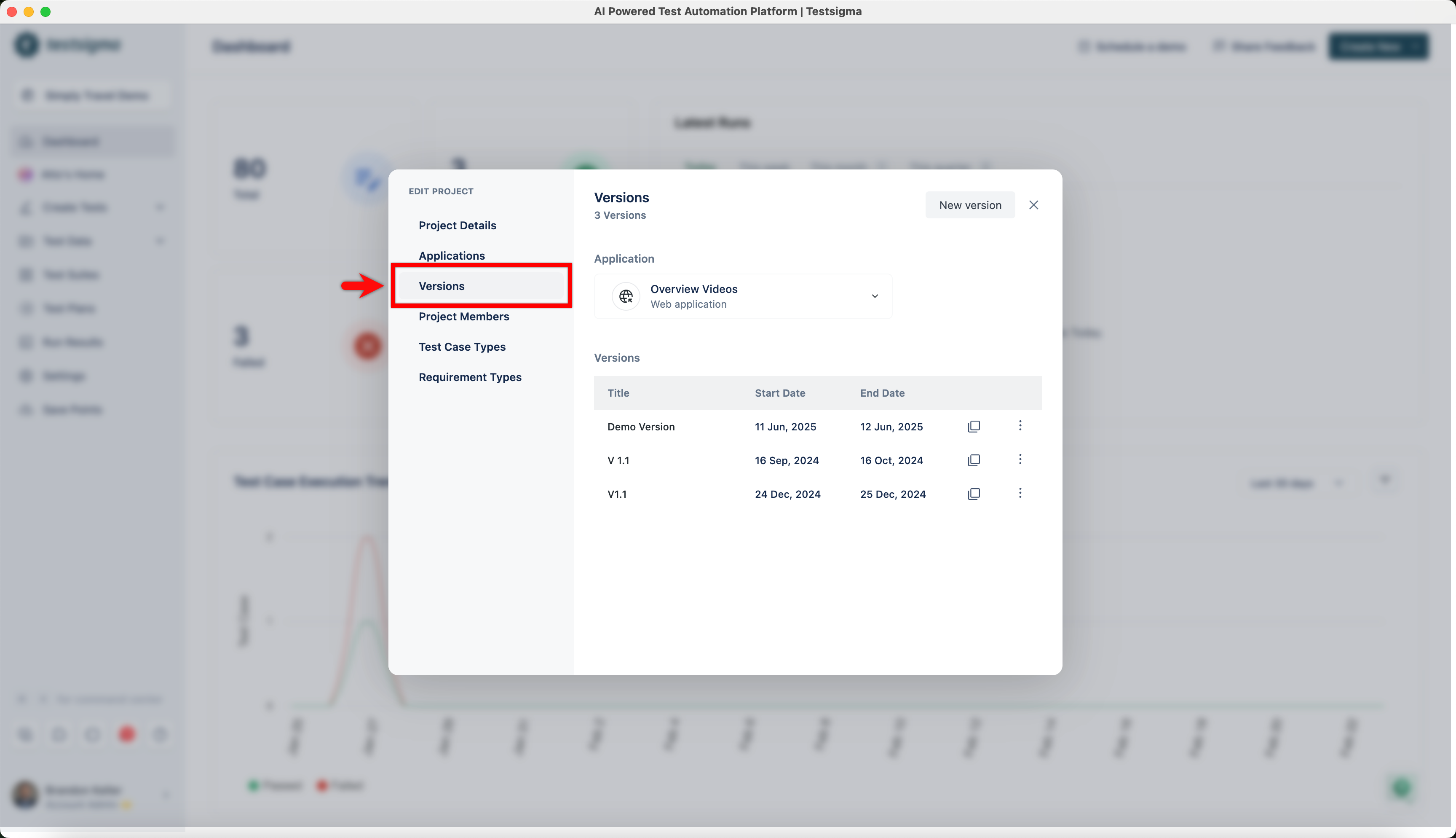
- In the Edit Project dialog, click Versions in the left panel.
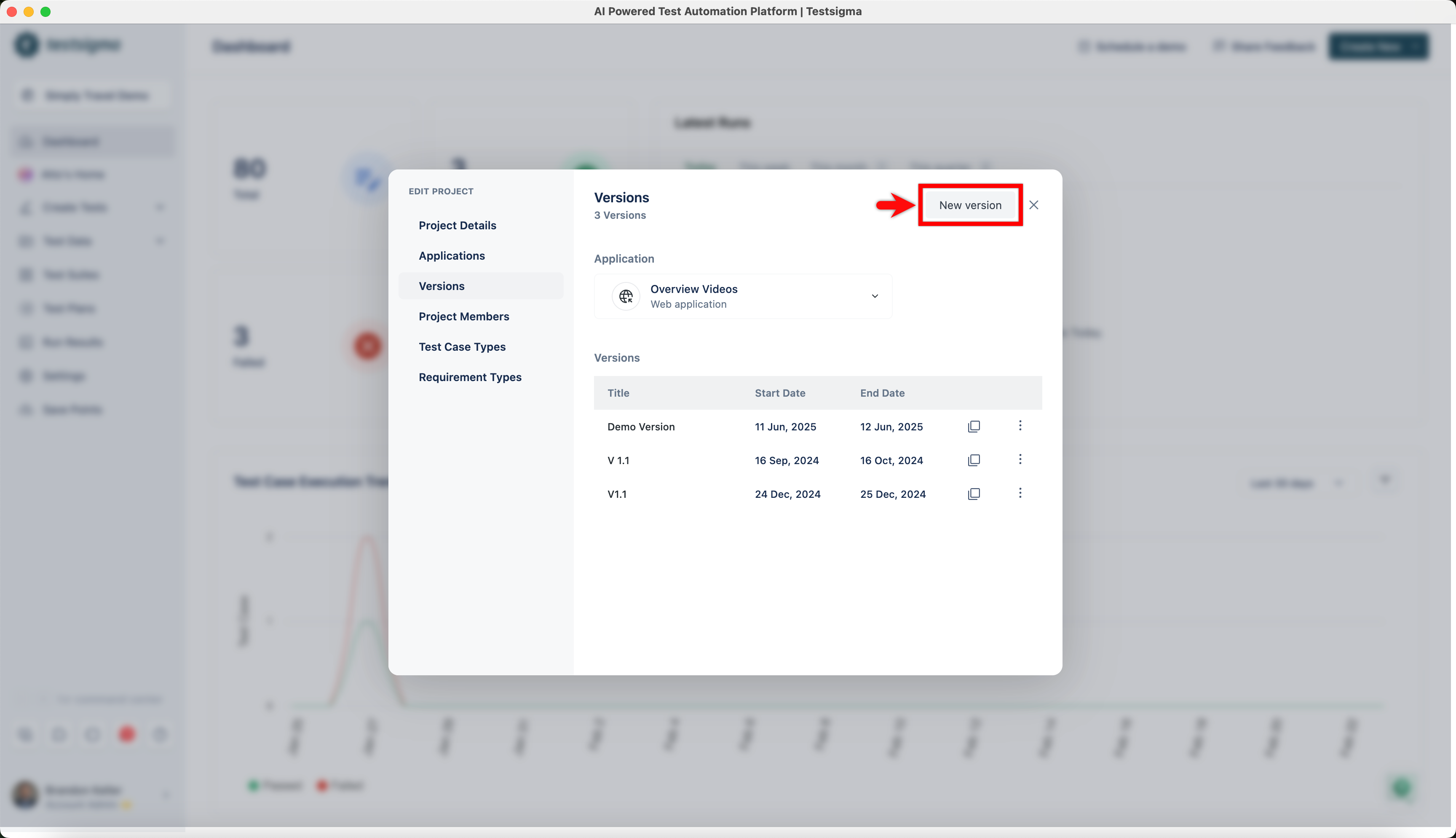
- In the Versions screen, click New version.
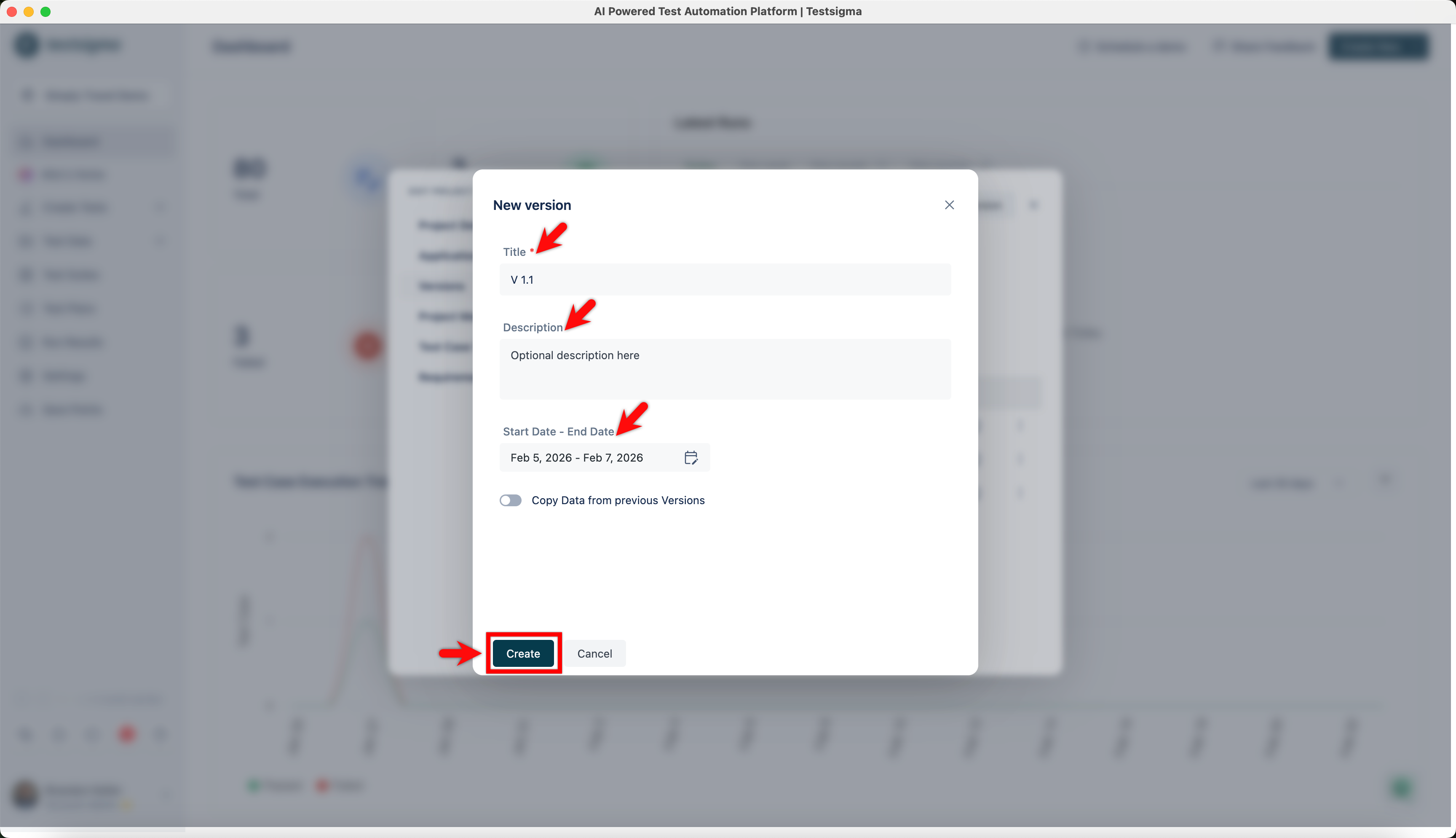
- In the New Version dialog, enter Name, Description, and Start Date - End Date, and click Create.
- A new version will be created.
- You have to select Allow Multiple Versions while creating a project to be able to create multiple versions.
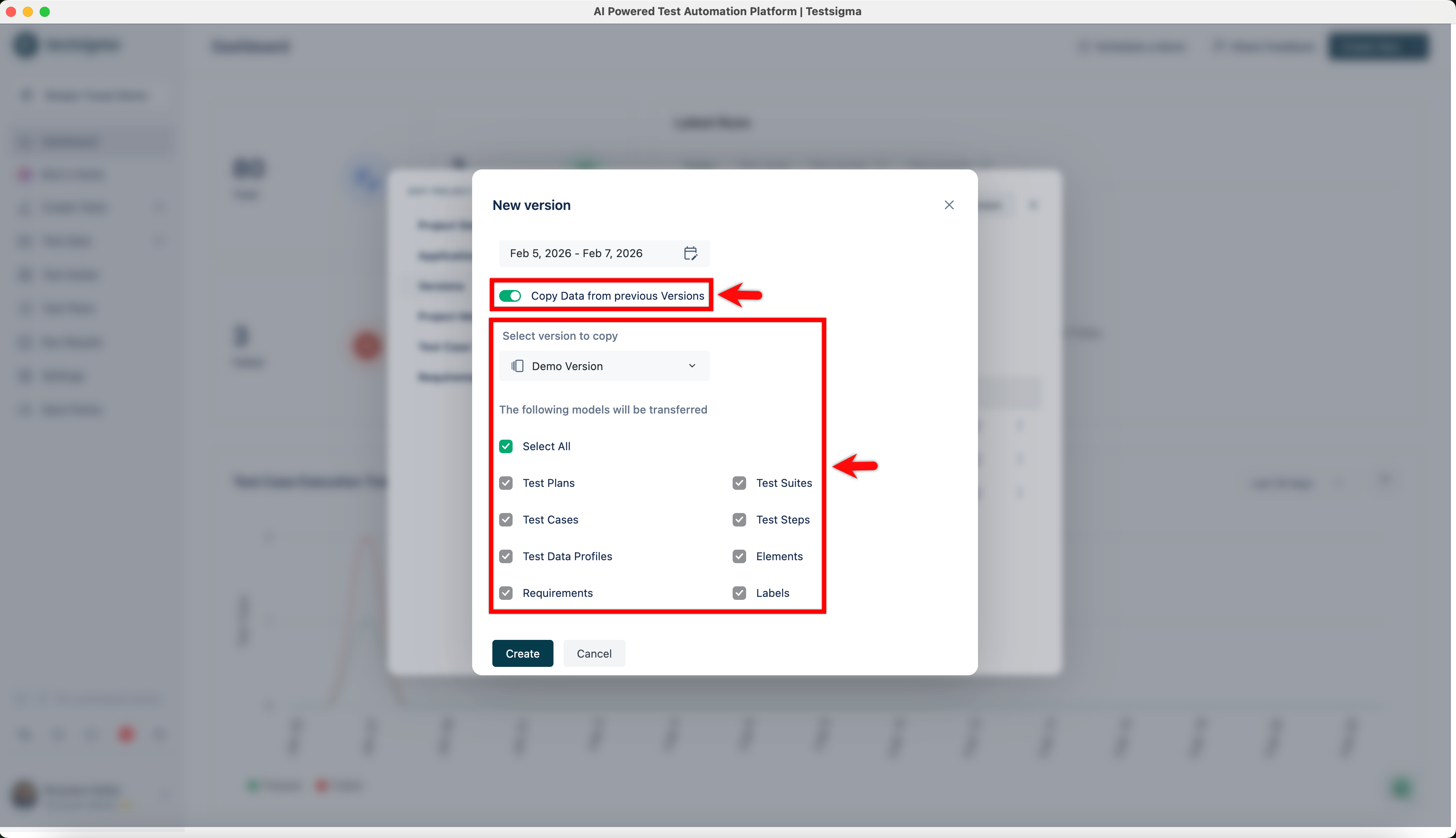
- If you want to copy data from previous versions, enable Copy Data from Previous Versions toggle and select the models you want to transfer.
Edit Application Version
- From the left navigation bar, Navigate to Project Settings.
- In the Edit Project dialog, click Versions in the left panel.
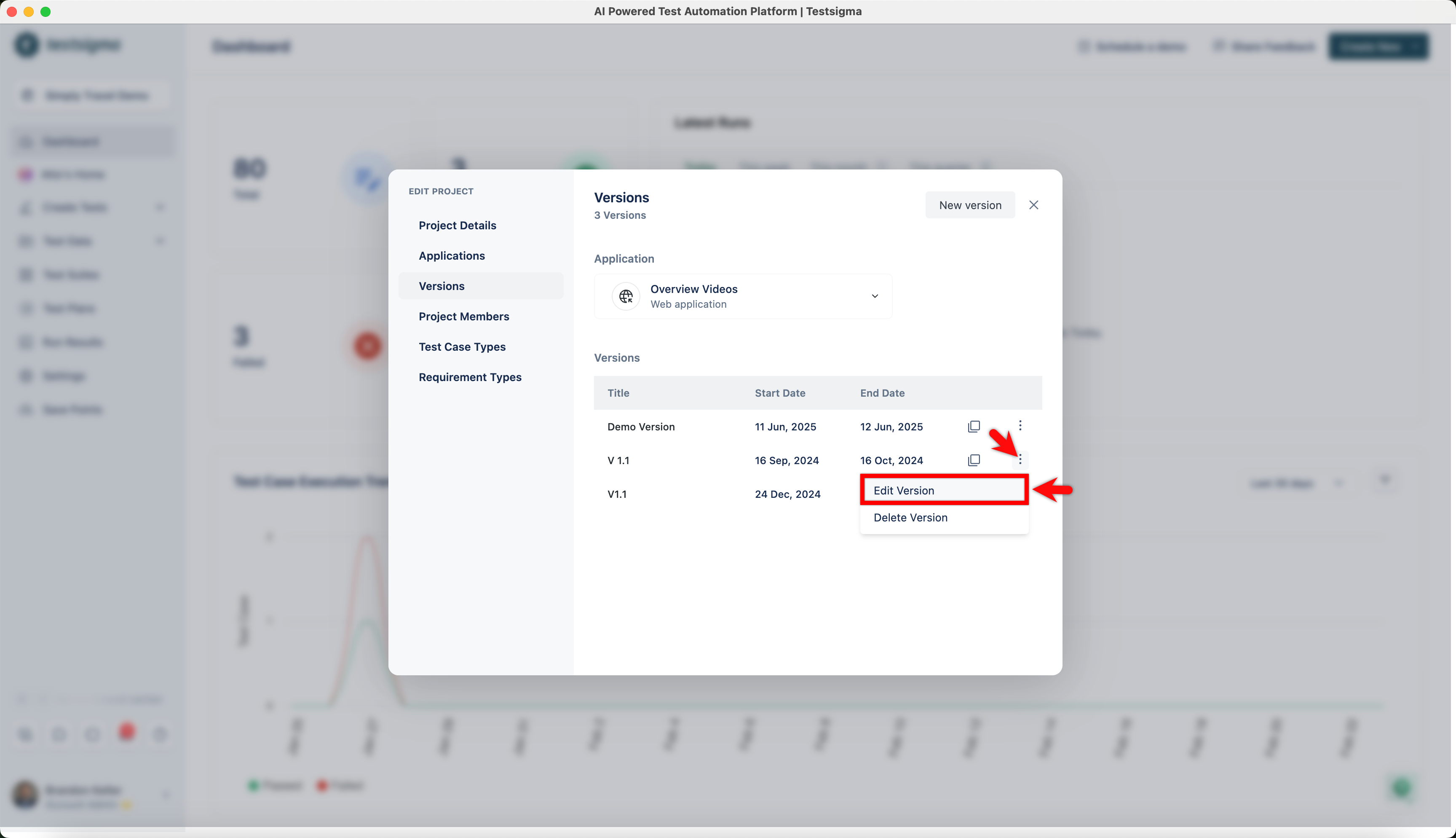
- In the Versions screen, click the kebab menu next to a version and click Edit Version.
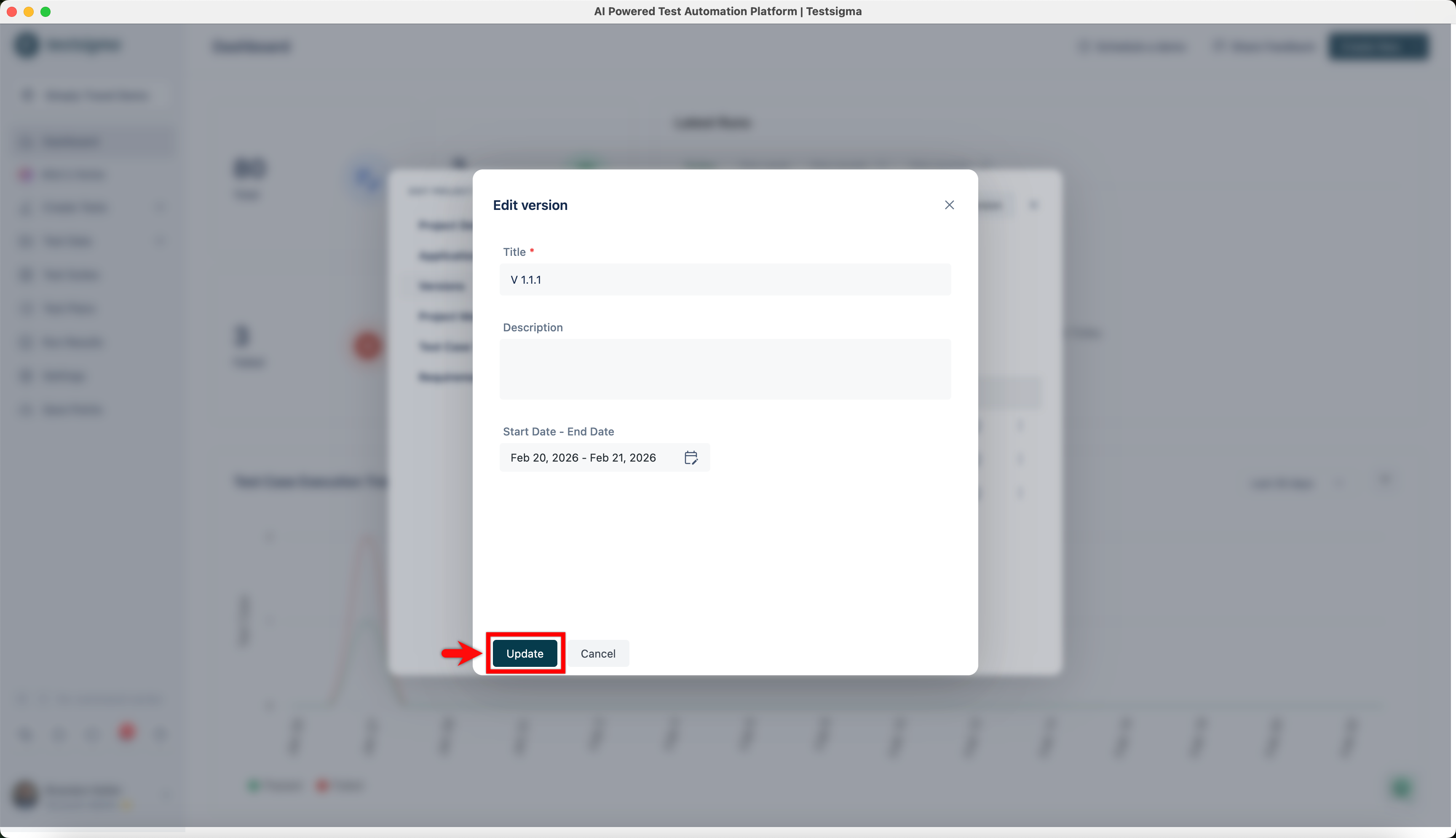
- Make the changes and click Update.
Delete Application Version
- From the left navigation bar, Navigate to Project Settings.
- In the Edit Project dialog, click Versions in the left panel.
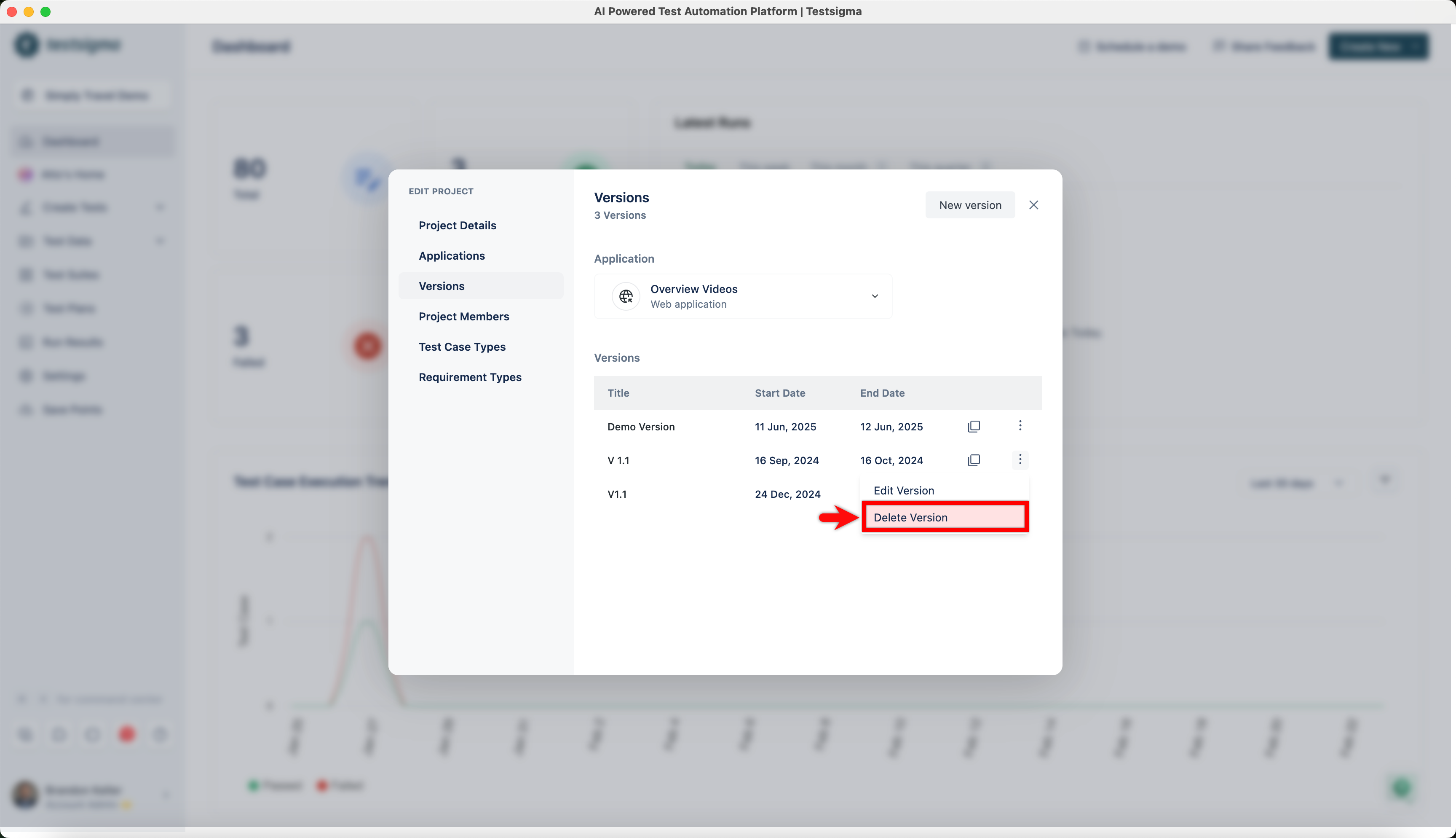
- In the Versions screen, click the kebab menu next to a version and click Delete Version.
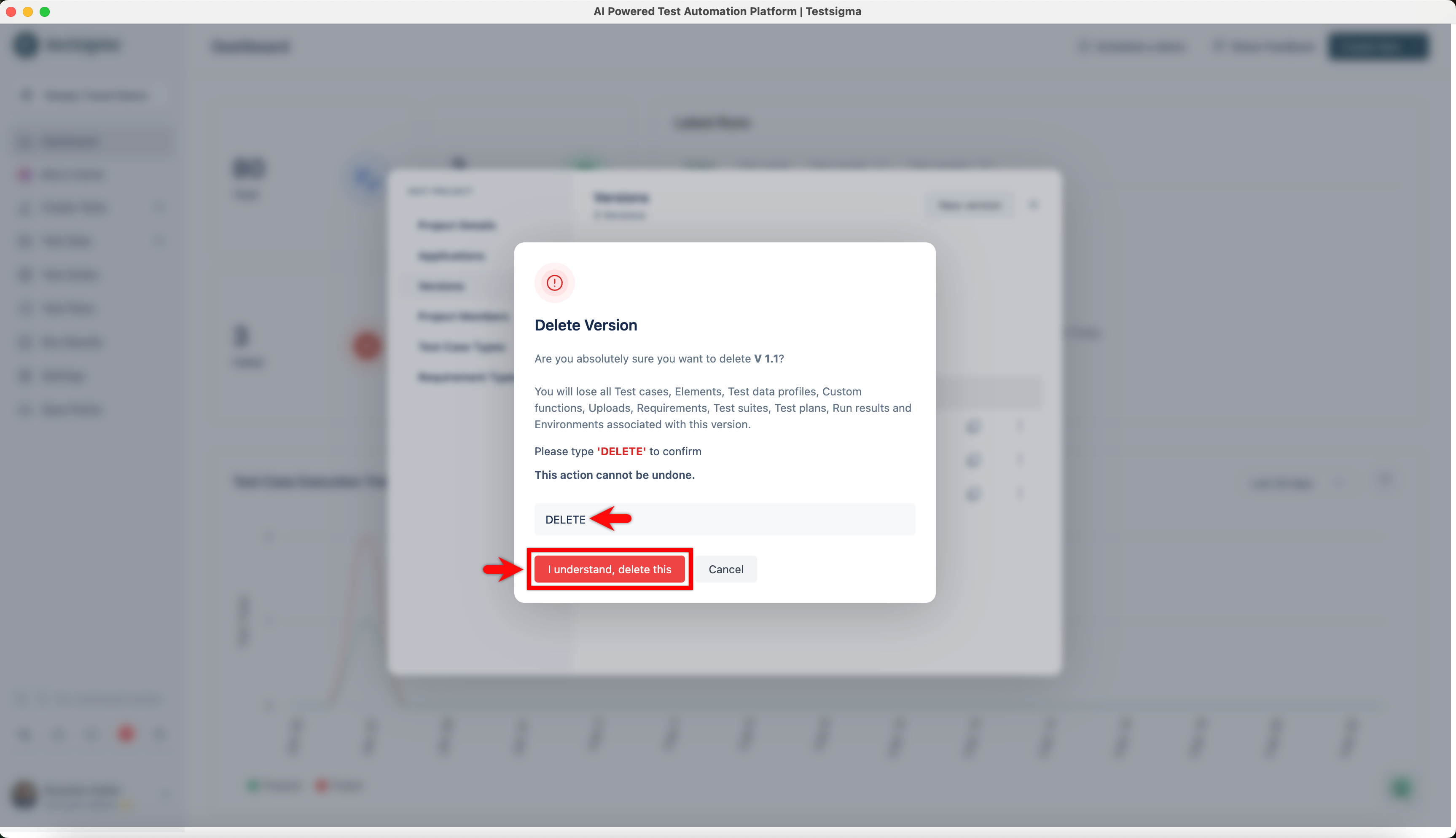
- On the Delete Version? dialog, enter DELETE and click I understand, delete this.
Getting Version ID
- From the left navigation bar, Navigate to Project Settings.
- In the Edit Project dialog, click Versions in the left panel.
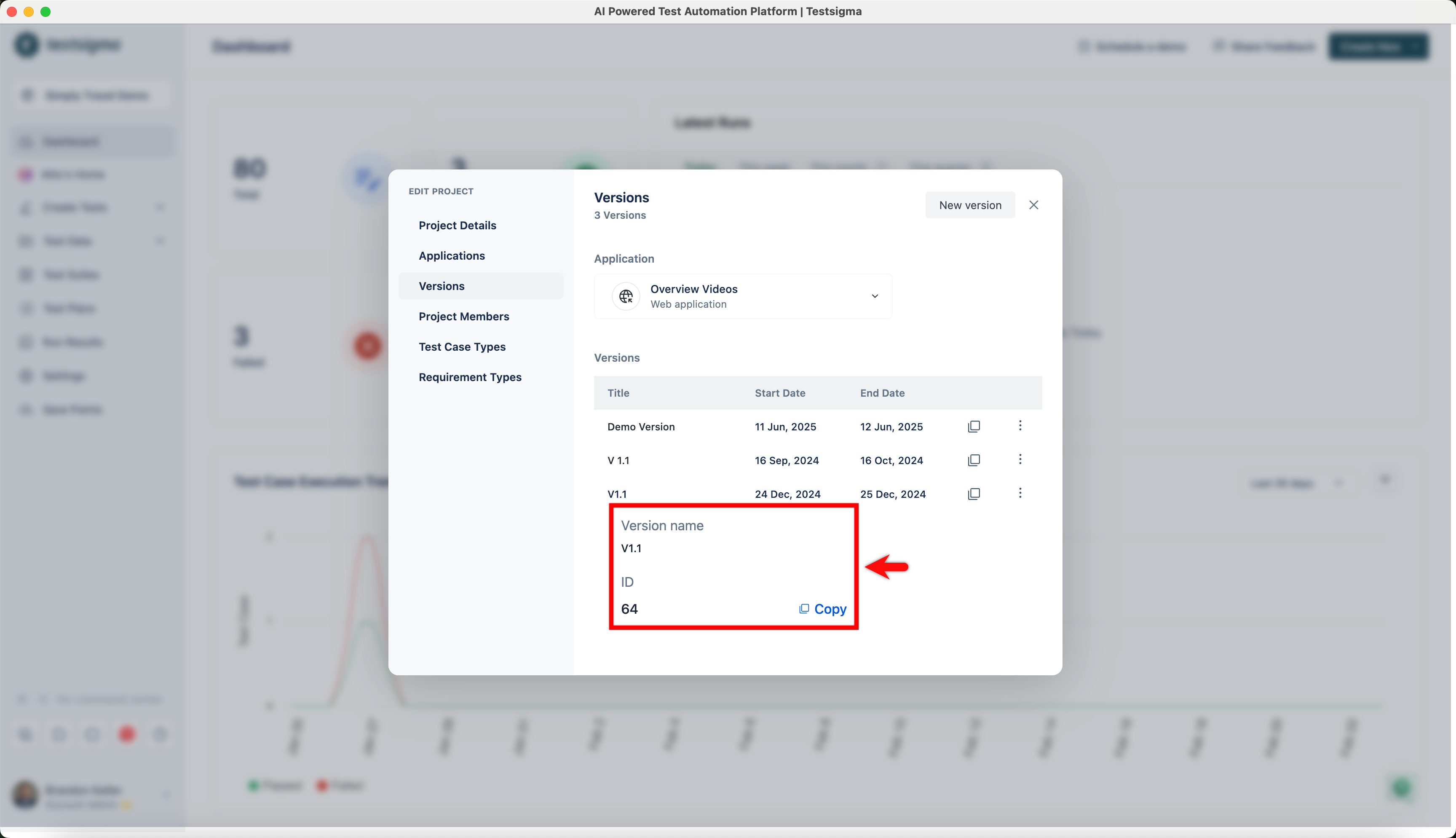
- In the EDIT PROJECT dialog, hover over the version name to view its ID.
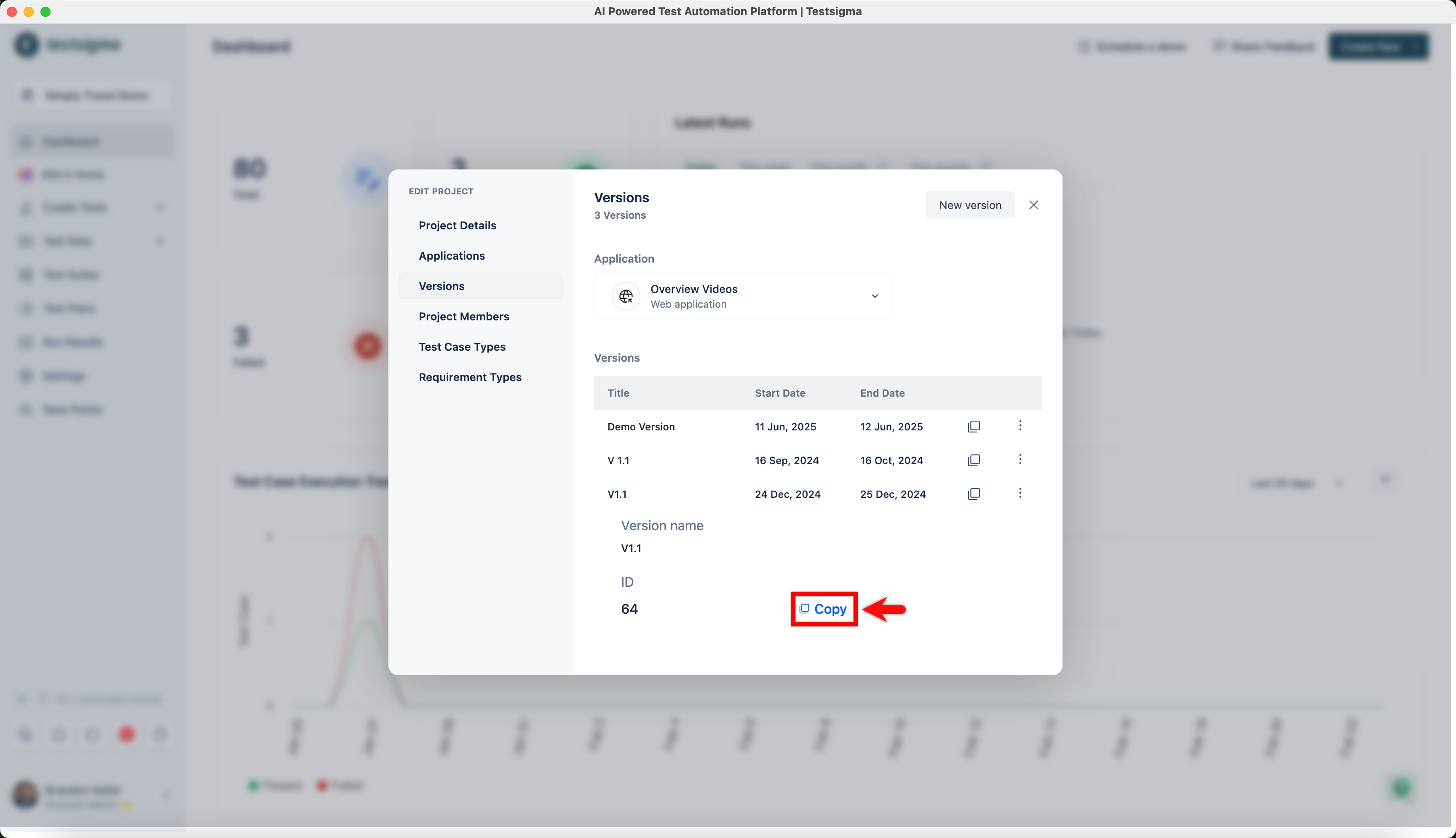
- Click Copy to copy the version ID.

Want to contribute or report missing content?