- Test Data Types
 Raw
Raw- Parameter
- Runtime
- Random
- Data Generator
- Phone Number
- Mail Box
- Environment
- Concat Test Data
- Folder Structure for Test Data Profiles
- Create Test Data Profile
- Update Test Data Profile
- Update Value in Test Data Profile
- Import Test Data Profile
- Bulk Deletion of a Test Data Profile
- Create Test Data [Environment]
- data generators
- Default Test Data Generators
- Address Function Type
- ChangeDataType Function Type
- Company Function Type
- DateFunctions Function Type
- DomainFunctions Function Type
- EmailFunctions Function Type
- File Function Type
- Friends Function Type
- IdNumber Function Type
- Internet Function Type
- MailboxAliasFunctions Function Type
- MailboxFunctions Function Type
- Name Function Type
- NameFunctions Function Type
- Number Function Type
- NumberFunctions Function Type
- Phone Number Function Type
- PhoneNumberFunctions Function Type
- Random String Function Type
- RandomText Function Type
- StringFunctions Function Type
- TestDataFromProfile Function Type
Update Test Data Profile
This article explains how to update an existing Test Data Profile by importing a replacement file. With the folder structure enhancement, Test Data Profiles are now organized under Features and Scenarios, so you can navigate directly to the profile you want to update from the folder tree.
NOTE:
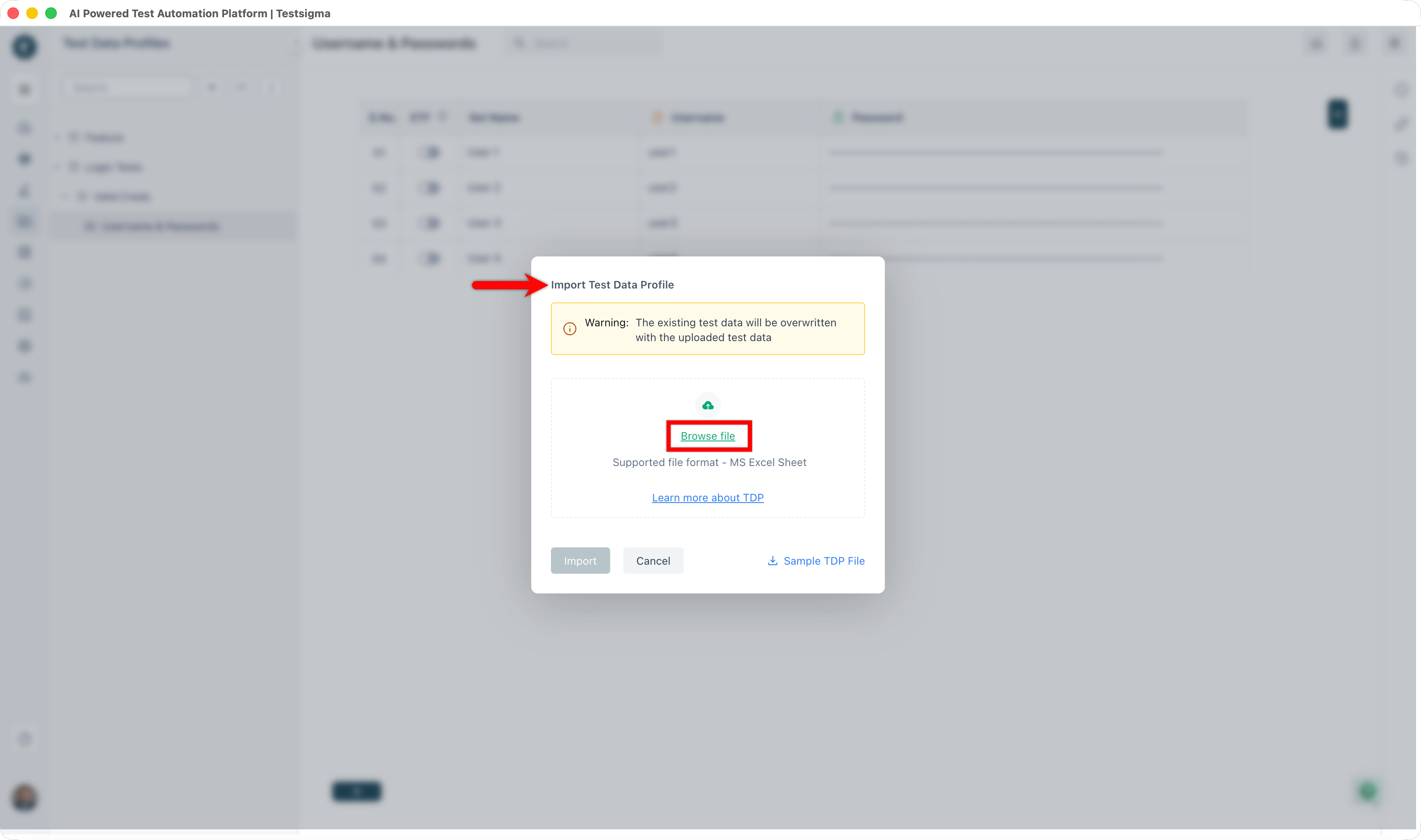
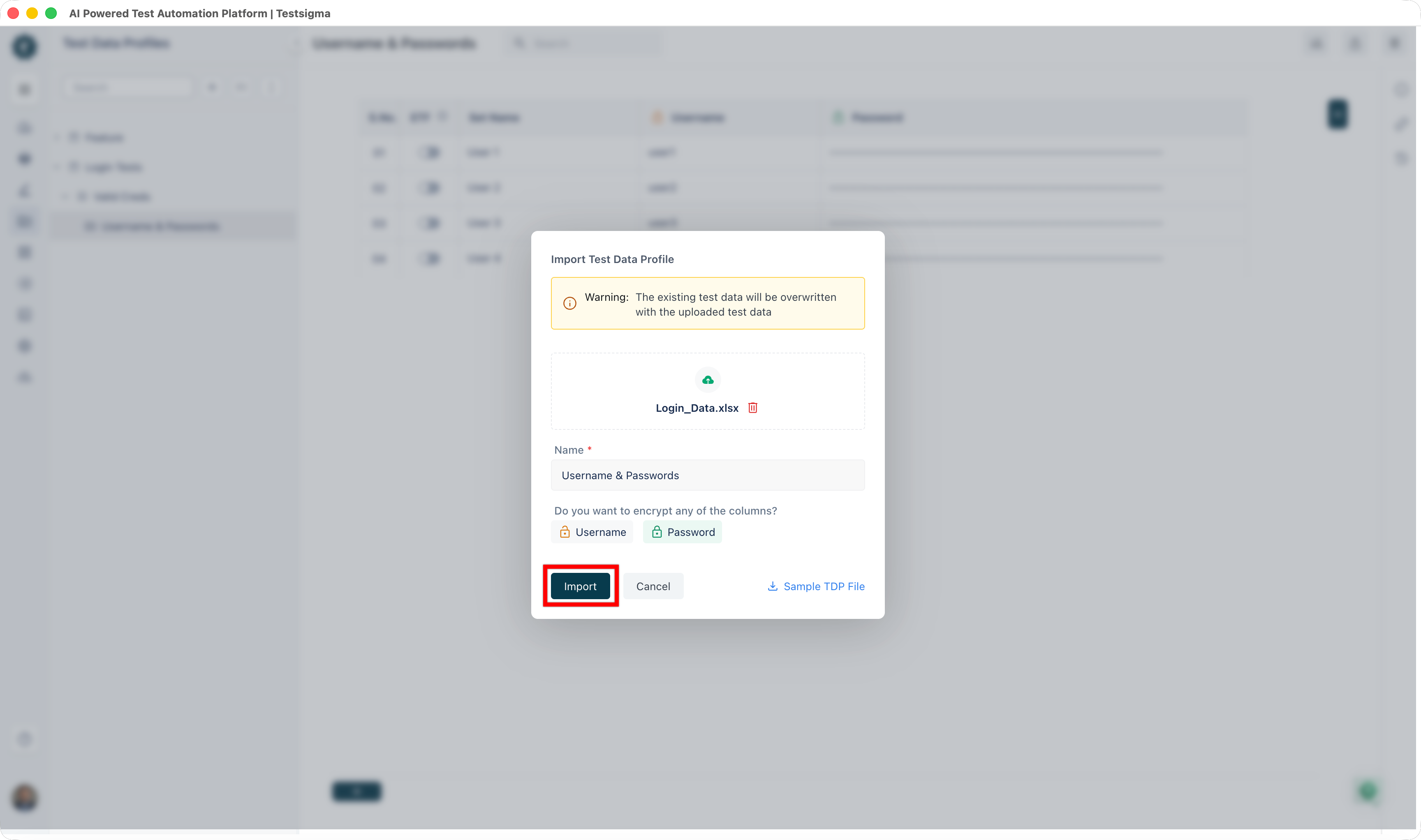
The existing test data profile will be overwritten with the uploaded test data profile.
Prerequisites
Before you begin, ensure that you have:
- Reviewed Create a Test Data Profile.
- The updated file ready to import.
Steps to Update Test Data Profile
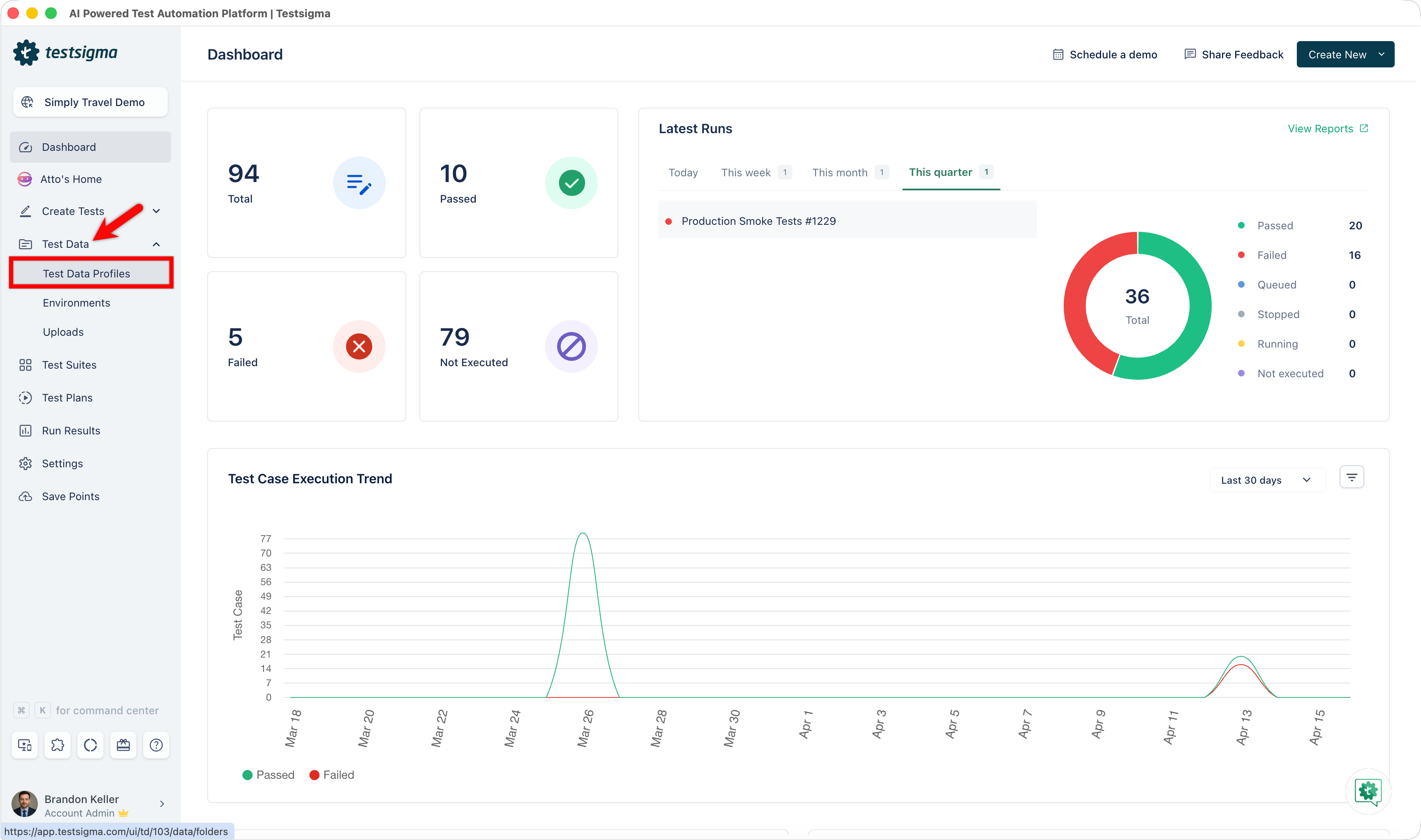
- From the left navigation bar, go to Test Data > Test Data Profiles.
-
Locate the Test Data Profile you want to update using one of these methods:
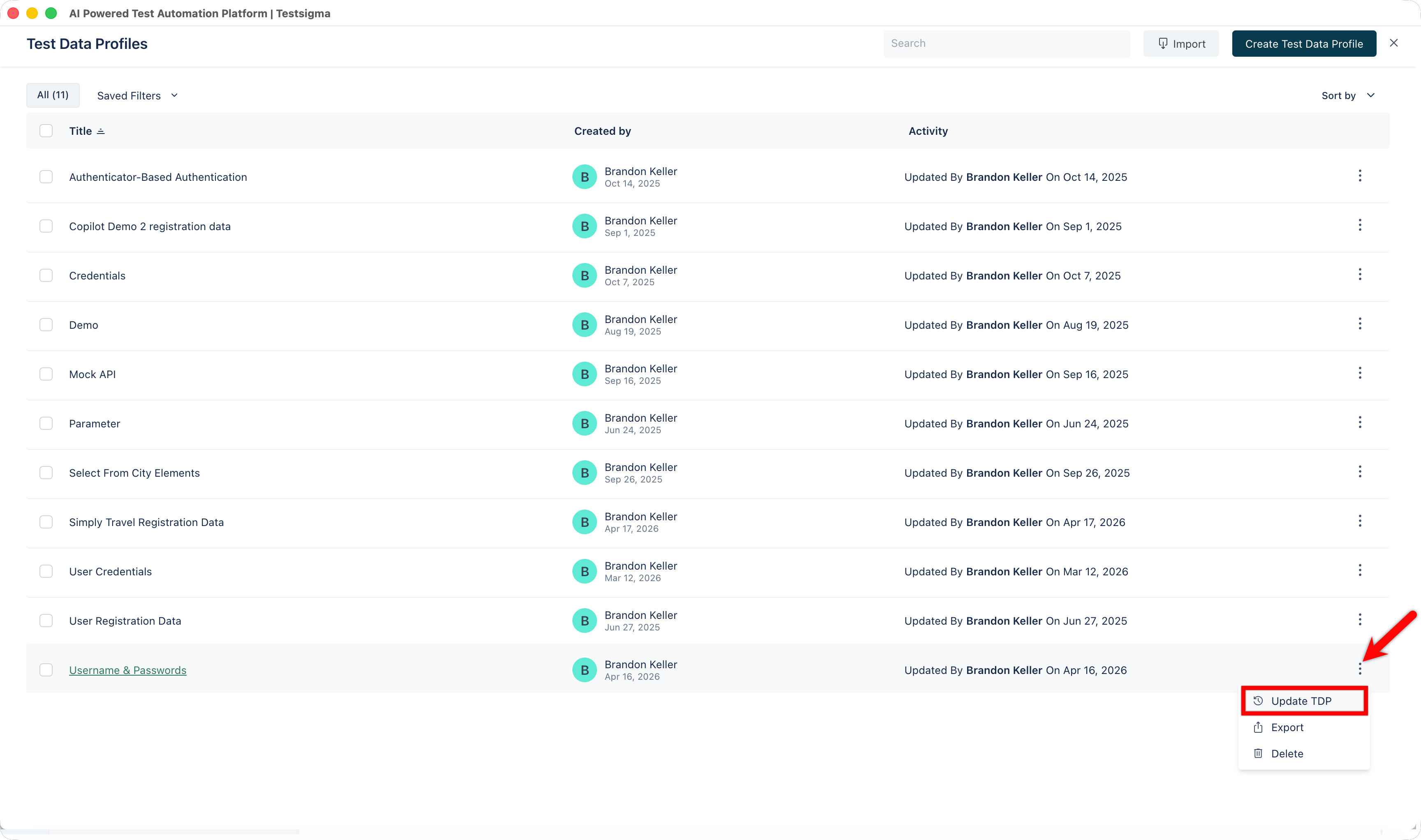
- In the List View, select the Kebab menu (⋮) next to the TDP, then select Update TDP.
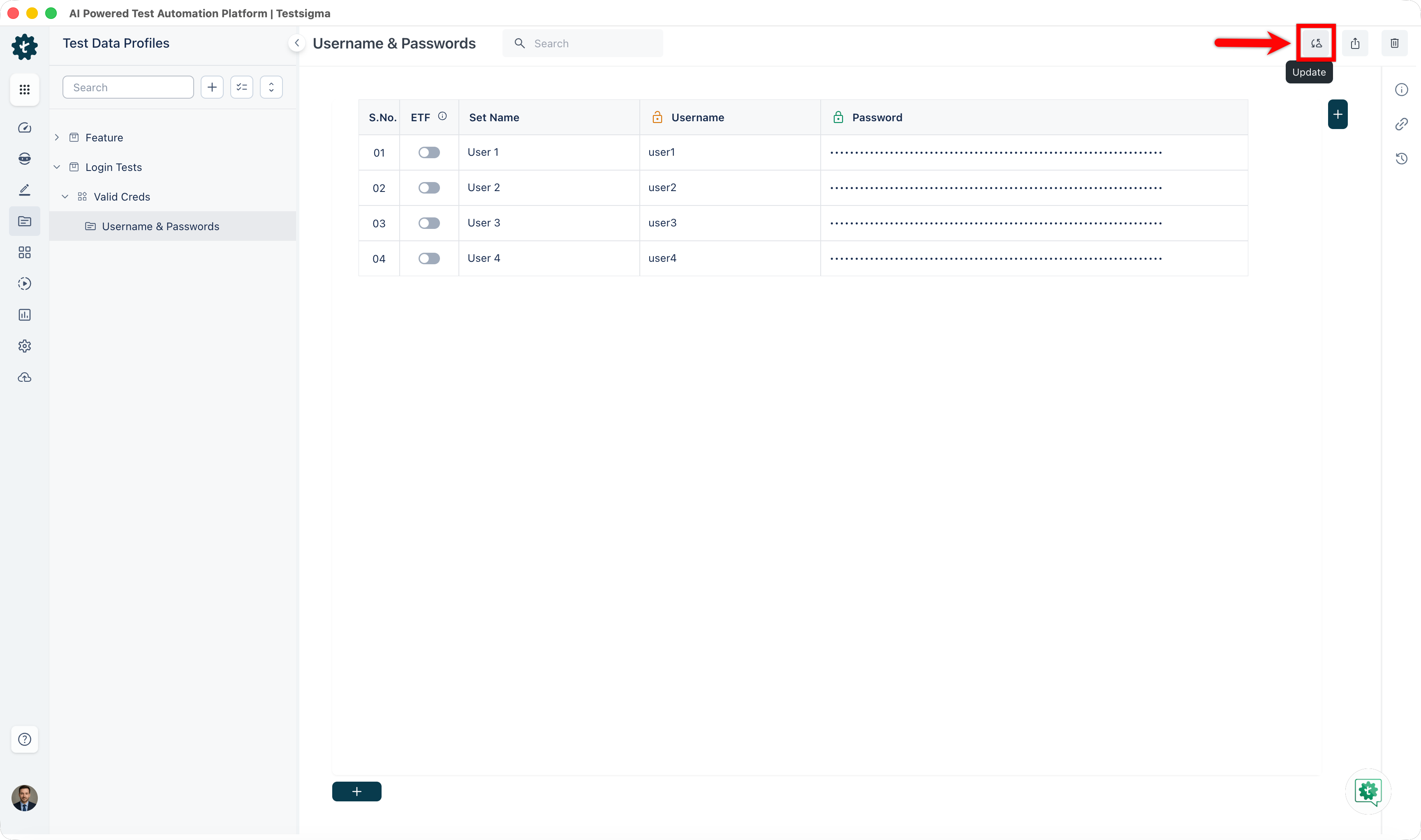
- In the left panel, expand the feature and scenario that contains the Test Data Profile, open it from the folder tree, then select Update in the top-right corner.
- In the List View, select the Kebab menu (⋮) next to the TDP, then select Update TDP.
- In the Import Test Data Profile dialog, select Browse File and choose the replacement file.
- Select the columns you want to encrypt.
- Click Import.
A confirmation email is sent when the update completes.
Related Articles
- Folder Structure for Test Data Profiles
- Create a Test Data Profile
- Update Values in a Test Data Profile

Want to contribute or report missing content?