- desired capabilities
 Most Common Desired Capabilities
- Browser Console Debug Logs
- Geolocation Emulation
- Bypass Unsafe Download Prompt
- Geolocation for Chrome & Firefox
- Custom User Profile in Chrome
- Emulate Mobile Devices (Chrome)
- Add Chrome Extension
- Network Throttling
- Network Logs
- Biometric Authentication
- Enable App Resigning in iOS
- Enable Capturing Screenshots (Android & iOS)
- Configure Android WebViews
- Incognito/Private mode
- Set Google Play Store Credentials
- Basic Authentication [Safari]
Configure Android WebViews
For inspecting WebView elements in Testsigma, WebView debugging must be enabled within your application.
This article discusses how to inspect WebView elements in Android.
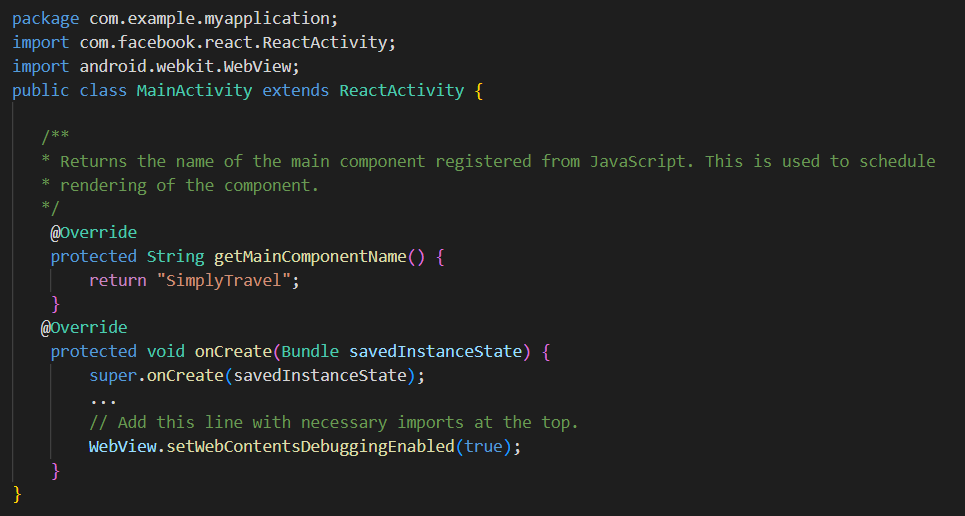
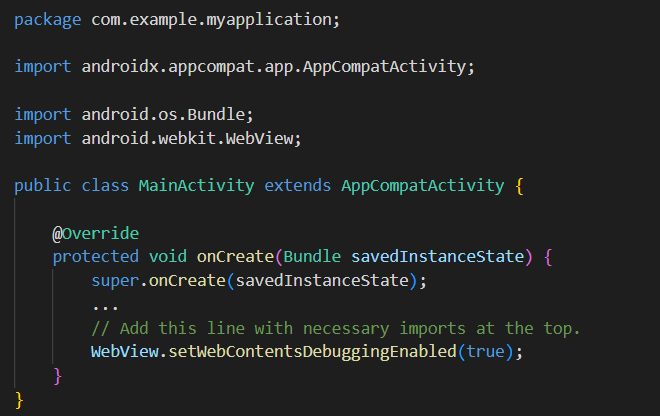
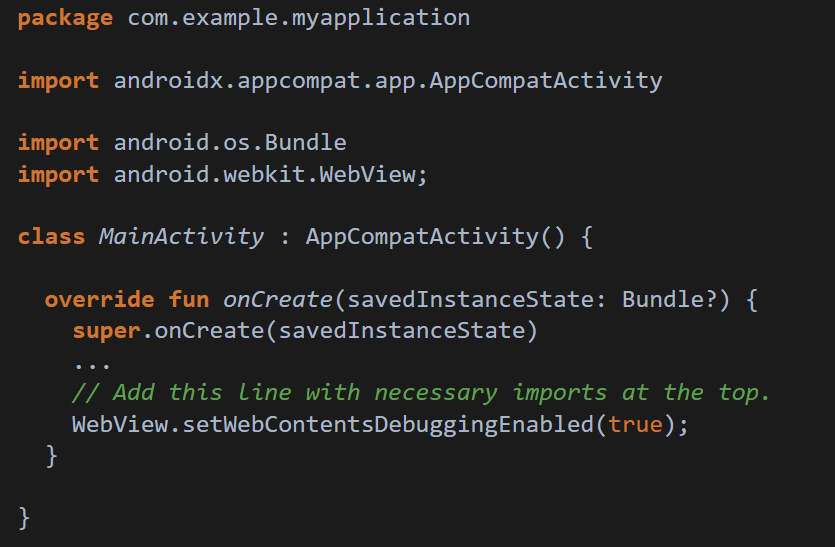
To enable WebView debugging, call the static method setWebContentsDebuggingEnabled(true) on the WebView class.

NOTE:
The setting applies to all of the Android WebViews of the app.
Example React Native generated code
Example Java Android code
Example Kotlin Android code
NOTE:
- Android WebView debugging isn't affected by the state of the debuggable flag in the manifest of the app.
- If you want to enable WebView debugging only when debuggable is true, set the flag as WebView.setWebContentsDebuggingEnabled(BuildConfig.DEBUG)

Want to contribute or report missing content?