

Record and edit steps
Recording captures your actions in the application as steps and executes them in the running session. Every other change to the steps also happens in the session, so you never restart it.
Record test steps
Section titled “Record test steps”Record below a specific step
Section titled “Record below a specific step”-
Click Step Options (⋮) on the step, click Step Below, then click Rec. The panel shows Recording in progress at the bottom.
-
Perform the actions in your application. Testsigma Copilot records each one as a step in real time.
-
Click Stop recording in the toolbar.
-
Review the recorded steps, listed under the selected step with their count.
-
Click Add Steps to insert them below the selected step, or Discard to drop them.
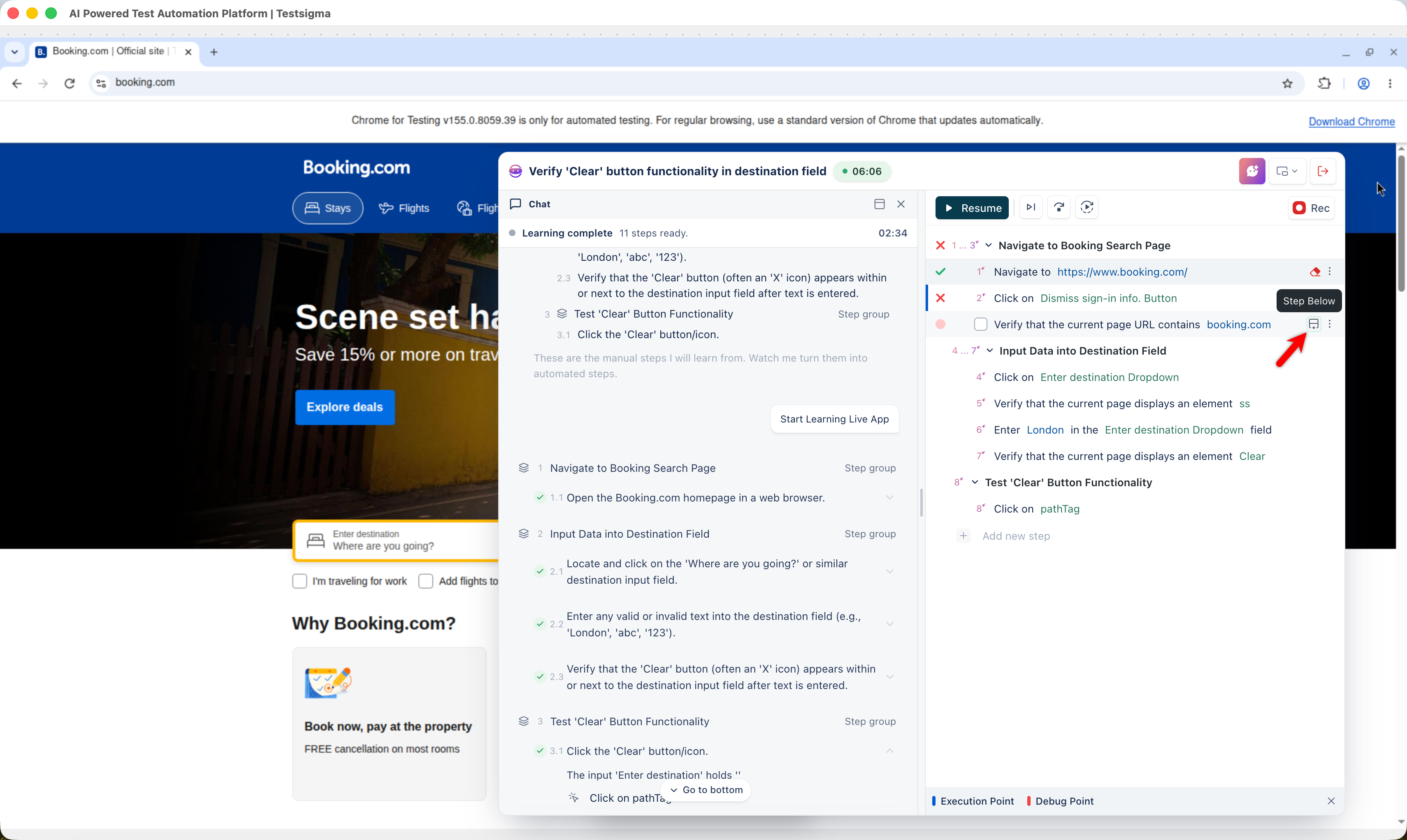
Steps inserted below the last executed step run automatically once added. Steps inserted above it need Resume.
Record at the end
Section titled “Record at the end”-
Click Rec. Steps record at the end of the test case by default.
-
Perform the actions in your application.
-
Click Stop recording.
-
Review the steps in the steps panel.
-
Click Add Steps to append them, or Discard to drop them.
-
Click Resume.
When execution was already complete, the recorded steps run automatically after you click Add Steps.
Handle the Browser State Changed dialog
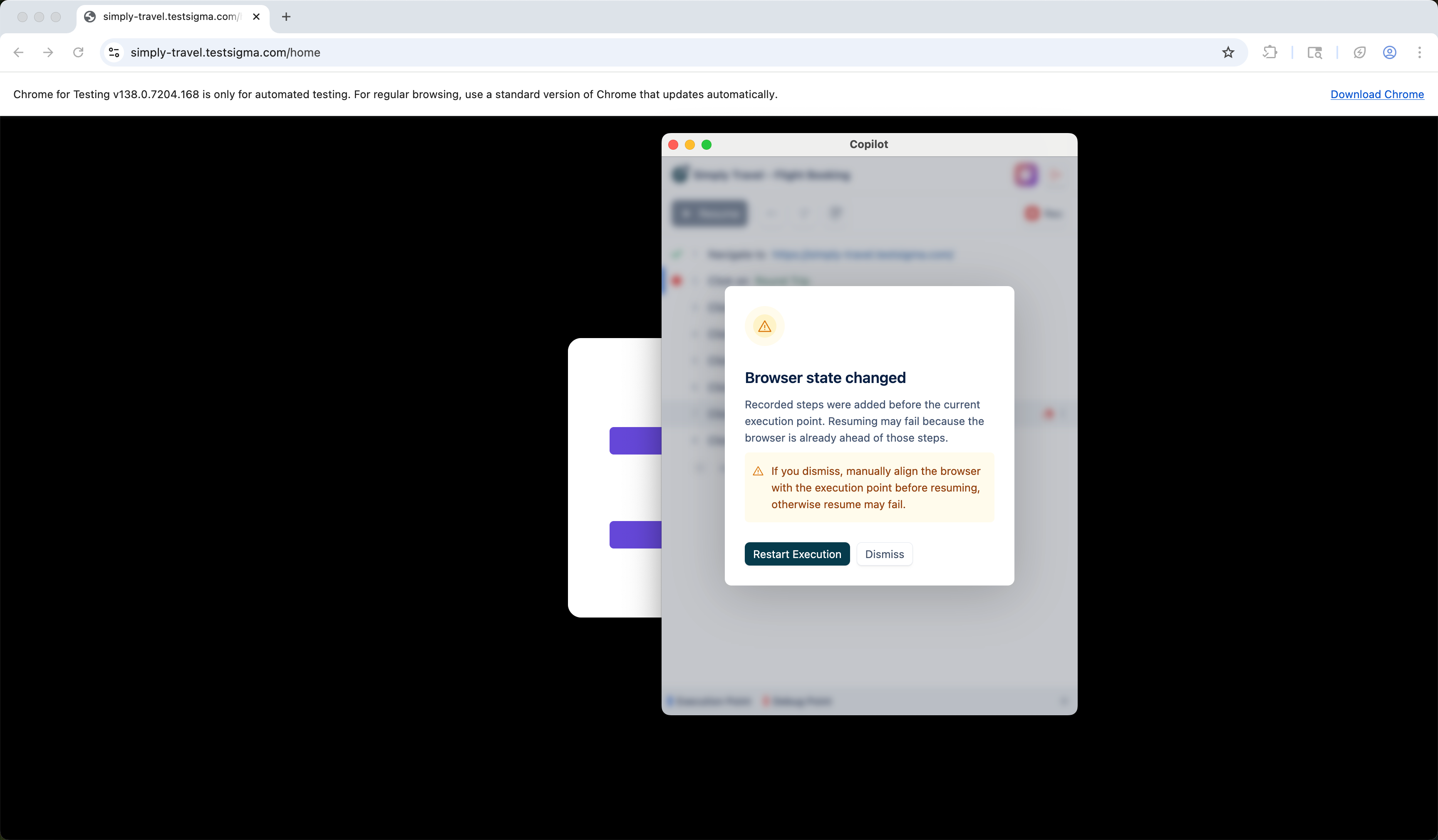
Section titled “Handle the Browser State Changed dialog”This dialog appears when you resume a paused run after adding recorded steps. Click Restart Execution to run from the beginning, or Dismiss to continue from where execution stopped. After dismissing, set the application state manually so it matches the step about to run.
Generate steps instead of recording them
Section titled “Generate steps instead of recording them”Copilot no longer drafts steps while recording. Generate the test case in QI Home with the Generator agent, then automate it with Agentic Learning.
Add a step by describing it
Section titled “Add a step by describing it”Click + Add new step to add at the end, or hover over a step and click Step Below to insert at a position. Type the step to see matching NLPs, select one and configure it, add the elements and test data it needs, then click Create Step.
A step added above the execution point does not run in the current run, and runs on the next one. A step added below the execution point runs in the same run, as long as execution has not already passed it. The execution point is the step where the test is paused or running.
Edit a step
Section titled “Edit a step”To replace what a step does, click the step, type to select a new NLP, configure it, then click Update to save or Dismiss to restore the original step.
To work on the step’s element, hover over the step and click the element name:
- Rename: change the element’s display name, leaving its locator and configuration alone
- Learn: re-record the element during the live session so Copilot can find it on screen
- Change: replace it with another element from the repository, then click Update Step
- Create: create a new element with its name, screen name, type, and value, then click Update Step to attach it
- Edit: open Update Element to change the name, screen name, type, and value
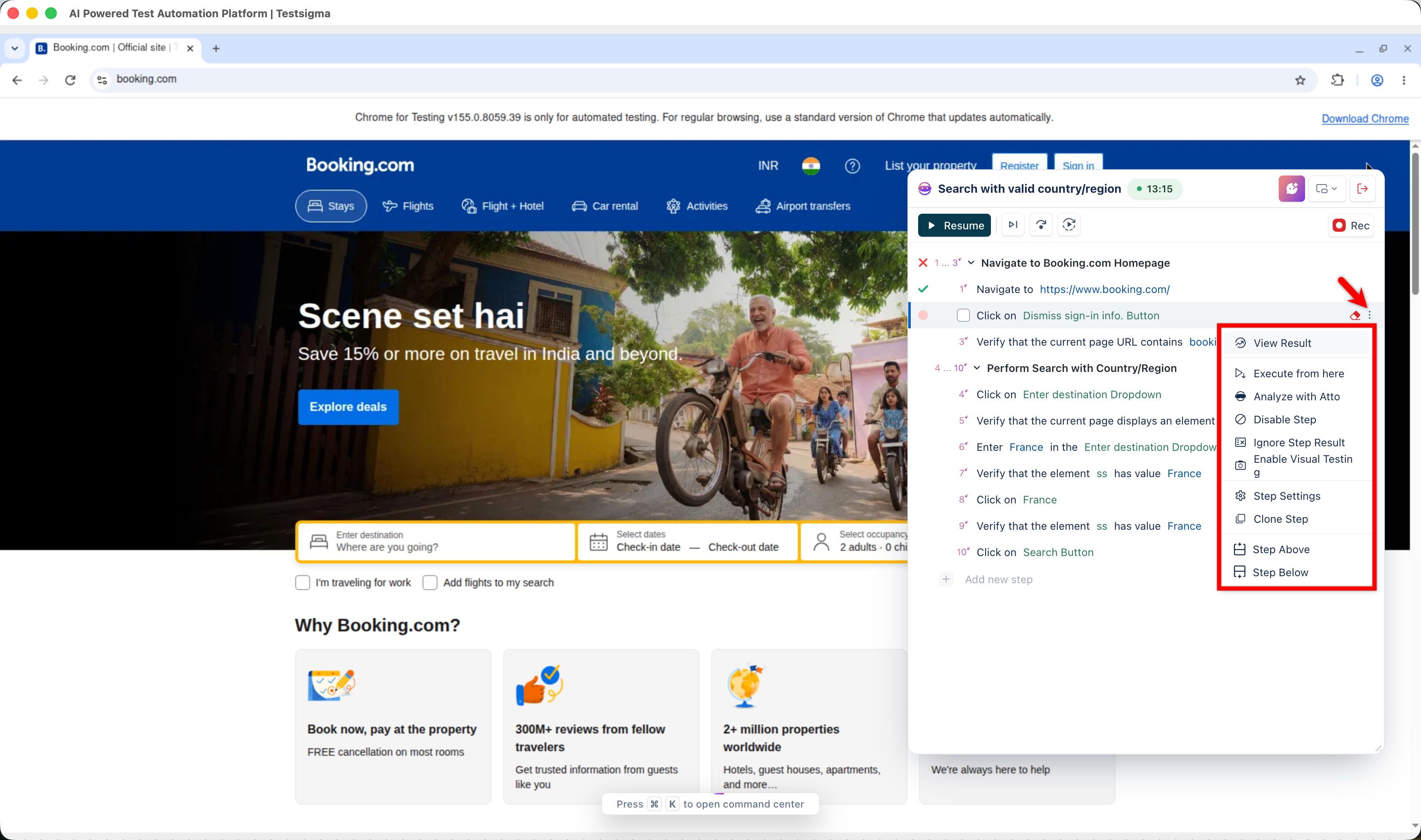
Step Options (⋮) on a step carries the rest:
- View Result: shows the error message, element, test data, and step details for the last run of the step
- Execute from here: starts execution at this step and skips all prior steps
- Analyze with QI: opens the Analyzer Agent panel for the step. See Apply the suggested fix
- Disable Step: skips the step during execution without removing it
- Ignore Result: keeps the step’s pass or fail status out of the test result
- Enable Visual Testing: captures and compares screenshots when the step runs
- Step Settings: opens the Step Details panel for step timeout, screenshot behavior, and other options
- Clone Step: copies the step directly below itself
- Step Above and Step Below: insert an empty step and open the inline editor
- Delete Step: removes the step
Reorder steps
Section titled “Reorder steps”Click the step you want to move, drag it to its new position, which highlights as you drag, then click Save Changes to keep the order or Discard to revert it. Click Resume to continue execution.
Reordering is disabled while recording, while executing, and while a step is being edited.
Delete steps
Section titled “Delete steps”To delete one step, hover over it, click Step Options (⋮), click Delete Step, then click Delete in the Delete step? dialog.
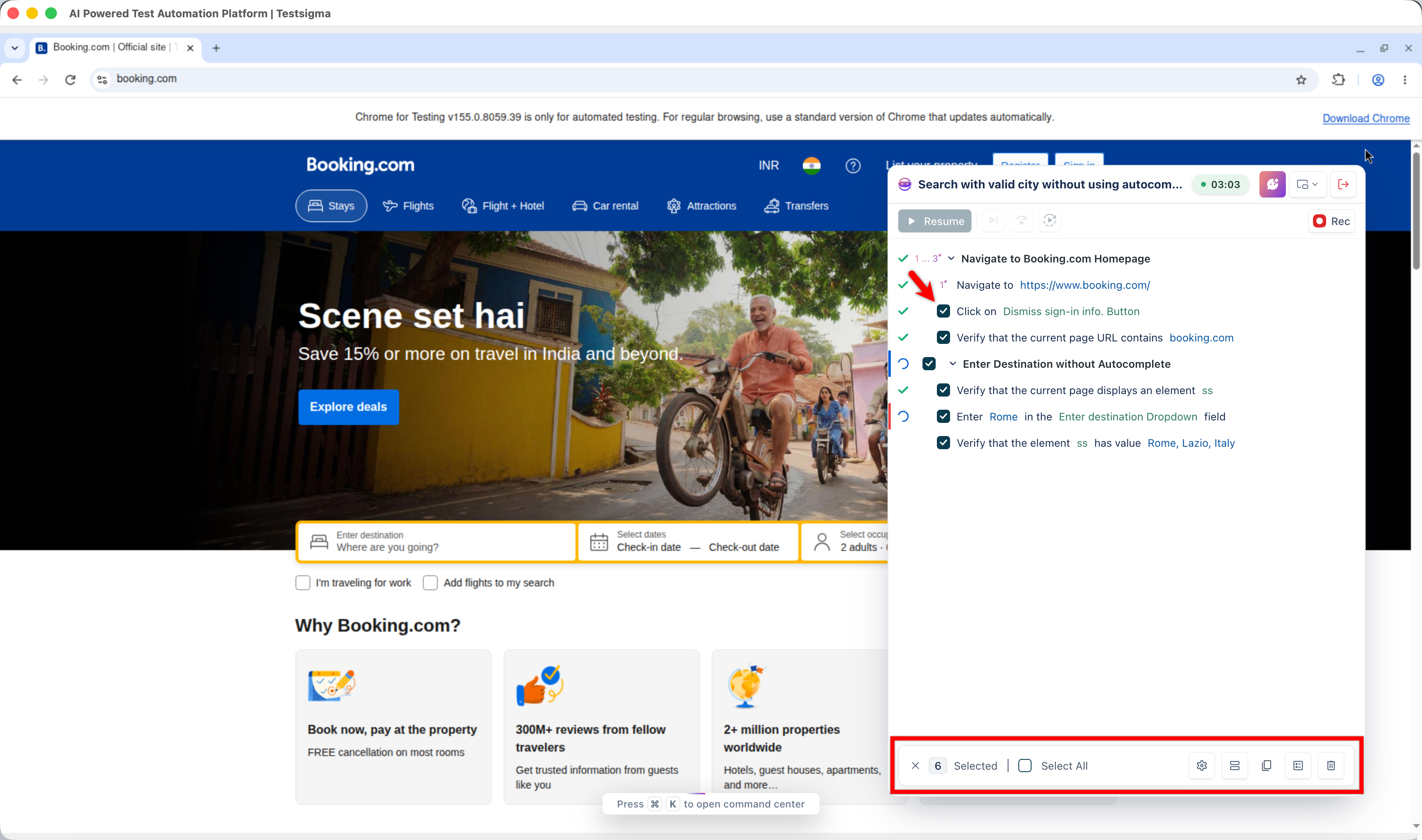
To delete several, hover over a step and click the checkbox in place of its number, select the rest, or click Select All, then click the Delete icon in the floating action bar and confirm.
Change several steps at once
Section titled “Change several steps at once”Hover over a step and click the checkbox that appears in place of the step number, which opens the floating action bar. Select the other steps, or click Select All, then click an icon in the bar:
- Step Settings: opens Update Bulk Settings, where you set the step timeout, screenshot capture, retries, and the disable, smart execution, visual testing, accessibility testing, and highlight-element options for every selected step
- Create Block: groups the selected steps into a block. A selection that already contains a block, or a step inside one, cannot be made into a block
- Create Step Group: combines them into a step group
- Delete: removes them permanently
Was this page helpful?
Thanks for the feedback.