

Audit logs
An audit log records every key action in the account as an immutable entry: who did it, what changed, and when. Administrators use them to investigate an incident, trace an unexpected change, and answer questions about who had access to what.
Read the log
Section titled “Read the log”Go to Settings > Audit Logs. Every recorded activity is listed, and each entry carries:
| Field | What it holds |
|---|---|
| Time | The date and time of the action |
| Event Type | The entity acted on: Test Case, Test Suite, Test Plan, Test Data, Element, Environment, REST API Step, Step Group, or Authentication & Access Bridge |
| Project/App/Version | Where the change was made |
| Action | Create, Update, Delete, Login, or Logout |
| User | Who performed it |
| Details | The fields that changed, with their values |
The Details column is what separates an audit log from an activity feed. It names the fields and the values, so you can see what a change actually was rather than only that something changed.
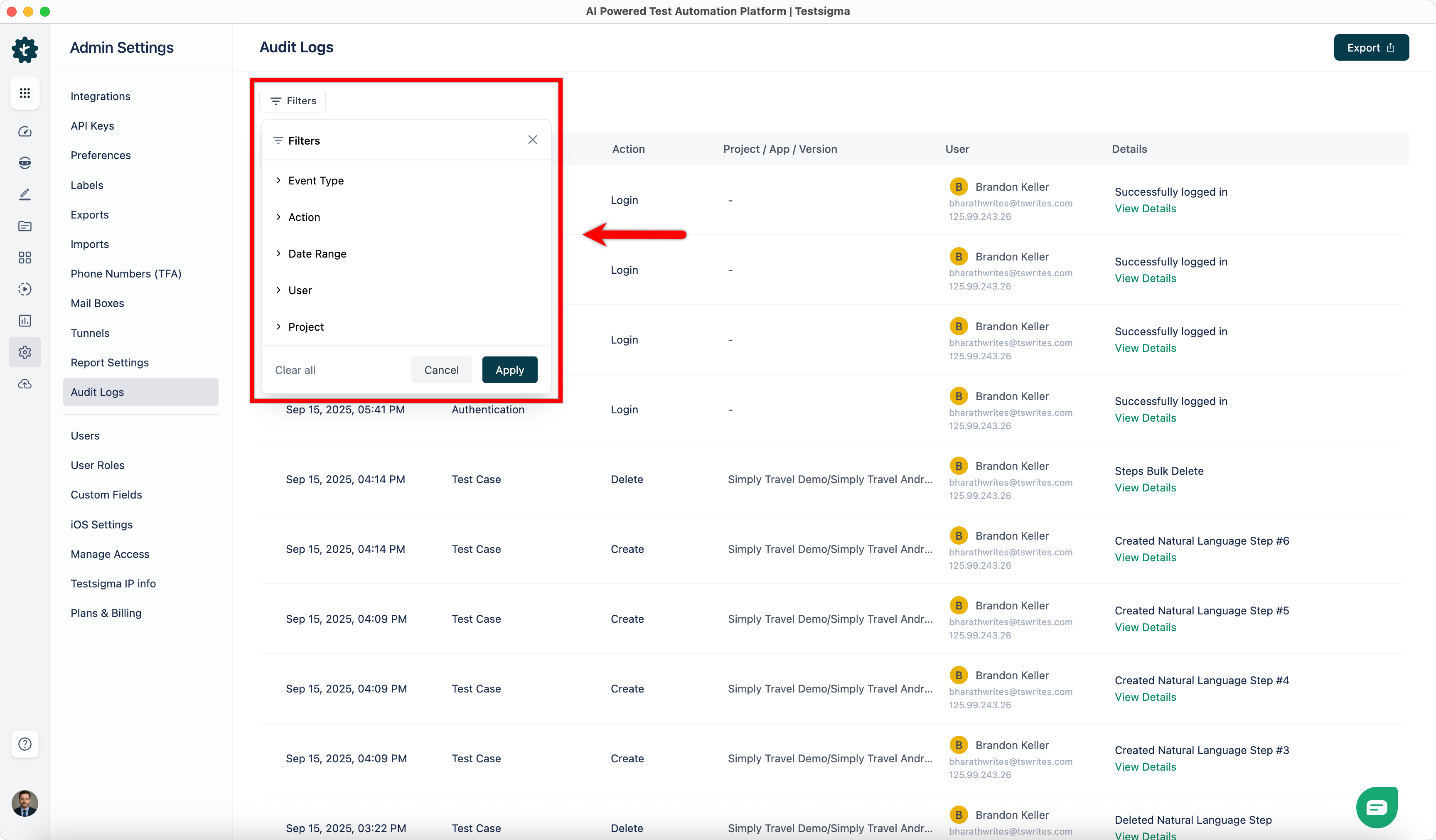
Filter the log
Section titled “Filter the log”Five filters, and they stack:
- Event Type: one entity type
- Action: Create, Update, Delete, Login, or Logout
- Date Range: between a From Date & Time and a To Date & Time
- User: one person’s activity
- Project: actions within one project
Export the log
Section titled “Export the log”The export runs in the background and the file arrives on a different page, so it takes 2 stages.
-
Apply the filters you want on the Audit Logs page.
-
Click Export, then click Export again in the confirmation dialog.
-
Once the file is generated, go to Settings > Exports.
-
Click Download beside the generated report.
The export carries the filtered set rather than the whole log, so filter before you export.
How this differs from an activity log
Section titled “How this differs from an activity log”An audit log is account-wide and administrator-facing, covering authentication and access alongside asset changes.
An activity log sits on an individual test case, element, test suite, or test plan, under Activity in its utility panel, and shows the history of that one asset. Support actions taken under guest@testsigma.com appear there too. See Guest access.
Was this page helpful?
Thanks for the feedback.