

Desired capabilities
A desired capability is a property that customizes the test environment for a run: which extensions load, where the machine reports its location, what time zone it runs in, whether browser alerts are bypassed. Testsigma passes them to the browser or the device when the session starts.
Add a capability
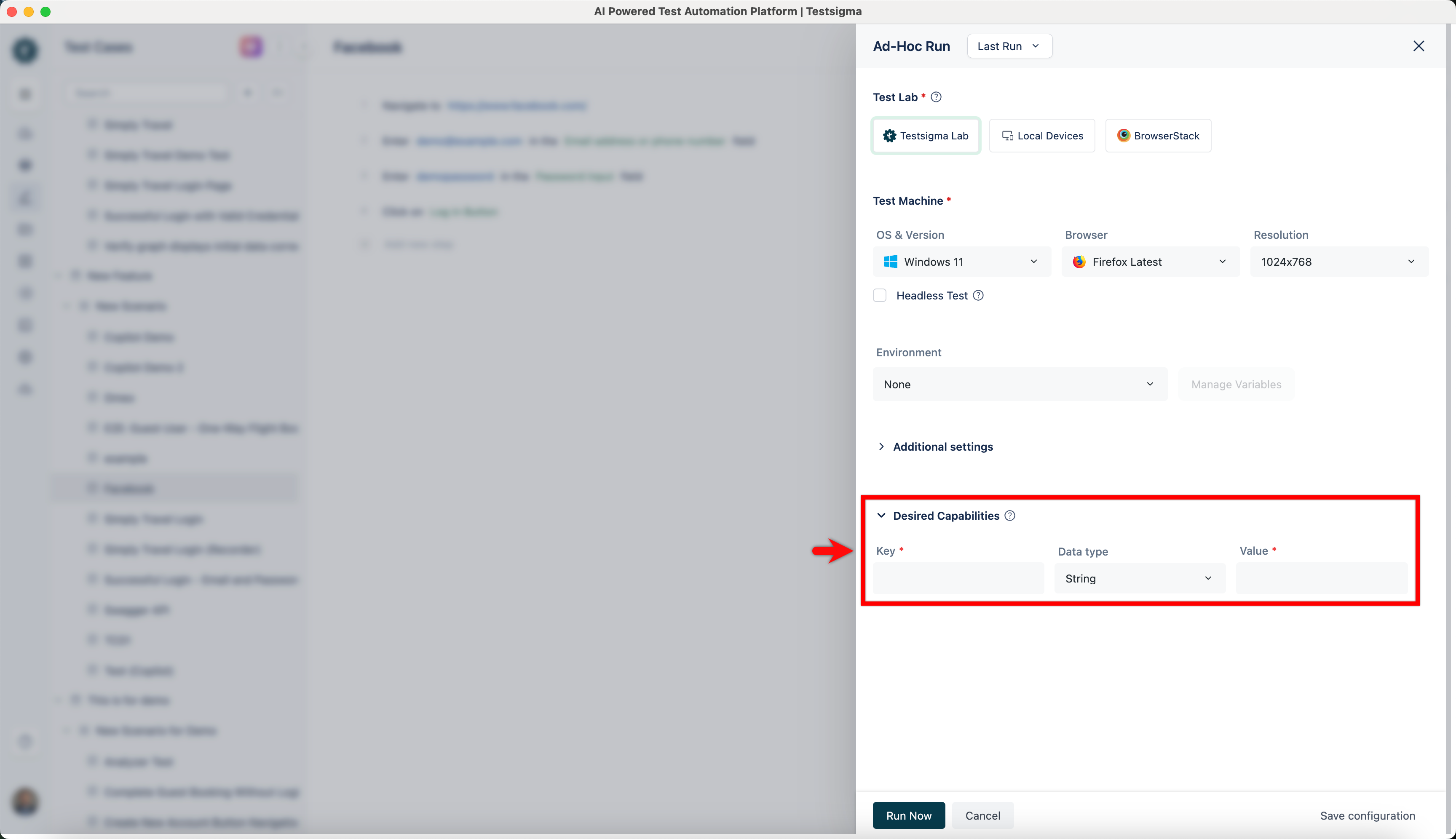
Section titled “Add a capability”Each capability is a Key, a Data Type, and a Value. To accept invalid certificates on a page, for example, the key is acceptInsecureCerts, the data type is boolean, and the value is true.
For an ad-hoc run, open the test case, click Run, click Desired Capabilities in the Ad-hoc Run overlay, and add the pairs.
For a test plan, open the plan, go to Add Test Suites & Link Machine Profiles, select the machine, click Test machine settings, click Desired Capabilities in the Edit test machine/device profile overlay, and add the pairs.
Chrome
Section titled “Chrome”| To do this | Key | Data type | Value |
|---|---|---|---|
| Accept insecure or expired certificates | acceptInsecureCerts | boolean | true |
| Change the user agent | goog:chromeOptions | String | {"args":["--user-agent=USER_AGENT_STRING_HERE"]} |
| Add one extension to the session | goog:chromeOptions | String | {"extensions":["path/to/extension.crx"]} |
| Add several extensions | goog:chromeOptions | String | {"extensions":["path/to/extension1.crx"],["path/to/extension2.crx"]} |
| Emulate a mobile device | goog:chromeOptions | String | {"mobileEmulation":{"deviceName":"iPhone X"}} |
| Disable browser and alert notifications | goog:chromeOptions | String | {"args":["--disable-notifications"]} |
| Use a custom browser profile | goog:chromeOptions | String | {"args":["user-data-dir=/path/to/your/custom/profile"]} |
| Bypass download protection | goog:chromeOptions | String | {"prefs":{"safebrowsing.enabled":"true"}} |
| Allow a fake UI for media streams | goog:chromeOptions | String | {"args":["--use-fake-ui-for-media-stream"]} |
| Allow a fake device for media streams | goog:chromeOptions | String | {"args":["--use-fake-device-for-media-stream"]} |
| Capture the entire screen | goog:chromeOptions | String | {"args":["--auto-select-desktop-capture-source=Entire screen"]} |
| Stop the password leak detection pop-up | goog:chromeOptions | String | {"prefs": {"profile.password_manager_leak_detection": false}} |
| Stop waiting for a page to finish loading | pageLoadStrategy | String | none |
| Set a geolocation | goog:chromeOptions, then geolocation | String, String | {"profile.default_content_setting_values.geolocation":1}, then 51.50735, -0.12776, 100 |
Firefox
Section titled “Firefox”| To do this | Key | Data type | Value |
|---|---|---|---|
| Accept insecure or expired certificates | accept_untrusted_certs | boolean | true |
| Set a geolocation | firefoxprofile | String | A profile object setting geo.prompt.testing, geo.prompt.testing.allow, geo.enabled, and geo.wifi.uri. See Set a geolocation |
Microsoft Edge
Section titled “Microsoft Edge”| To do this | Key | Data type | Value |
|---|---|---|---|
| Accept insecure or expired certificates | acceptInsecureCerts | boolean | true |
| Run in private browsing | MsOptions | String | {"args":["--inprivate"]} |
| Launch in IE mode | ts.ieMode | Boolean | true |
Android
Section titled “Android”| To do this | Key | Data type | Value |
|---|---|---|---|
| Keep app data across hybrid sessions on a local device | noReset | boolean | true |
| Grant the permissions in the app manifest at install time | autoGrantPermissions | boolean | true |
| Speed up clicks and data entry in a native app | appium:waitForIdleTimeout | String | 1000L |
| To do this | Key | Data type | Value |
|---|---|---|---|
| Accept every permission pop-up, including location, contacts, and photos | autoAcceptAlerts | boolean | true |
| Dismiss every permission pop-up | autoDismissAlerts | boolean | true |
| Stop Testsigma re-signing the app | resignApp | boolean | false |
Mobile applications built with React Native or Flutter can be slow to record against and slow to run. appium:waitForIdleTimeout set to 1000L speeds up clicks and data entry, and it works on apps built with other frameworks too. Add it in the Ad-Hoc Run overlay, in the Record test steps overlay, or on a test machine profile in a test plan.
On Internet Explorer and Safari, the capability for accepting insecure certificates is capabilityType.ACCEPT_SSL_CERTS, set to Boolean true.
Testsigma Lab
Section titled “Testsigma Lab”| To do this | Key | Data type | Value |
|---|---|---|---|
| Limit how long the browser waits for the next command | idleTimeout | Integer | Seconds. Default 90, minimum 0, maximum 1000 |
| Limit the total test duration | maxDuration | Integer | Seconds. Default 3600, minimum 0, maximum 10800 |
| Set the environment’s time zone | timeZone | String | A city name, such as Madrid |
| Capture the console log for each URL | extendedDebugging | Boolean | true |
Both timeouts are safety limits, so a test that has gone wrong cannot run indefinitely.
BrowserStack
Section titled “BrowserStack”| To do this | Key | Data type | Value |
|---|---|---|---|
| Enable visual logs | browserstack.debug | Boolean | true |
| Enable local testing | browserstack.local | Boolean | true |
| Enable browser console logs | browserstack.console | String | warnings |
| Sign in to the Google Play Store | browserstack.appStoreConfiguration | String | {"username":"play-store-email","password":"play-store-password"} |
Signing in to the Play Store is what lets you test in-app purchase flows, verify a payment through Google Pay, or run against the production build of your app downloaded from the store.
Testsigma capabilities
Section titled “Testsigma capabilities”These keys are Testsigma’s own rather than the browser’s or the lab’s.
| To do this | Key | Data type | Value |
|---|---|---|---|
| Run the browser in incognito or private mode | testsigma.privateBrowsing | Boolean | true for private, false for normal |
| Enroll biometric authentication on Android and iOS | testsigma.allowTouchIdEnroll | Boolean | true |
| Send a custom header, such as basic authentication in Safari | testsigma.customHeaders | String | {"Authorization":"Basic <token>"} |
testsigma.allowTouchIdEnroll simulates a biometric event, so you can test how the app recognizes and responds to one.
testsigma.customHeaders works on Safari only. Safari blocks credentials passed in the URL, which is why basic authentication there needs a header instead. Generate the token from a basic auth header generator with your username and password, then pass it as { "Authorization": "Basic <token>" }. After the run, check the screenshot captured at step level to confirm the login worked.
Pages that never finish loading
Section titled “Pages that never finish loading”A 3D Secure authentication page, such as Visa or Mastercard, loads a third-party iframe running continuous background scripts. Long-running JavaScript and postMessage listeners stay active, messages keep passing to the payment provider, and the browser never reaches a fully loaded state. ChromeDriver waits for a pageLoad event that never arrives, and Selenium stops responding after navigation.
Pass pageLoadStrategy as a String set to none, so the driver stops waiting for the full page load. This affects Chrome and Edge.
Site permissions
Section titled “Site permissions”Set what the browser does when a page asks for the microphone, the camera, the location, notifications, or the clipboard. Every value is JSON, and 0 asks every time, 1 allows, and 2 blocks. Separate several settings with a comma.
| Permission | Firefox, with firefoxprofile | Chrome, with goog:chromeOptions |
|---|---|---|
| Microphone | {"permissions.default.microphone": 1} | {"prefs":{"profile.default_content_setting_values.media_stream_mic": 2}} |
| Camera | {"permissions.default.camera": 1} | {"prefs":{"profile.default_content_setting_values.media_stream_camera": 2}} |
| Location | {"permissions.default.geo": 1} | {"prefs": {"profile.default_content_setting_values.geolocation": 1}} |
| Notifications | {"permissions.default.desktop-notification": 1} | {"prefs": {"profile.default_content_setting_values.notifications":1}} |
For the clipboard in Edge, pass MsOptions with {"prefs": {"profile.default_content_setting_values.clipboard":1}}.
Run Edge in IE mode
Section titled “Run Edge in IE mode”IE mode runs a legacy application that needs Internet Explorer 11 inside Edge, using the Trident rendering engine. It needs a Windows test machine with registry access, and Internet Explorer 11 installed.
IE mode hangs when Protected Mode differs across Windows security zones, so align them first.
-
Press Win + R, enter
regedit, and press Enter. -
Go to each of these paths in turn:
HKEY_CURRENT_USER\Software\Microsoft\Windows\CurrentVersion\Internet Settings\Zones\1through\Zones\4. -
In each zone, right-click the right pane and select New > DWORD (32-bit) Value.
-
Name it
2500. -
Double-click
2500and enter3to disable Protected Mode, or0to enable it.
Set all 4 zones to the same value. 3 in every zone is the recommended setting and is what prevents the hang.
Then add the capability to a test machine profile: on the Add Test Suites & Link Machine Profiles tab, click Link Test Machine, click Add Machine, scroll to Desired Capabilities, add ts.ieMode as a Boolean set to true, and click Create Profile.
Incognito and private browsing
Section titled “Incognito and private browsing”| Key | Data type | Value | What happens |
|---|---|---|---|
testsigma.privateBrowsing | Boolean | true | The browser launches in incognito or private mode |
testsigma.privateBrowsing | Boolean | false | The browser launches normally |
| Not passed | The browser launches normally |
Chrome, Firefox, and Edge support private browsing.
Set a geolocation
Section titled “Set a geolocation”Setting a location takes different capabilities in each browser, and a different capability again for localization testing.
For a precise position in Chrome, pass both of these:
| Key | Data type | Value |
|---|---|---|
goog:chromeOptions | String | {"profile.default_content_setting_values.geolocation":1} |
geolocation | String | 51.50735, -0.12776, 100 |
Keep the first row as it is. The three values in the second are latitude, longitude, and altitude. This example is Trafalgar Square in London, and Central Park in New York is 40.783840, -73.965550, 33.
For Firefox, pass firefoxprofile as a String:
{"geo.prompt.testing": true, "geo.prompt.testing.allow": true, "geo.enabled": true, "geo.wifi.uri": "data:application/json,{\"location\": {\"lat\": 34.052235, \"lng\": -118.243683}, \"accuracy\": 100.0}"}The three values under geo.wifi.uri are latitude, longitude, and accuracy. This example is Downtown Los Angeles. Central Park in New York is {"location": {"lat": 40.783840, "lng": -73.965550}, "accuracy": 100.0}.
Localization by country
Section titled “Localization by country”For localization testing, where the country matters and the coordinates do not, pass geoLocation as a String with a two-letter country code. Open the test case, click Run, click Desired Capabilities on the Ad-Hoc Run overlay, enter geoLocation, select String, enter the code, and click Run Now.
These 48 countries are available:
| Country | Code | Country | Code | Country | Code |
|---|---|---|---|---|---|
| Argentina | AR | Greece | GR | Philippines | PH |
| Australia | AU | Hong Kong | HK | Poland | PL |
| Austria | AT | Hungary | HU | Portugal | PT |
| Belgium | BE | Iceland | IS | Russia | RU |
| Brazil | BR | India | IN | Singapore | SG |
| Bulgaria | BG | Indonesia | ID | South Africa | ZA |
| Canada | CA | Ireland | IE | South Korea | KR |
| Chile | CL | Israel | IL | Spain | ES |
| China | CN | Italy | IT | Sweden | SE |
| Croatia | HR | Japan | JP | Switzerland | CH |
| Czech Republic | CZ | Jordan | JO | Taiwan | TW |
| Denmark | DK | Malaysia | MY | Thailand | TH |
| Egypt | EG | Mexico | MX | Turkey | TR |
| Finland | FI | Netherlands | NL | Ukraine | UA |
| France | FR | New Zealand | NZ | United Kingdom | GB |
| Germany | DE | Norway | NO | United States | US |
Emulate a mobile device in Chrome
Section titled “Emulate a mobile device in Chrome”Chrome’s own device emulation tests responsive behavior without a real device or a mobile automation setup.
To find a device name, open Chrome DevTools with F12, or Ctrl+Shift+I, or Command+Shift+I on macOS. Click the device selection toggle in the top-left of the DevTools area, which turns blue when it is on, and read the device list in the first dropdown on the top bar. Selecting a device updates the viewport to that device’s dimensions. The last option in that menu, Edit, shows the full device list and lets you add your own.
Use the name in the capability, with the latest Chrome version selected for your operating system:
| Key | Data type | Value |
|---|---|---|
goog:chromeOptions | String | {"mobileEmulation":{"deviceName":"iPhone X"}} |
For a resolution Chrome does not list, give the metrics yourself:
{"mobileEmulation": {"deviceMetrics": {"width": 560, "height": 600, "pixelRatio": 3.0}, "userAgent": "Mozilla/5.0 (Linux; Android 4.2.1; en-us; Nexus 5 Build/JOP40D) AppleWebKit/535.19 (KHTML, like Gecko) Chrome/18.0.1025 Mobile Safari/535.19"}}Use a custom Chrome profile
Section titled “Use a custom Chrome profile”A custom profile carries pre-installed extensions, a location, a language, and any other browser settings you set up once and reuse.
-
Open
chrome://versionduring a run to find the current profile path. -
Make the changes you want in the profile folder.
-
Pass the folder in the capability below.
| Key | Data type | Value |
|---|---|---|
goog:chromeOptions | String | {"args":["user-data-dir=/path/to/your/custom/profile"]} |
The default profile lives here:
| OS | Path |
|---|---|
| Windows 7, 8.1, and 10 | C:\Users\<user>\AppData\Local\Google\Chrome\User Data\Default |
| macOS | Users/<user>/Library/Application Support/Google/Chrome/Default |
| Linux | /home/<user>/.config/google-chrome/default |
Add a Chrome extension
Section titled “Add a Chrome extension”Adding an extension takes 2 steps: get the CRX file, then give its path to the capability. Once execution starts, Testsigma installs the file into the browser.
To get the CRX file:
- If you already have it, use it.
- If you have the uncompressed extension folder, compile it to CRX with the Chrome browser installed on your machine.
- If you have neither, copy the extension’s Chrome Web Store page URL, then use a CRX downloader such as chrome-extension-downloader.com to turn that URL into a CRX file.
| Key | Data type | Value |
|---|---|---|
goog:chromeOptions | String | {"extensions":["path/to/extension.crx"]} |
For more than one extension, use {"extensions":["path/to/extension1.crx"],["path/to/extension2.crx"]}.
Browser console logs
Section titled “Browser console logs”The capability differs by test lab.
| Test lab | Key | Data type | Value |
|---|---|---|---|
| Testsigma Lab and Sauce Labs | extendedDebugging | Boolean | true |
| BrowserStack | browserstack.console | String | warnings |
Add the capability for your lab on the Ad-hoc Run overlay under Desired Capabilities, or on the Add Test Suites & Link Machine Profiles tab of the test plan, through Test Machine Settings.
Related settings that are not capabilities
Section titled “Related settings that are not capabilities”Four things sit near desired capabilities in the interface and are configured elsewhere.
Network throttling
Section titled “Network throttling”Network throttling deliberately slows the connection, so you can see how the application loads and behaves on a poor network.
-
Go to Addons and click Add-ons.
-
Search New & Updated Addons for the Network Throttling add-on and click Install.
-
Open the test case and click Step Above at the point where the slow network should start.
-
Create a step with the NLP
Simulate network to upload_speed upload speed(kbps) download_speed download speed(kbps) latency_time latency(ms).
| Profile | Upload | Download | Latency |
|---|---|---|---|
| Regular 2G | 6.25 kbps | 31.25 kbps | 300 ms |
| Good 2G | 18.75 kbps | 56.25 kbps | 150 ms |
| Regular 3G | 31.25 kbps | 93.75 kbps | 100 ms |
| Good 3G | 93.75 kbps | 192.00 kbps | 40 ms |
| Regular 4G | 384.00 kbps | 512.00 kbps | 20 ms |
Regular 4G is the default.
Network logs
Section titled “Network logs”Network logs capture the traffic between the application and the server during a run, which is what you read when a failure looks like a request or a response problem. They need BrowserStack as the test lab.
For a test case, click Run, select BrowserStack as the Test Lab in the Ad-hoc Run overlay, turn on the Network Log toggle, and click Run Now.
For a test plan, go to the Add Test Suites & Link Machine Profiles tab, click the Test Machine Settings icon, select BrowserStack as the Test Lab, turn on the Network Log toggle, and click Create Profile or Update Profile.
To read them afterwards, click Show Logs on the Run Results page. The Logs page carries the Appium, Device, and Network logs together. Click Download log file to take the network log away as a HAR file.
Screenshots on Android and iOS
Section titled “Screenshots on Android and iOS”Screenshots are allowed by default on both, and a developer can block them in the app.
On Android, remove this from MainActivity.java, or from whichever activity you want to inspect:
getWindow().setFlags(WindowManager.LayoutParams.FLAG_SECURE, WindowManager.LayoutParams.FLAG_SECURE);On iOS, remove the restriction imposed by whichever third-party tool disables screenshots.
WebView inspection on Android
Section titled “WebView inspection on Android”Inspecting WebView elements needs debugging turned on in the app itself. Call the static method setWebContentsDebuggingEnabled(true) on the WebView class. The source documentation carries React Native, Java, and Kotlin examples as screenshots.
Frequently asked questions
Section titled “Frequently asked questions”How do I test a legacy application that needs Internet Explorer?
Section titled “How do I test a legacy application that needs Internet Explorer?”Run Edge in IE mode with the ts.ieMode capability, on a Windows machine that has Internet Explorer 11 installed. Align Protected Mode across all 4 security zones in the registry first, or the run hangs. See Run Edge in IE mode.
How do I stop a permission prompt blocking my test?
Section titled “How do I stop a permission prompt blocking my test?”Grant the permission up front with a capability instead of answering the prompt. Firefox uses firefoxprofile, Chrome uses goog:chromeOptions, and Edge uses MsOptions. 0 asks every time, 1 allows, and 2 blocks. See Site permissions.
Why does navigating to a 3D Secure payment page freeze the run?
Section titled “Why does navigating to a 3D Secure payment page freeze the run?”The payment gateway’s iframe runs scripts that never stop, so the browser never reports the page as loaded and the driver waits forever. Set pageLoadStrategy to none, then make your steps wait for the specific elements they need instead of relying on page load.
How do I stop Chrome’s password leak pop-up interrupting the run?
Section titled “How do I stop Chrome’s password leak pop-up interrupting the run?”Turn off the password manager’s leak detection for the session with goog:chromeOptions set to {"prefs": {"profile.password_manager_leak_detection": false}}.
Why does my iOS app install but not launch?
Section titled “Why does my iOS app install but not launch?”Testsigma re-signs iOS apps by default, which breaks push notifications and anything else tied to the original signing credentials. Set resignApp to false when the app is already signed under the Apple Developer Enterprise Program.
Why are recording and execution slow on a React Native or Flutter app?
Section titled “Why are recording and execution slow on a React Native or Flutter app?”Set appium:waitForIdleTimeout to 1000L in the Ad-Hoc Run overlay, the Record test steps overlay, or the test machine profile. It works on apps built with other frameworks too.
How do I test a site with no valid SSL certificate?
Section titled “How do I test a site with no valid SSL certificate?”Bypass the certificate error for the session. Chrome uses acceptInsecureCerts, Firefox uses accept_untrusted_certs, and Internet Explorer and Safari use capabilityType.ACCEPT_SSL_CERTS, all Boolean true.
Was this page helpful?
Thanks for the feedback.