

Slack
Slack integration sends test pass, fail, and abort notifications to a Slack channel in real time. You can share results with teammates the moment a run finishes.
Prerequisites
- A Slack workspace where you can create apps and incoming webhooks.
Get a Slack incoming webhook URL
Section titled “Get a Slack incoming webhook URL”-
Open app management: In Slack, go to Workspace > Tools & Settings > Manage Apps.
-
Open the Slack API: In the Installed Apps section, click Build.
-
Create an app: In the Slack API, click Create an App. In the Create an App dialog, select From Scratch, enter an App Name, select your Workspace, and click Create App.
-
Activate webhooks: Go to Incoming Webhooks and enable Activate Incoming Webhooks.
-
Add a webhook: Click Add New Webhook to Workspace, select a Channel, and click Allow.
-
Copy the URL: In Incoming Webhooks, click Copy on the URL textbox to copy the generated webhook URL.
Connect Slack to Testsigma
Section titled “Connect Slack to Testsigma”-
Enable the integration: Navigate to Settings > Integrations and turn on the toggle on the Slack widget.
-
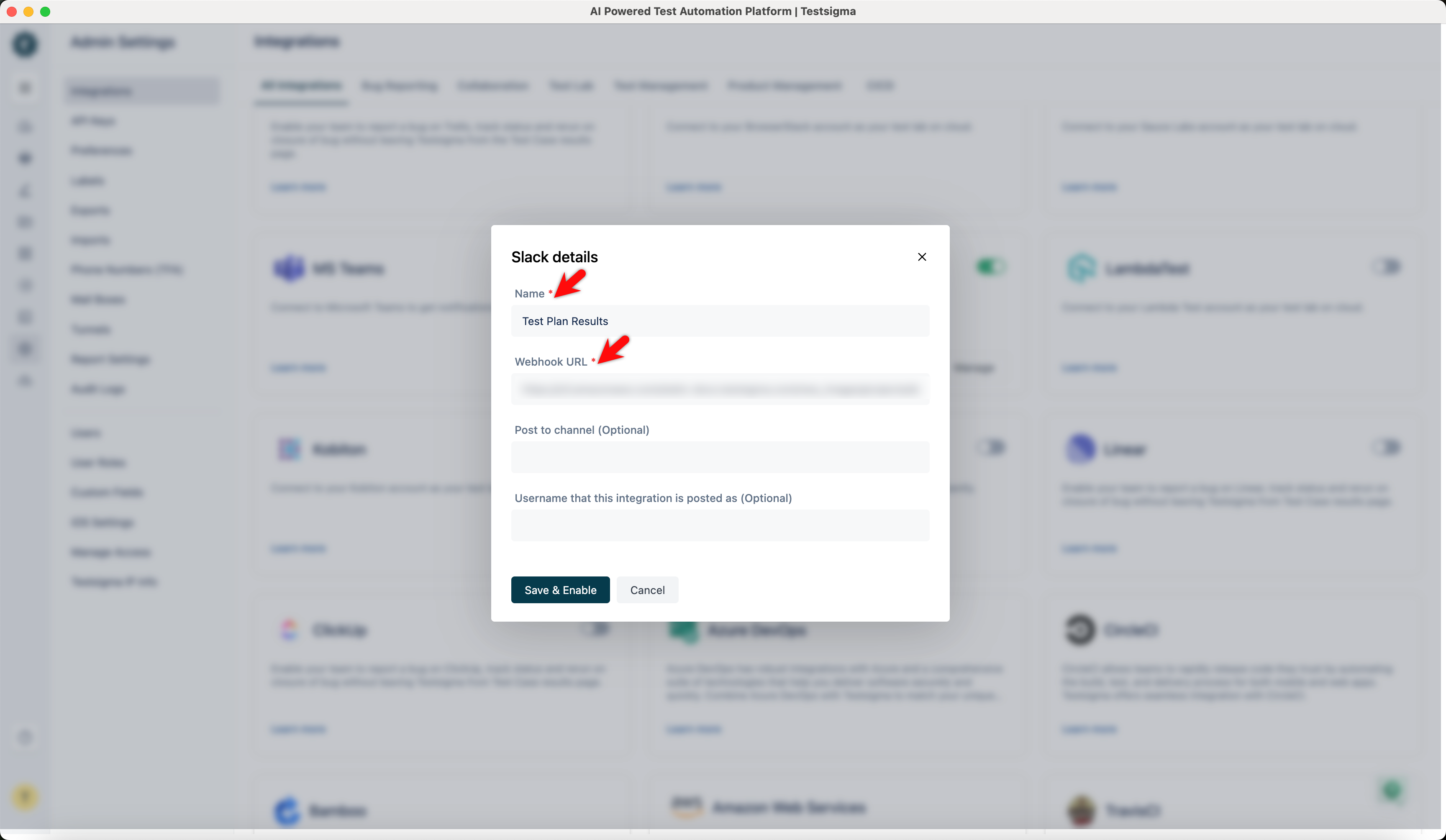
Enter the details: In the Slack details prompt, enter the details along with the webhook URL and click Save & Enable.
Enable notifications in a test plan
Section titled “Enable notifications in a test plan”-
Open plan settings: Navigate to Test Plans, select or create a test plan, and open Test Plan Settings.
-
Turn on notifications: On the Edit Test Plan page, enable the Send Notification toggle.
-
Pick the statuses: Select the statuses for which you want to receive the notification.
-
Pick the destination: Select Slack from the Also send messages to dropdown menu.
Was this page helpful?
Thanks for the feedback.