

qTest
qTest integration links qTest test cases to Testsigma test cases and exports run results into qTest. The export runs through a Post Plan Hook or the API.
Prerequisites
- The qTest Host URL and Bearer Token.
- A qTest project with test runs and test cases.
Connect qTest
Section titled “Connect qTest”-
Open integrations: From the left navigation bar, go to Settings > Integrations.
-
Enable the widget: Turn on the toggle on the qTest widget.
-
Enter the details: In the qTest Details dialog, enter the Host URL and Bearer Token, then click Save & Enable.
Link test cases
Section titled “Link test cases”qTest is a manual test management tool, so linking pairs each manual qTest case with its Testsigma automation.
-
Copy the ID: Open the test case in qTest and copy its ID.
-
Open the mapping panel: In Testsigma, open the test case you want to link and select Manage Test Case from the Utility Panel.
-
Map it: Select a qTest Project from the dropdown, enter the qTest ID in the input box, and click the link icon.
Repeat these steps for each qTest test case you want to map in Testsigma.
Map automation statuses
Section titled “Map automation statuses”In qTest, activate Automation Integration and map the automation statuses so result tracking stays consistent. See qTest’s Automation Settings documentation.
| Automation status | qTest status |
|---|---|
| PASSED | Passed |
| FAILED | Failed |
| INCOMPLETE | Incomplete |
| BLOCKED | Blocked |
Export results with the Post Plan Hook
Section titled “Export results with the Post Plan Hook”-
Assemble the plan: Create a test suite with the linked test cases and add it to a test plan.
-
Attach the hook: In the Test Plan Settings, select qTest Addon from the Post Plan Hook dropdown.
-
Fill in the hook fields: Enter the details listed in the table below.
-
Run the plan: Go to Test Plans and click Run Now. A duplicate test run is created, and results appear when it completes.
-
Open the qTest results: Click qTest Result Link in the top right corner of the run result.
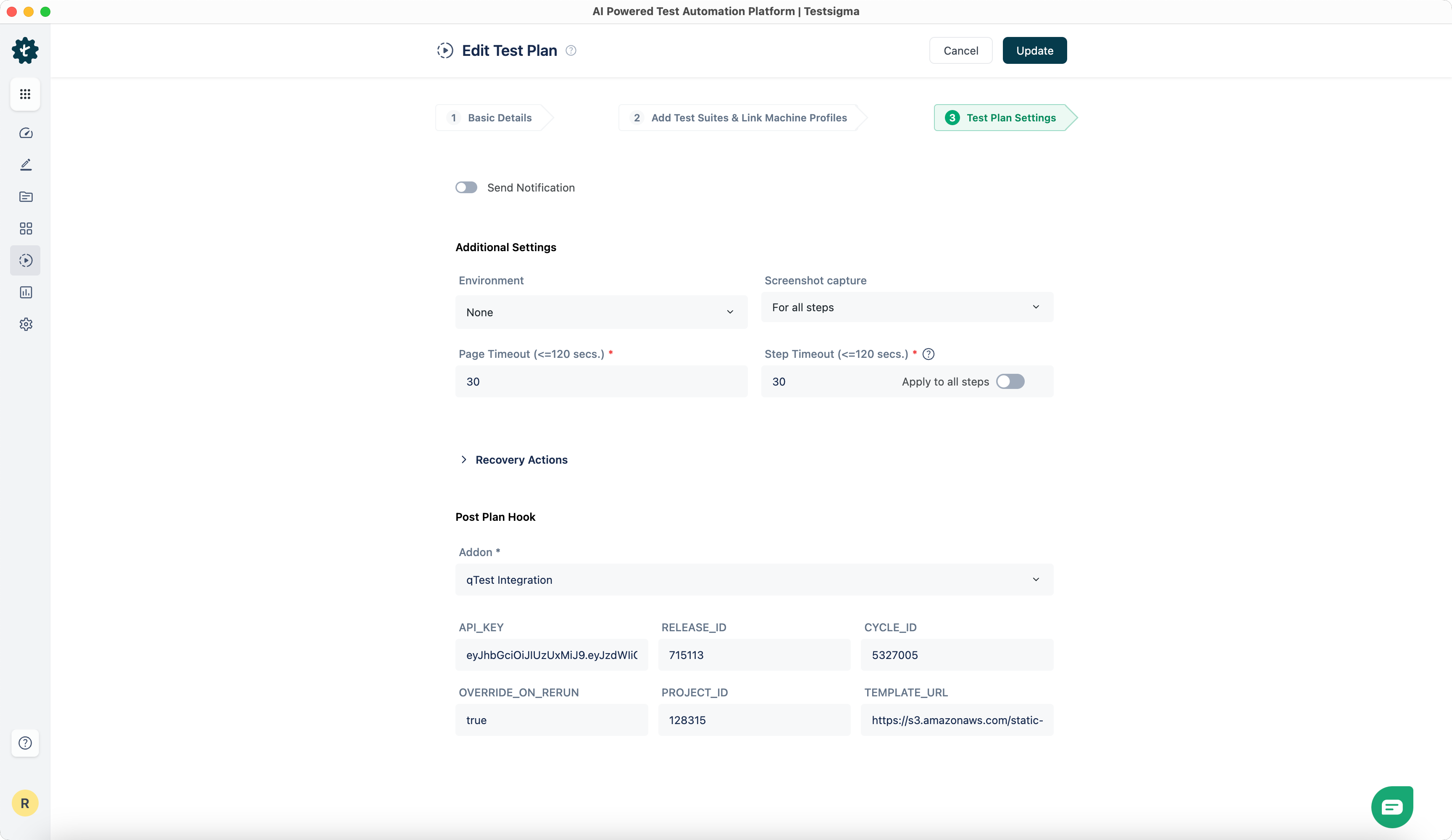
| Field | Value |
|---|---|
API_KEY | A Testsigma API key, copied from Settings > API Keys. |
RELEASE_ID | The qTest release ID. Click Release and copy the numeric value after id= in the URL. |
CYCLE_ID | The qTest cycle ID. Click Cycle and copy the numeric value after id= in the URL. |
OVERRIDE_ON_RERUN | true pushes rerun results into the original qTest cycle. false creates a new cycle with Rerun #num appended to the original cycle name. |
PROJECT_ID | The qTest project ID. Click Project and copy the numeric value after /p/ in the URL. |
TEMPLATE_URL | Optional. URL of the JUnit template file that configures result data for the run. It must be publicly accessible. For customization requests, contact support@testsigma.com. |
Trigger the export via API
Section titled “Trigger the export via API”You can also trigger qTest test plans through the API. Download the Postman collection to get started.
- Authorization: Bearer token, copied from Settings > API Keys in Testsigma.
- Request body:
- Build Number: the unique identifier for the qTest execution.
- Hook Data: the Testsigma API Key, the qTest Project ID, and the Template URL of the JUnit template file.
- Title: a title for the execution.
- Execution Lab: the environment or lab used for running the test cases.
Was this page helpful?
Thanks for the feedback.