

Google Chat
Google Chat integration posts test plan status notifications into a Chat space. Create an incoming webhook on the space, add its URL in Testsigma, then enable notifications per test plan.
Prerequisites
- A Google Chat space where you can add webhooks.
Create the webhook in Google Chat
Section titled “Create the webhook in Google Chat”-
Open the space: In Google Chat, select the chat space where you want to add the connector.
-
Open its integrations: Click the space name and select Apps & Integrations.
-
Add a webhook: Under Integrations, go to Webhooks and click Add Webhook.
-
Name it: In the Incoming webhooks dialog, enter a Webhook Name. Adding an image or avatar URL is optional.
-
Save and copy: Click Save, then click Copy link to copy the generated webhook URL.
Connect Google Chat to Testsigma
Section titled “Connect Google Chat to Testsigma”-
Open integrations: Navigate to Settings > Integrations.
-
Enable the integration: Turn on the Google Chat toggle.
-
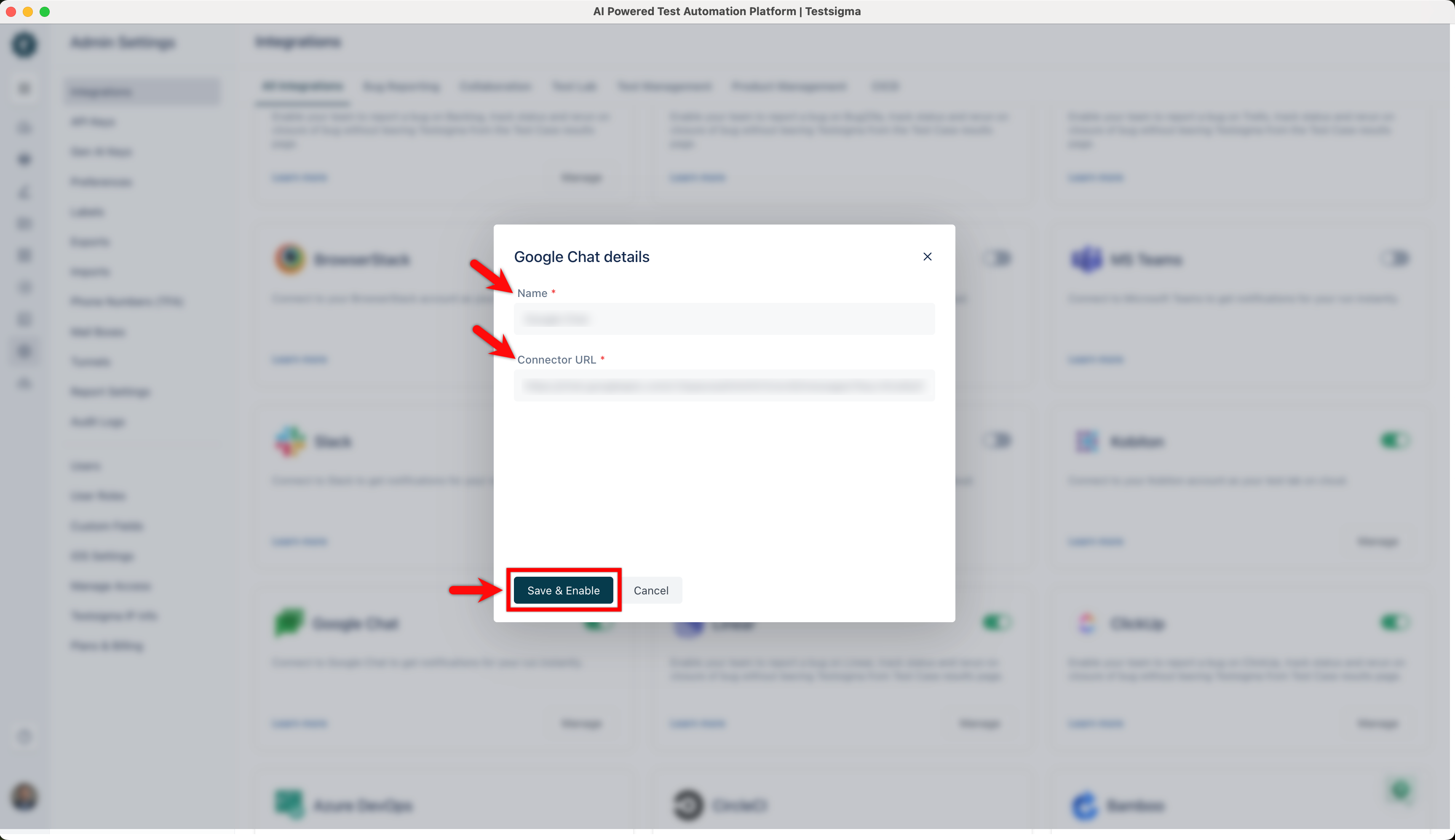
Enter the details: In the Google Chat details dialog, enter a Name and the Connector URL you copied, then click Save & Enable.
Enable notifications in a test plan
Section titled “Enable notifications in a test plan”Once the integration is connected, notifications are configured per test plan. You can enable them while creating a new test plan or editing an existing one.
-
Open plan settings: On the Create Test Plan or Edit Test Plan page, click the Test Plan Settings tab.
-
Turn on notifications: Enable the Send Notification toggle.
-
Pick the statuses: Under Notify On, select the statuses you want to be notified about. You can select multiple statuses.
-
Pick the destination: Under Also send messages to, open the dropdown and select Google Chat (Google Chat).
Was this page helpful?
Thanks for the feedback.