

Test case settings
The utility panel on the right of the Test Case Details page holds everything that belongs to the test case rather than to a single step: how it runs, what it depends on, and who owns it. Configuring a test case needs permission to edit test cases.
| Panel | What it holds |
|---|---|
| Test Case Info | The name, the description, and the created and updated timestamps |
| Ad-Hoc Runs | The history and details of the test case’s ad-hoc runs |
| Test Case Settings | Prerequisites, test data, data-driven runs, visual testing, and AfterTest steps |
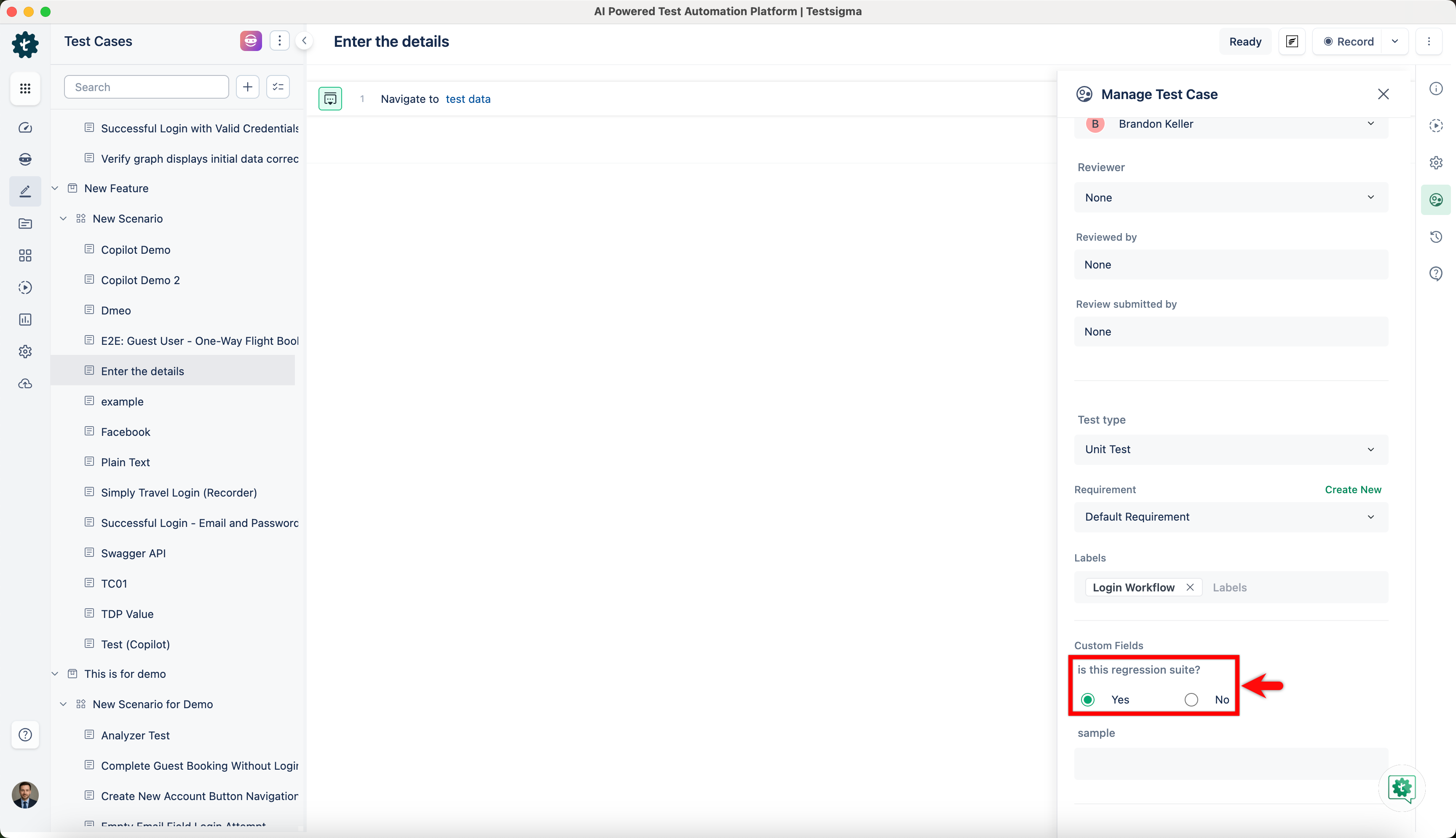
| Manage Test Case | Status, priority, assignee, reviewer, test type, requirement, labels, and custom fields |
| Activity | History and comments |
| Help | Examples, the action list, and get-started guides |
Prerequisites
Section titled “Prerequisites”A prerequisite is another test case that runs before this one, so the environment is ready before the test starts. Select it under Test Case Settings > Pre-Requisites, then choose how it runs:
- Always run Pre-requisite: runs the prerequisite every time. Use it when the prerequisite generates runtime or dynamic data.
- Only execute failed Pre-requisite iteration(s): reruns only the iterations that failed and skips the ones that passed. Use it when the setup is needed once, or when rerunning only the failures saves time.
A prerequisite also applies to a dry run, where the test case runs after its prerequisite. The order is visible as the Execution sequence on the test case results page.
Test data
Section titled “Test data”Select a Test Data Profile when the test steps use parameter-type test data, then select the Test Data Set within that profile for the test case to use. Test data profiles covers profiles and sets themselves.
Turn on Data-Driven to run the test case once per data set, and narrow which data sets run with one of these filters:
| Filter | What it does |
|---|---|
| Iteration | Filters sequential data sets, with greater than, less than, or between |
| Set Name | Filters non-sequential data sets by name, with between, equals, contains, starts with, or ends with |
| Parameter | Filters non-sequential data sets by the parameters used in them |
Visual testing
Section titled “Visual testing”Turn on Fail Test Case if Visual Testing Fails to fail the test case when a visual difference is found during execution.
After test case
Section titled “After test case”After Test Case holds a block of steps that runs once the test case finishes, such as clean-up or preparation for the next test case. The test case and the after-test block execute independently of each other.
Turn on the AfterTest Case toggle in Test Case Settings, then set If AfterTest fails:
- Fail the test: fails the test case when a post-test action errors.
- Show Testcase Result: shows the result anyway, so you see how the test itself behaved.
In a data-driven test case, a When to execute AfterTest steps dropdown appears as well:
- Run after all iterations: runs the after-test block once, when every iteration has finished.
- Run after each iteration: runs it at the end of every iteration.
Turn on Mark this for AfterTest Suite to run the test case in a test suite’s clean-up phase. The suite carries its own settings for this, under Test Suite settings > AfterTest Suite: When to Execute AfterTest Suite offers Once After All Test Cases or For Every Test Case, and If AfterTest Suite fails offers Show the test suite result or Fail the test suite.
Workflow fields
Section titled “Workflow fields”Manage Test Case carries the fields your team tracks work with.
| Status | Meaning |
|---|---|
| Draft | Work in progress |
| Review | Under inspection |
| Ready | Active and ready to run |
| Obsolete | No longer valid |
| Rework | Needs updating |
| Priority | Meaning |
|---|---|
| Critical | Highest priority |
| Major | A major feature |
| Medium | Medium priority |
| Minor | A minor feature |
| Test type | Tests |
|---|---|
| Unit Test | Individual components in isolation |
| Integration | Interaction and compatibility between components |
| Functional | Functional requirements against the specification |
| Non-functional | Performance, usability, security, and similar |
| User Experience | Overall usability and interface against user expectations |
The rest of the panel:
- Assignee: the team member the test case belongs to. They are notified when it fails during reviews.
- Reviewer: the team member who checks it for accuracy, completeness, and adherence to standards.
- Requirement: the requirement the test case traces to.
- Labels: categories such as module, component, or testing phase, used for filtering and search.
Disable a test case in a test plan
Section titled “Disable a test case in a test plan”A test case can be excluded from one test plan without changing the test case itself.
-
Open the test plan and go to the Add Test Suites & Link Machine Profiles tab.
-
Click the ellipsis icon (⋮) in the Test Suites section and select Manage Test Case.
-
Clear the test cases you want to disable.
-
Click Update test suites.
Custom fields
Section titled “Custom fields”A custom field adds information of your own to every test case, and becomes a filter on the test case list. Custom fields are defined under Settings > Custom Fields and filled in from the Manage Test Case panel; Custom fields covers both ends.
Was this page helpful?
Thanks for the feedback.