

Create a web or mobile web test case
A web test case runs against a URL, so the first step carries the address and everything after it acts on that page. A mobile web test case is the same thing rendered at a device’s dimensions, so it takes the same 4 routes and differs only in how you record.
| Route | Start from | Best when |
|---|---|---|
| NLPs | Nothing | You know the flow and want exact control |
| Recorder | The page in front of you | The flow is quicker to perform than to describe |
| Testsigma Copilot | The page in front of you | You want Copilot to draft steps for the page as you record |
| QI Home | Requirements, designs, or prompts | You are covering a feature rather than one flow |
Before you start, you need a project and a web or mobile web application, and the Testsigma Recorder extension installed. Copilot also needs Testsigma Terminal running.
Create the test case
Section titled “Create the test case”-
Go to Create Tests > Test Cases.
-
Expand a folder in Test Case Explorer and click the + icon next to a subfolder.
-
Confirm the folder and subfolder, enter a name, and click Create.
-
Enter the URL you want to test on the Test Case Details page, and click Create Step.
That URL step is what the rest of the test case runs against. From here, take one of the routes below.
Add the steps
Section titled “Add the steps”Write each action in plain English on the Test Case Details page. Suggestions appear as you type an action word.
A login flow reads as:
Navigate to https://simply-travel.testsigma.com/Click on Login / Sign Up ButtonClick on Login ButtonEnter robert@gmail.com in the Email Address Input fieldClick on Continue ButtonEnter •••••••• in the Password Input fieldClick on Submit Button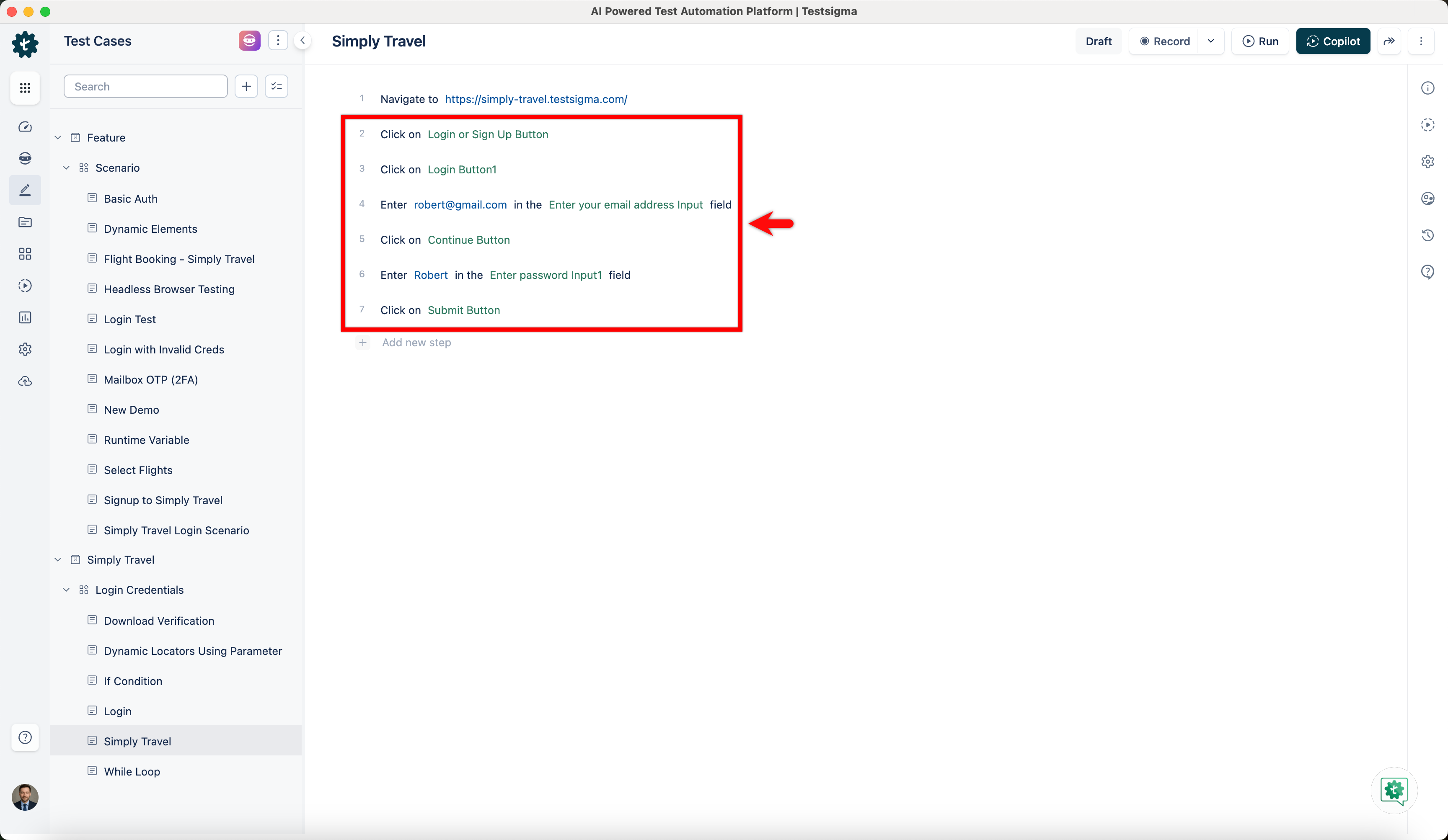
See Create test cases for the full action list and the step types.
On web:
- Click Record on the Test Case Details page. A new window opens.
- Enter the URL to capture from. The Testsigma Recorder appears and waits.
- Perform the actions you want as test steps.
- Click Stop.
On mobile web, the recorder runs inside Chrome DevTools so the page renders at a device’s dimensions:
- Click Record, and enter the URL in the new window.
- Select Companion Mode in the action bar.
- Press F12 to open Chrome DevTools, and dock it to the right of the window.
- Click >> and select Testsigma Recorder. The recorder opens inside DevTools.
- Select the device dimension to record at.
- Perform the actions you want as test steps, and click Stop.
The recorded steps appear on the Test Case Details page, ready to review and run.
- Click Copilot on the Test Case Details page.
- Click Launch in the Copilot overlay. Copilot opens a browser window and runs the URL.
- Click Rec and perform the actions you want as test steps.
- Click Stop recording.
- Click Exit Copilot, then Stop Copilot in the Stop & Exit Copilot dialog.
See Copilot for debugging, step management, and the browser profile.
The Generator agent in QI Home generates whole test cases from requirements, Figma designs, qTest, Confluence, video, files, or a live recording, rather than steps for one flow. See AI agents.
What is specific to web and mobile web
Section titled “What is specific to web and mobile web”Most of what you do next is the same for any application type. These parts are not.
Elements
Section titled “Elements”Web and mobile web elements come from the page’s HTML structure, and both support 7 locator types against 5 on a native mobile app. Three cases only occur here: a CSS selector is the only way to reach inside a Shadow DOM, an iframe element carries its frame details so the test needs no switch to the frame step, and an image element identifies a control by pixel recognition when dynamic behavior keeps breaking an XPath. See Elements.
The recorder
Section titled “The recorder”Mobile web records through Chrome DevTools in Companion Mode, at a device dimension you choose. Web records in a plain browser window. Everything else about the recorder is the same.
Freeze an element with Ctrl + Shift + F, or Command + Shift + F on macOS, to add a verification or an action without repeating the workflow that got you there. Excluded attributes keep captured locators stable when the page rewrites its own attributes. See Recorder extension.
Steps that act on the browser
Section titled “Steps that act on the browser”A long web session fills the test machine’s disk, so start a test case with Delete all cookies from the current session and close spare tabs with the window NLPs. Dropdowns built with the <select> tag take the Select NLPs. Dropdowns built from <div>, <a>, or <span> take a click instead. Basic authentication goes in the URL as protocol://username:password@host. See Create test cases.
Run settings
Section titled “Run settings”Headless testing is available on web but not on mobile web, and records no video. Page Timeout and Element Timeout apply per run. Browser console logs come from extendedDebugging on Testsigma Lab or browserstack.console on BrowserStack. See Run tests.
Desired capabilities
Section titled “Desired capabilities”Desired capabilities set the browser’s behavior for the run: the user agent, extensions, a custom profile, geolocation, site permissions, incognito mode, and network throttling. See Desired capabilities.
Frequently asked questions
Section titled “Frequently asked questions”Why can’t Testsigma open my URL?
Section titled “Why can’t Testsigma open my URL?”Check the URL itself first: the protocol, the slashes, and the spelling in the test case. Open it in an incognito window on your workstation to confirm the site is reachable from there at all.
If it loads for you but not for Testsigma, the application is probably not reachable from outside your network, which happens when it is still in development, hosted on your own machine, or on a company server behind a firewall. Use Testsigma Tunnel, or run on local devices.
Why do pages load slowly in cloud execution but not locally?
Section titled “Why do pages load slowly in cloud execution but not locally?”Rendering engines differ between environments, so a page can stall or load slowly in the cloud and produce missing elements or unperformed actions. Add a Click on the Refresh button in the browser step immediately before the step that fails.
Why does the browser session fail to start?
Section titled “Why does the browser session fail to start?”The error text names the cause.
- “Exception in initiating a browser session in path: timeouts”: the session did not start in time, so Testsigma and the browser never established communication. An outdated Selenium browser driver is the usual cause
- “A session with id … was not found”: the session started but stopped communicating. On Windows that is usually outdated driver files. On macOS it is usually a missing Safari WebDriver extension, or Allow Remote Automation left off
- “The driver server has unexpectedly died!”: the webdriver process that talks to the browser is unresponsive or dead
Safari produces 3 of its own:
- “The session timed out while connecting to a Safari instance”: Safari started, but communication with the driver failed
- “The Safari instance is already paired with another WebDriver session”: a Safari or webdriver process is already running and unresponsive
- “You must enable the ‘Allow Remote Automation’ option in Safari’s Develop menu”: Safari automation is off. See Run tests for enabling it
Why does a step time out waiting for an element?
Section titled “Why does a step time out waiting for an element?”“Element time out is timed out. Details: Expected condition failed: waiting for visibility of element located by …” means Testsigma cannot find the element on the loaded page. Either the locator value is wrong, or the element is not visible. If it is slow to load, add a wait step before it.
Why does the recorder show a blank screen, or report blocked cookies?
Section titled “Why does the recorder show a blank screen, or report blocked cookies?”Both come from Chrome’s third-party cookie setting, and the extension reports the second as “Not able to record as third-party cookies are blocked by the browser”.
Check the Testsigma Recorder extension is installed, then open chrome://settings/cookies, or Chrome > Settings > Privacy and security > Third-party cookies, and select Allow all cookies or Block third-party cookies in Incognito mode.
Why can’t the extension access local files and URLs?
Section titled “Why can’t the extension access local files and URLs?”The extension reports “Not able to access local files and urls”. Go to Chrome > Manage Extensions > Testsigma Extension > Details and turn on Allow access to File URLs.
Was this page helpful?
Thanks for the feedback.