

Accessibility testing
Accessibility testing scans the application against WCAG guidelines and reports what fails. Checks are enabled per test step, so the scan happens at the exact point in the flow you want validated rather than against the application as a whole.
It works on web, Android, and iOS applications, and the workflow is the same for each. Salesforce behaves as a web application here, so every reference to web below covers it too.
Before you start, turn on Web Accessibility Testing - Step Level under Settings > Preferences > Web Accessibility Testing.
Enable accessibility testing on test steps
Section titled “Enable accessibility testing on test steps”Go to Create Tests > Test Cases and open the test case, then take either route.
- Several steps at once: select them, click Update Settings, select Enable Accessibility Testing for the step in the Bulk Update Settings overlay, and click Update
- One step: hover over it, click the ellipsis icon
⋮, select Step Settings, select Enable Accessibility Testing for the Step, and click Update
In the recorder, go to Test Step > Step Settings, select Enable Accessibility Testing for the Step, and click Update.
Repeat for every step you want scanned, then add the test cases to a test suite and the suite to a test plan.
Enable it in the test plan
Section titled “Enable it in the test plan”-
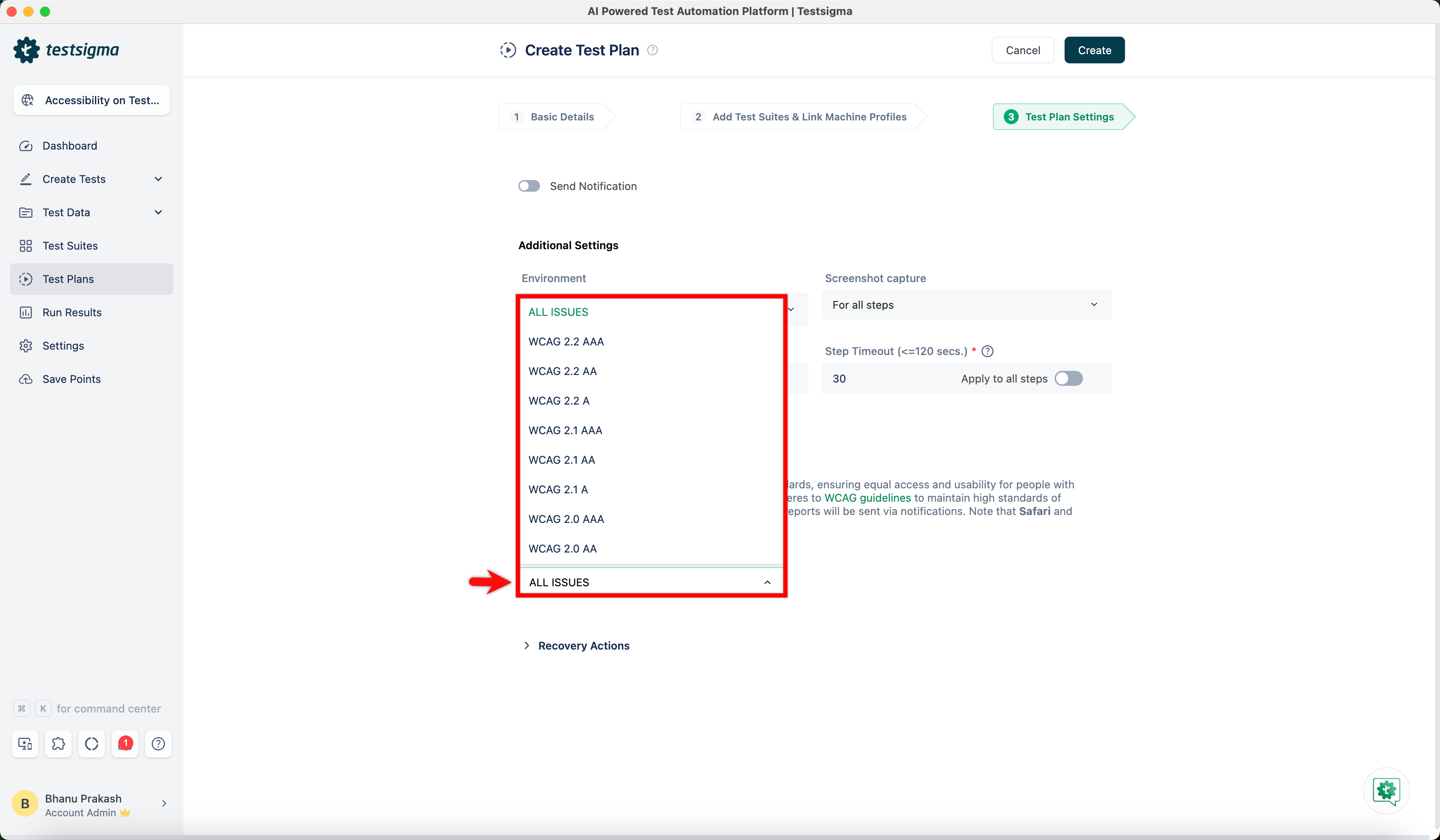
Turn on the Accessibility Testing toggle under Additional Settings while creating the test plan.
-
Expand WCAG Versions & Conformance Level and select the version you are testing against.
-
Click Run Now.
-
Click View Reports for that test plan once execution finishes.
-
Click View Report on the report page to open the accessibility report.
Read the report
Section titled “Read the report”The report has 2 tabs. Overview summarizes the run; All Issues lists every violation with the code behind it.
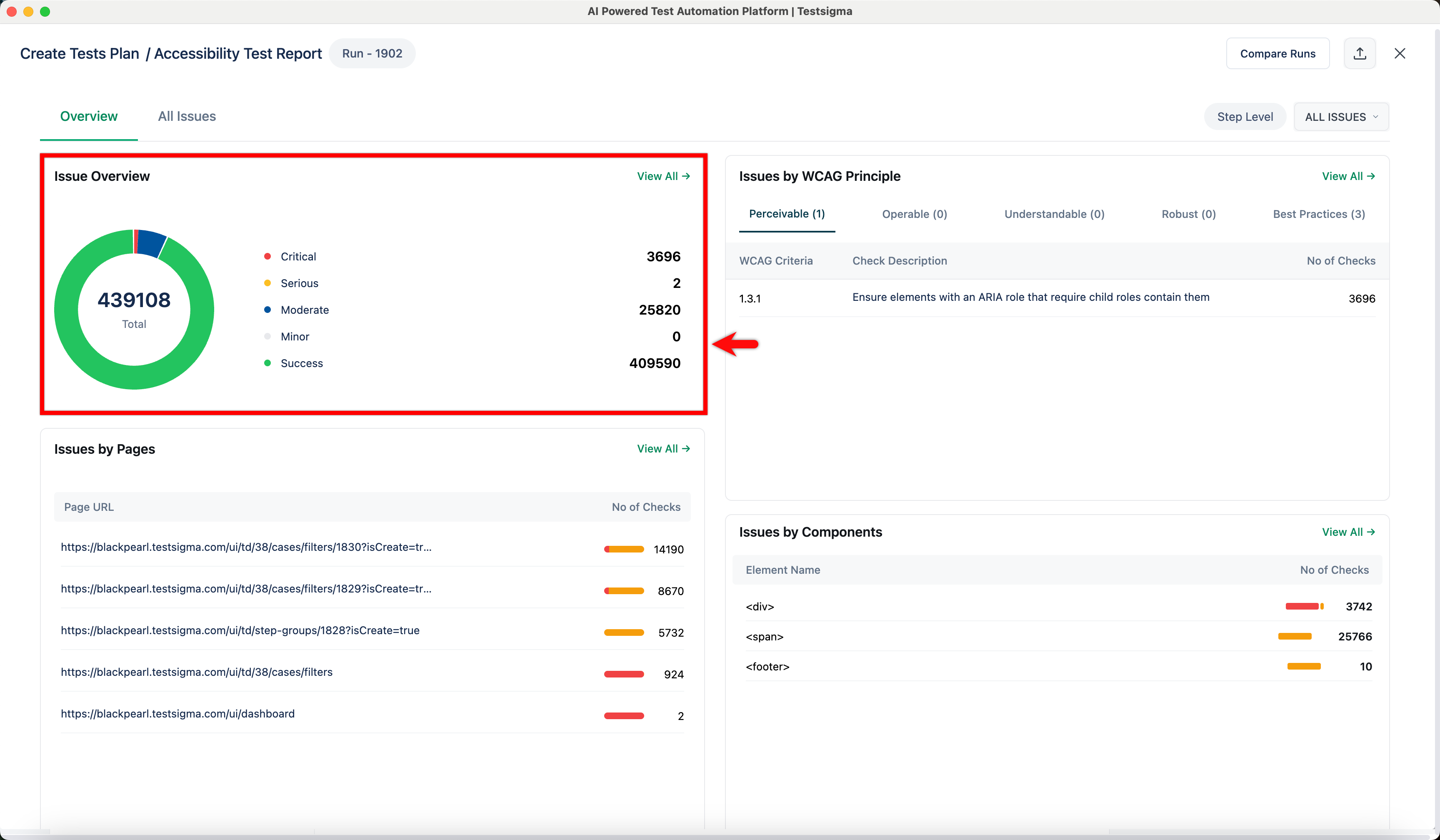
Overview
Section titled “Overview”Four sections, each answering a different question about where the problems are.
- Issue Overview: a donut chart of every issue found, grouped by severity as Critical, Serious, Moderate, Minor, and Success
- Issues by WCAG Principle: findings grouped as Perceivable, Operable, Understandable, and Robust, with the criteria violated and the failed check count for each
- Issues by Pages: every URL scanned, with the number of failed checks on each. Use it to find the worst pages. Web only
- Issues by Components: issues grouped by element type, HTML on web and native UI on Android and iOS, which shows whether one component is causing repeated failures
All Issues
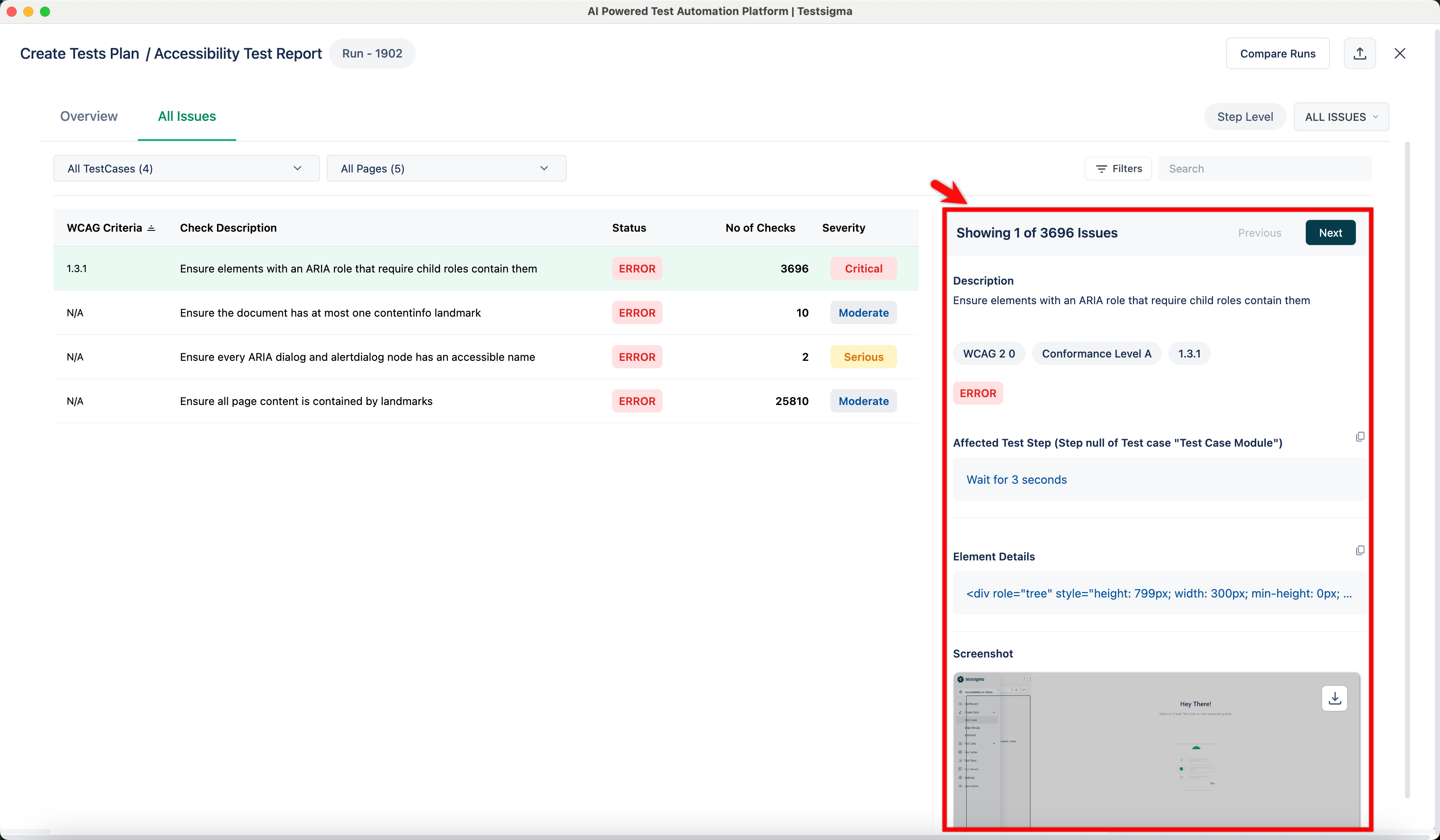
Section titled “All Issues”The tab has 3 parts: the search bar, the issues list, and the details pane.
Search and filter with the dropdowns, which take All TestCases, or a single test case, to narrow the list. On web they also take All Pages or a single page. Filters applies specific criteria and Search finds issues by keyword. The Step Level label confirms issues are shown at test step level, and the status dropdown filters by issue status.
The issues list carries the WCAG Criteria rule ID, which the list can be sorted by, a Check Description, the Status, the No of Checks for how many times the issue occurred, and a color-coded Severity.
Selecting a row opens the details pane:
| Field | What it shows |
|---|---|
| Previous and Next | Cycles through every instance of the selected issue. An issue with 15 checks has 15 instances to inspect |
| Description | The full definition of the violation |
| Tags | The WCAG version and the conformance level, plus the rule ID on web |
| Affected Test Step | The test case and step where the failure occurred |
| Element Details | The code for the element causing the issue, HTML on web and native code on Android and iOS |
| Screenshot | The page or screen element as it was when the error was detected |
Compare and export
Section titled “Compare and export”Compare Runs puts the current report against previous runs, so remediation progress is visible rather than inferred. The export icon saves the report data.
Track accessibility on a dashboard
Section titled “Track accessibility on a dashboard”Eight accessibility widgets are available for an advanced dashboard: Compliance Score, Issues by Severity, Issues by WCAG Criterion, Trend Over Time, Top Issues, Page-Level Health, VPAT Readiness, and Remediation Progress.
They all read from the dashboard’s Standard Selector, which maps your existing test data to a chosen standard without needing new runs. See Dashboards for the standards available and how the selector behaves.
Was this page helpful?
Thanks for the feedback.