

Microsoft Teams
Microsoft Teams integration delivers test plan execution notifications to a Teams channel in real time. The webhook comes from the Workflows app in Teams, powered by Power Automate.
Prerequisites
- Owner or admin access to the target channel, plus Power Automate.
- An existing test plan.
Create a webhook in Microsoft Teams
Section titled “Create a webhook in Microsoft Teams”-
Open Workflows: In Microsoft Teams, go to Apps, then search for and select Workflows.
-
Pick the template: From the list of templates, select Notifications > Send webhook alerts to a channel.
-
Configure the workflow: In the Workflows dialog, wait for the details to load and click Next. Select the Team and Channel where Testsigma notifications should be posted, then click Add workflow. Teams generates a unique Webhook URL.
-
Copy the URL: Copy the Webhook URL.
Configure the webhook in Testsigma
Section titled “Configure the webhook in Testsigma”Your Testsigma account needs permission to manage Settings > Integrations.
-
Open integrations: From the left navigation bar, go to Settings > Integrations > Collaborations > Microsoft Teams.
-
Enable the integration: Turn on the toggle.
-
Enter the details: In the MS Teams details dialog, enter a Name and paste the webhook URL you copied from Microsoft Teams.
-
Save: Click Save & Enable.
Enable notifications in a test plan
Section titled “Enable notifications in a test plan”-
Open plan settings: On the Create Test Plan or Edit Test Plan page, click Test Plan Settings.
-
Turn on notifications: Enable the Send Notification toggle.
-
Pick the statuses: Under Notify On, select the statuses for which you want to be notified.
-
Pick the destination: Under the Also send messages to dropdown, select MS Teams. If an older webhook was configured earlier, replace it with the webhook you created in this guide.
-
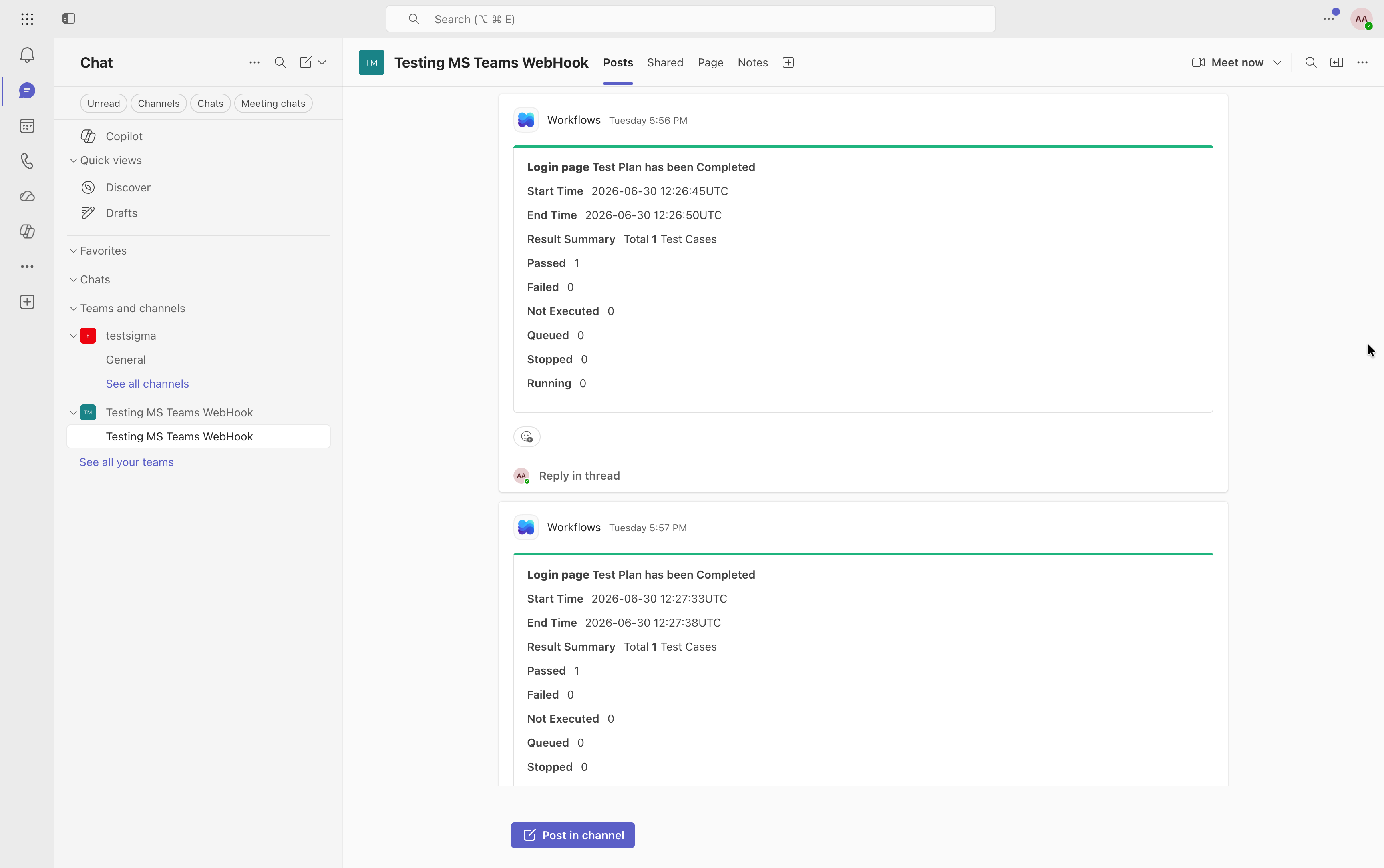
Save the test plan: Save, then run the test plan and confirm the notification is posted to the selected Teams channel.
Troubleshooting
Section titled “Troubleshooting”Notifications are not posted even though the webhook URL is valid
Section titled “Notifications are not posted even though the webhook URL is valid”If the Team and Channel fields in the auto-generated workflow hold a stale or default reference, notifications may fail to post. Re-select both fields in Power Automate to bind the flow to the correct destination.
-
Open the channel: In Microsoft Teams, open the channel you selected while creating the webhook.
-
Open the workflow: Click the more options menu in the channel header, then select Workflows. Locate the workflow you created and select Edit in Power Automate.
-
Open the post action: In the flow editor, expand the section containing Attachments and open the Post card in a chat or channel action.
-
Re-select the destination: In the Team and Channel fields, remove the existing values and re-select the same Team and Channel you used when creating the webhook.
-
Save the flow: Click Save at the top of the Power Automate page.
Was this page helpful?
Thanks for the feedback.